الوسم: Technology

  • Bang & Olufsen Claims New Earbuds Offer Best ANC

    Bang & Olufsen Claims New Earbuds Offer Best ANC

    Bang & Olufsen (B&O) has unveiled its newest wireless earbuds, the Beoplay Eleven. Although their appearance is mostly similar to that of the previous model, the Beoplay EX, B&O claims that these earbuds feature a notable increase in noise cancellation performance at lower frequencies. Additionally, they have been optimally designed to fit a variety of ear shapes and sizes, boasting what the company refers to as “the finest ANC technology in an earbud to date.”

    The retail price for the Beoplay Eleven is set at $499. The Natural Aluminium color option is available starting today, while the Copper Tone variant is expected to launch on December 17.
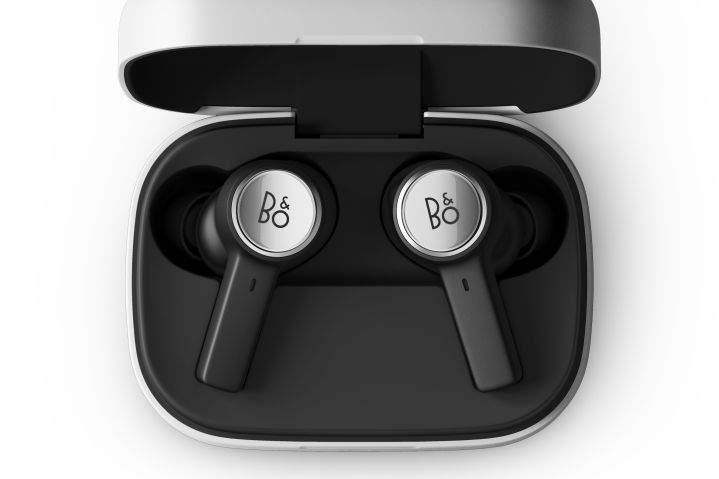
    Bang & Olufsen Beoplay 11.
    Bang & Olufsen

    B&O has also enhanced the transparency mode and made improvements to the microphone opening, resulting in better call quality and reduced wind noise.

    In terms of specifications, the Beoplay Eleven closely mirrors the Beoplay EX. They offer an IP57 rating for dust and water protection, meaning they are effectively water-resistant. The earbuds promise a battery life of up to 6 hours with active noise cancellation enabled (20 hours total with the charging case), or 8 hours without it (28 hours with the case).

    The charging case supports both wired and Qi wireless charging, and a quick-charge feature allows for 1.75 hours of playback after just 20 minutes of charging.

    Bang & Olufsen Beoplay 11.
    Bang & Olufsen

    The Beoplay Eleven retains the 9.2mm Neodymium-magnet dynamic drivers and offers the same Bluetooth codec support, including aptX Adaptive, AAC, and SBC. Notably, Bluetooth Multipoint connectivity enables users to pair two devices simultaneously.

    Interestingly, B&O mentions that the design of the earbuds allows for battery replacement through a service, aligning with European sustainability goals that require replaceable batteries starting February 2027. However, specific details on how the replacements will be carried out have not been disclosed.

    If you’ve been interested in acquiring B&O wireless earbuds but were deterred by the steep price, now might be an opportune moment to consider the older Beoplay EX, which is currently available for just $280—its lowest price to date. Given the minimal differences with the Beoplay Eleven, this purchase could offer excellent value.

  • Are Gaming Laptops Powerful Enough?

    Are Gaming Laptops Powerful Enough?

    In recent years, gaming laptops have surged in popularity, appealing to gamers who desire portability without sacrificing performance. As technology continues to advance, it’s worth examining whether these machines can truly compete with traditional desktop gaming rigs.

    Performance Specifications

    When evaluating the power of gaming laptops, key specifications come into play, including the CPU, GPU, RAM, and storage options. Here’s what to look for:

    CPU (Central Processing Unit)

    • Multi-Core Power: Look for laptops with multi-core processors like Intel’s i7 or AMD’s Ryzen 7 series.
    • Clock Speed: Higher clock speeds generally translate to better performance in demanding applications.

    GPU (Graphics Processing Unit)

    • Dedicated Graphics: Ensure the laptop has a dedicated GPU, such as NVIDIA GeForce RTX or AMD Radeon RX series, rather than relying on integrated graphics.
    • Ray Tracing Support: Newly released GPUs often support ray tracing, providing better lighting and reflections in games.

    RAM (Random Access Memory)

    • Minimum Requirement: A minimum of 16GB RAM is recommended for a smooth gaming experience.
    • Future-Proofing: Opting for 32GB may be worthwhile if you plan to multitask or run resource-intensive applications.

    Storage Options

    • SSD vs. HDD: Solid State Drives (SSDs) offer faster loading times compared to traditional Hard Disk Drives (HDDs).
    • Hybrid Solutions: Some laptops feature dual storage—an SSD for the operating system and frequently played games, alongside an HDD for additional space.

    Portability vs. Power

    Gaming laptops offer the significant advantage of portability, allowing gamers to enjoy their favorite titles on the go. However, this portability comes with some trade-offs.

    Weight and Size

    • Bulkiness: High-performance gaming laptops can be heavier and thicker than average laptops due to cooling systems and hardware.
    • Form Factor: Consider models that balance power with a slimmer profile, making them easier to transport.

    Battery Life

    • Energy Consumption: Gaming laptops often consume more power than standard laptops, leading to shorter battery life during intensive gaming sessions.
    • Use Cases: If you primarily play while plugged in, battery life may be less of a concern.

    Gaming Performance

    The true test of a gaming laptop lies in its performance during gameplay. Several factors influence how well a laptop can run games.

    Frame Rates

    • High FPS: Look for laptops that can deliver consistently high frame rates (60 FPS or above) for a smoother experience.
    • Settings Adjustment: Depending on the game, you may need to adjust graphics settings to optimize performance.

    Cooling Systems

    • Thermal Management: Good cooling systems are essential to prevent overheating and maintain performance during extended gameplay sessions.
    • Fan Noise: Higher performance often correlates with increased fan noise, so consider this if you’re sensitive to sound.

    Final Thoughts

    In essence, gaming laptops can indeed offer powerful performance suitable for dedicated gamers. With advances in technology and a growing selection of high-end components specifically designed for mobile gaming, they are becoming increasingly competitive with desktop setups.

    Ultimately, choosing the right gaming laptop depends on individual needs, whether that be balancing performance with portability, or simply finding a machine that can handle the latest games without breaking the bank.

  • What Is Needed to Set Up Home Theater?

    What Is Needed to Set Up Home Theater?

    Creating a home theater can transform your media experience, allowing you to enjoy movies, games, and shows just as you would in a commercial cinema—right in your living room. However, building your perfect home theater requires some planning and specific equipment. Below are the fundamental components needed to set up an impressive home theater.

    Choosing the Right Space

    Before diving into equipment, selecting an appropriate space is essential. Here’s what to consider:

    • Size of the Room: Ensure the room is large enough for a screen, seating, and acoustic treatment.
    • Lighting: Look for a space that can be darkened effectively. Consider blackout curtains or shades to reduce ambient light.
    • Layout: Think about the arrangement of furniture and equipment. A rectangular room is often better than a square one for sound distribution.

    Essential Components of Home Theater

    After determining the space, it’s time to invest in the main elements of your home theater setup.

    A/V Receiver

    The A/V receiver is the central hub for your home theater system.

    • Functionality: It processes audio and video signals, allowing you to switch between devices.
    • Channels: Choose a receiver with enough channels to support your surround sound system (typically 5.1 or 7.1).

    Display Screen

    The right display will significantly affect your viewing experience.

    Projector vs. TV:

    • Projector:

      • Ideal for larger images.
      • Best for dedicated theater rooms.
      • Requires a dark room for optimal performance.

    • Television:

      • Convenient for multi-purpose rooms.
      • Better for bright environments.
      • High-definition options like 4K or OLED are recommended.

    Audio System

    Great audio can elevate your movie-watching experience.

    • Speakers: Consider the following configurations:

      • Soundbar: Compact and easy to set up; suitable for smaller rooms.
      • Surround Sound System: Typically includes:
      • Front Speakers
      • Center Channel Speaker
      • Subwoofer
      • Rear Speakers

    Cables and Connectivity

    Proper cables ensure that your equipment communicates efficiently.

    • HDMI Cables: Essential for video and audio signals.
    • Speaker Wires: Needed for connecting speakers to the receiver.
    • Power Cords: Check for sufficient outlets and power strips.

    Comfortable Seating

    Comfortable seating can make or break your home theater experience.

    • Recliners: Offers comfort and support for long viewing sessions.
    • Theater-Style Seats: Designed for true cinema enjoyment; might include cup holders.
    • General Seating: Sofas and sectionals can be suitable for casual settings.

    Lighting Design

    Lighting plays a pivotal role in creating the right mood for watching films.

    • Dimmer Switches: Allows for adjustable lighting levels.
    • Smart Lighting: Can be controlled via apps for customized atmosphere.
    • Accent Lighting: Use LED strips or spotlights to enhance the space without causing glare on the screen.

    Additional Enhancements

    Consider these extras to improve your home theater experience:

    • Streaming Device: A device like Roku, Apple TV, or Amazon Fire Stick caters to various streaming services.
    • Universal Remote Control: Simplifies the operation of multiple devices.
    • Acoustic Treatments: Sound panels and carpets can help dampen sound reflections and improve overall audio quality.

    Setting Up a Home Network

    A strong home network is vital for streaming and device connectivity.

    • Wi-Fi Router: Ensure it offers enough bandwidth for streaming high-definition content.
    • Ethernet Cables: For more stable connections, especially for devices often used for streaming.

    Calibration

    Once the setup is complete, consider calibrating your system:

    • Speaker Placement: Adjust positioning for optimal sound balance.
    • Video Calibration: Fine-tune settings for color accuracy, brightness, and contrast.
    • Room Acoustics: Make adjustments based on how sound interacts with your space.

    By carefully considering each of these components, you can create a home theater that not only matches your aesthetic preferences but also delivers high-quality audio-visual experiences. Enjoy setting up your space and preparing for countless movie nights!

  • Viture’s Pro Neckband Gives AR Glasses Extra Powers

    Viture’s Pro Neckband Gives AR Glasses Extra Powers

    Viture has established itself as a leader in smart glasses, offering some of the top models currently on the market. As the demand for innovative tech accessories grows, the company has introduced its latest product: the Pro Neckband, designed to enhance the functionality of its smart glasses.

    Elevate Your Experience with the VITURE Pro Neckband Launching on 11/26!

    The Pro Neckband not only expands the capabilities of Viture’s smart glasses but also enhances battery longevity. Currently, users primarily operate Viture smart glasses through the Spacewalker app, available on both iOS and Android. This app allows users to display several virtual screens, browse the internet, and access content, but it is limited to this functionality without the ability to run other applications, which can be a drawback.

    The Pro Neckband changes all of that. It operates as an independent Android device that Viture claims can support “millions of applications” within a multi-window spatial computing interface. The company refers to this advancement as “the enhancements you’ve been waiting for.”

    Viture's Pro Neckband against a vibrant backdrop
    Viture’s Pro Neckband is a hands-free device capable of running Android applications. Viture

    Similar to the Xreal Beam Pro, the Pro Neckband incorporates advanced functionalities akin to Apple’s Vision Pro headset and Rokid’s AR Lite. It features a separate compute module, eliminating the need for smartphone connectivity.

    While virtual reality devices like the Meta Quest 3S have taken cues from augmented reality with sophisticated mixed-reality capabilities, Viture’s smart glasses combined with the Pro Neckband introduce hand-tracking, a functionality traditionally found in VR.

    The Pro Neckband utilizes hand gestures for control. With integrated sensors, it can recognize movements allowing users to manipulate windows and interact with applications through simple wave and pinch motions.

    For those familiar with the original Neckband, the Pro Neckband boasts performance enhancements, offering speeds seven times faster and a GPU that is 40 times more powerful. It also features a lightweight design, longer battery life, and is powered by a 6nm 8-core processor, accommodating up to 12GB of RAM and 256GB of storage, alongside Bluetooth and Wi-Fi 6E connectivity.

    This robust memory capacity supports Viture’s AI assistant, named Vizard, and provides ample space for games and multimedia content. Users can stream from platforms like YouTube and Netflix, enjoying 3D movies or employing Viture’s AI to convert 2D videos into an immersive 3D experience.

    Viture smart glasses and Pro Neckband used to create a virtual screen.
    Viture

    We’re excited to try out this new accessory, as it could position Viture One and Pro smart glasses among the leading wearable AR devices available today.

    Stay tuned for our comprehensive review. In the interim, to learn more about the Pro Neckband and to secure a preorder, visit Viture’s site.

  • Do They Still Make 40 TVs?

    In the ever-evolving world of television technology, many consumers wonder if 40-inch TVs still have a place in today’s market. While larger screens have gained immense popularity in recent years, the 40-inch TV remains a viable option for various viewers.

    The Current Market Landscape

    Shift towards Larger Displays

    • Growing Demand for Size: The trend over the past decade has seen consumers gravitating towards larger screens, often surpassing 50 inches.
    • Home Theater Experience: Many people are creating home theaters, which has led to a preference for larger TVs that offer an immersive viewing experience.

    Still Available Options

    Despite the shift in consumer preferences, 40-inch TVs are still being produced and sold. Here’s why they continue to be a popular choice:

    • Space Efficiency: They fit well in smaller living spaces like apartments and bedrooms.
    • Affordability: Typically less expensive than larger models, making them budget-friendly for many households.
    • Adequate for Moderate Viewing Distances: Ideal for situations where the viewing distance is not extreme, providing a comfortable viewing experience.

    Popular Brands and Their 40-Inch Offerings

    Several well-known manufacturers still produce 40-inch TVs, ensuring consumers have options. Some notable brands include:

    Samsung

    • Offers smart features in their 40-inch models.
    • Known for excellent picture quality and reliable performance.

    LG

    • Features webOS for easy navigation and access to streaming services.
    • Good color accuracy and sharp images.

    Sony

    • Renowned for superior build quality and image processing.
    • Integrates Sony’s Android TV platform for a wide range of apps.

    Factors to Consider When Buying a 40-Inch TV

    When deciding if a 40-inch TV is right for you, consider the following:

    Resolution

    • 1080p (Full HD): Still a common resolution for many 40-inch TVs, providing a decent viewing experience.
    • 4K Ultra HD: Some 40-inch models are available in 4K, offering better clarity and detail, especially for high-definition content.

    Smart Features

    • Built-in Streaming Services: Many modern 40-inch TVs come with pre-installed apps like Netflix, Hulu, and more, allowing for easy access.
    • Voice Control Compatibility: Support for virtual assistants can enhance user experience.

    Connectivity Options

    • HDMI and USB Ports: Ensure the model you choose has enough ports for your devices.
    • Wi-Fi Capability: Essential for streaming content without the need for physical connections.

    Where to Purchase 40-Inch TVs

    40-inch televisions can be found in various retail outlets, as well as online marketplaces. Popular places to shop include:

    • Electronics Stores: Chains like Best Buy or Fry’s Electronics often have a selection of models.
    • E-commerce Websites: Amazon, Walmart, and Newegg generally offer competitive pricing and user reviews.
    • Local Retailers: Smaller stores or local classifieds can lead to good deals, especially on used models.

    Final Thoughts

    While the trend is leaning towards larger screens, 40-inch TVs remain a relevant choice for consumers seeking a compact, budget-friendly option. With major brands still manufacturing them and a variety of features available, they continue to hold value in today’s market.

  • How Can I Get WiFi on My Computer Without WiFi?

    How Can I Get WiFi on My Computer Without WiFi?

    If you find yourself in a situation where you need to connect your computer to the internet but don’t have WiFi readily available, don’t fret. There are several methods to get online without a direct WiFi connection. Below are various solutions that can help you connect your computer to the internet using alternative methods.

    Understanding Your Options

    1. Using a Mobile Hotspot

    One of the simplest ways to access the internet is through your smartphone’s mobile hotspot feature. This method allows your phone to share its data connection with your computer.

    • Step-by-Step Guide:

      • Enable Hotspot: Go to your smartphone settings, find the “Hotspot” or “Tethering” option, and turn it on.
      • Set Up Password: Create a secure password for your hotspot.
      • Connect Your Computer: On your computer, search for available WiFi networks, select your mobile hotspot, and enter the password.

    2. USB Tethering

    If you prefer a wired connection, USB tethering can be a great option. This method connects your computer to the internet through your smartphone using a USB cable.

    • Steps to Enable USB Tethering:

      • Connect Your Phone: Use a USB cable to connect your smartphone to your computer.
      • Enable USB Tethering: On your phone, navigate to the settings, and find the “USB Tethering” option to enable it.
      • Access the Internet: Your computer should automatically recognize the connection and give you internet access.

    3. Ethernet Connection

    If you have access to a router but no WiFi, a wired Ethernet connection can be established directly to your computer.

    • How to Set Up Ethernet:

      • Run an Ethernet Cable: Connect one end of an Ethernet cable to the router and the other end to your computer’s Ethernet port.
      • Automatic Configuration: Most systems will automatically detect the connection and configure the settings needed to access the internet.

    4. Using Public Networks

    Many public places such as libraries, cafes, and universities offer free internet access. If you’re in a location with available public WiFi, you can connect without needing your personal WiFi.

    • Connecting to Public WiFi:

      • Locate a Service: Look for a sign that states the availability of free WiFi or ask staff for information.
      • Connect: Search for the network on your computer, connect, and often accept the terms of service if required.

    5. WiFi Extenders or Bolsters

    If you have weak WiFi signals in parts of your home or workplace, using a WiFi extender can help you extend the range of your existing network.

    • Installing a WiFi Extender:

      • Plug In the Extender: Place it midway between your router and the area with a weak signal.
      • Connect to Your Network: Follow the setup instructions to connect the extender to your existing WiFi network.
      • Access the Internet: Once set up, your computer should be able to connect to the internet through the extender.

    Alternate Methods

    1. Bluetooth Tethering

    If you don’t have a USB cable, you can use Bluetooth to share your smartphone’s internet connection.

    • Enabling Bluetooth Tethering:

      • Turn on Bluetooth: Enable Bluetooth on your computer and smartphone.
      • Pair Devices: Pair your phone with your computer through Bluetooth settings.
      • Activate Tethering: On your smartphone, enable Bluetooth tethering in the settings.

    2. Direct Connection via Other Devices

    If you have another device that can connect to the internet (like a tablet), you may be able to share its connection with your computer.

    • Using Another Device:

      • Hotspot Mode: Enable hotspot mode on the connected device.
      • Connect Your Computer: Use the same method as connecting to a mobile hotspot.

    By using one or more of these methods, you can easily connect your computer to the internet even without a direct WiFi connection. Each method can be convenient based on your situation and available resources, allowing you to stay connected wherever you are.

  • Are Projector Screens Any Good?

    Are Projector Screens Any Good?

    When it comes to enhancing your viewing experience, projector screens often come up in discussions among movie buffs, gamers, and educators alike. But are they truly worth the investment? This article dives into the advantages and disadvantages of using projector screens compared to alternative options.

    The Benefits of Projector Screens

    Improved Image Quality

    • Surface Optimization: Projector screens are designed specifically to reflect light effectively, which can result in sharper images and better color accuracy.
    • Specialized Materials: Many screens use fabrics or coatings that enhance brightness and contrast, making them ideal for home theaters or presentations in well-lit rooms.

    Size Versatility

    • Variety of Sizes: Screens come in different sizes, allowing you to choose one that best fits your space and viewing preferences.
    • Adjustable Viewing Area: Some screens are motorized or manual pull-down types that can adjust to different aspect ratios, accommodating various content formats.

    Portability

    • Easy Setup: Many projector screens are lightweight and easy to set up, able to be transported to different locations if needed.
    • Flexible Usage: Ideal for outdoor movie nights or classroom presentations, these screens can be used practically anywhere, providing versatility in how you enjoy content.

    Limitations of Projector Screens

    Price Considerations

    • Cost: High-quality projector screens can range from moderately priced to quite expensive, depending on size and material. This might not fit everyone’s budget, especially if you’re considering other equipment like projectors.
    • Additional Accessories: You may also need to invest in other accessories like stands or remote controls, adding to the overall cost.

    Space Requirements

    • Installation Space: Depending on your setup, you might need a dedicated area to install the screen, which could be challenging for smaller rooms.
    • Wall Compatibility: Not all screens are compatible with all wall types, so if you’re planning to mount it permanently, be sure about your wall’s capabilities.

    Alternative Viewing Options

    Wall Projection

    • Using a Blank Wall: If you’re on a tight budget, a blank wall can serve as an alternative for projecting images. However, this might not provide the same level of detail and brightness that a professional screen can.
    • DIY Solutions: Some people opt for DIY projector screens made from materials like blackout cloth or white paint, although this requires a bit of experimentation to achieve optimal results.

    Ready-Made Solutions

    • Portable Screens: If you prefer a more casual viewing experience, collapsible or portable projector screens are available. They offer convenience but might sacrifice some image quality.

    Choosing the Right Projector Screen

    Factors to Consider

    • Material Type: Different materials serve various purposes. For example, matte screens are great for viewing in ambient light, while glossy screens might be better for dark rooms.
    • Screen Size: Choose a size based on your projector’s capabilities and the distance you will be sitting from the screen.
    • Aspect Ratio: Make sure the screen’s aspect ratio matches your projector to prevent image distortion.

    Installation Types

    • Fixed Frame Screens: These provide a taut surface for the best quality but require a permanent installation.
    • Pull-Down Screens: These offer flexibility, allowing you to store them when not in use, but may not provide a perfectly taut surface.
    • Ceiling-Mounted Options: Great for a seamless look, but installation can be more complicated.

    Projector screens undoubtedly offer numerous advantages for those looking to elevate their viewing experience. By weighing the benefits against the downsides and considering your unique needs and budget, you can make an informed choice about whether a projector screen is right for you.

  • What Replaced the Microsoft Surface Book?

    What Replaced the Microsoft Surface Book?

    The Microsoft Surface Book was a unique offering in the laptop market, known for its powerful hardware, elegant design, and versatile functionality. However, as technology advances and consumer preferences evolve, Microsoft has shifted its focus to new devices. Here’s a closer look at what replaced the Surface Book and how it aligns with modern computing needs.

    Overview of the Surface Lineup Transition

    With the introduction of newer models, Microsoft streamlined its Surface lineup to enhance user experience and simplify choices. Here are the main products that have taken center stage:

    Microsoft Surface Laptop Studio

    The Surface Laptop Studio was one of the most significant additions following the Surface Book. This device bridges the gap between a traditional laptop and a creative powerhouse.

    Key Features:

    • Versatile Design: The unique hinge allows the device to transform from a laptop to a tablet and a drawing surface effortlessly.
    • Powerful Performance: Equipped with the latest Intel Core processors and dedicated GPU options, it’s built for demanding tasks such as graphic design and video editing.
    • High-Resolution Display: The PixelSense touchscreen delivers vibrant visuals, making it ideal for creatives and multimedia consumption.

    Microsoft Surface Pro Line

    The Surface Pro series continues to be a strong contender in the realm of 2-in-1 devices, providing flexibility and performance.

    Surface Pro 9

    The Surface Pro 9 is the latest iteration in this line, combining portability with powerful performance.

    Notable Features:

    • Detachable Keyboard: Users can easily switch between laptop and tablet modes with a detachable keyboard.
    • Versatile Use Cases: Perfect for students, professionals, and creatives alike, the Surface Pro 9 can be used for note-taking, presentations, or graphic design.
    • Support for Surface Pen: Ideal for artists, the stylus features precision pressure sensitivity, enabling detailed work on the touchscreen.

    Surface Go Series

    For those seeking a more affordable and lightweight alternative, the Surface Go series offers a compact solution without compromising quality.

    Surface Go 3

    The Surface Go 3 caters to users who prioritize portability and ease of use.

    Highlights:

    • Compact and Lightweight: Weighing just over 1 pound, it’s designed for users on the go.
    • Affordable Pricing: The Surface Go 3 offers a budget-friendly entry into the Surface ecosystem, making it ideal for students and casual users.
    • Sufficient Performance: Powered by Intel processors, it can handle everyday tasks such as browsing, document editing, and video conferencing efficiently.

    Summary of Replacements

    Here’s a quick recap of the devices that have filled the gap left by the Surface Book:

    • Surface Laptop Studio: A powerful machine with versatile design, suitable for creative professionals.
    • Surface Pro 9: A 2-in-1 device that provides flexibility for various user scenarios.
    • Surface Go 3: A lightweight, cost-effective option for everyday tasks.

    Why Users Might Prefer New Offerings

    With changing technologies and user preferences, many consumers find the new products more aligned with their needs:

    • Enhanced Performance: Modern hardware offers better performance and efficiency.
    • Flexible Usability: Devices with 2-in-1 capabilities cater to a wider range of tasks.
    • Updated Features: Newer models often include improved displays, better battery life, and enhanced connectivity options.

    As technology continues to evolve, Microsoft’s focus on diverse devices allows a broader audience to find what fits their needs best. By replacing the Surface Book with a range of innovative products, Microsoft is meeting the demands of the modern user landscape.

  • What Is a Desktop Computer?

    A desktop computer is more than just a machine; it’s a fundamental tool for work, entertainment, and communication in the modern world. Designed for stationary use, desktop computers provide significant power and versatility, making them popular among both casual users and professionals.

    Components of a Desktop Computer

    Understanding the various parts that make up a desktop computer is crucial for anyone interested in technology. Each component plays a specific role in the overall functionality of the system.

    Essential Hardware

    1. Central Processing Unit (CPU)

      • The "brain" of the computer.
      • Processes instructions and performs calculations.

    2. Motherboard

      • The main circuit board.
      • Connects all components and peripherals.

    3. Random Access Memory (RAM)

      • Temporary storage that allows fast access to data.
      • Affects the speed of everything from applications to the operating system.

    4. Storage Drives

      • Hard Disk Drive (HDD): Older technology, generally offers more storage at a lower price.
      • Solid State Drive (SSD): Newer technology, faster, more efficient, and more reliable, though typically more expensive per gigabyte.

    5. Graphics Processing Unit (GPU)

      • Handles rendering of images and videos.
      • Essential for gaming, video editing, and graphic design.

    6. Power Supply Unit (PSU)

      • Converts electrical power from an outlet into usable power for the computer.

    7. Input and Output Devices

      • Keyboard and Mouse: Main input devices for user interaction.
      • Monitor: Displays visual output from the computer.

    Types of Desktop Computers

    Various types of desktop computers cater to different needs and preferences.

    All-in-One Computers

    • Combines the monitor and CPU in one unit.
    • Saves space and is often more aesthetically pleasing.
    • Popular for home or office environments.

    Tower Desktops

    • Traditional form factor with a separate monitor.
    • Offers more upgrade options and customization.
    • Typically more powerful, making them ideal for gaming or professional use.

    Mini PCs

    • Compact size suitable for limited spaces.
    • Less powerful than traditional desktops but still capable of everyday tasks.
    • Excellent for users who prioritize portability without sacrificing functionality.

    Advantages of Desktop Computers

    Choosing a desktop computer comes with several benefits:

    • Performance: Often more powerful than laptops, especially for intensive tasks.

    • Upgradability: Easier to replace or upgrade components such as RAM, storage, or graphics cards.

    • Cost-Effectiveness: Generally, desktops provide better performance per dollar compared to laptops.

    • Durability: Fixed components and better cooling often lead to longer lifespans.

    • Ergonomics: Larger screens and separate keyboards/mice can create more comfortable working environments.

    Disadvantages of Desktop Computers

    However, desktops also come with some drawbacks:

    • Lack of Portability: Designed for stationary use, making them unsuitable for mobile use.

    • Space Requirements: Larger footprint compared to laptops can be a drawback in small living spaces.

    • Power Dependency: Must be plugged in and cannot operate on batteries.

    Conclusion

    Desktop computers continue to evolve, adapting to the needs of users in various environments. With a deeper understanding of their components, types, advantages, and disadvantages, individuals can choose the best system that aligns with their specific requirements and workflows. Whether for gaming, professional tasks, or everyday use, desktop computers provide a solid foundation for technology needs.

  • What Can a Digital Camera Do?

    Digital cameras have revolutionized the way we capture and share our moments. From family gatherings to stunning landscapes, these devices serve multiple functions that go beyond simple photography. Understanding the capabilities of a digital camera can help both beginners and seasoned photographers make the most of their gear.

    Basic Functions of a Digital Camera

    At its core, a digital camera is designed to take photos. However, it comes equipped with various features that enhance your photography experience.

    Image Capture

    • High-Resolution Photos: Digital cameras can capture images in varying resolutions, with modern models offering thousands of pixels for intricate detail.
    • Video Recording: Many digital cameras support video recording at multiple frame rates, allowing creators to produce high-quality content.

    Lens Variety

    • Interchangeable Lenses: Digital cameras, especially DSLRs and mirrorless models, allow users to swap out lenses depending on the shooting situation.
    • Specialty Lenses: Wide-angle, macro, and telephoto lenses enable diverse photographic styles and perspectives.

    Advanced Features

    Digital cameras come packed with features that cater to different levels of expertise.

    Manual Control

    • Shutter Speed: Photographers can adjust shutter speed to control how motion is captured, whether it’s freezing fast action or creating motion blur.
    • Aperture Settings: Adjusting the aperture allows for a change in depth of field, affecting how much of the photograph is in focus.

    Image Processing

    • Built-in Filters: Many cameras offer filters that can be applied to photos for creative effects without needing post-processing.
    • RAW Format: Shooting in RAW provides greater flexibility in editing, allowing adjustments in exposure, color, and detail without degrading image quality.

    Connectivity Features

    The modern digital camera often includes numerous connectivity options to make sharing images easier and faster.

    Wireless Sharing

    • Wi-Fi and Bluetooth: These features allow direct transfer of images to smartphones, tablets, or computers, streamlining the sharing process.
    • Cloud Storage: Some cameras can back up images automatically to cloud storage services, ensuring you never lose a photo.

    Remote Shooting

    • Smartphone Control: Many cameras can be controlled via a companion app, giving photographers the ability to shoot remotely.
    • Live View Streaming: Certain models can stream live video, making them suitable for events and online presentations.

    Creative Tools

    To enhance the creative process, digital cameras have built-in tools specifically designed for artistic expression.

    Editing Capabilities

    • Creative Modes: Options like panorama, HDR, and timelapse are pre-set modes that simplify complex shooting techniques.
    • In-Camera Editing: Some cameras allow for cropping, rotating, and basic adjustments right after taking the photo.

    Exposure and Lighting Adjustment

    • Histogram Displays: These visual tools help photographers gauge exposure levels, ensuring well-balanced photos.
    • Flash Options: Built-in and external flash units can enhance low-light photography, providing more depth and clarity.

    Specialized Modes

    For specific tasks, digital cameras offer specialized modes that cater to various shooting conditions.

    Scene Modes

    • Portrait, Landscape, Night, Sports: These presets adjust settings automatically to optimize for different environments and subjects.

    Focus Modes

    • Single AF and Continuous AF: Different autofocus modes help achieve sharp focus on still subjects or moving objects, vital for action shots.

    Exposure Compensation

    • Manual Overrides: Photographers can adjust what the camera’s sensor deems “correct” exposure, allowing for artistic control over highlights and shadows.

    Conclusion

    A digital camera is more than just a tool for capturing images; it’s a multifunctional device that allows for creative expression, technical experimentation, and seamless sharing. Whether you are an amateur photographer or a professional, understanding what a digital camera can do opens up a world of possibilities for your photographic journey.

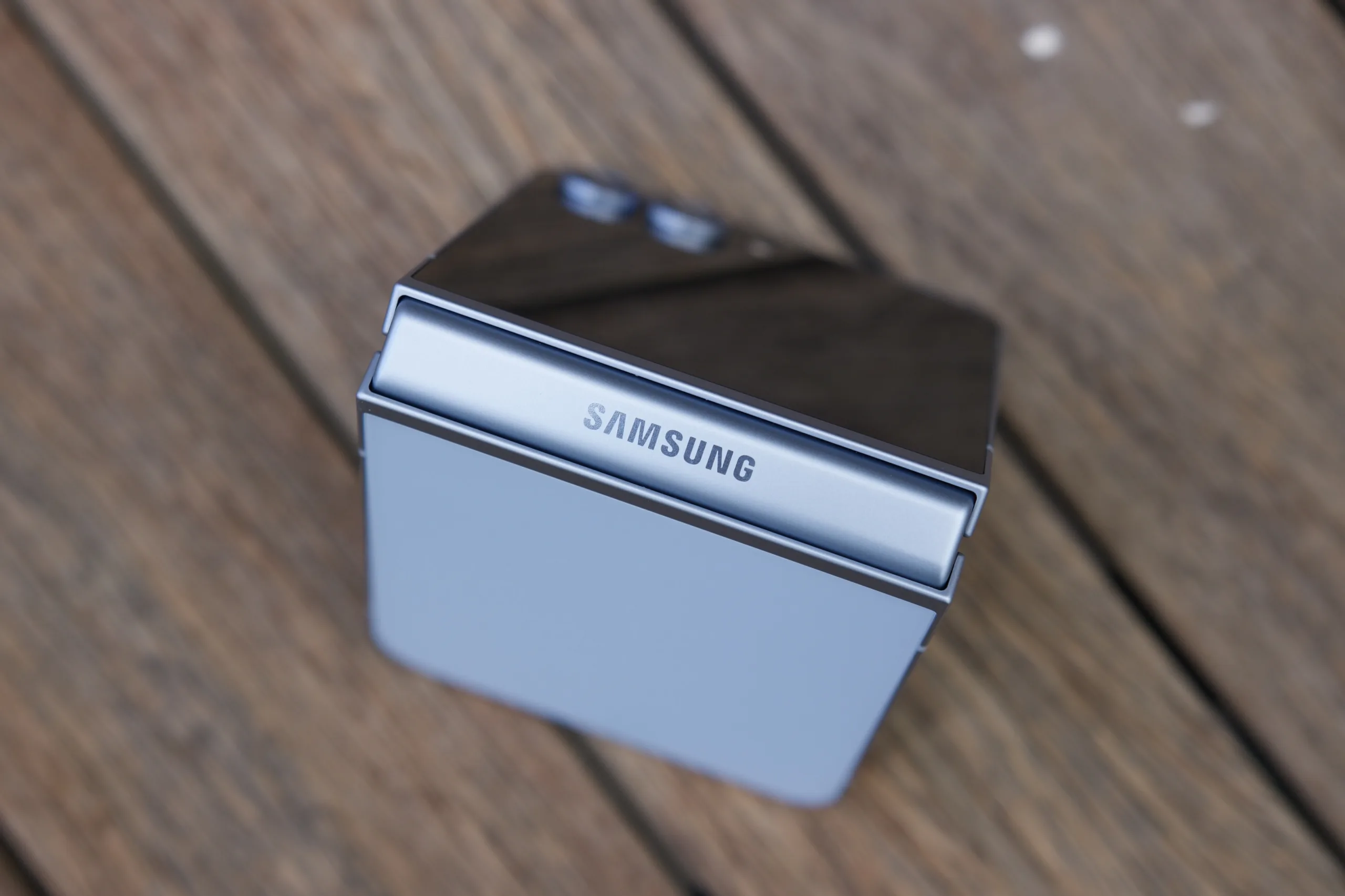
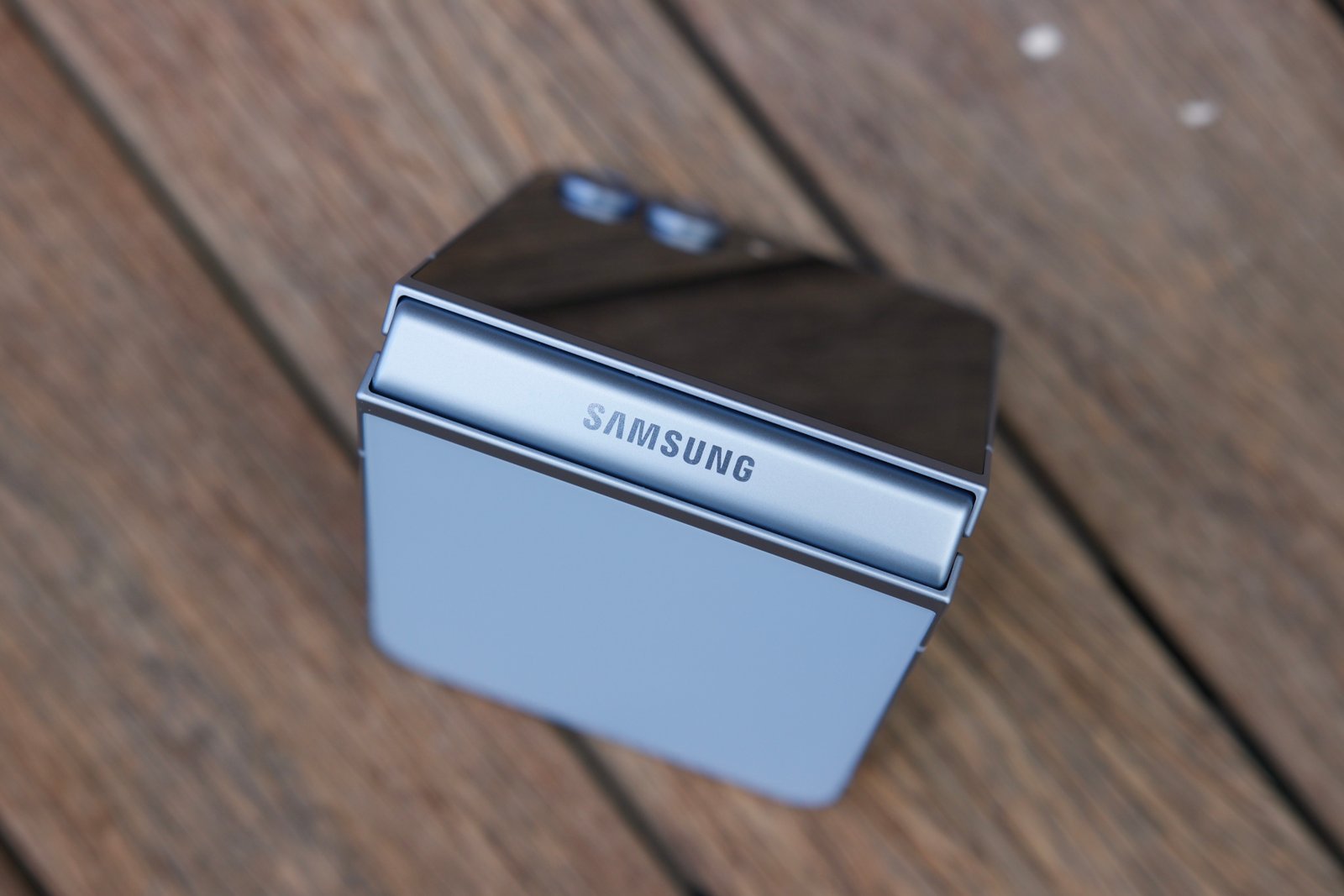
  • Samsung Galaxy Z Flip 7 May Miss Expected Chipset

    Samsung Galaxy Z Flip 7 May Miss Expected Chipset

    As we approach the end of the year, speculation regarding Samsung’s next devices is heating up. The buzz centers around the Galaxy Z Flip FE and the Galaxy Z Flip 7. If these rumors prove to be accurate, it could mark an important milestone for the company.

    According to a source on X, known as @Jukanlosreve, the Galaxy Z Flip FE is expected to be equipped with the Samsung Exynos 2400e chip, which also powers the newly launched Galaxy S24 FE.

    On the other hand, the scoop about the Galaxy Z Flip 7 reveals that it may come with the Exynos 2400 chip.

    For context, the current Galaxy Z Flip 6 runs on the Qualcomm Snapdragon 8 Gen 3 chip, which is also integrated into the Galaxy S24 series. Initially, it was speculated that Samsung would opt for the next-generation Snapdragon 8 Elite chip for the upcoming Galaxy S25 series and the Galaxy Z Flip 7. However, according to the latest information, that seems less likely.

    Close-up of the Samsung Galaxy Z Flip 6 logo.
    Joe Maring / Digital Trends

    Additionally, rumors about the Galaxy Z Flip FE have been making rounds for a while. This “Fan Edition” is anticipated to closely resemble the Galaxy Z Flip 6 but will likely feature a less sophisticated display, limited storage options, and other budget-friendly modifications. As a result, the Galaxy Z Flip FE is expected to be priced lower than the entry-level Galaxy Z Flip 6, which currently retails for around $1,100 in the United States.

    The Galaxy Z Flip 7 is poised to be Samsung’s premier Z Flip offering next year, potentially featuring camera enhancements and other design tweaks that the company may introduce.

    If Samsung does indeed decide to utilize Exynos chips for both the Galaxy Z Flip 7 and the Galaxy Z Flip FE, it will signify a notable shift in strategy. We can expect an announcement for the Galaxy Z Flip 7 around next summer, while the launch date for the Flip FE remains uncertain, although a spring release seems most feasible.

  • What Is the Disadvantage of Curved Monitor?

    What Is the Disadvantage of Curved Monitor?

    Curved monitors have gained popularity in recent years, particularly among gamers and professionals looking to enhance their viewing experience. However, while they come with various benefits, it’s important to recognize the drawbacks they may present. This article delves into some of the key disadvantages of curved monitors, helping you make an informed decision about your next display.

    1. Limited Viewing Angles

    One of the primary disadvantages of curved monitors is their limited viewing angles compared to flat screens.

    What Does This Mean?

    • Color Distortion: When viewed from the side, colors may appear distorted, leading to an inaccurate representation of images.
    • Inconsistent Brightness: The brightness of the screen can vary significantly depending on the angle from which it is viewed.

    Situations Affected

    • Collaborative Work: When several people gather around to view the screen, they may not experience the same image quality.
    • Professional Use: For tasks that require color accuracy (like photo editing), this limitation can be a significant drawback.

    2. Price Tag

    Curved monitors often come at a higher price point compared to their flat counterparts.

    Justifying the Cost

    • Premium Features: While some models justify the cost with advanced features, not all users may find them necessary.
    • Budget Considerations: For users on a tight budget, investing in a curved monitor may not seem worth it, especially when flat monitors offer similar specifications at a lower price.

    3. Desk Space and Size Constraints

    The design of curved monitors usually requires more desk space than traditional flat displays.

    Space Requirements

    • Larger Footprints: Curved monitors tend to take up more space, which can be problematic for smaller desks.
    • Wall Mounting: If you prefer wall mounting, certain curved monitors may not fit well or may be difficult to position correctly.

    4. Glare and Reflection Issues

    Curved screens can sometimes magnify problems related to glare and reflections.

    Why This Happens

    • Curved Design: The shape of the monitor can reflect light in ways that flat screens do not, leading to distracting glares.
    • Placement Challenges: Positioning the monitor to minimize glare can be tricky and often requires strategic adjustments to your workspace.

    Practical Effects

    • Distraction: Reflections can make it hard to focus on the screen, especially in brightly lit environments.
    • Eye Strain: Prolonged exposure to glare can lead to eye fatigue, making lengthy periods of work uncomfortable.

    5. Potential for Distorted Images

    While curved monitors are designed for immersive viewing, they can create unintended distortions under certain conditions.

    What to Watch For

    • Image Warping: Peripheral images can appear warped or stretched, particularly in ultra-wide monitors.
    • Gaming Experiences: In some cases, gaming graphics might not render correctly, leading to an uneven gaming experience.

    Usage Scenarios

    • Non-Gaming Applications: When employed for regular office work or media consumption, these distortions can reduce the overall experience.
    • Software Compatibility: Some applications may not optimize well for curved displays, leading to inconsistency.

    6. Aesthetic Appeal

    The unique design of curved monitors may not appeal to everyone.

    Design Considerations

    • Personal Taste: Some users prefer the clean lines of flat monitors for a more traditional look.
    • Integration with Other Devices: A curved monitor might clash with other flat-screen devices in your setup, affecting overall aesthetics.

    Overall Impact

    • Workspace Cohesion: The choice of a monitor can affect the professional appearance of a workspace, especially in shared environments.

    In summary, while curved monitors can enhance immersion and provide a more engaging viewing experience, they come with several disadvantages. These include limited viewing angles, higher costs, space requirements, potential glare issues, image distortion, and aesthetic concerns. Considering these factors will help you decide if a curved monitor is the right choice for your specific needs.

  • Why Is AirPod Max So Expensive?

    Why Is AirPod Max So Expensive?

    Why Is AirPods Max So Expensive?

    Apple’s AirPods Max, the tech giant’s first foray into high-end headphones, has generated significant buzz since its release. With a price tag that puts it at the upper tier of consumer audio products, many potential buyers are left wondering: what makes these headphones worth the investment? Let’s delve into several factors contributing to the high price of AirPods Max.

    Premium Build Quality

    One of the most noticeable aspects of the AirPods Max is its superior construction.

    • Materials: The headphones boast a stainless steel frame, aluminum ear cups, and a memory foam ear cushion, which not only enhance comfort but also durability.
    • Design: The sleek, minimalist aesthetic is synonymous with Apple’s design ethos, offering a sophisticated look that appeals to many users.
    • Weight: While they are heavier than competitors, the weight contributes to their premium feel and sound isolation.

    Advanced Technology

    Apple has packed a multitude of cutting-edge features into the AirPods Max, making them stand out in a crowded market.

    High-Fidelity Audio

    • Custom Drivers: The AirPods Max uses custom audio drivers that deliver deep bass, accurate mid-range, and crisp highs, creating a premium listening experience.
    • Spatial Audio: This technology allows users to experience surround sound, making it ideal for immersive movie-watching or gaming.

    Active Noise Cancellation

    • Dynamic Noise Control: With active noise cancellation, the AirPods Max uses microphones to monitor and minimize ambient sounds, providing a focused audio experience.
    • Transparency Mode: This feature allows users to toggle between complete immersion in their music and remaining aware of their surroundings, adding versatility to the headphone’s utility.

    Exclusive Features

    Apple includes several features that enhance the user experience, justifying the higher cost.

    • iCloud Integration: Seamless switching between devices allows users to transition effortlessly from listening on an iPhone to watching on an iPad or Mac without the hassle of manual pairing.
    • Digital Crown: The inclusion of a digital knob for volume control and playback adds a touch of sophistication and ease of use.
    • Fast Charging: Offering a quick charging feature ensures prolonged usage with minimal downtime, a must-have for on-the-go users.

    Brand Value and Ecosystem

    Apple’s reputation as a premium brand also significantly influences the pricing of the AirPods Max.

    • Reputation: The Apple brand is synonymous with quality and innovation, enabling the company to command higher prices in the market.
    • Ecosystem Advantage: For users deeply embedded in the Apple ecosystem, the AirPods Max provides an integrated experience that enhances the overall value of their devices.

    Research and Development Costs

    Extensive investment in research and innovation adds yet another layer to the pricing structure.

    • Engineering Precision: The development of sophisticated audio technologies and the engineering required to produce a product of this caliber involve substantial R&D expenses.
    • Quality Assurance: Stringent testing procedures ensure that every unit meets a high standard before reaching consumers, adding to the production costs.

    Market Positioning

    The strategic marketing decisions made by Apple contribute to the product’s perceived value.

    • Premium Market Segment: By positioning the AirPods Max as a luxury product, Apple taps into the consumer demand for exclusive, high-end audio experiences.
    • Limited Availability: Creating a sense of scarcity can elevate demand and justify a higher price point.

    Consumer Expectations

    Lastly, consumer attitudes towards premium products play a crucial role in pricing.

    • Willingness to Pay: Many consumers equate price with quality, leading them to believe that higher-cost headphones will deliver a superior experience.
    • Lifestyle Investment: For some users, spending on high-end headphones is not just about the audio quality but also a lifestyle choice, further justifying the purchase.

    The AirPods Max, with its blend of design, technology, and brand prestige, exemplifies why it’s priced higher than many market alternatives. For audiophiles or those seeking an exceptional headphone experience, the AirPods Max could very well be seen as a worthy investment.

  • Can You Add Remote Start to a Car That Doesnʼt Have It?

    Can You Add Remote Start to a Car That Doesnʼt Have It?

    Remote start systems have become increasingly popular among car owners, providing convenience and comfort by allowing drivers to start their vehicles from a distance. However, many newer cars do not come equipped with this feature. If you’re wondering whether you can add a remote start system to a car that doesn’t have it, the answer is yes! In this article, we will explore how remote start systems work, the options available, and what you need to consider before installation.

    Understanding Remote Start Systems

    Remote start systems enable the driver to start the engine of their vehicle using a key fob or a smartphone app. This can be particularly beneficial in extreme weather conditions, allowing the cabin to warm up or cool down before entering.

    Benefits of Remote Start

    • Comfort: Preconditioning your vehicle’s temperature enhances your driving experience.
    • Convenience: Starting your car from the comfort of your home or office saves you time.
    • Security: Many remote start systems come with added security features, such as the ability to lock the doors.
    • Safety: Warming up your car in winter helps to clear the windshield and ensure safer driving conditions.

    Options for Adding Remote Start

    If your vehicle did not come with a factory-installed remote start system, you still have the option to install an aftermarket system. Here are some choices:

    Aftermarket Remote Start Kits

    These kits come with all the necessary components and instructions for installation. They vary in price, functionality, and complexity.

    • Basic Systems: Provide simple start/stop functionality.
    • Advanced Systems: May include smartphone connectivity, security features, and customizable settings.

    Professional Installation

    For those who might not be comfortable installing a system themselves, hiring a professional is an option. This usually ensures:

    • Proper Installation: Reduces the risk of voiding any warranties or damaging the vehicle’s electrical system.
    • Advanced Features: Professionals can install more complex systems that integrate with your car’s security features.

    Factors to Consider Before Adding Remote Start

    Before making a decision to install a remote start system, consider the following:

    Vehicle Compatibility

    • Make and Model: Ensure that the aftermarket system is compatible with your vehicle. Some systems are designed specifically for certain makes and models.
    • Electronic System: Modern vehicles have complex electronic systems that may complicate installation.

    Installation Complexity

    • DIY Skills: Evaluate whether you have the necessary skills and tools for installation.
    • Time Investment: DIY installations can take several hours, especially if modifications are needed.

    Warranty Implications

    • Manufacturer Warranty: Installing an aftermarket system could potentially void parts of your vehicle’s warranty. Always check with your dealer or manufacturer first.

    Maintenance and Troubleshooting

    Once you’ve installed a remote start system, occasional maintenance may be required. Regular checks can help ensure the system operates effectively:

    • Battery Checks: Regularly check the key fob or smartphone battery to ensure connectivity.
    • Software Updates: Some advanced systems may require periodic software updates for optimal performance.
    • Troubleshooting Common Issues:

      • Car Won’t Start: Check if the system is properly connected and if the battery is functional.
      • Range Issues: Ensure the antenna is mounted correctly for optimal signal transmission.

    By understanding the various options and considerations, you can successfully add a remote start feature to your vehicle, enhancing your driving comfort and convenience.

  • Do I Need a Modem If I Have a Router?

    Do I Need a Modem If I Have a Router?

    In today’s interconnected world, having a reliable internet connection is essential for both work and leisure. Many households and businesses often find themselves wondering whether they need a modem if they already own a router. Understanding the roles of these devices can help clarify this common confusion.

    What is a Modem?

    A modem is a device that serves as the bridge between your home network and the internet. It converts signals from your internet service provider (ISP) into a format that your devices can understand. There are typically two types of modems:

    • Cable Modems: Used for connections through cable networks.
    • DSL Modems: Used for connections through telephone lines.

    Modem Functions

    • Signal Conversion: Modems translate data between the analog and digital formats.
    • IP Address Assignment: Some modems also provide an IP address, allowing devices in a local network to communicate over the internet.

    What is a Router?

    A router is a device that connects multiple devices within a home or office network. It distributes internet access to all connected devices, such as computers, smartphones, tablets, and smart home devices.

    Router Functions

    • Network Management: Routers manage traffic between devices within the local network.
    • Wi-Fi Access: Many routers offer wireless connectivity, allowing devices to connect without physical cables.
    • Security Features: Routers often include firewalls and other security measures to protect the network.

    Do You Need Both?

    The short answer is yes; if you want to connect to the internet through your router, you typically need a modem. While both devices serve specific functions, they complement each other in ensuring that you stay connected. Here’s a breakdown of when you need both:

    Scenarios Requiring Both Devices

    • Broadband Connections: If you’re using cable or DSL internet, you will require a modem to connect to your ISP, and a router to create a network within your home.
    • Multiple Devices: If you want to share your internet connection among multiple devices, a router becomes essential.

    Special Cases

    • Modem/Router Combos: Many ISPs provide modem/router combination devices that handle the responsibilities of both components in one unit. This can be a convenient option if you’re looking to simplify your setup.

    Can a Router Work Without a Modem?

    In certain situations, a router can function without a modem:

    • Local Network Only: If you’re creating a local network for file sharing or connecting devices (such as printers), a router can work independently.
    • Using Another Internet Source: If you connect to the internet in a different way—like through a mobile hotspot—a router can distribute that connection without a dedicated modem.

    Key Takeaways

    • Essential Pairing: A modem is required for internet access, while a router allows multiple devices to connect and communicate.
    • Compatibility Matters: Make sure the modem you choose is compatible with your ISP and meets your internet speed requirements.
    • Consider a Combo Unit: If you’re looking for a streamlined setup, a modem/router combo can reduce the number of devices you need.

    In summary, while a router is necessary for creating a local network, a modem is indispensable for accessing the internet through most traditional connections. Evaluating your needs and understanding how these devices interact can help you find the right equipment for your online activities.

  • Apple May Face More Delays With iOS 19 Next Year

    Apple May Face More Delays With iOS 19 Next Year

    This year, Apple made its mark in the AI field with the introduction of Apple Intelligence. However, 2024 also saw a more gradual rollout of feature updates than anticipated, and 2025 may continue this trend.

    Bloomberg reports that several features originally slated for the iOS 19 update have been postponed. Notably, an upgrade to Siri, which would enhance its conversational abilities, has been delayed until Spring 2026.

    According to the same report, a surprisingly large number of features initially planned for inclusion in iOS 19—beyond just the new Siri—are now set to be released in spring 2026 with the iOS 19.4 debut. This pattern aligns with Apple’s recent history of rolling out new features during the iOS 18 cycle.

    Just weeks after the WWDC 2024 conference in June, it was indicated that Apple had pushed back several promising features related to Siri and Apple Intelligence. Some anticipated functionalities, including third-party app integration, have yet to be introduced and are expected next year.

    iOS 18 logo on the iPhone 16 Pro
    Nirave Gondhia / Digital Trends

    A senior Apple executive, in a conversation with The Wall Street Journal, mentioned that the company is adopting a careful strategy when it comes to rolling out features in the Apple Intelligence ecosystem.

    “You could release something prematurely and end up with a chaotic result. Apple’s philosophy is more about ensuring each component is polished before launching it,” stated Craig Federighi, Apple’s Senior Vice President of Software Engineering.

    Unlike its competitors like OpenAI’s ChatGPT or Google’s Gemini, Apple Intelligence has not experienced the same problematic issues. Generative AI models often face challenges such as creating false information and erratic behavior, which Apple seems keen to avoid.

    An experiment with Google’s Pixel Studio app revealed some concerning outputs, such as an inappropriate SpongeBob image with a Nazi theme. My own experiences with platforms like Gemini and ChatGPT have ranged from disappointing to downright absurd.

    Apple Intelligence update on iPhone 15 Pro Max.
    Apple Intelligence has encountered significant delays extending into 2025. Nadeem Sarwar / Digital Trends

    The well-known error-prone nature of generative AI may explain Apple’s hesitance to fully dive into artificial intelligence integration in its software. Thus far, Apple Intelligence seems to be focusing on simpler, less risky applications rather than pursuing high-stakes, ambitious goals.

    Conversely, Apple risks falling behind in the race with its competitors. Companies like Google and Microsoft have already embedded their AI technologies into widely used applications like Workspace and Office 365, along with various integrations at the operating system level.

    We are still several months away from unveiling what Apple has in store for iOS 19. Moreover, many features from iOS 18 that were highlighted at Apple’s annual developers’ conference are still pending their public release.

    As for competitors, Google is gearing up to showcase its significant innovations around the same time as Apple. The search giant has already launched the first Developer Preview of Android 16 and aims to achieve platform stability in the first half of the year.

    This doesn’t necessarily imply that Google intends to overshadow Apple’s prominent June announcement for yearly software updates. However, with delays affecting Apple’s feature delivery, Google has an opportunity to impress smartphone enthusiasts with new software capabilities before Apple takes the stage.


  • Is It Worth Upgrading to Pixel Buds Pro?

    Is It Worth Upgrading to Pixel Buds Pro?

    Upgrading to a new pair of earbuds can be a significant decision, especially when weighing performance, features, and price. Google’s Pixel Buds Pro have generated considerable buzz since their release, but are they really worth the upgrade? Let’s dive into the details.

    Key Features of Pixel Buds Pro

    Before determining if an upgrade is justified, let’s explore what the Pixel Buds Pro offer compared to previous models.

    Active Noise Cancellation (ANC)

    One of the standout features of the Pixel Buds Pro is their advanced Active Noise Cancellation (ANC). This technology allows users to immerse themselves in their music by reducing unwanted background noise.

    • Transparency Mode: This feature lets users hear ambient sounds when necessary, making it ideal for outdoor use or in busy environments.
    • Adaptive Noise Cancellation: The earbuds can automatically adjust based on your surroundings.

    Enhanced Sound Quality

    The audio experience is noticeably improved in the Pixel Buds Pro:

    • Custom 11mm Speaker Drivers: These drivers deliver rich bass and crisp highs.
    • Spatial Audio Support: Creates a more immersive listening experience, especially for movies and games.

    Comfortable Fit and Design

    Ergonomics play a crucial role in any earbud experience:

    • Multiple Ear Tip Sizes: A range of sizes ensures a snug and comfortable fit for various ear shapes.
    • IPX4 Rating: Resistant to water splashes, making them suitable for workouts and outdoor activities.

    Comparison to Previous Models

    To better gauge whether to upgrade, let’s compare Pixel Buds Pro with previous versions like the Pixel Buds A-Series.

    Sound Performance

    • Pixel Buds A-Series: Good sound quality but lacks ANC and spatial audio features.
    • Pixel Buds Pro: Offers superior sound with adjustable ANC, making them not only louder but clearer.

    Battery Life

    • Pixel Buds A-Series: Up to 5 hours of playback with 19 hours total using the charging case.
    • Pixel Buds Pro: Up to 7 hours with ANC on, boasting a total of 20 hours with the case.

    Touch Controls

    • Pixel Buds A-Series: Basic touch controls for play/pause and skipping tracks.
    • Pixel Buds Pro: More customizable controls, allowing for voice assistant prompts, volume adjustments, and more.

    User Experience

    Reviews and user feedback play a crucial role in considering an upgrade. Here are some of the advantages and disadvantages noted by users of Pixel Buds Pro.

    Advantages

    • Seamless Google Integration: Users appreciate the ease of pairing and compatibility with Google Assistant.
    • Enhanced Battety and Features: Positive feedback about prolonged usage without frequent recharging.
    • Comfort: Many users find them more comfortable than previous models.

    Disadvantages

    • Price Point: At a higher price than earlier models, some users question whether the additional features justify the expense.
    • Initial Learning Curve: Some users report that adapting to the new touch controls took time.

    Are They Worth the Upgrade?

    Deciding whether the Pixel Buds Pro are worth it largely depends on individual needs and preferences. Here’s a breakdown of considerations:

    Who Should Upgrade?

    • Frequent Travelers: If you travel a lot and appreciate high-quality ANC, the Pro model might be beneficial.
    • Audio Enthusiasts: If sound quality is paramount for you, the improvements are worth the investment.
    • Fitness Buffs: With water resistance and a secure fit, these earbuds are great for workouts.

    Who Might Not Need to Upgrade?

    • Casual Listeners: If you primarily use earbuds for podcasts or casual music, previous models may suffice.
    • Budget-Conscious Users: If you’re looking for a more economical option, the Pixel Buds A-Series offers great value.

    In summary, upgrading to Pixel Buds Pro depends on how much you value enhanced features and sound quality. If you’re an audiophile or someone who frequently utilizes noise-canceling capabilities, this upgrade could be a wise investment.