الوسم: Technology

  • How To Add A Asus AiMesh Node?

    How To Add A Asus AiMesh Node?

    Asus AiMesh technology allows you to expand your Wi-Fi network seamlessly using multiple Asus routers. By creating a mesh network, you can eliminate dead zones and ensure consistent signal strength throughout your home. Adding an AiMesh node is a straightforward process, whether you’re adding a new router to an existing setup or starting from scratch. This guide will walk you through the steps to add an Asus AiMesh node efficiently.

    Prerequisites for Adding an AiMesh Node

    Before you begin the process of adding an AiMesh node, ensure you have the following:

    • Compatible Asus Routers: Check that the router you want to add as a node is AiMesh-compatible.
    • Firmware Updates: Both the main router and the new node should have the latest firmware installed for optimal performance.
    • Stable Internet Connection: A reliable connection is necessary to proceed with the setup.

    Setting Up Your Main AiMesh Router

    To start, set up your primary Asus router if you haven’t done so already. Follow these steps:

    1. Power Up the Router:
      Connect your main router to a power source and turn it on.

    2. Connect to the Internet:
      Use an Ethernet cable to connect to your modem, or set up a wireless connection.

    3. Access the Router Settings:

      • Open a web browser on your computer or mobile device.
      • Enter the router’s IP address in the address bar (usually 192.168.1.1 or router.asus.com).
      • Log in using the admin credentials.

    4. Configure Basic Settings:
      Set up your Wi-Fi SSID, password, and any other essential configurations.

    Adding an AiMesh Node

    Now that your main router is ready, it’s time to add your AiMesh node following these simple steps:

    Step 1: Prepare the AiMesh Node

    • Unbox and Connect:
      Remove the AiMesh node from its packaging and connect it to power.
    • Position the Node:
      Place it within a reasonable distance from the main router for optimal connectivity.

    Step 2: Enable AiMesh on the Main Router

    1. Go to AiMesh Settings:
      In the router settings page, navigate to the “AiMesh” tab.

    2. Initiate the AiMesh Setup:

      • Click on “Add AiMesh Node.”
      • Your router will start searching for available AiMesh nodes.

    Step 3: Sync the AiMesh Node

    1. Press the Reset Button:
      On the new AiMesh node, locate the reset button. Press and hold it for about 5 to 10 seconds until the power LED starts flashing.

    2. Connect to the Main Router:

      • The main router will detect the new node and begin the connection process.
      • Wait for the pairing process to complete, which usually takes a few minutes.

    Step 4: Finalize the Setup

    1. Check Connection:
      Once connected, the AiMesh node’s LED light should indicate a successful connection. A solid light typically means it’s connected properly.

    2. Configure Settings:
      You can adjust settings specific to the AiMesh node through the router interface. Options include:

      • Changing the node’s Wi-Fi name and password
      • Configuring guest network settings
      • Prioritizing devices connected to the node

    Troubleshooting Tips

    If you encounter issues while adding your AiMesh node, consider these troubleshooting suggestions:

    • Distance: Ensure the AiMesh node is within the range of the main router. If it’s too far, the connection may fail.
    • Firmware: Verify that both the main router and the AiMesh node have the latest firmware installed.
    • Factory Reset: If the node isn’t connecting, perform a factory reset on the AiMesh node and try the setup again.
    • Network Refresh: Restart both the main router and the AiMesh node to refresh the network.

    Benefits of Using Asus AiMesh

    Using Asus AiMesh technology brings several advantages, such as:

    • Extensive Coverage: Eliminate Wi-Fi dead zones by extending your network coverage.
    • Seamless Roaming: Experience uninterrupted connectivity as you move through your home.
    • Easy Management: Manage all routers and nodes from a single interface, streamlining your network control.

    By following these steps, you can easily add an Asus AiMesh node to enhance your Wi-Fi experience. Enjoy consistent and reliable internet connectivity throughout your living space!

  • How Can Getting My Device Back On My Asus Laptop?

    How Can Getting My Device Back On My Asus Laptop?

    If you’re an Asus laptop user, you may occasionally face issues when your device doesn’t seem to recognize external gadgets or fails to connect to a network. Whether it’s a missing USB device, a malfunctioning display, or a network connection problem, this guide will walk you through some effective strategies to troubleshoot and recover your device’s functionality.

    Troubleshooting External Device Connection Issues

    Check Physical Connections

    Before delving into software solutions, ensure that all external devices are physically connected properly.

    • Inspect Cables: Look for any frayed cables or loose connections.
    • Try Different Ports: Utilize different USB ports to see if a single port is faulty.
    • Use Another Device: If possible, test the external device on another laptop or computer to rule out issues with the device itself.

    Restart Your Laptop

    Sometimes, a simple restart can resolve connectivity issues. Here’s how to do it:

    1. Save Your Work: Ensure that all your work is saved to prevent data loss.
    2. Reboot: Click on the Windows icon, select "Power," and choose "Restart."
    3. Reconnect Devices: Once the laptop is back on, reconnect your devices.

    Update Device Drivers

    Outdated or corrupt drivers can cause connectivity problems. Follow these steps to update:

    • Open Device Manager: Type “Device Manager” in the Windows search bar and open the application.
    • Locate Your Device: Find the category that corresponds to your device (like Universal Serial Bus controllers for USB devices).
    • Update Driver:

      • Right-click on the device.
      • Select “Update driver.”
      • Choose “Search automatically for updated driver software.”

    Uninstall and Reinstall the Device

    If updating doesn’t help, try uninstalling and reinstalling the device drivers.

    1. Access Device Manager: Repeat the previous steps to open Device Manager.
    2. Uninstall Device: Right-click on the problematic device and select “Uninstall device.”
    3. Disconnect and Reconnect: After uninstallation, unplug the device and reconnect it. Windows will automatically reinstall the drivers.

    Fixing Network Connection Problems

    If your Asus laptop isn’t recognizing Wi-Fi or Ethernet connections, try these troubleshooting steps:

    Run the Network Troubleshooter

    Windows has a built-in troubleshooter designed to diagnose and fix networking issues.

    • Settings Menu: Navigate to "Settings" > "Network & Internet" > "Status."
    • Run Troubleshooter: Scroll down to find and click on “Network troubleshooter.” Follow the prompts to detect and resolve issues.

    Reset Network Settings

    Resetting network settings can resolve persistent problems.

    1. Open Settings: Go to "Settings" > "Network & Internet."
    2. Network Reset: At the bottom of the page, locate "Network reset" and click on it.
    3. Confirm the Reset: Click on "Reset now" and confirm.

    Update Network Drivers

    Just like with external devices, network issues may arise from outdated drivers.

    • Device Manager Access: Open Device Manager as described earlier.
    • Identify Network Adapters: Expand the “Network adapters” section.
    • Update Driver: Right-click on your Wi-Fi adapter and select “Update driver.”

    Addressing Display Issues

    If your display isn’t functioning correctly, here are some steps you can take:

    Check for External Display Connections

    If you attempted to connect an external monitor, ensure proper setup.

    • Display Settings: Right-click on the desktop and choose "Display settings."
    • Detect Displays: Click on "Detect" to see if the laptop recognizes the external monitor.

    Adjust Screen Brightness

    A dim or completely dark screen might just be a brightness setting issue.

    • Function Keys: Use the function keys (usually labeled with sun icons) to increase brightness.
    • Windows Settings: Access "Settings" > "System" > "Display" and adjust the brightness slider.

    Update Display Drivers

    For display-related issues, make sure your display drivers are also up to date using the steps previously described for other devices.

    By following these outlined troubleshooting steps, you can often restore the functionality of devices connected to your Asus laptop. Whether you’re dealing with USB devices, network connections, or display problems, the solutions above can help you get back online and working efficiently.

  • How To Screenshot On Asus Laptop?

    How To Screenshot On Asus Laptop?

    Taking screenshots on your Asus laptop can be a helpful way to capture important information, share visual content, or save memories from your screen. Whether you’re using Windows 10 or Windows 11, there are several methods you can use to take a screenshot. Below, we will explore the various techniques so you can easily capture what you need.

    Using the Keyboard Shortcuts

    The most straightforward way to take a screenshot on an Asus laptop is by using keyboard shortcuts. Here are the main options available:

    Full-Screen Screenshot

    • Press the PrtScn Key:

      • This key might be labeled PrtSc, PrtScn, or Print Screen.
      • When pressed, it captures the entire screen and copies the image to your clipboard. You can then paste it into an image editing tool (like Paint) by pressing Ctrl + V.

    Active Window Screenshot

    • Press Alt + PrtScn:

      • This combination captures the currently active window.
      • Just like the full-screen method, this image will also be copied to your clipboard for pasting.

    Snipping Tool / Snip & Sketch

    For more control over your screenshots, you can use built-in tools.

    • Open Snipping Tool:

      • Search for "Snipping Tool" in the Windows search bar.
      • You can select from different types of screenshots:

        • Rectangular Snip: Drag the cursor to select a specific area.
        • Freeform Snip: Draw a shape around the area you want to capture.
        • Window Snip: Capture a specific window.
        • Full-Screen Snip: Capture the entire screen.

    • Using Snip & Sketch (Windows 10 and 11):

      • Press Windows Key + Shift + S simultaneously.
      • This opens the Snip & Sketch tool, allowing you to select the screenshot type.
      • The captured image is copied to your clipboard, and a notification appears for editing.

    Using the Windows Game Bar

    If you are playing games or using apps in full screen, the Windows Game Bar can be useful for screenshots.

    Steps to Take a Screenshot via Game Bar

    1. Open the Game Bar:

      • Press Windows Key + G to open the Game Bar.
    2. Take a Screenshot:

      • Click on the camera icon or press Windows Key + Alt + PrtScn to capture your screen.
    3. Locate Screenshots:

      • By default, screenshots are saved in the Videos\Captures folder.

    Settings for Saving Screenshots

    You may want to adjust settings to change where screenshots are saved or modify other preferences. Here’s how:

    Modifying Snip & Sketch Settings

    1. Open Snip & Sketch via the search bar.
    2. Click on the three-dot menu to access the settings.
    3. Adjust the settings as desired, including how you wish to receive notifications after taking a screenshot.

    Save Screenshots Immediately

    • If you wish to save a screenshot immediately without pasting, press Windows Key + PrtScn.
    • The screen will dim momentarily, and the screenshot will be saved in the Pictures\Screenshots folder.

    Tips for Efficient Screenshot Management

    • Use a Dedicated Folder: Create a folder specifically for your screenshots to keep them organized.
    • Label Screenshots: Rename files immediately after saving them for easier retrieval later.
    • Edit Screenshots: Use built-in apps like Paint or Photos for quick edits, such as cropping or annotating.

    Using these methods, taking a screenshot on your Asus laptop can be quick and efficient, allowing you to capture and share any important information or visuals with ease.

  • Robotic Pool Cleaner Unveiled With 15-Hour Battery Life

    Robotic Pool Cleaner Unveiled With 15-Hour Battery Life

    The iGarden pool cleaners near a pool.
    iGarden
    The CES 2025 logo.
    CES 2025
    Discover our comprehensive coverage of CES here
    Updated just now

    At CES 2025, iGarden showcased several innovative products, but the TurboX and TurboX Master robotic pool cleaners captured the most attention. Both models are engineered to simplify pool upkeep, but it was the TurboX Master that truly impressed with its remarkable 15-hour runtime.


    CES Brand Spotlight Banner
    Digital Trends received compensation for considering coverage of these products. The brand had no input on the editorial content and did not influence the coverage.

    The TurboX Master is set to be available in April, promising to shake up the robotic pool cleaner market. Unlike most competitors that need to recharge after a few hours, this model can operate for a staggering 15 hours. iGarden claims it holds a Guinness Record for the longest uninterrupted operation of a robotic pool cleaner, attributed to its innovative AI-inverter technology that enhances battery performance while delivering top-tier cleaning.

    This robot is equipped with advanced infrared sensors, a gyroscope, and a feature that enables it to return to its starting point when the battery is low, making it a well-crafted device. Its sleek design draws inspiration from supercars, putting it on par with premium pool cleaners from brands like Polaris, Aiper, and Beatbot.


    Please enable Javascript to view this content

    This cleaner can effectively tackle both the waterline and stubborn stains like algae from the pool floor. iGarden mentions that it is compatible with various pool shapes and sizes, ensuring a comprehensive clean.

    Cleverly, users can set cleaning schedules or highlight specific areas that require extra attention, like walls or floors. With a month-long standby capability, you won’t frequently need to recharge the robot or handle manual maintenance. Depending on your settings and pool dimensions, you might only need to power it up once a month—a significant advantage over many robotic pool cleaners that require recharging after each cycle.

    In addition, the TurboX Master boasts a user-friendly touchscreen interface, a two-year warranty, and a UV-resistant exterior, making it a product to watch. More information on pricing is anticipated soon.

  • Dreame X50 Ultra Robot Vacuum Easily Hops Over Small Obstacles

    Dreame X50 Ultra Robot Vacuum Easily Hops Over Small Obstacles

    CES 2025 Feature Image
    CES 2025
    Explore our comprehensive coverage of CES here
    Updated recently

    Robot vacuums provide a significant level of convenience, especially for single-level homes. However, when faced with stairs or elevation changes, these devices often require some assistance. Enter the Dreame X50 Ultra, the latest flagship model from Dreame, which features a lift system that enables it to scale small steps, handling elevations up to 6 centimeters (or approximately 2.36 inches). The innovative ProLeap System stands out as one of the first of its kind, employing levers that allow it to easily navigate obstacles such as cords and transition strips.


    CES Brand Spotlight Banner
    Digital Trends received compensation for considering coverage of these products. Editorial content was not influenced by the brand.

    The Dreame X50 Ultra is equipped with the VersaLift Navigation System, allowing it to lower itself sufficiently to clean beneath furniture, including beds and couches. By retracting its turret, the round component on top of the vacuum, it uses onboard cameras to navigate around and avoid obstacles. With a clearance of 89mm, this robot vacuum is exceptionally adept at maneuvering under tight spaces, recognizing over 200 types of potential obstacles along the way.

    If you’re someone with long hair or if you have pets that shed, dealing with tangled hair in your vacuum can be a hassle. The Dreame X50 Ultra features the HyperStream Detangling DuoBrush, designed to handle hair up to 30cm without any tangles. Moreover, it operates quietly while delivering an impressive suction power of up to 20,000Pa, making it immensely efficient.

    The Dreame X50 Ultra using its lift system to clear obstacles.
    Dreame / Dreame

    In addition to its vacuuming abilities, this robot also features a mopping function. The mechanism can elevate by up to 10.5 centimeters to efficiently clean low-pile carpets. Once its task is complete, the base station automatically cleans the mop, ensuring no leftover residue is left for the next cleaning cycle.

    Another great feature is its voice command functionality. You can easily schedule the Dreame X50 Ultra to clean at designated times, or you can simply say, “OK, Dreame. Start vacuuming” to begin. The user can also customize its cleaning parameters, such as adjusting water output and altering brush height, all with voice commands.

    If you’re interested in purchasing this innovative robot vacuum, you can preorder it now. For a limited time, you can obtain a $390 discount with a $39 coupon, bringing the retail price down to $1,700. This package includes a three-year warranty and additional accessories valued at $150, such as scrubbing pads and brushes.

  • Watch Samsung’s Ad For Upcoming Vision AI Technology

    Watch Samsung’s Ad For Upcoming Vision AI Technology

    Introducing Samsung Vision AI: The Future of Television

    CES 2025 Coverage

    During CES 2025 on Sunday, Samsung showcased its groundbreaking advancements in AI-driven display technologies. Dubbed Vision AI, this innovation aims to redefine televisions and other smart devices into interactive, intelligent companions.

    The South Korean tech giant released a brief advertisement that envisions how Vision AI could significantly enhance the viewing experience for families at home. Check it out above.

    At the core of Samsung Vision AI are an array of personalized features that aim to revolutionize user interaction with displays.

    Below are some key features of Vision AI:

    Click to Search provides instantaneous information about what’s displayed on screen—such as identifying an actor or exploring relevant content—without interrupting the viewing experience.

    Live Translate harnesses an on-device AI translation model to remove language barriers through real-time subtitle translations, allowing viewers to seamlessly enjoy global content.

    Generative Wallpaper transforms screens into dynamic, personalized art displays, enabling users to create visuals that reflect their preferences or special occasions.

    Samsung Food identifies dishes appearing in the shows and movies you watch, even suggesting recipes for them. This feature connects to Samsung’s smart refrigerators to detect missing ingredients and offers to order them directly.

    Samsung Vision AI also promises enhancements in both picture and sound quality. Utilizing on-device AI, the technology analyzes content and surrounding conditions in real time, making dynamic adjustments to visuals and audio for an elevated home theater experience.

    According to Samsung, with Vision AI, “TV gets to know you.” The tagline suggests a highly personalized experience, encouraging users to explore new content, understand it in different ways, and unleash their creativity. “This isn’t just another TV; it’s an entirely new vision. Because the future of television isn’t just about what’s playing but about who’s watching.”

    Interestingly, the advertisement hints that Vision AI might even figure out what the family pet enjoys watching—something we look forward to testing out as this cutting-edge technology becomes available in the coming months.

  • Can You Connect A Asus ROG Ally To A Chromebook?

    Can You Connect A Asus ROG Ally To A Chromebook?

    As technology continues to advance, many users are exploring the idea of integrating multiple devices for an enhanced computing experience. One common question that arises is whether you can connect an Asus ROG Ally gaming device to a Chromebook. This article will delve into the possibility, the necessary steps, and the potential benefits of such a connection.

    Understanding the Asus ROG Ally

    The Asus ROG Ally is a powerful handheld gaming device designed for gamers who want high-performance gaming on a portable platform. It features:

    • High-Resolution Display: Offers a vibrant screen for immersive gaming experiences.
    • Advanced Graphics: Equipped with capable hardware to run demanding games.
    • User-Friendly Interface: Makes navigation and gaming simple and straightforward.

    What is a Chromebook?

    A Chromebook is a laptop that runs on Chrome OS, known for its simplicity, security, and speed. Chromebooks are particularly well-suited for web-based applications and cloud computing. Key features include:

    • Web-Based Operating System: Primarily focuses on internet and cloud services.
    • Long Battery Life: Generally lasts longer than traditional laptops.
    • Affordable Options: Typically more budget-friendly compared to traditional laptops.

    Connecting Asus ROG Ally to a Chromebook

    Required Items

    Before proceeding, ensure you have the following:

    • A Compatible USB-C Cable: This will facilitate the connection between the devices.
    • Proper Adapters: Depending on the ports available on your Chromebook, you might need adapters.
    • Software Requirements: Check for any necessary applications or drivers to make the connection seamless.

    Steps to Connect

    1. Check Compatibility:

      • Make sure your Chromebook supports external display connections.
      • Confirm that your Asus ROG Ally is updated to the latest software version.

    2. Use the USB-C Cable:

      • Connect one end of the USB-C cable to the Asus ROG Ally.
      • Connect the other end to the USB-C port on your Chromebook.

    3. Select the Correct Input:

      • If the Asus ROG Ally has an option to select an input mode (like display or data transfer), ensure it’s set to the appropriate mode.

    4. Adjust Display Settings:

      • On your Chromebook, access the display settings to detect the Asus ROG Ally.
      • You may need to extend or mirror your display depending on your preference.

    Troubleshooting Connectivity Issues

    If you face issues while attempting to connect, consider the following steps:

    • Check Cable and Ports: Inspect for any damage to the cable or ports.
    • Restart Devices: Sometimes a simple restart can resolve connection problems.
    • Update Drivers: Ensure that both devices have the latest software updates.
    • Try Different Ports: If available, switch ports on your Chromebook to see if that resolves the issue.

    Benefits of Connecting the Devices

    Integrating an Asus ROG Ally with a Chromebook can enhance your productivity and gaming experience. Here are some of the advantages:

    • Larger Display for Gaming: Utilize the Chromebook’s larger screen for a more immersive gaming experience.
    • Multi-tasking: Run multiple applications across the devices, improving overall efficiency.
    • Shared Resources: Use the Chromebook’s storage and cloud capabilities alongside the ROG Ally for better game storage and access.

    Limitations to Consider

    While connecting these two devices offers numerous benefits, some limitations may affect your experience:

    • Performance Variability: Depending on the Chromebook’s specifications, gaming performance could be limited.
    • Software Compatibility: Some games or applications may not run smoothly across different OS environments.
    • Potential Lag: The connection might introduce some latency during gameplay, affecting performance.

    As tech enthusiasts continue to explore innovative ways to blend devices, connecting an Asus ROG Ally to a Chromebook opens up a world of possibilities. By understanding the steps and potential benefits, users can enjoy a richer and more versatile computing experience.

  • CES 2025 Power Bank That Doubles As A Wi-Fi Hotspot

    CES 2025 Power Bank That Doubles As A Wi-Fi Hotspot

    CES 2025
    Explore our in-depth coverage of CES here
    Updated just moments ago

    The Baseus EnerGeek has earned the CES Innovation Awards 2025 Honoree title, and it’s easy to see why. This 20,000mAh power bank is a perfect travel companion, offering a power output of up to 67W via its three available ports; however, the standout feature is its ability to also serve as a Wi-Fi hotspot while you’re on the move.

    This versatile MiFi power bank boasts a portable design and includes an integrated cable that can be converted into a handle or lanyard. Its compact size belies its hefty 20,000mAh capacity.

    The Baseus EnerGeek is equipped with a built-in USB-C cable, two USB-C ports, and one USB-A port, all offering a maximum power delivery of 67 watts. It also features a small display that provides real-time updates on battery life and Wi-Fi status, and its design includes an expanded area for heat dissipation to ensure safe charging with multiple security protection features.

    How does a Wi-Fi hotspot work on a power bank?

    Baseus EnerGeek CES 2025 launch

    One of the standout features of the Baseus EnerGeek is its capability to function as a Wi-Fi hotspot for smartphones, laptops, and other devices. It supports both 2.4GHz and 5GHz bands, allowing the connection of up to eight devices at once. With upload speeds reaching 150Mbps and download speeds of 50Mbps, it provides ample speed for your internet needs. Additionally, it supports dual Wi-Fi and Bluetooth connectivity for enhanced convenience.

    To activate the Wi-Fi hotspot feature, you’ll need an app to manage the eSIM option globally, which negates the need for physical SIM cards while traveling. You can purchase and recharge data via the Baseus app, which offers customizable data plans with no ongoing subscription fees.

    The EnerGeek power bank ensures comprehensive coverage across U.S. mobile networks, supporting 13 global frequency bands. It is compatible across areas such as the U.S., Europe, India, Hong Kong, Taiwan, Japan, Canada, Singapore, and Australia, providing cross-regional 4G network services with claimed international roaming capabilities in over 100 countries.

    Why it matters

    A person holding the Baseus EnerGeek Power Bank.
    Prakhar Khanna / Digital Trends

    The Baseus EnerGeek stands out as one of the most innovative power banks uncovered at CES 2025, addressing a significant challenge travelers often face.

    If you're a digital nomad or remote worker, you know that ensuring reliable internet access is one of the first challenges to tackle when planning a trip. While I usually download an eSIM to my iPhone for hotspot needs, using a dedicated device like this one would conserve battery life on my iPhone 16 Pro, which is known for its less-than-stellar battery performance.

  • How To Update Asus BIOS?

    How To Update Asus BIOS?

    Updating the BIOS (Basic Input/Output System) on your Asus motherboard can enhance system stability, compatibility with new hardware, and improve overall performance. Though the process may seem daunting, it can be straightforward when you follow a step-by-step approach. This guide will walk you through everything you need to know about updating your Asus BIOS safely and effectively.

    Why Update the BIOS?

    Before diving into the update process, it’s essential to understand why you might want to update your BIOS:

    • Improved Compatibility: Newer BIOS versions often include updates that make the system compatible with new hardware, such as CPUs and RAM.
    • Bug Fixes: Manufacturers release updates to resolve bugs that may cause system instability or performance issues.
    • Enhanced Performance: Updates may contain optimizations that improve system performance.
    • Security Patches: Keeping your BIOS updated can protect your system from vulnerabilities.

    Prerequisites

    Before proceeding with a BIOS update, ensure you have:

    • The correct BIOS version for your specific motherboard model.
    • A backup of your important data.
    • A stable power source to avoid interruptions during the update process.
    • A USB flash drive formatted to FAT32.

    Steps to Update Asus BIOS

    Step 1: Identify Your Motherboard Model

    Knowing your exact motherboard model is crucial for downloading the correct BIOS version. Here’s how to find it:

    • Check Your System Settings:

      • Right-click on “This PC” or “My Computer.”
      • Select "Properties."
      • Look for "System Information" or "Device Manager" to find the motherboard model.

    Step 2: Download the BIOS Update

    1. Visit the Asus Support Website:

      • Navigate to the official Asus support page.
      • Enter your motherboard model in the search bar.

    2. Locate the BIOS Section:

      • Click on the “Drivers & Tools” or “Support” tab.
      • Find the “BIOS” section.

    3. Download the Latest Version:

      • Review the available BIOS versions and download the most recent one.

    Step 3: Prepare the USB Flash Drive

    1. Format the USB Drive:

      • Insert the USB drive into your computer.
      • Open “File Explorer,” right-click on the USB drive, and select "Format."
      • Choose “FAT32” as the file system and click "Start."

    2. Copy the BIOS File:

      • Extract the downloaded BIOS file, if it’s in a compressed format.
      • Copy the BIOS file (usually with a .CAP extension) to the root directory of your USB drive.

    Step 4: Access the BIOS Menu

    1. Restart Your Computer:

      • Reboot your system.

    2. Enter BIOS Setup:

      • During boot-up, repeatedly press the “Delete” or “F2” key (the specific key may vary depending on your motherboard model) to access the BIOS.

    Step 5: Update the BIOS

    1. Select the BIOS Update Option:

      • Navigate to the “Tool” menu in the BIOS setup.
      • Choose “ASUS EZ Flash Utility” or a similar option.

    2. Load the BIOS File:

      • Select the USB drive where you saved the BIOS file.
      • Find the BIOS file you copied and select it.

    3. Start the Update:

      • Confirm the update process when prompted.
      • Do not interrupt the update—this could result in a bricked motherboard.

    Step 6: Restart Your Computer

    • Once the update completes, the system will prompt you to restart.
    • Allow your computer to reboot and enter the BIOS setup again to confirm that the update was successful.

    Additional Tips

    • Backup Current BIOS: Before performing the update, consider backing up your existing BIOS. This can usually be done within the BIOS menu under the BIOS tools section.
    • Stay Informed: Monitor the Asus website for any subsequent updates that may be released, as BIOS updates are not infrequent.
    • Avoid Interruptions: Ensure that you update the BIOS when you can maintain power stability (like avoiding updates during thunderstorms or power outages).

    By following these steps, you can update your Asus BIOS with confidence, enhancing your system’s functionality and security. Always remember to double-check the compatibility of the BIOS version with your motherboard model, and only proceed when you feel comfortable with the process.

  • Panasonic Z95B Reveals Hidden OLED TV Tech We Wanted

    Panasonic Z95B Reveals Hidden OLED TV Tech We Wanted

    CES 2025 Feature Image
    CES 2025
    Explore our full coverage of CES here
    Updated less than 44 seconds ago

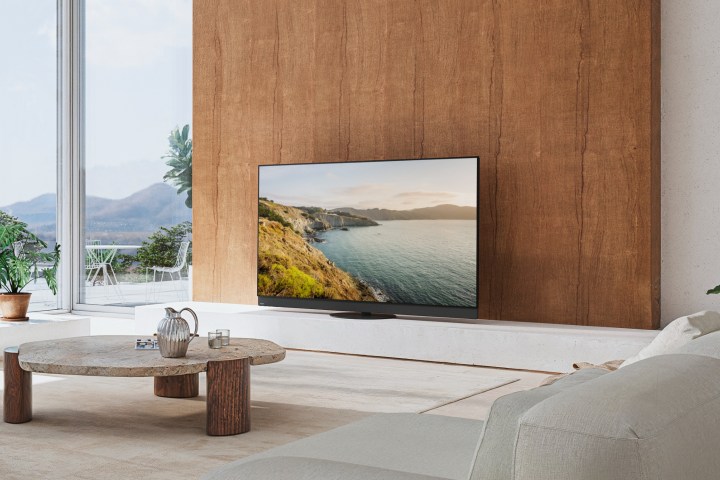
    After a significant hiatus from the U.S. market, Panasonic has made a strong comeback, unveiling not just one, but three new TV models at CES 2025. Among these, the highlight is their premium Z95B OLED model, which integrates spatial audio and a cutting-edge four-layer panel technology designed to enhance color depth and brightness, all without relying on Micro Lens Array (MLA) technology.

    Panasonic Z95B Series OLED TV

    Last year, Panasonic made a notable re-entry into the American market after a decade-long absence, launching two exceptional models: the Z95A OLED and the W95A mini-LED. Experts hailed them as two of the top televisions available. The Z95B OLED is expected to build on its predecessor's success, and preview samples displayed at CES confirm its stunning visual capabilities.

    Panasonic has provided insight into the Z95B's advanced technology, highlighting its "Primary RGB Tandem Panel and ThermalFlow Cooling System." What makes this TV unique is its four-layer emission architecture, featuring distinct layers of red, green, and two blue components. This design enhances light efficiency by 40 percent, improving brightness and color volume significantly and resulting in lifelike, vibrant images.

    The Panasonic Z95B OLED TV.
    The Panasonic Z95B OLED TV. Panasonic

    In addition to the impressive panel technology, Panasonic has developed an innovative cooling mechanism, known as the ThermalFlow system, inspired by racecar aerodynamics. This technology strategically channels airflow through the TV chassis to maintain optimal performance levels, similar to how a racecar functions.

    The Z95B is powered by Panasonic's new HCX Pro AI Processor MK II and includes Dolby Vision IQ with Precision Detail. This feature enhances contrast in darker scenes, delivering that renowned OLED deep black while also providing more vivid detail in Dolby Vision content.

    For gamers, the Z95B offers compatibility with AMD FreeSync Premium, Nvidia G-SYNC, and features a True Game Mode to ensure optimal gameplay visual fidelity. With HDMI 2.1 support and a 144Hz refresh rate, gaming performance is remarkably smooth.

    On the audio front, the Z95B has seen significant improvements. Its redesigned speaker setup includes new line-array, side, and up-firing speakers, along with a new 30-watt subwoofer. Panasonic claims that this audio system, supporting Dolby Atmos and 360 Soundscape Pro, will create a sound experience comparable to that of high-end theaters, with robust low frequencies.

    The Z95B operates on the Fire TV OS, incorporating a Prime Video Calibrated Mode to enhance the viewing experience specifically for Prime Video. Additionally, it supports Apple AirPlay 2 for effortless integration with Apple devices and complies with the ATSC 3.0 digital broadcast standard for superior picture quality over-the-air.

    This OLED TV series will be available in sizes of 55-, 65-, and 77-inches, with pricing and availability to be announced soon.

    Panasonic W95B Mini-LED and W70B LED TV

    The Panasonic W95B Mini-LED TV.
    The Panasonic W95B Mini-LED TV. Panasonic

    The second generation of Panasonic’s successful W95A mini-LED has arrived with notable enhancements. The W95B features advanced panel upgrades aimed at boosting contrast, dynamic range, and color accuracy. Panasonic has increased the number of backlighting zones by over 2.5 times compared to the previous model, resulting in sharper contrast and more detailed images.

    This model, also powered by Fire TV, benefits from the powerful HCX Pro AI Processor MK II and Dolby Vision IQ with Precision Detail, ensuring impressive contrast and excellent black levels for viewing movies and shows.

    Gamers will appreciate the W95B’s support for AMD FreeSync Premium and an impressive 144Hz refresh rate, ensuring a lag-free gaming experience. The model also incorporates Game Mode Extreme and HDMI 2.1 for optimized console and PC gaming.

    The W95B offers a Prime Video Calibrated Mode, allowing for enhanced viewing experiences tailored for Prime Video content and integrates well with voice-controlled Alexa features through its Alexa Voice Remote for easy navigation.

    It also supports AirPlay and ATSC 3.0, rounding out a solid set of features. Available sizes include 55-, 65-, 75-, and 85-inches, with pricing and availability details forthcoming.

    The Panasonic W70B LED TV.
    The Panasonic W70B LED TV Panasonic

    Panasonic has also introduced a more economical option with the W70B Series—a 4K LED television built on the Fire TV platform. Featuring a refreshed design with a slim bezel and premium metal stand, this model improves brightness and overall performance through MEMC (Motion Estimation and Motion Compensation) technology, providing smoother motion quality, particularly during sports or action-packed sequences.

    While the W70B may not support Dolby Vision, it does offer HDR10+, HDR10, and HLG options, along with Dolby Audio for a solid audio experience. Four HDMI ports and Bluetooth connectivity for easy headphone pairing are also part of this model.

    Alexa voice control and integration are included, allowing the W70B to easily connect to smart home devices for additional functionalities.

    The W70B will be available in various sizes, including 43-, 50-, 55-, 65-, 70-, 75-, and 85-inch models, with details on pricing and availability to be announced.

  • CES 2025 Day 1 Live Blog ROG Audio-Technica Lenovo And More

    CES 2025 Day 1 Live Blog ROG Audio-Technica Lenovo And More


    CES 2025
    Explore our extensive CES coverage here
    Updated just moments ago

    The Consumer Electronics Show (CES) 2025 has officially begun in Las Vegas, Nevada. While much of the groundbreaking news broke yesterday, it was primarily a preview for press members. Significant reveals include Samsung’s impressive 37-inch 4K gaming monitor, Withings’ Omnia smart mirror, AMD’s Ryzen 9 9950X 3D processor, and Hisense’s gigantic 116-inch TriChroma LED television.

    There’s a wealth of innovative technology set to be unveiled today and into tomorrow, so stay connected for ongoing updates.

    LiveLast updated January 07, 2025 7:52 AM

    Please enable Javascript to view this content


    • CES 2025: Nearing Pre-COVID Attendance with 140,000 Expected

      CES 2025: Nearing Pre-COVID Attendance with 140,000 Expected

      The Resurgence of CES: A Look at Tech Conventions Returning to Pre-Covid Levels

      As the world inches closer to a sense of normalcy, major technology conventions like the Consumer Electronics Show (CES) in Las Vegas showcase the significant rebound in attendance following years impacted by the Covid-19 pandemic. With expectations soaring this year, CES has reestablished itself as a pivotal event in the consumer technology sphere, attracting a diverse crowd of enthusiasts, professionals, and innovators eager to witness the latest breakthroughs.

      The Scale of CES 2025

      One of the most significant tech conventions globally, CES is known for its extensive showcase of consumer electronics, featuring over 4,000 exhibitors. The event is anticipated to draw around 140,000 visitors, including technology insiders, businesses, and individuals intrigued by the latest advancements. This year’s theme focuses prominently on artificial intelligence (AI)—a trend that is continuing to permeate various aspects of consumer technology, redefining how we interact with gadgets and reshape our daily lives.

      Keynote Highlights: AI at the Forefront

      The event’s opening keynote, delivered by Nvidia founder and CEO Jensen Huang, underscored the centrality of AI in this year’s showcasing. Huang introduced "Project Digits," a desktop-sized AI supercomputer aimed at democratizing access to advanced AI capabilities for data scientists, researchers, and students alike. Priced starting at $3,000, this innovation embodies the essence of CES: making cutting-edge technology available and accessible to a broader audience. Huang emphasized that empowering individuals with AI technology is crucial in navigating and influencing the age of AI.

      A Closer Look at Attendance Trends

      Historically, CES saw peak attendance levels reaching around 185,000 in 2017, a testament to its importance in the tech calendar. However, the drastic changes brought on by the pandemic significantly impacted attendance. The year 2021 saw an entirely virtual event as safety protocols took precedence, and in 2022, attendance was markedly lower due to the challenges posed by the Omicron variant.

      The gradual return to form is highlighted by last year’s figures—approximately 139,000 visitors, including 56,000 international guests from 161 different countries. This resurgence in attendance signals not only a longing for in-person gatherings but also a recognition of the vital role these conventions play in the tech ecosystem.

      A Global Gathering of Tech Enthusiasts

      The international flavor of CES is one of its defining characteristics. With attendees from over 160 countries, the event fosters a unique melting pot of ideas, collaborations, and showcases from all corners of the world. This cross-cultural engagement is essential for encouraging innovation, spearheading new collaborations, and driving the future trajectory of consumer technology.

      The Broader Implications for the Tech Industry

      As CES and similar conventions witness their attendance numbers climbing back to pre-pandemic levels, the implications for the tech industry are profound. These gatherings not only allow companies to unveil and promote their innovations, but they also provide invaluable networking opportunities. Stakeholders from various sectors come together to exchange ideas, establish partnerships, and explore new avenues for business and technology growth.

      By returning to an in-person format, CES underscores the irreplaceable value of physical events in fostering relationships that drive the industry forward.

      Conclusion

      As CES 2025 unfolds, it reveals the undeniable resurgence of tech conventions following the pandemic’s grip. With artificial intelligence at the forefront and attendance climbing, the event sets a promising stage for the future of consumer electronics and technological innovation.

    • MSI Goes All-In on AMD

      MSI Goes All-In on AMD

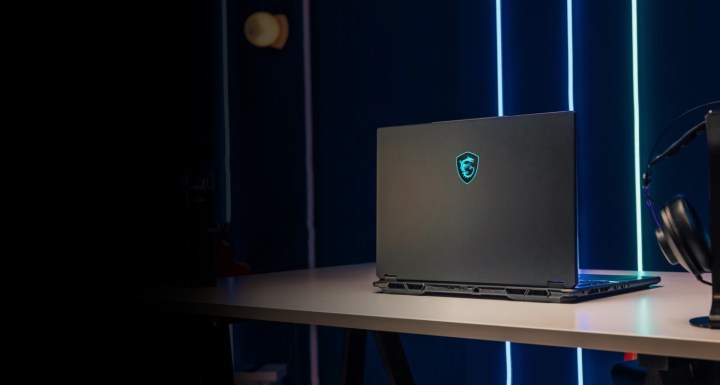
      MSI Stealth laptop on a desk
      MSI
      CES 2025 coverage
      CES 2025
      Explore our comprehensive coverage of CES.
      Updated just moments ago


      At CES 2025, MSI is unveiling a robust lineup of gaming laptops, featuring a surprising shift toward AMD processors in many new models—a notable deviation from their historical preference for Intel chips. Additionally, MSI is emphasizing larger laptops, showcasing five models with 18-inch displays alongside 17-inch and 16-inch options.

      The premium models, including the Titan, Raider, and Vector, will benefit from PCIe 5.0 support, and they’ll incorporate enhanced thermal solutions with dedicated heatsinks for improved cooling of both the CPU and GPU. Improvements in speaker driver materials are also set to minimize resonance and enhance audio quality. Let’s dive into the various laptops MSI has just introduced.

      MSI Titan

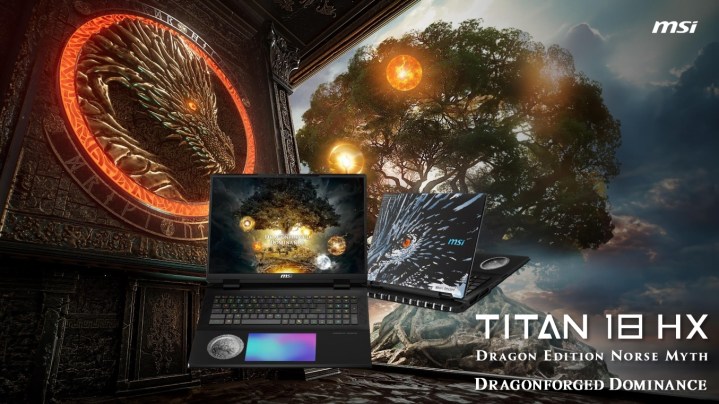
      MSI Titan 18 HX presentation slide
      MSI

      The Titan series continues its tradition of excellence with the new Titan 18 HX. This year's model showcases a Dragon Edition influenced by Norse mythology, featuring intricate designs including a dragon motif and rune-etched lid. The unique aesthetics are complemented by a textured metal finish and a Norse-themed coin set beneath glass in the palm rest, with designs illustrating Yggdrasil, the tree of life in Norse lore.

      Also notable is the inclusion of a large RGB haptic touchpad and RGB-lit Cherry mechanical switches. Under the hood, the Titan 18 HX boasts Intel’s Core Ultra 9 275HX CPU and Nvidia's latest RTX 50-series GPUs. To manage its impressive 270W power usage (comprising 95W for CPU and 175W for GPU), MSI employs advanced vapor chamber cooling, alongside support for up to 96GB DDR5-6400 RAM and up to four SSDs.

      The display features an 18-inch UHD+ (3,840 x 2,400) mini LED panel supporting a 120Hz refresh rate, 100% DCI-P3 color gamut, and VESA Display HDR 1000 certification. Connectivity includes two Thunderbolt 5 ports, three USB 3.2 Gen2 Type-A ports, a 2.5GbE LAN, Wi-Fi 7, Bluetooth 5.4, and HDMI 2.1.

      This powerhouse weighs approximately 7.9 pounds and is powered by a substantial 99.9 watt-hour battery, rechargeable via a hefty 400W power supply. While official pricing hasn't been disclosed, last year's model was priced above $5,000, suggesting the latest Titan 18 HX may surpass that benchmark.

      MSI Raider and Vector

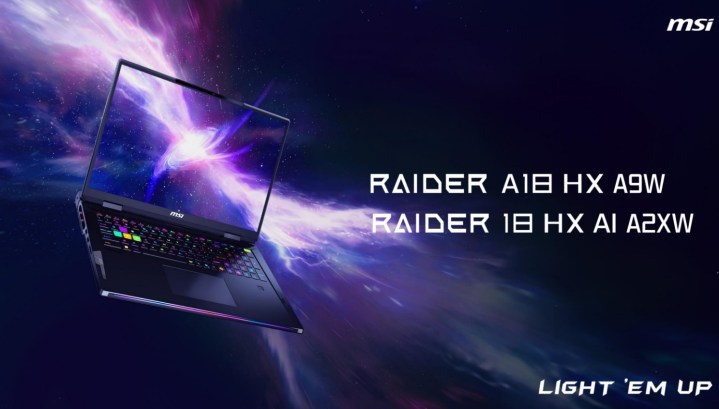
      MSI Raider laptop on a galaxy-themed background.
      MSI

      The Raider lineup also sees the introduction of an 18-inch model, which closely mirrors the Titan 18 HX in features and dimensions. Customers can choose between Intel’s Core Ultra 9 275HX (Raider 18 HX A2XW) and AMD’s Ryzen 9 9955HX3D (Raider A18 HX A9W) processors, complemented by Nvidia's RTX 50-series graphics cards.

      Similar to its premium counterpart, it features the same 18-inch mini-LED display, options for up to 96GB DDR5 RAM, and dual M.2 SSD slots. Connectivity remains robust, offering dual Thunderbolt ports (version 4 on the AMD version), a 2.5GbE LAN port, Wi-Fi 7, a per-key RGB keyboard from SteelSeries, and a potent 400W power supply.

      Meanwhile, the new Vector series, while a tad less premium than the Raider, still packs a punch. The 18-inch Vector 18 HX AI A2XW is available with an Intel Core Ultra 9 275HX, while the Vector A18 HX A9W can be configured with an AMD Ryzen 9 9955HX processor. While the GPU will still be Nvidia, it might not be as powerful as the Raider’s offerings. The display on the Vector series boasts a QHD+ (2,560 x 1,600) resolution, a 240Hz refresh rate, and 100% DCI-P3 coverage.

      Interestingly, MSI specifies that the AMD model will sport a 99.9Whr battery paired with a 400W power supply, whereas the Intel model will have a 90Whr battery and a 330W adapter.

      MSI Stealth

      MSI Stealth 18 HX presentation slide
      MSI

      The Stealth series, known for its sleek design, is now offering an 18-inch variant equipped with either the Intel Core Ultra 9 275HX (Stealth 18 HX AI A2XW) or the AMD Ryzen AI 9 HX 370 (Stealth A18 AI+ A3HW). Users can choose a high-end Nvidia RTX 50-series GPU, paired with 96GB of DDR5 memory. Other features include a single NVMe M.2 PCIe Gen 4 SSD slot, a per-key RGB keyboard from SteelSeries, and a Dynaudio six-speaker audio system.

      For its display options, MSI provides a choice between an 18-inch UHD+ (3840×2400) panel with a 120Hz refresh rate or a QHD+ (2560×1600) IPS panel with a higher 240Hz refresh rate. Both configurations come with a 99.9Whr battery and a 280W power supply.

      In addition, there’s a compact 16-inch variant (Stealth A16 AI+ A3HW), which is solely powered by AMD’s Ryzen AI 9 HX 370 processor. This model supports up to an RTX 5090 GPU, 64GB of LPDDR5x memory, an NVMe M.2 PCIe Gen 4 SSD slot, and shares similar keyboard and speaker technologies with its larger counterpart. Display options include a 16-inch QHD+ (2560×1600) OLED panel that provides a 240Hz refresh rate, 100% DCI-P3 color gamut, and VESA DisplayHDR True Black 600 certification.

      MSI Crosshair, Cyborg, and Venture

      MSI is also launching mid-range gaming options with the Crosshair 18 HX AI A2XW and the Cyborg A17 AI B2HW. The Crosshair 18 model features an 18-inch screen and offers configurations up to an Intel Core Ultra 9 275HX, a QHD+ 240Hz IPS display, dual NVMe M.2 SSD slots, up to 96GB of DDR5 RAM, and a 240W power adapter.

      Aiming at a more budget-conscious audience, the Cyborg A17 AI B2HW is available with up to an AMD Ryzen 7 260 processor, RTX 50-series graphics, and DDR5 memory up to 96GB. The display measures 17.3 inches, utilizes an FHD (1,920 x 1,080) IPS panel with a refresh rate of 144Hz. Other specifications include a modest 55.2Whr battery and a 150W power adapter.

      MSI Crosshair 18 HX presentation slide
      MSI

      Lastly, the Venture series fills the gap for everyday computing needs, offering a variety of models in 14-inch, 16-inch, and 17-inch sizes with options for both Intel Core Ultra and AMD Ryzen 300 processors.

    • Nvidia DLSS 4 Can See Into The Future

      Nvidia DLSS 4 Can See Into The Future

      CES 2025
      Explore our comprehensive coverage of CES here
      Updated just now

      In conjunction with the unveiling of the RTX 50-series at CES 2025, Nvidia has introduced the latest iteration of its highly acclaimed Deep Learning Super Sampling (DLSS). Over the past few years, Nvidia has enriched the DLSS technology, and DLSS 3, which is currently available, has already become a staple in numerous PC games. Now, DLSS 4 aims to elevate that experience even further.

      DLSS 4 boasts advanced neural rendering capabilities and is a standout feature of Nvidia’s new Blackwell graphics card lineup. One of its primary innovations is Multi Frame Generation, an AI-enhanced feature designed to dramatically improve gaming performance by generating up to three extra frames for every single rendered frame. This breakthrough can potentially increase frame rates by as much as eight times compared to conventional rendering techniques, allowing for a smoother and more responsive gaming experience. According to Nvidia, with the GeForce RTX 5090, gamers can expect 4K gaming at an impressive 240FPS with full ray tracing enabled.

      At launch, around 75 games are expected to support DLSS 4, including popular titles such as CyberPunk 2077, God of War Ragnarök, and Indiana Jones and the Great Circle. The integration of DLSS 4 into these games is anticipated to yield higher frame rates and enhanced visual fidelity, enriching the overall gaming experience. As more developers embrace this technology, the catalog of games that support DLSS 4 is likely to grow, providing more gamers the opportunity to enjoy its advantages across a variety of genres and platforms.

      Receive your weekly breakdown of the tech that powers PC gaming


      Check your inbox!

      This is a developing story. Stay tuned for updates.

    • CES 2025 Pre-Show Live Updates: Samsung, Acer, ROG, More

      CES 2025 Pre-Show Live Updates: Samsung, Acer, ROG, More


      CES 2025
      Discover our comprehensive coverage of CES here
      Updated just moments ago

      The Consumer Electronics Show (CES) 2025 is kicking off in Las Vegas, Nevada, and there’s a lot of exciting new technology on the horizon. Representing everything from small startups to major industry players, the event features a wide array of cutting-edge innovations.

      Though the official festivities begin on January 7, many media professionals are getting early access to previews of what’s in store. We’ll continually update this coverage with the most significant announcements from the event, so keep an eye out for the latest news.

      Live Last updated January 06, 2025, 7:40 AM

      Please enable Javascript to view this content.


      • Samsung Unveils a Unique 4K Monitor

        Samsung Unveils a Unique 4K Monitor

        CES 2025
        CES 2025
        Explore our full coverage of CES here.
        Last updated just now

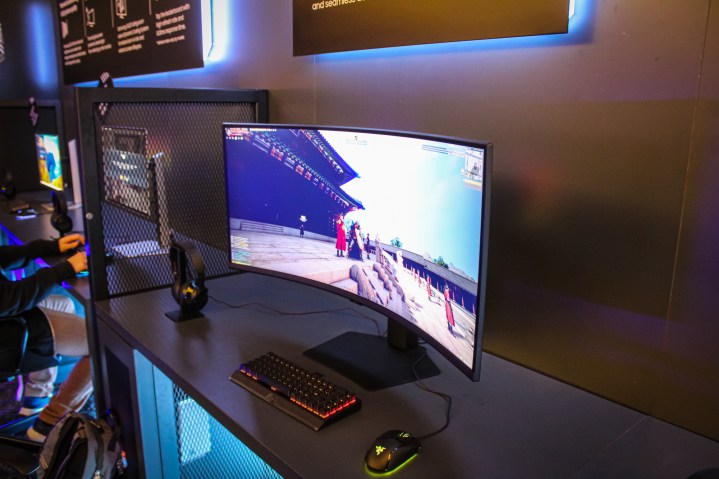
        In addition to its remarkable 500Hz OLED, Samsung is showcasing two other intriguing monitors at CES 2025. The star of the show is a 37-inch 4K display, a size I’ve yet to come across despite exploring a multitude of gaming monitors.

        This may not seem significant at first glance, but when you consider gaming monitors larger than 32 inches, its uniqueness becomes apparent. Most conventional 16:9 displays cap out at 32 inches. Beyond that, you typically find screens that jump to 40 or 42 inches—often TV panels that have been repurposed for gaming use, like my KTC G42P5.

        Samsung is offering a middle ground here. While larger models exist, most fall within the 21:9 aspect ratio. Now, gamers can find a viable option when a 32-inch display feels inadequate, but a full-size television is unnecessary.

        The Samsung Odyssey G7 at CES 2025.
        Luke Larsen / Digital Trends

        The second monitor from Samsung offers a somewhat different experience. The Odyssey G7 features a 21:9 aspect ratio and boasts an impressive 5K resolution. This model is akin to LG’s recently unveiled 5K2K display, albeit without an OLED panel.

        With a 5,120 x 2,160 resolution and a 40-inch size, the Odyssey G7 achieves a sharp pixel density of 139 pixels per inch. This is notably higher than the typical 100 pixels per inch that most monitors aim for. While it doesn’t quite match the pixel density of the Asus ROG PG27UCDM, it comes close.

        Beyond its exceptional pixel density, the Odyssey G7 features a rapid 180Hz refresh rate and a swift 1ms gray-to-gray response time, as per Samsung’s specifications. Additionally, it holds VESA’s DisplayHDR 600 certification and supports Samsung’s HDR10+ Gaming standard, which utilizes dynamic metadata for enhanced HDR gaming experiences.

        As is customary with Samsung’s announcements at CES, details surrounding pricing and availability remain undisclosed. The company has a history of releasing new monitors more slowly compared to more enthusiast-oriented brands such as MSI and Asus, so it’s likely that these models will debut sometime mid-year. But that’s merely speculation for now.

      • All We Know About The Xbox Handheld

        All We Know About The Xbox Handheld


        Handheld gaming is experiencing a surge in popularity with devices like the Switch 2, Steam Deck, and PlayStation Portal leading the charge. While the Xbox Series X and S have some impressive titles, sales this generation have not met expectations. Xbox has made strategic moves, such as launching Game Pass and acquiring Activision Blizzard, in an effort to reclaim its position in the competitive gaming market. Amid these challenges, the possibility of a dedicated Xbox handheld has captured the interest of many fans. Although Phil Spencer and the Xbox team are keeping specific details under wraps, some insights are available regarding the potential of an Xbox handheld device.

        Release Speculation

        Players use Ninja Turtles themed Xbox controllers.
        Xbox / Microsoft

        In a recent interview, Microsoft Gaming CEO Phil Spencer hinted at their handheld plans, saying that the “expectation is that we would do something” in this area, and they are experimenting with prototypes. However, the team's current priorities include enhancing the Xbox app for existing platforms. Looking ahead, Spencer mentioned his enthusiasm for device development and the potential for innovation but emphasized a desire to learn from current trends before proceeding.

        If Xbox is still in the prototype stage, any new handheld device could be several years from launch.

        Xbox Handheld Rumors and News

        Tina Ami, Phil Spencer, Sarah Bond, and Matt Booty during Updates on the Xbox Business | Official Xbox Podcast
        Xbox

        The most reliable news regarding the Xbox handheld comes from the previously mentioned Bloomberg piece.

        Jez Cordon from Windows Central has suggested he has inside information about a potential Xbox handheld announcement. However, his predictions seem to diverge from Spencer's statement. On the Xbox Two podcast, Cordon indicated, “I don’t think you’re going to see hardware at The Game Awards, but I do believe next year will be a promising time to reveal new hardware, especially something that fits in your hand.”

        Price, Hardware, and Design

        A Steam Deck, Asus ROG Ally, and Nintendo Switch OLED sit on a table.
        Jacob Roach / Digital Trends

        Details on the fundamental aspects of an Xbox handheld are scarce, making it challenging to speculate on anything, including pricing or performance. Regarding design, current handhelds have adopted a fairly standard shape since the success of the Switch, so it is likely that Xbox would stick to a similar aesthetic, potentially resembling devices like the Steam Deck.