For a game currently in early access and developed in Unreal Engine 5, Delta Force performs impressively on PC. Thanks to advanced upscaling technology, it can easily hit or surpass high refresh rates on quality monitors, even when played on higher settings and resolutions.
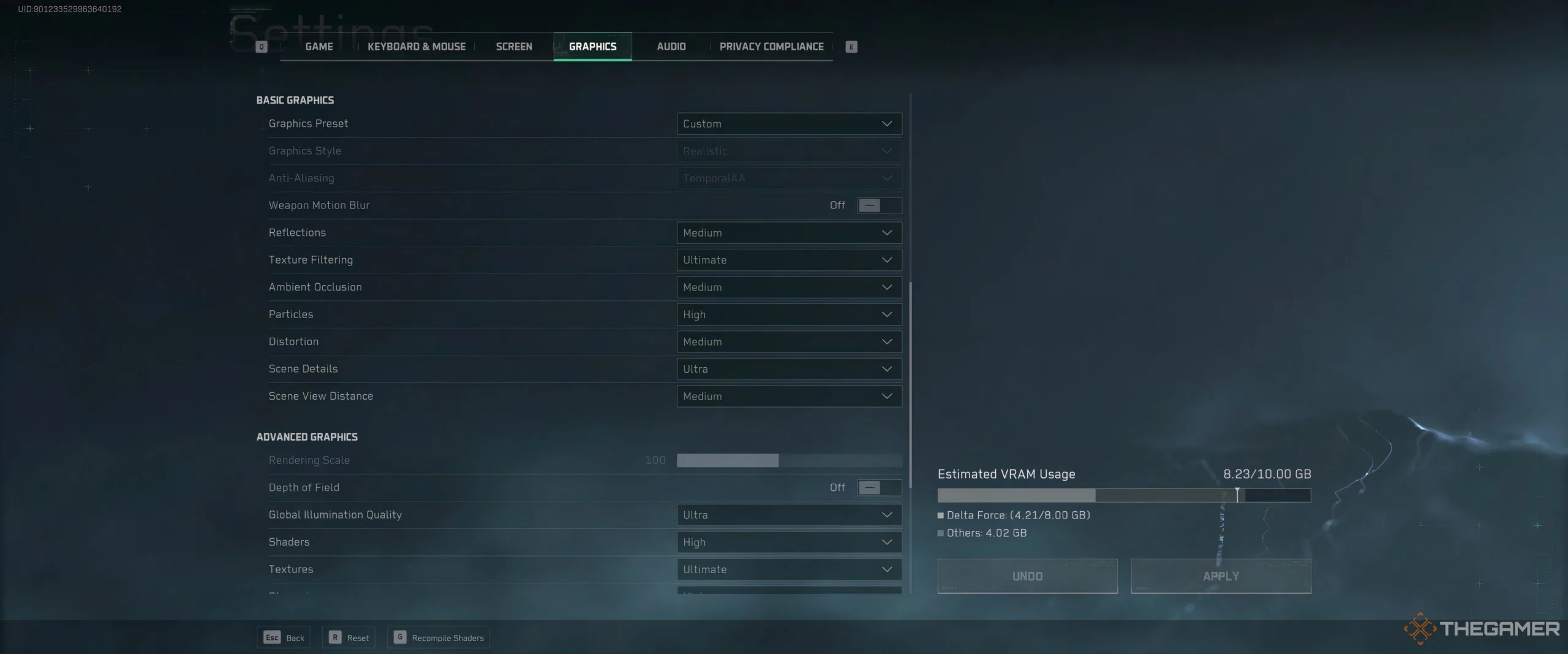
That said, it’s still a good idea to create a list of optimized settings to achieve high frames per second (FPS), as adjusting your settings can greatly enhance your gaming experience. We’ve experimented with all available graphics settings in Delta Force and compiled our recommendations for players with mid-range gaming PCs.
Top Settings for High FPS
Before we get into specifics, it’s important to note that each setting was tested with all other options set to Medium, with no upscaling applied, on the following setup:
- CPU: Intel i7 13700K
- GPU: NVIDIA 3080 Founder’s Edition
- RAM: 32 GB HyperX
- OS: Windows 10
- Monitor Resolution: Ultrawide at 3840×1600, 144Hz refresh rate.
Due to the higher resolution consuming more graphics card resources, the frame rates we observed in our tests were likely lower than what most players using 1440p monitors would experience. Additionally, the NVIDIA 3080 wasn’t quite strong enough to run Delta Force at its highest settings.
Nevertheless, the game managed to achieve between 80-90 FPS without upscaling. In our tests, AMD FSR 2.0 provided a ten-frame boost over DLSS, although results may vary based on your system.
Recommended Settings Table
| Setting | FPS Impact | Recommended Setting |
|---|---|---|
| Reflections | Decreases FPS by 1-3 frames | Medium |
| Texture Filtering | No impact | Ultimate |
| Ambient Occlusion | Decreases FPS by 2-3 frames | Medium |
| Particles | Decreases FPS by 1-3 frames | High |
| Distortion | Decreases FPS by 1-3 frames | Medium |
| Scene Details | Decreases FPS by 1-3 frames | Ultra |
| Scene View Distance | Decreases FPS by 4-6 frames | Medium (or lower) |
| Global Illumination | Decreases FPS by 2-4 frames | High/Ultra (based on preference) |
| Shaders | Decreases FPS by 3-5 frames | High/Medium |
| Textures | Decreases FPS by 1-2 frames | Ultimate |
| Streaming | Decreases FPS by 1-3 frames | High |
| Shadow | Decreases FPS by 2-4 frames | Medium |
| Shadow Map | Decreases FPS by 3-5 frames | Medium |
| Post-Processing | Decreases FPS by 2-3 frames | High |
| Volumetric Fog | Decreases FPS by 1-3 frames | Medium |
| Animation | No impact | High |
With these settings and AMD FSR 2.0 set to Quality, the test rig consistently reached and held 144 FPS in indoor environments, maintaining smooth gameplay even in intense scenarios with many enemies, where it dipped to the low to mid-100s.
If your hardware is slightly older, particularly if you’re using an NVIDIA 10 series card or similar, you may need to adjust some of the higher recommended settings down a notch.
Overall, Delta Force runs quite well, and achieving over 100 FPS shouldn’t be difficult, even with a mid-range system. If your setup is more advanced than our testing PC, you could expect frame rates over 150 FPS with similar settings.