Select Language:
When you replace your laptop battery with a new one, it’s a good idea to run a battery check to make sure it’s a genuine HP battery. Keep in mind that the battery might not display “HP” as the brand, since HP sources batteries from different manufacturers. The battery report provides helpful information, including whether the battery has been used before and if it has the right amount of amperage. You can also compare your current battery to the new one to see if they match.
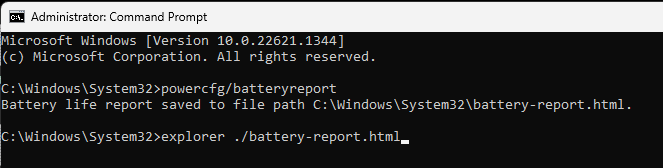
To generate the battery report, you’ll need to open the command prompt with administrator rights. Once open, type in the command shown below and press Enter:
powercfg /batteryreport
After running this command, a detailed report will be generated, usually saved in your user folder. The report contains information such as the battery’s health status and cycle count. Since batteries typically last around five years but may wear out sooner if used heavily for gaming or other demanding tasks, checking the health regularly is a smart move.
If you haven’t already, consider calibrating your battery. This process helps improve its accuracy and longevity. You should do the battery report both before and after calibration, then save and compare the results to monitor any improvements or issues.
If you’re unsure about the results or need help with calibration steps, feel free to ask. Regularly checking your battery’s health can prevent surprises and keep your device running smoothly.
 ChatGPT
 Perplexity
 Gemini AI
 Grok AI