There are numerous reasons you might wish to alter the language on your PlayStation 5. Whether you’re in a bilingual home or you’ve bought the console from someone whose preferred language is different, changing the language is a straightforward process that will get you back to gaming in no time.
Steps to Change the Language on Your PS5
To change the language setting on your PS5, just follow these steps:
Step 1: Click on the Settings icon, which can be found at the top right corner of the home screen.
Step 2: From the menu, select System.
Step 3: Choose Language from the options presented.
Step 4: Select Console Language and pick the preferred language you want your PS5 to display.
Your PS5 can accommodate a large number of users, enabling everyone in your household or social circle to access their own content. However, there may come a time when you need to remove a user who isn’t utilizing the console anymore. The process is quick and straightforward, and we’ll guide you through it below.
Steps to Remove Users from PS5
When you’re ready to delete an inactive user from your PS5, follow these steps:
Step 1: Click the Settings icon located in the top-right corner of the home screen.
Step 2: Select Users and Accounts from the menu.
Step 3: Scroll down and select Delete Users at the bottom of the list.
Step 4: Choose the specific user you wish to remove from the console.
Step 5: Confirm by selecting Yes. Note that this action will delete the user as well as all their saved data, screenshots, and video clips.
There are numerous reasons you might want to enable closed captions on your PlayStation 5. Whether it’s for better comprehension due to hearing difficulties or simply because you prefer reading what’s happening on screen, closed captions serve as a great accessibility feature for Sony’s gaming console. Follow these steps to enable this feature.
Triyansh Gill on Unsplash / Unsplash
How to Enable Closed Captions on PS5
To activate closed captions on your PS5, follow these straightforward instructions.
Step 1: Navigate to Settings by clicking the gear icon located in the top right corner of your PS5 home screen.
Step 2: Select Accessibility.
Step 3: Click on Closed Captions.
Step 4: Switch the Display Closed Captions option to the On setting.
Step 5: Under this section, you can select Closed Captions Settings to tailor your closed captions to your individual needs or preferences.
Digital platforms often provide a plethora of customizable options to express our individuality. If you’re a PlayStation 5 owner, one feature you’ll appreciate is the ability to select an avatar, which acts as your profile picture for others to see. With numerous avatars available, many of which can be unlocked through gameplay, you’ll likely find one that represents your favorite game, allowing others to get a glimpse of your interests right away. If you’re looking to change your PS5 avatar, follow these straightforward steps.
Digital Trends Graphic / Sony
How to Change Your Avatar on PS5
To change your PS5 avatar, follow these steps:
Step 1: Select the Settings gear icon located on your PS5 home screen.
Step 2: Choose Users and Accounts.
Step 3: Click on Account.
Step 4: Select Profile.
Step 5: Click on Avatar.
Step 6: Browse through the extensive selection of avatars and pick one that you like, then click Ok.
The PlayStation Portal is an impressive handheld console, but in order to fully utilize its capabilities, you must set it up to stream from your PlayStation 5. This guide will walk you through the settings you need to enable and the steps required to connect your devices so you can stream games seamlessly.
Sony
Connecting Your PlayStation Portal to Your PS5
To connect your PlayStation Portal to the PS5, follow these steps:
Step 1: On your PS5, go to Settings > System > Remote Play and enable “Remote Play.”
Step 2: Next, navigate to Settings > System > Power Saving > Features Available in Rest Mode. Here, make sure to select “Stay Connected to the Internet” and “Enable Turning on PS5 from Network.” This ensures that Remote Play can function while your PS5 is in Rest Mode.
Step 3: Ensure you are logged into your PlayStation Portal using the same PlayStation account that you use on your PS5, and confirm that both devices are connected to the same Wi-Fi network.
Step 4: During the setup of your PlayStation Portal, it will prompt you to choose a PS5 to connect to. If you have more than one PS5 at home, make sure to select the specific console from which you wish to stream.
Step 5: Ensure your PS5 is powered on. Your PlayStation Portal will detect it and initiate the connection process once you indicate readiness.
Every time you activate your PlayStation Portal in the future, you’ll see a screen asking you to confirm the PS5 connection you previously selected, allowing you to stream games effortlessly. Enjoy your gaming experience!
Good morning, everyone! We’ve got some buzzing rumors to dive into today. As excitement builds for the upcoming announcement of the Nintendo Switch 2, podcaster NateTheHate has suggested that both Halo: The Master Chief Collection and Microsoft Flight Simulator 2024 could make their way to the Switch 2 and PlayStation 5. While Nate has proven accurate on several occasions regarding future titles, it’s wise to approach this news with a healthy dose of skepticism. The prospect of Xbox titles appearing on the Switch 2 seems a bit improbable, particularly since we’re still in the dark about the console’s specifications.
That said, the Switch 2 may not require powerful hardware to run these titles. In February 2024, Xbox announced its plans to expand its game offerings to PlayStation 5 and Nintendo platforms, including titles like Pentiment, Hi-Fi Rush, Sea of Thieves, and Grounded. This raises the possibility that the Nintendo Switch 2 could utilize cloud gaming technology, allowing players to access demanding games via streaming instead of relying solely on the console’s hardware. Given the high-performance requirements of Microsoft Flight Simulator 2024, streaming could be the practical solution for playing these titles on Nintendo’s handheld device.
Of course, not every expectation has come to fruition. For instance, Senua’s Saga: Hellblade 2 was released as an exclusive for Xbox amidst speculation that it would also debut on PlayStation 5. Microsoft’s shifting strategies seem to be transforming the company from a hardware manufacturer into more of a publisher model. Fans and analysts are left questioning whether Xbox will persist as a traditional console or pivot to a cloud gaming platform akin to Nvidia’s GeForce Now.
Xbox Game Studios
If Microsoft decides to launch these games on Nintendo and PlayStation systems, it will certainly enhance player experience and broaden access to these significant titles. The Nintendo Switch 2 is set to support backwards compatibility with existing Switch games, though it remains uncertain if this will involve physical cartridges or if it will strictly be digital. With several consoles taking a digital-first approach, there’s a chance that the next Xbox console—and potentially the Nintendo Switch 2—may emerge as entirely streaming-oriented devices, foregoing traditional disc drives or cartridge slots.
The PlayStation Portal may not have been the exact mobile handheld experience that many were hoping for, but it fulfills its role effectively as a companion device. Users who acquired one have often appreciated the ability to stream their console games on the portable display. Nonetheless, gaming enthusiasts still yearn for a true handheld gaming console. While that aspiration isn’t fully realized yet, the latest PlayStation Portal functionality gets us closer than ever. Here’s a guide on using the PlayStation Portal to stream PS5 games directly from the cloud without needing a console.
PlayStation
How to stream PS5 games from the cloud on PlayStation Portal
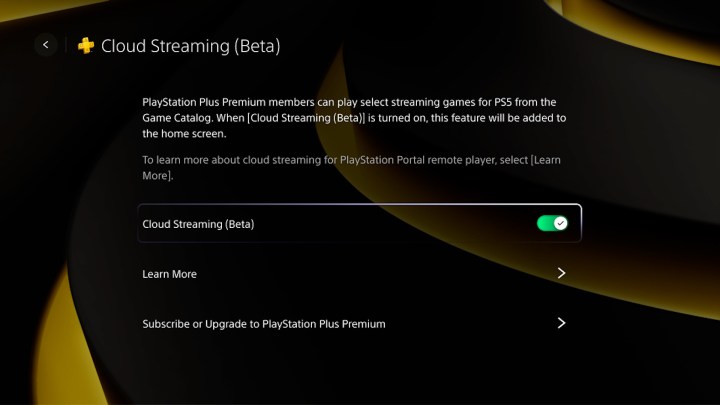
An update has enabled the PlayStation Portal to stream certain PS5 titles directly via the cloud—no PS5 console necessary. This means you can enjoy some of the finest PS5 games without being in close proximity to a console. Here’s how to set it up:
Step 1: Power on your PlayStation Portal.
Step 2: Access the Quick Menu and select Settings.
Step 3: Choose Cloud Streaming (Beta) from the menu.
Step 4: Enable the Cloud Streaming (Beta) option.
Step 5: Return to the home screen where you will find a new option for cloud streaming games directly over the internet.
Keep in mind that, since this feature is still in beta, there are certain restrictions. A PS+ Premium subscription and a robust internet connection are necessary for streaming to function correctly. Additionally, not all games on Premium are available for cloud streaming; only around 120 PS5 titles are eligible, with no PS4 or PS3 options currently offered. Furthermore, access to game trials and some features like party chat or game invitations are not available at this time.
As the beta progresses, we anticipate more games and functionalities will be introduced in its final version.
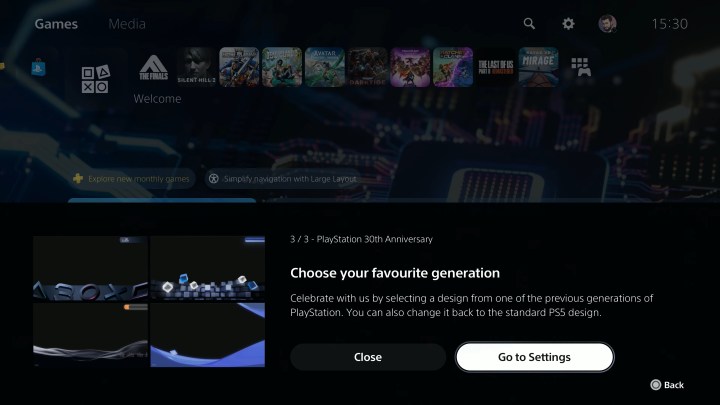
PlayStation is marking its 30th anniversary with some exciting surprises. Earlier, we were treated to a limited-edition PS5 and PS5 Pro inspired by the legendary PS1, alongside a retro-style DualShock controller. But one nostalgic feature took many by surprise: a secret update that allows players to enjoy new themes reminiscent of the classic consoles, including the beloved PS1. There’s a bit more to it, so let’s explore how to make the most of these themes while they’re available.
How to Use the 30th Anniversary PlayStation Themes
The best part about these themes is that they’re entirely free! As long as your PS5 is connected online and has the latest update, you can select whichever theme brings the fondest memories.
Step 1: Upon booting your PS5, it will automatically start up with the classic PS1 sound and logo.
Step 2: If you want to switch to themes from the PS2, PS3, or PS4 eras, navigate to Settings.
PlayStation
Step 3: From here, select Appearance and Sound.
Step 4: You will now have the option to choose from 30th Anniversary, PlayStation, PlayStation 2, PlayStation 3, and PlayStation 4 themes.
PlayStation
Step 5: Each theme will alter your console’s startup animation and sound, along with the layout of your home screen and sound effects.
While these themes are exciting, it’s worth noting that they are only available for a limited time. Sony hasn’t specified when they will be removed or the reasoning behind it, so make sure to seize the opportunity while you can. Here’s hoping that PlayStation recognizes our affection for these themes and decides to keep them around permanently!
This article is part of Digital Trends’ Cyber Monday coverage for 2024.
Updated just minutes ago
Dragon’s Dogma 2 stands out as one of the year’s most ambitious video game releases. Although it faced significant technical difficulties at launch, the game has seen noticeable enhancements when played on the PlayStation 5 Pro, as observed in Digital Trends’ tests. Therefore, if you own a PS5 Pro and are seeking titles that fully utilize its capabilities, Dragon’s Dogma 2 is a great pickup this Cyber Monday. Originally priced at $70, the game is available for $40 on Amazon during this shopping event.
Unlike many RPGs, Dragon’s Dogma 2 takes a more understated approach to storytelling. It centers around the journey of an Arisen, whose goal is to vanquish a dragon that has stolen their heart without ending their life. Capcom’s intention was to emphasize spontaneous experiences over a rigid narrative structure. Combat is challenging and features a variety of unique mechanics, ensuring that each encounter feels distinct.
Your adventures can lead you to unexpected scenarios, like encountering a massive troll while traversing a forest that disrupts a necessary bridge during battle. You may find yourself needing to knock the troll into a chasm to continue on your way or retreating to avoid a complete defeat. Ultimately, the most memorable experiences are derived from unplanned gameplay rather than the established quests provided by Capcom.
Related
This Star Wars game is a Cyber Monday must-have
Forget the PS5 Pro. The Atari 7800+ is this holiday’s hottest console
Developers are investigating why their games perform poorly on the PS5 Pro
This innovative RPG design kept me intrigued as I continuously anticipated what would unfold next. Unfortunately, Dragon’s Dogma 2 did struggle with the technical limitations that accompany such an ambitious project. Its frame rate across all platforms, including PC, was quite poor at launch, and resolution quality often appeared fuzzy. While some updates improved the game somewhat after release, a recent enhancement that introduced support for the PS5 Pro significantly elevates the visual experience, providing more detail and a new “Balanced” graphics quality setting.
If you’re planning to play Dragon’s Dogma 2 on a console, the PS5 Pro is undeniably the best option available. As of now, the PS5 Pro lacks a standout exclusive game. Although Dragon’s Dogma 2 is a third-party title that doesn’t achieve the highest resolution or frame rates possible on the PS5, its performance improvements on this platform make it one of the most compelling uses of Sony’s latest console technology.
Dragon’s Dogma 2 can be played now on PC, PS5, and Xbox Series X/S.
The PlayStation 5 (PS5), Sony’s latest gaming console, comes in two variants: the standard edition with a disc drive and the digital edition without one. Choosing between these two options can be challenging for gamers. This article delves into their pros and cons to help you make an informed decision.
Understanding the Variants
PS5 Disc Edition
The disc edition of the PS5 features a physical disc drive, allowing players to buy and play games on Blu-ray discs.
Key Features:
Physical Game Copies: Allows users to buy, sell, or trade physical games.
4K UHD Blu-ray Player: Plays movies and TV shows in ultra HD quality.
More Storage Options: Can install games directly from discs, potentially requiring less storage space.
PS5 Digital Edition
The digital edition of the PS5 omits the disc drive, meaning all games must be purchased and downloaded from the PlayStation Store.
Key Features:
Sleeker Design: Lighter and more streamlined without the disc drive.
No Need for Physical Storage: No need for shelves or storage for physical media.
Faster Access to Games: Direct downloads allow for instant access to games.
No Late Fees: Digital games cannot be lost or damaged, ensuring you always have access.
Pros and Cons of Each Edition
PS5 Disc Edition Pros
Game Resale and Trade-In: Ability to sell or trade games means lower long-term costs.
Family Sharing: Physical copies can be lent to friends or family, enhancing multiplayer experiences.
Collection Display: For enthusiasts, having a collection of physical games is appealing.
PS5 Disc Edition Cons
Space Requirement: Requires physical storage for discs.
Loading Times: Some players report longer loading times with physical copies compared to digital.
Potential for Damage: Discs can scratch, be lost, or damaged over time.
PS5 Digital Edition Pros
Convenience: All games are in one place, eliminating the need to swap discs.
Digital Discounts: Frequent sales on the PlayStation Store can lead to cost savings.
No Risk of Loss: Digital libraries are safe from physical damage or loss.
PS5 Digital Edition Cons
No Resale Value: Digital games cannot be resold, limiting recovery on initial investments.
Game Sharing Limitations: Sharing games is restricted compared to the disc version.
Storage Considerations: Requires managing limited internal storage as all games take up space.
Which One Suits Your Gaming Style?
Casual vs. Serious Gamers
Casual Gamers: If you play occasionally and enjoy a few games without the intent to resell, the digital edition might be ideal. It provides easy access and no hassle of physical media.
Serious Gamers: If you play frequently, enjoy a diverse library, and like to collect games, the disc edition offers flexibility that may suit your needs better.
Digital Savvy vs. Traditional Users
Digital Savvy Users: If you’re comfortable with downloading and managing data, the digital edition is a great fit. This edition often enjoys instant access to game updates and patches.
Traditional Users: If you prefer the tactile experience of physical media, appreciate the resale market, or enjoy displaying collections, then the disc edition will likely resonate more with you.
Storage Capacity
Built-in Storage: Consider the storage capacities of the PS5 models. The disc edition may offer more flexibility, while the digital edition requires thoughtful management of your game library.
Cost Considerations
Initial Investment: The price difference between the two models might be significant for some. The digital edition is generally less expensive.
Long-Term Costs: Factor in potential resale value, discounts for physical games, and exclusive digital sales when evaluating your budget.
In summary, the decision between the PS5 disc and digital editions hinges on your preferences as a gamer. Carefully evaluating your gaming habits, storage needs, and financial considerations will guide you to the right choice for your gaming experience.
The excitement for the next installment in the iconic Elder Scrolls series is palpable among fans and gamers alike. As Bethesda gears up for the highly anticipated release of Elder Scrolls 6, a pressing question looms: Will it be available on the PlayStation 5? Let’s delve into the current situation surrounding this coveted title.
The Current Landscape of Gaming Platforms
Bethesda and Xbox Acquisition
Following Microsoft’s acquisition of Bethesda Softworks, the direction of future releases has shifted dramatically. Here’s what this means for Elder Scrolls 6:
Ownership Implications: Microsoft now owns Bethesda’s portfolio, which includes the Elder Scrolls franchise.
Exclusive Titles: It’s become common for major studios to release titles as exclusives to their platform post-acquisition.
Bethesda’s Stance on Exclusivity
Bethesda has not explicitly confirmed the status of Elder Scrolls 6 concerning PS5. However, comments from company executives hint at the potential for platform exclusivity:
"Available on Game Pass": Bethesda has indicated that future titles may focus heavily on Xbox Game Pass, emphasizing a strategy that prioritizes Microsoft’s ecosystem.
Past Releases: Previous titles like Deathloop and Ghostwire: Tokyo started as timed exclusives for PlayStation, showcasing a nuanced approach to platform availability.
The Fan Reaction
The gaming community has responded vigorously to the uncertainty regarding Elder Scrolls 6’s availability on PS5:
Enthusiasm for the Series
Legacy of The Elder Scrolls: Fans point to the long-standing popularity of the franchise on PlayStation consoles.
Desire for Next-Gen Experience: Many are eager for the graphical enhancements and technical capabilities of the PS5.
Concerns and Frustrations
Exclusivity Fears: Players worry about losing access to this beloved series if it becomes an Xbox exclusive.
Investment in Hardware: Gamers who have recently invested in a PS5 are particularly concerned about not getting to enjoy the new Elder Scrolls title.
Potential Scenarios for Elders Scrolls 6 on PS5
The Possibility of Timed Exclusivity
Bethesda might adopt a strategy akin to previous releases where the game is available exclusively on Xbox and PC for a period before launching on PlayStation. This could mean:
Exclusive Features: The initial launch could feature exclusive content for Xbox players.
Later Releases: A staggered release could allow PS5 players access after a set period.
Full Exclusivity
Another scenario is full exclusivity to Xbox and PC, which would fundamentally alter the dynamics for Elder Scrolls fans:
Impact on Sales: A move like this could significantly impact player demographics and sales across platforms.
Membership Incentives: Microsoft might incentivize gamers to subscribe to Game Pass, creating a substantial user base for the service.
What We Know So Far
While many questions remain unanswered, here are some relevant facts regarding Elder Scrolls 6:
No Official Release Date: Bethesda has yet to announce a release date or definitive platforms for Elder Scrolls 6.
Focus on Next-Gen Development: The game aims to leverage advanced technology, which could lead to delays, affecting the timeline for any platform announcements.
Keeping an Eye on Updates
As the gaming landscape continues to evolve, it’s essential for fans to stay informed:
Follow Official Channels: Keep an eye on Bethesda’s announcements via social media and their website for the latest updates.
News Outlets: Gaming news platforms will likely cover any significant developments regarding Elder Scrolls 6’s availability on various consoles.
As anticipation builds for Elder Scrolls 6, the question of its availability on the PS5 remains one of the hottest topics among the gaming community. With the current trends in platform exclusivity and the shifting landscape following Microsoft’s acquisition of Bethesda, players are left wondering whether they will get to embark on their next adventure in Tamriel on their beloved PlayStation 5.
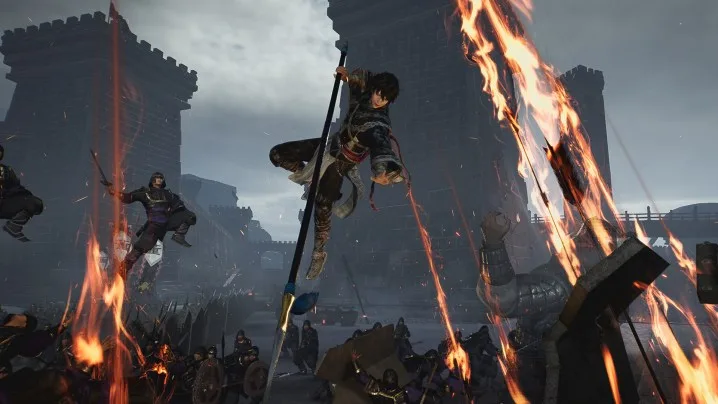
Dynasty Warriors: Origins has the potential to transform the iconic franchise, and fans can get an early taste of it with a new demo launching on November 22 for both PlayStation 5 and PlayStation 5 Pro in advance of the game’s scheduled release in 2025.
This demo will feature the Battle of Sishui Gate, previously showcased at the Tokyo Game Show earlier this year. According to Omega Force’s head at Koei Tecmo, the demo will incorporate fresh elements for a “more substantial and challenging battle” experience. Players will enjoy the flexibility of selecting different difficulty levels without any time constraints.
Dynasty Warriors: Origins will also be optimized for PS5 Pro users, utilizing advanced PSSR upscaling technology to elevate visual quality. This promises to enhance graphics across the board, giving players a richer visual experience.
Dynasty Warriors: Origins – Gameplay Features | PS5 Games
Set to launch on January 17, 2025, Dynasty Warriors: Origins deviates from the traditional formula by featuring a smaller roster of playable characters, focusing instead on a more cohesive narrative. Players will no longer be able to create their own warrior or select from a variety of officers across different factions. Instead, you’ll assume the role of the nameless Wanderer, who will rise through the ranks throughout the game. Nevertheless, expect large-scale battles, with Koei Tecmo promising “1 vs. 1,000 action.” Thanks to modern gaming hardware, you will witness the vast number of troops on the battlefield.
Despite playing a nameless character, you will have companions to join you, and you’ll still have the ability to customize the Wanderer’s abilities.
The game will be available for preorder starting November 22, with players receiving a bonus costume inspired by Wo Long: Fallen Dynasty.
Related
All upcoming PS5 games: 2024, 2025, and beyond
PS5 restock update: Where you can buy a PS5 right now
Stellar Blade’s no-brainer Nier: Automata crossover DLC lands next week
The PlayStation 5 (PS5), Sony’s latest gaming console, has been in high demand since its release. As gamers continue to seek out this next-generation device, many wonder whether the PS5 is readily available for purchase. This article explores the current status of PS5 availability in the U.S. market.
Current Availability
As of October 2023, supplies of the PS5 have improved compared to earlier release periods. However, availability can vary widely based on several factors.
Key Retailers to Check
Walmart
Offers occasional restocks.
Be sure to check both online and in-store options.
Best Buy
Known for limited-time sales.
Frequent inventory updates—set alerts on their app.
Amazon
Stock levels fluctuate regularly.
Membership perks may offer priority access.
Target
Offers regular restocks.
Check online for local store inventory.
Gamestop
Offers new and used options.
Sometimes bundles offer games or accessories.
How to Increase Your Chances of Buying a PS5
Getting your hands on a PS5 can still be tricky, but here are some strategies to enhance your chances:
Monitor Online Restocks
Websites: Use restock tracking websites that alert you when the PS5 is available.
Social Media: Follow gaming news accounts on platforms like Twitter and Reddit for immediate updates.
Set Up Alerts
Retailer Apps: Enable notifications on retailer mobile apps for real-time alerts.
Email Lists: Subscribe to newsletters from major retailers for exclusive updates on inventory.
Time Your Purchase
Weekdays vs. Weekends: Retailers may restock more frequently on weekdays.
Time of Day: Some restocks happen early in the morning or late at night.
Alternatives to Buying New
If finding a new PS5 proves difficult, consider exploring alternative options:
Used or Refurbished Units
Local Listings: Sites like Craigslist or Facebook Marketplace may have offers.
Refurbished Options: Check certified refurbished consoles directly from retailers.
Bundles
Some retailers offer PS5 bundles that include games or accessories. While these may be slightly more expensive, they can be easier to find and may offer better value.
Consider Different Models
Digital Edition: The PS5 Digital Edition may be more readily available as it does not include a disc drive.
Final Thoughts on PS5 Availability
Finding a PlayStation 5 can still require patience and persistence. By staying informed, using technology to your advantage, and considering different purchasing options, you can increase your chances of buying this highly sought-after console. Happy gaming!
While the PlayStation 5 Pro offers impressive features, its hefty price tag leads many PS5 users to consider reselling their current systems to mitigate expenses. However, it’s crucial to transfer all your gaming data to the new console before parting with your old unit. If you’re gearing up to make the transition to the Pro, follow these steps to ensure a smooth data transfer, allowing you to dive back into your favorite games with enhanced visuals.
Difficulty
Easy
Duration
30 minutes
What You Need
PS5
PS5 Pro
PlayStation Plus Essential (optional)
SSD
USB drive (optional)
How to Transfer Your PS5 Data to the PS5 Pro
There are three methods to migrate your data from your standard PS5 to the Pro. This first approach is the simplest, but ensure you keep both consoles until the data transfer is complete.
Step 1: Connect both your PS5 and PS5 Pro to the same local network.
Step 2: On your PS5 Pro, navigate to Settings > System Software.
Step 3: Scroll down and choose Data Transfer.
Step 4: Follow the on-screen instructions to have your PS5 Pro scan the network for your PS5.
Step 5: If both consoles are powered on and connected to the network, the data transfer will commence automatically.
Sony
Transferring Data Using PlayStation Plus
If you have a PlayStation Plus Essential subscription, you can utilize its cloud save feature to relocate your data to the PS5 Pro.
Step 1: Power on your PS5 and go to Settings.
Step 2: Click on Save Data and Game/App Settings.
Step 3: Select Saved Data (PS5).
Step 4: Under Console Storage, click on Upload to Cloud Storage.
Step 5: Opt to upload specific files or select Select All.
Step 6: Hit Upload.
Step 7: Connect your PS5 Pro to the internet and navigate back to Saved Data and Game/App Settings.
Step 8: Choose Save Data (PS5), then go to Cloud Storage.
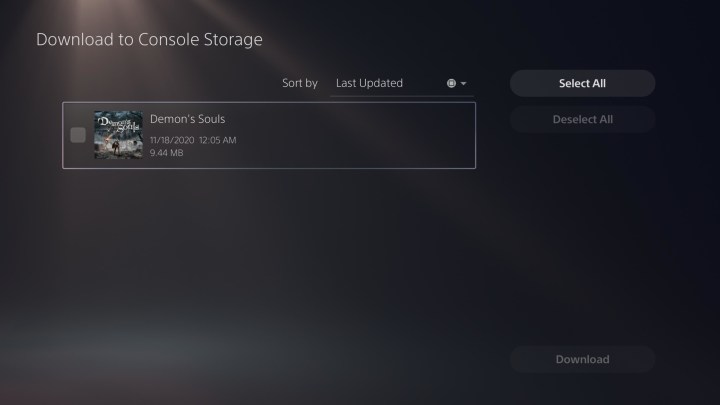
Step 9: Select Download to Console Storage.
Step 10: Choose specific files or Select All to download your data.
WD
Transferring Data Using an SSD or USB Drive
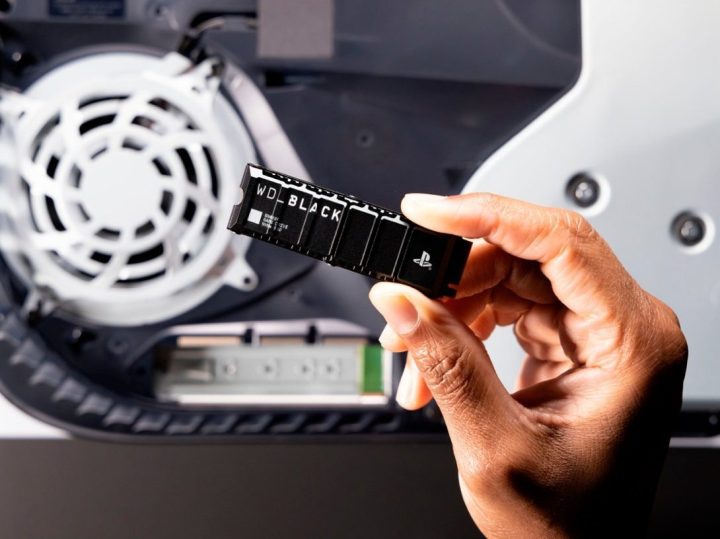
Your third option involves using an external SSD or USB drive. If your data is already saved on an SSD, simply install it into your PS5 Pro.
If you’re opting for a USB drive, here’s how to do it:
Step 1: Insert the USB drive into your original PS5.
Step 2: Go to Settings > System Software > Back Up and Restore.
Step 3: Select Back Up Your PS5 and choose the USB drive.
Step 4: Once the backup is complete, remove the USB drive and insert it into the PS5 Pro. Navigate to Settings > Back Up and Restore > Restore your PS5.
Step 5: Choose the USB drive and wait for the files to transfer.
Note: Using the USB method will reset your PS5 Pro to factory settings, so it’s advisable to perform this first as it will erase any new data on the console.
Mobile gaming has advanced significantly in recent years. With features like hardware-accelerated ray tracing, improved frame rates thanks to Game Mode in iOS 18, and a stunning OLED display, playing games on an iPhone can be a visually impressive experience. Many of the top iPhone games match the quality of console titles, and there are countless free options available. If you have a powerful smartphone, you’re in for a great time.
However, on-screen controls can hinder your view of the graphics, and since screen space is limited, touch controls may detract from your gaming experience. For some titles, particularly indie gems like Balatro, on-screen controls might suffice. Yet, for many other mobile games, especially those that demand precision, such as Death Stranding or Call of Duty, using a controller is essential.
Difficulty
Easy
Duration
5 minutes
What You Need
PS5 DualSense controller
Bluetooth-enabled smartphone
USB-C cable
Here’s how to connect a PS5 DualSense controller to your iPhone, both through a wired connection and via Bluetooth.
Connecting via USB-C Cable
Wired connections are straightforward. Use the USB-C cable that came with your controller. If you own an iPhone model older than the iPhone 15, you’ll either need a USB-C to Lightning cable or an adapter. Simply connect one end to your phone and the other to the controller, then press the PS button. As long as you launch a compatible game, you’re all set!
Wireless Connection via Bluetooth
Why deal with cords when you can connect wirelessly? If you have the necessary equipment, it’s easy to pair your PS5 controller to your iPhone over Bluetooth.
Step 1: Check if your iPhone is running compatible software. This information can be found in your device settings. If your iPhone is on iOS 14.5 or later, you’re good to go.
Step 2: Make sure the player indicator on your controller is turned off. Press the PlayStation button until it switches off, and if it’s plugged in, unplug it.
Step 3: Hold down both the Create button and the PlayStation button simultaneously until the light bar starts blinking blue.
Step 4: Open the Settings on your iPhone and ensure Bluetooth is activated. Your controller should appear in the Other Devices section as DualSense Wireless Controller. Tap it to connect.
Step 5: Once the light bar stops blinking and the player indicator glows orange, you’re connected and ready to game!
Just keep in mind that the PS5 DualSense can only link to one device at a time. If you switch devices, you will need to repeat this process.
When your PlayStation 5 (PS5) starts acting up, it can be incredibly frustrating. You might wonder if Geek Squad can help you out. This article explores Geek Squad’s services for PS5 repairs and provides insight into what you can expect when you take your gaming console to them.
Understanding Geek Squad’s Repair Services
Geek Squad is a tech support service offered by Best Buy, specializing in a wide range of electronics. They provide both in-store and remote support, which makes them a popular choice for gadget repairs.
What Can Geek Squad Fix on the PS5?
Geek Squad technicians are experienced in handling various issues related to gaming consoles, including:
Hardware Issues: Problems such as overheating, faulty HDMI ports, and general hardware failures.
Software Glitches: Troubles with system updates, frozen screens, or game crashes.
Accessory Problems: Issues with controllers, headsets, or charging stations related to the PS5.
What Makes Geek Squad a Viable Option?
Several factors make Geek Squad a potential solution for your PS5 problems:
Expertise: Their technicians are trained in electronics repair, which includes gaming consoles.
Convenience: With multiple locations and services that can also be accessed online, Geek Squad offers flexibility for customers.
Warranty Options: If you have a Best Buy protection plan or extended warranty, repair costs may be significantly reduced or covered.
Steps to Get Your PS5 Fixed by Geek Squad
If you decide to take your PS5 to Geek Squad, here’s what you can expect:
1. Initial Diagnostic
The repair process usually begins with a diagnostic assessment. During this stage, a technician will examine your PS5 to identify the issue. This step typically includes:
Checking for visible damage.
Testing the console’s performance.
Running software diagnostics.
2. Repair Process
After diagnosing the problem, the technician will explain the necessary repairs. Depending on the issue, this may involve:
Replacing internal components, such as cooling fans or the hard drive.
Updating or reinstalling the system software.
Repairing or replacing external ports and connections.
3. Cost Estimates
Geek Squad provides a detailed estimate of the costs involved before proceeding with the repairs. It’s essential to ask about:
Diagnosis fees (if applicable).
Repair costs for parts and labor.
Warranty information on the repairs.
Frequently Asked Questions about PS5 Repairs
To help you better understand the process and what to expect, here are some common queries related to PS5 repairs at Geek Squad.
Is My PS5 Repair Covered by Warranty?
Manufacturer Warranty: If your PS5 is still under warranty from Sony, you might be able to get free repairs. Check your warranty status beforehand.
Best Buy Protection Plan: If you purchased a protection plan, contact Best Buy to see if your repair is covered.
How Long Will Repairs Take?
Standard Repairs: Most repairs can take anywhere from a few days to a couple of weeks, depending on the parts needed and current demand.
Urgent Repairs: Certain issues might be fixed on the same day if parts are readily available.
What Should I Bring When I Visit Geek Squad?
The Console: Ensure you bring the PS5 itself.
Controllers and Accessories: If issues involve accessories, bring them along for a complete diagnosis.
Proof of Purchase: This can be useful for warranty inquiries.
By keeping these points in mind, you can navigate the repair process with Geek Squad more efficiently, ensuring your PS5 is back in action as quickly as possible. Whether it’s a small glitch or a significant hardware issue, professional help can often pave the way for a smooth return to gaming.
The DualSense controller for the PS5 is a favorite among gamers due to its impressive functionality. It boasts features like haptic feedback and adaptive triggers that significantly enhance the gaming experience. However, many users find the integrated speaker to be more of a nuisance. If you want to silence this feature, follow the straightforward steps below to turn it off.