الوسم: Artificial Intelligence

  • Google’s Gemini to Manage Your Smart Devices Soon

    Google’s Gemini to Manage Your Smart Devices Soon

    Smart homes have evolved significantly over the years, yet we haven’t quite achieved the futuristic level seen in classic sci-fi films, where people could converse directly with their home’s AI. However, thanks to Google, that reality might be closer than you think. The company is developing a way for its Gemini AI to interact with your smart home devices, allowing you to adjust settings using everyday language.

    Current Testing Phase for Google Gemini’s Home Integration

    Jowi Morales / MakeUseOf

    According to an announcement on Google Nest Help, the latest Public Preview version of the Google Home app introduces an exciting extension for Gemini:

    With the new Google Home extension, you can now manage your smart home devices through the Gemini mobile app.

    For example, you can say or type:

    • “Turn on/off all the lights.”
    • “Help me clean up the kitchen.” (to activate the vacuum).
    • “Set the thermostat to heat-cool mode.”

    At first glance, these commands may seem like those you’d typically give to a standard Google Home device. However, since Gemini is powered by a large language model (LLM), it understands natural language inputs. This allows it to grasp context and determine the best response to your requests.

    For instance, in Google’s guide on using Gemini to control your smart home, the company explains that if you say, “The living room is too bright,” Gemini will adjust the window coverings. Alternatively, if you request, “Set the dining room for a romantic date night,” Gemini will do its best to create that ambiance.

    However, there are some limitations to this new feature. Currently, Gemini can only process prompts given in English, and it cannot interact with any security devices. If that doesn’t deter you, find out how to join the Google Home Preview Program and be among the first to experience this innovative feature.

  • Why AI Struggles with Text in Images and How to Overcome It

    Why AI Struggles with Text in Images and How to Overcome It

    Key Points

    • AI faces challenges in generating text because of its historical input data and limited training resources.
    • Utilize precise prompts, synonyms for “text,” and alternative tools for adding text.
    • Keep text brief, resolve issues using other tools, and consider AI specifically designed for accurate text placement.

    If you’ve experimented with AI tools for image creation, you’ve likely run into issues with text that just doesn’t look right. Understanding why this happens can help you navigate these challenges more effectively, and knowing some potential workarounds can be a game changer.

    Why Can’t AI Generate Text in Images?

    The primary reason AI struggles with generating text in images is the historical input data used for training. While AI has made significant strides in image generation, text has not been included in the training process to the same extent. This discrepancy leaves AI less proficient in producing readable text within images.

    Even though AI has progressed significantly, we are still in the early stages of its development. Additionally, some AI tools may not have enough training data to generate text effectively right now. Thus, using a workaround to deal with these challenges is often necessary.

    Are There Solutions for Unreadable Text in AI Images?

    While it may be difficult to create text in images using AI, it is not entirely impossible. Here are some effective strategies I’ve found…

    1. Provide More Specific Prompts to the Generator

    When I first began using AI, my ability to craft prompts was pretty weak. Like many users, I fell into the trap of using vague instructions such as, “create an image of a street.” Naturally, this led to unsatisfactory outcomes.

    The more detailed your prompts are, the better the results. For instance, a clearer prompt would be:

    Create an image of the exterior of a charming Italian café featuring the sign “Café” on a bright sunny day.

    This prompt yielded a much better image than simply requesting an “Italian café.” Keeping it specific aids the AI significantly.

    DALL-E

    From my experience, creating simpler images also tends to yield better results. The above image has fewer elements than one of my more complex attempts, making it easier for the AI to understand.

    2. Experiment with Variants of the Word “Text”

    I’ve noticed that altering the language in my prompts can lead to better outcomes. After using “text” repeatedly and getting nowhere, I began to explore synonyms.

    Instead of just “text,” try these options:

    • Title
    • Letters
    • Written words
    • Sign

    If these suggestions don’t meet your needs, keep experimenting with other alternatives. What works can vary based on your specific creation. For example, using “sign” wouldn’t be appropriate for a birthday card design.

    3. Incorporate Text with Other Tools

    If the text isn’t integral to your image, consider using different tools to add text later. This method is particularly effective for designs like cards or graphics.

    When using this approach, ensure your image has ample space for text. Tools like Canva or Adobe Photoshop Express are great for layering text on AI-generated images, but many mobile apps also work well.

    Make sure your chosen fonts complement the look and feel of your AI-generated design, and adjust everything as necessary to create a polished final product.

    4. Keep Text Brief

    In my experience, attempts to generate text in AI images often fail when I add too many words. When I try to create anything longer than ten characters, I usually encounter issues. So, similar to simplifying your images, keep your text as concise as possible.

    Generate an image of a bank with the word “bank” on it, situated in a downtown area and resembling a modern structure typical of US cities.

    The AI tool Generally performed well with this instruction, but I noticed some imperfections. I advise instructing the AI to focus on just one or two signs to minimize potential hiccups. Smaller text sizes seem to pose more challenges, so that’s something to consider as well.

    Modern Building Image Generated in DALL-E
    DALL-E

    5. Utilize Tools to Correct the Text

    Storia Lab can help correct gibberish text within AI-generated images.

    Storia Lab AI Textify Tool Error

    With these applications, you can typically select the problematic text and edit it as needed. While some apps are free, others may require a paid subscription. If you frequently generate images, investing in a monthly or annual plan might be worthwhile for continual access.

    6. Select an AI Generator Capable of Producing Accurate Text

    You may be familiar with tools like Midjourney, DALL-E, or Firefly, but did you know there are AI art generators designed specifically for creating images with readable text?

    For example, Ideogram specializes in producing clear text. It’s worth trying out this app for some of your projects. Ideogram features a Magic Prompt option that enhances your original request, increasing the likelihood of receiving accurate results. Beyond the free plan, subscriptions start at $8 per month.

    Despite the current limitations of generative AI in producing text within images, creative solutions can help. Thoughtful prompts with fewer words, utilizing external tools for text correction, or opting for AI generators tailored for text accuracy can significantly improve your results.

  • 7 Tasks I’ll Always Handle Myself, No Thanks to AI

    7 Tasks I’ll Always Handle Myself, No Thanks to AI

    The Limits of AI in My Life

    With new AI tools popping up everywhere, promising to simplify tasks from scheduling appointments to drafting messages, it’s hard not to appreciate the advancements in technology. However, there are certain aspects of my life that I wouldn’t entrust to AI.

    1. Making Ethical Decisions

    Ethics is a nuanced area where AI just can’t cut it for me. Ethical choices aren’t always clear-cut; they require empathy, intuition, and personal experience. When confronted with a challenging decision—like whether to bend a rule or prioritize one person’s needs over another—AI lacks the human qualities that shape our moral judgments.

    Take, for example, the decision to support a friend’s difficult choice. An AI would likely analyze facts and data, but ethical dilemmas are deeply personal, shaped by our values and experiences. These intricacies cannot be reduced to mere algorithms, no matter how advanced.

    2. Navigating My Love Life

    Romance is another realm where AI falls short. Relationships are filled with complexities and emotions that go far beyond simple compatibility metrics. Love is often unpredictable and messy, with nuances that AI can’t comprehend. While it may provide data-driven advice, it misses the essence of what makes a relationship unique.

    Trusting an algorithm to guide my decisions about who to date or how to resolve a conflict isn’t feasible. Love requires self-reflection and a deep understanding of human emotions—qualities that AI simply lacks. My love life should be shaped by my experiences and instincts, full of the spontaneous moments that make relationships memorable.

    3. Parenting Choices

    Parenting demands intuition, patience, and an emotional bond that only a parent can provide. AI may have access to a wealth of parenting tips and statistics, but it can’t truly understand my child or the unique qualities that define them. Every decision, from guiding behavior to nurturing interests, stems from a deep understanding of who my child is.

    For instance, when a child is upset over what seems trivial to an outsider, an AI might suggest a standard reaction. But a parent knows how to respond with empathy, whether that means giving them space or offering comfort.

    4. Career Guidance

    Turning to AI for career advice also raises concerns. For AI to offer meaningful insights, it needs context about my situation—confidential and personal information that I wouldn’t want to share. Relying on an algorithm to navigate workplace dynamics or career challenges feels risky, especially considering data privacy concerns.

    If I’m facing a complex issue at work, a machine might provide generic guidance. However, without understanding the intricacies of my environment, it can’t offer the tailored advice that a trusted mentor could.

    5. Writing Personal Correspondence

    When I write letters to family and friends, I pull from shared memories, inside jokes, and unique experiences that only we understand. These personal touches cannot be replicated by an algorithm. For example, drafting a birthday letter using an AI tool could generate generic sentiments, but it would miss the heartfelt nuances of our friendship that made us laugh until we cried over a silly moment.

    A handwritten letter encapsulates warmth and authenticity, reflecting my true thoughts and feelings.

    6. Messaging Friends

    The idea of having an AI handle my conversations with friends feels particularly off-putting. Messaging is about connection and enjoyment; passing that off to an algorithm feels like losing a piece of myself. If I ever feel like I need AI to communicate, it might be a sign that I shouldn’t reach out at all.

    7. Major Life Changes

    When it comes to significant life decisions—like switching careers, moving cities, or ending relationships—these choices are fueled by emotions, values, and personal reflections that go beyond simple data points. While AI can provide statistics and suggestions, it doesn’t have the ability to understand my feelings or desires.

    For instance, AI might analyze job markets or living conditions but will never comprehend the emotional impact of leaving behind family and friends. Decisions like these require a personal touch, which is something I prefer to handle myself.

    Conclusion

    While AI offers impressive capabilities, there are deeply personal aspects of life where human touch, instinct, and individuality are irreplaceable. I appreciate the utility of AI, but for these significant areas, I cherish the human experience above all.

  • I Tried an AI Data Training Side Gig—Here’s My Experience!

    I Tried an AI Data Training Side Gig—Here’s My Experience!

    If you’ve been on a job hunt recently, you may have come across various postings. These listings often feature remote roles from the same companies, with titles like “AI Prompt Writer” or “AI Training Specialist in Healthcare.”

    If you identify with my curiosity, you might wonder: are these positions legit? If they are, what’s it like to work for these companies?

    Understanding the Training Process

    The training process for AI jobs varies widely, with the primary distinction being that some companies require an assessment before onboarding new employees.

    Your experience may differ based on whether you’re applying for a generalist or specialized position. Surprisingly, specialist roles often have stringent requirements, and some even involve video interviews, which are asynchronous and more detailed than one might typically expect for these types of gigs.

    As for generalist roles, they tend to be less selective, allowing a broader range of applicants. You’re usually tossed directly into the training and onboarding process, which can differ based on the project. Typically, you’ll review previous AI prompts and learn what your tasks will entail, generally involving evaluating and ranking responses based on various criteria.

    While these evaluation factors can vary, you’ll usually receive a grading rubric that includes aspects such as “accuracy,” “truthfulness,” and even “harmfulness.” The latter may cover anything from AI suggesting violent behavior to promoting stereotypes.

    It’s essential to note that while some employers compensate you for training and assessment, others do not.

    Once you’re officially onboarded, the process tends to become more streamlined.

    After training, you’ll be assigned to a specific project, which may lead to additional training or not. Tasks are then queued up for you to review, evaluate, and correct as needed.

    This workflow continues consistently until tasks become sparse—a regular occurrence that is a significant downside of these AI training jobs.

    An image of the onboarding and assignments page for an AI training website indicating no available projects.

    Often, projects are temporary, resulting in weeks or even months with no new assignments after a project ends.

    This inconsistency means you could find yourself with steady work one moment and then experiencing a complete drought without any warning. While some companies give a week’s notice before ending a project, the majority will simply announce the project’s conclusion, reshuffling personnel into new tasks as quickly as possible.

    To their credit, this part of their operation is typically accurate. Even for companies I’ve been involved with sporadically, there is always a process in place to move you to a new project, meaning you shouldn’t expect to maintain a regular work schedule.

    This structure ensures that work is available when you need it—provided there is an open project you’re qualified for. It’s a great way to earn some extra income on the side, and these companies are generally reliable with timely payments, which is a positive compared to some other freelance opportunities I’ve had.

    Are AI Training Roles Worth It?

    An image showcasing the application or role selection page of an AI training website.
    Screenshot; no attribution required.

    In my opinion, the answer is a cautious “maybe.” If you’re not expecting consistent work, it can serve as a viable source of extra income for some individuals.

    Sadly, the pay tends to be on the lower side. I’ve observed rates ranging from $15 to $18 per hour for generalist roles, which is what most people will qualify for. Some companies boast of rates up to $45 per hour for specialized positions, but in my experience, that’s often an exaggeration. Actual earnings per project have consistently been much lower, and specialist roles tend to have fewer available tasks than generalist ones.

    Ultimately, your enjoyment of this work will depend on your tolerance for monotonous tasks. The nature of these projects isn’t glamorous, and it may not feel particularly fulfilling.

    As a means of supplementary income? It’s undoubtedly a handy option. There’s not much to lose by enrolling other than the time spent on the training sessions.

    However, if you’re considering this as a primary income source? It’s likely not a strong choice.

  • Every Night, I Snap My Fridge and Let ChatGPT Choose My Meal!

    Every Night, I Snap My Fridge and Let ChatGPT Choose My Meal!

    Making Dinner Decisions Easier with AI

    We’ve all had those moments—standing in front of the open fridge, staring at leftovers, and pondering what to whip up for dinner with whatever ingredients we can scrounge up after a week without grocery shopping.

    Most evenings, I find myself in this situation. Life gets hectic, and although I usually enjoy cooking, the fatigue that comes at the end of the day leaves me wishing for a magic solution to decide dinner for me. Thankfully, I’ve discovered a clever tool that can do just that: ChatGPT.

    Capturing Inspiration Through Photos

    Using the suggestion of a friend and leveraging AI’s capabilities as a recipe generator, I decided to snap a picture of my fridge. I then uploaded it to ChatGPT using its image analysis feature. The AI processed everything I had on hand and generated a list of recipes it believed I could make with those ingredients.

    The process is pretty straightforward: open your fridge or pantry, take a clear picture of the visible ingredients, and ensure everything is well-lit—if there are veggies hiding in the back, don’t hesitate to pull them out for a better shot. After that, upload your image to ChatGPT and watch it work its magic.

    The Good and the Bad of AI Meal Ideas

    What I received was certainly a mixed bag of ideas. Just uploading the photos alone resulted in some pretty bizarre suggestions. To refine the options, I added information about other ingredients I had, like frozen beef and a variety of spices, which helped the AI create more tailored recipes.

    Among ChatGPT’s better offerings were a delicious cheeseburger tater tot casserole topped with homemade cheese sauce, hearty sausage and egg breakfast burritos, and a flavorful cheeseburger mac and cheese. Notably, all these recipes called for cheese slices, which ChatGPT had spotted in my fridge. Clearly, it was making use of the most readily available ingredients.

    However, there were some truly odd suggestions as well. For instance, I got a “pizza toast” recipe with sausage and cheese that involved spreading tomato sauce or ketchup on toasted bread, topping it with cheese slices, and adding sausage (again). Another bizarre suggestion was for tacos made with ground beef, cheese, and, oddly enough, pickles.

    Yes, you read that right—beef tacos with pickles! The recipe involved browning the meat with taco seasoning and creating “tacos” out of toasted bread, topped with pickles and drizzled with mustard or ketchup. I can’t say that taco-pickle combo makes much sense to me.

    A Standout Recipe from ChatGPT

    Despite its quirks, ChatGPT did provide one amazing recipe that I decided to try: cheesy hamburger and potato soup. It cleverly utilized the ingredients from my fridge and pantry, including a few leftover potatoes and a pound of ground beef. Following the provided instructions, I ended up with a soup that truly amazed my family—not a dish I would have thought to create on my own!

    Making Meal Planning Fun with AI

    In my view, ChatGPT is a fun and easy way to brainstorm quick meal ideas using ingredients that are already on hand, particularly if you’re just looking for something simple instead of an elaborate gourmet dish. To enhance your results, it’s beneficial to add notes about proteins or spices that the AI can’t see in the image.

    Additionally, don’t forget to mention what you don’t want in your meals! While ChatGPT has improved in reasoning, guiding it with your preferences is still crucial. For instance, I enjoy cheese, but not in every recipe!

    One drawback is that ChatGPT isn’t always intuitive. The ideas it generates can be basic, requiring you to expand and refine them. If you’re pressed for time, it might be more efficient to go with a dish you already know. Nonetheless, if you have a bit of time and are open to experimentation, using AI to develop something unique can lead to delightful culinary discoveries. The recipes are generally easy to follow, allowing for mixing and matching to create something truly special!

  • Top 5 Activities to Enjoy While Chatting with Gemini Live

    Top 5 Activities to Enjoy While Chatting with Gemini Live

    Gemini Live is a conversational AI feature that enhances the Google Gemini app, enabling you to engage in natural, flowing dialogues with Google AI. It’s like chatting with a friend to accomplish tasks, just like some of the examples below.

    Google introduced Gemini Live along with the Pixel 9 series, and it’s now accessible to all Android users. You can try it out for free through the Gemini app on Android devices. However, Gemini Live is not yet supported on the Gemini web application.

    1 Mastering a Language

    Picture a language-learning journey that goes beyond textbooks and flashcards—you can have spontaneous conversations, get personalized feedback on your pronunciation and grammar, and even explore the intricacies of cultural expressions.

    Gemini Live turns language learning into an interactive experience, offering a fluid platform to sharpen your skills and boost your confidence. Rather than using traditional apps like Duolingo, which gamify the learning process, Gemini Live allows you to specify your needs, helping you achieve your goals more efficiently than navigating an algorithmic curriculum.

    Whether you’re having difficulty with grammar, mastering conversation skills, or looking to grow your vocabulary, Gemini Live adjusts to your unique requirements and offers personalized direction. It’s akin to having a dedicated language coach available at all times to assist you in mastering the nuances of a new language and opening up a world of communication opportunities.

    The Gemini app also provides a transcript of the interaction at the end of each Gemini Live session, which is how I gathered the screenshots.

    2 Grasping a Topic

    Understanding a complex topic with Gemini Live

    Absorbing information about complex subjects from textbooks and lectures can often feel boring and challenging. With Gemini Live, you can actively engage with knowledge and tackle difficult topics through interactive dialogue and personalized explanations.

    Whether you’re struggling with scientific theories, historical events, or philosophical concepts, Gemini Live can simplify complex information into manageable parts tailored to your learning style and pace. While YouTube channels featuring explainer videos are valuable, they don’t provide real-time answers to your questions as you learn.

    Consider Gemini Live as your personal tutor—you can ask clarifying questions, explore specific aspects in depth, and even request alternative explanations until you fully comprehend the material.

    3 Writing Support

    Using Gemini Live for writing suggestions

    As a professional writer, I initially dismissed the idea of using generative AI tools for producing content. However, I’ve come to realize that I can transform my writing journey from a solitary challenge into a collaborative effort with Gemini Live acting as a creative partner.

    For instance, I once described my thought process to Gemini Live—struggling to find the right word for my concept—and it helped me identify the correct emotion. After that, I sought additional suggestions and ultimately discovered the ideal term to include in my article.

    Whether you’re composing an engaging essay or drafting a formal email, Gemini Live can help you overcome writer’s block, refine your thoughts, and elevate your writing style. It can provide suggestions for organization and structure, feedback on grammar and syntax, and even generate various creative writing formats to ignite your imagination.

    4 Solving Hardware Problems

    Using Gemini Live for troubleshooting

    From solving tech issues with your devices to handling unexpected household problems, Gemini Live serves as your personal troubleshooting assistant.

    This tool can provide valuable insights, propose possible solutions, and help you weigh the pros and cons of different options. Whether you’re facing a plumbing problem in the bathroom, dealing with a malfunctioning printer, or frustrated by a sticky drawer, Gemini Live can guide you in resolving various challenges, both at home and in the office.

    5 Acting as a Sounding Board

    If you need relationship guidance, are facing a career choice, or simply want to share your thoughts about your day, Gemini Live provides a compassionate and attentive presence. It enables you to process your feelings, gain insights, and foster a deeper understanding of yourself—all in a judgment-free space.

    You can also utilize Gemini Live to brainstorm ideas, discuss plans, or evaluate strategies. The contextual responses and probing questions can shine a light on your thoughts, explore various viewpoints, and help you make informed decisions. It’s like having a reliable friend available 24/7 to listen and provide feedback.

    More than just an AI chatbot, Gemini Live is a versatile resource designed to support you in learning, creating, and finding solutions, all through a natural back-and-forth interaction.

  • Unlock AI Search with Perplexity Directly on Your macOS Desktop

    Unlock AI Search with Perplexity Directly on Your macOS Desktop

    Today, Perplexity has officially entered the competitive AI landscape alongside industry giants like OpenAI and Quora with its newly launched native macOS app. This highly anticipated release has been teased on X (formerly known as Twitter) throughout the month.

    You can download the app for free from the macOS App Store. Similar to many modern applications, Perplexity also offers a premium subscription option, priced at $20 a month or $200 annually.

    Pro vs. Free Features

    Users on the free plan can take advantage of Quick Search and basic query functions, along with up to five Pro Searches daily. By opting for the paid subscription, you’ll unlock up to 600 Pro Searches each day and gain access to various AI models tailored to your specific needs. Additionally, premium users can analyze PDFs, CSVs, and images they’ve uploaded.

    Perplexity emphasizes that their app has been designed with Mac users in mind, featuring a clean interface, quick response times, and optimized resource management. Other offerings include voice search, dual search modes, customizable shortcuts, and the ability to engage in threaded conversations.

    The threaded conversation feature allows users to ask follow-up questions, ensuring that the app delivers contextually relevant answers. Furthermore, related topics are suggested at the conclusion of each response.

    In line with many other players in the AI field, Perplexity’s platform includes citations to enhance the reliability of the information provided. There is also a library feature that allows users to review their previous searches.

    The Rise of Standalone AI

    With this new release, Perplexity steps into the desktop application market, joining OpenAI’s ChatGPT and Quora’s Poe. This app offers an additional avenue for users looking to utilize AI directly on their desktop systems.

    AI tools like Perplexity enable users to access information effortlessly. Whether it’s finding answers to common inquiries, conducting research, generating blog posts, outlining articles, or completing everyday tasks, all this can be done without needing to open a web browser.

    I’ve previously called Perplexity AI one of the best search tools available, and personally, as someone who’s generally critical of AI, I find this app to be remarkably effective. It’s fast and integrates seamlessly into workflows. Installation took only about a minute, and I appreciate that I haven’t been pressured to upgrade to the premium version yet.

    In fact, I’m somewhat surprised at how much I enjoy using this app. It’s quickly becoming an important part of my daily routine. However, the best way to determine if it suits your needs is to download it and try it out for yourself.

  • Why AI Features May Be Hindering Smartphone Innovation

    Why AI Features May Be Hindering Smartphone Innovation

    Main Observations

    • Investing heavily in AI research and development can sidetrack companies from focusing on fresh hardware innovations.
    • Putting AI at the forefront may result in delays in resolving vital issues that users encounter with current models.
    • Businesses that prioritize AI might overlook delivering value to budget-conscious consumers, prioritizing novelty instead of practicality.

    Smartphone manufacturers are in a hurry to embed artificial intelligence into their devices, banking on it being the next significant trend. While AI offers numerous benefits, an excessive focus on it could lead to challenges and hinder advancements in other innovations that might be more transformative.

    1 Companies Are Neglecting Hardware Innovation

    Zarif Ali / MakeUseOf

    Across the board, whether you’re on iOS or Android, smartphone users feel that innovation has hit a plateau. While AI features aren’t the sole reason for this stagnation, they certainly aren’t helping.

    The issue lies in a company’s limited research and development budget; every dollar allocated to AI advancements is a dollar not spent on developing new hardware that could potentially be groundbreaking.

    Take foldable smartphones, for example. They are far from perfected and require several years of refinement. However, if companies pour too much of their R&D budget into training in-house AI models, they might find they lack the resources to enhance their devices.

    2 Emphasizing AI Leaves Important Issues Unresolved

    While the usefulness of AI is unquestionable, prioritizing new AI features on devices that are already grappling with significant problems might not be the best strategy. Yet, that’s what some smartphone manufacturers appear to be doing.

    Take Samsung, for example. Their new AI features are certainly impressive, but many users would likely prefer that the company focus on fixing issues like shutter lag in high-resolution photos and reducing bloatware on their Galaxy devices.

    Similarly, many Pixel users wish Google would concentrate more on improving charging times, video quality, and battery life, addressing the jerky lens transitions in the camera app instead of inundating them with more AI features.

    The primary concern is that for most individuals, a smartphone acts as a practical tool before it serves as a lifestyle accessory. Therefore, it makes more sense to address existing problems rather than adding features that might be nice but aren’t absolutely necessary.

    3 AI Features Can Confuse Non-Tech-Savvy Users

    An older couple video calling on their phone
    berdiyandriy/Shutterstock

    There’s a limit to how much can be added to a user interface before it becomes cluttered and perplexing. While tech-savvy individuals may navigate these new features easily, many users don’t have the background to keep up with constant updates.

    AI-driven functionalities often come with a steep learning curve, and the feedback can sometimes lag. Understanding and processing user input can take time, especially on lower-end devices. This slow response may deter users from utilizing these features after initial testing.

    4 Companies Are Favoring Novelty Over Value

    As we aren’t currently witnessing significant breakthroughs in smartphone hardware, companies are leveraging AI to set their devices apart and create novelty.

    What’s concerning, though, is that while offering existing features at lower prices is one thing, presenting new features at higher prices is quite another. It seems that major tech companies are choosing the latter, which is disappointing for value-focused consumers seeking an affordable phone that performs all the essentials.

    When companies start embedding AI into every facet of their devices, users are often compelled to cover the costs for features they may not even want. It would be preferable for companies to prioritize delivering real value over mere novelty.

    To clarify, this isn’t an argument against integrating AI in smartphones. The point is that companies shouldn’t be so entranced by AI that they overlook essential issues with their devices and neglect other important areas of innovation.

  • Siri Is Not Ready to Beat ChatGPT According to Apple Tests

    Siri Is Not Ready to Beat ChatGPT According to Apple Tests

    With the launch of the latest iPad Mini, Apple has made it evident that a software experience enriched with artificial intelligence is the future. Even if this means implementing significant updates to a tablet priced at nearly half that of its premium smartphone, the company is committed to advancing its vision.

    However, Apple’s aspirations with its AI initiative have not shown the competitive fervor one might expect, and even by its own standards, the user experience has fallen short of impressive. Moreover, the phased introduction of its advanced AI features—many of which are yet to be released—has left tech enthusiasts feeling disillusioned.

    It seems that the delays stem from a focus on quality and performance, according to Apple’s internal assessments. A report from Bloomberg states, “Research indicated that OpenAI’s ChatGPT outperformed Apple’s Siri by being 25% more accurate and capable of answering 30% more questions.”

    Updated interface of Siri activation.
    Apple

    To recap, Apple’s approach with Siri is quite distinct. Siri is undergoing enhancements in natural language processing and is being integrated more deeply with applications and local data. Nevertheless, there are tasks that exceed Siri’s capabilities, prompting the need to seamlessly direct certain inquiries to ChatGPT.

    This comes as a result of an agreement Apple has reached with OpenAI. While it is understandable that Siri struggles with certain web-connected tasks compared to ChatGPT—mainly due to their fundamentally different functionalities—Apple’s partnership extends beyond Siri’s enhancements.

    As per OpenAI, ChatGPT will also assist with capabilities like “image and document understanding.” Moreover, tools for writing—which have already been integrated into applications like Notes and Safari—will also utilize the ChatGPT framework. Even image generation tasks are slated to be supported by OpenAI’s technology.

    Given Apple’s significant reliance on ChatGPT, one may assume this is because their own AI technology is not yet at the forefront, unable to compete with the likes of Google’s Gemini or Meta. Such speculation is not unfounded; internally, some at Apple reportedly believe their generative AI technology may lag over two years behind industry leaders, as highlighted by the Bloomberg report. The issue is not solely about technological advancement but also the speed of deployment.

    Choice between Siri and Apple Intelligence
    Siri will redirect queries to ChatGPT for tasks beyond its scope. Apple

    Consider Samsung’s Galaxy AI, which has already been integrated across a wide range of its smartphones and devices, aided by Google’s Gemini platform. Chinese smartphone manufacturers have also been offering generative AI features such as image generation and next-gen assistants for quite some time now.

    It seems clear that Apple’s approach to Apple Intelligence may have been rushed, likely driven by investor anxieties regarding the company’s position in the AI landscape. So far, what has emerged from Apple’s so-called “AI revolution” has been less than groundbreaking.

    The most notable application of Apple Intelligence thus far has been in notification management and prioritization, which, while functional, do not represent a transformative user experience. It remains to be seen how Apple revitalizes its AI strategy in the coming year.

    As of now, the company has not issued any announcements on what’s next, and many of the commitments made at this year’s developers conference have yet to see the light of day.

  • Revolutionary AI Tool for Tackling Complex Math and Science

    Revolutionary AI Tool for Tackling Complex Math and Science

    The days of constantly needing to chase down friends or professors for help with difficult concepts are behind us. Now, with AI tools at your fingertips, you can tackle your questions from home with ease. Although I’ve experienced my share of inaccuracies with ChatGPT, I’ve recently come across a tool that excels at addressing intricate math and science inquiries.

    Simplifying Complex Problems with MathGPT

    MathGPT is an AI tool I’ve discovered and it’s the most reliable resource I’ve come across for studying. Currently, MathGPT offers four separate sections: MathGPT, PhysicsGPT, AccountingGPT, and ChemGPT.

    I’ve always preferred visual learning. Typically, I turn to YouTube first when I need an explanation, but, realistically, it doesn’t always have the answers I’m looking for.

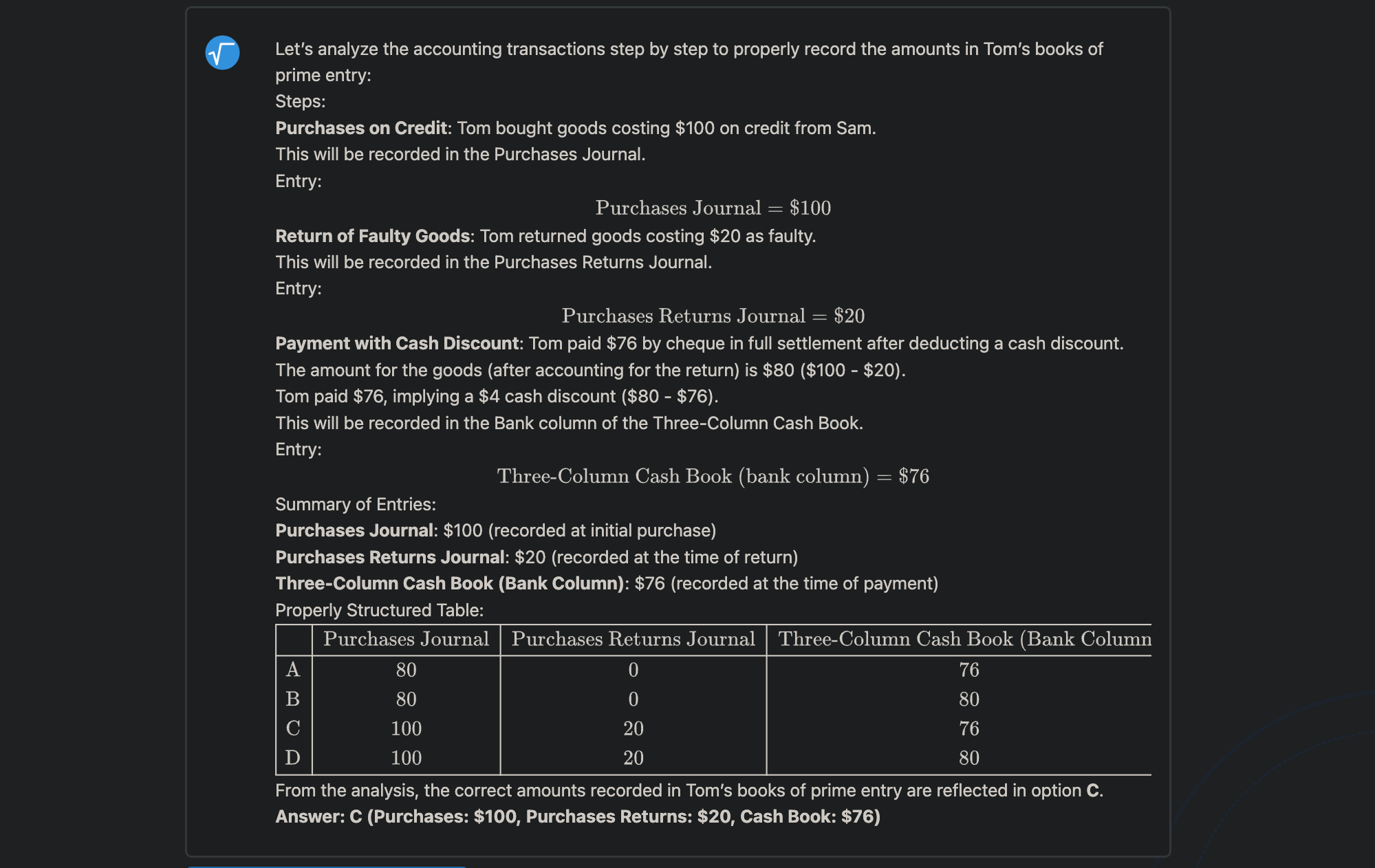
    While it’s straightforward to find videos on general topics, the likelihood of finding a video that answers my specific question is relatively low. That’s when AI tools come in handy; all you need to do is type in your question and the tool will generate a comprehensive solution in seconds. For instance, I struggled with a multiple-choice accounting question.

    After entering it into MathGPT, I received the answer I was seeking!

    MathGPT solving an accounting multiple choice questions

    Even when I find the exact question online, the solutions can often be convoluted with complex symbols and notations, which can be disheartening. However, the AI presents information differently.

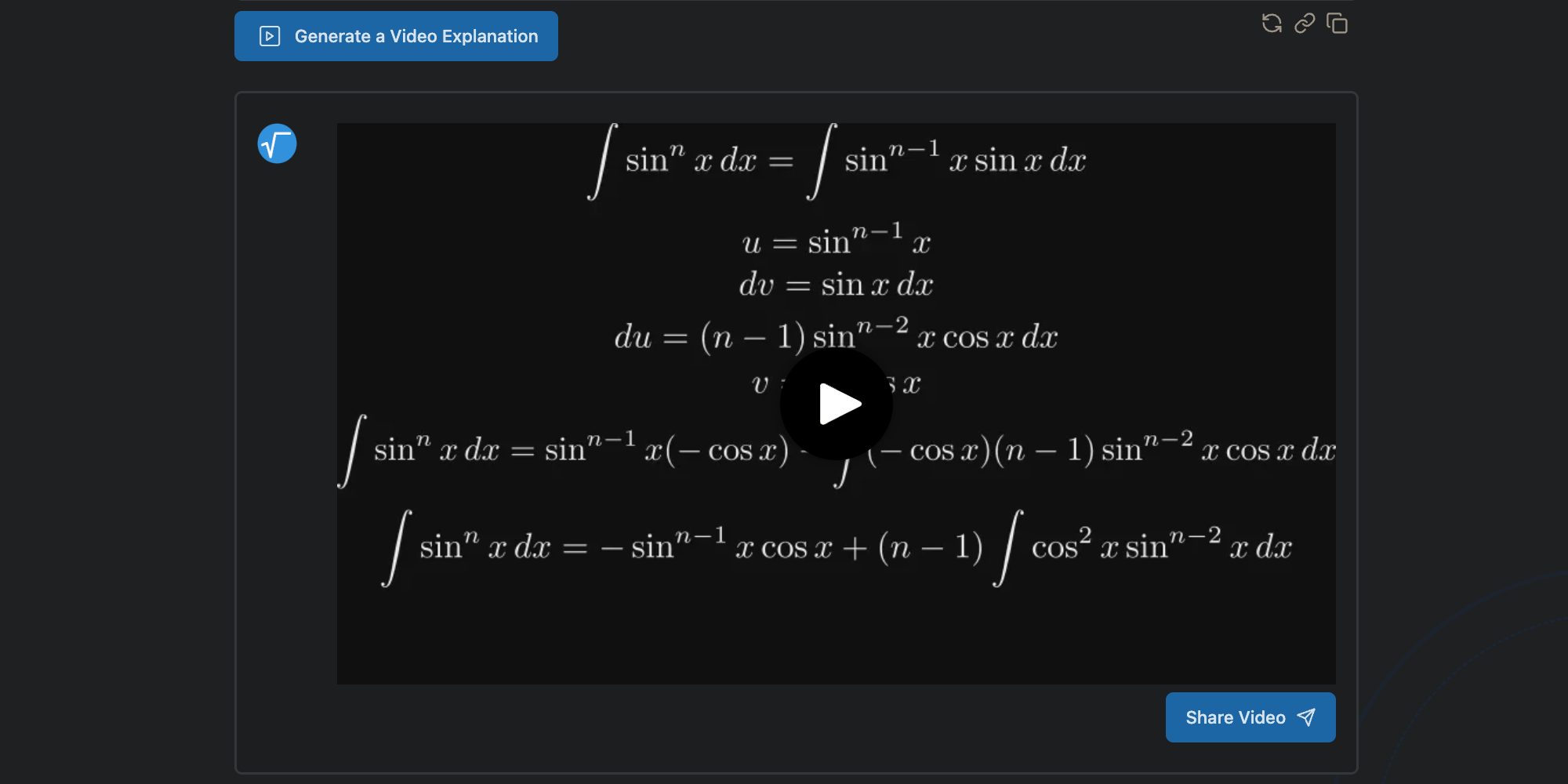
    One of MathGPT’s strengths is breaking down intricate problems into bite-sized steps. Additionally, you can click the Generate Video Explanation button to produce a script and a video that clarifies the solution in just a few minutes. Although the same solution is provided, the timing of the explanations on screen is notably beneficial for my understanding.

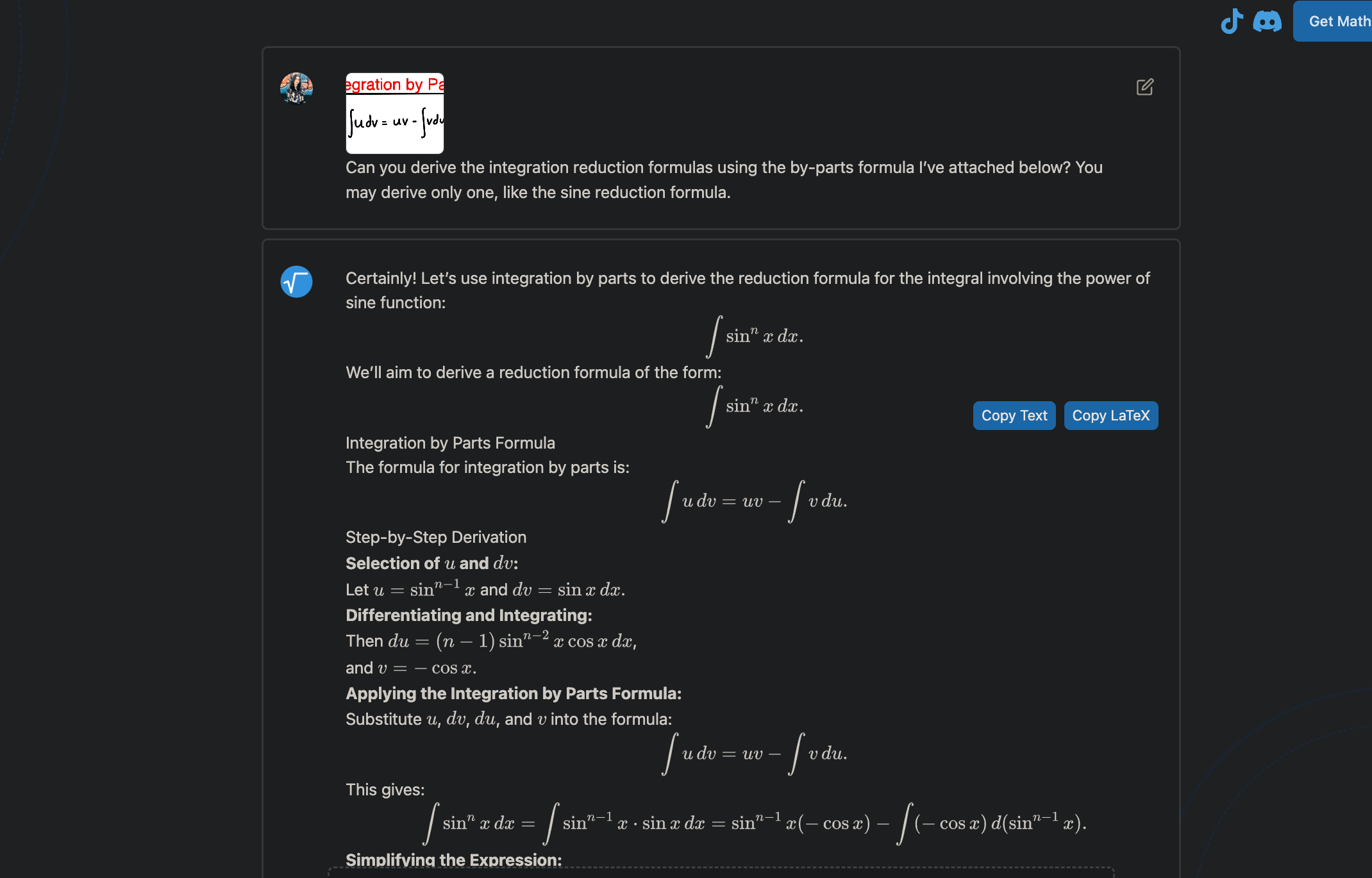
    What stands out the most about MathGPT is that the video solutions are customized to incorporate the methods you prefer. For instance, during my Calculus class, my professor solved a problem using a technique I hadn’t encountered before, leaving me confused. After class, I opted to use MathGPT to tackle the same problem, asking for a method I was already comfortable with.

    MathGPT deriving integration reduction formula

    In no time, MathGPT performed wonders, and I gained clarity through the generated video explanation! You can check out the video on this page.

    MathGPT generating video explaination for integration reduction formula derivation

    Generate Customized Practice Problems on Demand

    I’ve always been convinced that tackling practice problems is essential for mastering STEM subjects after grasping the concepts.

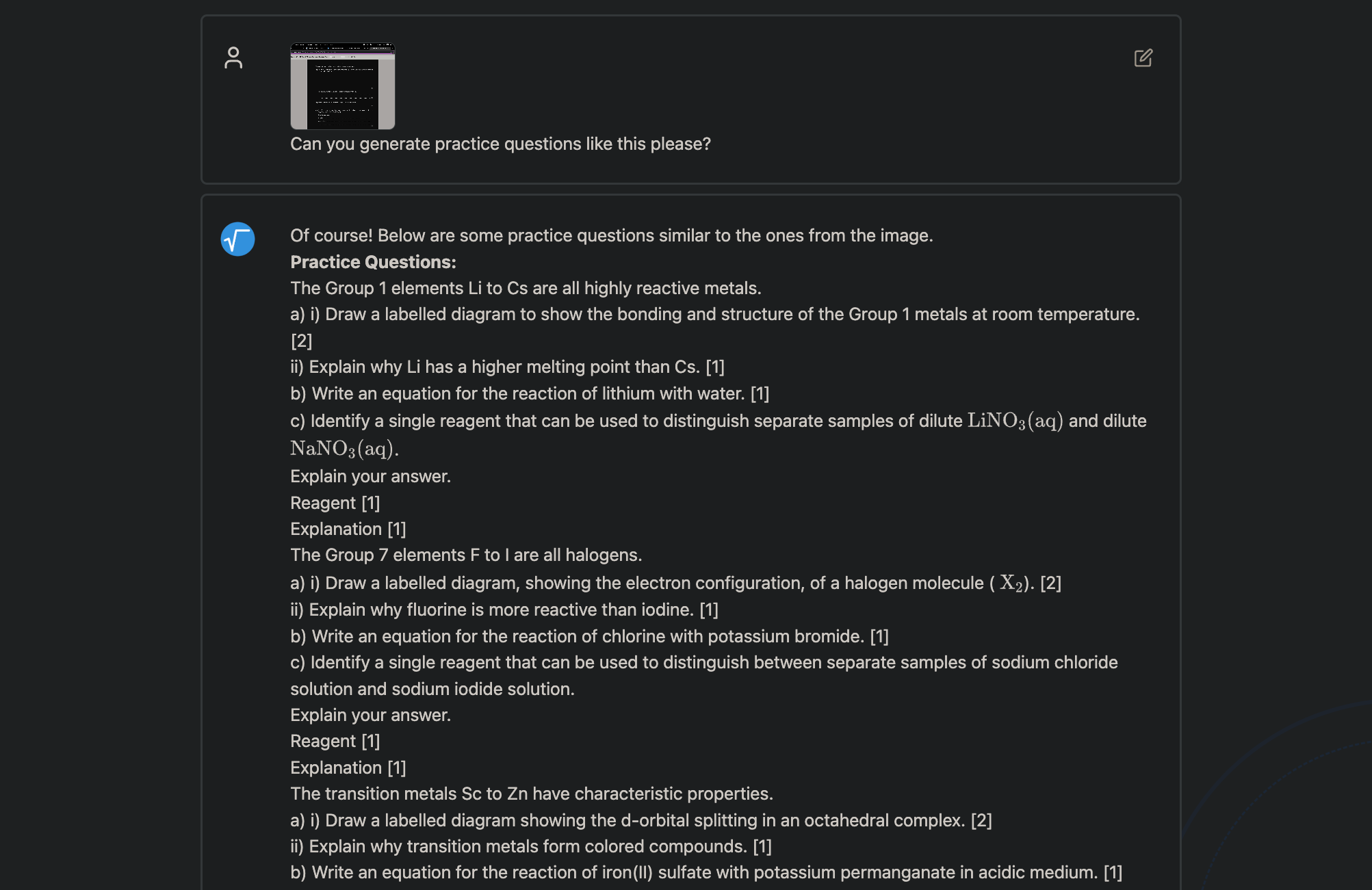
    While it’s possible to use the course textbook for practice, college textbooks often contain hundreds of questions, making it hard to locate the right ones to focus on. MathGPT has been instrumental in this regard. Since my exams regularly feature questions similar to my assignments, I typically upload a few assignment questions and ask MathGPT to create analogous problems, either matching or exceeding the difficulty.

    MathGPT generating Chemistry practice questions

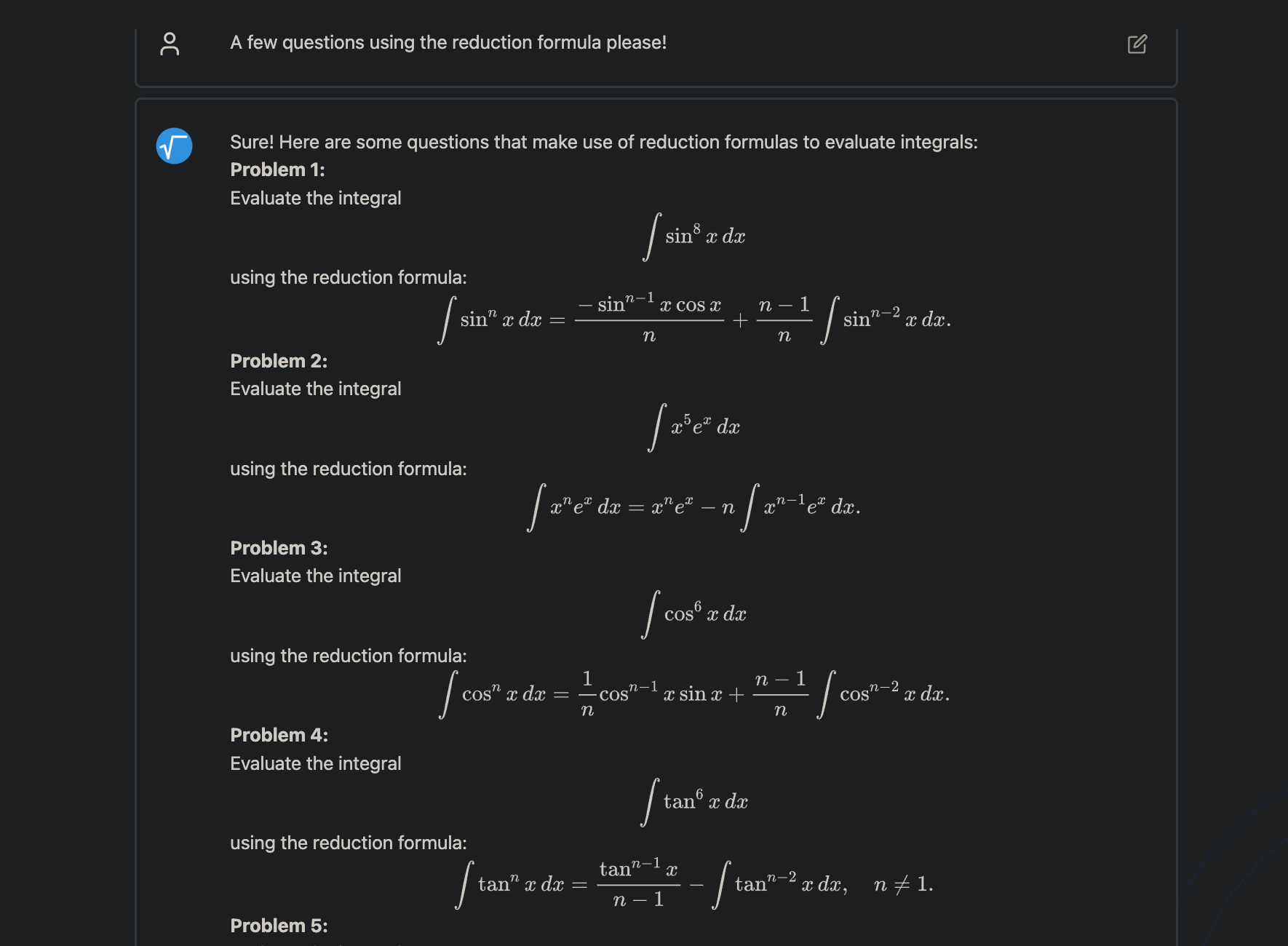
    Moreover, when I ask MathGPT to clarify a concept or tackle a question, I also request it to produce similar questions immediately after to make sure I thoroughly grasped the material.

    MathGPT creating integration questions that use the reduction formula

    This approach saves me the hassle of poring over endless questions and allows me to concentrate on the topics I find most challenging. If I ever find myself stuck, I simply ask MathGPT for a solution!

    Let AI Review Your Solutions

    We’ve all made minor errors, like miscalculating a simple multiplication. In such cases, I often find myself staring blankly at my answer, attempting to figure out where I went wrong. This can be incredibly frustrating, particularly with lengthy problems where I grasp the concept yet falter due to a small mistake.

    MathGPT can also assist in verifying your answers and spotting inaccuracies. For example, I submitted a kinematics physics question along with my calculations to MathGPT, asking it to check my conclusion since I’d arrived at the wrong answer.

    Asking MathGPT to check my work

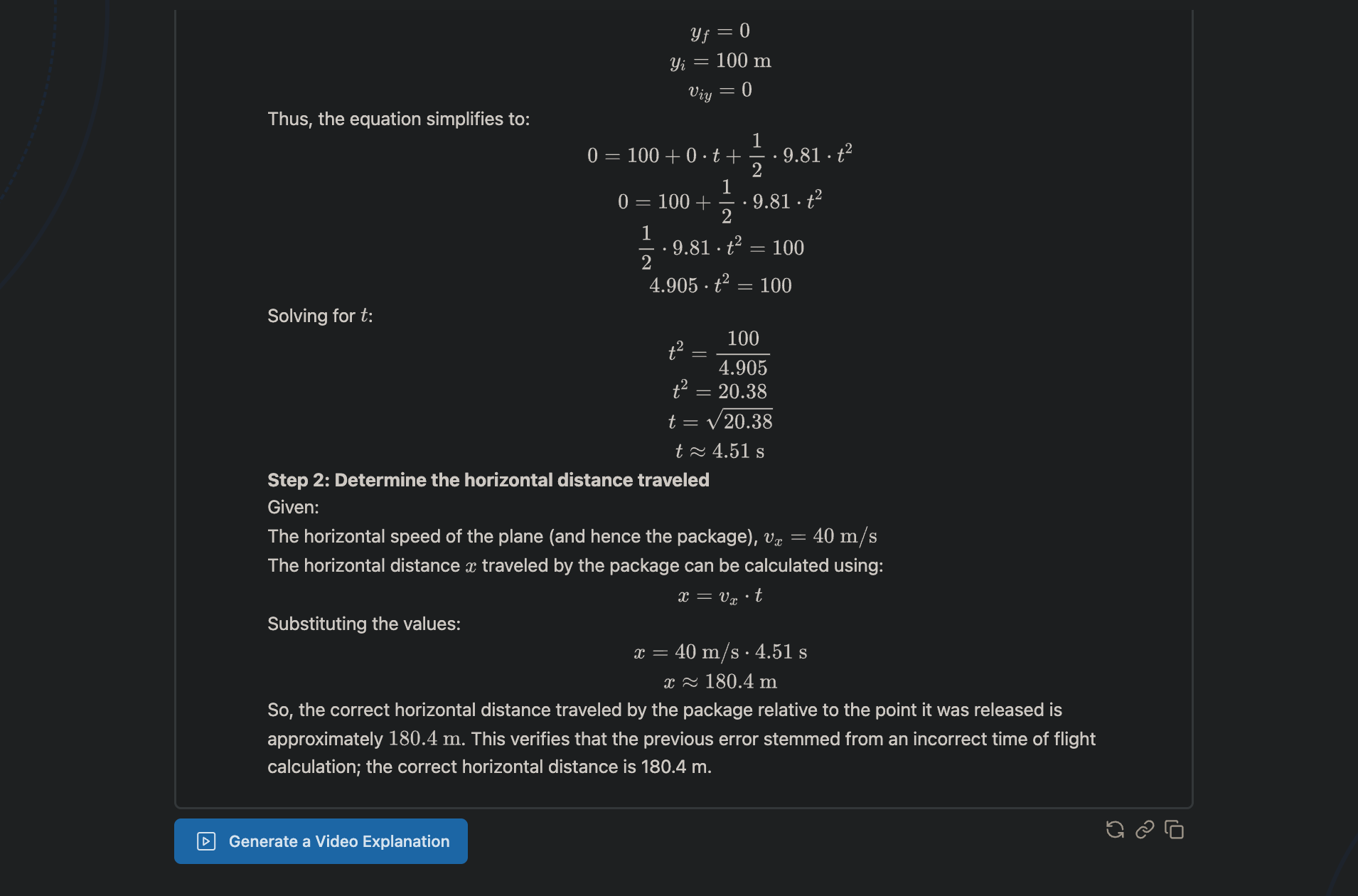
    The AI managed to solve the exercise and highlighted that my mistake was due to a miscalculation of the time of flight caused by incorrect division when I was rushing.

    MathGPT identifying the error I made in my Physics question

    This not only saves me a lot of time that I could allocate to more challenging problems, but it also reinforces my understanding of the underlying concepts.

    MathGPT has swiftly become an indispensable tool in my daily routine. It’s by far the best AI resource for solving math problems and solidifying your understanding. Plus, since it’s not just limited to math, I highly recommend checking out the site if you’re a student.

  • My Top 4 Must-Have AI Features in Windows 11

    My Top 4 Must-Have AI Features in Windows 11

    Microsoft has rolled out a variety of innovative AI features in Windows 11. Among them is Copilot, but there are also some exciting AI enhancements integrated within the built-in applications. While I could discuss them at length, here are my top picks.

    1 Microsoft Copilot

    As expected, Microsoft Copilot stands out as a central component of the AI-driven experiences in the Microsoft ecosystem. More than just a chatbot, it functions like a smart assistant right on your taskbar. You can either click the Copilot icon on the taskbar or simply press Windows + C to start using it.

    Are you looking to design an illustration for your LinkedIn post? Copilot can produce that in just a few seconds. Need to rewrite an email with a more polished tone? Copilot is ready to assist.

    However, Copilot offers more than the typical generative AI capabilities we’ve come to expect from services like ChatGPT or Google Gemini. It works in conjunction with other Windows features and applications, including Microsoft Edge, and even manages aspects of your PC experience.

    If you want to concentrate, you can instruct Copilot to “activate a focus session” to mute notifications and enhance your workspace. Alternatively, say “turn off dark mode” to quickly toggle off the dark theme of your system.

    As its name suggests, Copilot serves as a personal productivity ally equipped with a range of tools. It’s the kind of assistant Cortana aimed to be years ago.

    2 Auto Compose in Clipchamp

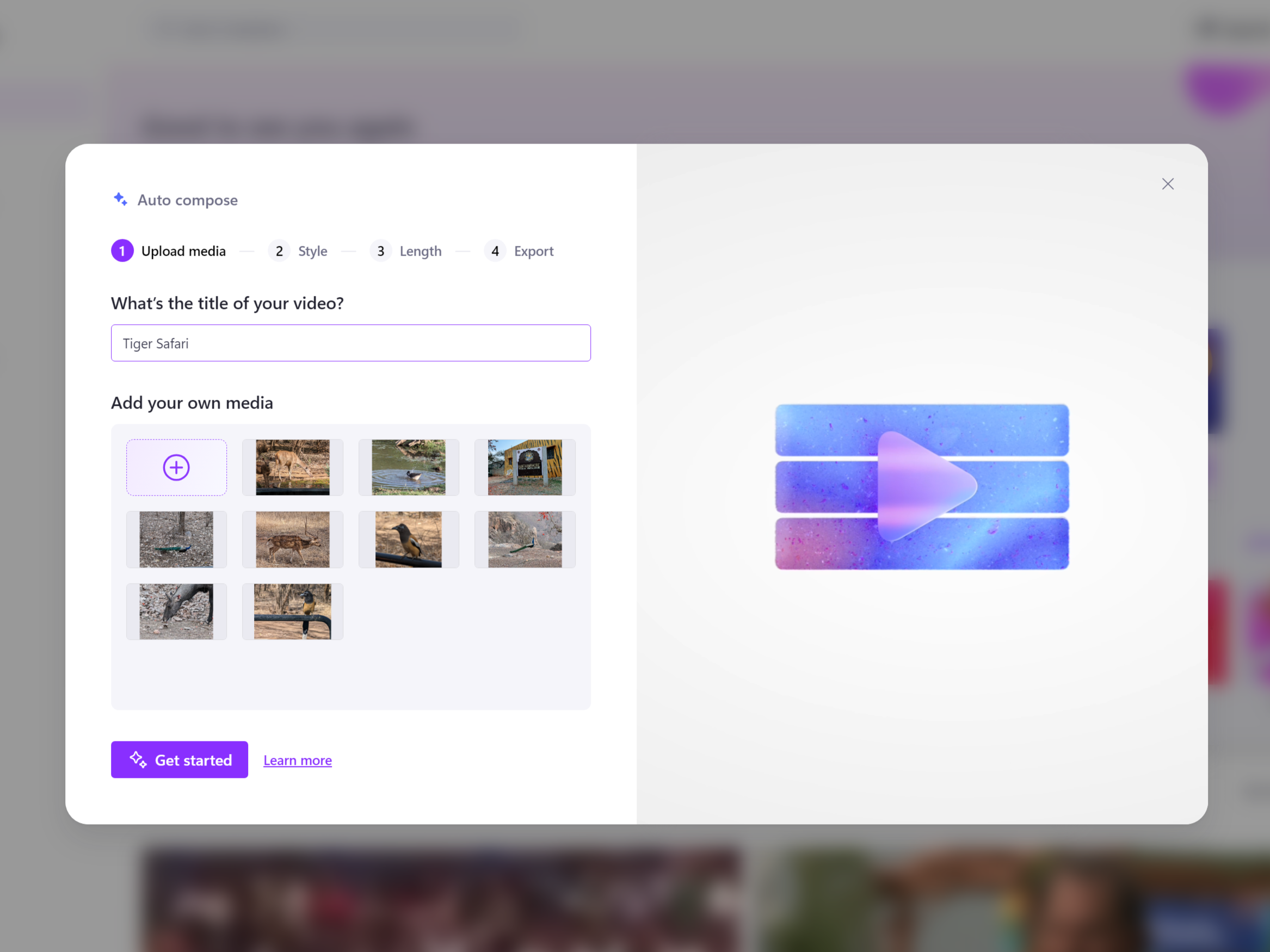
    Auto compose in Microsoft Clipchamp

    Say goodbye to tedious video editing! Microsoft’s Clipchamp app now features an AI-driven auto composition tool that’s truly transformative. To get started, head over to Clipchamp and choose the Create a video with AI option available on the Home tab.

    This feature allows you to quickly generate videos from your photos and videos within seconds. I uploaded my media, selected a style (or let the AI choose), and just like that, Clipchamp automatically identified the best moments, trimmed the clips, added transitions, and even included suitable background music.

    What I appreciate about it is that it’s not a generic solution. You can customize the video length and aspect ratio while requesting the app to produce multiple versions. This way, you retain creative control without sacrificing time.

    The Auto Compose feature makes visually appealing videos accessible to everyone, regardless of editing expertise. While it may not achieve professional-level editing, it’s fantastic for dynamic travel vlogs or sentimental family montages—something my Instagram likes can attest to.

    A standout, yet underrated AI tool in Windows 11 is its Optical Character Recognition (OCR) feature, which simplifies text extraction from images remarkably well. Its accuracy is commendable!

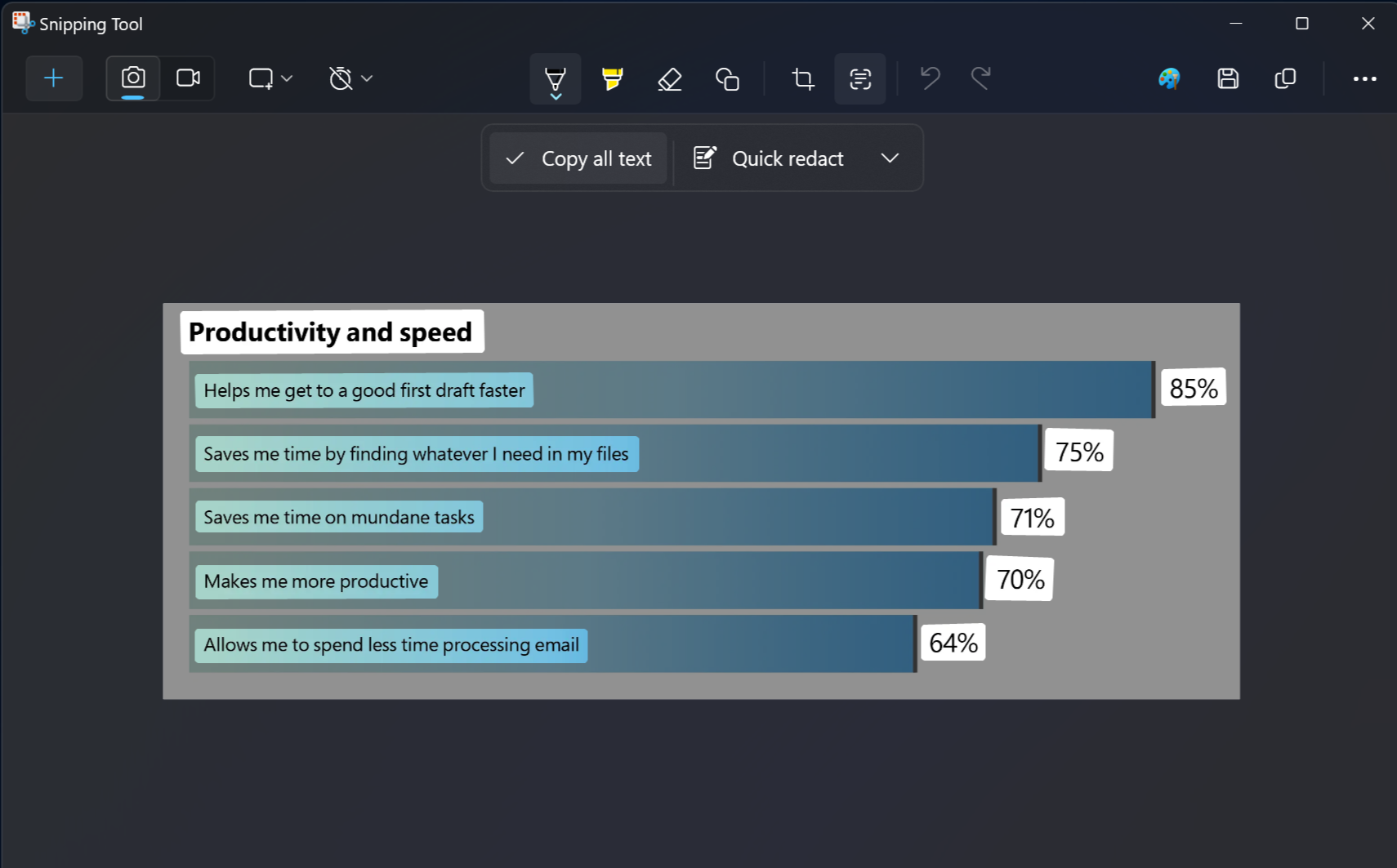
    Forget relying on third-party applications; you can now take a screenshot with the Snipping Tool, and the built-in OCR will automatically detect any text within the image.

    To use it, simply press Windows + Shift + S to pull up the snipping overlay, select the area containing the text you want to copy, then click on the Snipping Tool notification. In the preview window, hit the Text actions button (next to the Crop tool) and select Copy all text.

    OCR in Snipping Tool in Windows 11

    This feature comes in handy! Do you need to grab a quote from an image or a digital article that doesn’t allow text selection? Just snip the image and paste the text wherever you need it. It even works with handwritten notes, making it a terrific tool for digitizing my chaotic handwriting.

    4 Image Creator in Paint

    The Image Creator in Microsoft Paint is a valuable AI tool that can boost your creativity by generating impressive images based on textual descriptions.

    Currently, the Image Creator feature is available only in the US, France, UK, Australia, Canada, Italy, and Germany. At this time, only English is supported for text prompts.

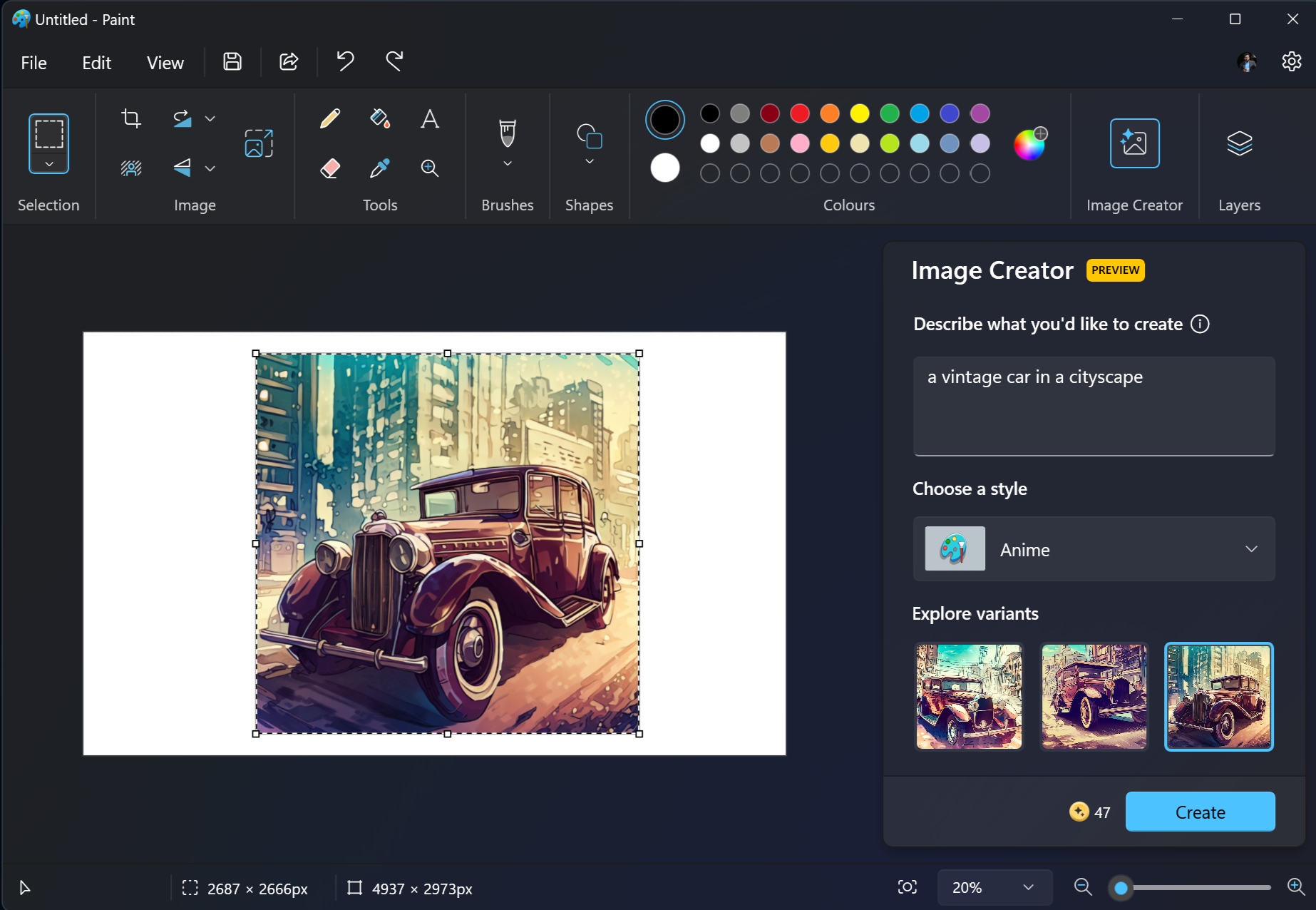
    To use the Image Creator, open Paint and click the Image Creator icon in the toolbar to access the side panel. In the text box, describe the image you’d like to create. You can also select a specific art style, such as charcoal, anime, or watercolor. Powered by DALL-E, the Image Creator generates a variety of images based on your description.

    Image Creator in Microsoft Paint

    This is an excellent feature for those who frequently need images but may not possess advanced design skills. Need a quick image for a presentation or even a social media post? The Image Creator can provide just what you need. Personally, I rely on it for illustrations for my blog.

    Image Creator opens the door to AI-generated images for everyone. Although there are numerous other generative AI services, the seamless integration of AI into a classic program like Paint showcases how Windows 11 harmonizes AI with familiar PC tasks.

    Microsoft has made impressive strides in incorporating AI features into Windows 11. I believe that we’re only just beginning to see the evolution of this technology, with even more AI-powered features set to enhance our daily creative and productivity tasks.

  • Rising AI Video Call Scams: Here’s How They Operate

    Rising AI Video Call Scams: Here’s How They Operate

    The advent of generative AI is upon us, and it brings both advantages and challenges. Unfortunately, one of the major beneficiaries of this technology has been scammers and those spreading false information. While AI-generated videos are still flawed, they have advanced to a level where impersonating someone is a distinct possibility.

    How Do AI Video Call Scams Function?

    The concept is straightforward: utilize deepfake technology to pretend to be someone else and leverage this impersonation to extract sensitive information from you, typically financial details.

    These scams often fall under the category of romance scams, targeting individuals seeking companionship on dating platforms. However, they can also impersonate celebrities, political figures, or even acquaintances, such as your boss, to enhance their credibility. In these cases, they frequently utilize a spoofed phone number to create a convincing facade.

    What Exactly Is a Deepfake?

    Deepfakes refer to AI-generated images or videos that replicate a real person, often for deceptive purposes. While this technology has legitimate uses—mainly in entertainment and memes—it has also become a tool for executing video call scams.

    What Is the Objective of Scammers?

    To put it simply, scammers aim to gather information. This may take various forms, but at the core, most AI-driven scams share this common goal, though the fallout can vary significantly.

    On the less severe end, a scam might involve tricking you into disclosing sensitive information about your employer, potentially exposing client data or contracts that could be exploited by a competitor. While this is a serious situation, it may be the least damaging outcome.

    In more dire scenarios, scammers may obtain your banking details or social security number, often by posing as a romantic interest in need of financial support or as an interviewer for a job you may or may not have applied for.

    Once they have gathered enough information, the real challenge becomes how quickly you recognize the scam and mitigate the potential damage.

    How to Identify an AI Video Call Scam

    Currently, deepfakes used in video scams exhibit numerous inconsistencies. You may notice visual glitches or odd behaviors that cast doubt on the authenticity of the video or voice.

    Pay attention to mismatched facial expressions, strange shifts in the video’s background, or a flat-sounding voice. Many AI systems struggle to track movements beyond standard head and shoulder shots, resulting in unnatural reactions if the subject stands or raises their hands.

    That said, AI technology is advancing quickly. While it’s important to recognize current limitations, ultimately relying solely on these skills for protection could be risky. Deepfake quality has improved significantly over the past year, and the gap between real and generated content is narrowing. Despite the existence of detection tools, they cannot be solely depended upon due to the rapid evolution of the technology.

    How to Guard Against Deepfake Scams

    Instead of merely trying to spot AI-generated content, adopt a proactive security approach. Most traditional information security methods remain effective.

    Verify the Caller’s Identity

    Instead of relying solely on facial recognition or voice patterns, utilize features that are harder to forge.

    Confirm that the call is coming from the correct phone number or account name. For platforms like Teams or Zoom, check the email that sent the meeting link to ensure it aligns with the caller’s credentials.

    If you still feel uncertain, ask them to verify their identity through other channels. For instance, you might text them with something like, “Are you on this Zoom call with me right now?”

    Engaging in casual conversation can also be revealing. Scammers often falter when forced off their script. If they’re impersonating someone you know, they may struggle to respond to personal questions like, “How’s Jimmy doing? I haven’t seen him since our last fishing trip,” especially if you incorporate made-up details that could throw them off.

    For close contacts, consider setting up a password system, reminiscent of childhood safety practices. Agree to use a unique word (like “Marzipan”) at the beginning of chats, presenting a simple yet effective deterrent against impersonators.

    Avoid Sharing Sensitive Information

    Of course, the best defense against scams is safeguarding essential information. No one should ask for your bank details or social security number during a call; avoid sharing them online entirely. If you feel pressured to disclose this information, take it as a clear sign to disengage.

    Such sensitive information should only be shared through verified methods or official documentation that affords you ample time to confirm the source’s legitimacy.

    If someone directs you to a Google document or PDF during a Zoom or Teams call’s text chat, request they send it from their work email instead. This allows you to investigate the legitimacy of the email address before even clicking the link or entering any information.

    Your best defense against scammers is to create an environment where you’re not rushed and have the opportunity to carefully assess the situation before taking action.

  • 8 Reasons I Still Choose DALL-E for AI Image Creation

    8 Reasons I Still Choose DALL-E for AI Image Creation

    Main Points

    • DALL-E is user-friendly and intuitive.
    • It has enhanced features compared to earlier versions.
    • The software offers built-in editing tools.

    Midjourney. Stable Diffusion. Adobe Firefly. There are numerous alternatives available, yet I still find myself turning to DALL-E for generating AI images. What makes DALL-E my go-to choice? Read on to discover why I favor this AI image generator over the rest.

    1 DALL-E Is User-Friendly

    When it comes to adopting new technologies, they need to be simple to navigate or learn. One key reason why I stick with DALL-E for AI image generation is how effortlessly I can create images.


    Once you log into ChatGPT, all you need to do is input a prompt describing the image you want. DALL-E will efficiently generate the image for you, usually within just a few minutes. After that, you have the option to make any desired adjustments.

    One of the primary challenges when using DALL-E for generating AI images lies in crafting effective prompts. Being too vague can lead to less than satisfactory results, so I recommend looking into the best DALL-E prompts for editing.

    2 DALL-E Has Seen Major Improvements Since Its Launch

    While DALL-E is far from flawless, and I still encounter occasional issues like unreadable text in images, I can confidently say that it has made significant strides since its initial release.

    Nowadays, when I enter prompts into DALL-E, it usually hits the mark within a few tries. I’ve noticed a decrease in the defects that were once commonplace, particularly when compared to many other AI image generators.

    A modified street scene created in DALL-E 3

    As DALL-E further develops its ability to comprehend textual input and utilizes an expanding dataset, I believe its capabilities will continue to enhance. However, I probably won’t use it for realistic photography, and I always clarify that my smartphone shots are not AI-generated.

    3 Simultaneous Access to ChatGPT

    While this feature is only beneficial if you also use ChatGPT, I prefer to minimize the number of apps I need to use. When multiple functions are integrated into one application, it simplifies my workflow and helps maintain my focus throughout the day.

    When using DALL-E, I don’t have to navigate to a different section of the app to access ChatGPT. Most of the time, I just need to start a new conversation and type my new prompt. Though I hope for more improvements to the user interface, I appreciate that I can easily toggle between my DALL-E prompts and ChatGPT discussions within the same sidebar.

    Initially, one of my major grievances with DALL-E was the absence of native editing capabilities. It was frustrating to have to edit an entire image when I simply wanted to tweak one element, which caused me to use the app less frequently.

    Fortunately, DALL-E now includes this feature. While the editing tools are still developing, they offer a promising starting point. You can select specific areas of the image to modify and adjust the brush size according to the details you wish to alter.

    Using DALL-E 3's image editor to modify an image

    Given that ChatGPT has a canvas feature, I’m likely to use DALL-E even more if it adds a similar tool for image editing.

    5 Access DALL-E from Anywhere

    One of my main issues with certain AI image generators is that they can only be accessed through a web browser. Fortunately, DALL-E is not limited in this way. While I primarily generate AI images through my browser, I sometimes also utilize the ChatGPT app on my smartphone.

    You can generate AI images with DALL-E on a tablet as well. This flexibility allows you to make quick adjustments while on the move. Plus, you can create something new as soon as inspiration strikes.

    6 DALL-E Excels at Producing Various Image Types

    I have utilized DALL-E for a wide range of styles, including photorealistic images, illustrations, portraits, and landscapes. Although it has its limitations, overall, I believe DALL-E does a commendable job of producing quality images across various categories.

    If I’m looking for something truly different and have tried several prompts to no avail, then I would consider using another AI image generator. However, for the most part, DALL-E meets my needs without necessitating an alternative.

    Feel free to experiment with different AI image generators if you’re uncertain. Midjourney, DALL-E, and Stable Diffusion are all considered leading options.

    7 Voting on DALL-E Images

    Many generative AI tools have a feedback feature, but I appreciate how quickly you can provide feedback in DALL-E. If you like an image, you can give it a thumbs-up, or if you’re dissatisfied, a thumbs-down indicates to GPT that adjustments need to be made for future prompts.

    Providing feedback using thumbs up or down on ChatGPT

    I also appreciate how quickly feedback can be submitted in DALL-E. After providing feedback, you can generate further prompts that align more closely with your expectations. Additionally, you may want to consult this guide on utilizing DALL-E in ChatGPT 4 for improved image creation.

    8 Expertise in Maximizing DALL-E’s Capabilities

    While I recognize that some AI image generators outperform others, your proficiency can greatly impact the results you achieve. If you’re unclear about which prompts yield the best results, how the tool reacts to varying feedback, or understanding its limitations, you may struggle to optimize its utility.

    Having used DALL-E extensively, I’ve learned how to maximize its potential. I know effective prompts and its weak points, which allows me to decide whether I should switch to another generator for specific tasks.

    Another advantage of being knowledgeable about DALL-E is that I can seamlessly incorporate additional tools if needed. For instance, if I need to resize an image, I might utilize Canva since DALL-E has limitations in that area.

    Creating an image within the ChatGPT app

    DALL-E stands out among AI image generators, and despite the array of competitors, I still prefer it for its ease of use and my familiarity with its features. With its new editing capabilities, I am confident that DALL-E will keep advancing in its functionality.

  • Microsoft Reverses Its Decision on Copilot Key

    Microsoft Reverses Its Decision on Copilot Key

    Microsoft’s introduction of the Copilot key was a significant part of their initial strategy for AI-driven PCs, but it hasn’t been received very well.

    Recently, a blog post from Windows Insider revealed that users will soon have the ability to assign the Copilot key to open various applications instead of just the Copilot AI assistant. This feature will initially be rolled out to Insiders in the Release Preview for the 23H2 version of Windows 11. It was originally anticipated to debut with the Windows 11 Preview Build 22631.4387, but that timeline has changed.

    At this time, Microsoft has not provided a specific date for when eligible Windows users will gain access to this feature, simply stating that, “This feature will roll out to Insiders in Release Preview on Windows 11, version 23H2 at a later date and is not included in this update.”

    This news will be welcomed by those looking for greater customization options regarding the Copilot key, which is increasingly found on many of today’s top laptops.

    However, it’s important to note that the implementation isn’t straightforward. The text that was removed indicated that this customization would be available only when signed into an MSIX package, which is designed to meet specific privacy and security standards essential for protecting your computer. MSIX apps utilize a newer packaging format that’s intended to be more secure than traditional MSI and EXE formats, although the selection is still somewhat limited.

    Once the feature is officially launched, users will customize the Copilot key by navigating to Settings > Personalization > Text input. While Microsoft hasn’t yet released a list of compatible applications, it’s hoped that details will be shared soon.

    The introduction of the Copilot key stirred some controversy, as it marked the first new dedicated key to be added to keyboards in nearly 30 years—especially since it functions primarily as a shortcut key.

    Nonetheless, expect to see this key on the latest AI-capable PCs equipped with advanced NPUs.

  • Google Unveils Gemini: Your Personal Shopping Assistant

    Google Unveils Gemini: Your Personal Shopping Assistant

    There’s no denying the ease of online shopping, but the sheer volume of choices available on the internet can make it a daunting task to find exactly what you need. To enhance personalized support in the digital shopping landscape, Google has introduced a new feature called Gemini, designed to make recommendations tailored to your specific preferences.

    The extensive range of options available on Google Shopping can be both a blessing and a curse. On one hand, it saves you the hassle of visiting multiple vendor sites to compare prices and features. On the other, it presents the challenge of sifting through countless possibilities to pinpoint what you really want.

    To simplify this process, Google Shopping has undergone a complete redesign powered by artificial intelligence, as noted in a recent announcement from Google. The Gemini feature will comb through approximately 45 billion entries in its Shopping Graph to provide users with a more focused selection of products. Along with refining search results, Google plans to include a Gemini-generated summary at the top of the results, which will offer essential considerations for shoppers as they explore their options.

    Google is expected to roll out this new feature in the U.S. within the next few weeks.

    How Does Gemini Determine Which Products to Recommend?

    Gemini’s recommendations will be based on your search behavior. Similar to regular Google searches, the more detailed you are with your keywords, the better the results you’ll get. For example, searching for “tennis racquet” is fine, but if you search for “beginner tennis racquet,” Gemini will yield a more tailored product list, along with expert tips on selecting the best racquet for newbies in the sport.

    Much like Google’s new summary cards used in emails, a brief overview will appear at the top of your Shopping Graph, presenting key advice to consider before diving into product comparisons. Additionally, each listing will include Gemini’s rationale for its inclusion in the Top Recommendations.

    Here’s how Google explains the new structure of its Shopping Graph:

    “We’ll display products recommended by various online sources, accompanied by an explanation of why they suit your needs. You’ll also find categories to help you view the available types of jackets more clearly. For those who wish to delve deeper, you can click on links for relevant articles on the web.”

    Currently, the AI-generated summaries will carry an “experimental” label since this feature is still in its infancy. Google invites users to provide feedback on these summaries, helping improve its AI capabilities.

    Despite its experimental status, this update has the potential to reduce the overwhelming choice faced by online shoppers. As someone who tends to research extensively, I can spend endless hours comparing products, so I’ve welcomed AI tools like Amazon’s review summaries. Carefully weighing your options can help prevent buyer’s remorse, yet it can also lead to decision fatigue. While Google’s AI enhancement introduces a more personal touch, Gemini remains a machine at heart. It will be fascinating to see if its recommendations are influenced by external factors, such as budget constraints.

  • Adobe Introduces AI Video Generation in Premiere Pro—With a Twist

    Adobe Introduces AI Video Generation in Premiere Pro—With a Twist

    As artificial intelligence (AI) continues to advance, its capability to create lifelike videos is significantly improving. Initially, these tools were primarily accessible to tech enthusiasts, but they are gradually becoming user-friendly for everyone else. Recently, Adobe has made a notable leap by introducing AI video generation to the general public, although it’s not designed for creating full-length films just yet.

    Adobe Introduces AI Video Generation to Premiere Pro and Firefly

    According to two recent posts on Adobe’s blog, the company now lets you utilize AI for video generation in several ways. The first post, titled “Generative Extend in Premiere Pro,” highlights that Adobe’s professional video editing software now features AI capabilities that can extend a video clip’s duration.

    This tool is limited to adding just two seconds to a video, so it won’t allow you to create entirely new scenes. However, it can be quite useful for ensuring your clips have a polished ending. You can find this feature in the Premiere Pro Beta version, which is currently being rolled out to users.

    The second post, titled “Generate Video (beta) on Firefly Web App,” showcases the capabilities of Adobe’s online AI generator. With Firefly, you can create videos by using a text prompt or by uploading an image. Regardless of the method you choose, Adobe restricts the duration to five seconds, making it suitable for short clips rather than comprehensive video projects.

    If you’re interested in AI video creation but find Adobe’s limitations too restrictive, consider exploring other tools. One of our writers experimented with an AI text-to-video tool to create a social media video and documented the experience. Alternatively, you can check out our list of the best AI video generators for more options.

  • Top Note-Taking Tools: Which One Reigns Supreme?

    Top Note-Taking Tools: Which One Reigns Supreme?

    Quick Links

    • Summarization Capabilities
    • Final Verdict: Which Tool is Right for You?

    Key Takeaways

    • Notion comes out on top due to its superior user-friendliness, customizable notes, diverse third-party integrations, and a variety of non-AI features.
    • NotebookLM outshines Notion in summarization capabilities, offering clear, concise overviews of key topics and quick summaries.
    • While Notion provides extensive customization and integrations, its non-AI features give it a significant advantage over NotebookLM.

    Artificial intelligence has transformed the note-taking landscape, making it smarter, quicker, and more intuitive. Two leading contenders in this arena are Notion and NotebookLM, both equipped with cutting-edge AI features aimed at boosting your productivity. But when it comes to choosing the best option, which one truly stands out?

    AI Power

    NotebookLM relies on Google Gemini as its large language model, and although it was still in beta at the time of this writing, its potential is significant. Gemini can be utilized in various other applications, and I’ve tested its performance in Google Sheets to determine if it offers more than just surface-level benefits.

    In contrast, Notion claims to utilize a variety of large language models (LLMs) hosted internally and through organizations like Anthropic and OpenAI. This diverse foundation equips Notion AI with extensive knowledge, adding to its functionality.

    While both platforms feature impressive AI, Notion takes the lead for its broader integration of AI capabilities, though it doesn’t diminish the strengths of Google Gemini, which remains a powerful tool within the Google ecosystem.

    Winner: Notion

    User Experience

    I was drawn to Notion initially for its ease of use, and my opinion has only solidified after three years. I’ve experienced challenges with other note-taking apps across different devices, but my usage of Notion has been seamless on mobile, desktop, and tablet. The web application also performs well across most browsers.

    Conversely, NotebookLM was adequate after I got accustomed to it, but I initially found its navigation frustrating. This might be an unfair comparison since Notion feels more polished, while NotebookLM is still in its beta phase and has room for improvement. The sidebar navigation could benefit from more streamlining, and the settings menu’s responsiveness needs enhancement.

    Winner: Notion

    Summarization Capabilities

    NotebookLM efficiently summarized documents, providing clear and concise overviews. However, when I sought additional insights through various questions, the app fell short, requiring more comprehensive documents for detailed summaries.

    What impressed me about NotebookLM is how clearly it identified the essential topics within my documents, presenting them well in the toolbar for easy note-taking. It also quickly condensed my documents into summaries.

    On the other hand, Notion AI’s summarization tool left me disappointed due to its sluggish performance. It took longer than expected to load summaries on various platforms. Though Notion AI’s layout was more organized—the ability to see points and expandable sections was a plus—it still lagged behind NotebookLM in terms of stability.

    Winner: NotebookLM

    Note Customization

    When it comes to customizing notes, NotebookLM and Notion are worlds apart. While I could change the titles of my notes in NotebookLM, further adjustments were minimal.

    In contrast, Notion is one of the best apps for note customization. You can add comments, highlight text, and format your notes in a variety of ways—like creating tables or embedding external documents. Notion also simplifies collaboration by allowing you to mention others in your notes.

    Another bonus is the ability to choose from different fonts for your notes. Overall, Notion excels in customization, not just for notes but also for tailoring your entire workspace.

    Winner: Notion

    Third-Party Integrations

    Notion boasts numerous integrations with apps like Google Drive, Asana, and GitHub. If you prefer not to pay for Notion AI (for unlimited access), you can connect with several AI tools, including Nightfall AI and Cloudeagle.ai.

    One of the features I appreciate about Notion is how effortlessly you can access integrated apps. For instance, embedding a Google Doc is instantaneous. Notion can also be integrated with tools like Miro, ClickUp, and Trello, enhancing your note-taking experience.

    NotebookLM, on the other hand, mainly integrates with Google Workspace tools. If you’re already using Google Workspace, you might find NotebookLM useful. However, it lacks the ability to integrate with non-Google applications. For broader integration needs, Notion is the clear choice.

    Winner: Notion

    Non-AI Features

    Notion and NotebookLM significantly differ in their non-AI offerings. NotebookLM focuses solely on AI functions, which can lead to frustration if you’re looking to perform other tasks, as the app requires you to upload a source document, website, or other material to function.

    In contrast, Notion isn’t solely built around its AI feature, which was introduced in early 2023. The app offers a wealth of non-AI functionalities that I have found invaluable over the years, including the ability to create notes from scratch, multiple workspaces, templates, Gantt charts, calendars, and much more. Notion’s versatility here solidifies its strength.

    Winner: Notion

    Final Verdict

    While Notion takes the overall win, NotebookLM is still a valuable tool. Notion’s breadth of use cases makes it the ideal choice for those who want to create detailed notes and then summarize them using NotebookLM.

    I recommend Notion if you need to collaborate with others, as its commenting, highlighting, and mentioning features facilitate teamwork in both work and academic settings. Notion’s extensive integration options surpass those of NotebookLM, making it the better choice for users outside of the Google Workspace ecosystem.

    If your primary need is summarizing notes efficiently, then NotebookLM is a solid option. It performs faster and is similar to Notion in summarization features, but just ensure you provide it with sufficient content to work with!