الوسم: speed up

  • How To Speed Up Game Downloads On PlayStation: Tips for Faster Downloads

    How To Speed Up Game Downloads On PlayStation: Tips for Faster Downloads

    With the increasing size of PS5 games, downloading can often feel like a slow process. Titles can exceed 100GB, whether you're downloading games via PlayStation Plus or through physical media. The wait might seem endless, but here are some tips to speed up your downloads so you can dive into gaming faster.

    Difficulty

    Easy


    Duration

    10 minutes

    What You Need

    • PlayStation 5


    Sony

    Optimize Your Connection

    Your download speed is greatly influenced by your internet connection. The maximum speed you can achieve will depend on your Internet Service Provider (ISP), but there are some measures you can take to maximize that speed.

    Step 1: Whenever possible, use a wired connection by connecting your PlayStation to your router with an Ethernet cable. Although Wi-Fi technology has progressed significantly, it still does not match the speed and reliability of a wired connection, especially for large downloads.

    Step 2: If a wired connection isn’t feasible, consider placing your PlayStation closer to the router. This change, even if temporary, can significantly enhance your download speeds by reducing the number of barriers between your console and the router.

    Step 3: When neither of these two options is available, ensure that your PS5 is the only device accessing your network. Multiple devices using the same network will reduce available bandwidth for each. By disconnecting or shutting down all other devices while your PS5 is downloading, you will optimize your network's performance.

    The PS5's rest mode settings page.

    PlayStation

    Avoid Unnecessary Activities and Use Rest Mode

    Every additional task you assign to your PS5 during a download can slow down the process. Activities like downloading multiple games, streaming, or even just keeping other apps open can hinder performance. To achieve the fastest download speed, it's best to close all applications and activate Rest Mode. This way, your console can focus all its resources on completing the download swiftly. Just ensure that downloads are enabled in Rest Mode by navigating to Settings -> System -> Power Saving -> Features Available in Rest Mode.

  • How to Speed Up Game Downloads on Xbox: Tips and Tricks

    How to Speed Up Game Downloads on Xbox: Tips and Tricks


    Whether you own the Xbox Series X or Series S, accessing the best games is simpler than ever through Game Pass and digital downloads. However, a common hurdle is the large size of these games, causing long wait times during installation. If you’re eager to dive into your next gaming adventure, follow these tips to minimize your download times.

    Difficulty

    Easy


    Duration

    15 minutes

    What You Need

    • Xbox Series X or S

    Microsoft

    Prioritize Your Download

    While your game is downloading, you may be tempted to play other multiplayer games or stream your favorite shows. However, this will slow down the download process. To maximize your download speed, refrain from using your console for other tasks and close any applications running in the background.

    Additionally, try to download one game at a time. The more processes your console has to handle simultaneously, the longer each one takes.

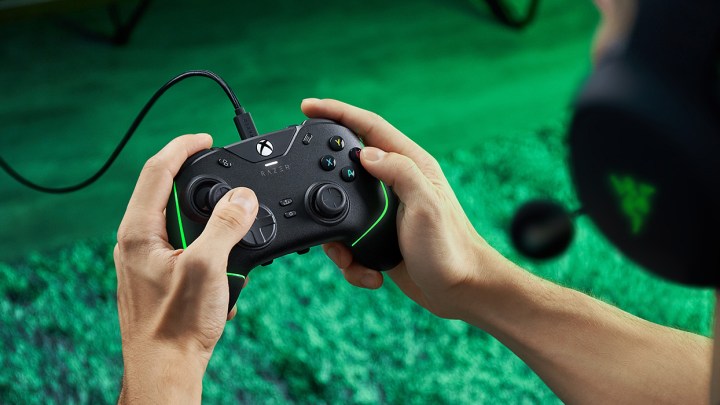
    Razer Wolverine V2 Chroma controller for PC and Xbox Series X.
    Razer

    Enhance Your Connection

    While you can’t control the internet speeds in your area, there are several steps you can take to ensure you’re utilizing your connection efficiently. During downloads, disconnect other devices on your network, such as smartphones and laptops. The fewer devices connected, the faster your console can download.

    Using a wired Ethernet connection instead of Wi-Fi can greatly improve download speeds, though that might not always be feasible. If possible, place your console closer to your router to reduce any signal loss.

    If you still experience slow downloads, consider rebooting your router to resolve any potential issues. If problems persist, it may be time to reach out to your ISP for assistance.


  • How To Speed Up Game Downloads on Nintendo Switch

    How To Speed Up Game Downloads on Nintendo Switch

    If you're looking to enjoy the best games on the Nintendo Switch, there's simply no substitute for this versatile console—or its expected successor, the Switch 2. Getting started with physical games is a breeze; just insert the cartridge and play. Unlike the top titles on the PS5 or Xbox Series X, most physical Switch games are playable immediately without requiring additional downloads. However, digital purchases and titles accessed via Nintendo Switch Online typically come with lengthy downloads. Fortunately, there are various methods to enhance your download speeds.

    Difficulty

    Easy


    Duration

    15 minutes

    What You Need

    • Nintendo Switch


    Nintendo

    Increase Your Maximum Transmission Unit

    This may sound daunting, but it's quite straightforward and can significantly boost your download speeds. By adjusting one setting in your Switch, you can save valuable time on large downloads.

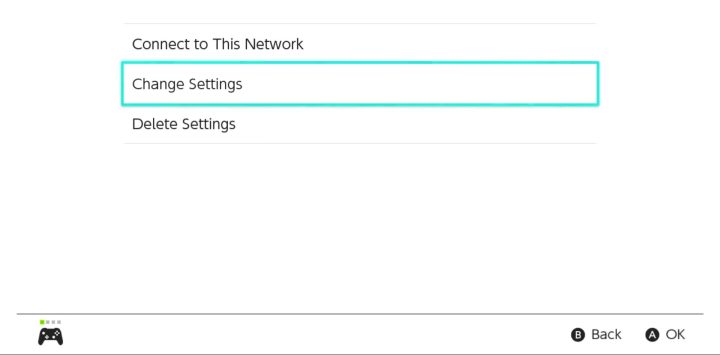
    Step 1: Navigate to System Settings -> Internet -> Internet Settings.

    The Nintendo Switch internet settings interface.

    Nintendo

    Step 2: Choose your network and click on Change Settings.

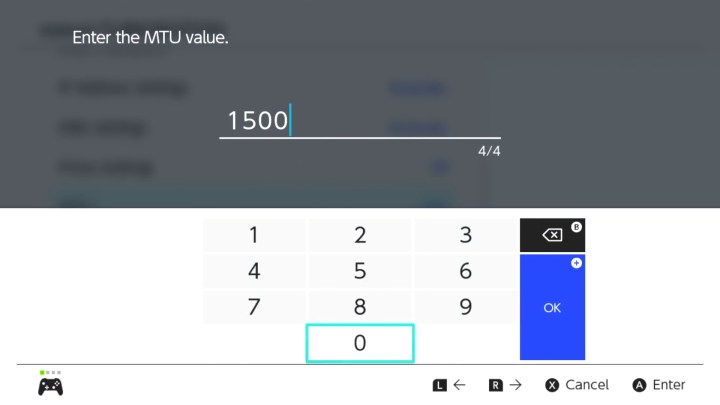
    MTU settings on the Switch.

    Nintendo

    Step 3: Scroll until you find the MTU option. The default setting is usually at 1,400, but we need to change it to 1,500.

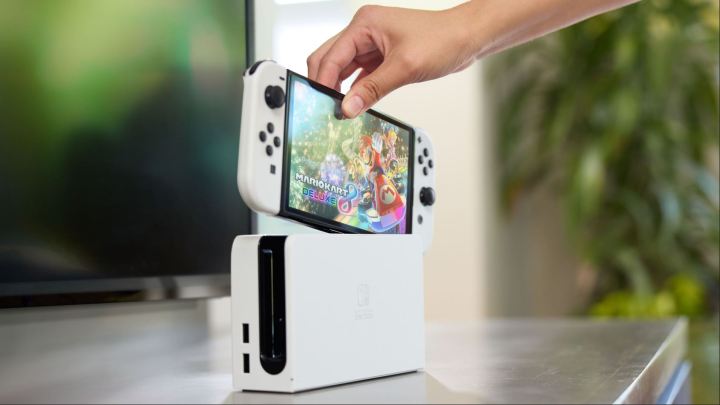
    A person holding a Nintendo Switch OLED Model.

    Nintendo

    Clear Your Network

    Also, try to disable or disconnect any other devices sharing the same network. The more devices connected, the less bandwidth available for each, so having just your Switch online will maximize its speed.


  • Google Photos Gets Exciting New Feature For Faster Edits

    Google Photos Gets Exciting New Feature For Faster Edits

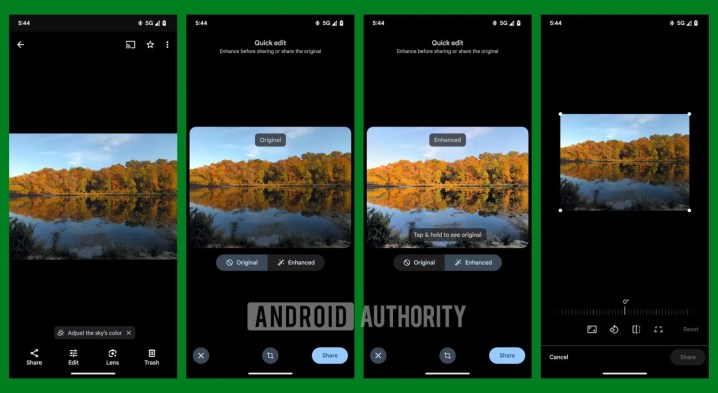
    Google Photos for Android is rolling out a new feature designed to streamline photo editing just before sharing. This addition was initially highlighted by a tipster from Android Authority who reported it first.

    The “Quick Edit” functionality enables users to enhance or crop photos quickly before sharing them. It includes an “Enhance” button, operating similarly to the existing enhancement feature found in the app’s regular editing suite. Additionally, there’s a crop button that mirrors the one typically used in the standard photo editor. If multiple photos are selected prior to tapping the share option, users will see the usual share menu rather than the new Quick Edit interface.

    Google Photos has offered simple, single-click enhancement tools for some time now, with at least four distinct options available. The Enhance tool automatically examines your image and adjusts its brightness, contrast, and color. Users may also see Suggested Edits, which provide tailored suggestions like cropping or rotating, all of which can be applied effortlessly with one click.

    Screenshots of Google Photos Quick Edit
    Android Authority

    Users can also apply various filters instantly to alter the mood and style of their images. Basic editing options such as Crop and Rotate are easily accessible with a single click and offer presets for common aspect ratios.

    The source mentioned that the new Quick Edit feature is functioning on a Pixel 6 Pro running version 7.10.0 of Google Photos. Interestingly, on my Pixel 9 Pro XL with version 7.11.0, the feature hasn’t appeared, indicating it might be rolling out gradually across Android devices.

    Google Photos is available on a variety of platforms. Besides Android, the app can also be accessed through the App Store for iPhone and iPad, in addition to being available online.