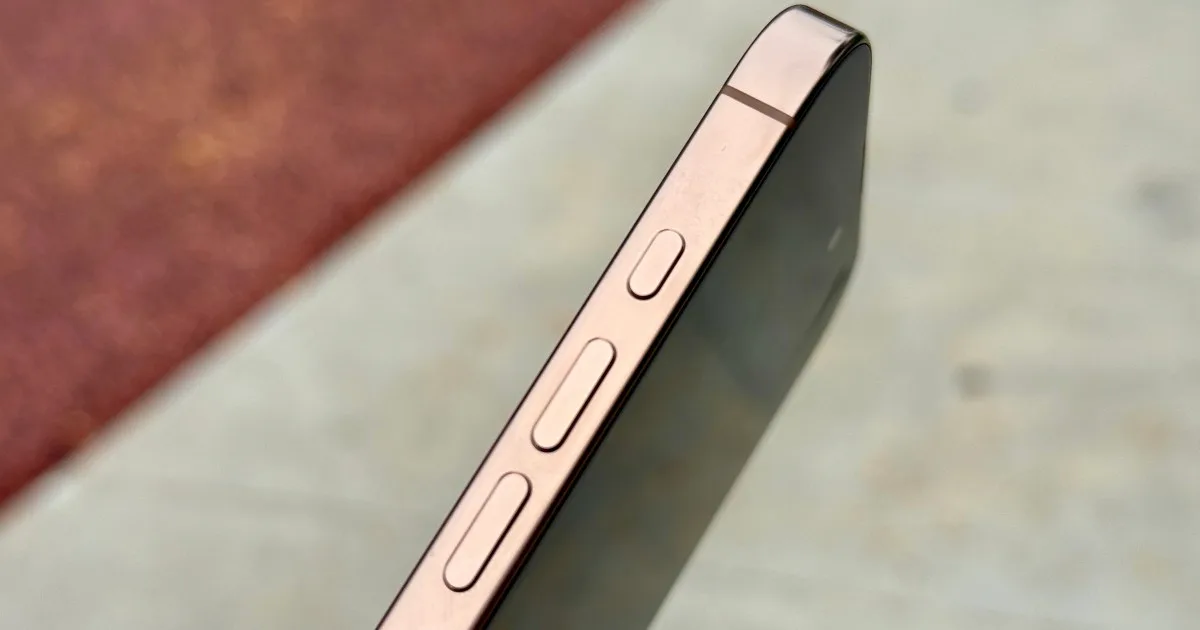
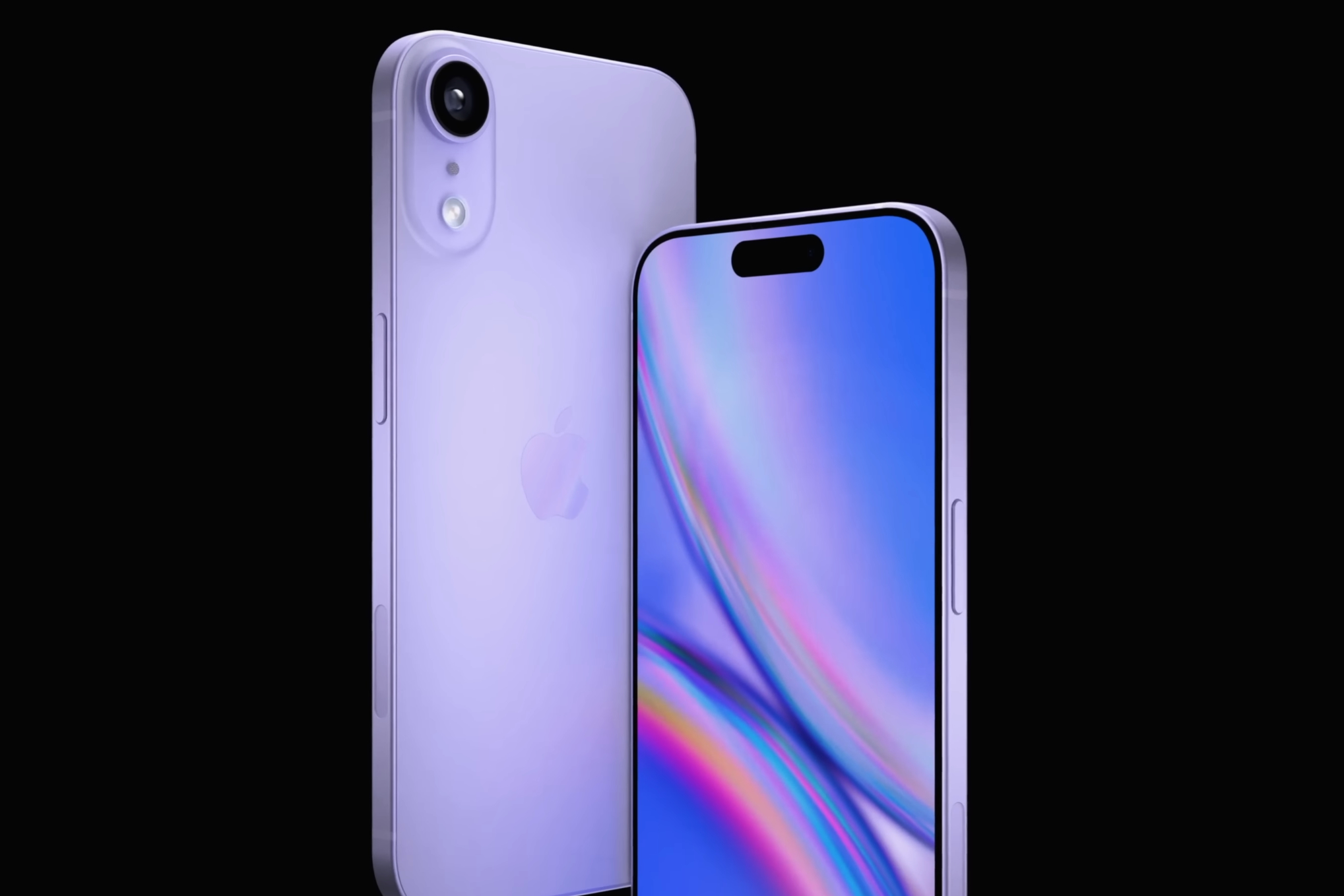
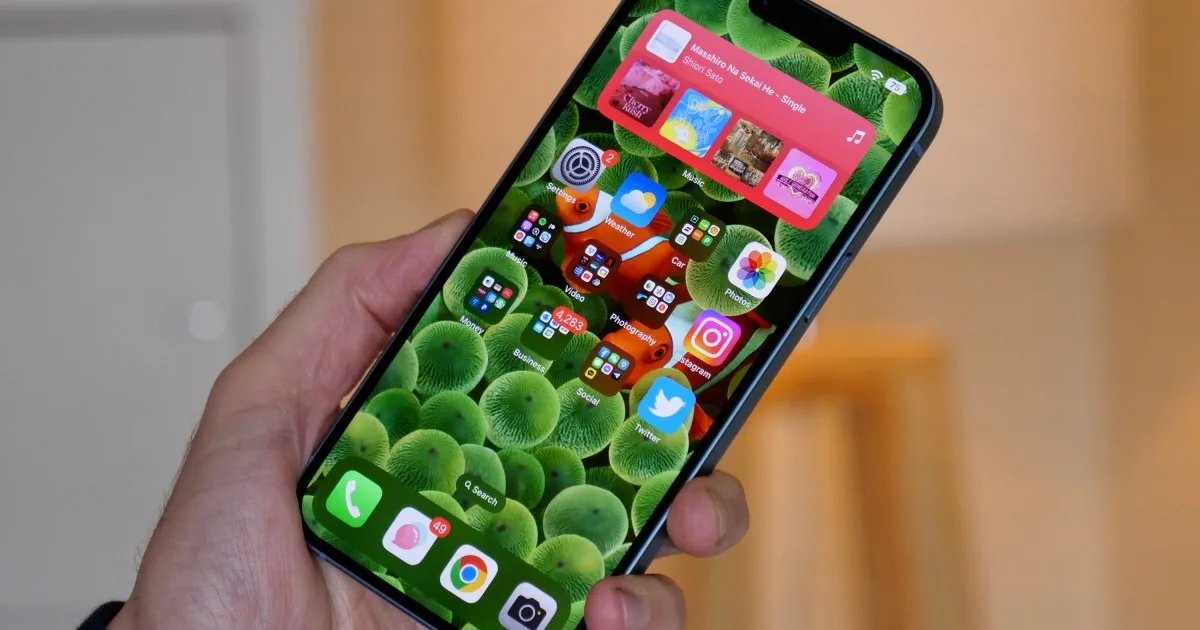
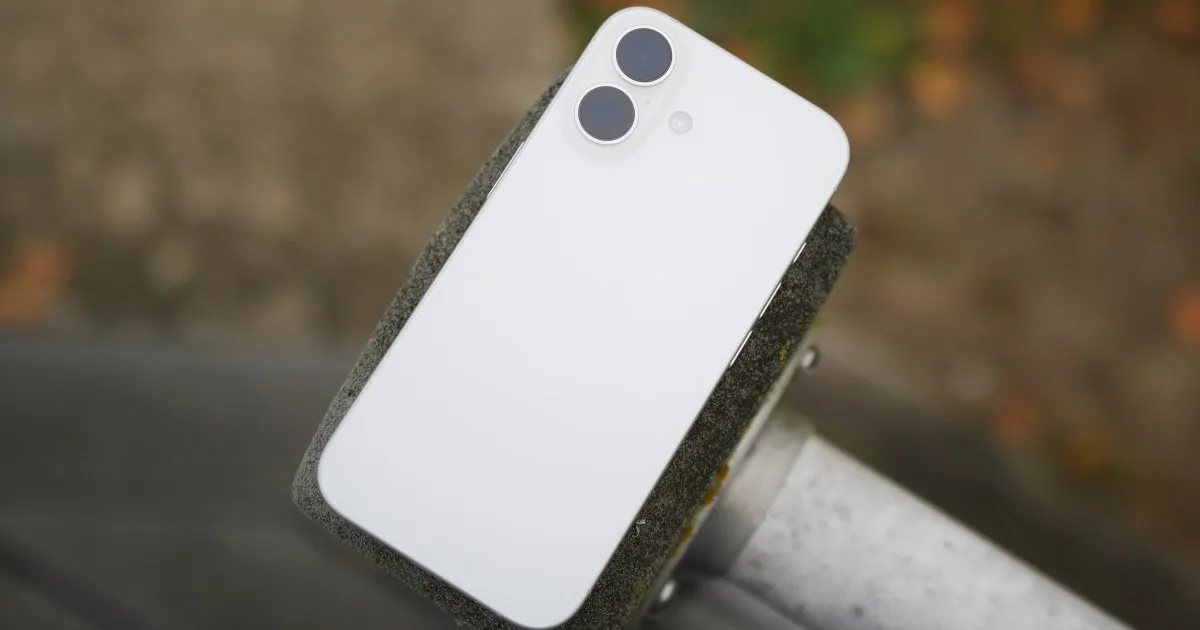
The upcoming iPhone SE, anticipated to debut in 2025, looks to be one of the most exciting smartphones Apple has introduced in recent times. Interestingly, there’s also a Plus version in the works for next year.
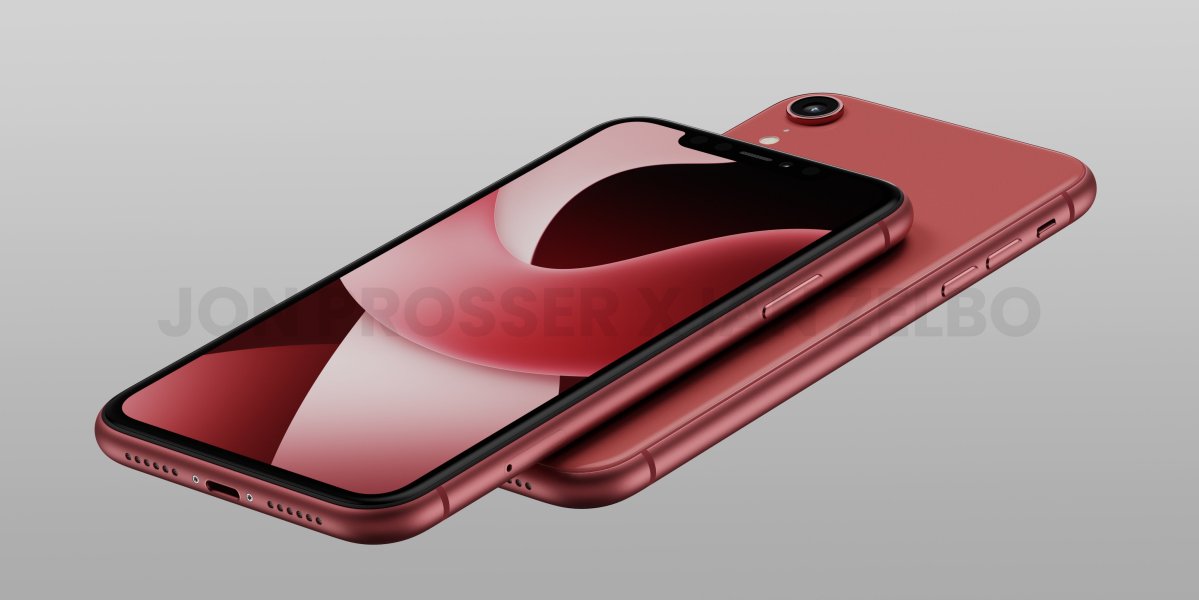
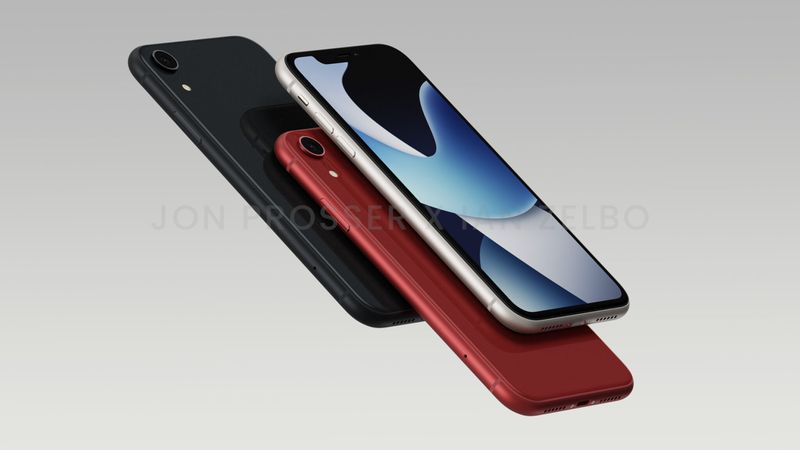
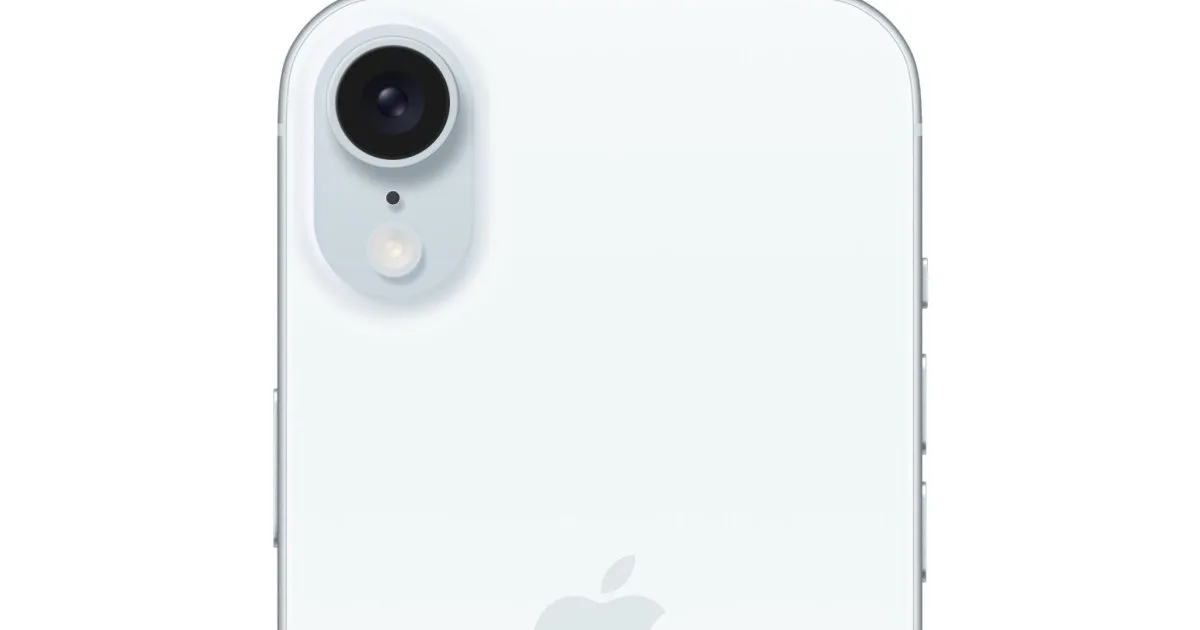
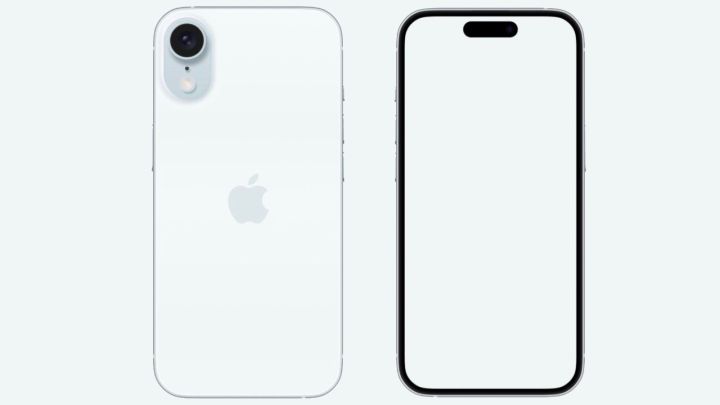
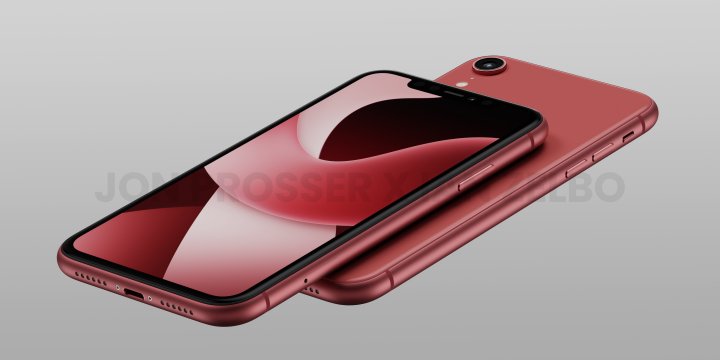
A Japanese site, Macotakara, has released photos claiming to show a “3D printed mockup” of the new iPhone SE. The design appears remarkably similar to that of the iPhone 14, a detail corroborated by Bloomberg.
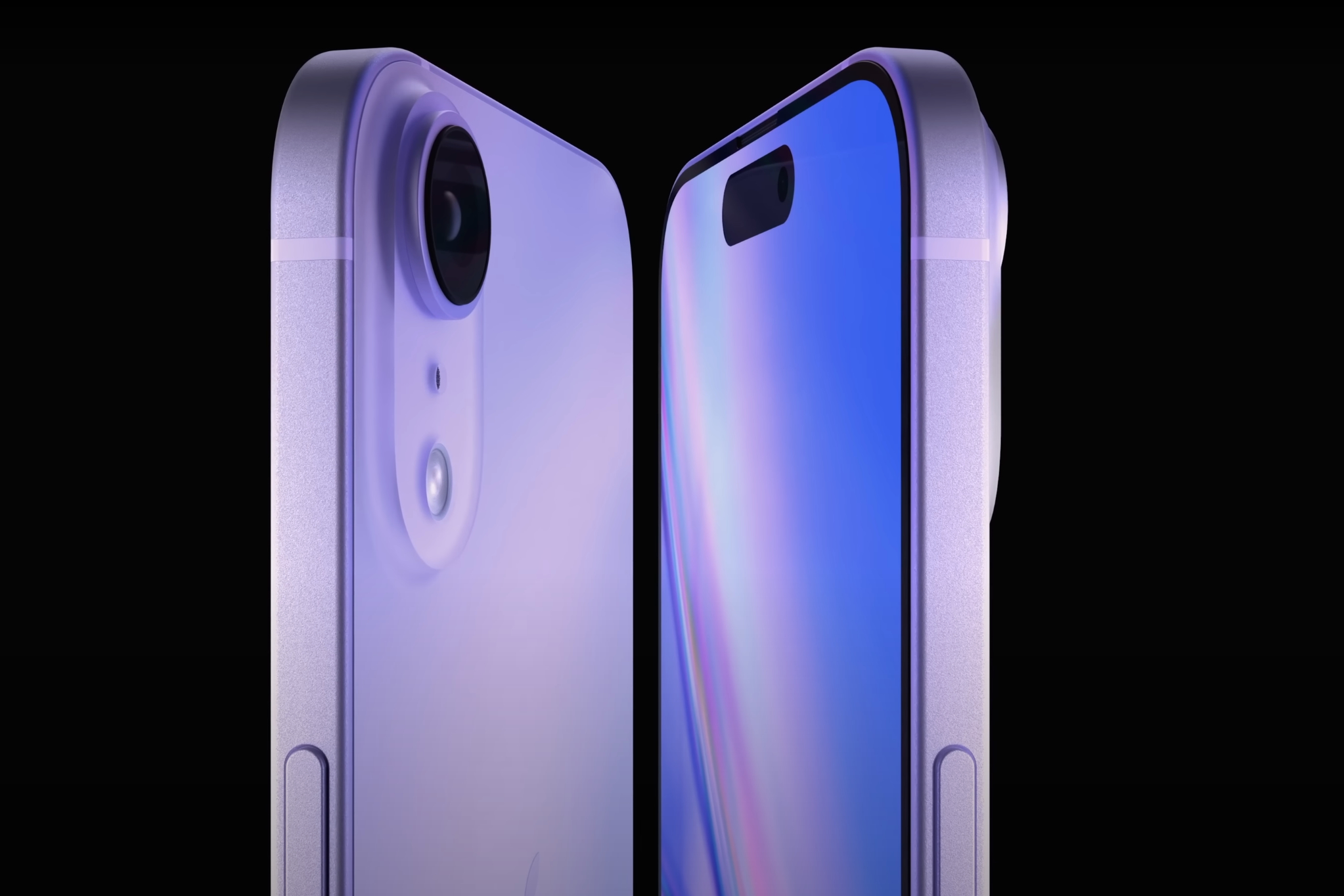
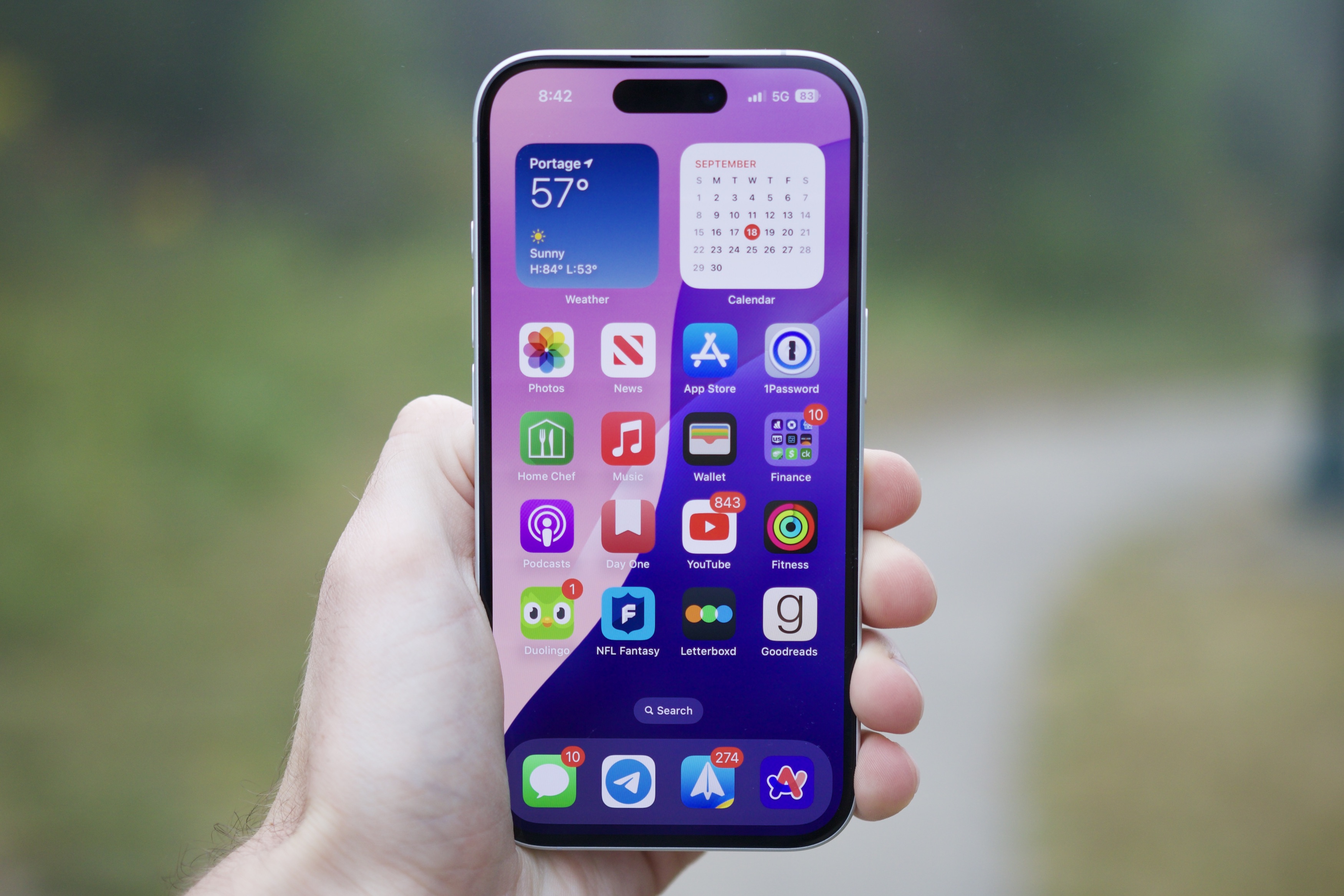
It seems that the fourth-generation iPhone SE will share dimensions with the iPhone 14, even mimicking the distinctive pill-shaped notch at the top. However, one notable alteration might be the camera setup on the back, which is expected to have just a single lens.
The most surprising detail from the latest rumors, however, concerns the Plus model. According to sources from Alibaba, “The iPhone SE 4 was initially developed in the same 6.7-inch size as the iPhone 14 Plus, with plans for a 6.1-inch model, similar to the iPhone 14, being added later.”
It Makes Sense
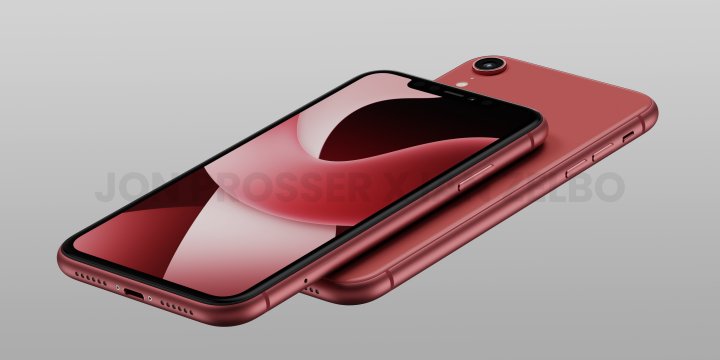
This could possibly be the next iPhone SE, minus the rounded edges.Front Page Tech / Jon Prosser
While this information should be approached with a fair amount of skepticism, introducing a larger 6.7-inch option alongside the 6.1-inch iPhone SE variant seems plausible.
Recent reports indicate that 2025 may mark the end of the Plus variant in the standard iPhone lineup, with Apple potentially replacing it with an iPhone 17 Slim or Air model.
A larger Plus option would attract users looking for a phone with a bigger display and battery than the standard 6.1-inch model offers. This approach could effectively fill the gap left by the Plus models in the primary iPhone lineup, all while maintaining a more affordable price point.
Jon Prosser / Front Page Tech
It remains unclear whether the 2025 iPhone will finally introduce MagSafe capabilities, but it would be a welcome upgrade. One thing is likely: the forthcoming iPhone SE will be designed to utilize Apple’s Intelligence features.
If the latest iPad Mini is any indication, the new iPhone SE could come equipped with 8GB of RAM, meeting the minimum requirements for Apple Intelligence. However, the specifics regarding the processor are still uncertain.
It would seem logical for Apple to equip the iPhone SE refresh with the A18 chip, similar to the entry-level iPhone 16 models. Yet, considering the company installed the older but still powerful A17 Pro in the iPad Mini, it’s possible that they may opt for a more dated chip this time around, tapping into existing inventory.
Apple is gearing up to refresh its iPhone lineup next year, and exciting new features are expected to make their debut. A key highlight is rumored to be the introduction of a new model called “iPhone 17 Slim,” which some have begun to refer to as the “Air” variant.
Recent leaks suggest that this new phone will undergo a significant design transformation, potentially making it the thinnest iPhone to date. It appears to represent a bold shift from Apple’s existing aesthetic. According to various social media renders, a completely metal construction may be in the works.
Haitong International Analyst Jeff Pu has recently provided further insights (via Macrumors & 9to5Mac) about the internal hardware of this new device. He mentions that the display will measure 6.6 inches and feature a Face ID module at the top.
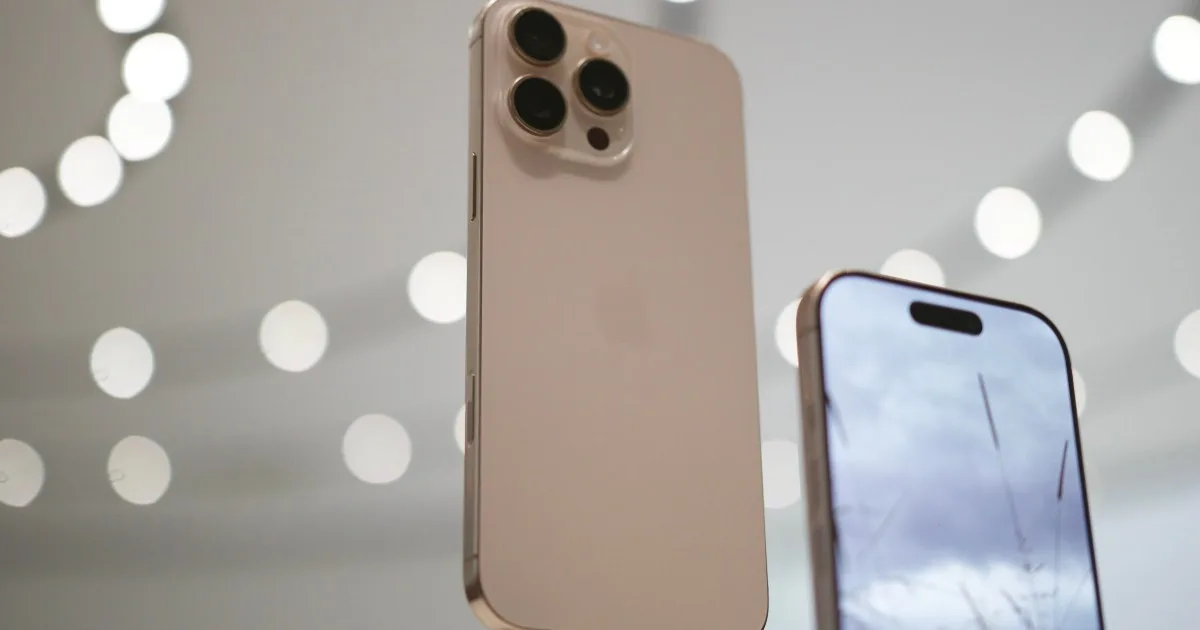
Noteworthy is Pu’s observation that the phone will likely have an aluminum construction, helping keep its weight manageable. In recent years, Apple has favored heavier materials, like stainless steel and titanium, for its premium Pro models starting with the iPhone 15 Pro series.
Introducing iPhone Air
The upcoming “Slim” iteration will be powered by the latest A19 system on a chip (SoC), built on a 3nm process similar to the A18 series that fuels the iPhone 16 lineup. It will also include 8GB of RAM, although details about storage capacity remain unclear.
In terms of camera capabilities, the device will sport a single 48-megapixel rear camera, a standard feature across the iPhone range now, while users can look forward to a 24-megapixel front camera for selfies.
iPhone Air renderFront Page Tech
Interestingly, the analyst suggests that the iPhone 17 Slim may be positioned as a “mid-tier” option. However, other reports have indicated that it could be Apple’s most expensive offering yet, potentially exceeding $1,200.
Regardless of pricing strategies, this new model is expected to replace the “Plus” variant in the overall iPhone series, marking Apple’s second major shift in less than five years after the brief run of the “mini” version.
Keep in mind that these insights are based on early speculation regarding a device that won’t hit the market for nearly a year. As always, it’s wise to approach such predictions with caution and anticipate unforeseen developments as Apple continues to evolve its next-generation smartphones.
Are you frequently sending text messages to someone overseas? Perhaps you want to contact a colleague who’s currently enjoying some time off without bothering them? Or maybe you wish to remind your partner every day around the same time that you’re about to head home and check if they need anything picked up?
If any of these situations sound familiar, you might be interested in learning how to schedule text messages on your iPhone. This functionality has become standard on Android devices, and it can be incredibly useful.
Skill Level
Easy
Estimated Time
5 minutes
Requirements
An iPhone with iOS 18 or later
An iPhone running iOS 13 or higher
The Shortcuts app installed
The crucial question is: Can you schedule text messages on your iPhone? With iOS 18, you can do this natively for other iMessage users. However, for standard SMS messages or to send messages multiple times, you’ll need to utilize the Shortcuts app. Below are both methods to get the job done.
Christine Romero-Chan / Digital Trends
How to Schedule a Message in iOS 18
With the release of iOS 18, Apple introduced the ability to use the Send Later feature, which also allows for RCS support to enhance communication with Android users.
However, this Send Later functionality only applies to conversations between iMessage users. To schedule SMS or RCS messages to Android devices, you’ll need to deploy the Shortcuts app, which is explained in the following section.
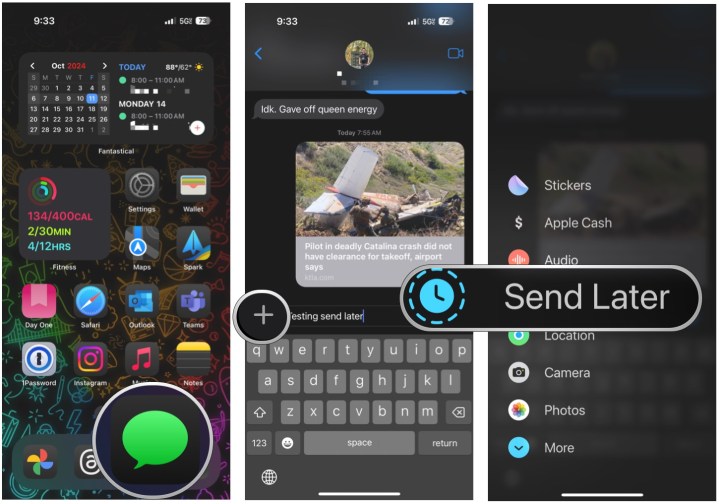
Step 1: Launch the Messages app on your iPhone running iOS 18.
Step 2: Open the conversation with the iMessage user.
Step 3: Compose your message.
Step 4: Tap the Plus sign (+) next to the text entry field.
Step 5: Choose Send later from the options shown.
Christine Romero-Chan / Digital Trends
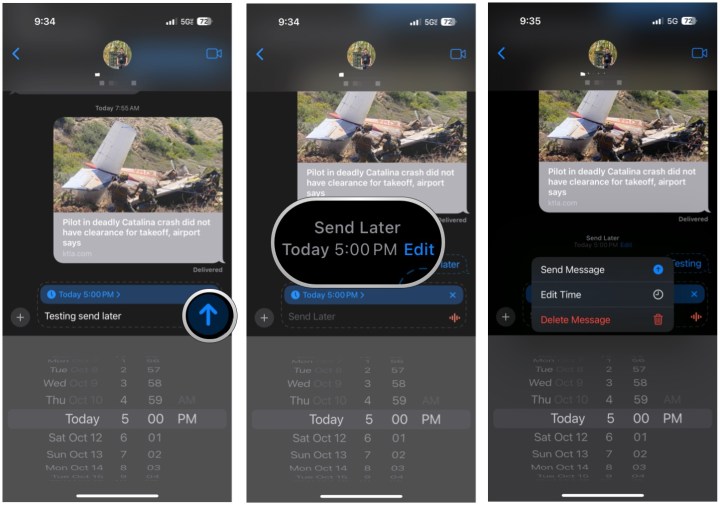
Step 6: Set the desired date and time for sending your message.
Step 7: Press the Send button, and your message will be scheduled.
Step 8: You can tap Edit on the scheduled message to send it immediately, change the scheduling, or even delete it entirely.
Christine Romero-Chan / Digital Trends
Nadeem Sarwar / Digital Trends
How to Schedule an SMS or RCS Message on iPhone Using Shortcuts
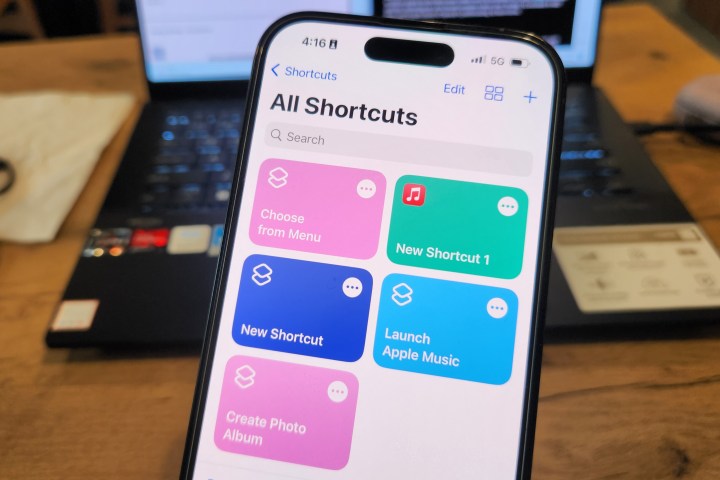
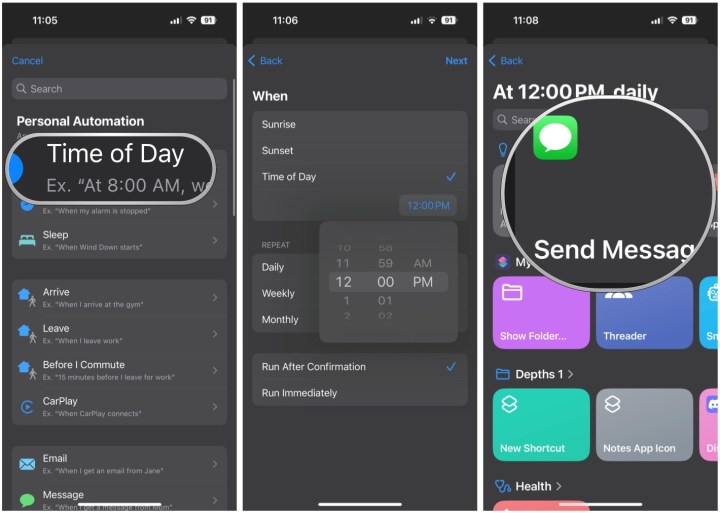
If you need to send SMS or RCS messages to someone who doesn’t use iMessage, you can use the Shortcuts app to create an automation. This allows you to set up recurring messages based on a specific timeline you determine.
The Shortcuts app is pre-installed on iPhones running iOS 13 or higher. If it’s missing, you can easily download it from the App Store at no cost.
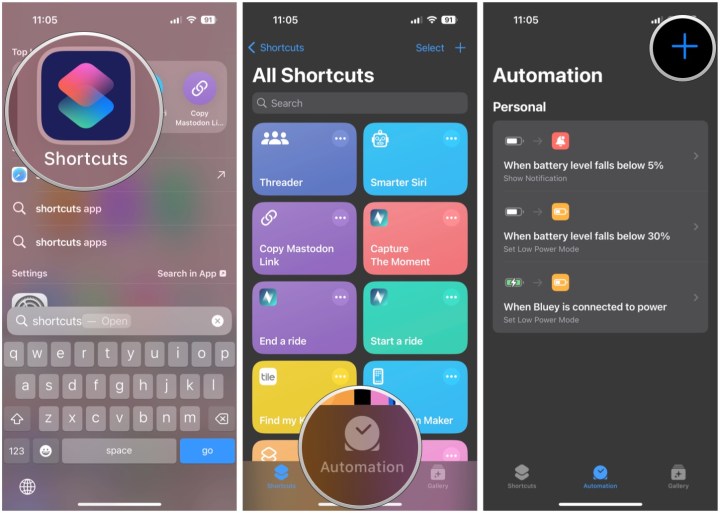
Step 1: Open the Shortcuts app on your iPhone.
Step 2: Tap the Automation tab at the bottom of the screen.
Step 3: If you haven’t previously set up any automations, tap Create personal automation. This option will not appear if you have existing automations.
Digital Trends
Step 4: If you already have automations, tap the Plus sign (+) in the upper-right corner.
Step 5: Choose the Time of day option.
Step 6: Set the time you would like your message to be sent. You can also specify how frequently it should repeat and whether you want confirmation prompts to appear. Once you’re done, tap Next.
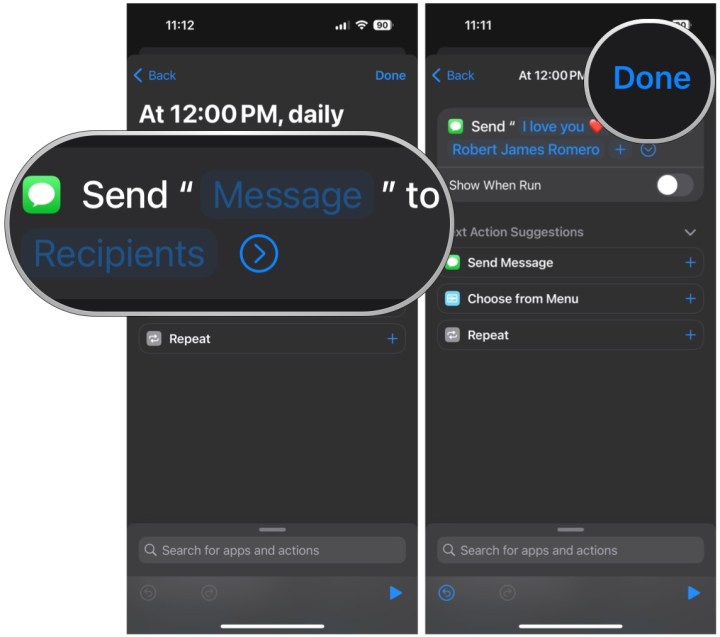
Step 7: From the Actions menu, select Send message. If you don’t see this option, use the search bar at the top.
Digital Trends
Step 8: Tap Message and enter the content of your message.
Step 9: Tap Recipients to add the contacts who should receive the message.
Step 10: Tap Done to save your automation.
Digital Trends
Step 11: Once saved, your automation will activate at the scheduled time and frequency you’ve selected. If you decide you no longer want the automation, swipe left on it in the list and select Delete.
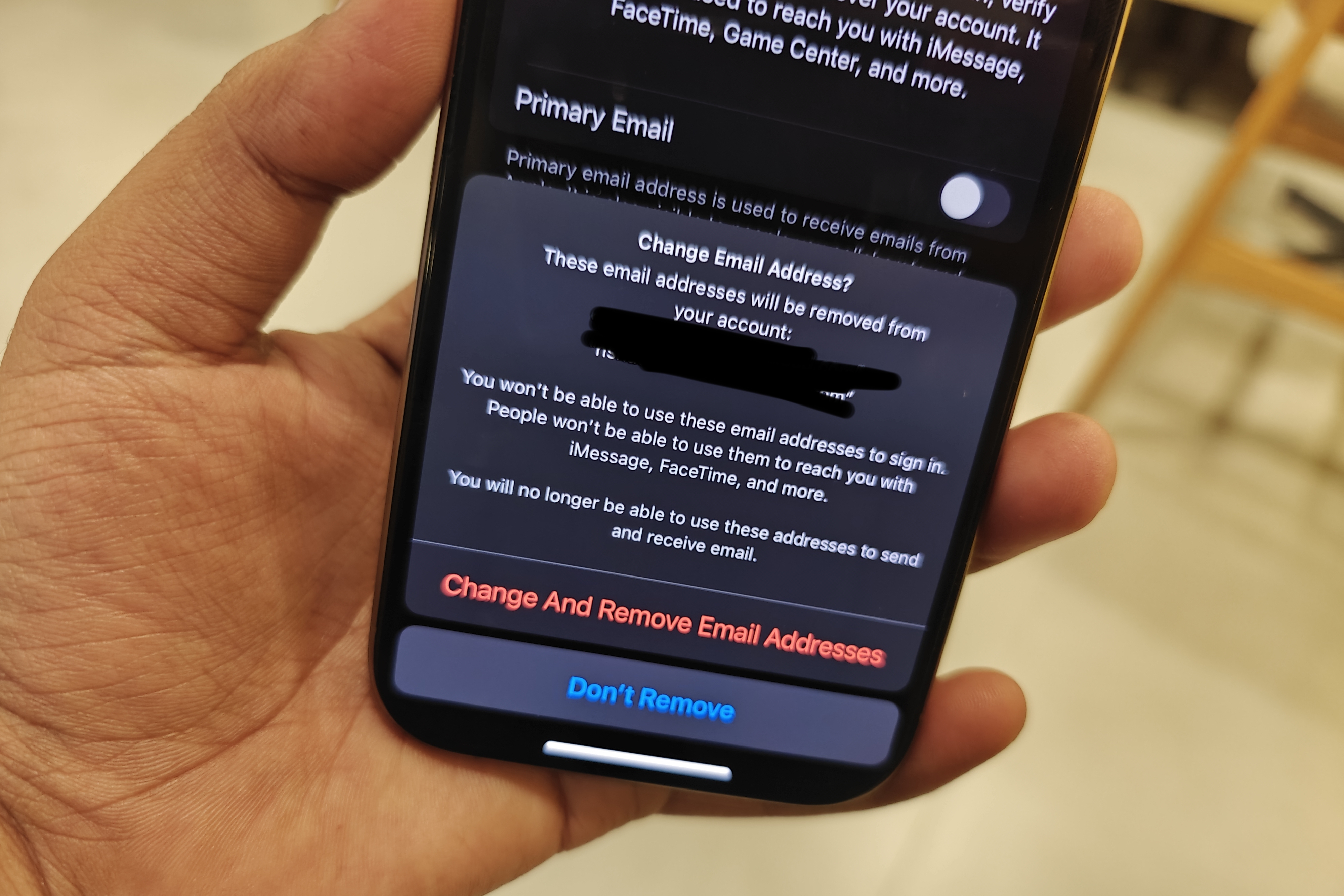
With the rollout of iOS 18.1, Apple has implemented a significant update that simplifies the process for users wishing to change the email address linked to their accounts. Previously, users were required to first delete their existing email address before they could add a new one.
Now, thanks to the iOS 18.1 update, users can easily switch their primary email without the need to delete their current address.
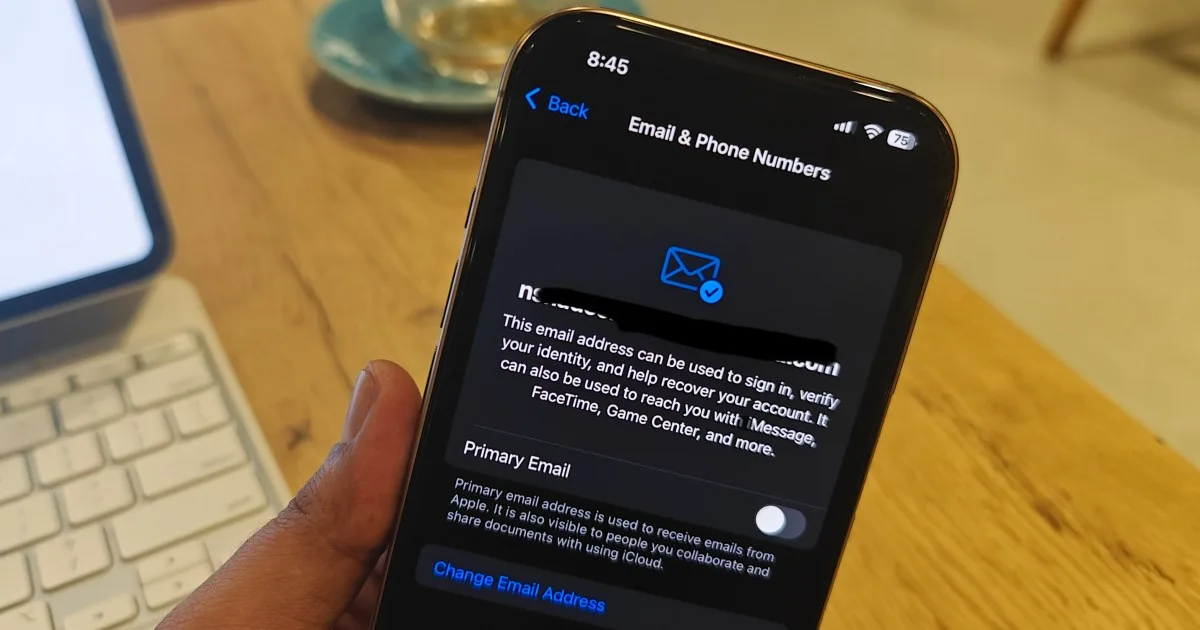
The Settings application has introduced a new “Primary Email” toggle, allowing users to designate a preferred email address for all forms of communication. This change is particularly beneficial for those who utilize Gmail for collaboration on their iPhone or iPad.
Additionally, Apple is streamlining the process for users to update their primary iCloud email address, which is essential for all Apple services, including identity recovery and messaging features like iMessage and FaceTime.
Nadeem Sarwar / Digital Trends
This enhancement not only offers practical improvements but also adds a layer of security. In the past, users could only utilize an alias for their identity when working on a shared project; otherwise, their main email address remained visible.
There are instances where users may wish to shed an old email address that lacks professionalism. For example, many may have created an address mirroring their younger selves and would like to move past that phase.
With the new update, those on iOS 18.1 can finally change their iCloud email address to something more suitable. If you have upgraded to iOS 18.1 on your iPhone, you can make this change by navigating to Settings > Profile Name (at the top) > Sign-In & Security > Email & Phone Numbers.
The update was initially uncovered by the team at MacRumors. For those in the beta testing group, Apple has already released the sixth beta iteration of iOS 18.1, which introduces several cosmetic improvements and a few minor tweaks to the Settings app.
In recent years, transparent designs have taken the technology world by storm. Devices like smartphones, earbuds, handheld gaming consoles, and even laptops are showcasing this trend—everyone seems to be on board except for Apple. Typical, right?
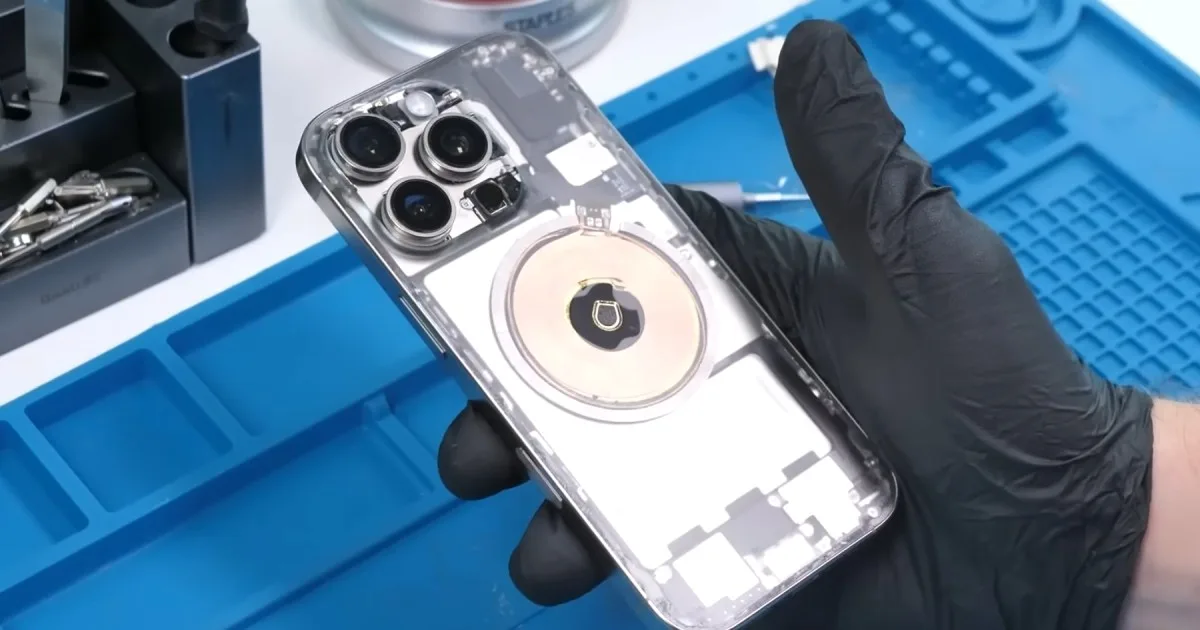
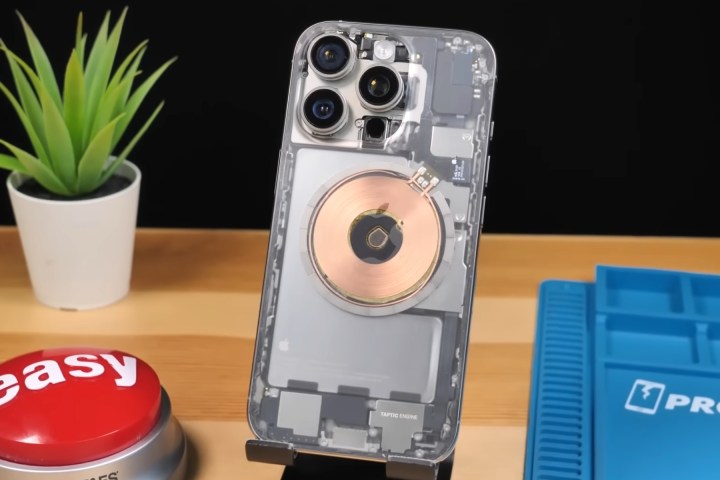
However, that hasn’t deterred daring enthusiasts with the right skills and tools from cracking open a high-end iPhone and transforming it into a transparent work of art. The latest endeavor comes from Phone Repair Guru, who has given the iPhone 16 Pro’s frosted glass back a clear upgrade.
Before diving into just how stunning the iPhone 16 looks with a transparent casing, a word of caution: the entire process is incredibly intricate. From disassembling the phone to delicately reattaching the clear shell to the exposed components, it’s no easy task.
Although it might appear as a simple swap-and-go project, it’s far more complex in reality. The glass backing of the iPhone houses several essential components, including the wireless charging coil.
The finished product—a transparent iPhone 16 Pro—would certainly catch any tech lover’s eye with its sleek makeover, complete with visible microphone elements, a MagSafe setup, and LED flash module.
The process begins with using a hot air jet to peel away the graphite paper, which already looks like a complicated step. The most challenging part involves detaching the wireless charging coil from the glass panel.
According to the video, removing it is not as straightforward as you might think. It demands a combination of heat, extra adhesive, and a MagSafe puck, all while being careful not to damage any wires. This is just the tip of the iceberg when it comes to this demanding aesthetic transformation.
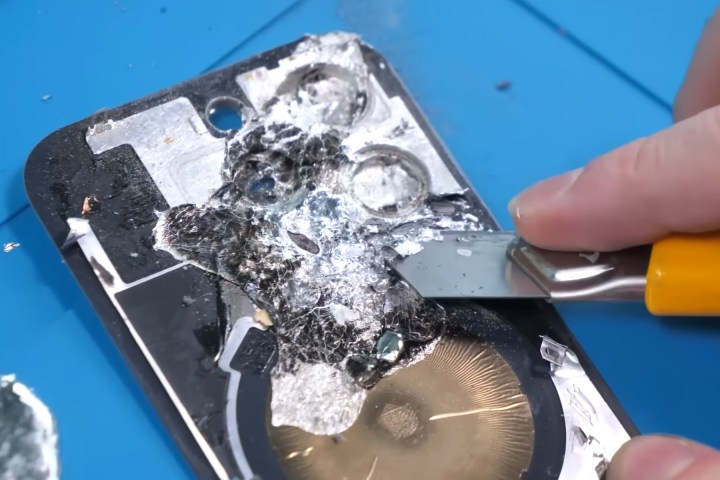
The team behind this project subjected the rear glass panel of the iPhone to an acid bath for three days. Afterward, they sanded down the aluminum plate beneath the glass and applied Gallium—a silvery metal that stays liquid at room temperature—to weaken the aluminum cover enough to be cut away easily with a knife. This messy procedure requires a hot water bath to remove the residual substance, complete with some exciting gas bubble fizz.
The final stages involve some meticulous manual labor, where a sharp razor is used to strip paint from the glass shell akin to an artisan sculpting wood.
When the shell finally transforms into its clear form, the challenge wraps up with the careful reinstallation of components such as the charging coil and parts around the camera module. Impressively, everything functioned flawlessly once the daunting task was complete, and the outcome is absolutely mesmerizing.
If you’re tempted to try something similar with that old iPhone sitting in your drawer, think twice. Despite Apple’s efforts to make their devices more repair-friendly, the engineering intricacies still pose a significant challenge for the average DIYer.
Moreover, you might find yourself spending several hundred dollars just to acquire the necessary tools for this elaborate transformation. But if the allure of a transparent iPhone 16 Pro is burned into your memory, there are plenty of transparent skins available online, including some interesting choices from Dbrand.
As Hurricane Milton is set to hit Florida on Wednesday, there’s an important reminder for iPhone users in the storm’s path.
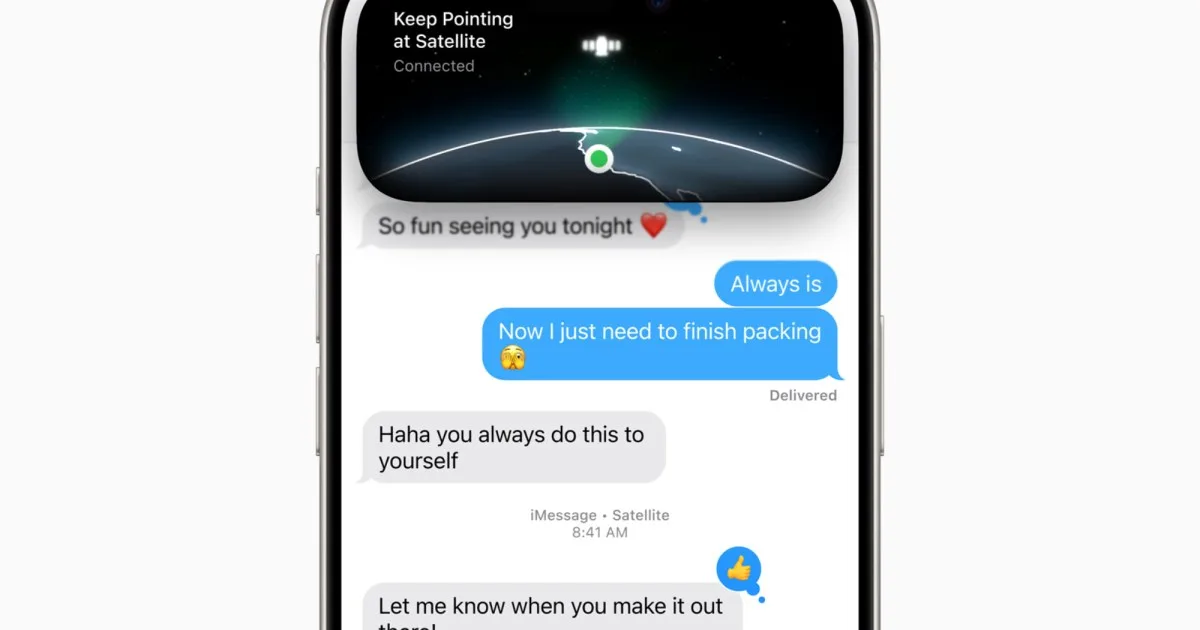
Prior to the storm, it’s essential to install iOS 18 on your iPhone. With this latest update, you will have access to Apple’s innovative satellite messaging feature. This allows you to send and receive SMS messages even when there’s no cellular or Wi-Fi connection. Thus, you can keep in touch with loved ones and emergency services, even if traditional communication channels are disrupted.
To utilize the satellite messaging feature, you need an iPhone 14 or later with iOS 18 installed. Keep in mind that satellite communications may experience longer delays compared to standard texting. This feature is complimentary for the first two years after you activate your compatible device.
Bryan M. Wolfe / Digital Trends
Once you’ve updated to iOS 18, it’s wise to test out the satellite messaging feature to familiarize yourself with its functions. Start by opening the Settings app on your iPhone, then scroll down to Apps and choose Messages. Next, tap on Satellite Connection Demo to see the feature in action. This demonstration is most effective outdoors, aiming your phone towards the sky. The guidance system will assist you in positioning your iPhone to connect with Apple’s satellite.
Satellite messaging can be an invaluable resource during emergencies or when you’re exploring remote areas. This technology ensures you can maintain communication when conventional cellular networks fail, which is highly likely during severe weather events like Hurricane Milton.
Besides satellite messaging, iOS also features Emergency SOS, Find My, and Roadside Assistance through satellite. For the latest weather updates, be sure to check out some of the top weather apps available for iPhone.
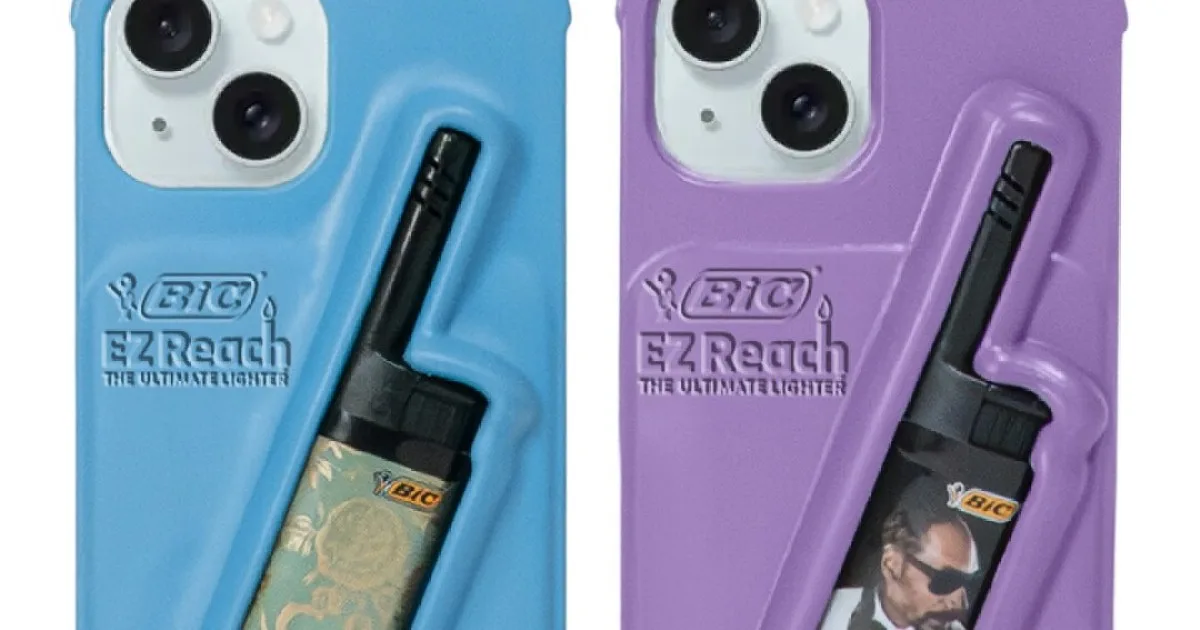
For those who appreciate convenience and own a smartphone, Bic EZ Reach Lighters has got an innovative offering for you. Just in time for the holiday season, the brand is launching a limited edition “Hold the Phone” Case, featuring two well-known celebrity endorsers.
Priced at $50, the case comes in vibrant blue and purple shades and includes a slot specifically designed for the Bic EZ Reach Lighter. Each case package includes two lighters, which come in designs by none other than Snoop Dogg and Martha Stewart. That’s right!
Martha Stewart shared her excitement: “Collaborating with Snoop Dogg and my wonderful friends at Bic is always a blast. I enjoy all the creative ways we can highlight the advantages of the Bic EZ Reach Lighter.”
The Bic EZ Reach lighters boast a 1.45-inch wand, making it easier and safer to ignite various items. This design is particularly useful when you want to maintain some distance from the flame. Additionally, they feature a child-resistant mechanism for enhanced safety, though it’s crucial to remember that no lighter can be completely child-proof.
Interestingly, the “Hold the Phone” Case is exclusively available for the iPhone 15 model, with no word yet on whether it will expand to other phone models or colors in the future.
VH1
This playful partnership between Snoop Dogg and Martha Stewart adds to a history of unexpected collaborations. Their unique friendship blends Snoop’s easygoing vibe with Martha’s meticulous flair, captivating audiences over the years.
Who could forget their entertaining VH1 cooking program Martha & Snoop’s Potluck Dinner Party? The show reflected a delightful mix of their distinct styles, with Snoop’s “special ingredients” alongside Martha’s classic culinary techniques. They’ve also appeared together in Grubhub commercials, highlighting the wide variety of food options available for delivery.
Beyond the kitchen, their collaboration has extended to marketing Skechers (with Martha’s endorsement complemented by Snoop’s fashionable touch), appearing in a Super Bowl ad munching on Tostitos, and launching a line of “Best Buds” crossbody bags designed to prominently showcase—the Bic EZ Reach lighter.
Furthermore, who can overlook their “Slow Cooker and Bong” mugs? These playful mugs illustrate Snoop with his bong and Martha with her slow cooker, perfectly capturing their quirky camaraderie.
With the release of the “Hold the Phone” case, Snoop and Martha continue to demonstrate that their friendship, much like a reliable lighter, ignites hilarious and unexpected collaborations.
The iPhone 16 series has garnered acclaim for its all-in-one design approach. Featuring a sleek aesthetic, rapid processor, AI capabilities for future-proofing, and enhanced camera features, it delivers impressive value without the Pro-tier price tag. However, the iPhone SE 4 set to debut in 2025 may eclipse its popularity.
According to a trustworthy anonymous source, 9to5Mac reports that the upcoming iPhone SE will be the first model equipped with Apple’s own 5G modem. This choice makes sense, as an affordable version provides a safer environment for trialing first-generation technology compared to the flagship models.
Moreover, there are intriguing details spilling out about the supposed hardware enhancements. The report supports Bloomberg’s earlier insights suggesting that the iPhone SE 4 will borrow a design reminiscent of the iPhone 14, along with other display improvements.
Additional Information
The first iOS 18 update addresses a significant bug with Apple’s Passwords app.
iOS 18 introduces a major privacy enhancement. Here’s its significance.
An upcoming iOS 18 update promises important bug fixes.
As per 9to5Mac, the new iPhone SE is expected to include an OLED display with a resolution of 1170 x 2532 pixels. This is a substantial improvement, given that Apple only incorporated OLED screens in its high-end devices after switching from LCD in the iPhone 11 lineup. The screen size is reportedly increasing from 4.7 inches to 6.1 inches, featuring a notch at the top and edge-to-edge flat sides.
Analysis indicates that the internal components will showcase the new A18 processor alongside 8GB of RAM, aligning with the specifications of the iPhone 16. This marks a significant upgrade, as the iPhone 15 and its Plus version from 2023 do not utilize Apple’s AI enhancements.
Concept image of the iPhone SE’s potential design next year, without the Dynamic Island feature.@upintheozone / X
The camera enhancements are also noteworthy. While the current third-generation iPhone SE sports a 12-megapixel camera, the iPhone SE 4 is set to inherit the 48MP Fusion camera from the iPhone 16.
Details about additional camera upgrades remain undisclosed, but if Apple integrates a 48MP sensor together with the A18’s advanced image signal processor, the new iPhone SE could feature substantial benefits such as sensor-shift optical image stabilization, a Photonic Engine for improved night photography, enhanced portrait modes, and much more.
Further, if the innovation path of the iPhone 16 is a guide, we might see video-focused features like cinematic mode and audio mixing capabilities. Thanks to the inclusion of the proprietary modem, we can also anticipate an increase in battery life that aligns with the larger device framework.
What about the pricing?
Another render of the iPhone SE 4.Front Page Tech / Jon Prosser
The report mentions that the new modem will significantly enhance battery efficiency, particularly in Low Power Mode. These enticing upgrades for an entry-level smartphone will likely come with a higher price tag.
Apple previously imposed a 5G surcharge on the third-generation iPhone SE without significant hardware refreshes. Given the extensive changes anticipated for the 2024 model, it is expected to surpass the current $429 price point for the SE series.
Just how much of an increase can we expect? While nothing is finalized, sources from iDrop News suggest a possible price range of $500 to $549. More clarity will likely emerge in early 2025 when Apple is poised to unveil the fourth-generation iPhone SE along with a new lineup of Mac computers.
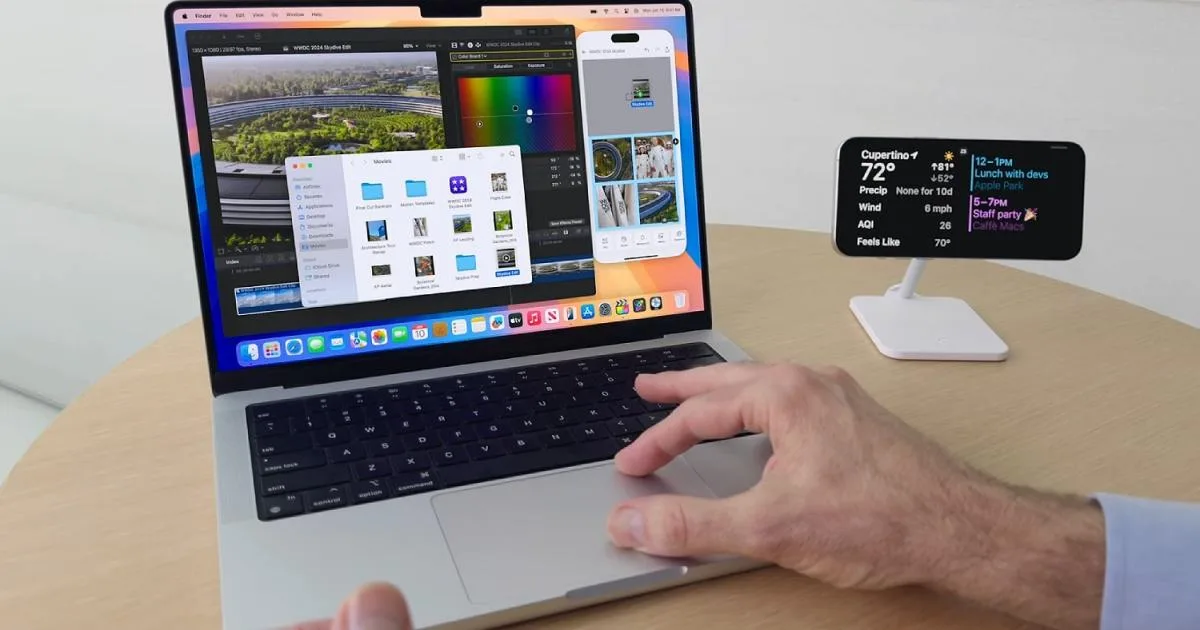
Earlier this year, Apple unveiled iPhone Mirroring, a feature available in macOS Sequoia. This innovative tool creates a mirrored view of your iPhone directly on your Mac’s desktop, allowing you to use your iPhone seamlessly without physically handling the device. With iPhone Mirroring, you can access iOS applications, send messages, adjust settings, and much more directly from your Mac.
Difficulty
Easy
Duration
10 minutes
What You Need
A Mac with either an Apple silicon chip or the T2 Security Chip
macOS Sequoia or later version
An iPhone running iOS 18 or higher
Your Mac and iPhone must be logged into the same Apple Account, with two-factor authentication enabled, and both devices need to have Bluetooth and Wi-Fi turned on
Your iPhone should be within range of your Mac, and neither device should be using a shared internet connection (like a personal hotspot) or utilizing AirPlay or Sidecar features
Keep in mind that while using iPhone Mirroring, access to your iPhone’s camera and microphone is disabled. Attempting to open any app that requires these features will result in a notification indicating their unavailability. Additionally, you can only use one Continuity feature at a time; for instance, iPhone Mirroring and Continuity Camera cannot be activated simultaneously.
If you’re curious about how to effectively utilize iPhone Mirroring or want to discover tips and tricks for this excellent feature, you’re in the perfect place. This detailed guide will cover everything essential for mastering iPhone Mirroring, allowing you to maximize its potential in just a few minutes.
Digital Trends
How to Set Up iPhone Mirroring
Setting up iPhone Mirroring is simple and primarily involves following a few prompts displayed on your Mac and iPhone.
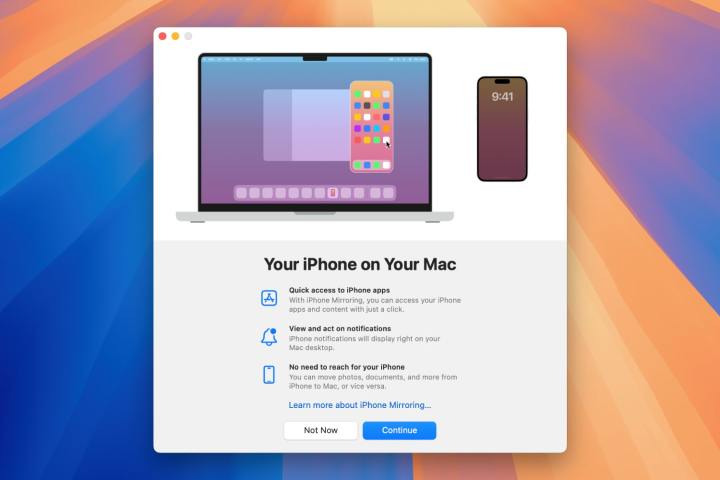
Step 1: Open the iPhone Mirroring icon located in your Mac’s Dock, or find it in the Launchpad or Applications folder within Finder. In the window that shows up, click Continue.
Step 2: Unlock your iPhone. Back on your Mac, you’ll be prompted to enable notifications from your iPhone on your Mac. You can choose to allow or deny these notifications, and you can adjust this preference later through the System Settings app under Notifications > Allow notifications from iPhone.
Step 3: After making your notification choice, click Get Started.
Step 4: Enter your Mac’s password or use the Touch ID to unlock iPhone Mirroring on your Mac.
Digital Trends
Step 5: Your Mac will ask you if you want to require your Mac’s passcode or Touch ID each time you log into iPhone Mirroring, or if you prefer automatic authentication when your Mac is already unlocked. This setting can be changed later via iPhone Mirroring in your Mac’s menu bar, selecting Settings.
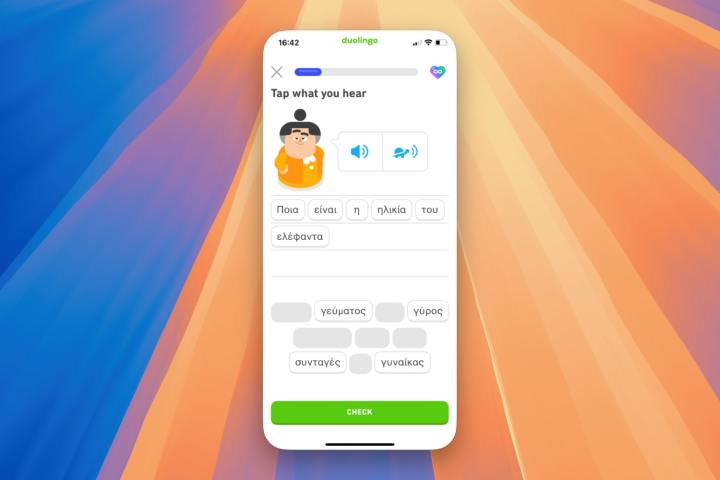
Step 6: Your iPhone should now appear unlocked on your Mac’s desktop.
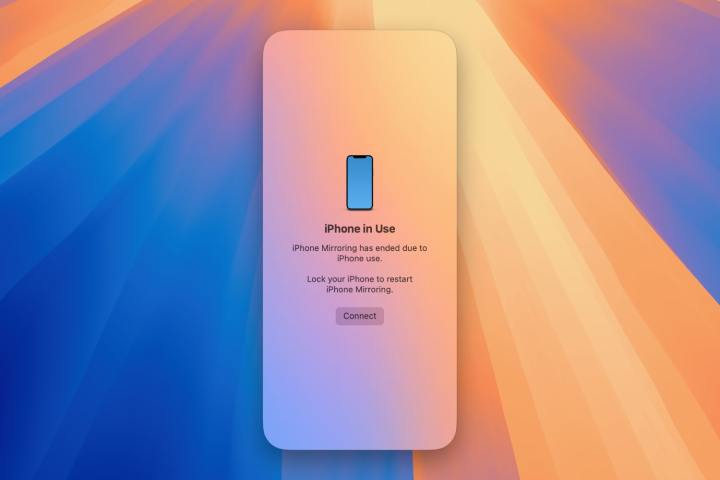
Step 7: If you pick up and unlock your physical iPhone, you’ll see a notification on your Mac indicating that the iPhone is in use, and iPhone Mirroring will pause until you lock your phone again.
Step 8: If you have multiple iPhones signed into your Apple Account, you can choose which one to mirror on your Mac. Open the System Settings app on your Mac, navigate to Desktop & Dock, and select your desired iPhone from the pop-up menu under Use iPhone widgets.
Using iPhone Apps on Your Mac via iPhone Mirroring
One of the key features of iPhone Mirroring is the ability to interact with iPhone applications on your Mac. Once you have iPhone Mirroring open and unlocked, you can use all your iPhone’s apps and settings just like you would on the actual device. Here’s how:
Step 1: With iPhone Mirroring unlocked, click on an app icon on your iPhone’s Home Screen. You can navigate through the app using gestures on your trackpad or by scrolling with your mouse’s scroll wheel.
Step 2: To interact with elements just as you would on iOS, simply click them in the iPhone Mirroring interface. For instance, tapping a button on a webpage in iOS requires a click in iPhone Mirroring. Similarly, if you long-press an item in iOS, you can hold the click in iPhone Mirroring or right-click if using a mouse.
Step 3: You can type in any text boxes or text-focused apps simply by using your Mac’s keyboard. This works across various apps, including Notes, Safari, and messaging apps like WhatsApp and X (formerly Twitter). Keyboard shortcuts are also supported, so you can copy and paste text using Command-C > Command-V.
Digital Trends
Step 4: To return to your iPhone’s Home Screen, click the black bar at the bottom of the screen. Avoid dragging it up, as this mimics the iOS swipe gesture but won’t work in iPhone Mirroring. Alternatively, you can hover your mouse at the top of the iPhone Mirroring window and click the grid icon in the upper right corner (hovering over it reveals Home Screen). You can also use the Command-1 keyboard shortcut for this.
Step 5: Next to the Home Screen button is the App Switcher icon. Click this icon to view the iOS App Switcher, or use Command-2. You can navigate between apps using the trackpad or by clicking and dragging through the app windows with your mouse.
Step 6: There are multiple ways to open Spotlight in iPhone Mirroring. Click the Search box located at the bottom of your Home Screen, press Command-3 on your keyboard, swipe downward with two fingers on the iOS Home Screen, or scroll down using your mouse’s scroll wheel (though this last method can be a bit touchy).
Step 7: While using iPhone Mirroring, any audio from your iPhone is routed through your Mac’s speakers, and you can control the sound using your Mac’s volume controls.
Step 8: If you’re watching a video in landscape mode and click the full-screen button, the iPhone Mirroring app will automatically switch to landscape orientation for your video. Exiting full-screen mode will revert back to the standard orientation. This applies to landscape-oriented games and other apps as well.
Digital Trends
Transferring Files Between Your iPhone and Mac with iPhone Mirroring
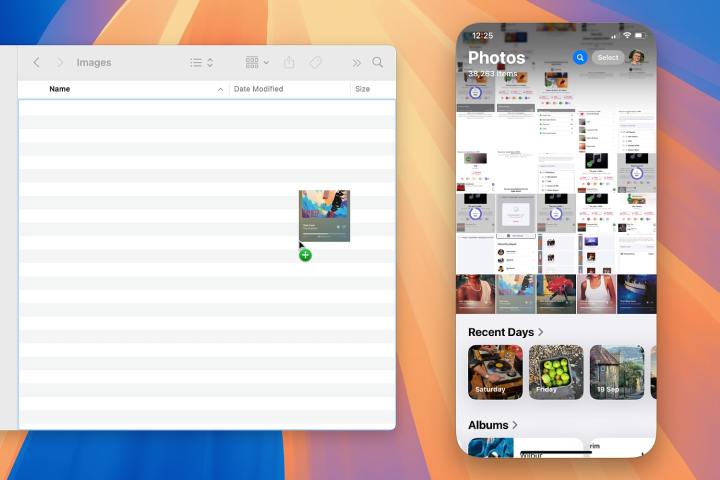
One of the standout features of iPhone Mirroring is its ability to facilitate seamless file transfers between your Mac and iPhone through simple drag-and-drop actions. This minimizes the need for complicated methods of sharing files between devices. You can drag items directly into applications (like a video editor’s timeline) or into storage applications like Files.
Step 1: To transfer a file from your Mac to your iPhone, first open the app in iPhone Mirroring that you wish to send the item to. Then, access a Finder window on your Mac where the file is located and drag the file from Finder to the open application in iPhone Mirroring. You will see a green plus (+) sign next to your cursor, indicating that the file can be added to the app.
Step 2: For transferring a file from your iPhone to your Mac, simply reverse the process. Open the file location in iPhone Mirroring, click and drag the item out of the iPhone Mirroring interface onto your Mac’s destination, be it the desktop, Finder window, or another application.
Digital Trends
Adjusting and Resizing the iPhone Mirroring Window
The iPhone Mirroring application is not fixed in size; you can easily adjust its dimensions and position on your Mac’s desktop.
Step 1: Move the iPhone Mirroring window around your Mac’s desktop. When connected, simply position your mouse pointer above the iPhone Mirroring window, and you’ll see a bar with standard controls for closing or minimizing the app (note that full-screen mode is not available). Click and drag anywhere in this bar to reposition the iPhone Mirroring window. Alternatively, when paused or disconnected, you can click anywhere inside the window to move it.
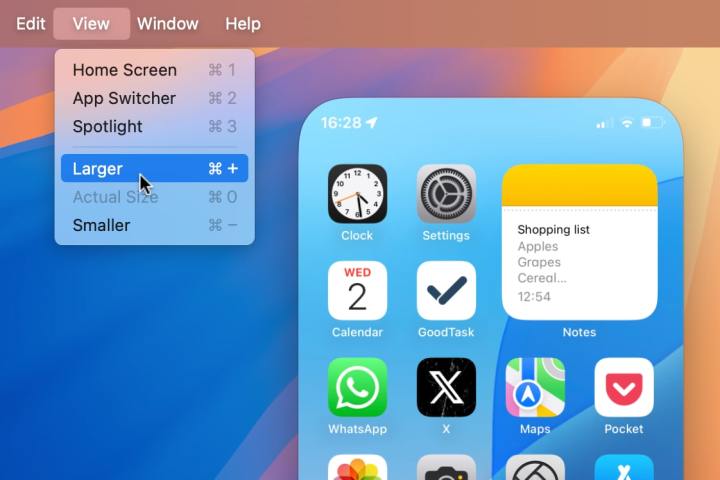
Step 2: Resizing the iPhone Mirroring window is also possible, though options are somewhat limited. Select View from the menu bar, then choose either Larger or Smaller (or use Command along with the plus key or minus key). You can revert to the standard size by selecting Actual Size from the View menu or pressing Command-0.
Apple
Managing Notifications in iPhone Mirroring
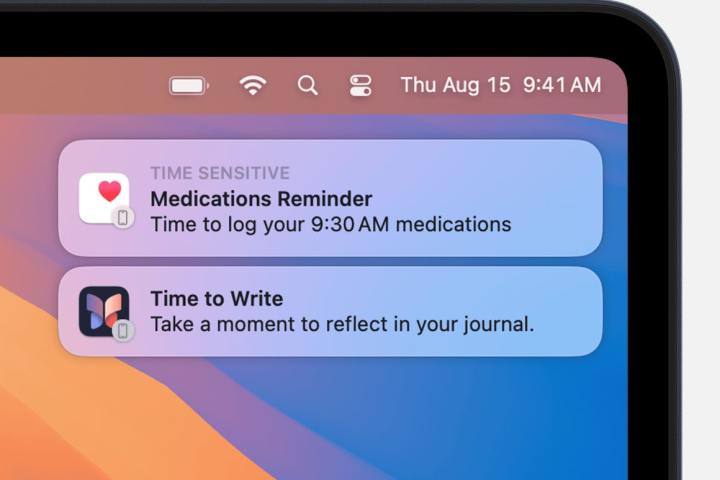
Receiving notifications from your iOS device on your Mac allows you to manage alerts without switching devices. Notifications from your iPhone will appear in the top-right corner of your Mac’s display like standard macOS notifications, complete with an iPhone badge on the app icons for easy identification.
Step 1: After connecting iPhone Mirroring, you will start seeing iOS notifications on your Mac. If your iPhone is nearby, clicking on a notification will open the corresponding app in iPhone Mirroring.
Step 2: Once set up, you’ll continue to receive iOS notifications on your Mac, even if iPhone Mirroring isn’t actively being used.
Step 3: You can disable iOS notifications in a couple of ways. On your Mac, go to the System Settings app and navigate to Notifications > Allow notifications from iPhone, then toggle off Allow notifications from iPhone. Alternatively, you can disable notifications for individual apps listed below. To manage this on your iPhone, go to the Settings app, select Notifications, pick the app, and then turn off Allow Notifications to stop all notifications (this does so for both devices) or disable notifications from showing on your Mac by toggling off Show on Mac.
Digital Trends
Disabling iPhone Mirroring
If you decide to turn off iPhone Mirroring, the process is quick and straightforward.
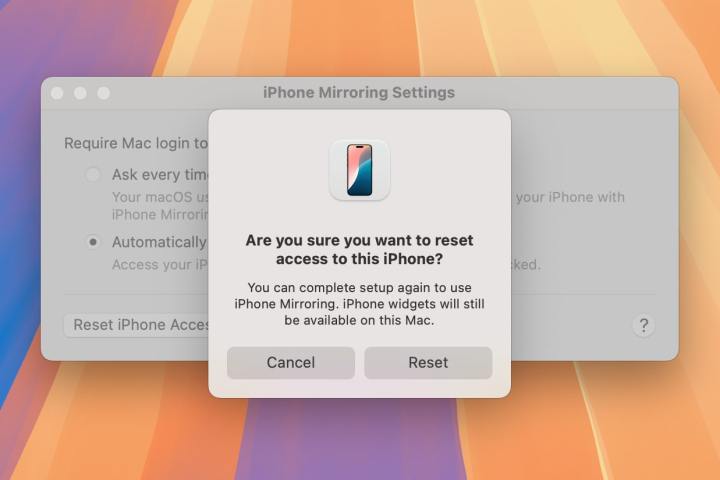
Step 1: On your iPhone, access the Settings app, then navigate to General > AirPlay & Continuity > iPhone Mirroring. Here, you can see which Macs are connected to your iPhone via iPhone Mirroring.
Step 2: To disconnect your iPhone from your Mac, either select Edit or swipe the Mac’s name from right to left, and then tap the red delete button followed by Delete.
Step 3: To reactivate iPhone Mirroring, simply launch the iPhone Mirroring app and follow the initial setup steps outlined above.
Apple’s iPhone Mirroring app is an incredibly useful tool for sharing files between devices and engaging with iOS applications without needing your iPhone close at hand. It’s easy to use and surprisingly versatile given its straightforward concept. Once you get the hang of it, you may find yourself incorporating it into your routine frequently.
This may sound a bit amusing, but the most significant hardware enhancements for iPhones seem to center around their buttons. Following the introduction of an Action Button on the iPhone 15 Pro and the Camera Control shutter on the iPhone 16 series, it looks like the iPhone 17 Pro will unveil yet another button innovation.
According to reliable insider Majin Bu, Apple is in the process of testing “a new button that will take the place of the volume controls and the Action Button that have been eliminated” on its upcoming flagship phone.
This new button is expected to offer extensive customization options and may serve as a consolidated solution for adjusting volume levels and switching profiles. Keep in mind that what we see could merely be one of many prototypes being evaluated at Apple’s design labs.
Camera Control button on the iPhone 16 Pro.Joe Maring / Digital Trends
This isn’t the first time we’ve encountered speculation about Apple experimenting with alternative button designs for its smartphones. Over the past few years, there have been whispers about a capacitive volume button, but that ultimately evolved into a multifunctional camera shutter button for the iPhone 16 and iPhone 16 Pro.
Related
Which iPhone 16 has the best battery life? This test found out
I discovered the perfect accessory for carrying my iPhone 16 Pro Max
Here’s what the inside of the iPhone 16 Pro looks like
Given Apple’s trend of adhering to a core design language while iterating improvements, it’s unlikely we’ll see three separate button redesigns within a span of just three years. Plus, merging the functions of the profile/Action Button with the volume controls could create a confusing interface with a steep learning curve.
One practical method for implementation might involve using gesture-based sliding for volume adjustments while relying on physical presses for profile switching and shortcut actions. Additionally, if the button’s size is adequate, users could customize what single or double taps accomplish at different positions on the button.
iPhone Air mock-upFront Page Tech
At this point, it is premature to fully invest our thoughts in these rumors. However, it appears that next year’s standout offering may be the rumored iPhone 17 Air—an ultra-slim and lightweight model likely aimed at revitalizing Apple’s smartphone lineup. That said, it may also come with a higher price tag than even the most premium Pro Max models.
Apple has already implemented significant changes to the battery design in the iPhone 16 series, making components more accessible. There are reports that the company is also focusing on further hardware modifications to enhance repairability, aligning with upcoming right-to-repair and electronic waste regulations. It will be fascinating to see how Apple tackles these urgent hardware challenges while also unveiling a reimagined button system.
The iPhone SE is set to receive a redesign, yet it might still closely resemble the two-generation-old main iPhone model. This insight comes from Mark Gurman of Bloomberg, who indicates that the refreshed “SE” variant could launch in early 2025.
According to the report, “The new model will look like the iPhone 14, featuring a notch cutout at the top.” This could signify that the upcoming iPhone may be the last model from Apple to include a physical home button with an integrated Touch ID sensor.
Until now, the last two iPhone SE versions have shared the same design approach that originated with the iPhone 8. However, the new design is not expected to be particularly stunning, as the notch design was never really regarded as attractive, with the pill-shaped cutout from the iPhone 14 series being the current design trend.
Related Topics
Here’s how much the iPhone camera has evolved in the last decade
How Halide Process Zero transformed my iPhone photography
Goodbye, iPhone 15 Pro Max. Why was our time so brief?
On a positive note, with the removal of the thick bezels at the top and bottom, we can anticipate a larger display, though it will likely still feature an LCD with a 60Hz refresh rate. A more exciting and practical enhancement may involve a bigger battery and support for MagSafe.
AI Integration
This could be the upcoming iPhone SE.Front Page Tech / Jon Prosser
One of the most intriguing features of the next iPhone SE may be its compatibility with Apple Intelligence, encompassing new generative AI capabilities that include an enhanced Siri, better app integration, and support from ChatGPT.
This also implies that the device will be equipped with Apple’s latest chip technology. Currently, Apple Intelligence is limited to the A17 Pro in the iPhone 15 Pro models and the A18 series in the iPhone 16 lineup.
It’s reasonable to expect the 2025 iPhone SE to feature the A18 chip, which fits with the pattern of its predecessors. However, with upgraded design and cutting-edge silicon comes the likelihood of a price increase.
This wouldn’t be unexpected. Apple implemented a premium for 5G with the current iPhone SE, which retails for $429. Given the extra costs associated with generative AI capabilities in terms of more expensive chips and cloud services, consumers may need to prepare for an “AI tax” next year.
In summary, the upcoming iPhone SE appears to be an exciting advancement, especially for those looking for a budget-friendly device that still delivers reliable performance without the complexities of multiple cameras and intricate touch controls.
Bloomberg also reports that upgraded iPads are anticipated to arrive next year, along with a new version of the Magic Keyboard for both the 11-inch and 13-inch iPad Air models.
The iPhone 16 has made a bold entrance, but it seems to lack the excitement of previous models. As reported by AppleInsider, a report from Morgan Stanley indicates that the iPhone 16 and iPhone 16 Plus together moved approximately 37 million units during their debut weekend. Nonetheless, interest appears to be waning compared to the iPhone 15. This decline in demand is reflected in the lead times—the period it takes for an order to ship after purchase.
This year’s lead times are significantly shorter than last year’s, signaling reduced consumer demand. The current lead times are as follows:
25.5 days for the iPhone 16 Pro Max, down from 43.5 days last year.
18.5 days for the iPhone 16 Pro, compared to 32.5 days last year.
9 days for the iPhone 16, shorter than last year’s 14 days.
7.9 days for the iPhone 16 Plus, previously 13.9 days.
The report from Morgan Stanley highlights that the lead times for the iPhone 16 are the shortest seen in the last five years, similar to those of the iPhone 12. However, these numbers do not provide the full picture.
Joe Maring / Digital Trends
Lead times reflect Apple’s inventory levels, and the tech giant is well-known for keeping such data under wraps. These shorter lead times might suggest Apple has effectively managed production to meet demand, rather than signaling a general disinterest in the latest device.
Related
5 alternative smartphones to consider instead of the Google Pixel 9
Exciting possibilities for a 120Hz display in the upcoming iPhone 17
Two features in iOS 18 I expected to love—but didn’t
Despite the lukewarm sales of the iPhone 16 initially, history shows that Apple often experiences impressive financial results well after a product’s launch. While current sales figures may seem subdued, it’s premature to judge the total success of the iPhone 16.
This latest model includes an array of advanced features; however, they may not be sufficiently appealing to attract new customers. Reports suggest that many users are upgrading primarily because their older devices have become outdated, rather than because they are drawn to new functionalities such as Apple Intelligence. Given the looming talk of a potential economic downturn, it’s understandable that some consumers might prefer to postpone an upgrade until absolutely necessary.
The Samsung Galaxy S25 Ultra is expected to make its debut early next year, yet a surge of rumors surrounding the device has emerged in recent months. The most recent speculation comes from a reliable source, Ice Universe.
This leaker claims that the Galaxy S25 Ultra has outperformed Apple’s newly launched iPhone 16 Pro Max in benchmark tests. According to data shared by Ice Universe, the Galaxy S25 Ultra achieved a single-core score of 3,011 and a multi-core score of 9,706. In comparison, its predecessor, the Galaxy S24 Ultra, averaged a single-core score of 2,142 and a multi-core score of 6,693. These results indicate a substantial advancement between the two generations.
Given that Apple’s latest flagship is still fresh off the assembly line, it’s premature to establish standard benchmark scores for the iPhone 16 Pro Max, though we can make some educated guesses. For example, TechRadar recorded a single-core score of 3,386 for the iPhone 16 Pro Max in their testing, along with a multi-core score of 8,306. In my own tests with the new phone, I obtained a single-core score of 3,419 and a multi-core score of 8,195.
If these figures hold true, the Galaxy S25 Ultra featuring Qualcomm’s upcoming Snapdragon 8 Gen 4 chip could be positioned to excel in multitasking compared to Apple’s offering. However, the practical implications of these scores are yet to be determined, as various factors remain unknown regarding Samsung’s device.
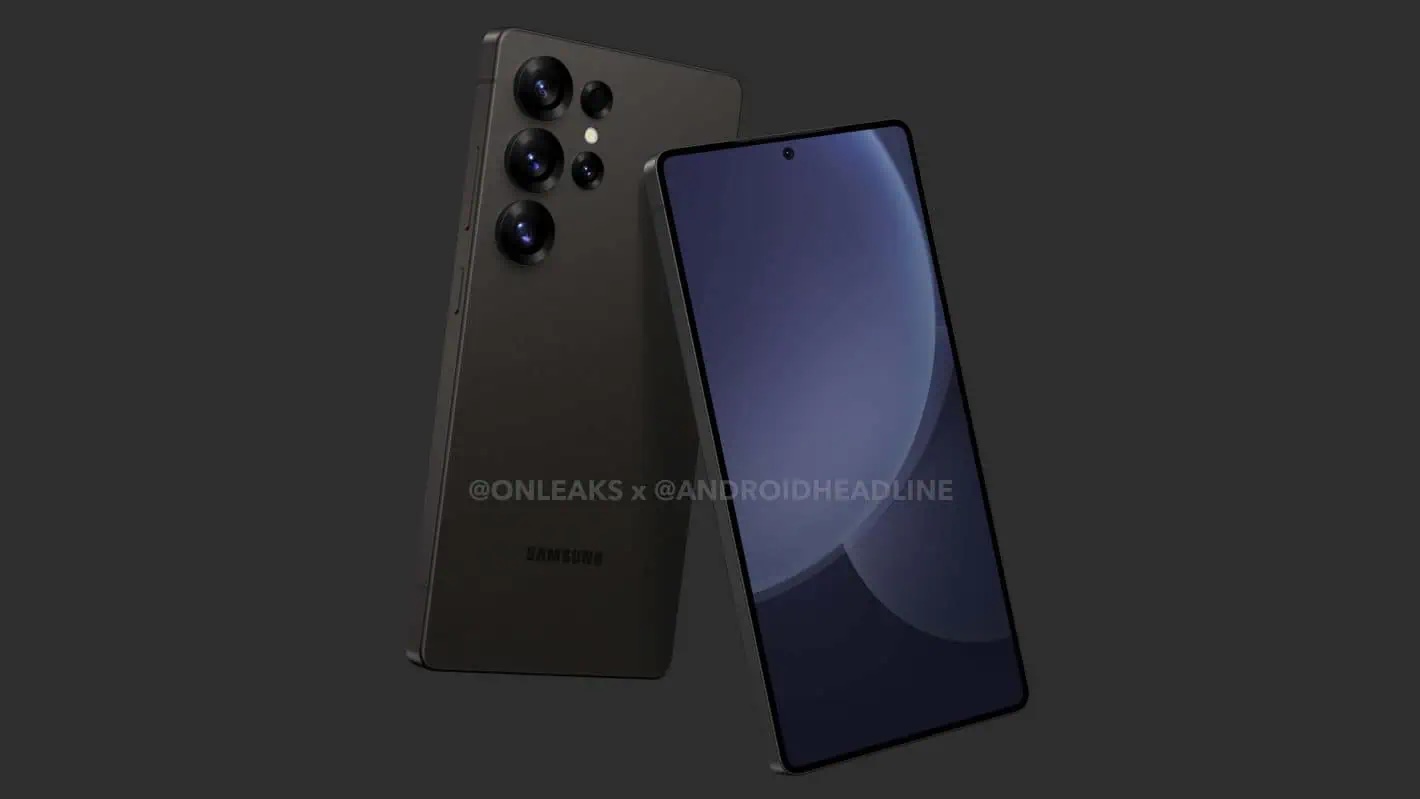
A render of the Samsung Galaxy S25 UltraSource: Android Headlines
Moreover, the Galaxy S25 Ultra might surpass the iPhone 16 Pro Max in another aspect. Recent reports suggest that the newer device may come with smaller bezels, a feature Samsung will likely highlight if accurate. Apple’s presentation of the iPhone 16 Pro Max emphasized its trim bezels, so if Samsung achieves the same, it would be significant.
It isn’t surprising that the upcoming Galaxy S25 series is poised to outperform Apple’s iPhone 16 in several metrics, especially considering the Snapdragon 8 Gen 4 will be a newer chip compared to the A18 Pro found in the iPhone 16 Pro models. Currently, the tables are turned, with Apple’s latest offerings outperforming Samsung’s nearly year-old Galaxy S24 series in many respects.
Samsung is anticipated to unveil the Galaxy S25, Galaxy S25 Plus, and Galaxy S25 Ultra in January or February, followed quickly by their release. The latest Galaxy S Ultra is projected to be lighter than its predecessor and will include upgraded camera features and more. Stay tuned for additional leaks and information in the coming weeks and months.
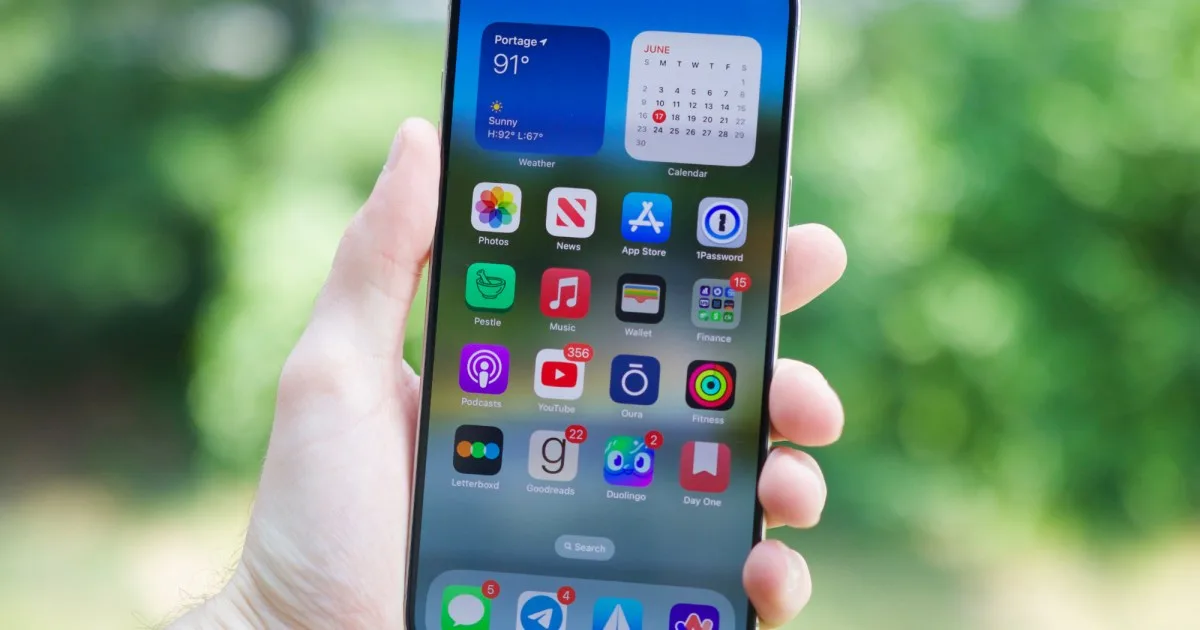
The iPhone home screen is a divisive topic; some users adore it, while others are less than impressed. Unlike Android devices that utilize an app drawer for storage, iPhones position app icons directly on the home screen, offering ease of access that can sometimes result in a chaotic layout for those with numerous apps. Although the App Library has provided an effective method for organizing apps, many users still primarily rely on their home screens for app management.
Difficulty
Easy
Duration
10 minutes
What You Need
iPhone or iPad
However, a common challenge arises when you want to keep certain apps hidden—whether it’s an app you use infrequently, a sensitive banking application, or simply something you prefer to keep private. Although apps can clutter your home screen, Apple has provided several straightforward methods to conceal them without needing to uninstall them from your device.
Thanks to some new features in iOS 18 (now available), users have more options for hiding apps compared to previous iOS versions. Below are detailed instructions for both iOS 18 and earlier versions.
How to Hide and Lock Apps in iOS 18
With the release of iOS 18, Apple has made it easier to hide and secure apps, adding an extra layer of privacy to your device.
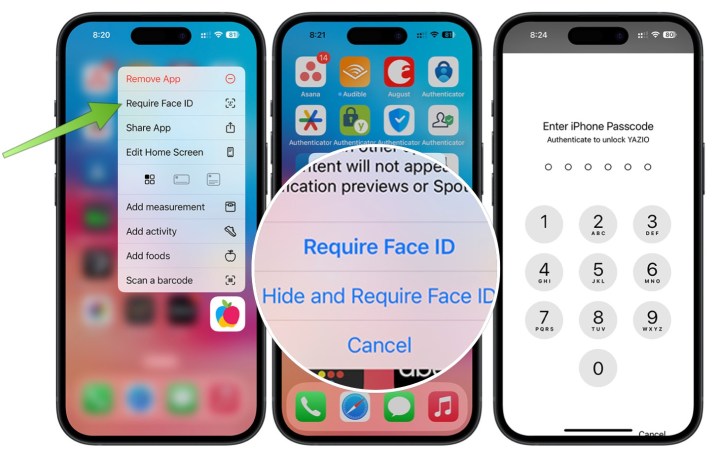
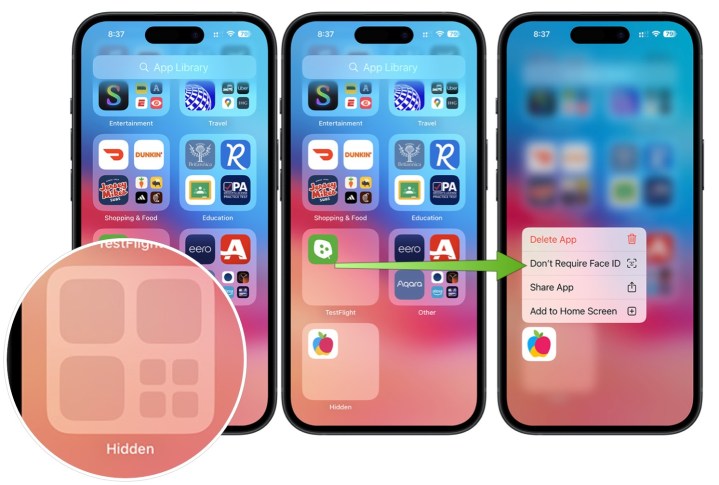
Step 1: Begin by pressing and holding the app icon you wish to hide or lock from your iPhone’s home screen.
Step 2: When the menu appears, select Require Face ID and confirm your selection.
Bryan M. Wolfe / Digital Trends
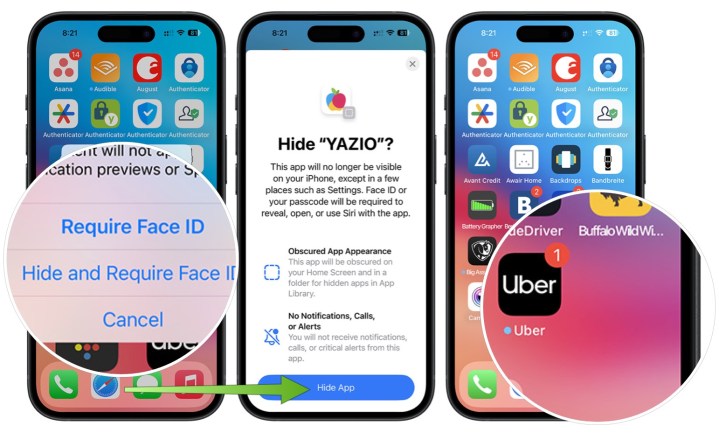
Step 3: If the app supports the feature, you will also see the option to Hide and require Face ID. Tap this to confirm, and the app will be removed from your home screen.
Bryan M. Wolfe / Digital Trends
Step 4: To retrieve a hidden app, navigate to your iPhone’s App Library and select the Hidden folder, which is typically the last one listed.
Step 5: Long-press the app you wish to unhide and select Don’t require Face ID. The app will reappear on your home screen.
Bryan M. Wolfe / Digital Trends
How to Hide Apps in iOS 17 or Earlier
Hiding an app on your iPhone’s home screen is straightforward and can be done quickly. The following steps are for those with iPhones running iOS 17 or older.
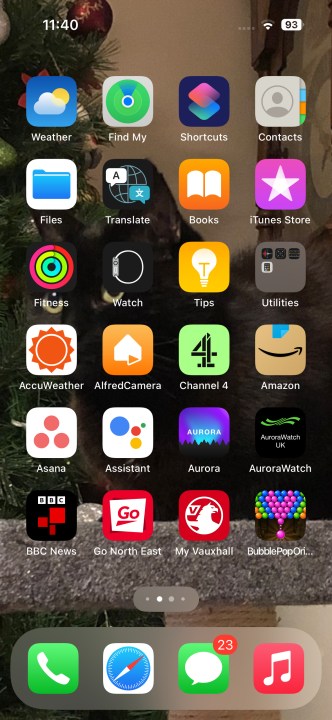
Step 1: Locate the app you want to hide on your home screen.
Step 2: Press and hold the app you’d like to hide.
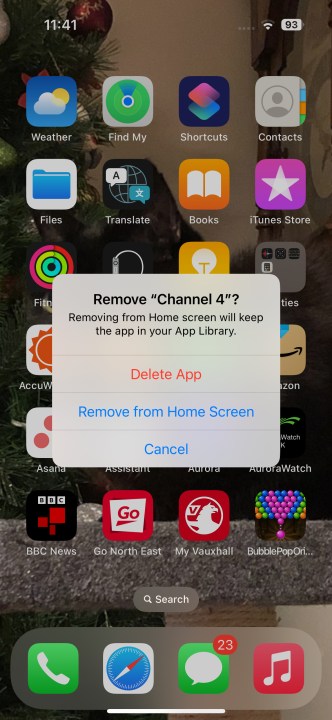
Step 3: A dialogue box will pop up. Select Remove App.
Step 4: You will be prompted to choose whether to completely uninstall the app or just remove it from the home screen. Select Remove from Home Screen to keep the app installed but hide it from view.
How to Locate a Hidden App
If you’ve concealed an app rather than uninstalling it, you will likely want to access it again. While it may not be visible on your home screen, locating a hidden app is still quite easy. There are two straightforward methods for finding it, applicable to iOS 18 and earlier.
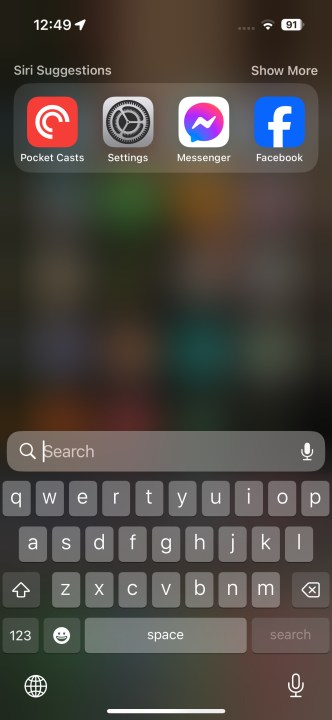
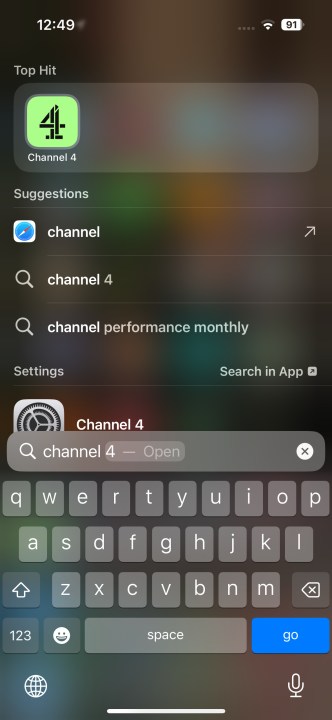
Step 1: Use the powerful Spotlight Search feature to find any app, even hidden ones.
Step 2: Swipe down from the middle of your home screen to open the search functionality—avoid swiping from the top to prevent opening notifications.
Step 3: Type the name of the app you’re looking for in the Spotlight Search bar.
How to Find a Hidden App Using the App Library
Another way to search for hidden apps is through the App Library.
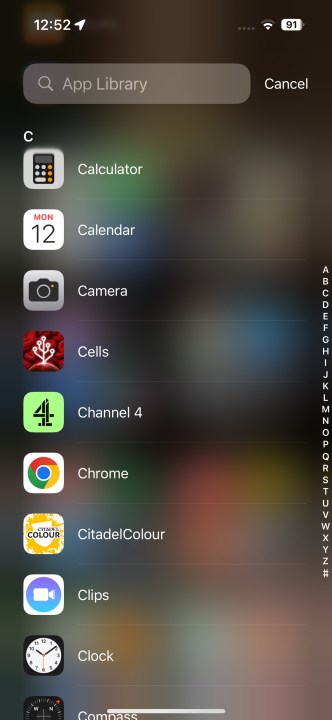
Step 1: Swipe left until you reach the end of your home screen, which opens your App Library.
Step 2: Tap the search bar at the top of the screen and either scroll down the alphabetical app list or input the name of the app you’re seeking.
With this knowledge, you are now equipped to effectively hide and retrieve apps on your iPhone! Whether you choose one method or try them all, you have the tools to organize your app collection according to your preferences.
The iPhone 16 Pro made its debut last Friday, but users are already reporting some issues with the touchscreen functionality. As reported by 9to5Mac and various complaints on Reddit, many iPhone 16 Pro owners are experiencing problems where their taps and swipes are not registering on the screen. This is particularly problematic for tasks like scrolling and pressing buttons. It’s worth noting that users of the standard iPhone 16 or iPhone 16 Plus are not experiencing this issue.
What seems to be causing this touchscreen malfunction? The thinner bezels on the iPhone 16 Pro and iPhone 16 Pro Max displays may be to blame. The accidental touch rejection algorithm appears to be overly sensitive, leading to this software glitch. This algorithm activates when the user’s fingers inadvertently touch the edge areas of the screen, which consequently causes their intended taps to go ignored.
Camera Control button on the iPhone 16 ProJoe Maring / Digital Trends
The most frequent trigger for this issue appears to be a finger resting near the edge of the display nearest to the Camera Control button. However, this problem has been noticed along all four edges of the screen.
This situation occurs when a new touch is detected on the display, causing all subsequent touches to be ignored for a short duration. This is likely influenced by the extremely thin bezels of the iPhone 16 Pro models, which makes it easier for your skin to unintentionally touch the screen. Additionally, the problem is more pronounced for users who do not use a case, as cases tend to cover the edges and bezels of the device.
The unresponsive touchscreen only occurs when the device is actively being used, such as when navigating apps or swiping through home screens. It does not happen when the iPhone 16 Pro is locked or idle.
Reports of this issue have come from users running both iOS 18 and iOS 18.1 beta versions. Given that this seems to be a software-related problem, it’s likely that Apple will be able to resolve it through a forthcoming software update. Here’s hoping for a swift fix, since experiencing this glitch can be quite frustrating for users.
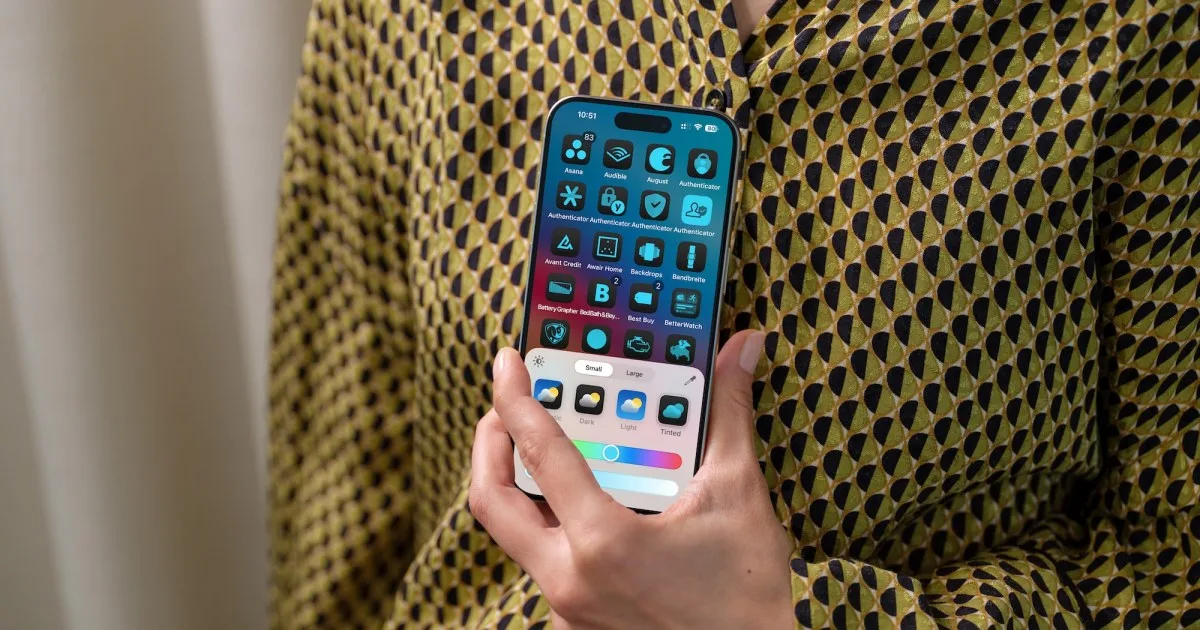
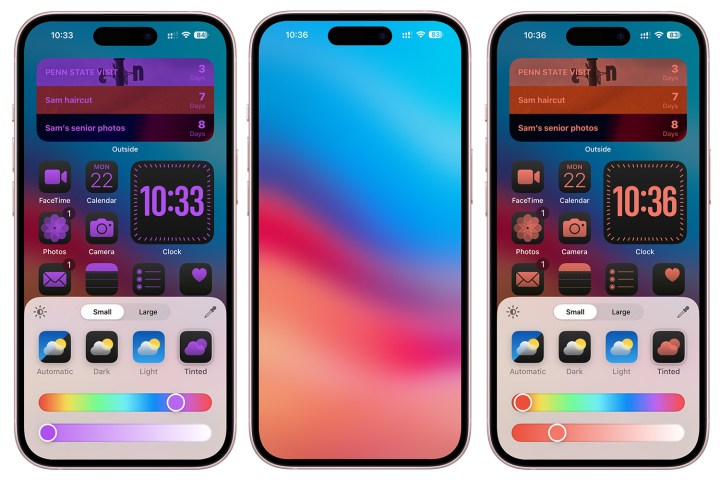
With the launch of iOS 18, Apple introduces exciting new features, most notably Apple Intelligence. Alongside this, the update brings additional customization options, including the long-anticipated ability to modify the appearance of app icons on the home screen.
Home screen customization has been part of the iPhone experience for a while, but iOS 18 enhances it with innovative features, like changing app icon colors. This offers a new level of personalization that was previously unavailable, making the process enjoyable. Here’s how to utilize these new features.
Adjusting App Icon Colors in iOS 18
In iOS 18, you have two main options for changing the look of your icons. You can set the icons to adjust automatically depending on the time of day, or you can manually apply colorful tints to complement your personal aesthetic.
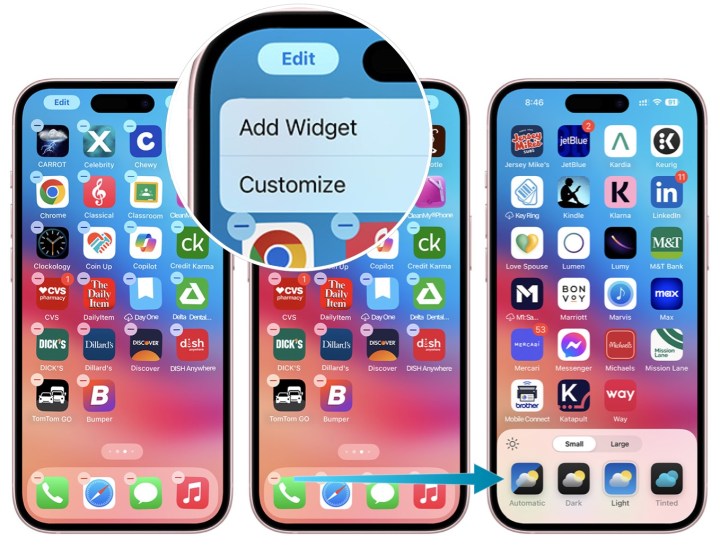
Step 1: To enable Edit mode, press and hold on a blank area of your iPhone’s home screen until the icons start wiggling.
Step 2: Next, select the Edit icon located in the top-left corner.
Related
I’ve used iOS 18 for months. Here are 10 reasons you should update right now
The best Apple iPhone 16 Plus cases for 2024
How to enable RCS messaging in iOS 18
Step 3: Choose Customize from the Edit menu.
Bryan M. Wolfe / Digital Trends
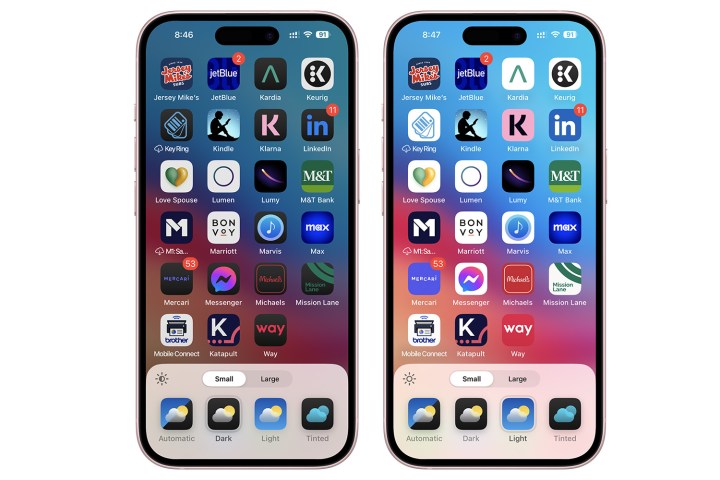
Step 4: To modify the icon colors based on the time of day, tap Automatic.
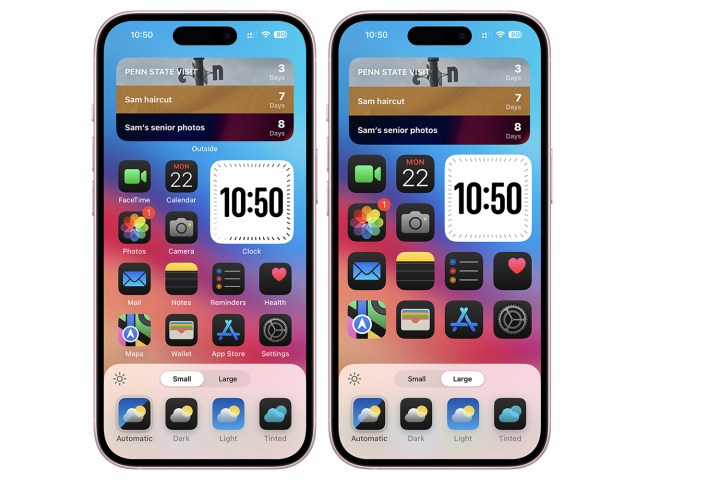
Step 5: You can choose Dark for icons to remain consistently dark, or Light for them to stay light-colored at all times.
Bryan M. Wolfe / Digital Trends
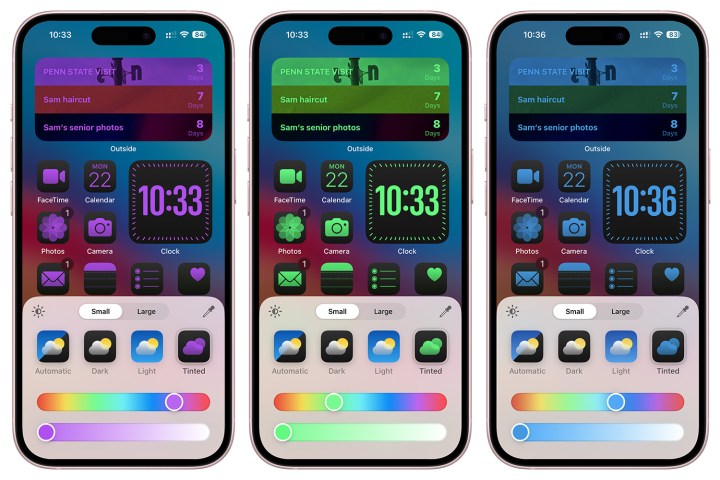
Step 6: Find the Tinted option next to Automatic, Dark, and Light. Tap to choose a tint color for your app icons using a slider to select the shade and adjust its intensity.
Bryan M. Wolfe / Digital Trends
Step 7: You can further customize your icon colors using the eyedropper icon to match a color from your current background.
Bryan M. Wolfe / Digital Trends
Step 8: Another customization option lets you change the size of the icons. You can achieve this by re-entering Edit mode and toggling the Large setting. This enlarges the icons and removes the text below them. To revert to their standard size, simply select Small.
Bryan M. Wolfe / Digital Trends
That’s all there is to it! While iOS 18’s app icon customization tools may not be as extensive as those on Android devices, they still enhance your home screen experience. Now you know how to make your iPhone uniquely yours.
The journey towards realizing artificial general intelligence (AGI) is moving forward rapidly, making for an exciting week in AI development.
From Apple’s unveiling of its upcoming Intelligence features to significant progress in AI-generated video technology, here’s a roundup of this week’s major AI headlines.
This week was significant for Apple’s product lineup, marked by the rollout of iOS 18, WatchOS 11, and MacOS 15. Immediately following these releases, the iPhone 16 and Apple Watch 10 became available for purchase, accompanied by the launch of the 18.1 beta update for the operating systems.
While the beta doesn’t showcase the full range of features anticipated from Apple Intelligence—expectation for the complete version arrives with the official October release—it offers users a glimpse into what the generative AI will soon provide.
However, early observations indicate that Apple Intelligence may require additional fine-tuning before it becomes fully polished for widespread use.
Despite last summer’s Hollywood writers strike, which was largely in response to concerns about generative AI, Lionsgate has forged ahead, announcing its collaboration with Runway to create and train AI video models.
This partnership will focus on harnessing Lionsgate’s extensive film and TV catalog to develop new opportunities for efficient content creation, raising questions about the implications for the professionals involved in traditional filmmaking.
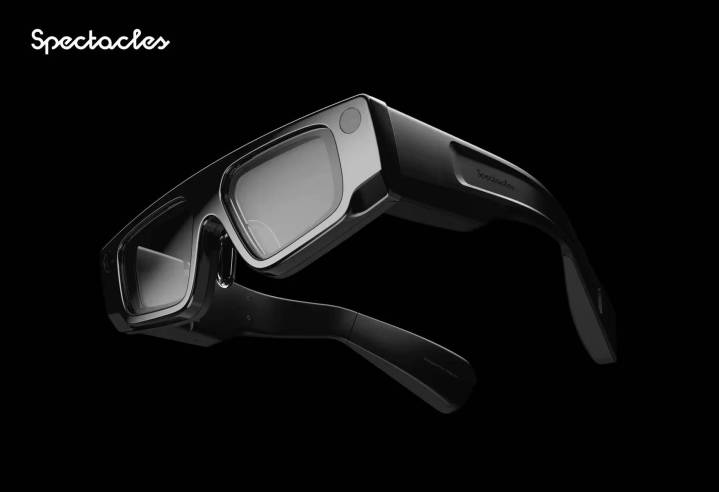
In its ongoing efforts to popularize augmented reality (AR) glasses, Snap introduced the fifth generation of its Spectacles. These new spectacles feature a broader field of view and display capabilities akin to “a 100-inch screen viewed from 10 feet away,” along with considerable enhancements to SnapOS and the accompanying mobile app. Additionally, Snap is reportedly collaborating with OpenAI to integrate cloud-supported multimodal AI functionalities into the glasses.
The new glasses weigh 226 grams—over 100 grams heavier than the previous edition—and have a distinctive aesthetic. Currently, they are accessible only to developers with a subscription fee of $99 per month, with no updates on a consumer version yet.
To simplify content creation for newcomers and better compete with platforms like TikTok, YouTube launched an array of AI-driven production tools. At the Made on YouTube event this past Wednesday in New York City, Google unveiled its plan to integrate DeepMind’s Veo video generation model into YouTube Studio. This model can create six-second clips in 1080p resolution based on text prompts, presented as a brainstorming tool that aids in topic selection, title generation, thumbnail creation, and scriptwriting.
In combination with Dream Screen, which generates AI-crafted background images, users can create a still background and then animate it with Veo.
Did you know that generating a brief email through a chatbot burns the same amount of energy as three water bottles and 14 LED bulbs running for an hour? Perhaps consider brainstorming some ideas with your own creativity instead of relying on technology.
At the start of the week, Runway unveiled a new feature for its Gen-3 Alpha model, allowing users to alter the cinematic style of any video with text inputs. This innovation has excited AI enthusiasts, with demonstrations available on social media. Moreover, Runway launched an API to enable external developers to integrate this video generation model into their own applications and platforms.