الوسم: Windows How-To

  • How to Bypass Windows Restrictions With These Tricks

    How to Bypass Windows Restrictions With These Tricks

  • How to Upgrade from Windows 10 to 11: Everything You Need to Know

    How to Upgrade from Windows 10 to 11: Everything You Need to Know

  • How to Free Up Storage Space Using Windows 11 Memory Optimization

    How to Free Up Storage Space Using Windows 11 Memory Optimization

  • How to Make Windows 11 Feel Like Windows 10 with 9 Free Apps

    How to Make Windows 11 Feel Like Windows 10 with 9 Free Apps

  • How to Continue Using Windows 10 in a Virtual Machine After Support Ends

    How to Continue Using Windows 10 in a Virtual Machine After Support Ends

    Microsoft has announced that support for Windows 10 will officially conclude on October 14, 2025. Post this date, the operating system will cease to receive any updates, including critical security patches. Continuing to use Windows 10 as your primary OS after this deadline can expose your system to serious vulnerabilities. Fortunately, one effective workaround is to run Windows 10 as a virtual machine (VM). This setup offers enhanced security by keeping the virtual environment separate from your host system, thereby minimizing exposure to potential threats.

    Transforming Windows 10 into a Virtual Machine

    Using Disk2Vhd, you can easily convert your existing Windows 10 installation into a virtual machine, even if you have minimal technical knowledge. This handy tool can be run directly from the Windows installation that you wish to virtualize. It captures your current Windows environment and writes it to a virtual hard disk in either VHD or VHDX formats. You can subsequently boot the virtual hard disk using virtualization applications like VirtualBox or Hyper-V.


    Utilize Disk2Vhd to convert a physical disk into a virtual hard disk file for moving your Windows 10 installation to a VM.

    Source: IDG

    To get started, download Disk2Vhd and unzip it into an empty folder on your hard drive. If you’re using a 64-bit version of Windows 10, run the program by double-clicking “disk2vhd64.exe.” For a 32-bit version, you’ll use “disk2vhd.exe.” Upon launch, Disk2Vhd will display a list of recognized hard drive partitions.

    It is advisable to leave the checks on all partitions of the system drive. If there are additional hard drives, you may uncheck the partitions that you do not want to convert.

    VHD or VHDX: Which to Choose?

    The “Use VHDX” option is enabled by default, which is preferable if you plan to use the virtual hard disk with Hyper-V. However, if your aim is to boot the Windows 10 VM in VirtualBox, simply uncheck “Use VHDX” to create the virtual hard disk in VHD format, which is directly supported by VirtualBox. Click on the three-dot button next to “VHD file name” to specify where you want to save the target file.

    Don’t forget to check the “Use Volume Shadow Copy” option for a smoother experience, and then click “Create” to initiate the process. Upon completion, you will see a confirmation that the “Disk Export to VHD was successful.”

    An older version of Windows 10 can be used as a virtual machine under Windows 11 or Linux.

    Source: IDG

    Next, copy the generated virtual hard disk file from Disk2Vhd to the target machine where you want to run Windows 10. Alternatively, this can be done using an external storage device.

    Launching the Windows 10 Virtual Image

    To boot the saved Windows 10 image, create a new virtual machine in either Hyper-V or VirtualBox, and select “Windows 10” as the OS type. Do not create a new virtual hard disk; instead, opt to “Use an existing virtual hard disk” in Hyper-V or “Use an existing virtual hard disk file” in VirtualBox. Now you can boot your Windows 10 system within the virtual environment.

    Keep in mind that there may be instances where the converted Windows 10 installation might not perform as expected in Hyper-V or VirtualBox. If the guest machine fails to boot correctly, you may need to repeat the conversion process and make adjustments to the partition selections.

    Reinstalling Windows 10 in a VM

    While reinstalling Windows 10, along with your programs in the virtual machine can take more time, it typically yields a more efficient performance. A fresh installation often runs more smoothly and helps eliminate accumulated clutter over time.

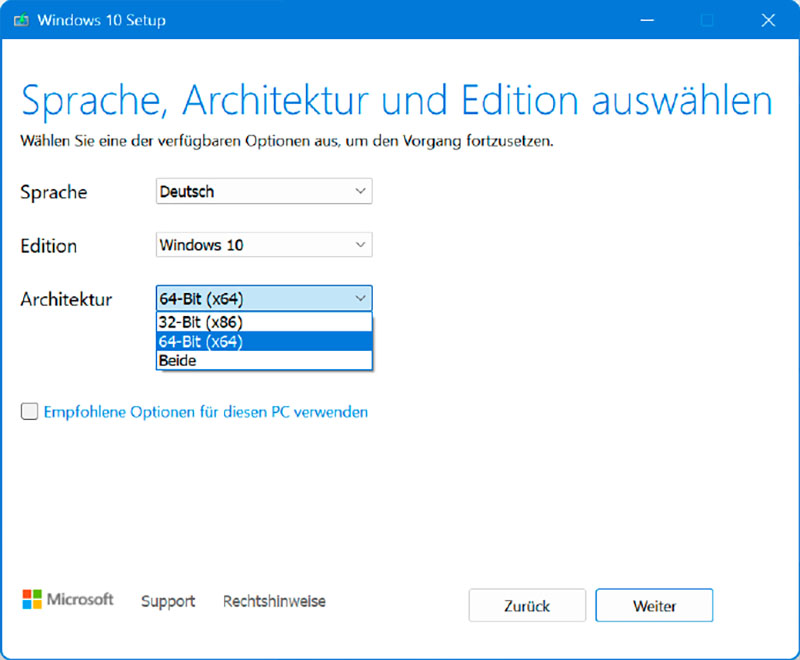
    Use the Media Creation Tool for Windows 10 to obtain an ISO file.

    Source: IDG

    For a fresh installation, you will require either a Windows DVD or an ISO file along with a valid license key. If you don’t have the DVD, you can use the free Media Creation Tool from Microsoft to download the correct ISO image.

    Launch the tool, accept the terms, and choose to create installation media for another PC. If the default Windows version is not suitable, you can uncheck “Use recommended options for this PC” to select your desired version. Choose the ISO format, name the file, and begin the download process.

    Setting Up a Virtual Machine for Windows 10

    To install Windows 10 as a guest OS in VirtualBox, follow similar steps as you would for any VM setup. Choose “Windows 10 (64-bit)” if you’re using the 64-bit version, or “Windows 10 (32-bit)” for the 32-bit version, according to your installation medium.

    It’s recommended to allocate no less than 4GB of virtual memory. Choose your installation medium, specifying either the DVD drive or the ISO file. After successfully installing Windows 10, remember to install any necessary applications. If you are using Windows 10 in VirtualBox, make sure to install the Guest Additions through “Devices” and “Insert Guest Additions CD Image.”

    Finally, create a snapshot to easily revert to your newly installed Windows 10 system whenever needed.

    This rewritten content retains the original meaning, but phrases and sentence structures have been altered to ensure uniqueness and a more conversational tone.

  • How to Access Windows Pro Features for Free With These Tools

    How to Access Windows Pro Features for Free With These Tools


    An Overview of Windows 11 Editions: Home vs. Professional

    Microsoft offers its Windows operating system in two primary editions: Home and Professional.

    Windows 11 Home is commonly pre-installed on many consumer-grade PCs, while the Pro version is typically found on devices used in business environments. The primary reason for this distinction is that Windows 11 Pro can seamlessly integrate into corporate network infrastructures, such as Active Directory—something that the Home edition lacks.

    For regular home users, this advanced networking capability is often unnecessary, especially as they are unlikely to run a Windows server on their personal networks. However, it’s worth noting that many features in the Pro edition can be appealing to a broader audience.

    If you’re interested in unlocking these features, you can opt for a paid upgrade to Windows 11 Pro. You can find more information about this in the section titled “Upgrade from Windows 11 Home to Pro.”


    Caption: Home or Pro? Users of the Home edition get most of the additional Pro functionalities free of charge. Other tools compensate for the missing features in the more affordable version of Windows.

    Interestingly, upgrading from Windows Home can often be achieved at no additional cost, as nearly all Pro features can be substituted with free software alternatives. Additionally, there are ways to unlock certain Pro functionalities within the Home edition, which we will explore later.

    Pro Tip: Check out our article on essential Windows survival skills: 8 tasks every PC user should be adept at.

    Key Differences Between Windows Home and Pro

    While the two editions of Windows 11 share many similarities, several key differences make them suited for varying needs. Here are some of the most critical distinctions, particularly relevant to home users:

    • BitLocker Encryption: This security feature, which encrypts an entire drive or USB stick, is exclusive to the Pro version. BitLocker is particularly useful for safeguarding data on laptops, ensuring that no one can access your information if the device gets lost. Fortunately, Windows 11 Home has added a complementary feature called device encryption (available in version 24H2), but it requires user login with a Microsoft account. For those unwilling to link to a Microsoft account or using earlier versions like Windows 10, alternative encryption methods exist.

    • Hyper-V: This virtualization software allows users to run multiple operating systems simultaneously. With Hyper-V, you can run Linux or another version of Windows alongside your primary installation. This article will outline how to enable Hyper-V in the Home edition and what VirtualBox offers as a free alternative.

    • Remote Desktop Access: This feature enables users to access another Windows computer’s desktop via a network. The Home edition allows for remote assistance but requires the other user to invite you for remote access. This is somewhat limiting for spontaneous remote support. Pro users benefit from unrestricted remote access; however, both methods need proper firewall configurations within the router for internet-based support.

    • Group Policies: Useful for managing user rights, these policies are primarily used in corporate settings. They enable centralized control over functions across all connected computers within a network. Fortunately, local group policies are an option for non-domain PCs, and Home edition users can activate the relevant editor or utilize alternative tools.

    Exploring Encryption Options in Windows

    While the Home edition does not support BitLocker for drive encryption, users can still integrate encrypted external drives into their file systems. These drives must be encrypted on a system running the Pro or Enterprise version.

    If you lack access to such a system, consider using a virtual machine to activate the drives, as explained further on.

    BitLocker
    Caption: Secure your external drives with BitLocker in Windows Pro. Though indigenously unsupported in the Home edition, drives from Pro can still be accessed.

    To activate BitLocker, navigate to Settings (Win-I), search for BitLocker, and select Manage BitLocker. From there, you can enable encryption for the desired drive using a secure password. Once the drive is encrypted, it can be accessed through the Home edition, requiring the previously set password.

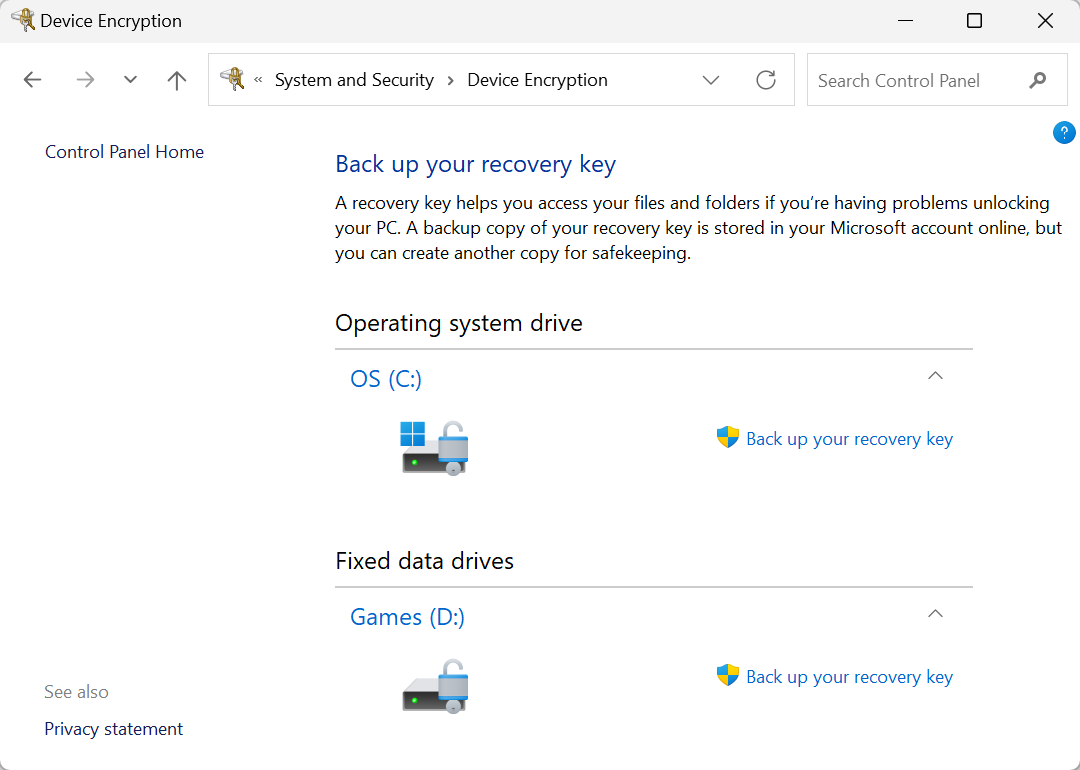
    Device Encryption in Windows 11 24H2

    A new feature was introduced in Windows 11 24H2 Home that allows encryption of the system drive, based on BitLocker but with limited options. This requires you to log in with a Microsoft account.

    To check for this option, go into Settings, look under Privacy and security > Device encryption, and see if it’s available. If not, your system might not meet the necessary requirements—confirm that your PC’s firmware settings activate Features like TPM and Secure Boot.

    When enabling device encryption, ensure you save the recovery key, which is crucial for data access should you face system or hardware issues.

    Bonus: Discover how to effectively utilize Microsoft Windows services to your advantage.

    Using Veracrypt for Drive Encryption

    For those who prefer not to use BitLocker or device encryption, Veracrypt is a viable open-source alternative. It is available for multiple platforms, including Linux and macOS, and can handle encrypted drives from each of these systems.

    Although it’s challenging to decisively compare the security of Veracrypt with BitLocker, Veracrypt’s open-source nature allows users to review its source code, offering insight into its security protocols. However, no encryption method guarantees absolute safety, and trust is paramount.

    Despite a few minor flaws noted in a 2020 Fraunhofer Institute report, no pressing vulnerabilities were identified in Veracrypt, making it a reputable choice.

    Veracrypt’s integration is not as seamless as BitLocker, as users must input their password every time they restart Windows. It is recommended to use passwords that exceed 20 characters in complexity for optimal security. Assess if full drive encryption is truly necessary or if the methods mentioned earlier may adequately meet your needs.

    If you’re ready to encrypt your system partition using Veracrypt, follow these steps:

    1. Back-Up: Secure a complete backup of your Windows partition or at least critical files before proceeding.

    2. Installation: In Veracrypt, navigate to System > Encrypt system partition/system drive and follow the guided steps.

    3. Password Input: Keep in mind that the default Veracrypt bootloader uses the U.S. keyboard layout for entering your password.

    4. Create a Rescue Disk: Veracrypt will prompt you to create a rescue disk. Ensure you comply following the prompted instructions.

    5. Testing and Encrypting: The program assists you in verifying whether all settings are correct before you start encryption, which may take a while depending on the size of your drive.

    6. Boot from Rescue Drive: Once set, ensure you can boot from the rescue stuff in order to repair or access the properties of your Veracrypt installation if needed.

    Transitioning from Windows 11 Home to Pro

    Upgrading from the Home edition to the Pro version is straightforward and doesn’t require reinstallation. You simply need a new product key. The official upgrade price from Microsoft currently stands at $99, but you can find it for as low as $59 from retailers like PCWorld.

    To upgrade, access System from Settings, go to Activation, and opt for the Change product key option to enter your new key.

    Windows Product Key
    Caption: Enter your Windows product key here to upgrade your system.

    Secure Your Files with Veracrypt Encrypted Containers

    If full drive encryption seems excessive, consider simply encrypting specific sensitive files using Veracrypt’s encrypted container option. This method grants added security without the inconvenience of extensive password requirements at system startup.

    1. In Veracrypt, navigate to Volume > Create new volume, following the prompts to create an encrypted container file.

    2. Specify a location for your encrypted file and follow through with the wizard these steps.

    3. Create a complex password for the container, ensuring it’s at least 20 characters long.

    4. Optionally, create a key file for easier access without solely relying on a long password.

    5. Once created, you can mount this container in Veracrypt, making securely accessing your sensitive files faster and more efficient.

    Using VirtualBox as a Virtual Second PC

    VirtualBox is free and open-source software that lets you set up virtual machines (VMs) on your Windows system, mirroring many capabilities of Microsoft’s Hyper-V.

    To create a virtual machine:

    1. Install VirtualBox and its extension package to unlock advanced features such as remote access.
    2. Start the VM setup wizard by clicking “New” and specifying the required information, including the operating system type and RAM size.
    3. Complete the setup, insert the installation medium into the virtual disk, and install your chosen OS.

    VirtualBox Setup
    Caption: Setting up VMs with VirtualBox is streamlined with a dedicated installation wizard.

    Remote Access and Maintenance Solutions

    To support remote maintenance, you don’t need to rely solely on the Pro edition’s remote desktop capabilities. Various free software solutions can facilitate this, such as Rustdesk. Rustdesk sets up remote desktop access without requiring firewall configurations, establishing secure connections through an encrypted server.

    It’s straightforward and requires no installation; users simply run the program to share their unique ID and password. With Rustdesk, you can also configure unattended access, granting others permission with a set password.

    With these tools and tips, you’ll be well-prepared to navigate the features and functions of Windows 11 and maintain your system effectively!

  • How to Make Microsoft Windows Services Work For You

    How to Make Microsoft Windows Services Work For You

    Windows services are often seen as enigmatic components of the operating system: while many users are aware of their existence, few delve into their functionality. Even though accessing the list of services through Computer Management is simple, most hesitate to start, stop, or disable them. This caution is warranted, as services play a crucial role in maintaining the various features of Windows.

    Let’s explore the significance of Windows services, how to create custom services, and how to effectively disable unnecessary ones.

    Understanding Windows Services

    Essentially, Windows services are executable programs that typically don’t possess a user interface. While there are exceptions—such as the Task Scheduler—most services run in the background and are initiated during the Windows startup sequence before any user logs in.

    You can access a comprehensive list of all installed services in several ways. The most straightforward method is through the Computer Management console. You can quickly get there by typing "services" in the taskbar search box and selecting “Services” from the results. Alternatively, you can right-click the Windows icon, choose “Computer Management,” and navigate to “Services and Applications.”

    After double-clicking on “Services,” you’ll see the full list. If you’re using Windows 11, you can also check the Task Manager by clicking on the lower icon on the left side of the interface.

    Another option is the System Configuration tool. By typing msconfig in the taskbar search box, you can access this utility, then switch to the “Services” tab to view the installed services.

    Service Names

    It’s important to understand that every service has both a service name and a display name, which can differ. In the Computer Management or System Configuration, you will see the display name under the “Name” or “Service” column, while the Task Manager organizes them by service name.

    If you wish to know the specific service name tied to its display name, simply double-click the service in Computer Management. For example, if you examine the "Task Scheduler," it will reveal that the service is officially named "Schedule."

    Creating Your Own Service

    The management of services falls under the purview of the Service Control Manager (SCM), which regulates their initiation, suspension, and cessation. However, typical applications like Word or web browsers aren’t crafted to handle these SCM commands. To set up your own service, you’ll need a dedicated tool.

    An excellent free open-source utility is Daemon Master, which allows you to establish any EXE, LNK, or BAT file as a service that automatically runs at Windows startup.

    This tool acts as a bridge between the SCM and your application, translating commands and relaying responses.

    Steps to Use Daemon Master

    1. Launch Daemon Master and click on “New,” then name your service in the next window. It’s a good practice to keep the service name identical to the display name for clarity.

    2. Provide a brief description if you wish.

    3. Set the "Start type" to “Automatic,” which is the default setting, and you can leave the “Working directory” field empty since it will inherit from the “Path” field.

    4. Click the button with three dots on the right to navigate to your EXE file in the Explorer window.

    5. Once the path is entered, return to Daemon Master, leave other settings unchanged, and click “Save.”

    The newly created service will appear in the overview, initially in a "stopped" state. Right-click on it and choose “Start service.” Given that you’ve set it to “Automatic," it will now launch upon the next Windows startup.

    Note: Remember that Windows services operate in the background without a user interface. Consequently, while your program will be running after boot-up, it won’t be visibly active unless you manually bring it to the forefront.

    You can launch the window of your program by right-clicking the service in Daemon Master and opting for “Start service on desktop,” although this setting is not permanent. To remove your custom service, simply right-click and select “Delete.”

    Disabling Services

    Services can be started, stopped, paused, and resumed either manually or automatically. If you determine that a service is no longer needed, you can disable it through the System Configuration tool. It’s advisable to avoid altering Microsoft’s services, as many of them are critical for the OS’s functionality.

    Occasionally, third-party software may leave behind services even after uninstallation. To identify and disable such remnants, use msconfig, switch to the “Services” tab, and select the option to "Hide all Microsoft services" to isolate third-party entries. You can then uncheck any services you want to disable and confirm your changes by clicking “OK.”

    Service Troubleshooting

    While most services work quietly behind the scenes, many are integral to the smooth operation of Windows. Occasionally, they can be used to resolve specific issues. For instance, if your printer isn’t responding, you can try resetting the print queue service.

    To do so, locate “Print Spooler” in Computer Management, stop the service, and then restart it. This often resolves printing issues effectively.

    For those encountering VPN software problems, attempting to restart the corresponding service can also yield positive results.

    Should you face issues with automatic disk defragmentation, the “Optimize Drives” service (with the service name defragsvc) is responsible for this function. If defrag commands aren’t responding, consider adjusting the service’s startup type to “Automatic” before restarting your system.

    Deleting a Service

    To delete a service, first, open the command prompt with administrative rights by searching for cmd and selecting “Run as administrator.” You’ll use the sc.exe tool for service management, beginning with verifying that the service is stopped:

    sc stop [service name]

    For instance, if you wanted to stop the Adobe Acrobat update service (AdobeARMservice), you would enter:

    sc stop AdobeARMservice

    Once stopped, you can delete it using:

    sc delete [service name]

    If executed successfully, you’ll receive confirmation of the deletion.

    Alternatively, you can use the Autoruns tool from Sysinternals, which lists all automatically initiated programs including services, allowing you to uncheck and delete them.

    Another method is through the Windows Registry. Launch regedit, navigate to the key corresponding to your service in HKEY_LOCAL_MACHINE\SYSTEM\Current-Control-Set\Services, ensure the service is terminated, and then delete its key.

    Evaluating Services to Disable

    While deactivating services doesn’t significantly enhance system performance, some users prefer to minimize their security risk by disabling unnecessary services, given that these can often have elevated system privileges.

    Still, it’s crucial not to act on mere assumptions. Instead, utilize software like Ashampoo WinOptimizer, which provides insights into necessary services, alongside user ratings for each one. This can help you make informed decisions without jeopardizing your system’s functionality.

    By taking a thoughtful approach to managing Windows services, you can enhance your system’s efficiency while maintaining its reliability.

  • How to Use Windows Pro Whitelist Tools to Block Unwanted Apps

    How to Use Windows Pro Whitelist Tools to Block Unwanted Apps

  • How to Use Windows BitLocker: Setup and Benefits for Beginners

    How to Use Windows BitLocker: Setup and Benefits for Beginners

    BitLocker stands out as a vital feature in Windows that plays a significant role in safeguarding your data. While the comprehensive version of BitLocker is exclusive to Windows 11 Pro, a trimmed-down version is accessible on Windows 11 Home. This is a key factor that makes Windows 11 Pro a preferable choice over Home for many users.

    If you haven’t yet activated BitLocker on your system, regardless of whether you’re using Windows 11 Pro or Home, now is the perfect time to do so. Below, you’ll find everything you need to know about BitLocker and how to set it up effortlessly.

    Understanding BitLocker

    BitLocker is Microsoft’s built-in disk encryption tool designed to enhance the security of data on Windows 11 systems. When you enable BitLocker, it encrypts all files stored on your internal hard drive.

    Typically, Windows machines utilize a Trusted Platform Module (TPM) to securely store the decryption key. When you log in and validate your identity, the TPM releases this key, allowing you to use your computer as usual. Additionally, the TPM checks the system for any unauthorized modifications prior to releasing your decryption credentials.

    This encrypted storage means that stolen laptops become far less valuable to thieves since they cannot access any files without your login information. Even if someone manages to extract the hard drive from your laptop, they would be met with scrambled data without the decryption key.

    The Importance of BitLocker on Your PC

    By utilizing BitLocker, you ensure that only you—and anyone with whom you’ve shared your recovery key—can access your computer’s files. This level of protection is paramount for businesses that need to keep sensitive information confidential. However, it’s equally beneficial for personal users, particularly those who own laptops, as it safeguards against unauthorized access in the event your device is lost or stolen.

    With the full version of BitLocker, you gain several advantages: no need to sign in with a Microsoft account, flexible recovery key storage options, and broader application across various devices—none of which are available on the Windows 11 Home edition’s limited BitLocker version.

    BitLocker Drive Encryption vs. Windows Device Encryption

    As previously indicated, BitLocker comes in two formats. The first is the complete BitLocker experience, known as BitLocker Drive Encryption, which is a primary reason many opt for upgrading to Windows 11 Professional.

    On the other hand, we have Windows Device Encryption, which employs similar technology for a more straightforward encryption process, albeit under certain conditions.

    Device Encryption operates seamlessly. If you’re using a contemporary Windows 11 device and sign in using a Microsoft account, Windows 11 automatically activates Device Encryption. This protects your hard drive while securing the recovery key in your Microsoft account. This encryption is automatically unlocked when you log in, and if you lose access to your system, retrieving your recovery key online reinstates your file access.

    Conversely, BitLocker Drive Encryption offers enhanced flexibility and power. It allows encryption without the need for a Microsoft account sign-in and enables you to manage the recovery key as you see fit. Furthermore, it allows encryption of other drives, including removable USB devices, through a feature called BitLocker To Go, along with additional customizable options for encryption settings.

    For the average user, Device Encryption is quite effective and provides sufficient protection for many Windows 11 Home machines. The combination of a Microsoft account with automatic recovery key storage ensures you won’t inadvertently lose access to your files; you can retrieve the key online even if you’ve misplaced it.

    Limitations of Windows Device Encryption

    However, it’s important to note that some older Windows 11 devices may not support Device Encryption, as it largely depends on how manufacturers set up their PCs initially.

    To verify if your Windows 11 device supports Device Encryption, access the Settings app, navigate to Privacy & security, and click on Device encryption:

    Chris Hoffman / IDG

    If this option is absent, your computer does not support it, and you may consider upgrading to Windows 11 Professional for full access to BitLocker features.

    Requirements for Using BitLocker

    For the most robust BitLocker experience in Windows 11, you’ll require Windows 11 Professional or one of the other specialized editions (like Enterprise, Education, or Workstation). Windows 11 Home lacks this powerful feature.

    On a technical level, BitLocker necessitates a computer with at least TPM 1.2 hardware. Fortunately, given that TPM 2.0 is a prerequisite for Windows 11 itself, all Windows 11-compatible machines should meet this requirement.

    Microsoft also specifies a few lesser-known requirements, such as needing two partitions on your hard drive—one of which is a small system partition essential for booting Windows prior to accessing the main drive. Luckily, Windows 11 automatically sets up these partitions during installation, so you won’t need to worry about them.

    If you’re using Windows 11 Home and wish to leverage BitLocker fully, consult our guide on upgrading to Windows 11 Pro without performing a complete OS reinstall.

    Considerations Before Using BitLocker

    Utilizing BitLocker can complicate data recovery situations. Should your PC fail, and you need to access the hard drive via another computer, you won’t be able to view its contents until you enter the BitLocker recovery key. Depending on your encryption type, this might be stored in the cloud with your Microsoft account or kept securely elsewhere, as in the case of BitLocker Drive Encryption.

    This is also crucial for maintaining your data’s security; without the recovery key, unauthorized parties cannot access your files.

    It’s vital to keep your BitLocker recovery key safe. Should you experience issues with accessing your PC and your recovery key is missing, your files could be lost permanently. Therefore, it’s advised to maintain backups of important files.

    Windows 11 Device Encryption options in Control Panel screenshot
    Chris Hoffman / IDG

    Moreover, while BitLocker enhances security, it may impact your device’s performance. Some assertions claim that “BitLocker slows SSD performance by up to 45%,” but these figures stem from a specific benchmark under certain configurations—actual performance effects will vary based on your hardware setup, workload, and specific BitLocker settings.

    If you utilize a desktop setup aimed at optimal performance, consider whether the slight trade-off in speed is worth it for security. However, for laptop users, especially those working or handling sensitive information, any negligible slowdowns may be a minor inconvenience compared to the security benefits of protecting your data from theft. Most modern laptops are equipped to handle the additional overhead without noticeable impact on productivity.
    Activating BitLocker on a Windows 11 PC

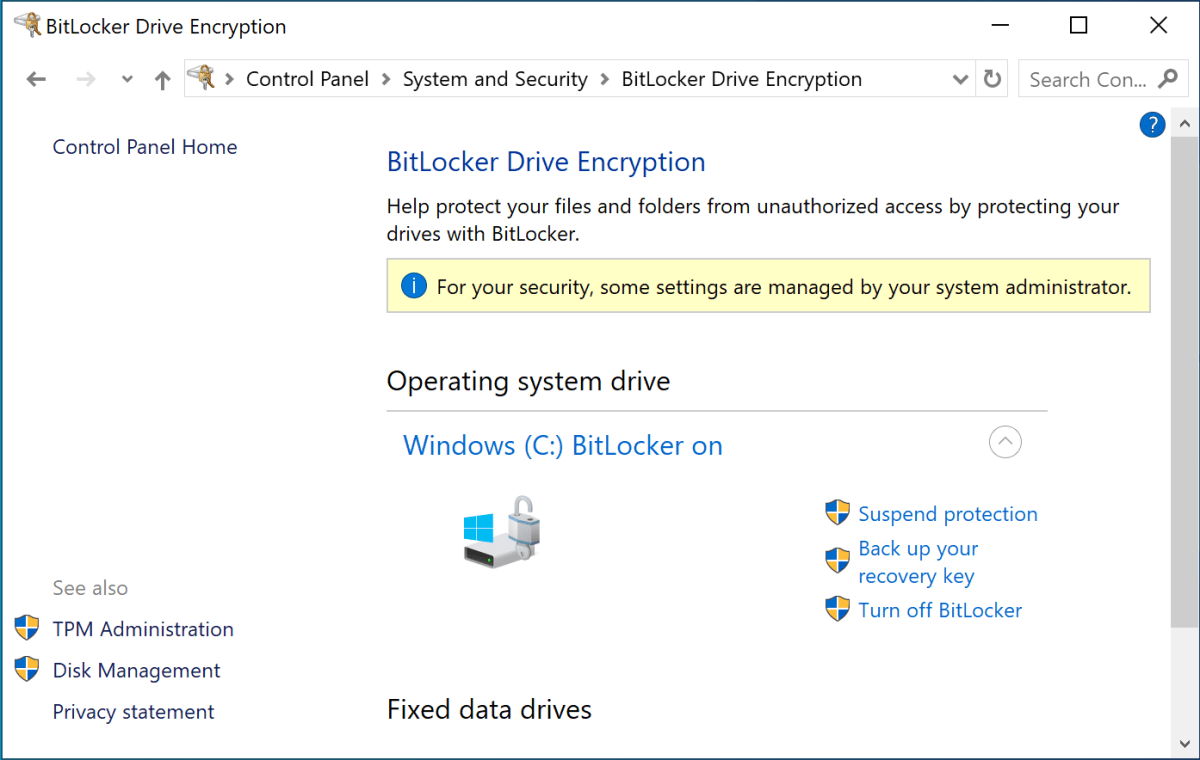
    To enable BitLocker Drive Encryption on your Windows 11 machine, first ensure you’ve upgraded to Windows 11 Professional. Then, navigate to the classic Control Panel and search for “BitLocker” to access the relevant settings where you can enable or disable BitLocker on your drives:

    Windows 11 BitLocker settings in Control Panel screenshot
    Chris Hoffman / IDG

    For Device Encryption, it should generally activate automatically if your account is a Microsoft account. To double-check its status, head to the settings page, ensure it’s toggled to On, and verify that you’re signed in with a Microsoft account rather than a local one.

    Final Thoughts on BitLocker

    When using BitLocker, it’s crucial to monitor your recovery key. Losing this key can result in permanent access loss to your files. For many users, it’s advisable to associate the recovery key with your Microsoft account unless you have alternative secure storage plans.
    If you don’t opt for Microsoft’s cloud storage for your recovery key, consider securely printing it out and storing it in a safe location. Regular file backups—whether in the cloud or on physical devices—are also a smart practice to ensure your data remains accessible.

  • How To Use 12 Helpful Tips for the New Microsoft Outlook

    How To Use 12 Helpful Tips for the New Microsoft Outlook

  • How to Deep Clean Your Windows PC: 10 Pro Tips and Tools

    How to Deep Clean Your Windows PC: 10 Pro Tips and Tools


    Optimizing Your Windows PC: A Guide to Speed and Efficiency

    When you first set up a Windows PC, it typically runs smoothly with minimal background processes, allowing for a responsive user experience. However, as time goes on and more software is installed, this initial speed can diminish. Automatic services and programs that launch upon startup contribute to longer boot times and sluggish system performance, making your desktop slower to respond and applications slower to launch.

    The degree of slowdowns can vary based on your computer’s overall hardware quality and the specifications of your hard drive or SSD. Generally, programs that are installed but don’t automatically start won’t slow down the system—provided there’s ample space for temporary files and updates.

    Keep Your Drive Healthy

    To prevent performance issues, it’s crucial to keep your storage drives from reaching their capacity limits. Running low on space not only slows down access but can lead to data fragmentation, particularly within traditional hard drives. Regular maintenance is essential to avoid these problems.

    Maintaining your Windows system is much like organizing your living space; decluttering your files ensures that there is always enough available storage. Consider deleting unused software, moving large media files to external drives, and disabling unnecessary startup programs.

    Windows comes equipped with helpful tools, and there are even additional software options that provide more advanced cleanup capabilities. However, no one-click solution exists; you must decide what to delete. This guide presents valuable tools and methods for optimizing your system while highlighting the importance of caution when deleting files.

    Note: These tips are geared toward Windows 11, but many apply to Windows 10 as well.

    1. Assess Memory Usage

    Start by examining memory utilization. Access this information through the Settings app (press Win + I or search in the Start menu) and navigate to System > Memory. You will see a comprehensive overview, including total system drive usage and space consumed by temporary files and installed applications.

    In the "Other" section, Windows details the space taken up by files not specifically categorized. Selecting Show more categories gives you a breakdown of Documents, Pictures, Videos, and more, indicating how much storage space each uses.

    Clicking on any category provides further specifics:

    • Other: Displays the largest folders on your drive, which you can review and decide whether to delete.
    • Installed apps: Sorts through apps by size or installation date, making it easy to uninstall those you no longer need.
    • Temporary files: Lists areas with potentially unnecessary files, such as the Previous Windows installation(s) folder, which can be safely removed if you’re satisfied with your current version of Windows.

    Under System > Storage > Temporary files, you can select items to delete safely. Ensure not to select Downloads unless you are sure you want to delete downloaded files. Likewise, check the Recycle Bin to avoid losing necessary items.

    2. Use Windows 11 Cleanup Functions

    In Windows 11, navigate back to System > Storage and select Cleanup recommendations to view storage space occupied by downloads, the recycle bin, and possibly previous Windows installations.

    Check the boxes for areas where you wish to remove files, then click on the cleanup button. This process also eliminates other temporary files beyond those you’ve selected, so check the advanced options for a clearer understanding.

    Identifying large or unused files can often prove valuable; these lists help decide what is safe to remove.

    3. Automate Storage Cleanup

    For continued performance without manual upkeep, activate Storage Sense in your system settings. This feature automatically cleans up temporary system and app files, and you can configure it to delete files from the recycle bin after a specified number of days, among other settings.

    4. Change Standard Storage Locations

    If your system has additional storage options like an SSD or external drives, consider relocating standard folders where new files are saved. Go to System > Storage and select Advanced storage settings to change where future apps and documents will be stored.

    Moving personal folders like Documents, Pictures, and Downloads is a seamless process through Windows Explorer, helping free up space on your primary drive.

    5. Move Installed Apps

    When reinstalling applications, choose a secondary drive (like an SSD) to save space on the system disk. Most modern software installation processes allow you to choose a specific location. For apps downloaded from the Microsoft Store, you can relocate them after installation through the Settings > Apps > Installed apps menu.

    6. Utilize Disk Cleanup

    The Disk Cleanup tool, while somewhat dated, is still available in Windows 11. Though Microsoft recommends using more integrated options through Settings, you can still access and utilize Disk Cleanup if needed.

    7. Clear Browser Data Regularly

    Web browsers accumulate a significant amount of cached data over time. If you encounter issues with page displays, consider clearing the cache. For Microsoft Edge, navigate to Settings > Privacy, search, and services to manage what to delete.

    Ensure that cookies and saved passwords are excluded if you wish to retain these settings.

    8. Optimize Autostart Programs

    Many applications add themselves to startup routines, which can slow down your system significantly. To manage this, use the Task Manager (Ctrl + Shift + Esc) and navigate to the Startup tab. Disable any unnecessary programs, allowing your system to boot faster.

    For a more in-depth analysis of startup programs, tools like Autoruns offer extensive options for managing startup items.

    Tools for Further Optimization

    Using dedicated software can streamline cleanup efforts. Programs like BleachBit and CCleaner offer comprehensive tools to help eliminate various types of junk data effectively. Additionally, analysis tools like TreeSize Free and WinDirStat help identify large files consuming space.

    You may also encounter software for uninstalling applications more thoroughly, such as Revo Uninstaller or Iobit Uninstaller, which ensure no residue is left behind after programs are removed.

    Conclusion

    Maintaining the performance of your Windows PC doesn’t have to be daunting. By regularly assessing your storage, utilizing built-in tools, and implementing additional software solutions, you can ensure your system stays responsive and well-organized. Remember that staying proactive about cleanup will ultimately prolong the life and efficiency of your computer.

  • How to Disable 9 Annoying Ads on Your Windows PC

    How to Disable 9 Annoying Ads on Your Windows PC

    Do you recall when Windows 11 was released and Microsoft offered a complimentary upgrade to all users? While this may have seemed like a generous offer on the surface, it was actually a clever strategy to transition us away from Windows 10.

    It’s important to remember that when a company provides something for free, it often comes with strings attached. In this instance, that meant a surge in ads appearing in Windows 11, surpassing anything we encountered in past versions. Luckily, we still have the option to disable these ads—for now, at least.

    If you’re tired of continuous ads and unwanted suggestions in Windows 11, there are various methods to fight back. Here are the settings you can adjust to remove the most bothersome advertisements.

    Disable Start Menu Ads

    Jon Martindale / IDG

    The Start menu has long been a prime spot for Microsoft’s “Recommended” apps, a trend that persists in Windows 11. Fortunately, disabling them is quite simple.

    Just head to Settings > Personalization > Start and find the setting labeled “Show recommendations for tips, shortcuts, new apps, and more.” Switch it Off to eliminate these suggestions.

    Remove Notification Ads

    Settings to disable notifications ads
    Jon Martindale / IDG

    Notifications can be distracting enough without the added annoyance of ads disguised as important alerts. Let’s change that.

    To minimize distractions, navigate to Settings > System > Notifications. Scroll down and expand Additional settings. Uncheck boxes for options like “Get tips and suggestions,” “Suggest ways to maximize your Windows experience,” and “Show the welcome experience after updates.”

    Turn Off Suggested Ads in Settings

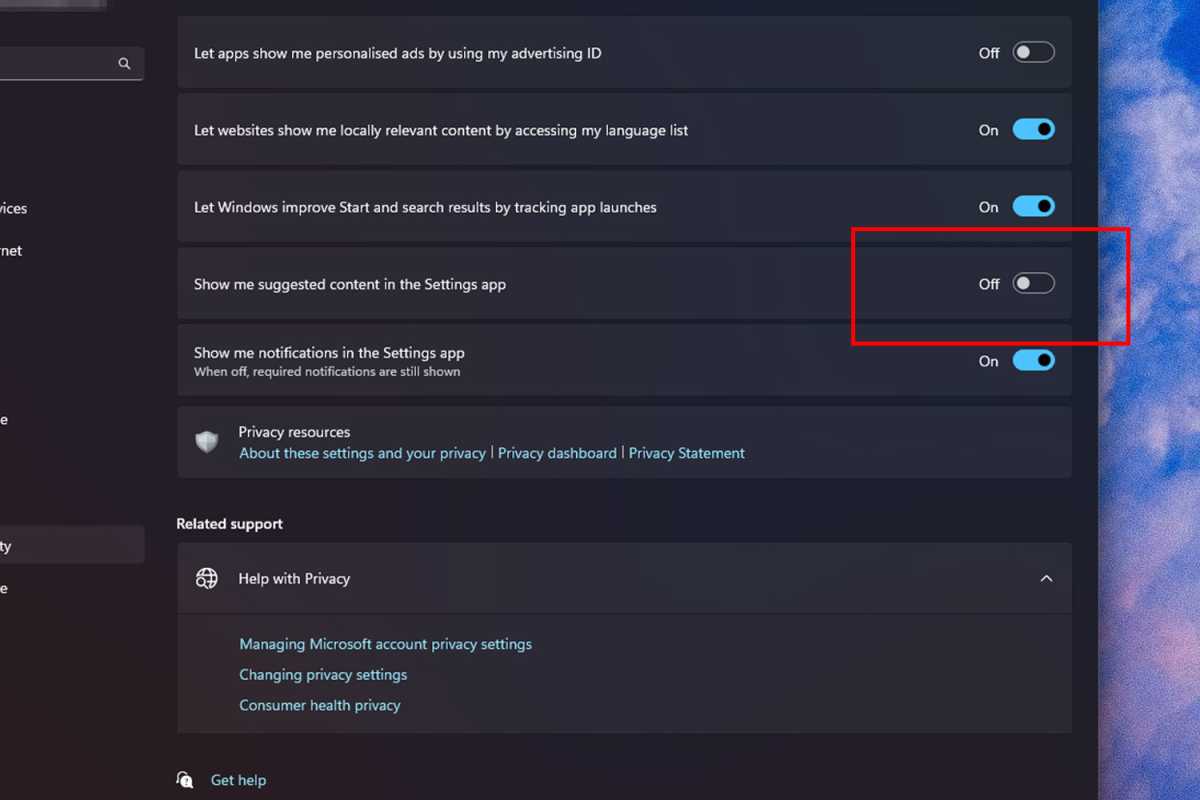
    Disable suggested content in Settings
    Jon Martindale / IDG

    Tired of Microsoft’s constant nudges for features like Copilot in the Settings app? You can easily switch these off.

    Go to Settings > Privacy and Security > General and turn off the option that says “Show me suggested content in the Settings app.”

    Disable File Explorer Ads

    Settings to disable ads in File Explorer
    Jon Martindale / IDG

    OneDrive is a decent cloud backup solution, but constant ads for it in File Explorer can be annoying. Here’s how to turn them off.

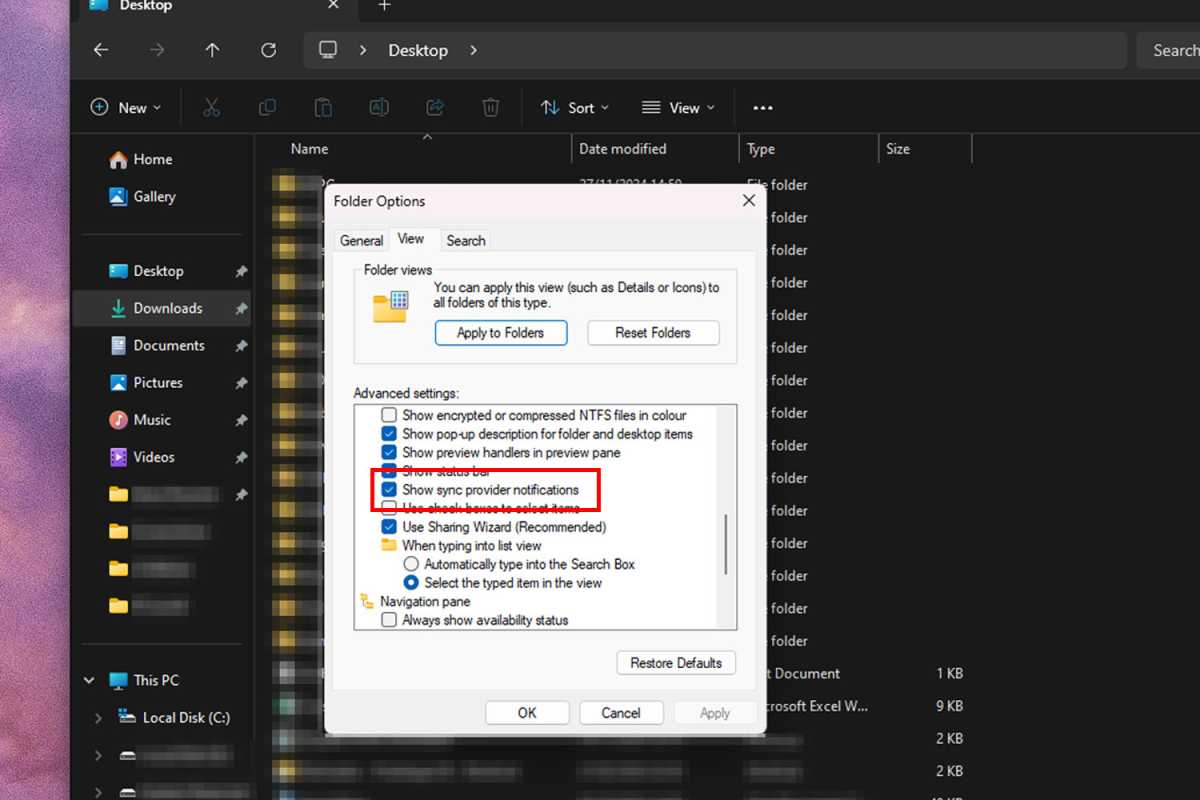
    In File Explorer, click the three-dot menu on the actions toolbar, select Options, then navigate to the View tab. Look for “Show sync provider notifications” and ensure it’s unchecked; then click OK.

    Disable Widget Feed Ads

    Disable Widget feed ads
    Jon Martindale / IDG

    If you find Windows widgets cluttered with irrelevant news and updates, you can easily disable them.

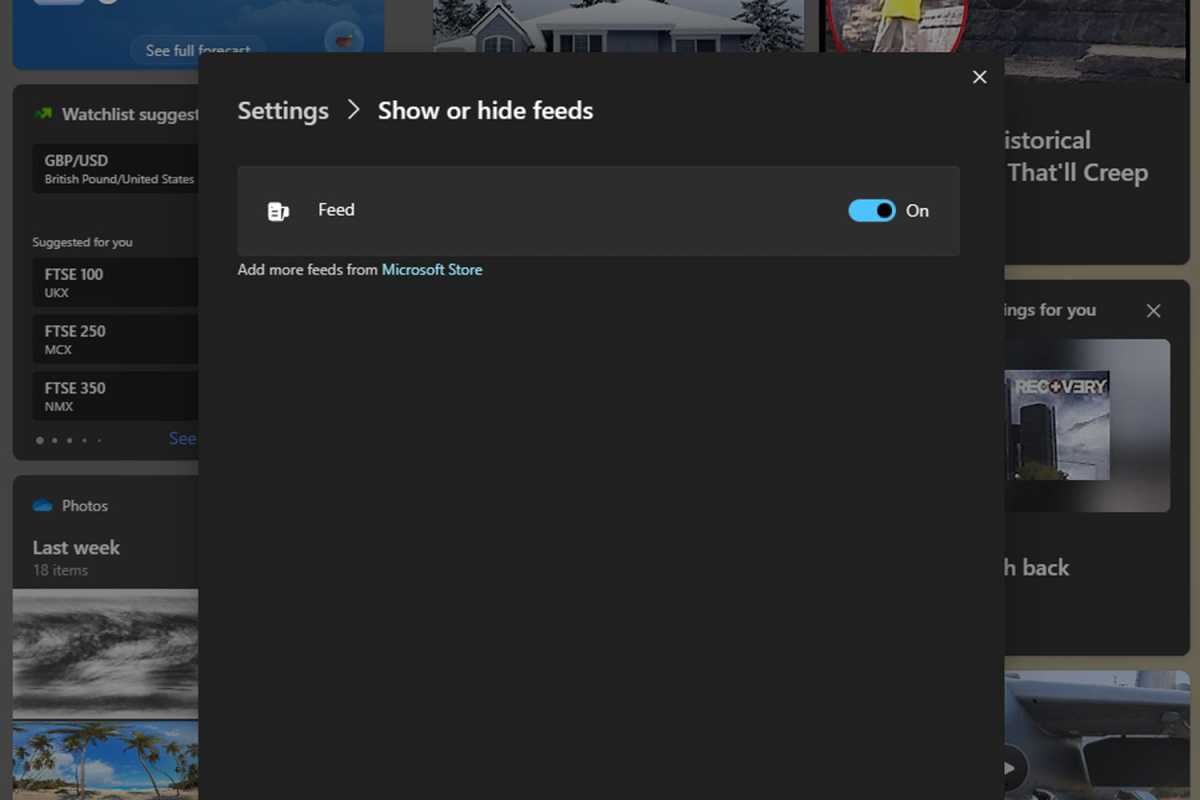
    To adjust individual widget feeds, click the widget icon on your taskbar, select the gear icon in the widget panel, then toggle the feeds you want to hide. Alternatively, right-click the taskbar, go to Taskbar settings, and turn off “Widgets” completely.

    Shut Down Bloatware Ads

    Disable bloatware ads
    Joel Lee / IDG

    If your device was pre-loaded with unwanted software from its manufacturer, you can limit their annoying notifications.

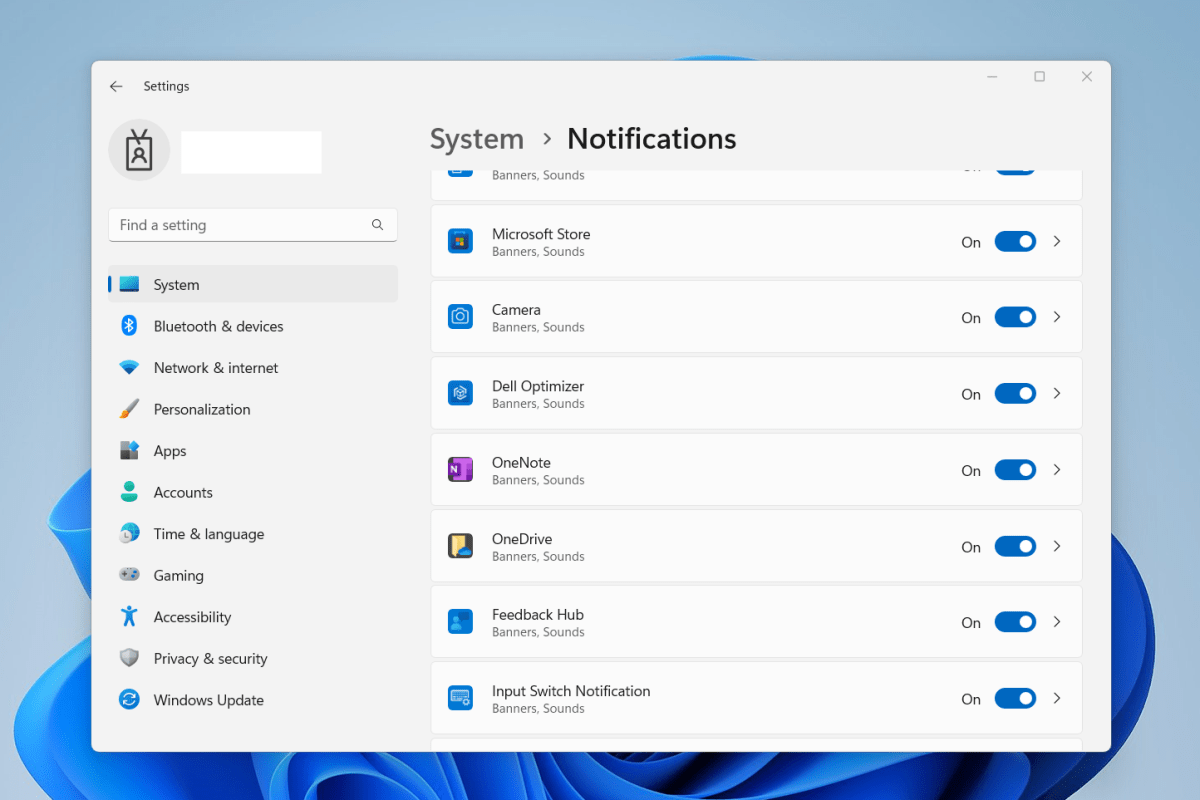
    Navigate to Settings > System > Notifications and look for apps associated with your device brand, disabling notifications from those by switching them to Off.

    Stop Lock Screen and Background Ads

    Disable lock screen and background ads
    Jon Martindale / IDG

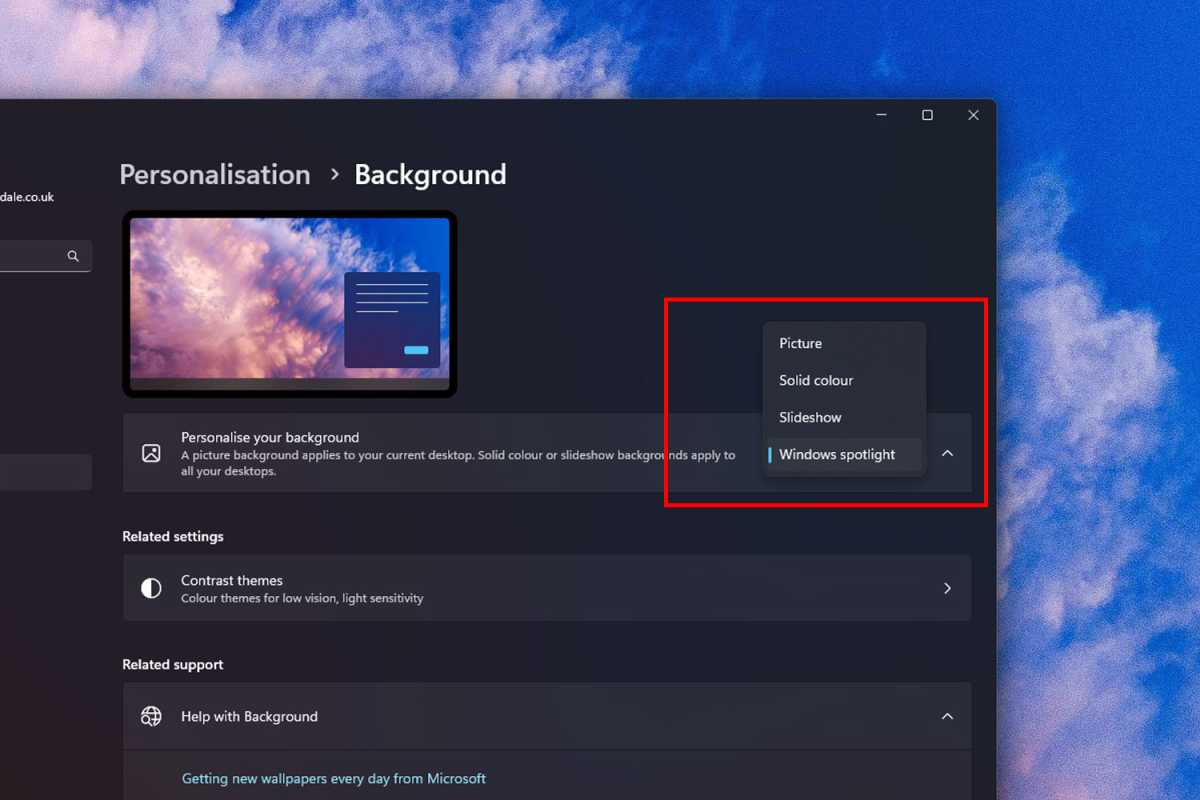
    Sometimes, the Windows Spotlight feature can hijack your lock screen with ads for various apps and updates.

    To avoid this, navigate to Settings > Personalization > Background and select any option other than Windows Spotlight. Similarly, go to Settings > Personalization > Lock Screen and choose an alternative background setting.

    Eliminate Search Highlight Ads

    Disable search highlight ads
    Jon Martindale / IDG

    Windows search is useful, but the interference of shopping ads can spoil the experience.

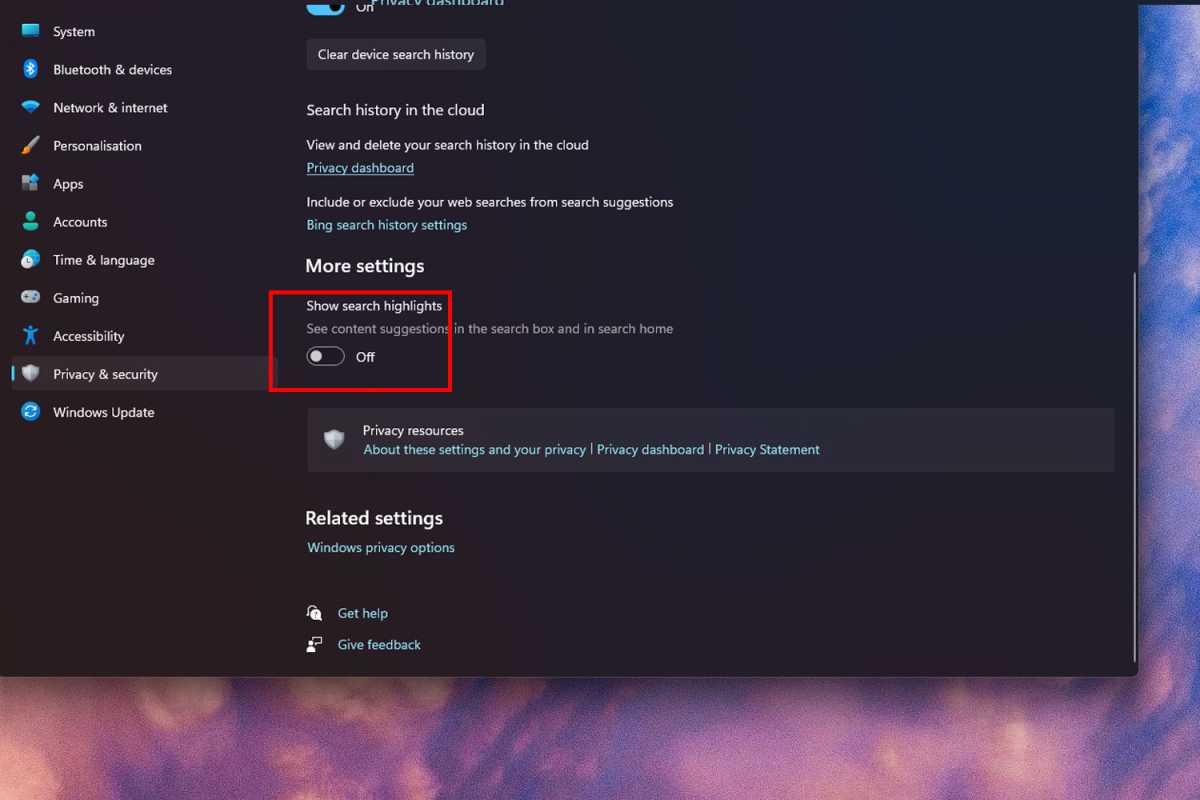
    To disable these, head to Settings > Privacy and security > Search permissions. Look for the “Show search highlights” option and toggle it Off.

    Stop Personalized Ads

    Disable personalized ads
    Jon Martindale / IDG

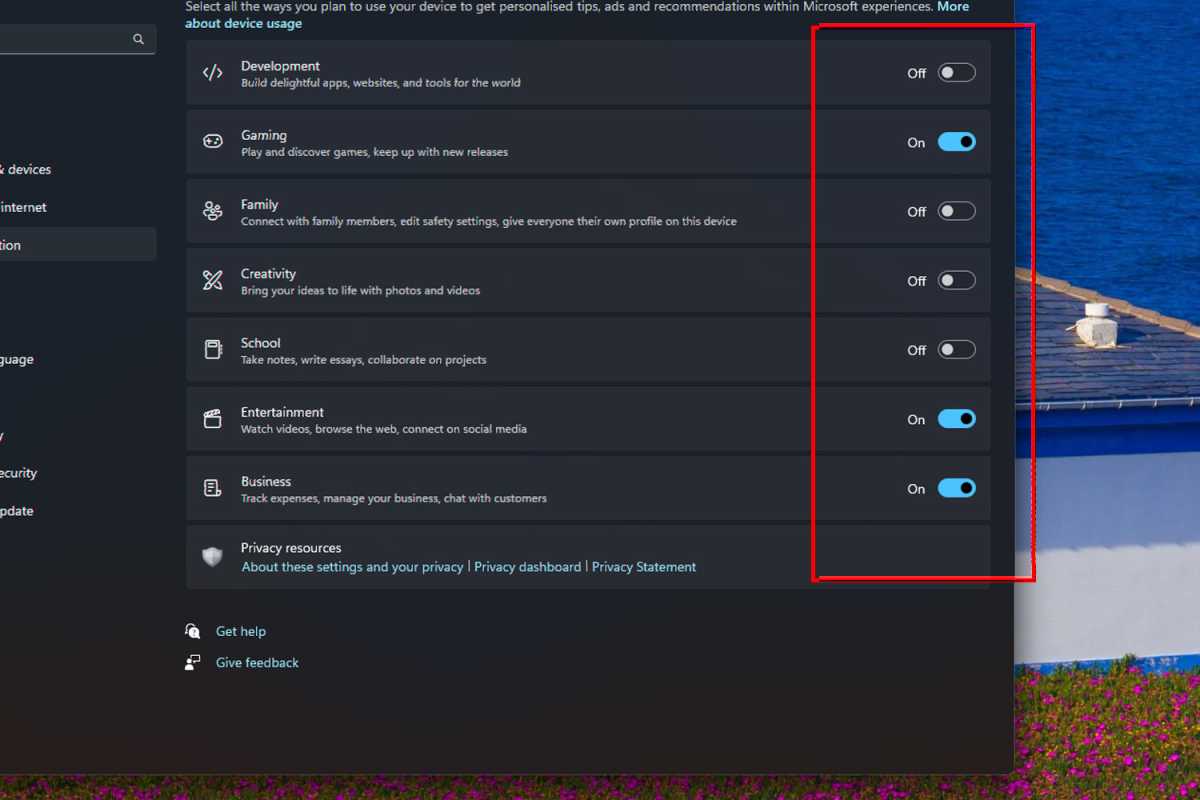
    While adjusting settings reduces ad exposure, it won’t prevent Windows from tracking data to serve future personalized ads.

    To halt this data collection, go to Settings > Personalization > Device Usage and toggle all options to Off. Additionally, for diagnostic data collection, check Settings > Privacy and security > General and turn off those options as well.

    This revised content maintains the core information while providing a unique and original take, ensuring it aligns with a human-like writing style.

  • How to Customize and Expand Your Windows 11 Start Menu

    How to Customize and Expand Your Windows 11 Start Menu

    Microsoft frequently updates the features and appearance of the Start menu in Windows. Recent changes include the introduction of a tile-based layout for the “All” tab. Yet, certain vital functions are less accessible due to their placement within the menu.

    This article explores the various settings available for the Start menu and how you can tailor it to meet your personal preferences.

    To access the Start menu settings, navigate to Personalization > Start in Windows settings, or you can right-click the Start menu and select Start settings. For taskbar settings, go to Personalization > Taskbar or right-click the taskbar and choose Taskbar settings.

    Foundry

    In the upper portion of the settings, you can set the overall layout and decide how many icons should appear within the Start menu. You can adjust display preferences for various features using sliders in the Start menu settings.

    Annoyingly, unsolicited tips and advertisements can clutter the Start menu. To deactivate these, simply turn off the option labeled Show recommendations for tips, shortcuts, new apps, and more. You can apply similar changes for the display of recently added and frequently used apps by toggling the associated options directly from the Start menu.

    If you prefer not to see the most recently opened documents, turn off the option Show recommended files in Start, recent files in File Explorer, and items in Jump Lists. These jump lists are the context menus that appear when clicking an app icon on the taskbar, offering quick access to recent web pages or documents.

    You can also view the jump list by right-clicking the Start button on the taskbar.

    Foundry

    Within the Folders section at the bottom of Personalization > Start in the settings, you can further customize which items Windows 11 displays in the Start menu. You can choose to show Windows settings, File Explorer, or direct shortcuts to your document folders here.

    Tailor the Taskbar to Your Preferences

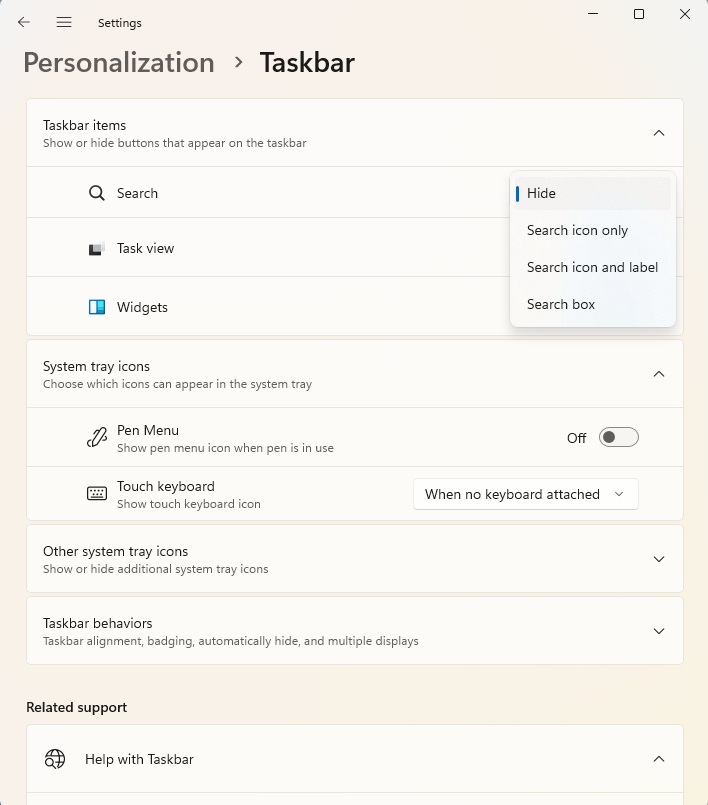
    Settings for the taskbar can also significantly impact the Start menu. For instance, you can determine how the search field appears through the taskbar settings (accessed by right-clicking the taskbar).

    If you frequently utilize the Windows search feature, it may be beneficial to enable the Search field option under Taskbar items > Search. Should you only search occasionally, the Search icon only option may suffice. Alternatively, if you rarely use search at all, you can free up taskbar space by selecting Hide.

    Foundry

    You can also disable the display of widgets in Windows and hide the currently running applications. If you still want to view them, the Windows key+Tab shortcut will allow you to do so.

    Under Other system tray icons, you have the option to manage which installed applications display their icons on the taskbar when active.

    If there are certain apps you’d prefer not to see all the time, you can disable them by toggling the respective options. These icons are accessed by clicking the small arrow at the lower-right corner of the taskbar’s tray area. You can hide this arrow as well by deactivating the Hidden icon menu.

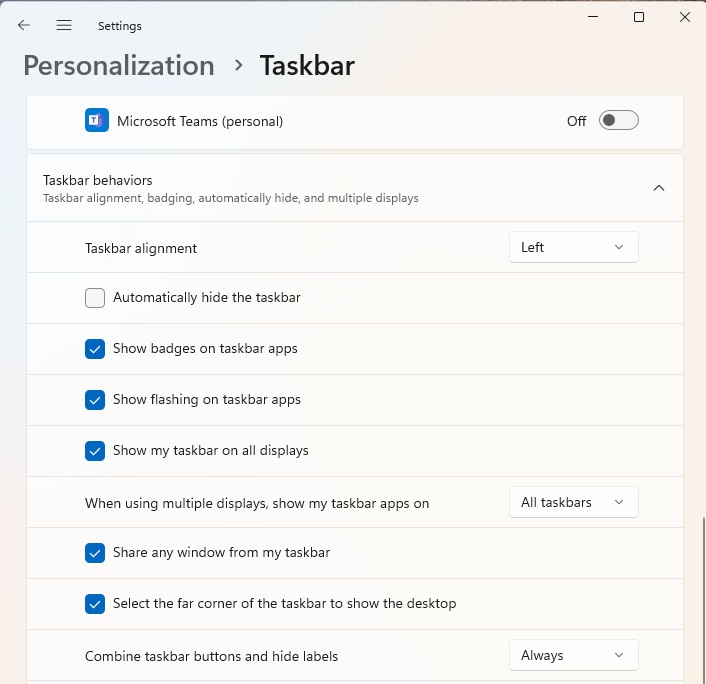
    In the Taskbar behaviors section, you can also customize where the Start menu opens. Selecting Left for Taskbar alignment will position the Start menu on the left side, similar to previous Windows versions. Activating Automatically hide taskbar will allow the taskbar to disappear until you hover your mouse over the bottom of the screen.

    Foundry

    You can further optimize your workspace by selecting Combine taskbar buttons…, reducing the space taken up by individual apps when they are open.

    Efficiently Close Unresponsive Applications with Developer Options

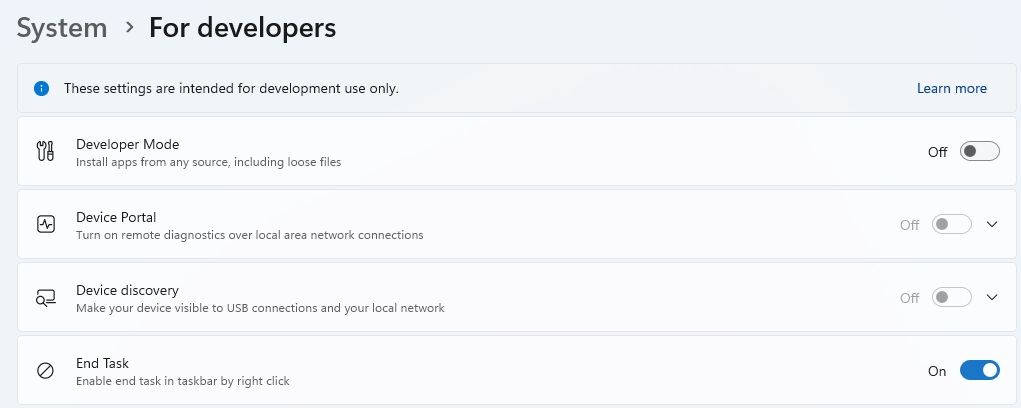
    A noteworthy feature is the End task option available in the context menu for applications in the task list. If an app crashes or fails to respond, you can swiftly end its process here.

    Previously, this capability was restricted to the Windows 11 Task Manager, which can still be accessed through the taskbar context menu or by pressing Ctrl+Shift+Esc. However, you’ll only see this option if you enable it under System > For developers in the Windows settings. This allows you to terminate processes directly if an app becomes unresponsive.

    Foundry

    If you activate the Start menu by left-clicking, you can make additional modifications. To remove an app from the Start menu, right-click on it and select Remove from Start. The app will remain installed, accessible via search or through the list of all apps, but it won’t appear in the Start menu anymore.

    You can also relocate an app to the top of the Start menu, uninstall it, or access its settings if applicable. If the app is pinned to the taskbar, you can choose Remove from taskbar to take it off the taskbar as well.

    Conversely, you can pin apps that aren’t displayed on the Start menu’s main page or taskbar by right-clicking and selecting Pin to Start or Pin to taskbar. You can also rearrange icons in the Start menu using simple drag-and-drop actions.

    For those looking for a more classic feel, the StartAllBack tool lets you modify the Start menu to resemble the Windows 7 style. With this tool, the Start menu returns to the left side of the taskbar, echoing the older design. While the tool is available for a one-time fee of $5 per PC, it can be used free of charge for 100 days.

    Another option is Start11, which also enables the classic Windows 7 interface and provides additional customization choices. This tool costs $10 per PC after the trial period of 30 days, and you must register via email to use the trial.

    StartAllBack

    For adventurous users, the Classic Shell tool, popular from Windows 10, may still work in Windows 11, although it is officially unsupported and no longer under development. While it may function in certain scenarios, using it may lead to stability issues, so it is recommended only for experienced users willing to take risks.

  • How to Permanently Save Clips in Windows 11 Clipboard

    How to Permanently Save Clips in Windows 11 Clipboard

    By enabling the clipboard history feature in Windows 11, you can keep track of not only what you’ve recently copied but also previous clipboard items. This functionality allows you to revisit and paste older copied content whenever you need it.

    In simple terms, to activate clipboard history, press the Windows key + V. With this command, you can review your clipboard contents at any time by using the same key combo. Essentially, you’ll have access to all items you’ve copied with Ctrl + C or cut using Ctrl + X.

    If you decide that you no longer wish to use clipboard history, it’s easy to turn it off. Just navigate to Settings, then go to System, and select Clipboard to disable the feature.

    When you view clipboard history by pressing Windows key + V, you have the option to pin important entries to the top of the list using the pin icon. This way, you can ensure that your most frequently used items are always easily accessible.

    To clear your clipboard history, go to the System > Clipboard section in Windows settings and select “Delete” under “Delete clipboard data.” You can also remove individual items from the clipboard history by clicking the three-dot menu next to each entry. If you want to clear everything at once, simply choose the “Delete all” option to wipe the entire clipboard history.

  • How to Clear What’s Saved in Your Windows PC Clipboard

    How to Clear What’s Saved in Your Windows PC Clipboard

  • How to Sync Windows 11 Clipboard Across All Your PCs

    How to Sync Windows 11 Clipboard Across All Your PCs

  • How to Use Microsoft Copilot to Recap a Teams Meeting When Late

    How to Use Microsoft Copilot to Recap a Teams Meeting When Late