الوسم: Windows 11

  • How To Install Fonts in Windows 11 and Windows 10: 3 Easy Methods

    How To Install Fonts in Windows 11 and Windows 10: 3 Easy Methods

    Installing new fonts on Windows 11 is a simple and quick process. Whether you’re enhancing your design work or just looking for more typography options, Windows offers multiple methods to add fonts to your system.

    Ease and Time Commitment:

    • Difficulty Level: Easy
    • Estimated Duration: About 10 minutes
    • Requirements: A Windows 11 or Windows 10 PC

    How to Install Fonts in Windows 11

    Quick Steps:

    1. Download your preferred font file, typically in .TTF or .OTF format.
    2. If the font is in a ZIP archive, extract its contents.
    3. Right-click on the font file and select “Install.”

    Alternatively, you can directly add fonts by dragging the font file into Settings > Personalization > Fonts.

    Why Install Fonts?

    Windows 11 allows you to install fonts that become available system-wide, making them accessible in any app like Word, PowerPoint, or Photoshop. Once installed, fonts automatically become part of your library and can be used across supported applications.

    Custom fonts are essential for crafting unique content, maintaining consistency in branding, or improving the visual appeal of your documents and presentations. Whether you’re editing a professional report, creating artistic projects, or designing for the web, installing the right fonts expands your creative options and ensures compatibility across tools.


    Step-by-Step Guide to Installing Fonts

    Method 1: Installing via Right-Click (Fastest Way)

    • Download your font file.
    • If it’s in a ZIP or compressed folder, extract the files.
    • Right-click the font file, then select Install or Install for all users. The font is then installed system-wide.

    Method 2: Using Drag-and-Drop in Settings

    • Open Settings (by pressing Windows key + I).
    • Navigate to Personalization > Fonts.
    • Open the folder containing your font files.
    • Drag the font file directly into the Fonts window, and Windows will automatically install it.

    Method 3: Install from Microsoft Store

    • Open Settings > Personalization > Fonts.
    • Click on Get more fonts in the Microsoft Store.
    • Browse the available fonts, then click Get to download and install.

    Supported Font Formats

    Windows 11 supports the most common font formats:

    • TrueType Font (.TTF)
    • OpenType Font (.OTF)
    • TrueType Collection (.TTC)
    • OpenType Collection (.OTC)

    If your font is compressed in a ZIP file, make sure to extract it before proceeding with installation.

    Using Installed Fonts

    After installation, fonts are accessible system-wide and compatible with apps like:

    • Microsoft Word
    • PowerPoint
    • Adobe Photoshop
    • Web browsers

    If a new font doesn’t appear immediately, try restarting the application.


    Uninstalling Fonts

    To remove fonts you no longer need:

    1. Open Settings (Windows key + I).
    2. Go to Personalization > Fonts.
    3. Select the font you want to uninstall.
    4. Click Uninstall.

    Troubleshooting

    If a font isn’t installing or showing up:

    • Ensure the font file is extracted and in a compatible format (.TTF or .OTF).
    • Restart the application or your computer.
    • Try installing the font for all users if permissions were restricted.
    • Confirm that the font file isn’t corrupted.

    Where to Download Fonts Safely

    Always download fonts from reputable sources to avoid security risks:

    Before installing a font, verify its licensing terms. Many fonts are free for personal use but may require licensing for commercial projects.


    By following these steps, you can effortlessly enhance your Windows experience with custom fonts that suit your style and project needs. With properly installed fonts, your creative and professional projects will have a polished, personalized finish.

  • How To Get Windows 11 For Free

    How To Get Windows 11 For Free

    With support for Windows 10 ending this October, upgrading to Windows 11 is more important than ever. It’s the simplest way to stay protected and ensure you’re up-to-date with new features. Microsoft is actively encouraging eligible devices to make the switch, and for most Windows 10 PCs that meet the requirements—including TPM 2.0 and Secure Boot—the upgrade to Windows 11 is completely free.

    You can also get Windows 11 at no additional cost when purchasing a new computer or installing it on a fresh build using Microsoft’s official tools.

    Whether you’re updating an existing Windows 10 machine, performing a clean installation, or building a brand-new system, here’s how you can get Windows 11 for free today.

    ### Verify Your PC’s Compatibility
    Before attempting to upgrade, confirm that your device supports Windows 11. Your PC must have TPM 2.0 and Secure Boot enabled in the BIOS, along with meeting certain hardware specifications. To check if your system qualifies, search for ‘PC Health Check’ in Windows Search and run that application, or visit Microsoft’s official Windows 11 specifications page to compare your system’s features. If you’re unsure about your hardware details, follow our steps to review your PC specs.

    ### Free Upgrade from Windows 10 to Windows 11
    If your device is compatible, upgrading to Windows 11 is straightforward via the Windows Update tool:

    1. Open the Windows Search bar, type “Windows Update,” and select the corresponding option.
    2. If your PC is fully up to date, you may see a prompt for the Windows 11 upgrade. Simply click “Download and Install” and follow the on-screen instructions to complete the process.

    Once the download and installation are finished, your device will be running Windows 11 for free.

    ### Manually Upgrading to Windows 11
    If Windows Update isn’t offering the upgrade or you prefer to do it manually, you can use the Windows 11 Installation Assistant:

    1. Visit Microsoft’s Windows 11 download page and download the Windows 11 Installation Assistant.
    2. Launch the tool and grant administrator permission when prompted.
    3. Accept the terms and conditions, then click “Accept and Install” to start the upgrade.
    4. The process will run automatically, downloading the necessary installation files and installing Windows 11. This may take around 30 minutes; just wait for the completion.

    ### Downloading Windows 11 for a New Build or Install on a Fresh Drive
    For new computer builds or clean installs on a separate drive, the Media Creation Tool is the best option:

    1. Head to Microsoft’s Windows 11 download page and select “Create Windows 11 Installation Media” to download the tool.
    2. Run the Media Creation Tool and approve the administrator prompt.
    3. Choose your preferred language, edition, and create either bootable USB media or an ISO file for later installation.
    4. Insert a USB drive with at least 8GB of free space, select the USB option, and wait for the process to complete.
    5. Reboot your PC, boot from the USB drive, and follow the installation prompts to upgrade or install Windows 11. You may need to enter your Windows 10 product key if prompted.

    ### Getting Windows 11 by Purchasing a New PC
    Most new PCs come pre-installed with Windows 11, which means you essentially receive the operating system at no extra cost. If you’re buying a new device and don’t want to purchase a separate Windows license, this is likely the easiest route. Additionally, if you have an older system with a valid Windows 10 key, you may be able to upgrade to Windows 11 by first installing Windows 10 and then upgrading further.

    It’s worth noting that direct upgrades from Windows 7 or Windows 8 are not possible, but if you own an older Windows version, you can upgrade to Windows 10 first, then move up to Windows 11. Follow the steps for a free Windows 10 download, then check if an upgrade to Windows 11 is available for your now-updated machine.

  • How to Enable Secure Boot in BIOS for Windows 11 Upgrade

    If you recently upgraded from Windows 10 to Windows 11 and noticed that your system is running version 23H, but the update for 24H2 isn’t available, you might face an issue with the Secure Boot option in your BIOS. Here’s a simple way to troubleshoot and activate Secure Boot.

    First, check your BIOS settings. Even though your system runs in UEFI mode, sometimes the Secure Boot option remains disabled or greyed out. If you see that Secure Boot is disabled and not selectable, don’t worry—there are a few steps you can take.

    Start by restarting your computer and entering the BIOS setup. Usually, this is done by pressing a key like F2, DEL, or ESC right after turning on your PC. Once inside the BIOS, look for the Secure Boot option. If it’s greyed out and you can’t change it, check whether your system has CSM (Compatibility Support Module) enabled or disabled. Secure Boot generally requires CSM to be turned off because it works only in UEFI mode.

    Since you mentioned that your BIOS version is the latest (F.73) and TPM is enabled, the next step is to verify the Secure Boot configuration:

    1. Ensure your system is set to UEFI mode and not Legacy Support. Sometimes this option is called CSM, and disabling it can make Secure Boot available.
    2. Save any changes and restart into the BIOS.
    3. Look for Secure Boot in the menu. If it remains greyed out, you might need to create or clear the Platform Key (PK). Usually, there is an option to ‘Clear Secure Boot keys’ if Secure Boot is already enabled but keys are missing.
    4. Once the keys are cleared, you can try enabling Secure Boot again.

    If this still doesn’t work, a common solution is to perform a BIOS reset or update. Since you already have the latest BIOS, a reset might help:

    – In the BIOS, find the option to reset to default settings.
    – After resetting, reboot and navigate back to Secure Boot settings.
    – Try enabling Secure Boot once again.

    Remember to save your settings before exiting. After enabling Secure Boot, you should be able to see the option for Windows to upgrade to version 24H2.

    If you’re uncomfortable adjusting BIOS settings or if these steps don’t work, contacting your motherboard or PC manufacturer’s support can also help. They can guide you through specific steps based on your model.

    By following these steps, you should be able to activate Secure Boot on your system and proceed with the latest Windows upgrade.

  • Here’s How I Turned It Off

    Here’s How I Turned It Off

    The Copilot desktop application can be a useful resource for answering queries, creating content, and boosting productivity. Microsoft believes it’s so beneficial that they have made their AI more user-friendly with the Ask Copilot feature. Personally, I see it differently, so I’ve chosen to disable it.

    What Is “Ask Copilot” on Windows?

    When you right-click on certain files, such as text documents or images, you’ll find an option for Ask Copilot in the context menu.

    Clicking this option will launch the Copilot desktop app with the chosen file uploaded and ready for your inquiries. For example, you can ask for summaries or conduct various types of file analysis that Copilot offers. It is designed to save you time by allowing quick information retrieval, ultimately making your interaction with files more efficient.

    A file uploaded to the Copilot desktop app on Windows.

    How to Disable “Ask Copilot” on Windows

    If you’d like to remove the Ask Copilot option from your context menu, you’ll need to adjust the Windows Registry. Before doing so, it’s crucial to learn how to back up and restore the Registry in case anything goes wrong.

    Be cautious when editing the Registry, as incorrect changes can lead to serious issues.

    To disable the Ask Copilot feature, create a registry file. Open Notepad and copy the text below:

    Windows Registry Editor Version 5.00
    [HKEY_CURRENT_USER\\Software\\Microsoft\\Windows\\CurrentVersion\\Shell Extensions\\Blocked]
    "{CB3B0003-8088-4EDE-8769-8B354AB2FF8C}"="Ask Copilot"

    Save the file somewhere on your computer with a .REG extension, naming it something like disable-ask-copilot-context-menu.reg.

    Creating a registry file in Notepad to disable the 'Ask Copilot' option in the Windows context menu.

    Next, double-click the file and confirm with Yes when prompted to make changes to the registry. Restart your computer to see the Ask Copilot option removed from the context menu.

    If you ever want to restore the Ask Copilot option, navigate to HKEY_CURRENT_USER > Software > Microsoft > Windows > CurrentVersion > Shell Extensions > Blocked in the Registry Editor. Delete the entry {CB3B0003-8088-4EDE-8769-8B354AB2FF8C}, restart your computer, and the option will reappear.

    Should You Disable “Ask Copilot”?

    There are multiple reasons I find the Ask Copilot feature unnecessary; primarily, I don’t see how it enhances my productivity. For instance, I prefer using ChatGPT for file summaries, as it offers more functionality than Copilot.

    Additionally, my workflow is predominantly online-based, meaning I rarely use the Copilot desktop app that the Ask Copilot option launches. Even if I do need to analyze a file, I can effortlessly drag and drop it onto the web version of Copilot (the desktop app lacks this feature). Moreover, ChatGPT can analyze certain file types that Copilot cannot, such as code files (HTML, JS, JAVA, and CPP), as well as audio and video files for basic transcriptions.

    Furthermore, I find Copilot to be better integrated within Microsoft applications like Word, Excel, PowerPoint, Notepad, and the Photos app, making it more useful than the standalone desktop app accessed via the Ask Copilot option. Unless more features are added, this particular functionality feels redundant.

    I also recommend disabling it due to the extra clutter it adds to the context menu. Many installed programs already contribute unnecessary items to this menu, causing it to become congested and harder to navigate quickly. Adding more options only complicates the already lengthy list.

    Another point to consider is that this seems like a forced inclusion. Microsoft appears to be pushing users towards Copilot in every possible way—from pinning it to the Taskbar to making it challenging to disable.


    While I don’t favor this feature, I’m not claiming it’s entirely without value. For those who enjoy using Copilot and frequently use the desktop app, it might be beneficial to keep. However, for someone like me, it serves no purpose.

    If you agree, disabling it is a simple and safe option. You might also want to completely remove Copilot from Windows if you find it unnecessary.

  • New Microsoft Copilot Feature: Unintuitive and Unhelpful?

    New Microsoft Copilot Feature: Unintuitive and Unhelpful?

    Microsoft is continuously refining Click to Do, a feature in Windows 11 powered by AI that helps users complete tasks more efficiently by recognizing text and images on their screens. However, some of its latest features could use a bit more development before they’re genuinely beneficial.

    Currently, Click to Do is available in preview mode for Windows Insiders using Windows 11, version 24H2 in the Dev and Beta Channels on Copilot+ PCs. The ‘Ask Copilot’ feature was introduced in Build 26120.3671 (KB5055622) for Windows Insiders.

    Using Copilot with Click to Do

    By default, Click to Do scans your screen to let you select the text or image you want to focus on. With Ask Copilot, Microsoft is expanding the capabilities of Click to Do.

    When you highlight text or images, you can now select “Ask Copilot” from the menu. This sends your selected content to the Copilot app, where you can refine the prompt before asking Copilot any questions related to your work.

    Essentially, Ask Copilot represents Microsoft’s effort to enhance the AI features available within the Windows 11 ecosystem. It’s designed to smooth the path to using Copilot, improving your workflow by integrating AI support into your current activities.

    At first glance, integrating Copilot into Click to Do seems like a logical step. Yet, in practice, it doesn’t reach the full potential one might hope for.

    An Overabundance of Options

    Click to Do is experiencing a productivity paradox: it tries to offer so many features that it ultimately overwhelms users. While versatility is generally a plus, having too many options creates a confusing experience.

    You are now faced with navigating a complex interface filled with choice points and dropdown menus. Additionally, you have two further options in Ask Copilot—Copilot and Microsoft 365 Copilot. Unfortunately, the latter does very little.

    Other options include Search the web, which is already supported by Bing through Copilot. Plus, there’s the Copy function, allowing you to copy content directly into the Copilot app, and an Open with option where you can choose the Copilot app to access the highlighted content. While the extensive list of proposed actions offers various possibilities, the sheer number of choices leads to a cluttered experience rather than a streamlined one.

    Ideally, AI should simplify tasks. Yet, in its current form, Ask Copilot complicates an interface that’s already overloaded with options. It’s important to note that the feature is still in preview, and Microsoft may adjust it based on feedback from Windows Insiders.

    It’s Not That Useful Right Now

    Beyond the issues with usability and interface clutter, a crucial question remains: Does Ask Copilot genuinely provide any real value?

    I tested Ask Copilot after selecting an image on a website. It merely transferred the image to the prompt box in the Copilot app and awaited my input for the prompt. In contrast, other Click to Do features—like background blurring, object erasing in the Photos app, or background removal in Paint—seem to be more actionable, aside from the Bing visual search functionality.

    As it stands, the integration feels lackluster. It only transfers selected content to the prompt box in the Copilot app, lacking the depth and context necessary for true usefulness. Copilot doesn’t consider where the content is coming from or the nuances of your workflow—it acts like a simple shortcut.

    It’s clear that Microsoft is eager to integrate Copilot throughout its ecosystem, which makes sense given the objective of having AI readily available in all Windows experiences. While the vision for AI-enhanced productivity is exciting, the present implementations leave much to be desired. This is unfortunate, as the underlying idea has real potential.

    Microsoft has successfully implemented this concept in other areas of Windows. For instance, the Edge browser features built-in Copilot capabilities that allow for smarter browsing with AI assistance. While reading articles, watching videos, or browsing websites, you can engage with Copilot and receive quick, relevant answers without leaving the page.

    Moreover, numerous Copilot features are available in Microsoft 365 apps, enabling you to utilize Copilot as a writing assistant in Word or get help in PowerPoint for effective presentations.

    This doesn’t mean the concept should be discarded. Instead of overwhelming users with an array of random actions, Ask Copilot could thrive in a more focused, streamlined environment that facilitates real productivity enhancements. Until meaningful improvements are made, however, this feature feels more cumbersome than beneficial.

  • Windows 11 Update Revives Start Menu’s Usability And Appeal

    Windows 11 Update Revives Start Menu’s Usability And Appeal

    The Start Menu has been a pivotal component of Microsoft Windows for nearly 30 years. While it was initially cherished for its practicality, the Menu faced some controversial changes with Windows 8 that many users found frustrating. Fortunately, it regained a more streamlined look in Windows 8.1, followed by further refinements in Windows 10 and 11. Despite these improvements, it still struggles with clutter due to the unsolicited recommendations and auto-filled lists, making it feel more like an elaborate search tool than a functional menu. However, it seems Microsoft is actively working on providing a more straightforward interface in an upcoming update.

    Currently, Microsoft is experimenting with a fresh design for the Start Menu in Windows 11, aiming to reduce the chaos caused by jumbled apps and files. A user known as @phantomofearth, who regularly tests features in Windows Insider builds, shared insights about this new interface in a comprehensive video presentation.

    Hidden in today’s Dev/Beta CUs: a major update to the Windows 11 Start menu! It has a new, larger layout with everything on one scrollable page, with the “All” list below recommendations – which can FINALLY be turned off! Pinned list is now limited to 2 rows, but can be expanded. pic.twitter.com/JkP3V2I5g6

    — phantomofearth 🌳 (@phantomofearth) April 3, 2025

    The video reveals that the revamped interface removes the current split view separating the Pinned and Recommended sections, merging them into a single section. It introduces a third category called “All,” which lists all installed applications—previously accessible only via a button above the Pinned section. Users can organize these apps into an alphabetical list or a grid format, with folders categorizing them as needed.

    This newly redesigned Start Menu features a vertical scrolling layout, allowing users to access all their apps on a single page without excessive clicks or taps. Additionally, it offers the option to completely hide recommendations, giving users more control over their menu experience.

    While it may be challenging for the Start Menu to recapture the charm of its Windows XP iteration, these updates offer a promising respite from the onslaught of unwanted ads.

    The changes are currently available in the latest Windows 11 Insider preview builds within the Dev and Beta channels, specifically build numbers 26200.5518 and 26120.3671. This means that immediate access is limited to users enrolled in those Insider programs.

    Microsoft has yet to provide formal announcements regarding the rollout of this updated Start Menu for broader user groups. However, with the company’s Copilot event and 50th Anniversary celebration set for tomorrow morning, we can anticipate some exciting updates.

  • Upcoming AI Features for More Windows 11 PCs Soon!

    Upcoming AI Features for More Windows 11 PCs Soon!

    Microsoft introduced many of its advanced AI capabilities with the launch of Copilot+ PCs, specifically those utilizing the Snapdragon X chipsets. This left users of Copilot+ PCs equipped with Intel and AMD processors out of the loop. However, the tech giant plans to broaden the availability of its sophisticated AI features, beginning with select PCs powered by Intel and AMD chipsets.

    AI Features for Copilot+ Are on the Way to Intel and AMD PCs

    According to a blog post from Microsoft, exclusive AI features for Copilot+ PCs, such as Live Captions, Cocreater, and more, will soon be accessible on all Copilot+ devices that use AMD Ryzen AI 300 series, Intel Core Ultra 200V, and Snapdragon X series processors.

    Here’s a complete rundown of the features:

    • Live Captions: Provides real-time translations into English for audio and video content during media playback, podcasts, or virtual meetings.
    • Voice Access: Allows users to communicate with their computers using a more natural and flexible language.
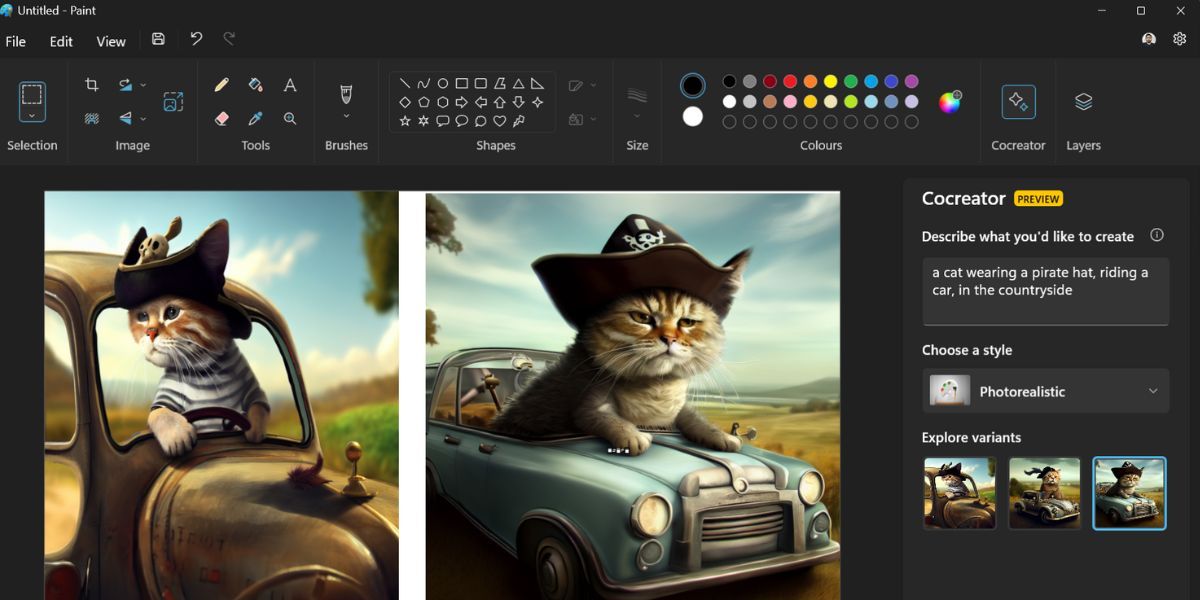
    • Cocreator in Paint: Enables users to create or edit images in Paint using a combination of hand-drawn elements and text prompts.
    • Restyle Image and Image Creator in Photos: Introduces AI-driven editing capabilities in the Windows Photos app, utilizing user prompts.

    Keep in mind that these features are primarily optimized for English inputs and will require a Microsoft account along with an internet connection. Certain functionalities may also necessitate a subscription to Microsoft 365.

    Microsoft first launched its Copilot+ PCs in May 2024, touting them as the fastest and most intelligent Windows PCs to date. The focus on Snapdragon’s X Elite processors also reflected Microsoft’s ambition for Windows on ARM, while positioning itself competitively against Apple’s M-series chips.

    Related

    AI PCs Are Here! But What Does It Really Mean and What Can They Do?

    Curious about AI PCs and laptops but unsure of their functionalities? We have you covered.

    To qualify as Copilot+ PCs, systems must deliver at least 40 TOPs (trillion operations per second) through a dedicated NPU and a minimum of 16 GB of RAM. Microsoft has collaborated with Intel, AMD, and Qualcomm for the initial rollouts, but other manufacturers like Acer, Asus, Dell, HP, Lenovo, and Samsung are also striving to produce PCs that meet these specifications.

    What’s the Timeline for These Features?

    Currently, there’s no specific schedule for the features’ release. Microsoft has indicated that they will gradually be rolled out throughout April 2025, via the Windows controlled feature rollout (CFR). Some of these features are already accessible through the March 2025 non-security preview update, which follows the November 2024 non-security preview update.

    If you want to increase your chances of getting the features sooner, make sure to enable the Get the latest updates as soon as they’re available option within your Windows Update settings. After that, check for updates to download and install the March non-security preview release as detailed by Microsoft. Ensure your Microsoft Paint and Photos apps are updated to their latest versions to access the new AI functionalities.

    With Microsoft’s aggressive push for AI, you likely won’t have to wait long to see these features in action—provided you have a compatible PC.

  • Copilot+ PC Exclusive Settings Previewed in Windows 11

    Copilot+ PC Exclusive Settings Previewed in Windows 11

    Microsoft is experimenting with an intriguing feature in the latest preview build of Windows 11 that enhances how users can interact with various applications through the Settings menu.

    This feature, labeled “Actions,” was initially concealed in the 26120.3576 build designed for the Dev Channel. After being discovered by tech enthusiasts, information about its functionality has been shared on multiple Windows forums. Currently, this feature supports apps like Photos and Paint, and when activated, it allows users to perform more advanced tasks within these applications.

    Actions Settings in Windows 11 preview build
    Windows Central

    To access these settings in the Windows 11 preview, go to Settings > Apps > Actions. Here, you’ll discover options for Photos, including features like Blur Background, Erase Objects, and Visual Search with Bing. In Paint, you can find the Remove Background option.

    These functionalities represent higher-level editing capabilities that are typically absent from standard Microsoft applications. It appears that the Actions settings are related to the Click To Do intelligent text actions feature, which Microsoft has referenced in the feature log for the Windows 11 preview.

    Windows Central has pointed out that Click To Do is meant exclusively for Copilot PCs, suggesting that the Actions feature may be similarly tied to future AI-enabled PCs. This Click To Do feature parallels the Actions settings but can be activated by highlighting text and right-clicking to show a drop-down menu on AMD and Intel-powered systems.

    Microsoft plans to unveil several Copilot+ features, commencing in May, which will include the significant Recall feature, as well as To Do and AI enhancements in Windows Search during the summer. Additional “proactive” Copilot functionalities are expected later in the year, as noted by the publication.

    While the Actions settings are not guaranteed to be rolled out as part of the public version, if they are, they could seamlessly incorporate some AI features akin to Click To Do within the operating system. Note that all these enhancements will necessitate Copilot+ PCs equipped with a Neural Processing Unit (NPU) capable of processing at least 40 TOPS.

    Although the current Windows 11 preview showcases only two applications, there’s significant potential for the integration of third-party apps into the Actions Settings, offering even more dynamic functionalities.

  • Windows 11 Makes Battery Monitoring Easier with New Icons

    Windows 11 Makes Battery Monitoring Easier with New Icons

    Microsoft is gearing up to introduce updates to its laptop battery charge indicators, which are anticipated in upcoming releases of Windows 11 over the coming months.

    These enhancements aim to clarify the various battery statuses, such as when the battery is unplugged, charging, or its status is uncertain. All Windows 11 users will eventually receive the new battery icons, but Windows 11 Insiders will get the first look. As reported by Windows Latest, Microsoft showcased these icons in a video call with pre-release users earlier this month. While the design was revealed, details on the release schedule were scarce.

    Upcoming changes to Windows 11 battery icons.
    Microsoft

    Observers have noted that the new icons closely resemble those on mobile devices, with opinions divided on whether they are more akin to iOS or Android styles. Each icon will represent a specific battery condition, moving away from the older monochromatic designs to more colorful representations that indicate the battery’s state, such as being disconnected, charging, or low. Additionally, the new icons are more elongated and slender. The appearance of the battery will also adapt to the theme selected in Windows: it will appear black in dark mode and white in light mode.

    Here’s a summary of the battery states included in the update:

    1. Battery (when the laptop is not connected to a power source)
    2. Energy saver (displayed in yellow when active)
    3. Charging (featuring a lightning bolt icon filled in green)
    4. Smart charging (to show battery charging protection)
    5. Slow charging (an error icon with a solid color fill)
    6. Low battery level (indicated by a narrow red line when between 1% and 5%)
    7. Battery unknown (shown with a cross symbol indicating no battery)

    Windows Latest indicated that this update was expected for public release last month but was delayed due to an unexpected bug. Discussions surrounding this feature have been circulating since at least January, when leakers discovered the feature hidden within a Windows 11 developer build. Enthusiasts are eager for its eventual rollout.

  • Upgrading Your HP Spectre x360 for Windows 11: Is It Worth It?

    Upgrading Your HP Spectre x360 for Windows 11: Is It Worth It?

    Are you struggling to install Windows 11 on your notebook because it doesn’t meet Microsoft’s hardware requirements? You’re not alone! Many users find themselves in a similar situation, especially with older models where upgrades aren’t an option. Here’s a straightforward guide to help you navigate this problem while keeping your PC functional and up-to-date.

    First off, it’s important to know that many laptop parts these days, including the processor and motherboard, are often soldered in place. This means you can’t easily swap out parts to meet the minimum requirements for Windows 11. Unfortunately, there isn’t an available motherboard that can change that for your specific notebook model.

    However, if you’re satisfied with your notebook as it is and still want to install Windows 11 (specifically version 24H2), there is a way to do it. Follow these steps and get your operating system up and running without too much hassle.

    1. Watch the Video Guide: There’s an easy video that walks you through the entire installation process. This method has been tried and tested by many users, so you can trust it’s simple and effective. Check out the video here: How to Install Windows 11 on Unsupported PC (New Easiest Method, No CMD).
    2. Download the Windows 11 ISO: You’ll need the ISO file for Windows 11 version 24H2. Get it directly from Microsoft’s official website by clicking this link: Download Windows 11.
    3. Get 7-Zip Utility: To handle the ISO file efficiently, download 7-Zip, a free software that makes file management easier. If you have a 64-bit system, use the link provided on the top line of the page: Download 7-Zip.
    4. Follow the Video Steps: Using the video guide, carefully follow the installation steps using the downloaded ISO. This part is crucial, as it ensures you complete the process correctly.
    5. Prepare for Future Updates: Keep in mind that once you install Windows 11 on a system that doesn’t meet the hardware requirements, you’ll need to repeat this installation process every October when new builds are released. Unfortunately, such systems won’t automatically receive these updates. The good news is that you will still get monthly cumulative updates and other necessary updates as usual.

    By following these steps, you’ll not only install Windows 11 on your unsupported PC but also enjoy ongoing OS support beyond October 2025. While it may seem like a bit of work, it’s a minor inconvenience when you consider the benefits of having the latest features and security updates. Happy computing!

  • Another Annoying Reason To Upgrade To Windows 11

    Another Annoying Reason To Upgrade To Windows 11

    Windows 11 and Windows 10 operating system logos are displayed on laptop screens.
    Beata Zawrzel / NurPhoto/Getty Images

    If you were in need of more motivation to transition to Windows 11, here’s another reason to consider making the switch.

    The latest update for Windows 10, labeled KB5048239, is not just having installation problems—it’s repeatedly attempting to install itself successfully each time. Originally released in November 2024 for versions 21H2 and 22H2, Microsoft is resurfacing this update once more this month, as reported by TechRadar.

    This irritating installation loop is affecting many users and is part of Microsoft’s January 2025 patch updates. Designed to address issues with the Windows Recovery Environment (WinRE), the installation failed for some because they lacked the necessary 250MB in their Windows 10 recovery partition.

    Users have publicly expressed their frustrations regarding this installation loop on Microsoft Answers. One user wrote, “I checked for updates this morning, and once again, KB5048239 is waiting to be installed! I ran the troubleshooter and it installed once more; I even checked ‘View updates,’ and the installation date changed from yesterday to today! It’s like a merry-go-round. I can feel a migraine coming on!” from Brian Lofthouse.

    Another complaint came from Dean Wortmier, who stated, “This specific update installed successfully for me back in November 2024, and now it’s trying to install again — repeatedly claiming ‘successful’ each time.” This sentiment has been echoed by 353 other users dealing with the same problem. Adding to the frustration, there has been no official update from Microsoft regarding a resolution to this issue.

    Attempts to resolve this problem have been unsuccessful for many. Users who have tried to uninstall previous iterations of the update before initiating this one still find themselves in the loop. Even those with adequate WinRE setups encounter this issue, and there appears to be no workaround available. With the end-of-life for Windows 10 approaching later this year, this is another compelling reason to finally upgrade away from Windows 10.


  • Microsoft’s Latest Windows 11 Update Is Breaking Games

    Microsoft’s Latest Windows 11 Update Is Breaking Games

    Up until now, gamers have been experiencing Assassin’s Creed: Origins on PC with little hassle. However, the latest Windows 11 update has disrupted this smooth experience. Players are now flooding review sections with complaints about crashes, blue screens, freezing issues, and more. It’s essential to highlight that the Windows update, not the game itself, is the root of these problems. Moreover, Origins isn’t the only title facing these challenges.

    A user known as The Hidden One—fitting for the topic of Assassin’s Creed—shared his observations on X. The recent reviews show a mixed reception, and the bar graph notably indicates a rise in negative feedback since the update was released. Understandably, fans are reacting with frustration given Ubisoft’s historical issues with PC ports. However, this is a broader issue that isn’t limited to Ubisoft alone.

    Assassin's Creed Origins is being hit hard with negative reviews due to Microsoft’s 24H2 Windows 11 update that has rendered the game unplayable for many. Users are dealing with black screens, crashes, and freezes without any fixes in sight. pic.twitter.com/kldzId77HY

    — The Hidden One (@TheHiddenOneAC) December 30, 2024

    Get your weekly breakdown of the technology behind PC gaming


    Check your inbox!

    The update appears to specifically affect games that utilize AutoHDR, particularly those from Ubisoft. Beyond Origins, other titles in the Assassin’s Creed series, such as Assassin’s Creed: Valhalla and Assassin’s Creed: Odyssey, have also experienced crashes. This problem has been ongoing for approximately a week, and Microsoft has yet to provide any updates regarding a potential fix.

    Some members of the gaming community have reported success in stabilizing their games by disabling AutoHDR. Simply turning off this feature has resolved issues for many players, although it seems Ubisoft gamers are facing a more significant impact. Additionally, other Reddit users have noted that the update has also affected Path of Exile 2 and Warhammer 40,000: Rogue Trader.

    While these temporary solutions may offer some relief for now, true stability will only be restored once Microsoft rolls out an official patch or hotfix to address the issues created by this update.


  • Why Some PC Gamers Should Avoid The Latest Windows 11 Update

    Why Some PC Gamers Should Avoid The Latest Windows 11 Update

    The recent rollout of the Windows 11 update, known internally as 24H2, has not been smooth for Microsoft. It’s become clear that gamers should hold off on this installation. And here’s yet another complication to consider.

    As reported by Windows Latest, Microsoft acknowledged in an update on their 24H2 issues page that the new version is causing problems with its Auto HDR feature. Users are experiencing incorrect color displays, and in severe cases, some games are becoming unresponsive altogether.

    The official statement notes, “You may notice that game colors appear incorrect in some display configurations. Certain games might also become unresponsive.” This vague language may be frustrating for gamers trying to diagnose issues on their systems. As a result of these complications, Microsoft has decided to suspend the Windows 11 24H2 update for computers that have Auto HDR enabled.

    To remedy this, users are advised to disable Auto HDR on their PCs. This can be done by navigating to Settings > System > Display. From there, proceed to Graphics and select Turn Off Auto HDR for all games. Microsoft asserts that this adjustment will allow users to receive the Windows 11 24H2 update again.

    Auto HDR is a valuable feature that enhances standard dynamic range (SDR) games to high dynamic range (HDR). It’s particularly beneficial for those with HDR-capable displays, such as high-end OLED monitors. However, it’s not worth the potential disruption it can cause to gameplay.

    As the rollout of Windows 11 24H2 continues to unfold since early October, it may take time for PC gamers to confidently upgrade. For the moment, exercising caution and awaiting more stable updates seems wise.

    Get your weekly teardown of the tech behind PC gaming


    Check your inbox!

  • Say Goodbye To This Tiny Yet Useful Windows 11 Feature

    Say Goodbye To This Tiny Yet Useful Windows 11 Feature

    Windows 11 logo displayed on a laptop.
    Microsoft

    According to a blog post by Microsoft dated December 12, the “suggested actions” feature in Windows 11 will soon be phased out, meaning users will no longer receive updates. This feature was designed to suggest relevant actions when copying specific information such as dates or phone numbers, facilitating tasks like creating calendar events or dialing phone numbers.

    This functionality was first introduced in a Windows 11 update in 2022 and provided useful contextual options based on the data being copied. Microsoft stated, “Suggested actions that appear when you copy a phone number or future date in Windows 11 are deprecated and will be removed in a future Windows 11 update.”

    The decision to phase out this feature might stem from a decline in its usage, as well as the impending launch of the new Click To Do capabilities, which provide similar functionality. However, it’s important to note that the Click To Do feature will only be available for Copilot+ PCs, leaving users with older Windows 11 devices without access to these enhancements.

    Microsoft has clarified that while the suggested actions menu will not be completely removed, it will no longer receive support and may malfunction or create issues as time goes on.

    Additionally, Microsoft has included several other features on its list of deprecated functionalities, including Legacy DRM services, Paint 3D, Adobe Type 1 fonts, DirectAccess, NTLM, and others. Recently, the company mentioned the discontinuation of updates for the nostalgic WordPad as of September 1, 2024, alongside its shift from the Control Panel to the centralized Settings app. Therefore, it’s clear that users may see more beloved applications phased out, and only time will reveal what else Microsoft plans to remove or discontinue support for in future updates.

  • Windows 11 Recall Now Affects Intel And AMD

    Windows 11 Recall Now Affects Intel And AMD

    Microsoft's Recall feature.
    Microsoft

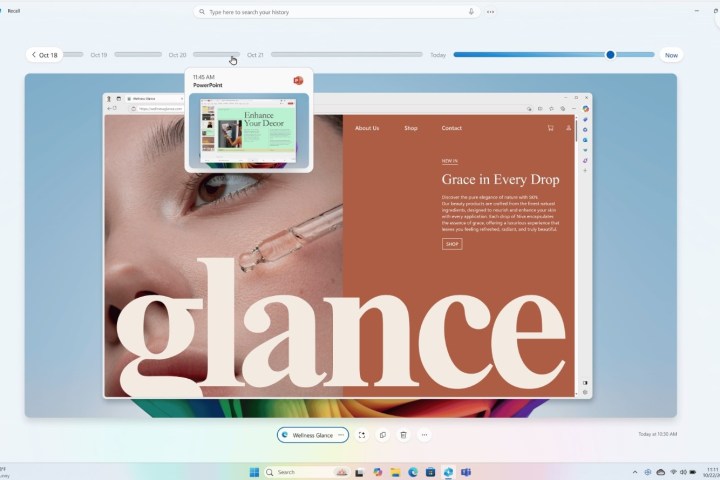
    Microsoft is rolling out support for the Recall AI feature to Copilot+ PCs equipped with Intel and AMD processors, following the resolution of several prior issues.

    Initially, Recall was launched exclusively for Copilot+ PCs powered by Qualcomm processors in a Windows 11 update at the end of November, granting Windows Insiders in the Dev Channel the ability to use this AI tool to capture “snapshots” of their devices for future reference.

    After addressing a number of glitches, including malfunctioning snapshots, the Recall feature is now deemed stable enough to extend its compatibility to more Copilot+ PCs. Users on Intel and AMD systems will receive the latest Recall update—version 26120.2510 (KB5048780)—on Friday. This update remains exclusive to Windows Insiders in the Dev Channel.

    Despite earlier concerns over privacy with this feature, Microsoft remains committed to ensuring its safe functionality. Although the necessary models will be installed with the update, users must manually activate the snapshots function for Recall to operate. Furthermore, users can manage the duration of how long snapshots are saved or deleted, and sensitive information like credit card numbers, passwords, or personal identification details will not be recorded in these snapshots.

    The update also enhances security measures for the feature. Users will now need to employ Windows Hello facial recognition for identity verification before accessing their snapshots. In addition, utilizing BitLocker and Secure Boot is essential for the feature to function properly.

    Microsoft is also promoting the “Click to do” capability within Recall, which allows users to interact with elements within a snapshot by simply clicking on them, enabling actions like copying text or saving images using the Windows key combined with a mouse click.

    Since its initial announcement earlier this year, Recall has faced numerous challenges. It was originally scheduled for a preview release in June but was postponed several times due to various controversies and issues.


  • Windows 11 Fuels PC Growth More Than AI

    Windows 11 Fuels PC Growth More Than AI

    This year, there’s been considerable buzz surrounding AI-equipped PCs, but are they truly living up to expectations? According to a recent study by TrendForce, the notable increase in laptop sales for 2024 is attributed more to updates in Windows 11 rather than cutting-edge AI functionalities.

    “The effects of notebooks with AI integration on the broader market are still minimal at this stage,” the report notes. “Nonetheless, as brands gradually incorporate these capabilities, AI functionalities are anticipated to become standard in notebook specs, which should lead to a steady increase in the adoption of AI notebooks.”

    While the report does not clarify what constitutes “AI-integrated notebooks,” it likely refers to devices featuring Copilot+ technology, which incorporates a more advanced neural processing unit (NPU) capable of handling local AI tasks.

    A bar chart showing PC sales.
    TrendForce

    Several factors contribute to this situation. The TrendForce report indicates that aggressive marketing strategies and entry-level models have dominated the North American consumer market. In contrast, Copilot+ devices start at $999, targeting a more upscale demographic. Consequently, these higher-priced models are not the current driving force in the consumer Windows PC landscape.

    To convince consumers to invest in these AI PCs, manufacturers must effectively communicate the advantages of AI features — something that appears to be lacking as of now.

    Most users tend to rely on cloud-based AI resources like ChatGPT or find their current hardware sufficient for tasks such as video conferencing and document editing. For professionals, AI PCs could enhance efficiency in complex tasks like video editing, but the average user perceives limited immediate benefit, resulting in a decreased urgency to upgrade at this time.

    The privacy issues surrounding the delays of the Recall feature have further complicated matters. Originally touted as the flagship AI function of Copilot+ PCs, it is only now beginning to roll out, nearly six months later.

    Despite AI not being the marketing triumph Microsoft envisioned, the increase in PC sales is a positive development nonetheless. Global notebook shipments are projected to rise by an additional 4.9%, reaching 183 million units by 2025. As support for Windows 10 approaches its end, the need for both businesses and consumers to upgrade will only intensify.

    The transition away from Windows 10 has become the primary driving force behind new laptop purchases. Many older systems lack the hardware necessary for Windows 11, such as TPM 2.0 support, compelling users to replace otherwise functional devices. This has triggered a surge in demand for non-AI laptops that are compatible with the updated operating system. Businesses and consumers who are upgrading, whether for compliance or enhanced functionality, are prioritizing budget-friendly options over newer, AI-driven models.

    As AI PCs continue to advance and the technology progresses, their attractiveness could increase, especially if more applications are developed to take advantage of NPUs and prices decline. However, the drive for upgrading remains secondary to the pressing need to move to Windows 11, underscoring a disconnect between industry advancements and consumer priorities, which focus more on cost-effectiveness and essential functionalities rather than speculative innovations.