الوسم: Windows 10

  • How To Install Fonts in Windows 11 and Windows 10: 3 Easy Methods

    How To Install Fonts in Windows 11 and Windows 10: 3 Easy Methods

    Installing new fonts on Windows 11 is a simple and quick process. Whether you’re enhancing your design work or just looking for more typography options, Windows offers multiple methods to add fonts to your system.

    Ease and Time Commitment:

    • Difficulty Level: Easy
    • Estimated Duration: About 10 minutes
    • Requirements: A Windows 11 or Windows 10 PC

    How to Install Fonts in Windows 11

    Quick Steps:

    1. Download your preferred font file, typically in .TTF or .OTF format.
    2. If the font is in a ZIP archive, extract its contents.
    3. Right-click on the font file and select “Install.”

    Alternatively, you can directly add fonts by dragging the font file into Settings > Personalization > Fonts.

    Why Install Fonts?

    Windows 11 allows you to install fonts that become available system-wide, making them accessible in any app like Word, PowerPoint, or Photoshop. Once installed, fonts automatically become part of your library and can be used across supported applications.

    Custom fonts are essential for crafting unique content, maintaining consistency in branding, or improving the visual appeal of your documents and presentations. Whether you’re editing a professional report, creating artistic projects, or designing for the web, installing the right fonts expands your creative options and ensures compatibility across tools.


    Step-by-Step Guide to Installing Fonts

    Method 1: Installing via Right-Click (Fastest Way)

    • Download your font file.
    • If it’s in a ZIP or compressed folder, extract the files.
    • Right-click the font file, then select Install or Install for all users. The font is then installed system-wide.

    Method 2: Using Drag-and-Drop in Settings

    • Open Settings (by pressing Windows key + I).
    • Navigate to Personalization > Fonts.
    • Open the folder containing your font files.
    • Drag the font file directly into the Fonts window, and Windows will automatically install it.

    Method 3: Install from Microsoft Store

    • Open Settings > Personalization > Fonts.
    • Click on Get more fonts in the Microsoft Store.
    • Browse the available fonts, then click Get to download and install.

    Supported Font Formats

    Windows 11 supports the most common font formats:

    • TrueType Font (.TTF)
    • OpenType Font (.OTF)
    • TrueType Collection (.TTC)
    • OpenType Collection (.OTC)

    If your font is compressed in a ZIP file, make sure to extract it before proceeding with installation.

    Using Installed Fonts

    After installation, fonts are accessible system-wide and compatible with apps like:

    • Microsoft Word
    • PowerPoint
    • Adobe Photoshop
    • Web browsers

    If a new font doesn’t appear immediately, try restarting the application.


    Uninstalling Fonts

    To remove fonts you no longer need:

    1. Open Settings (Windows key + I).
    2. Go to Personalization > Fonts.
    3. Select the font you want to uninstall.
    4. Click Uninstall.

    Troubleshooting

    If a font isn’t installing or showing up:

    • Ensure the font file is extracted and in a compatible format (.TTF or .OTF).
    • Restart the application or your computer.
    • Try installing the font for all users if permissions were restricted.
    • Confirm that the font file isn’t corrupted.

    Where to Download Fonts Safely

    Always download fonts from reputable sources to avoid security risks:

    Before installing a font, verify its licensing terms. Many fonts are free for personal use but may require licensing for commercial projects.


    By following these steps, you can effortlessly enhance your Windows experience with custom fonts that suit your style and project needs. With properly installed fonts, your creative and professional projects will have a polished, personalized finish.

  • Fix QuickBooks Errors After Upgrading to Windows 11

    Fix QuickBooks Errors After Upgrading to Windows 11

    If you’ve recently updated to Windows 10 or 11 and are facing issues with your QuickBooks company file, you’re not alone. Many users encounter errors when trying to access their data after an update. This can often be traced back to compatibility problems, damaged files, or interruptions that occur during the update process. Fortunately, you can resolve these issues with a few straightforward steps.

    First, check to make sure your QuickBooks software is updated to the latest version. Keeping your QuickBooks updated ensures that you have all the recent fixes and improvements that help prevent errors. You can do this by opening QuickBooks, navigating to the “Help” menu, and selecting “Update QuickBooks Desktop.”

    Next, let’s use the QuickBooks File Doctor tool. This tool is specifically designed to troubleshoot and fix file-related issues. Here’s how you can use it:

    1. Download and install the QuickBooks Tool Hub if you haven’t done so already.
    2. Once installed, open the Tool Hub and select the “Company File Issues” tab.
    3. Click on “Run QuickBooks File Doctor.”
    4. Choose your company file from the drop-down menu or browse to find your file, then click “Continue.”
    5. Follow any prompts to diagnose and repair the issues with your file.

    In addition to these steps, ensure that all necessary QuickBooks services are running. You can do this by checking the Windows Services list. Look for the QuickBooks Database Manager and other related services to make sure they are active.

    Also, verify that your computer meets the minimum system requirements for running QuickBooks. Sometimes, performance issues can arise if your system is not up to speed.

    If you’ve tried all of the above steps and the problem still persists, consider restoring a recent backup of your company file. This option can help you retrieve your data from before the error occurred.

    In the most stubborn cases, you may need to reinstall QuickBooks. Be sure to back up your data first. Uninstall QuickBooks from your system through the Control Panel, and then download the latest version from the QuickBooks website for a fresh installation.

    If you find yourself stuck or need further assistance, don’t hesitate to reach out to the QuickBooks Support Team at +1-(855)-954-6208. Their experts can provide the help you need to quickly resolve your issues and protect your important data.

    Taking these steps should help you regain access to your QuickBooks company file after your Windows update. Stay proactive by keeping your software updated and regularly backing up your data to prevent future headaches.

  • Microsoft Alerts Users Windows 10 Support Ends Soon Here Are Options

    Microsoft Alerts Users Windows 10 Support Ends Soon Here Are Options

    Many had hoped that Windows 10 might enjoy an extended lifespan, but those hopes have been dashed. Microsoft has begun reaching out via email to users still operating on Windows 10, clearly indicating that the end-of-life (EOL) phase for this much-loved operating system is approaching. Their message is straightforward: upgrade to Windows 11 as soon as possible.

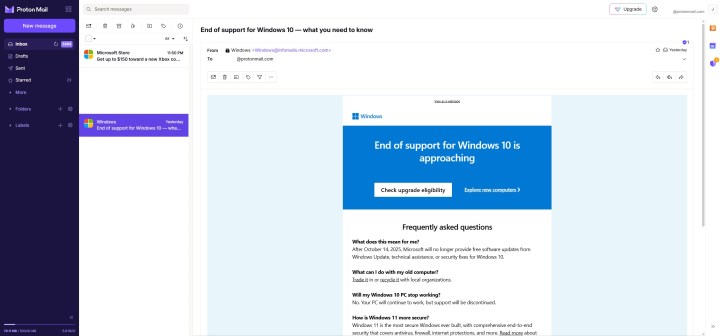
    Windows Latest obtained one of these emails from Microsoft, which is titled: “End of support for Windows — what you need to know.” This communication has likely been dispatched to numerous users and may continue to appear in inboxes as Microsoft rolls out these notifications.

    The email clearly states that support for Windows 10 is nearing its conclusion. After October 14, 2025, the operating system will no longer receive free software updates, technical support, or security fixes. However, users can still receive updates if they choose to pay for them.

    Microsoft's email regarding the end of life for Windows 10.
    Windows Latest

    According to Microsoft’s announcement, users face two choices: determine if their current PC qualifies for the Windows 11 upgrade or consider purchasing a new device. Unfortunately, the reality is less favorable than it may appear. Many existing computers will not meet the new system requirements for Windows 11, leaving users vulnerable to security threats as new patches will not be available. While the suggestion to buy a new PC is sensible, it isn’t an option for everyone.

    This email also includes a brief FAQ section encouraging users to either trade in their old devices or recycle them. Microsoft reassures that Windows 10 machines won’t simply stop functioning, which, while not shocking, is certainly comforting news. The downside remains the absence of updates, ultimately compelling Windows 10 users to transition to Windows 11.

    Microsoft promotes Windows 11 as the “most secure Windows ever built,” urging users to make the switch. They also highlight OneDrive, which seems unrelated to the main content of the message.

    There’s no denying that Windows 10 will be phased out soon. However, many users continue to rely on the operating system, facing the dilemma of either upgrading their PCs or navigating the potential risks associated with the absence of security updates.

  • How to Factory Reset an HP Laptop for a Fresh Start or Resale

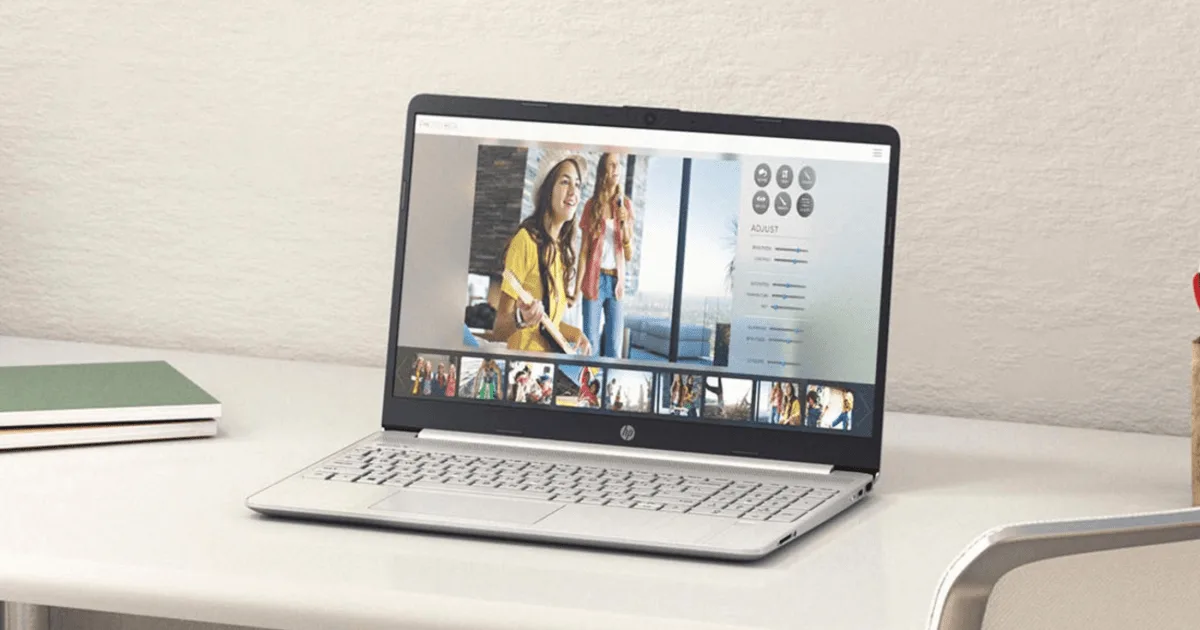
    How to Factory Reset an HP Laptop for a Fresh Start or Resale

    HP

    If you’re considering a factory reset on your computer, it likely means you’ve tried all other options for rebooting and repairing. While a complete factory reset isn’t the most exciting solution, it can often be essential for restoring your laptop or desktop to optimum performance.

    Difficulty

    Easy


    Duration

    10 minutes

    Requirements

    • An HP laptop running Windows 10 or 11

    If you own an HP laptop that needs a factory reset, you’ll be happy to know that the process is straightforward. It’s essential to pay attention to certain aspects, which is why we’ve created a step-by-step guide just for you.

    Before you start, if you’re planning to transfer ownership of your laptop, it’s a good idea to check the battery health, as this could factor into your decision or affect resale value.

    Also, make sure you’ve backed up any important data that you want to keep.

    How to Factory Reset an HP Laptop on Windows 11 or 10

    Step 1: Launch the Settings menu by pressing Windows Key + I.

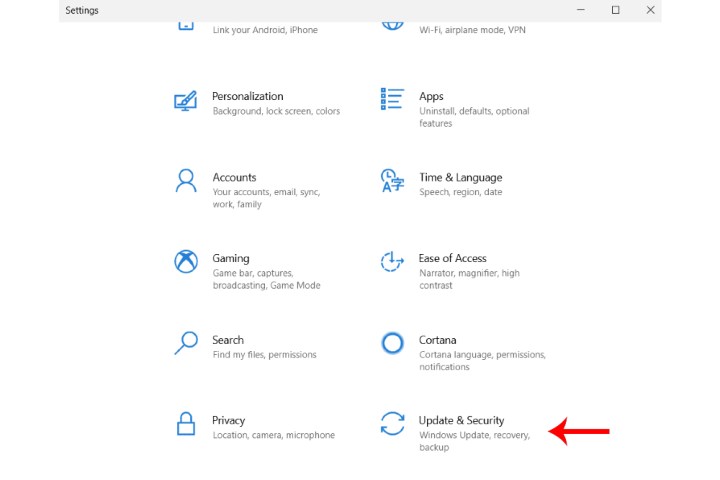
    Step 2: Select Update & Security, then click on Recovery.

    Update and Security options in Windows 10.
    Image used with permission from copyright holder

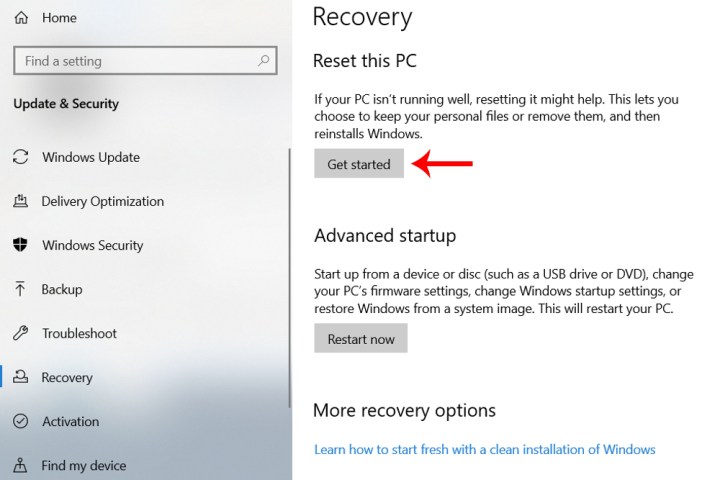
    Step 3: For a complete reset of your HP laptop, click on Get started found under the Reset this PC section.

    Reset This PC and Get Started buttons in Windows 10.
    Image used with permission from copyright holder

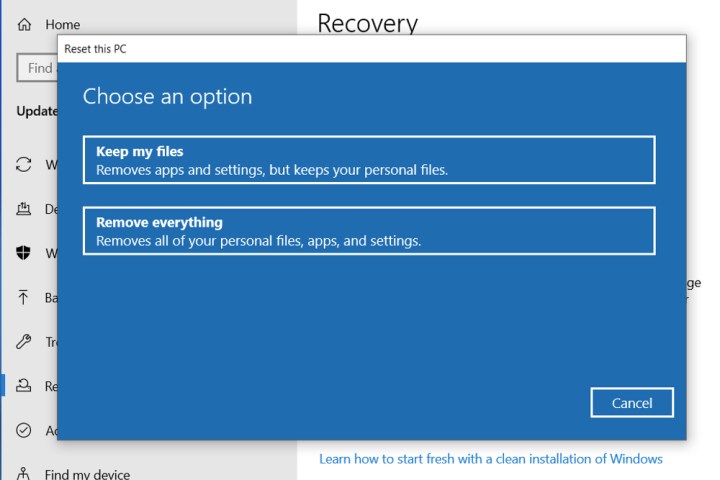
    Step 4: Decide whether you want to keep the files on your device after the reset. If you choose Keep my files, you can further select Change settings if you don’t want to restore the pre-installed apps or settings.

    If you prefer to start fresh, select Remove everything, which will reset the system to its original factory settings, erasing all files and downloaded programs.

    Choosing Remove files and clean the drive will make your device feel brand new; however, selecting Just remove my files will not thoroughly wipe the hard drive.

    After making your selection, click Next; you’ll then be prompted to connect your laptop to a power source. Once the reset is completed, your laptop will display a setup window for configuration.

    (Alternatively, you could replace the existing SSD with a new one and reinstall Windows for a completely refreshed system.)

    Different reset options in Windows 10.
    Image used with permission from copyright holder

    How to Factory Reset an HP Laptop Without a Password

    Step 1: Start by fully powering off your HP laptop and then turn it back on.

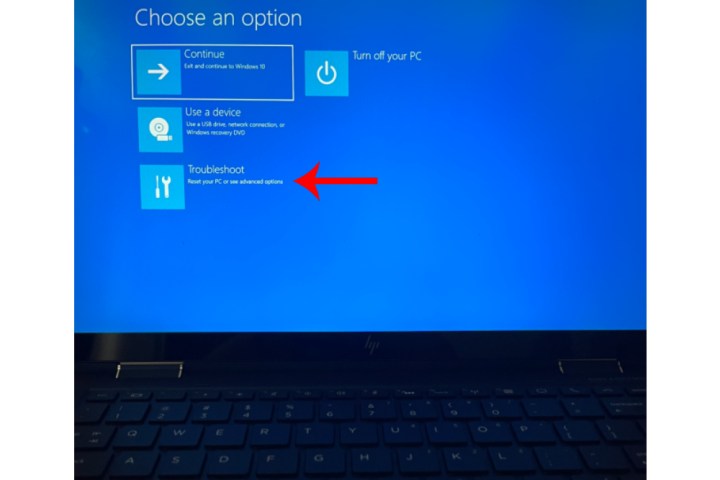
    Step 2: Press F11 immediately when your system begins booting to enter Troubleshooting. If F11 doesn’t work, you may try F9 or F10.

    F11 Options Menu for Windows 10 Laptop.
    Image used with permission from copyright holder

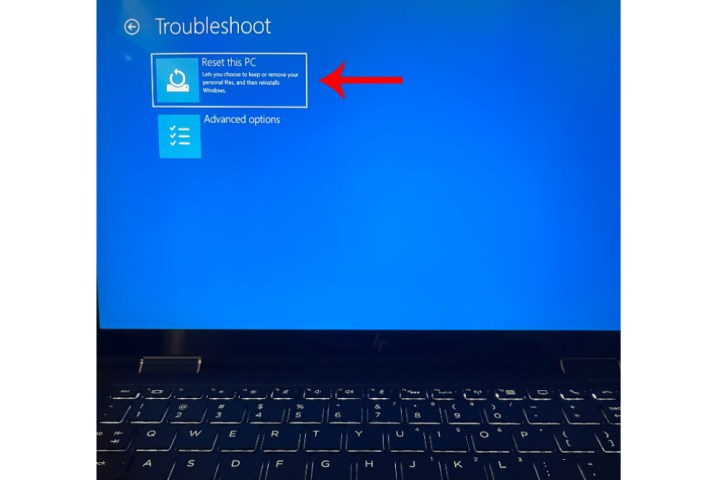
    Step 3: Select Troubleshoot followed by the Reset this PC option, then follow the previous steps to complete the factory reset.

    Reset This PC option within Troubleshooting for a Windows 10 laptop.
    Image used with permission from copyright holder

    Can You Factory Reset an HP Laptop Running Windows 7 or 8?

    If your HP laptop operates on Windows 7 or 8, you can still execute a factory reset, but the steps will be slightly different from the more recent versions.

    For HP laptops with Windows 8, the restoration procedure is similar to what you would follow in Windows 10 or 11.

    Factory Resetting a Windows 7 HP Laptop (If It Boots Properly)

    Step 1: Power on the laptop and navigate to the Control Panel.

    Step 2: Click on System Security > System > System Protection > System Restore.

    Step 3: Decide whether to reset to the latest restore point (Recommended Restore) or opt for a different restore point (Choose a different restore point).

    Step 4: Click Next > Finish, then confirm with Yes to initiate the restoration.

    Factory Resetting a Windows 7 HP Laptop (If It Doesn’t Boot)

    Step 1: Restart your computer. As it reboots, press the F8 key repeatedly until the Advanced Boot Options screen appears.

    Step 2: Use the arrow keys on your keyboard to highlight Repair Your Computer and press Enter.

    Step 3: Select your language settings, and click Next.

    Step 4: Log in as the administrator and click OK, then proceed to System Restore > Next.

    Step 5: Choose whether to restore from the most recent restore point (default) or select Show more restore points to find a different option.

    Step 6: Hit Yes to start the restoration. Once finished, click Restart.

    If you’re looking to reset Windows on a different type of computer, check our guide on how to factory reset various Windows versions regardless of the manufacturer.

  • How to Improve Graphics and Increase FPS in Roblox

    How to Improve Graphics and Increase FPS in Roblox

    Quick Tips
    • Tweaking the in-game graphics settings in Roblox can significantly boost performance and frame rates (FPS).
    • Ensure your graphics preference for Roblox is set to High Performance. Additionally, consider assigning the Roblox process High Priority in your system settings.
    • Utilize the Roblox FPS Unlocker to eliminate the 60 FPS cap imposed on games.

    Basic Tips to Try

    • Switch to windowed mode: Playing Roblox in windowed mode can lead to improved FPS. Press F11 to exit fullscreen mode and resize the Roblox window to your preference.
    • Close unnecessary applications: Running multiple background apps can make Roblox graphics appear blurry or degraded. Closing any unused programs can help improve your gaming experience.

    Fix 1: Modify In-Game Graphics Settings

    Roblox allows you to adjust the graphical quality directly through the in-game options, enhancing the visuals on your computer. Here’s how to do it:

    Step 1: Launch Roblox on your PC and enter your desired game. Click on the Roblox icon located in the upper left corner.


    Step 2: Navigate to the Settings tab and set the Graphics Mode to Manual. Use the plus icon next to Graphics Quality to enhance the graphical quality.

    Increase In-Game Graphics in Roblox

    Step 3: Press Esc to go back to the game and see if the visuals have improved.

    Fix 2: Set Roblox Graphics Preference to High Performance

    Windows allows you to set graphics preferences for individual applications. This helps ensure Roblox utilizes your dedicated GPU for a better experience. Here’s what to do:

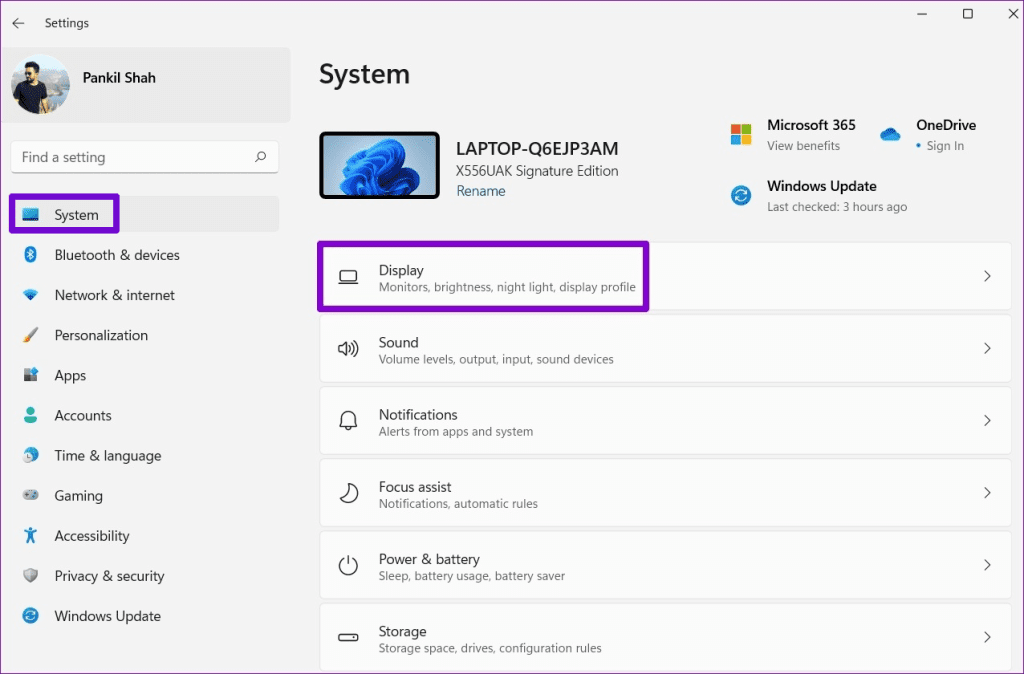
    Step 1: Press Windows + I keys to open the Settings app, then navigate to System > Display.

    Display Settings on Windows

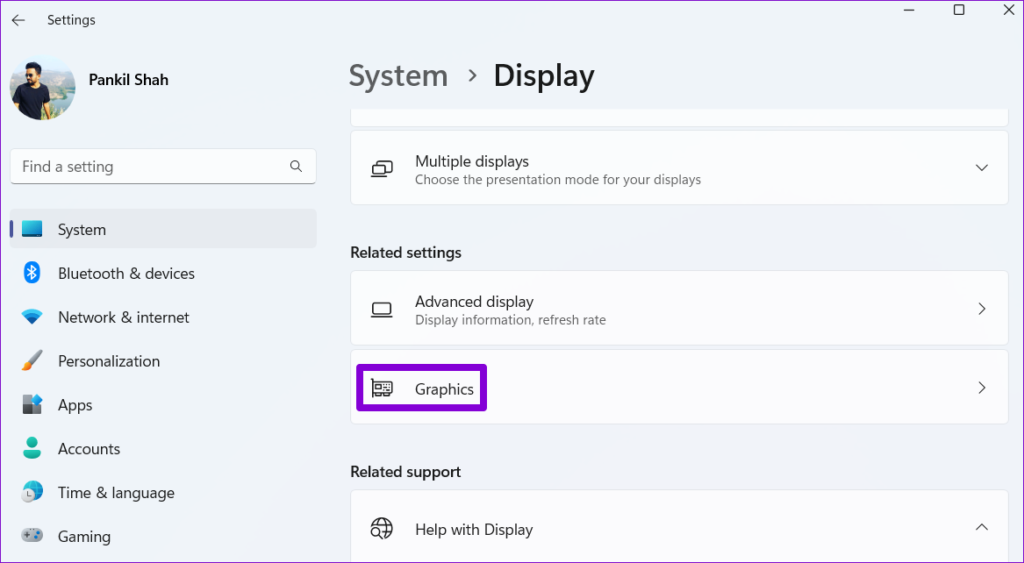
    Step 2: Scroll down to the Related settings section and click on Graphics.

    Graphics Settings on Windows 11

    Step 3: Find Roblox, click it, and then select Options.

    Roblox Options in Windows

    Step 4: Set the Graphics preference to High performance and click Save.

    Graphics Settings for App on Windows 11

    Fix 3: Set Roblox Process to High Priority in Task Manager

    Boosting the performance of Roblox can also be achieved by adjusting its process priority in the Task Manager. Launch Roblox, and then press Ctrl + Shift + Esc to open Task Manager. Navigate to the Details tab, locate the Roblox process, right-click it, and select Set priority > High.

    Increase Process Priority for Roblox

    Fix 4: Activate High-Performance Power Plan

    To enjoy seamless gameplay in Roblox, it’s recommended to enable the high-performance power plan on Windows. Here’s how you can do it:

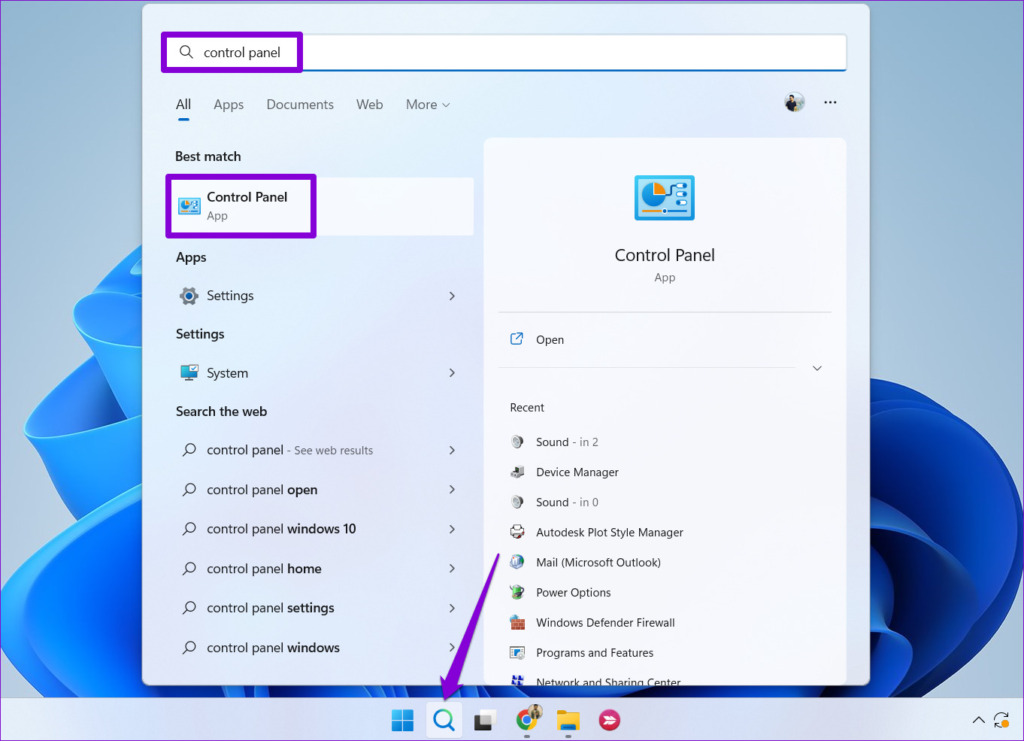
    Step 1: Click the search icon on your taskbar, type control panel, and hit Enter.

    Open Control Panel on Windows

    Step 2: Change the view type to Large icons using the dropdown menu in the upper right corner, and click on Power Options.

    Power Options Windows 11

    Step 3: Choose High performance from the options.

    High Performance Mode on Windows

    Fix 5: Update Your Graphics Drivers

    Your Roblox experience can be negatively impacted by outdated or faulty graphics drivers. It’s wise to keep them current for optimal performance.

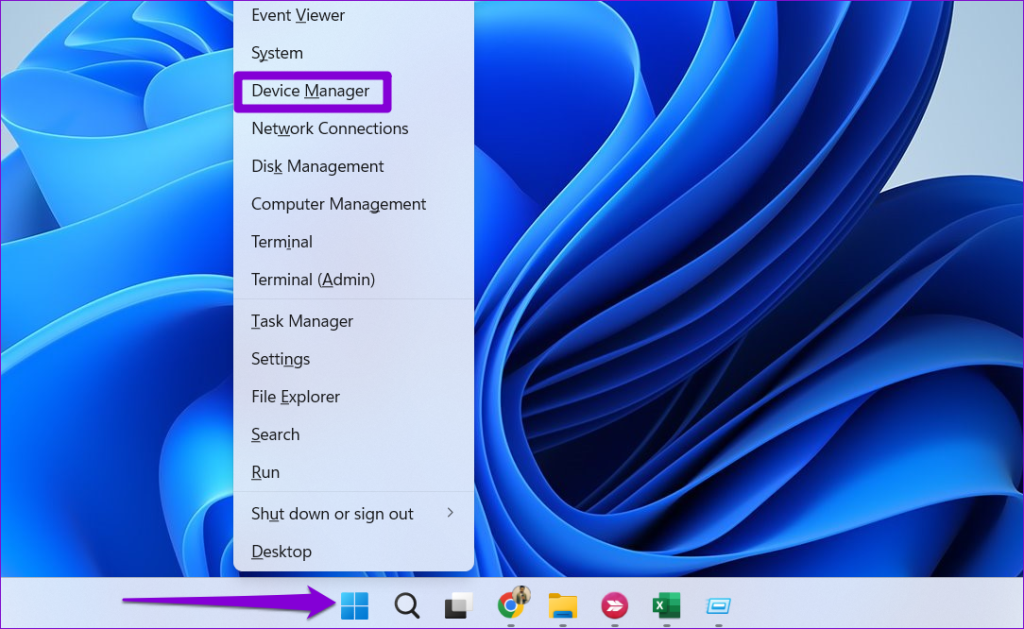
    Step 1: Right-click on the Start icon and select Device Manager.

    Open Device Manager on Windows

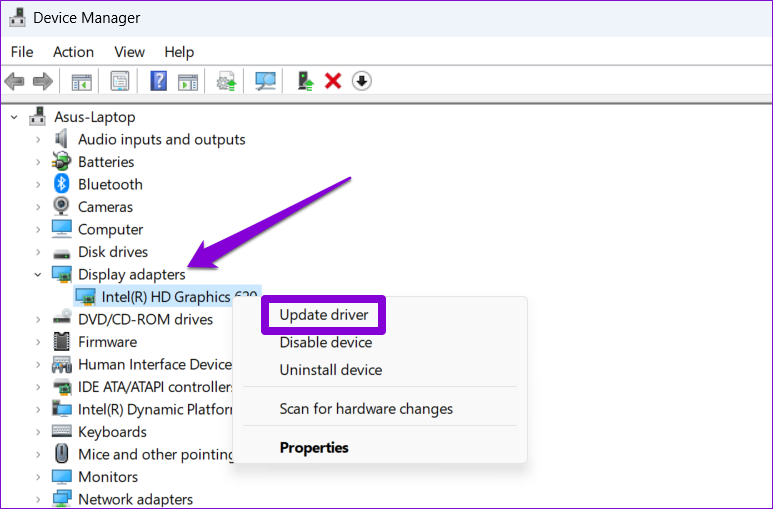
    Step 2: Locate Display adapters, right-click on your graphics driver, and select Update driver. Follow the prompts to complete the update.

    Update Graphics Driver on Windows

    Fix 6: Use the Roblox FPS Unlocker

    Roblox has a default frame rate cap of 60 FPS for all titles. While Roblox doesn’t provide an option to increase this limit, you can use the Roblox FPS Unlocker to bypass it. Here’s how:

    Step 1: Open your web browser and download the Roblox FPS Unlocker setup.

    Step 2: Choose the rbxfpsunlocker-x64.zip file and select Extract all.

    Extract FPS Unlocker Files

    Step 3: Double-click rbxfpsunlocker.exe to execute it.

    Run Roblox FPS Unlocker

    That’s it! Launch your favorite Roblox game and press Shift + F5 to check the FPS. You should now be able to play at a higher frame rate, depending on your system’s capabilities.

    We appreciate your feedback!

  • Upgrade from Windows 10 to Windows 11 is Free! Here is how to download

    Microsoft has allowed free upgrading from Windows 10 to Windows 11 if you have an activated Win 10. The PC Health Check app will help you decide if your computer or laptop is ready for the update.

    (المزيد…)
  • Microsoft confirms Windows 10 end of life in 2025 as support is ending

    Microsoft has confirmed that Windows 10 end of life will be on October 14, 2025, as the current desktop platform will reach the end of its lifecycle, before an event to reveal “next-generation of Windows” Windows 11 on June 24.

    (المزيد…)
  • Microsoft Bringing Android Apps to Windows 10 from 2021

    Microsoft is finally working to bring Android Apps to Windows 10 from 2021. Many Windows users use android emulators, such as Bluestacks, to run Android apps on Windows PCs.

    (المزيد…)
  • Can Now Get Windows 10 Apps On Chromebook To Take Full Advantage

    Getting Windows 10 apps on Chromebook is like a dream come true for all the users who love using Chromebook. Even now, they can also use the Office software on their Chromebooks.

    (المزيد…)