الوسم: Wi-Fi

  • Apple May Soon Resolve Wi-Fi Issues On All Your Devices

    Apple May Soon Resolve Wi-Fi Issues On All Your Devices


    Finding a reliable internet connection while traveling can be a major hassle, especially when trying to connect multiple devices. This issue has become common across hotels, lodges, and cafes—places where individuals often need to fill out a web form to gain access to Wi-Fi.

    Apple is set to simplify this Wi-Fi registration process. As reported by Bloomberg, the company is developing “a system that synchronizes captive Wi-Fi login details across iPhones, iPads, and Macs.”

    Why is this important?

    Many people today choose to work from coffee shops or libraries. Over the years, these venues have moved away from offering unlimited Wi-Fi to imposing restrictions, often requiring customers to provide their phone number or email for an OTP before accessing the internet.

    The complexity increases in hotels and hostels, where you often have to fill out extensive forms. The more upscale the accommodation, the more cumbersome the process, driven by lengthy customer registration forms required across all your devices.

    These Wi-Fi registration portals frequently experience connectivity issues, leading me to only register on my phone and rely on mobile data for the rest of my devices. While this solution works, it often results in higher mobile bills each month.

    How is Apple addressing the issue?

    With its upcoming feature, Apple will store user details after they complete a captive Wi-Fi form and synchronize this information across all devices. This is similar to how web browsers save personal information like names, addresses, and payment methods for future use.

    Although participation in this system is voluntary, it significantly streamlines the process. Instead of relying solely on web-based solutions, Apple integrates this convenience across its hardware. “This new feature allows you to input your information on one device and have it synced to your other products,” states the Bloomberg report.

    This feature is expected to be part of the upcoming iOS 19 update, which will be announced at Apple's WWDC event in June. The Wi-Fi detail synchronization tool is not only functional but also aligns with Apple's broader ecosystem strategy.

    Apple has crafted a robust cross-device syncing framework, evident in features like Universal Control, Handoff, and cross-device clipboard—all linked to a single account.

    In addition to syncing Wi-Fi forms, Apple is also said to be developing a desktop mode for iPhones and a more macOS-like interface for iPadOS.

  • 1More To Add Wi-Fi In Next Wireless Headphones

    1More To Add Wi-Fi In Next Wireless Headphones

    CES 2025 logo.
    CES 2025
    Explore our comprehensive coverage of CES here
    Updated just a few moments ago

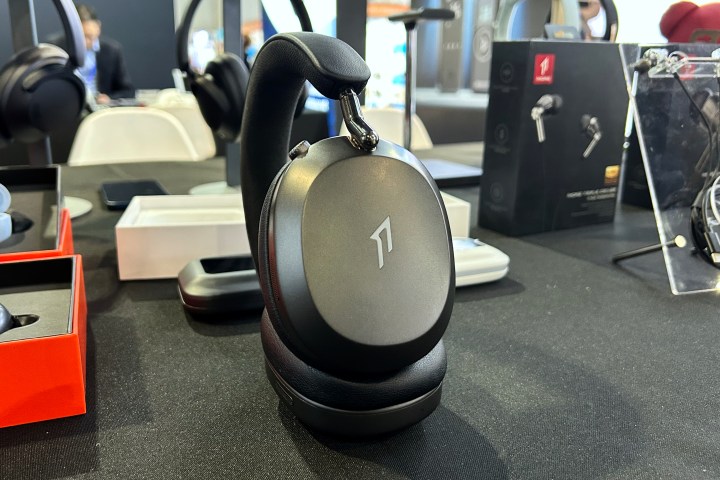
    As I strolled through CES 2025, I nearly overlooked 1More’s exhibit, but I’m grateful I made a stop. Nestled among their range of wireless earbuds and headphones was a pair that piqued my curiosity. Their design caught my eye — a fusion of Sony’s WH-1000XM5 and Apple’s AirPods Max — but what truly impressed me was their functionality: these are 1More’s inaugural Wi-Fi headphones, potentially making them the first of their kind at a price that many can afford.

    Officially named the 1More SonoFlow Max Over-Ear Headphones HQ70, the company anticipates a September 2025 release. Pricing details remain under wraps, but considering 1More’s reputation for high-quality sound at budget-friendly prices, I would speculate they’ll retail for under $300.

    1More SonoFlow Max Over-Ear Headphones HQ70.
    Simon Cohen / Digital Trends

    While that pricing might sound steep, there’s currently only one other brand offering Wi-Fi headphones: the prohibitively expensive $2,199 Hed Audio Unity.

    Why do I find Wi-Fi audio so appealing? It delivers significantly more bandwidth than Bluetooth. Although Bluetooth can theoretically offer lossless CD-quality sound (if both devices support aptX Lossless), physical distance and wireless interference can easily compress that quality to a lower level. In contrast, Wi-Fi can seamlessly support lossless audio at high-resolution bit depths and sample rates, which allows for more flexibility. Moreover, once a Wi-Fi connection is established, your phone acts merely as a remote control, enabling the headphones to connect independently to internet-based music streams, similar to wireless speakers like Sonos.

    1More SonoFlow Max Over-Ear Headphones HQ70.
    Simon Cohen / Digital Trends

    However, Wi-Fi tech does pose a significant challenge: it tends to consume a lot of battery power, which has delayed its integration into wireless headphones.

    Despite this concern, there’s room for optimism with the HQ70. While the full specifications haven’t been disclosed, it has been indicated that in Bluetooth mode, these headphones can last up to 75 hours with noise cancellation disabled. Such impressive battery life hints at a promising performance when operating on Wi-Fi.

    Apart from Wi-Fi capabilities, 1More seems to have ambitious plans for the HQ70. Based on a preview document shared by a spokesperson, features will include voice and gesture controls, camera functionality, spatial audio, multipoint connectivity, LDAC codec support, a reminder system for standing up, a fall detection sensor, and intriguing “local storage with real-time sports data.” The specifics of that last feature remain unclear, but details will likely emerge soon.

    Although the HQ70 I tried on was not a functioning model, I did get a brief sense of comfort while wearing them for about 30 seconds. While that’s not enough to judge long-term wear, they felt pretty comfortable during that short time.

    Preview of unreleased 1More open-ear earbuds at CES 2025.
    Simon Cohen / Digital Trends

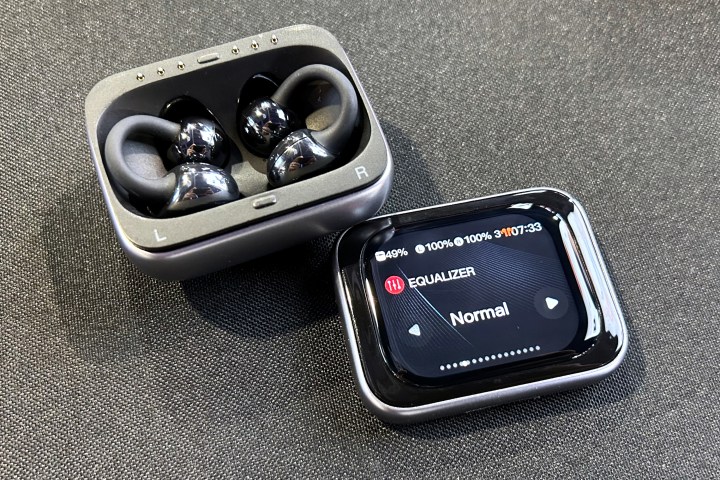
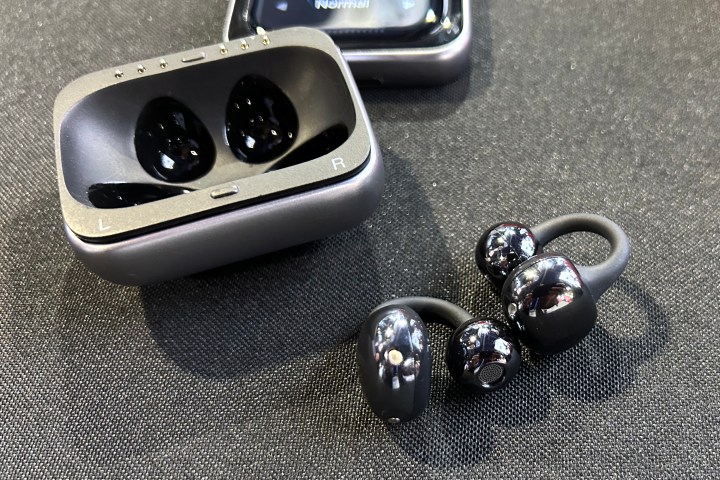
    1More also showcased another intriguing but unidentified product, which appears to be a set of clip-style open-ear earbuds reminiscent of the yet-to-be-launched S20 model in the U.S. What stood out to me was the charging case, which features two components that connect magnetically rather than through a hinge. The lid includes its own battery, a small color touchscreen, and a speaker.

    Sneak peek of unreleased 1More open-ear earbuds at CES 2025.
    Simon Cohen / Digital Trends

    The touchscreen interface resembles that of JBL’s Tour Pro 2 and Tour Pro 3, although 1More clarified that JBL was not involved in creating this forthcoming product. The screen may display battery levels and controls, and potentially lyrics — a feature that 1More is set to introduce with the S70 AI open-ear earbuds this year.

    Preview of unreleased 1More open-ear earbuds at CES 2025.
    Simon Cohen / Digital Trends

    There’s also speculation that these earbuds could enable real-time translation and transcription, though it’s unclear if users will be able to utilize both the earbuds and touchscreen concurrently for this feature.

    Little else is known regarding these distinctive open-ear earbuds; 1More has not disclosed pricing, launch dates, or even essential specifications like battery longevity. However, assuming these are indeed the S20 with an enhanced case, we may expect features such as Bluetooth 5.4, IPX5 water resistance, high-resolution audio with LDAC support, 11mm composite diaphragm drivers, and multipoint functionality.

  • How To Attach Asus Motherboard Wi-Fi Antenna WiFi7?

    How To Attach Asus Motherboard Wi-Fi Antenna WiFi7?

    As WiFi 7 technology rolls out, many users are upgrading their systems to take advantage of the improved speeds and connectivity. If you’ve recently purchased an Asus motherboard with WiFi 7 capabilities, you might be wondering how to properly attach the Wi-Fi antennas for optimal signal strength. This guide will walk you through the steps to securely attach your Asus motherboard’s Wi-Fi antennas.

    Understanding Wi-Fi Antennas

    Before diving into the installation process, it’s helpful to understand the function of Wi-Fi antennas:

    Purpose of Wi-Fi Antennas

    • Signal Reception: Antennas are responsible for receiving wireless signals from routers.
    • Signal Transmission: They also send data back to the router, effectively creating a two-way communication channel.
    • Improved Range: Properly positioned antennas can significantly enhance your Wi-Fi range and performance.

    Tools Needed

    Attaching your Wi-Fi antennas is a straightforward process that typically doesn’t require any special tools. However, having the following items handy can make the task easier:

    • A pair of Wi-Fi antennas (provided with your Asus motherboard)
    • Screwdriver (if your motherboard has screws for antenna mounting)
    • Clean cloth (for dusting the area if needed)

    Step-by-Step Guide to Attach the Antenna

    Follow these steps to successfully attach your Wi-Fi antennas to your Asus motherboard:

    Step 1: Prepare Your Workspace

    • Power Off Your Computer: Before starting, ensure that your computer is completely powered off and unplugged from the power source.
    • Clear the Area: Remove any clutter from your workspace to prevent accidental damage to components.

    Step 2: Locate the Antenna Connectors

    1. Open Your Computer Case:

      • Use a screwdriver to remove the screws holding the side panel and carefully slide it off.

    2. Find the Antenna Ports:

      • Look for the antenna connectors on the back of the motherboard. These are usually labeled and are often located near the I/O shield area.

    Step 3: Attach the Antennas

    • Align the Antennas:

      • Hold the antenna in your hand and align it with the connector on the motherboard.
      • If the antenna is threaded, ensure it matches the threads on the connector.

    • Secure the Antenna:

      • Gently but firmly screw the antenna onto the connector.
      • Ensure it is snug but avoid over-tightening, which can damage the connector.

    Step 4: Position the Antennas

    • Optimal Positioning:

      • Adjust the antennas to a vertical position. This orientation typically provides the best signal performance.
      • If your antennas have adjustable angles, experiment with different positions for maximum coverage.

    Troubleshooting Common Issues

    If you experience connectivity problems after attaching your antennas, consider the following:

    • Check Connection: Ensure that the antennas are securely connected to the motherboard.
    • Inspect Antenna Condition: Look for any visible damage to the antennas or connectors.
    • Router Placement: Position your router in a central location to ensure optimal signal distribution throughout your space.

    Tips for Enhancing Wi-Fi Performance

    • Avoid Obstructions: Ensure there are no large objects blocking the antennas.
    • Use Dual-Band Routers: If possible, use a dual-band router to take full advantage of WiFi 7 speeds.
    • Regular Updates: Keep your motherboard’s firmware updated to ensure compatibility with the latest Wi-Fi standards.

    By following the above steps, you’ll ensure your Asus motherboard is equipped with the necessary Wi-Fi antennas for optimal performance in your WiFi 7 setup. Enjoy the enhanced speed and connectivity that comes with this latest technology!

  • Are Portable Wi-Fi Hotspots Worth It?

    Are Portable Wi-Fi Hotspots Worth It?

    Are Portable Wi-Fi Hotspots Worth It?

    In today’s fast-paced world, staying connected on the go has become a necessity. With the rising demand for internet access, especially during travel and remote work, portable Wi-Fi hotspots have gained popularity. But are they truly worth the investment? Let’s explore the advantages and disadvantages to help you make an informed decision.

    Understanding Portable Wi-Fi Hotspots

    Portable Wi-Fi hotspots are small devices that provide internet connectivity by creating a local wireless network using cellular data. They can connect multiple devices simultaneously, allowing users to access the internet wherever there is cellular coverage.

    Benefits of Portable Wi-Fi Hotspots

    1. Convenience

    • On-the-go Access: They enable users to browse the web, check emails, and use applications without relying on public Wi-Fi networks.
    • Multiple Device Connectivity: Most models allow numerous devices to connect at once, making them ideal for families or groups traveling together.

    2. Security

    • Private Network: Unlike public Wi-Fi, a portable hotspot provides a secure connection, reducing the risk of data breaches and cyber attacks.
    • Password Protection: Users can set up passwords to protect their network, ensuring that only authorized devices can connect.

    3. Cost-Effective

    • Avoid Roaming Charges: Travelers can use their portable hotspot to avoid high roaming fees in foreign countries.
    • Flexible Data Plans: Many carriers offer various data plans, allowing users to choose based on their needs, whether that involves unlimited data or a pay-as-you-go option.

    4. Improved Connection Quality

    • Reliable Connection: Portable hotspots often provide a more stable connection compared to unreliable public Wi-Fi, particularly in rural areas or during travel.

    Drawbacks of Portable Wi-Fi Hotspots

    1. Data Limits

    • Capped Data Plans: Many portable hotspots come with a limited amount of data, and using up the data cap can lead to extra costs or reduced speeds.
    • Throttling: Once you reach your data limit, your connection speed may decrease significantly.

    2. Battery Dependency

    • Charge Management: Hotspots require battery power, which means you have to monitor and manage battery life to maintain connectivity.
    • Power Sources: Finding power outlets may be inconvenient while traveling, particularly in remote areas.

    3. Cost Considerations

    • Initial Investment: Purchasing a portable hotspot can be an additional expense upfront, especially for high-quality devices.
    • Monthly Fees: Depending on the data plan, monthly fees can add up, making it less cost-effective compared to a standard home service for heavy users.

    Factors to Consider Before Buying

    1. Frequency of Use

    • If you frequently travel or work remotely, investing in a portable Wi-Fi hotspot may be beneficial.

    2. Data Needs

    • Assess your typical data usage. For light users, a portable hotspot might be an excellent fit. Heavy users might want to consider unlimited plans or alternatives.

    3. Available Plans

    • Research different carriers and the plans they offer, as well as their coverage in your frequently visited areas.

    4. Device Compatibility

    • Ensure that your devices can easily connect to the hotspot and that it supports any specific requirements (like 5G).

    Practical Tips for Using Portable Wi-Fi Hotspots

    • Monitor Data Usage: Keep a close eye on your data consumption to avoid running out unexpectedly.
    • Optimize Device Settings: Set your devices to limit background data usage, which can help prolong your data plan.
    • Carry a Power Bank: Having backup power can ensure that your hotspot remains operational when you need it most.
    • Check Coverage Maps: Always check the coverage maps of the carrier to ensure that you’ll have a working connection in your desired locations.

    Portable Wi-Fi hotspots offer several advantages, especially for those who prioritize internet access while traveling. However, potential downsides, such as data limits and battery dependency, warrant careful consideration. By assessing your personal needs and preferences, you can determine whether investing in a portable hotspot is the right choice for you.

  • Is hotspot as good as Wi-Fi?

    Is hotspot as good as Wi-Fi?

    When it comes to connecting our devices to the internet, two common options often come to mind: Wi-Fi and mobile hotspots. Each has its own benefits and drawbacks, leaving many wondering whether a hotspot can truly match the reliability and speed of traditional Wi-Fi. This article delves into the key differences, advantages, and disadvantages of both options.

    Understanding Wi-Fi and Hotspots

    What is Wi-Fi?

    Wi-Fi refers to a wireless networking technology that allows devices to connect to the internet or communicate wirelessly within a certain range. It typically relies on a broadband connection, such as DSL or fiber-optic.

    What is a Hotspot?

    A hotspot is a physical location or device that provides internet access to other devices through a mobile data connection. This can involve turning your smartphone into a hotspot or using dedicated mobile hotspots available through various providers.

    Speed and Performance

    Wi-Fi Speed

    • Generally Faster: Wi-Fi connections typically offer faster speeds compared to mobile hotspots, especially when connected to a robust broadband network.
    • High Bandwidth: Ideal for streaming, gaming, and video conferencing without buffering or lag.
    • Multiple Devices: Can support multiple connections without significant performance degradation when using a good router.

    Hotspot Speed

    • Dependent on Cellular Network: Hotspot speed varies based on cellular signal strength and network congestion.
    • Limited Bandwidth: Might struggle with heavy usage or several devices connected at once.
    • 4G vs. 5G: Hotspots using 5G technology can provide impressive speeds, but availability may be limited in some areas.

    Coverage and Availability

    Wi-Fi Coverage

    • Fixed Location: Wi-Fi is typically restricted to a specific area determined by the router’s range, which usually covers your home or office.
    • Interference: Walls and other obstacles can weaken the signal and reduce range.

    Hotspot Coverage

    • On-the-Go Access: Hotspots can be accessed practically anywhere with cellular coverage, making them ideal for travel or outdoor activities.
    • Variable Signal Quality: Coverage can vary, with rural areas often experiencing weaker signals compared to urban centers.

    Data Limits and Costs

    Wi-Fi Data Usage

    • Unlimited Plans: Many ISPs offer unlimited data packages, allowing for extensive usage without additional charges.
    • Fixed Monthly Cost: Monthly fees can be predictable, enabling better budgeting for internet expenses.

    Hotspot Data Usage

    • Data Caps: Mobile hotspot plans often come with strict data limits, which can result in overage charges if exceeded.
    • Higher Costs for Extra Data: Purchasing more data can add significant costs, especially if used for activities that consume a lot of bandwidth.

    Convenience and Setup

    Wi-Fi Convenience

    • Setup: Once configured, Wi-Fi is easy to use with automatic device connection.
    • Home Networking: Connect multiple devices easily, including smart home gadgets.

    Hotspot Convenience

    • Portability: A hotspot is convenient for users who are frequently on the move.
    • Easy Setup: Hotspot activation on smartphones or devices is usually straightforward.

    Battery Life and Device Impact

    Wi-Fi Device Impact

    • Power Efficiency: Devices tend to consume less power when connected to Wi-Fi, preserving battery life.
    • Messy Cables: Traditional setups can involve multiple cables and hardware.

    Hotspot Device Impact

    • Battery Drain: Running a hotspot can significantly drain the battery of the device providing the connection.
    • Heat Generation: Extended use may cause devices to heat up, affecting performance.

    Summary of Key Differences

    Feature Wi-Fi Hotspot
    Speed Generally faster Varies (depends on network)
    Coverage Limited to specific areas Available anywhere with service
    Data Use Often unlimited Usually comes with caps
    Setup Static and low-maintenance Portable and flexible
    Device Impact Less battery drain Can drain battery quickly

    With so many factors to consider, the choice between Wi-Fi and mobile hotspots depends on individual needs and circumstances. Whether for home use, travel, or specific activities, assessing the advantages and disadvantages of each option can lead to a well-informed decision tailored to your internet connectivity requirements.

  • Do you need Wi-Fi for a security camera?

    Do you need Wi-Fi for a security camera?

    Do You Need Wi-Fi for a Security Camera?

    As technology evolves, more homeowners are turning to security cameras to monitor their properties. A common question arises: do you need Wi-Fi for a security camera? The answer isn’t always straightforward, as it largely depends on the type of security camera in question and your specific needs.

    Types of Security Cameras

    When considering whether Wi-Fi is necessary, it’s crucial to understand the different types of security cameras available on the market:

    1. Wired Security Cameras

    • Connection: Directly connected to a network using cables.
    • Wi-Fi Dependency: Do not require Wi-Fi for operation.
    • Power Source: Typically need a constant power supply, often connected to a power outlet.
    • Storage Options: Generally utilize local storage solutions like DVRs.

    2. Wireless Security Cameras

    • Connection: Use Wi-Fi to connect to a home network.
    • Wi-Fi Dependency: Yes, they need Wi-Fi for real-time monitoring and alerts.
    • Power Source: Can be plugged into a power outlet or powered by batteries, depending on the model.
    • Storage Options: Often offer cloud storage or local storage on a microSD card.

    Pros and Cons of Wi-Fi Security Cameras

    When contemplating the use of Wi-Fi enabled security cameras, there are advantages and drawbacks to consider.

    Benefits

    • Remote Access: Monitor camera feeds from anywhere using a smartphone or tablet.
    • Easy Setup: Usually simpler to install since they don’t require extensive wiring.
    • Flexible Placement: Can be placed in locations away from your router, as long as they are within Wi-Fi range.

    Drawbacks

    • Reliability: Depends on your internet connection; interruptions can affect monitoring.
    • Security Vulnerabilities: Wireless networks can be targets for hacking if not properly secured.
    • Bandwidth Usage: They may consume significant bandwidth, especially if multiple cameras are installed.

    Alternatives to Wi-Fi Security Cameras

    If you prefer not to use Wi-Fi for your security cameras, there are alternatives available:

    1. LTE/4G Cameras

    • Connection: Utilize cellular networks for connectivity.
    • Advantages: Ideal for remote locations without Wi-Fi; provides consistent coverage.
    • Disadvantages: Monthly data plans may be required; may incur higher ongoing costs.

    2. Local Storage Cameras

    • Connection: Some models store footage directly on a DVR without needing internet connectivity.
    • Accessibility: You can retrieve footage directly from the DVR without remote monitoring.
    • Limitations: Lack of remote access and features such as alerts and streaming.

    Key Considerations Before Choosing a Security Camera

    When deciding on the right security camera for your needs, consider the following factors:

    • Location: Assess where you want to install the camera and whether Wi-Fi is accessible.
    • Functionality Needs: Decide if you require features like remote access, alerts, or two-way communication.
    • Internet Speed: Ensure your internet service can handle the bandwidth requirements of multiple cameras without affecting your network performance.
    • Security Measures: If opting for Wi-Fi, implement robust security practices such as strong passwords and encryption.

    Final Thoughts

    Whether you need Wi-Fi for a security camera ultimately depends on your specific requirements and the type of camera you choose. Wired security cameras offer reliability without the need for an internet connection, while wireless options offer convenience and flexibility. Analyze your monitoring needs, your home’s internet capabilities, and your security concerns before making a decision.

  • Do home security cameras need Wi-Fi?

    Do home security cameras need Wi-Fi?

    Home security cameras have become an essential part of modern home safety systems. They allow homeowners to monitor their property in real-time and capture critical footage. However, a common question arises: do these cameras really require Wi-Fi? This article explores different types of security cameras and their connectivity requirements.

    Understanding Wireless Security Cameras

    Wireless security cameras are popular due to their flexibility and ease of installation. However, the term "wireless" can be misleading. While these cameras do not require physical cables for video transmission, many still depend on Wi-Fi to function optimally.

    Advantages of Wi-Fi Security Cameras

    Wi-Fi-enabled security cameras come with several benefits, including:

    • Remote Access: Users can view live feeds and recorded footage from anywhere using a smartphone or tablet.
    • Cloud Storage Options: Many Wi-Fi cameras offer cloud storage solutions, ensuring that footage is stored securely and can be accessed from any device.
    • Integration with Smart Home Devices: Wi-Fi cameras can often be integrated with other smart devices, enhancing home automation systems.

    Do All Security Cameras Require Wi-Fi?

    While many modern security cameras require Wi-Fi, others do not. Understanding the types of cameras available can help in deciding what suits your needs.

    Types of Security Cameras

    1. Wi-Fi Cameras

    These cameras rely on an internet connection to work effectively. They send streams of data over the network, allowing for remote monitoring.

    • Features:

      • Cloud storage access
      • Mobile app compatibility
      • Often include motion detection alerts

    2. Wired Cameras

    Wired security cameras connect directly to a recording device, such as a DVR or NVR, using coaxial or Ethernet cables.

    • Advantages:

      • More reliable connection since they are less susceptible to signal interference
      • Typically, these systems can work without an internet connection
      • Often have higher-quality video transmission

    3. Local Storage Cameras

    Some cameras store footage locally on SD cards rather than relying on Wi-Fi for streaming and storage.

    • Benefits:

      • No internet dependency for recording and playback
      • Reduced risk of hacking since data is stored offline

    4. Cameras with SIM Card Capability

    Certain security cameras come with slots for SIM cards, which allow them to connect to cellular networks instead of relying on Wi-Fi.

    • Key Features:

      • Ideal for places with weak or no internet signals
      • Can be used for remote or mobile surveillance

    Factors to Consider When Choosing a Home Security Camera

    When deciding on a home security camera, consider the following aspects:

    • Location: If your property is in an area with good Wi-Fi coverage, a Wi-Fi camera may be ideal. However, in rural or signal-challenged areas, wired or SIM-based systems might be more effective.
    • Installation Complexity: Wireless cameras are generally easier to install compared to their wired counterparts, which may require professional installation.
    • Budget: Understand your budget constraints. Wi-Fi cameras might have additional costs related to cloud storage subscriptions, while wired systems generally involve one-time installation costs.

    Final Thoughts on Home Security Cameras and Wi-Fi

    The need for Wi-Fi in home security cameras ultimately depends on the specific type and intended use of the camera system. Understanding the differences among camera types can help you make an informed decision that meets your home security needs. Whether you’re looking for high-tech solutions or straightforward monitoring options, there are various systems available to suit your requirements.

  • Can you have a camera without Wi-Fi?

    Can you have a camera without Wi-Fi?

    In the age of connected devices, many people assume that cameras must have Wi-Fi capabilities. However, the reality is that numerous cameras can function perfectly well without an internet connection. This article explores the implications of using a camera without Wi-Fi, the types available, and their benefits.

    Types of Cameras That Don’t Require Wi-Fi

    There are various types of cameras that can operate independently of Wi-Fi networks. Here are a few notable categories:

    1. Traditional Film Cameras

    • No Connectivity: Classic film cameras rely solely on analog technology and require no digital connectivity.
    • Tangible Experience: Shooting with film offers a hands-on experience and a unique aesthetic that many photographers cherish.

    2. DSLRs and Mirrorless Cameras

    • Standalone Functionality: Many digital single-lens reflex (DSLR) and mirrorless cameras can shoot, store, and edit images without needing an internet connection.
    • Data Storage Options: Users can save photos directly to an SD card, which can later be transferred to a computer for editing.

    3. Point-and-Shoot Cameras

    • User-Friendly: These compact cameras are designed for simplicity and are often equipped with various built-in settings that do not require internet access.
    • Ideal for Casual Photography: Great for everyday moments and travel without worrying about connectivity.

    4. Action Cameras

    • Rugged Designs: Commonly used for outdoor activities, many action cameras can function independently. While some models offer Wi-Fi, it’s not a requirement for basic use.
    • Durability and Portability: Built to withstand harsh conditions, action cameras are perfect for adventure without internet dependency.

    Benefits of Using Cameras Without Wi-Fi

    Choosing a camera that doesn’t rely on a Wi-Fi connection can offer several advantages:

    Enhanced Focus on Photography

    • Less Distraction: Without the constant connectivity, photographers can concentrate on framing and capturing their shots without notifications or digital interruptions.
    • Creative Control: The freedom from internet connectivity encourages photographers to explore and take creative liberties.

    Greater Battery Life

    • Prolonged Use: Cameras that do not require Wi-Fi often experience less battery drain, allowing for extended shooting sessions without worrying about recharging.
    • Reliability: In remote areas where charging options may be limited, longer battery life becomes crucial.

    Simplified Workflow

    • Direct Transfers: Photos can be uploaded to a computer or shared through a USB connection, streamlining the editing and storage process without needing apps or the internet.
    • Avoiding Connectivity Issues: No reliance on Wi-Fi means you won’t face connectivity drops or slow upload times, making for a smoother workflow.

    Cost-Effectiveness

    • No Data Fees: Using a camera that doesn’t depend on Wi-Fi can save costs related to data plans, especially if you’re using your camera frequently in different locations.
    • Fewer Features to Maintain: Cameras lacking Wi-Fi often have a simpler design, leading to potential maintenance cost savings.

    Conclusion

    While many modern cameras come equipped with Wi-Fi features for sharing and editing photos more conveniently, choosing a camera that operates independently of an internet connection can deliver numerous advantages. From improved focus on photography to enhanced battery life and cost-effectiveness, there’s a compelling case for no-Wi-Fi cameras. Whether you are a professional photographer or simply enjoy capturing everyday moments, plenty of options exist that let you disconnect while still embracing the art of photography.

  • How much is a Wi-Fi hotspot per month?

    How much is a Wi-Fi hotspot per month?

    In today’s connected world, having internet access on the go is essential for many people. A Wi-Fi hotspot enables you to connect multiple devices to the internet without relying on fixed broadband. However, understanding the costs associated with mobile hotspot plans can be tricky. This article delves into monthly costs, comparing various options to help you make an informed decision.

    Factors Influencing the Cost of Wi-Fi Hotspots

    Several factors play a critical role in determining the monthly cost of a Wi-Fi hotspot. These include:

    Data Limits

    • Unlimited Plans: Typically more expensive but allow unrestricted data usage.
    • Tiered Plans: Come with set data limits (e.g., 2GB, 5GB, 10GB) at lower monthly rates. Overages may result in additional charges.

    Type of Provider

    • Mobile Carriers: Major carriers like AT&T, Verizon, T-Mobile, and Sprint offer hotspot plans as part of their mobile services.
    • Dedicated Hotspot Devices: Companies like Netgear, TP-Link, and others provide specialized devices that can connect to 4G or 5G networks.

    Speed and Technology

    • 4G vs. 5G: Faster speeds often come at a premium. Plans offering 5G access may cost more initially but deliver quicker internet experience.
    • Network Coverage: Providers with broader network coverage may charge higher rates due to better service guarantees.

    Average Monthly Costs of Wi-Fi Hotspot Plans

    The following estimates provide an overview of what you can expect to pay for various Wi-Fi hotspot plans:

    Mobile Carrier Plans

    • Basic Data Plans:

      • Cost: $15 to $30 per month
      • Data Limit: 2GB to 5GB
    • Standard Plans:

      • Cost: $40 to $70 per month
      • Data Limit: 10GB to 20GB
    • Unlimited Plans:

      • Cost: $70 to $100+ per month
      • Data Limit: Unlimited (with potential throttling after a certain usage threshold)

    Dedicated Hotspot Devices

    • Entry-Level Devices:

      • Cost: $30 to $50 per month
      • Data Limit: 2GB to 10GB
    • Mid-Range Devices:

      • Cost: $60 to $80 per month
      • Data Limit: 20GB to 50GB
    • Premium Devices with Unlimited Data:

      • Cost: $90 to $120 per month

    Additional Costs to Consider

    When evaluating the total cost of a Wi-Fi hotspot, be aware of these potential additional expenses:

    Device Costs

    • Hardware Purchase: Some providers may require you to buy the hotspot device, ranging from $50 to $200 upfront.

    Activation Fees

    • Certain carriers can impose activation fees of around $30 to $50 when you first set up your account.

    Overages

    • Be aware of how much you’ll be charged if you exceed your data limit. Overage fees can add up quickly, often costing $10 for each additional gigabyte.

    Taxes and Fees

    • Monthly service bills can be subject to local taxes and surcharges, impacting overall costs.

    Finding the Right Plan for Your Needs

    Choosing the right Wi-Fi hotspot plan hinges on your specific usage and budget. Here are some steps to identify the best option:

    • Assess Your Data Needs: Determine how much data you typically use each month. Casual browsing requires less data than streaming videos or gaming.
    • Compare Available Providers: Research plans from multiple providers to find one that meets your data needs and fits your budget.
    • Check Coverage Maps: Ensure the provider offers solid coverage in the areas you visit most frequently.
    • Look for Bundled Deals: Some carriers may offer discounts if you bundle a hotspot plan with your existing mobile plan.

    By understanding the costs associated with Wi-Fi hotspots and evaluating your needs, you can select a plan that keeps you connected without breaking the bank.

  • iPhone 17 Expected To Feature New Wi-Fi Chip

    iPhone 17 Expected To Feature New Wi-Fi Chip

    By next year, Apple might have its proprietary Wi-Fi chips installed in at least one of its phones.

    According to Ming-Chi Kuo, a well-regarded analyst known for his accurate predictions, Apple is in the process of developing its own Wi-Fi chips to replace those currently supplied by Broadcom. However, there is no concrete timeline for their release (via MacRumors). Kuo suggests that the upcoming iPhone 17 Pro may feature this new chip, while others speculate that broader implementation won’t happen until the iPhone 18.

    While Wi-Fi 7 is not a new technology—since all iPhone 16 models already support it—these devices use Broadcom’s chips. By switching to in-house production for these network chips, Apple aims to reduce manufacturing costs, which could lead to more affordable devices in the future.

    Broadcom currently supplies Apple with over 300 million Wi-Fi+BT chips annually. However, the company plans to minimize its dependence on Broadcom and introduce its own Wi-Fi chips in new products by the second half of 2025, including the iPhone 17.

    — 郭明錤 (Ming-Chi Kuo) (@mingchikuo) October 31, 2024

    The forthcoming shift to in-house chip production might enhance Apple’s software integration capabilities. However, critics of Apple’s tightly controlled ecosystem argue that proprietary chips could detract from the user experience, especially in terms of repairability.

    Kuo noted that the new Wi-Fi chip would be produced using the 7nm N7 process, a more advanced technique than that which was employed to create the A13 Bionic chip.

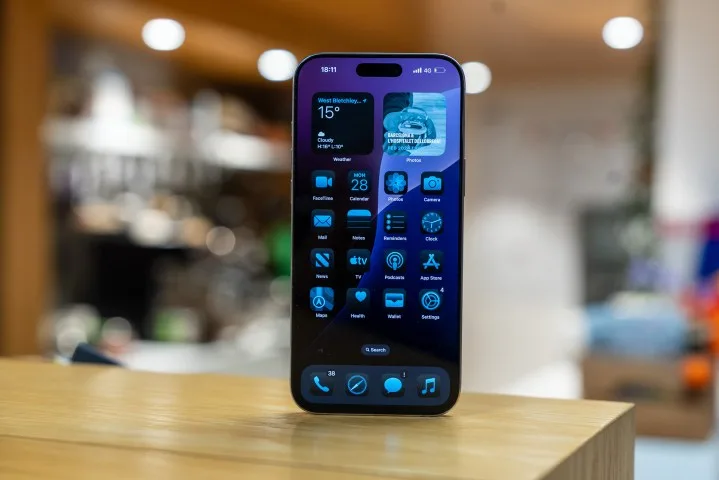
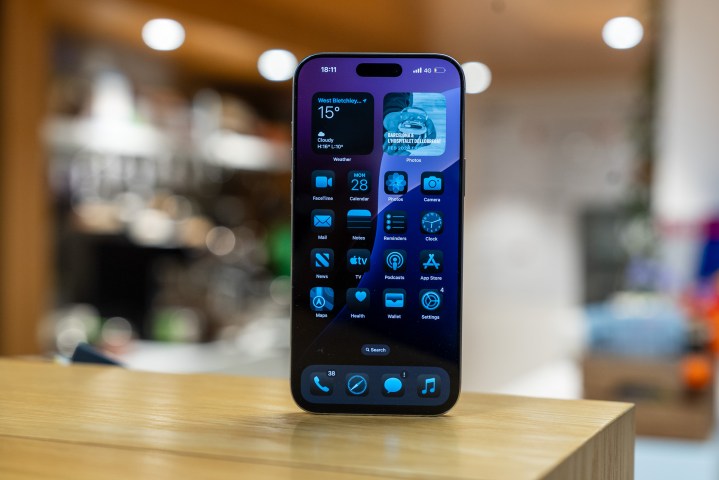
    iPhone 16 Pro Max screen on
    Nirave Gondhia / Digital Trends

    If you’re not familiar with Wi-Fi 7, here’s what to expect: It offers increased bandwidth and the ability to transmit data across 2.4GHz, 5GHz, and 6GHz bands at the same time, achieving speeds of over 40 Gbps. This is more than four times faster than Wi-Fi 6, outpacing many wired connections.

    Should the iPhone 17 Pro be the first to feature Apple’s new chips, it’s highly likely that the entire iPhone 18 lineup will make the switch. As Apple continues to innovate, faster speeds and more reliable connectivity are becoming increasingly necessary.