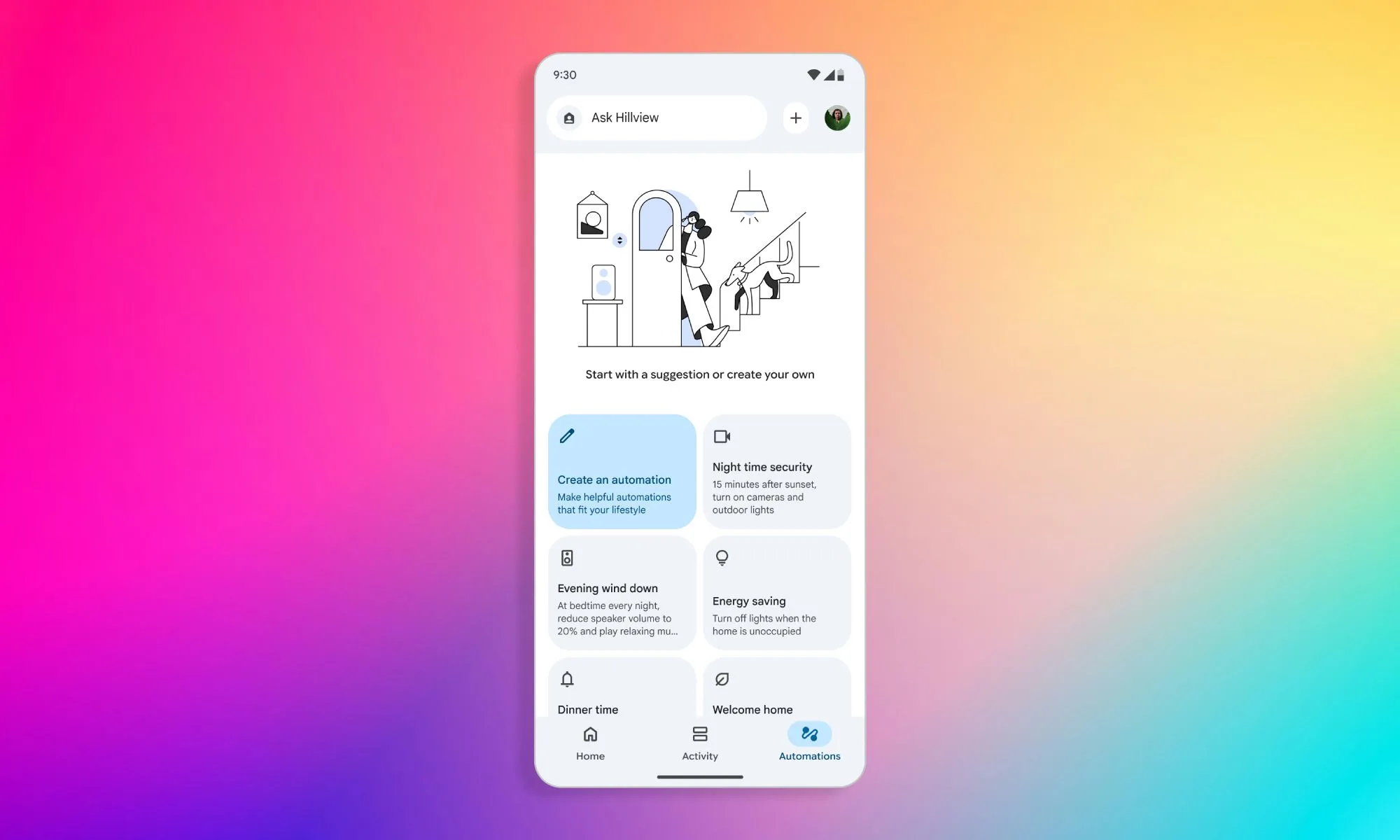
Google is introducing a new set of updates to Gemini for Home and the Google Home app, with the most notable change being the addition of pre-made routines to the Automations section. This allows users to activate routines with just a tap, making automation more accessible.
Previously, creating automations in Google Home involved selecting triggers, conditions, and actions, which could be overwhelming for those who aren’t tech-savvy. This complexity often discouraged many users from utilizing automations altogether.
The latest update aims to simplify this process by offering ready-to-use automations for common scenarios like home security, morning routines, or energy conservation. Users can also customize these suggested automations to better suit their preferences or dismiss them if they’re not helpful.
In addition to automations, Gemini for Home has received several improvements. Visual display cards for weather updates and general knowledge responses on smart screens have been modernized for a cleaner appearance. Sports-related information, such as scores, schedules, and standings, is now more precise.
The Continued Conversation feature in Gemini is also more dependable, with Google ensuring that follow-up questions and consecutive commands will now be handled more smoothly, without interruptions caused by voice verification prompts. The update includes smaller enhancements and bug fixes, such as a dedicated light toggle in camera views for select outdoor security cameras and more reliable setup for older Nest cameras.
While Google Assistant is a helpful tool to have around, there are times when you might prefer it to stay quiet. Whether it’s accidentally responding to commands when you’re not talking to it or being triggered by voices from your TV, some users find it better to turn off the feature altogether. You can disable Google Assistant completely on your smartphone or restrict its functions to better control how it interacts with your smart devices.
Here’s how to turn off Google Assistant on your phone and manage its settings effectively:
Disabling Google Assistant on Your Smartphone
Depending on your device and software, there are a few ways to disable Google Assistant. Generally, the process involves:
Opening the Google app on your phone.
Tapping your profile picture at the top right to access the options menu.
Selecting Settings.
Tapping Google Assistant.
Going to the General menu and toggling off Google Assistant.
If these steps don’t work for your device, you can also go directly into your phone’s main Settings menu:
Find and select Assistants or Apps & Notifications.
Tap on Assistant.
Turn off or disable Google Assistant from there.
Managing Smart Home Devices Linked to Google Assistant
Since many devices support Google Assistant integration, you might want to review or change which devices are connected. Here’s a simple way to check and modify those settings:
Open the Google Home app.
Tap Settings.
Select Google Assistant.
Tap Manage all Assistant settings.
Choose Devices to see all connected gadgets.
From this menu, you can add, remove, or change permissions for your smart devices, giving you better control over your connected home.
Adjusting Google Assistant’s Voice Trigger Settings
If Google Assistant responds to your voice when you’re not actively issuing commands, you can customize its trigger preferences. For example, on certain phones like Samsung Galaxy models, you can:
Navigate to Settings > Apps.
Tap the three dots at the top-right corner and select Default Apps.
Tap Device Assistance App or Assist App.
Access Voice Match settings via the gear icon.
Here, you can toggle off Access with Voice Match, or customize when and how Assistant listens for commands.
This way, you can prevent unintended activations, especially in environments where privacy or frequent interruptions are a concern.
Here’s a visual guide on turning off Google Assistant:
Insert image of device menus showing how to disable Assistant.
By following these steps, you can tailor your experience with Google Assistant to better suit your preferences, whether that means turning it off completely or limiting its responsiveness to certain triggers.
That’s a common phrase in my household. With a comprehensive smart lighting system connected to the Amazon Alexa platform and two Echo Show 15s—one in my office and another in the kitchen—this voice assistant plays a vital role in managing everything from lighting to grocery lists.
Many people are familiar with basic voice commands like setting to-do lists or checking the weather. However, the Alexa platform offers a range of powerful, lesser-known features that can enhance its usability.
Show and Tell
The Show and Tell feature utilizes the Echo Show’s camera to recognize and announce the identity of various objects. Primarily designed to assist visually impaired users, it can help distinguish everyday items such as pantry ingredients—like cumin versus cinnamon—by simply saying, “Alexa, what am I holding?” or “What’s in my hand?” The device guides you on how to position the item for proper recognition, signaling when you’re aligned correctly.
Typically, smart assistants rely on voice commands. The Eye Gaze feature allows users to control Alexa devices using their eye movements alone. This is particularly useful for individuals with speech or mobility limitations, letting them activate pre-programmed Alexa actions without needing to speak or use their hands.
Currently, this feature is only available on the Fire Max 11 Tablet and in select countries. Although it’s in the early stages, there are plans to expand it to additional devices in the future.
Real-Time Translation
While many prefer their phones for video calls, Alexa can also facilitate conversations with family. This feature includes live captions on the screen, making it easy to converse in multiple languages simultaneously, ensuring that both parties understand each other.
Amazon
This feature is also beneficial for hearing-impaired users, as the real-time captions allow them to follow the conversation seamlessly. Just enable call captioning through the Alexa app or settings on the Echo Show.
Adaptive Listening
Individuals with speech difficulties may struggle to issue commands quickly to Alexa. That’s where Adaptive Listening comes in. It extends the time Alexa waits to process your request, making interactions feel more natural. This feature can be activated within the Alexa app or through specific Echo devices.
Interestingly, even those without speech issues appreciate this feature, as it allows for a smoother conversational flow.
Find Your Phone
Like many people, I often misplace my phone. When it’s time to leave the house, I might scramble through couch cushions or search high and low for it.
Amazon
Now, instead of searching frantically, I simply say, “Alexa, find my phone.” The device initiates a call, allowing me to listen for its vibrations around the house. There are several Alexa Skills designed for this as well, but the built-in feature is typically sufficient.
Whisper Mode
When I put the baby down for the night and need to ask Alexa something, Whisper Mode becomes invaluable. Once activated, I can speak softly, and Alexa responds in a matching whisper. This feature is convenient for late-night inquiries, so you don’t disturb anyone else in the house.
However, make sure to enable it first, as not having it activated can lead to some loud surprises when you try to whisper an inquiry.
Amazon
Emergency Assist
For years, users have desired the ability for Alexa to call 911. While that is not yet an option, the Emergency Assist feature connects you to a “Urgent Response” agent who can dispatch emergency services if needed. Keep in mind, though, this feature requires a monthly subscription fee.
Without a subscription, you’re limited to one emergency contact. Emergency Assist allows for up to 25 and can listen for critical sounds like breaking glass or smoke alarms, enhancing safety in your home.
Alexa continues to be one of the most popular smart home platforms, evolving and improving over time. While the introduction of a subscription model for specific features has slowed its growth, it still remains a key player in the smart home arena.
“Can you direct me to a nice coffee shop where I can work?” I asked my iPhone’s voice assistant.
“I’ll need ChatGPT for that,” Siri replied during my recent interaction with Apple’s assistant. Conversely, Google's Gemini provided exactly what I was looking for.
Soon, Gemini will bring its functionality to iPhones, stepping in to cover the areas where Siri falls short. During a pivotal trial regarding Google’s search monopoly, CEO Sundar Pichai revealed there could be a collaboration with Apple for Gemini to be integrated on iPhones in the near future.
Related
iPhone 17 Air could offer extended battery life thanks to this feature
iPhone 17 might experience a supply shortage affecting availability
iPhone theft victim sues Apple, invigorating hopes for others
“Pichai mentioned he has had several discussions with Apple’s CEO Tim Cook throughout 2024 and anticipates finalizing a deal by mid-year,” according to a Bloomberg report.
What’s the current situation?
Nadeem Sarwar / Digital Trends
Google is actively reforming Google Assistant by replacing it with Gemini across devices ranging from Android phones to Wear OS wearables. This change is significant since Gemini offers enhanced capabilities beyond what Google Assistant can perform.
From performing in-depth research to managing tasks across a variety of applications, Gemini represents a monumental step forward for virtual assistants. Amazon has implemented a similar strategy with its Alexa+ assistant.
In contrast, Siri has struggled to keep pace with recent AI advancements, despite being an early leader in the field. This has led Apple to partner with OpenAI, utilizing ChatGPT to bridge the gaps in Siri's functionality.
Siri is currently supplemented by ChatGPT.Nadeem Sarwar / Digital Trends
ChatGPT has increasingly taken over tasks ranging from writing support to general inquiries. However, integration is not yet flawless, requiring users to sometimes open the ChatGPT app for tasks that Siri alone cannot perform.
Why does the Google deal matter?
Once an agreement is established between Google and Apple, Gemini could significantly enhance Siri’s abilities, emulating the current role of ChatGPT within the Apple ecosystem. This would allow users to select their preferred AI assistant on iPhones, similar to choosing a default browser.
This isn't the first indication that Gemini might function natively within iOS. Following last year’s WWDC, Apple’s senior executive Craig Federighi hinted at a future where users can select their AI model, specifically mentioning Gemini.
Nadeem Sarwar / Digital Trends
Subsequent news has revealed ongoing discussions between Google and Apple about Gemini’s integration. Recently, a code dive revealed references to Gemini as a potential native option within Apple's framework. Following Pichai's statements, an announcement of Gemini's integration may be made during the upcoming WWDC conference in June.
Currently, Gemini is accessible to iPhone users, but only through the app or by setting up home and lock screen widgets. I have extensively utilized this non-native method, and it has proven to be significantly more efficient than Siri. Even newer assistants like Perplexity are more capable in various tasks.
I am optimistic that once Gemini becomes natively integrated into iOS, users will be able to activate it seamlessly through Siri. Gemini could handle all the tasks that Siri struggles with, serving as a temporary solution until Apple revitalizes Siri and re-establishes its innovative edge.