If you have recently encountered difficulties scrolling on the Asus website, you’re not alone. Many users have reported similar problems that can be both frustrating and confusing. This article explores some of the common reasons you might experience issues while trying to navigate the site.
Common Causes for Scrolling Problems
There are several factors that can contribute to the inability to scroll on the Asus website. Understanding these can help you troubleshoot the issue effectively.
1. Browser Compatibility
Outdated Browsers: Using an outdated browser can lead to compatibility issues. It’s essential to keep your browser updated to ensure optimal performance.
Unsupported Browsers: Not all browsers handle website technologies in the same way. Browsers like Internet Explorer may struggle with modern web design, making scrolling difficult.
2. JavaScript Issues
Disabled JavaScript: Many websites, including Asus’s, rely heavily on JavaScript for interactive features. If JavaScript is disabled in your browser settings, scrolling might not work as expected.
JavaScript Errors: Sometimes, errors in the JavaScript code can prevent proper website functionality. These issues can be temporary and may resolve with a page refresh.
Troubleshooting Steps
If you find yourself unable to scroll on the Asus website, consider trying the following steps:
1. Check Your Internet Connection
Stable Connection: A weak or fluctuating internet connection can affect how websites load and behave. Ensure that you are connected to a reliable internet source.
Reload the Page: Sometimes, simply refreshing the page can solve temporary glitches.
2. Update Your Browser
Latest Version: Ensure that you are using the latest version of your web browser. Most modern browsers update automatically, but it’s good to check periodically.
Clear Cache and Cookies: Accumulated cache and cookies may interfere with website performance. Clear these and try revisiting the Asus site.
3. Disable Browser Extensions
Extensions Interference: Some browser extensions (such as ad blockers) can disrupt website functionality. Temporarily disable these extensions to see if the issue resolves.
Incognito Mode: Open the Asus website in an incognito or private browsing window. This mode usually disables extensions, which can help identify if they’re causing the problem.
Device-Specific Issues
Sometimes, the problem may not lie within the website itself but rather in the device you’re using.
1. Mobile vs. Desktop
Different Experiences: The Asus website may function differently on mobile devices compared to desktops. If scrolling issues persist on your phone, try accessing it from a computer or tablet.
App Issues: If you are using an app to access the Asus store, consider uninstalling and reinstalling it to eliminate any app-specific bugs.
2. Operating System Factors
OS Updates: Outdated operating systems can affect how applications and browsers run. Make sure your device is up to date with the latest software.
Performance Issues: If your device is running slowly due to background processes, it might hinder website performance. Close unnecessary applications to free up resources.
Contacting Support
If you have attempted all these troubleshooting steps and still cannot scroll on the Asus website, it may be time to reach out for help.
Customer Support: Asus has dedicated support channels that can assist with website-related issues. Contacting them may provide specific solutions tailored to your problem.
Community Forums: Consider visiting Asus community forums where other users may have shared their experiences and solutions regarding similar issues.
By understanding the potential causes and exploring the troubleshooting steps outlined, you can often resolve scrolling issues on the Asus website and enjoy a smoother browsing experience.
The Samsung Galaxy S22 series has garnered praise, but many users have experienced frustrating bootloop issues for over a year. If you find yourself in this situation, rest assured — you’re not the only one, and Samsung is looking into potential solutions. A quick look at the r/SamsungGalaxy subreddit reveals numerous threads discussing bootloops associated with the One UI 6.1 beta update, as well as other complaints from well over a year ago. This is clearly a widespread problem.
The main solution for this issue involves sending your device back to Samsung for a motherboard replacement, which isn’t free since the S22 series is typically out of warranty. However, one Reddit user, u/HenryTan, reported that Samsung may cover the repair costs. It might depend on your individual case, but u/HenryTan proposes that reaching out to the Samsung CEO via email could expedite the process. They also hinted that being a Samsung Care member might have impacted the decision.
Several recent posts on the r/GalaxyS22 subreddit express discontent following the release of One UI 6.1, highlighting an ongoing trend with this problem that has persisted for many months.
In addition to seeking official repairs, some users have resorted to unconventional methods. It’s important to note that any non-traditional solutions are not backed by experts. They may only provide a temporary fix and could inadvertently cause further damage to your phone.
Tushar Mehta/Digital Trends / Digital Trends
User u/Pleasant-Apartment84 shared an unusual trick: placing their Galaxy S22 in the freezer for 20 minutes reportedly resolved the bootloop issue temporarily. However, the phone began to loop again once it heated up. Given that Samsung is handling motherboard replacements, this freezer method seems a bit peculiar, especially since it could affect the battery adversely. Fortunately, this temporary fix allowed u/Pleasant-Apartment84 to back up their data, although the device later presented an additional green line on the screen.
The root cause of the bootloop remains unclear, and Samsung has yet to publicly acknowledge the problem or the unconventional workaround suggested by some users. If your device is caught in a bootloop, it’s wise to consult a professional for help. While the freezer method might save you some money, it also poses the risk of further damage.
Experiencing a non-responsive keyboard on your Mac can be frustrating. Before diving into solutions, it’s essential to understand the possible reasons behind the malfunction.
Common Reasons for a Non-Working Keyboard
Several factors can contribute to your Mac keyboard not functioning as expected:
Software Glitches
Hardware Issues
Connection Problems
Battery Issues
By identifying the potential cause, you can determine the best course of action to resolve the issue.
Software Glitches
Software-related problems can often lead to keyboard failures. Consider the following:
System Updates
Outdated software: Ensure your macOS is up to date, as outdated software may lead to compatibility issues.
Software conflicts: Third-party applications can sometimes interfere with keyboard operation.
Resetting Settings
Try resetting the keyboard settings to eliminate software conflicts:
Go to System Preferences.
Click on Keyboard.
Choose Modifier Keys and return to defaults.
Hardware Issues
Hardware problems can significantly impact your keyboard’s functionality. Here are some common hardware-related issues:
Dust and debris: Accumulated dirt beneath the keys can hinder their movement.
Physical damage: A spill or impact can lead to malfunctioning keys.
Cleaning Your Keyboard
If you suspect debris:
Turn off your Mac.
Use compressed air to blow out dust.
Wipe down the keys gently with a microfiber cloth.
Connection Problems
For wireless keyboards, connectivity issues may be the culprit.
Bluetooth Connectivity
If you’re using a Bluetooth keyboard, check the following:
Battery life: Ensure your keyboard has sufficient battery power.
Bluetooth settings: Go to System Preferences > Bluetooth to verify that the keyboard is connected.
Reconnect the keyboard: If it’s unresponsive, try removing and re-pairing it.
USB Connection
For wired keyboards, consider:
Loose connections: Ensure the USB connector is securely plugged in.
Try another port: Switch to a different USB port to see if that resolves the issue.
Additional Troubleshooting Tips
If standard solutions fail to work, consider these extra troubleshooting methods:
Reset SMC/PRAM: Resetting the System Management Controller (SMC) or Parameter RAM (PRAM) can sometimes resolve keyboard issues.
Create a new user account: Logging into a new user profile helps determine if the problem is user-specific or system-wide.
Check for software updates: Install any pending updates to fix possible bugs affecting keyboard performance.
Seeking Professional Help
If none of the above solutions work, it might be time to consult a professional. Hardware issues, especially those involving internal components, might require expert assistance.
When visiting an Apple Store or certified repair center, be prepared to discuss the symptoms you’ve experienced and what troubleshooting steps you’ve already attempted. This information can help technicians diagnose the problem more efficiently.
Understanding the reasons behind your Mac keyboard’s unresponsiveness can guide you toward effective solutions. With a bit of troubleshooting and maintenance, you’ll be back to typing in no time.
The iPhone 16 series from Apple comes packed with impressive new features. The latest A18 chip bridges the gap between the standard iPhone 16 and iPhone 16 Plus and their Pro counterparts like never before. The Pro Max model boasts an expansive 6.9-inch display and incredibly thin bezels, making it the slimmest smartphone available.
This year's iPhone lineup feels more cohesive, as Apple appears to have moved away from limiting new features to its Pro models for a changed strategy; features like the Dynamic Island and Action Button are now included across all models. The spotlight feature this year, Camera Control, is present on all four variants too. While there are still other features exclusive to the Pro models, such as the 120Hz ProMotion Display and a 5x telephoto camera, these distinctions seem justifiable for a "Pro" classification.
Difficulty
Easy
Duration
15 minutes
What You Need
An iPhone 16, iPhone 16 Plus, iPhone 16 Pro, or iPhone 16 Pro Max
However, like any new device, the iPhone 16 can occasionally encounter issues, and it may take time for Apple to resolve these. Fortunately, most of the problems early users experience are software-related. This is why nearly every iOS update includes what Apple refers to as "stability and performance improvements." Although there is a possibility of receiving a defective unit, this is uncommon. Due to the cohesive nature of Apple’s software and hardware, initial software versions may take time to optimize with the new models.
Before diving into the specifics of the common issues, it’s important to note that many can be resolved with future software updates. Some issues have already been addressed in the current iOS 18 point releases. We understand that some are hesitant to install new updates immediately due to fears of encountering new glitches. Nonetheless, point updates primarily aim to enhance functionality and often provide critical security fixes that resolve vulnerabilities which could lead to exploitation of older versions. Thus, it’s advisable to check for the latest iOS 18 version in the Settings app under General > Software Update. If an update is available, ensure you install it.
Andy Boxall / Digital Trends
Touchscreen Issues
One of the primary concerns reported by early purchasers of the iPhone 16 was issues with unresponsive touchscreens. Various theories were proposed for this glitch, ranging from problems with the new Camera Control feature, to users accidentally triggering the touch rejection algorithm by gripping the phone too tightly due to the slim bezels.
Solutions
Make sure your device is updated to the latest version of iOS 18. Apple officially addressed this issue in iOS 18.0.1, but new iPhones may still come with an older version pre-installed. Check for updates manually.
Consider using a case with your iPhone 16. Many users reported that the touchscreen problem did not occur when the device was protected by a case. Cases often have raised edges that help keep your palms off the display, mitigating accidental touches.
If the issue persists, contact Apple Support or visit an Apple Store or authorized service provider. While software updates can often resolve these issues, hardware defects may still be a factor.
Joe Maring / Digital Trends
Battery Life Concerns
After launching a new iPhone or a major update, it's common for users to voice concerns about battery life. New iPhone owners typically face these issues, especially those who have just switched to the iPhone 16 with iOS 18—a version they might not have installed previously on their older iPhone. Even if you’re switching from the last generation, such as the iPhone 15 Pro Max, it may take a few days for the battery performance to stabilize.
Solutions
Often, the issue resolves itself after a short break-in period as the new device optimizes settings and calibrates the battery. This period can last anywhere from two days to a week. If you migrated data from another iPhone, note that caches and indexes will need to be rebuilt, which can temporarily use extra battery.
Check if 5G Auto is turned on in Settings > Cellular > Cellular data options > Voice & data. Utilizing 5G can drain more battery than 4G/LTE, but with 5G Auto, the iPhone will manage power consumption when not in heavy use.
Lower your screen brightness and ensure that Auto-Brightness is enabled to avoid unnecessary battery drain. This can be checked in Settings > Accessibility > Display & text size.
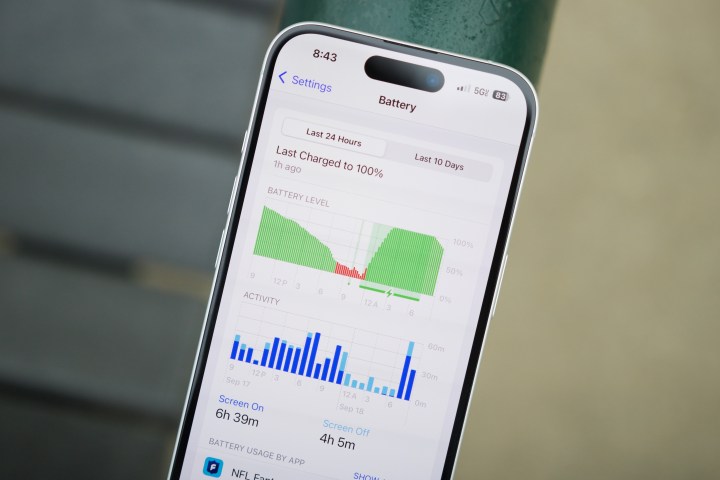
Navigate to Settings > Battery to view suggestions on optimizing battery performance, such as adjusting screen brightness and auto-lock settings. You can also monitor which apps have consumed the most power recently and make changes accordingly to limit usage of power-hungry apps.
Some users have reported instances of their iPhone randomly restarting without explanation. These reboots can occur while charging or even while the device is in use.
It’s essential to differentiate between two types of restarts. A momentary blank screen with a spinning progress indicator indicates a "springboard restart," which only affects the user interface. Conversely, a full reboot, which leads back to the Apple logo, signifies deeper issues and may take longer to process fully. Users will need to input their password after a full reboot before accessing the phone again.
While both of these scenarios can be frustrating, frequent full reboots often indicate a hardware malfunction. Springboard restarts may stem from corrupted settings or problematic apps, especially if the issues arise post-backup restoration from older iPhones.
Solutions
If you’re facing resprings or reboots while using specific applications, check for updates on the App Store, and consider deleting and reinstalling those apps. Cloud-based apps typically keep data secure, but local storages should be backed up before deletion.
Performing a forced restart can often resolve respring issues. This process clears temporary data that might interfere with the user interface, even if your device is experiencing full reboots.
For broader issues across multiple apps, consider resetting global preferences in Settings under General > Transfer or reset iPhone > Reset. Various options allow this process, ensuring that saved data is not affected aside from Wi-Fi network settings, which will require re-entering passwords afterward.
A complete factory reset can help troubleshoot these issues. Oftentimes, restoring from a backup may not fix glitches caused by temporary files or corrupted caches. Setting up your iPhone as new before restoring data can be beneficial for identifying whether the issue is hardware-related.
If you experience issues after restoring from iCloud or other backup methods, this may indicate a corrupted backup. Attempt direct data transfer from your previous iPhone or restoring from a different backup available through iCloud if needed.
To investigate system errors, access Settings > Privacy & security > Analytics & improvements > Analytics data. Look for entries that mention the word "panic," as these refer to kernel crashes that can point to hardware failures.
Christine Romero-Chan / Digital Trends
Camera App Problems
Some users initially reported their camera app lagging or freezing, especially during basic functions like zooming or taking photos. This concern was more prevalent at the launch and may have diminished with later software updates.
Solutions
Verify that your device is running the latest version of iOS 18, as the release notes for iOS 18.0.1 specifically resolved an issue where the camera froze during macro mode recording on iPhone 16 Pro models.
If you’re already updated but still encountering issues, consider waiting. Performance challenges commonly arise as iOS adapts to the device in the background.
Apple
NFC Functionality Issues
Some users have faced difficulties with the NFC hardware, particularly when trying to make payments with Apple Pay or attempting to read NFC tags. Often, the device fails to recognize NFC cards, leading to frustration.
Solutions
Download an app like NFC Tools to check the functionality of your NFC tags or cards. This can help ascertain whether the issue lies with the app or hardware.
Try restarting your iPhone; this familiar cliché frequently resolves minor glitches.
Some have found success by cycling through Airplane Mode or tweaking Cellular Data settings, prompting the NFC to function correctly.
Resetting network settings can also help. Access this through Settings > General > Transfer or reset iPhone > Reset > Reset network settings. Be aware that this will remove saved Wi-Fi networks, necessitating reentry of passwords afterward.
If problems persist with Apple Pay, this may hint at a hardware malfunction or issues with the Secure Element. In this case, contacting Apple Support is advisable if simple measures fail to resolve the problem.
Andy Boxall / Digital Trends
Random Camera Launch
A few users have reported that their camera application unexpectedly activates at awkward moments—such as during intense gaming sessions or while the phone is merely resting in their pockets. This can be quite distracting and potentially drain the battery.
Solutions
Consider changing your case. Some cases may inadvertently press the Camera Control button, leading to unintended activation. While new cases are designed for this feature, it’s worth evaluating if the current one is causing trouble.
The Camera app can be set to open only with a double-click. Navigate to Settings > Camera > Camera Control and select "Double Click" under "Launch camera." This adjustment requires two quick presses rather than just one to open the app.
If you're not interested in using the Camera Control feature, it can be entirely disabled in Accessibility settings. Disabling this option will render the button non-functional.
Google Assistant stands out as one of the platform’s most impressive features. By simply saying, “Hey Google,” users can issue a myriad of voice commands. However, for those moments when a quicker response is needed, the Pixel 6 has introduced a feature known as Quick Phrases, which allows users to interact with incoming calls and alarms using brief commands.
Unfortunately, issues have arisen for Pixel users. Reports indicate that the Quick Phrases bubble—a notification prompting responses such as “Stop” or “Snooze”—remains on the screen longer than intended. This problem has been noted by 9to5Google and is affecting both the stable release of Android 15 and the QPR1 beta version.
The glitch extends beyond just Quick Phrases, impacting various other Google applications as well. Typically, this prompt should disappear once a command is given, but users are finding that it stubbornly stays visible on their devices.
Sadly, the bug’s prevalence across multiple versions of Google apps suggests that the issue lies within the Google app itself. As a result, users may feel helpless, as a fix will require server-side adjustments by Google, making it entirely dependent on their response.
Andy Boxall / Digital Trends
If you find yourself affected by this issue, there are a couple of workarounds to consider. The first is to restart your Pixel device; this method has worked for some users, although the problem has resurfaced for others. Alternatively, you could turn off Quick Phrases altogether, however, this may lead to added inconvenience since it removes a useful feature.
While these solutions may provide temporary relief, there are no guarantees they will resolve the issue. The most effective course of action remains waiting for Google to implement an official fix. Given that users have been reporting this bug for several days, it’s likely that a corrective update is imminent.
Unlocking your phone can provide you with greater flexibility when it comes to changing carriers or using local SIM cards while traveling. If you’re considering whether to unlock your device independently, it’s essential to understand the process and its implications. This article breaks down the necessary steps and options for unlocking your phone at home.
Understanding Phone Locking
When you purchase a smartphone from a carrier, it often comes “locked” to that specific network. This means:
Limited Carrier Options: You can only use the phone with the carrier it’s locked to.
Potential Fees: Carriers may charge fees for unlocking, especially if you haven’t fulfilled your contract.
Device Resale Value: An unlocked phone generally has a higher resale value as it appeals to a broader market.
Types of Locks
Phones may be locked in various ways:
Network Lock: Tied to a specific carrier.
Bootloader Lock: Limits installation of custom software or OS.
SIM Lock: Restricts the use of other SIM cards within the same network.
Self-Unlocking Your Phone
Unlocking your phone on your own is possible, but it requires the right tools and knowledge. Here’s how to approach the task.
Gather Necessary Information
Before attempting to unlock your device, collect the following:
IMEI Number: This unique identifier can be found by dialing *#06# on your phone.
Carrier Information: Know your current carrier and its unlocking policies.
Device Model: Make sure you have correct information about your phone model.
Unlocking Methods
You have a few different methods to unlock your phone yourself. Here’s a breakdown of the most common options:
1. Contact Your Carrier
Most carriers provide the easiest way to unlock your phone.
Eligibility Check: You need to determine if your device is eligible for unlocking based on your contract or payment status.
Request an Unlock Code: If eligible, you can request an unlock code directly from the carrier.
2. Online Unlocking Services
If your carrier doesn’t provide quick assistance, consider third-party services:
Reputable Providers: Look for well-reviewed unlocking services online.
Step-by-Step Instructions: These services usually provide detailed directions to unlock your device.
Fees: Expect to pay a fee, which may vary depending on the phone manufacturer and model.
3. Software Unlocking
Certain devices allow unlocking through software:
Download Software: Find trusted software that specializes in unlocking mobile devices.
Follow Instructions: Be cautious; follow each step precisely to avoid bricking your phone.
Warranty Risks: Note that this may void your warranty or damage the device.
Important Considerations
Before you unlock your device, keep these points in mind:
Compatibility: Ensure the unlocked phone is compatible with the new carrier’s network bands.
Local Laws: Be aware of regulations regarding phone unlocking in your region.
Troubleshooting Common Issues
After unlocking, you may encounter some problems. Here’s how to deal with them:
Activation Problems
Check SIM Card: Ensure you’ve inserted a compatible SIM card from the new carrier.
Restart Device: Sometimes, a simple reboot can resolve activation issues.
Network Connection Issues
APN Settings: Manually configure Access Point Names (APN) according to your new carrier’s specifications.
Contact New Carrier: Reach out for assistance if the network still doesn’t work.
Performance Issues
Occasionally, an unlocked phone may experience performance issues:
Factory Reset: Consider resetting the device to its factory settings if problems persist.
Update Software: Ensure the phone is up to date with the latest software.
By understanding the unlocking process and exploring various options, you can unlock your phone successfully. Whether you decide to contact your carrier, use online services, or explore software solutions, following the right steps will lead to a more flexible and accommodating mobile experience.
Experiencing a black screen on your TCL television while still hearing sound can be frustrating. This issue could stem from a variety of causes, ranging from simple settings adjustments to more complex technical problems. Let’s explore the possible reasons behind a black screen on your TCL TV and how to troubleshoot them effectively.
Common Causes of a Black Screen
When your TCL TV’s screen goes black but the audio continues, several factors could be at play. Here are some of the most common reasons:
Input Source Issues: The TV might be set to a wrong input channel, leading to a lack of video display.
Cable Connections: Loose or damaged cables can disrupt the video signal, resulting in a black screen.
Software Glitches: Sometimes, a temporary software issue can cause the display to malfunction.
Power Supply Problems: Insufficient power to the TV may result in the screen not lighting up.
Display Settings: Incorrect settings may cause the screen to appear black even when content is playing.
Troubleshooting Steps
If you’re facing a black screen and can hear sound, try the following troubleshooting steps:
Check Input Source
Switch Inputs: Use the remote control to toggle through the available input sources. This will help determine if the issue stems from the selected source.
Test Different Devices: Connect another device (like a DVD player or gaming console) to see if the problem persists across all input channels.
Inspect Cable Connections
Examine HDMI and Other Cables: Make sure all cables are securely plugged in. Check for any noticeable damage to the cables.
Try a Different Cable: Using a different HDMI cable can help identify whether the current one is faulty.
Power Reset the TV
Turn Off the TV: Unplug the TCL TV from the power socket.
Wait for a Minute: Let it sit unplugged for about a minute to reset the internal components.
Plug it Back In: Reconnect the TV to the power source and turn it on again.
Adjust Display Settings
Access the TV Menu: Use your remote to navigate to the settings menu.
Check Picture Settings: Look for any settings that might affect the display, such as brightness or contrast.
Update Firmware
Connect to the Internet: Make sure your TV is connected to the Internet.
Navigate to Settings: Go to the support or system settings section.
Check for Updates: Look for available firmware updates and install them if necessary.
Advanced Solutions
If basic troubleshooting doesn’t resolve the issue, consider these advanced solutions:
Factory Reset
Perform a Reset: Access the TV’s settings and choose the factory reset option. Note that this will erase personal settings and preferences.
Seek Professional Help
Contact Customer Support: If the problem persists after trying the above steps, it may be time to reach out to TCL’s customer service or consult a professional technician for further diagnosis.
Additional Tips
Keep Software Updated: Regularly check for and install updates to enhance performance and fix bugs.
Avoid Overheating: Ensure that the ventilation around the TV is not obstructed. Overheating can lead to various issues, including display problems.
By following these recommendations, you can effectively troubleshoot the black screen issue on your TCL TV while keeping the audio intact. It’s essential to systematically work through the potential causes for the best chance of pinpointing the problem.
Is your Apple TV stuck on the loading screen instead of streaming your favorite shows? Don’t let glitches ruin your evening with one of the top-rated streaming devices. Whether it’s a weak Wi-Fi connection, an unresponsive remote, or audio and video sync issues, we’ve got the fixes you need. This troubleshooting guide will tackle the most frequently encountered Apple TV problems with straightforward solutions.
You will learn how to reset your device, fix connectivity issues, optimize sound settings, and much more. We’ll have you back to uninterrupted streaming in no time.
Difficulty
Easy
Duration
10 minutes
What You Need
Apple TV set-top box
Internet connection
Apple TV remote
Derek Malcolm / Digital Trends
How to Reset Your Apple TV
Before addressing specific issues, let’s discuss the importance of updating and resetting your Apple TV. If it powers on, attempting an update and a reset can often remedy many problems. Start with a simple update, and if the issues persist, consider performing a full reset.
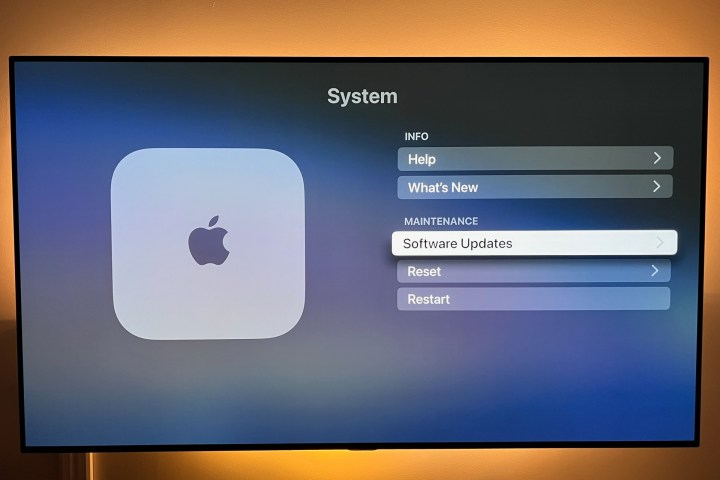
Step 1: To check for updates, go to Settings, select System, and tap Software Updates. Here, you can select Update Software. You also have the option to enable Automatically Update for convenience. After this, restart your device and see if the issue persists.
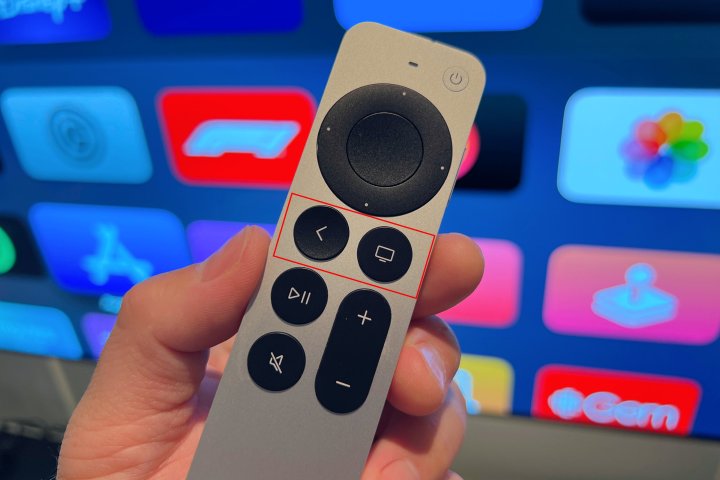
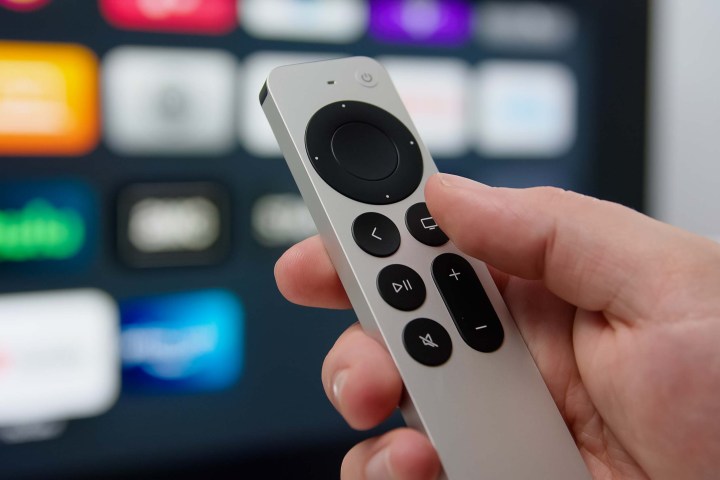
Step 2: To restart your Apple TV, press and hold the Menu and Home buttons on the Siri remote until the indicator light blinks. This will reboot your device.
Derek Malcolm / Digital Trends
Step 3: If the issue remains unresolved, consider resetting your Apple TV, which will erase all data and revert your settings to factory defaults. This should be your last resort. To reset, navigate to System > Reset > Reset and Update.
Apple
Resolve Apple TV Connectivity Issues
Is your Apple TV failing to turn on or displaying a blank screen? Here are some troubleshooting steps to follow.
Step 1: Disconnect your HDMI cable from both the TV and the Apple TV, then reconnect it. If this doesn’t work, try using a different HDMI cable.
Step 2: Verify your TV’s input settings to ensure they match the HDMI port your Apple TV is connected to (such as HDMI 1 or HDMI 2).
Step 3: Unplug both the Apple TV and your television from the power source, wait for 15 seconds, then plug them back in and power them on.
Step 4: If you have a receiver or another intermediary device, try connecting your Apple TV directly to the TV. If this fixes the issue, your intermediary device may need troubleshooting or port switching.
Derek Malcolm / Digital Trends
Solve Apple TV Wi-Fi Issues
If your Apple TV cannot connect to Wi-Fi, its functionality will be severely limited. Here’s how to address common Wi-Fi problems.
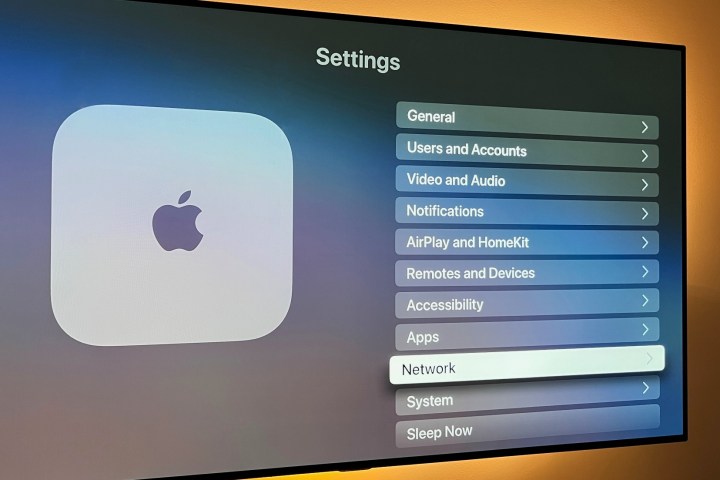
Step 1: Check your Wi-Fi network status by selecting Settings > Network. If you don’t see any network information, the Apple TV isn’t detecting your Wi-Fi, indicating a router reset may be necessary.
Step 2: If your Wi-Fi is visible but not connecting, try turning off your Apple TV, unplugging it for 15 seconds, then reconnecting and powering it back up.
Step 3: If your connection drops intermittently, it may be due to interference. Move your Apple TV closer to the router, and eliminate barriers that might obstruct your signal. A Wi-Fi extender may also help if the distance is significant.
Step 4: Most newer routers support dual-band connectivity, allowing you to connect devices to either a 2.4GHz or 5GHz network. Ensure that your Apple TV is connected to the appropriate band for optimal performance.
Derek Malcolm / Digital Trends
Resolve Apple TV Video Problems
Most video-related issues can often be traced back to power or Wi-Fi troubles. Here are some steps to troubleshoot other potential video problems.
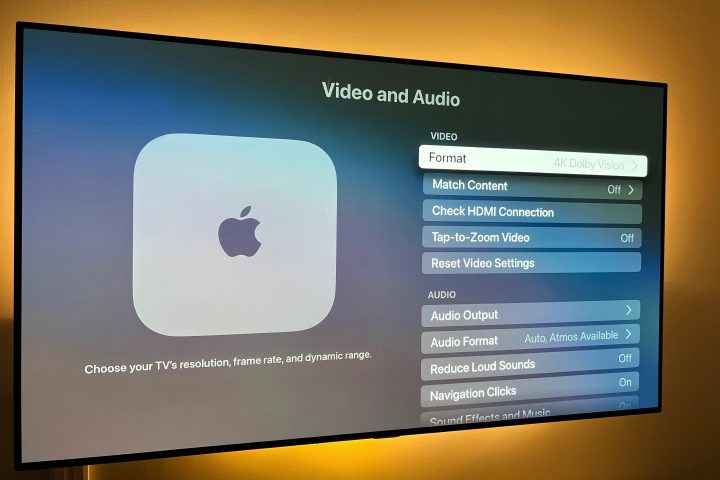
Step 1: Check if the video resolution is appropriate for your TV by navigating to Settings > Video and Audio > Format. The best resolution for your model is usually listed first; you can set or adjust this if desired.
Step 2: If the video is stuttering or freezing, try closing the app and reopening it. Sometimes, this can help resolve bandwidth issues that may be affecting playback performance.
Step 3: If the image doesn’t fit the TV screen correctly, it’s likely not an Apple TV issue. You’ll need to adjust the aspect ratio settings on your TV itself.
Image used with permission by copyright holder
Address Apple TV Audio Problems
If your Apple TV is functioning but producing no sound, follow these steps to fix the issue.
Step 1: First, try the restart method mentioned earlier.
Step 2: Ensure your HDMI cable connections are secure. Disconnect the cable from both ends and reconnect it firmly.
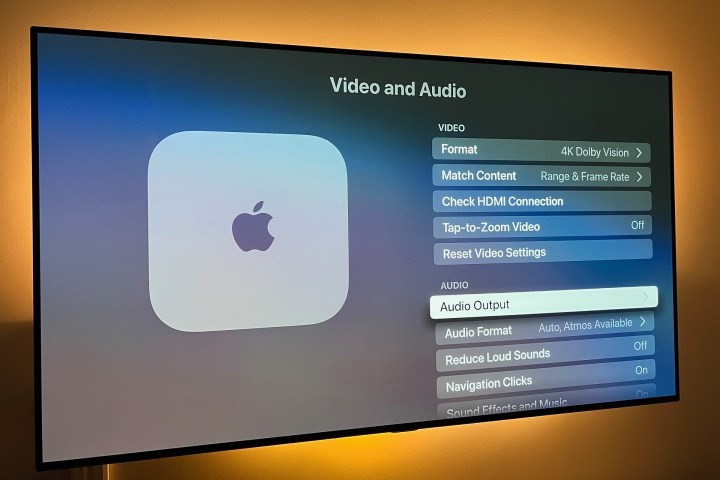
Step 3: Go to Settings, select Video and Audio, then tap Audio Output. Ensure this setting corresponds to your cable type, typically HDMI or HDMI eARC. If you’re using wireless speakers, you can configure your audio options here as well.
PSB
Resolve Apple TV Surround Sound Issues
Depending on your TV, soundbar, or AV receiver, you may experience issues when streaming content in surround sound. Here’s how to troubleshoot those problems.
Step 1: Remember that no model of Apple TV supports DTS surround sound formats; your playback options will be limited to Dolby 5.1, 7.1, or Atmos (when available).
Step 2: If certain speakers (or none at all) are producing sound, ensure that each device in your audio connection chain (such as the soundbar, AV receiver, and TV) supports the format you’re attempting to listen to.
Step 3: If any component in your setup does not support a required audio format, you can limit your Apple TV to stereo playback. To do so, navigate to Video and Audio settings, select Audio Format > Change Format > and select Stereo.
Image used with permission by copyright holder
Resolve Apple TV Remote Issues
While the latest Siri remote is quite sophisticated, it can occasionally experience connectivity problems. Here’s what to do if your remote becomes unresponsive.
Step 1: Check the battery level. Navigate to Settings > Remotes and Devices and select Remote. Here, you can check the battery icon for an estimate of remaining power. If the battery is low or unresponsive, plug it in using the provided cable and allow it to charge.
Step 2: If you’re having trouble navigating with the cursor on your Siri Remote, go to Remotes and Devices, then adjust the Touch Surface Tracking setting to your preference.
Image used with permission by copyright holder
Resolve Apple TV AirPlay Issues
If you frequently use AirPlay and are experiencing difficulties, consider the following suggestions.
Step 1: Ensure that both your iOS device and Apple TV have the latest software updates installed—refer to the above instructions for details.
Step 2: Restart both your iOS device and your Apple TV.
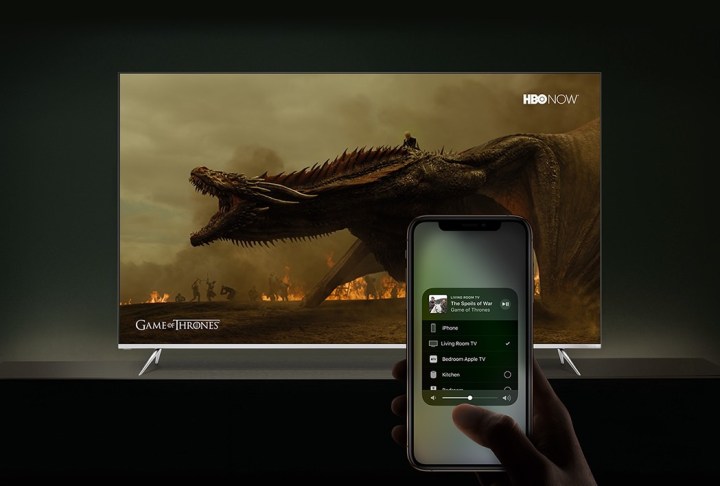
Step 3: Make sure both your iPhone, iPad, or Mac, and your Apple TV are connected to the same Wi-Fi network. If they are, but you’re still having issues, turn your iOS device’s Wi-Fi off and then on again via Control Center or through Settings > Network.
Step 4: To reset your Bluetooth connection, turn it off and on again using Control Center or go to Settings > Bluetooth.
Can My Apple TV Run Out of Storage Space?
Yes, it is possible. The base model Apple TV 4K comes with up to 64GB of storage for your apps, games, photos, and videos, but this space can fill up quickly.
If you find your Apple TV is low on storage, you’ll need to remove one or more apps to free up space. Fortunately, this process is simple, and we have additional guidance available to assist you.
How Can I Tell If My Apple TV Is Nearing the End of Its Life?
Like most consumer electronics, Apple TVs aren’t designed to last indefinitely. While many earlier models still function, there might come a time when your only option is to get a new unit.
Signs your Apple TV may be on its last legs include failure to power on, intermittent power issues, consistent crashes, and unreliable network connectivity.
When it comes to technology support, many people have heard of Geek Squad, the tech support service created by Best Buy. However, the specifics of what they offer may not be clear to everyone. This article breaks down the various services Geek Squad provides and explains how they can assist with your technological needs.
Overview of Geek Squad Services
Geek Squad offers a wide range of services aimed at helping individuals and businesses navigate the complex world of technology. Their offerings include:
In-Store Support
In-Home Services
Online Support
Business Solutions
Each of these categories contains distinct services tailored to different types of customers.
In-Store Support
For clients who prefer a face-to-face interaction, Geek Squad has physical locations within Best Buy stores. Within these locations, customers can expect the following services:
Device Setup: Assistance with the initial setup of computers, mobile devices, and gaming consoles.
Virus Removal: Scanning and removing malware, spyware, and other unwanted software from devices.
Hardware Repair: Fixing physical issues with devices, including screens, keyboards, and other components.
In-Home Services
For those who need assistance in a more comfortable environment, Geek Squad provides in-home services. This option is particularly helpful for:
Home Network Setup: Configuring routers, extenders, and other networking equipment to ensure a strong, reliable connection.
Device Installation: Setting up smart home devices, televisions, and audio systems.
Training: Offering personalized tutorials to help individuals understand and use their devices more effectively.
Online Support
In response to a growing demand for remote assistance, Geek Squad has developed comprehensive online support options. These services allow customers to receive help without needing to leave their homes:
Remote Access Support: Technicians can log in to your computer remotely to fix issues directly, ranging from software glitches to file recovery.
Virtual Troubleshooting: Clients can troubleshoot problems via video call, receiving real-time guidance on how to resolve issues.
Business Solutions
Geek Squad is not just for individual consumers; they also cater to businesses looking for tech support. Their business solutions include:
Corporate IT Support: Offering specialized assistance for computer networks, security measures, and employee training.
Consultation Services: Helping businesses assess their technology needs and implement effective solutions.
Key Features of Geek Squad
When considering Geek Squad’s services, it’s important to recognize their unique features:
Certified Technicians: All Geek Squad agents are trained and certified to handle various technology-related issues.
Availability: They offer 24/7 support, making it easier to get help when you need it most.
Warranty Services: Many repairs come with a warranty, adding an extra layer of security and trust for customers.
Pricing and Membership Options
Geek Squad offers various pricing options to ensure that their services are accessible to everyone. Some notable options include:
Individual Services: Pay-per-service rates for one-time assistance.
Geek Squad Protection Plan: A subscription-based plan that provides comprehensive support for an annual fee.
Understanding what Geek Squad does enables customers to utilize their resources effectively. Whether you’re dealing with a pesky software bug or needing help installing a new home theater system, Geek Squad covers a broad spectrum of tech-related challenges.