If your laptop has an available RAM slot, enhancing its memory capacity is a straightforward task. After securing compatible RAM, you’ll want to power down your laptop and disconnect all peripherals. Follow these steps to successfully complete the upgrade:
Step 1: Turn your laptop upside down and place it on a soft surface. Use a screwdriver to carefully remove all screws.
Step 2: Insert a card or a thin plastic tool into the gap and gently pry the back cover open.
Step 3: Find the empty RAM slot, typically located right above or next to the existing RAM module.
Step 4: Take your new RAM stick and insert it at a slight angle until the notch aligns with the slot. Make sure it’s fully inserted.
Next, press down on the RAM until you hear the clips click into place. Replace the back cover, ensuring it’s snug against the body of the laptop. Secure it by tightening the screws, flip your laptop back over, and you’re done!
Also Read: How to Check RAM Speed on Windows 11
Verifying Your Laptop’s RAM Upgrade
After completing the RAM installation, you can confirm the upgrade’s success using Task Manager. This ensures your new memory is recognized and actively being used. Here’s how:
Step 1: Launch Task Manager and head to the Performance tab, then select Memory.
Step 2: Check the available RAM displayed. You can also view how many slots are occupied.
If you successfully added more memory, it should show as 2 of 2 or 2 of 4, dependent on your available slots. If it doesn’t show up, consider troubleshooting the RAM installation.
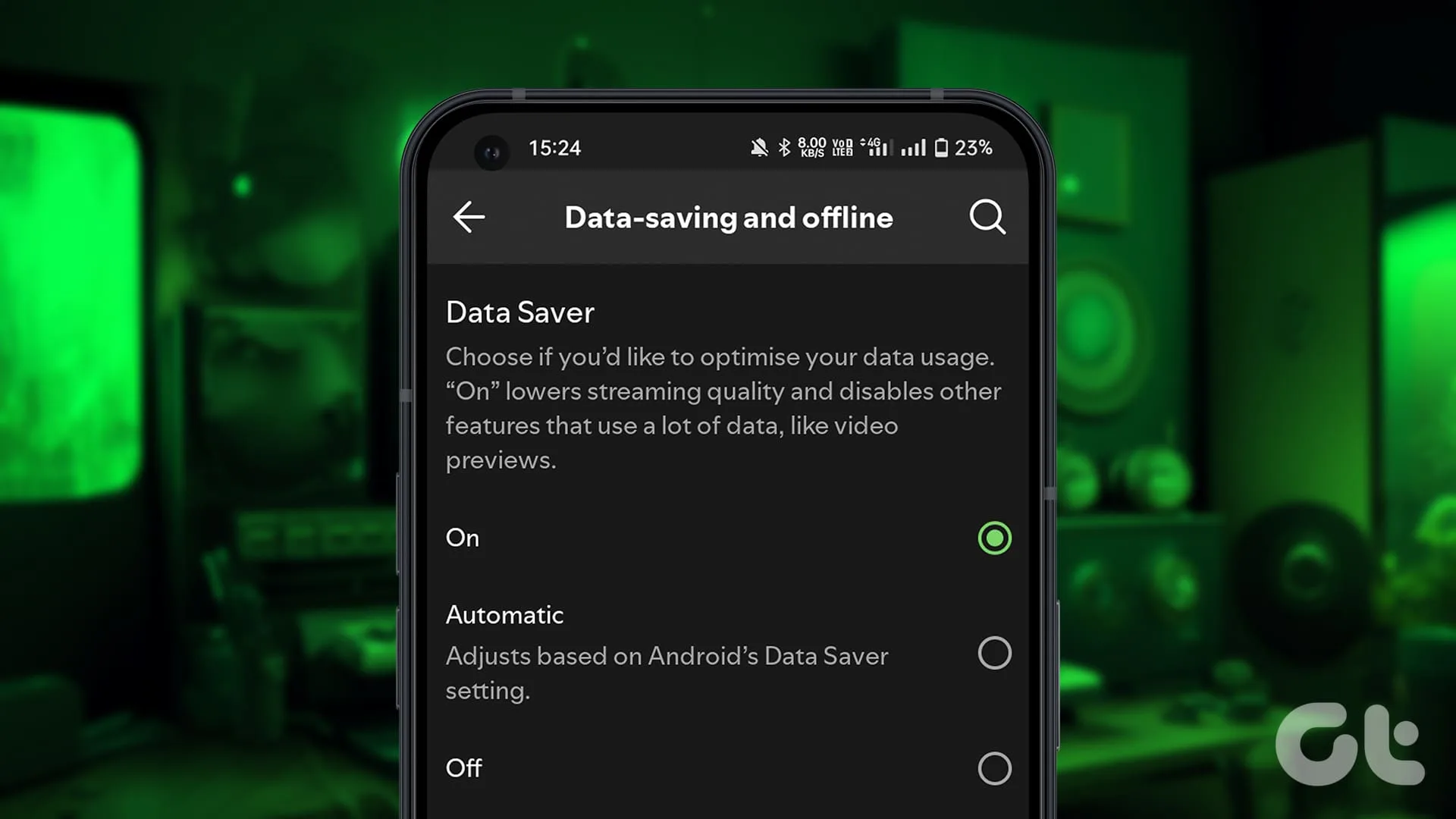
If you’re experiencing unexpected increases in the mobile data usage of the Spotify app, you can optimize your data consumption by turning on the built-in Data Saver mode. This feature lowers streaming quality and turns off data-heavy elements, such as video previews.
Step 1: Launch the Spotify app and tap on your profile icon located in the upper-left corner, then choose Settings & Privacy.
Step 2: Scroll to find Data Saving & Offline and flip the switch to activate Data Saver.
Step 2: Decrease Audio Quality
High-quality audio streaming on Spotify can quickly eat through your data allowance. To ensure you don’t exhaust your mobile data, consider manually lowering the audio quality.
Step 1: Tap on your profile icon in the top-left corner of the Spotify app and navigate to Settings & Privacy.
Step 2: Select Audio Quality and set the Wi-Fi Streaming and Mobile Streaming options to either Normal or Low, depending on your data plan.
Step 3: Also, scroll down and turn off Auto-adjust Quality to prevent the app from changing audio quality based on your connection.
Step 3: Lower Video Quality
Streaming video content on Spotify consumes much more data than audio. To avoid rapidly draining your data plan, lower the quality of the video streaming.
Step 1: Go to the Settings & Privacy menu in the Spotify app and click on Video Quality.
Step 2: Adjust settings for both Wi-Fi Streaming and Mobile Streaming to Normal or Low, depending on your mobile data plan.
Step 4: Modify Video Podcast Settings
If you enjoy watching video podcasts in the Spotify app but prefer to conserve mobile data, enable the audio-only mode. This option lets you listen without using video data.
Open Spotify settings, select Data Saving & Offline, then enable the toggles for Audio-only Downloads for Video Podcasts and Audio-only Streaming for Video Podcasts.
Step 5: Download Music for Offline Listening (Exclusive to Premium Users)
Premium subscribers of Spotify can download albums, playlists, and podcasts for offline listening, effectively saving mobile data and conserving battery life. Note that individual tracks cannot be downloaded; you’ll need to download entire albums or add tracks to playlists for offline availability.
Note: To retain your downloads on Spotify, ensure you go online at least once every 30 days.
Step 1: Tap on the Your Library tab in the bottom-right corner of the Spotify app, then click the + icon located at the top right to create a new playlist.
Step 2: Select Playlist, enter your desired playlist name, and tap Create.
Step 3: Now, locate a song you want to download, tap the three-dot menu at the top-right corner, and select Add to Playlist.
Step 4: Choose the playlist you created earlier and hit Done to add the song.
Step 5: Navigate to your newly created playlist in Your Library, tap the Download icon, and all songs in your playlist will be available for offline listening.
Step 6: Turn Off Spotify Canvas
The Canvas feature displays looping visuals during song playback to enhance the listening experience but consumes extra data. If your data plan is limited, you can disable this feature.
Step 1: Launch the Spotify app, tap on your profile icon in the upper-left corner, and choose Settings & Privacy.
Step 2: Go to Content & Display and toggle off the Canvas feature.
Limit Spotify’s Mobile Data Usage
If your Spotify app is still using too much mobile data after these adjustments, consider restricting its data usage in your device’s settings. You can do this on both iPhones and devices running HyperOS.
For iPhone Users
Step 1: Open the Settings app, select Cellular, scroll down to find Cellular Data, and tap Show All.
Step 2: Disable Spotify to limit its access to mobile data.
For HyperOS Devices
Step 1: Long-press the Spotify app icon and select i to access the app’s Info.
Step 2: Scroll down and find the Connection Method, uncheck Mobile Data, and click OK to confirm changes.
Frequently Asked Questions
1. Will Spotify use mobile data if songs are downloaded?
After downloading a song, Spotify does not use mobile data for playback, provided that Offline Mode is activated. Otherwise, features like Lyrics, Search, and Recommendations may consume mobile data.
2. Can I use Spotify without mobile data?
Yes, you can use Spotify without mobile data by utilizing the Offline Mode feature available for premium subscribers, which allows access to downloaded songs and recently played tracks.
Method 1: Accessing Your Instagram Profile Link in Incognito Mode
To use this method, you’ll need to open Instagram in a browser and either sign out of your current account or utilize incognito mode. Here’s the procedure:
Step 1: Launch Instagram in incognito mode or ensure you are logged out of your account. Then, enter Instagram.com/yourusername, replacing “yourusername” with your actual Instagram username.
Step 2: To find your username, go to your Instagram profile in the app and locate the text displayed at the upper-left corner. This is your username.
Note: The name shown beneath your profile picture is not your username. Be sure to copy or remember your username and type it after Instagram.com/ in your browser. Refer to the second screenshot for an example of how my profile appears without logging in.
Key Points:
If your Instagram account is private, you won’t be able to view any posts when accessing your profile. Only your name, bio, and follower/following counts will be visible.
However, if your account is public, all posts and highlights will be accessible on your feed.
Method 2: Creating a Second Account
Although the first method is simple and effective, you can also choose to set up a second Instagram account using a different email address. Just make sure not to follow your original account with this new profile. Once you’ve added the second account to your Instagram app, you can effortlessly switch to it whenever you want to see what your profile looks like from another user’s perspective.
How to Draw a Red Box Around Text in Snipping Tool
Step 1: Launch the Snipping Tool and open the screenshot or image you want to edit.
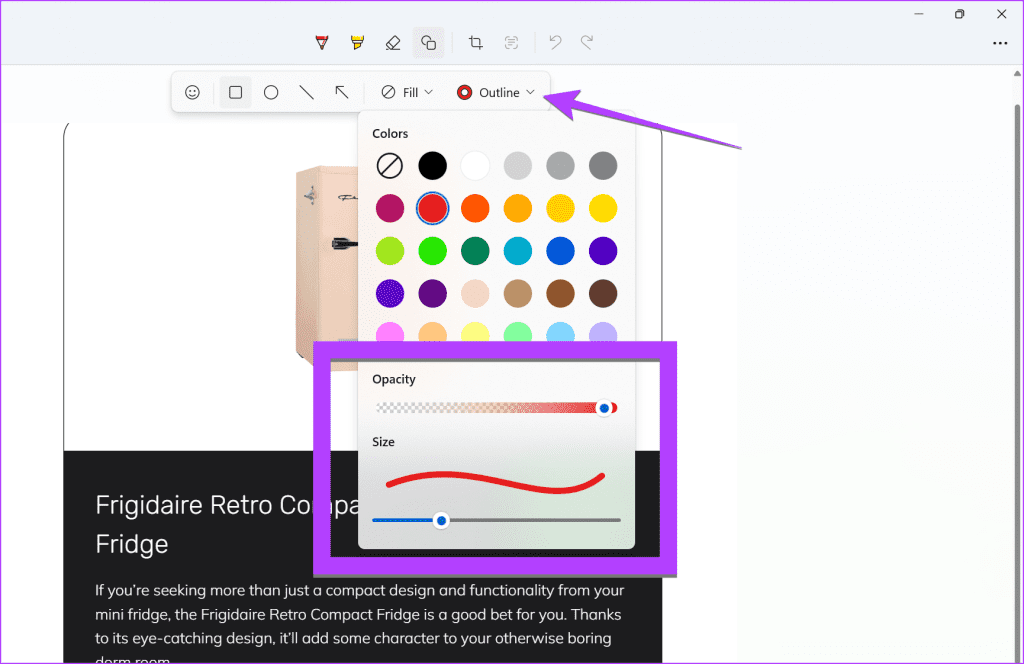
Step 2: Click on the Shapes icon (a square with a circle behind it).
Step 3: Choose the Rectangle shape and click on the Fill tool. Select the None option (the first choice, which looks like a circle with a slash).
Step 4: Next, click on Outline and choose Red as your color. Adjust the opacity slider all the way to the right. If you want to resize the red box, use the Size slider.
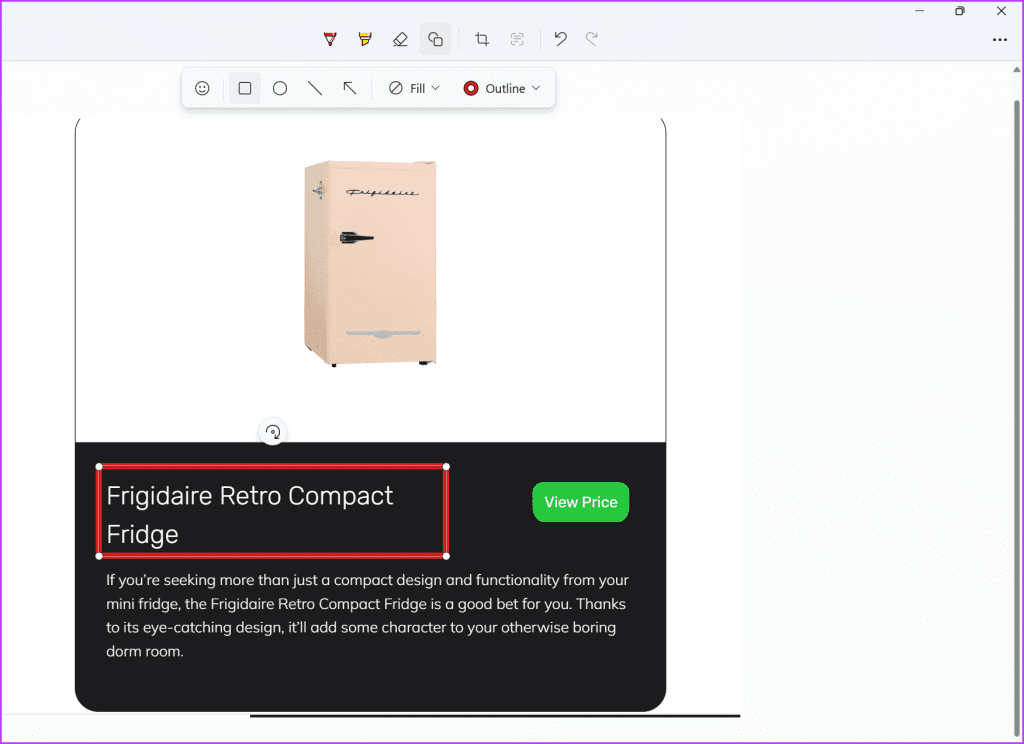
Step 5: Press and hold the mouse button, then drag to create a rectangle around the text in your image. You can resize, rotate, or reposition the red box before performing any other actions on the image. If you click outside the red box, you will lose the ability to move or resize it.
Step 6: To save the edited image with the red box, use the Ctrl + S keyboard shortcut or click the Save icon located at the top. Additionally, you can learn how to insert arrows or text into your Windows screenshots.
Tip: Your computer automatically saves all screenshots. Make sure to know where they are stored.
Images you modify in the Snipping Tool copy automatically to your clipboard without needing to save them first.
Click on the three-dot menu and then select Visual Search with Bing to find similar images or extract text from the image.
The Snipping Tool can automatically blur private information, such as email addresses or phone numbers, and it can extract text from images using the Text Actions tool. Look for the icon in the toolbar with three lines inside a dotted square.
Start screen recording by clicking the Video icon in the Snipping Tool.
Switch to windowed mode: Playing Roblox in windowed mode can lead to improved FPS. Press F11 to exit fullscreen mode and resize the Roblox window to your preference.
Close unnecessary applications: Running multiple background apps can make Roblox graphics appear blurry or degraded. Closing any unused programs can help improve your gaming experience.
Fix 1: Modify In-Game Graphics Settings
Roblox allows you to adjust the graphical quality directly through the in-game options, enhancing the visuals on your computer. Here’s how to do it:
Step 1: Launch Roblox on your PC and enter your desired game. Click on the Roblox icon located in the upper left corner.
Step 2: Navigate to the Settings tab and set the Graphics Mode to Manual. Use the plus icon next to Graphics Quality to enhance the graphical quality.
Step 3: Press Esc to go back to the game and see if the visuals have improved.
Fix 2: Set Roblox Graphics Preference to High Performance
Windows allows you to set graphics preferences for individual applications. This helps ensure Roblox utilizes your dedicated GPU for a better experience. Here’s what to do:
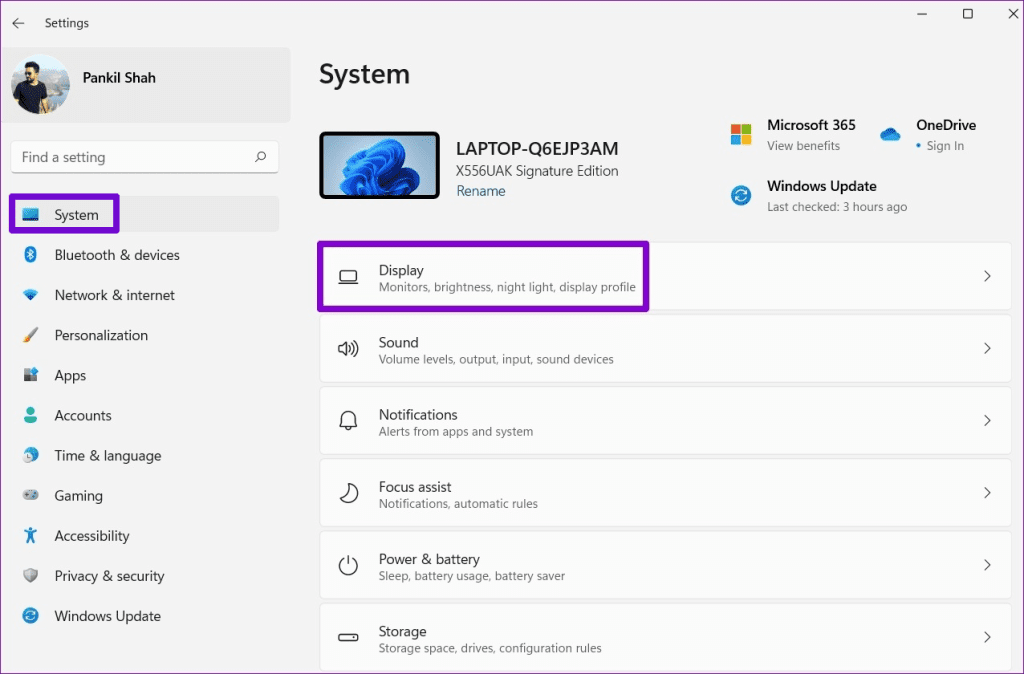
Step 1: Press Windows + I keys to open the Settings app, then navigate to System > Display.
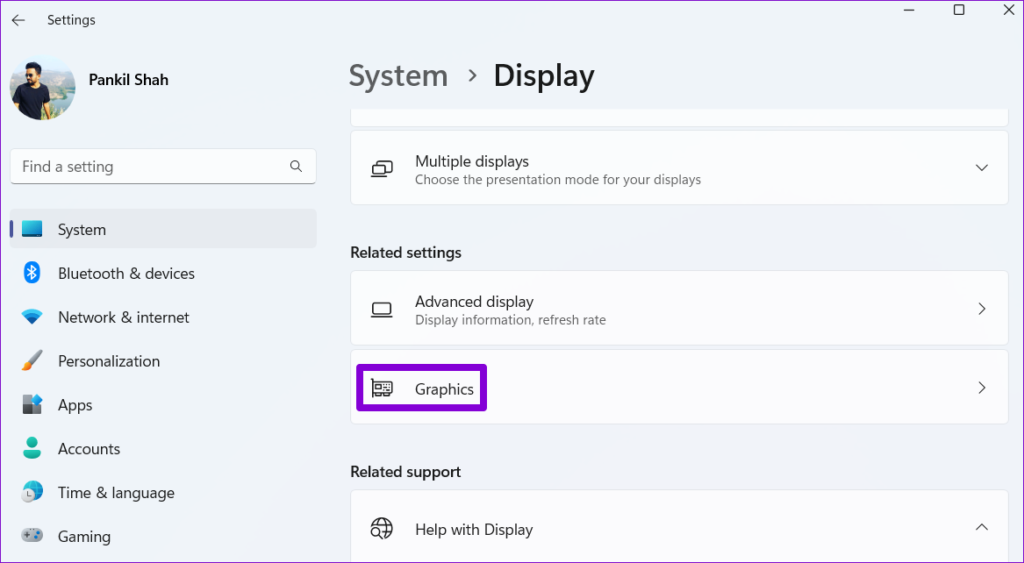
Step 2: Scroll down to the Related settings section and click on Graphics.
Step 3: Find Roblox, click it, and then select Options.
Step 4: Set the Graphics preference to High performance and click Save.
Fix 3: Set Roblox Process to High Priority in Task Manager
Boosting the performance of Roblox can also be achieved by adjusting its process priority in the Task Manager. Launch Roblox, and then press Ctrl + Shift + Esc to open Task Manager. Navigate to the Details tab, locate the Roblox process, right-click it, and select Set priority > High.
Fix 4: Activate High-Performance Power Plan
To enjoy seamless gameplay in Roblox, it’s recommended to enable the high-performance power plan on Windows. Here’s how you can do it:
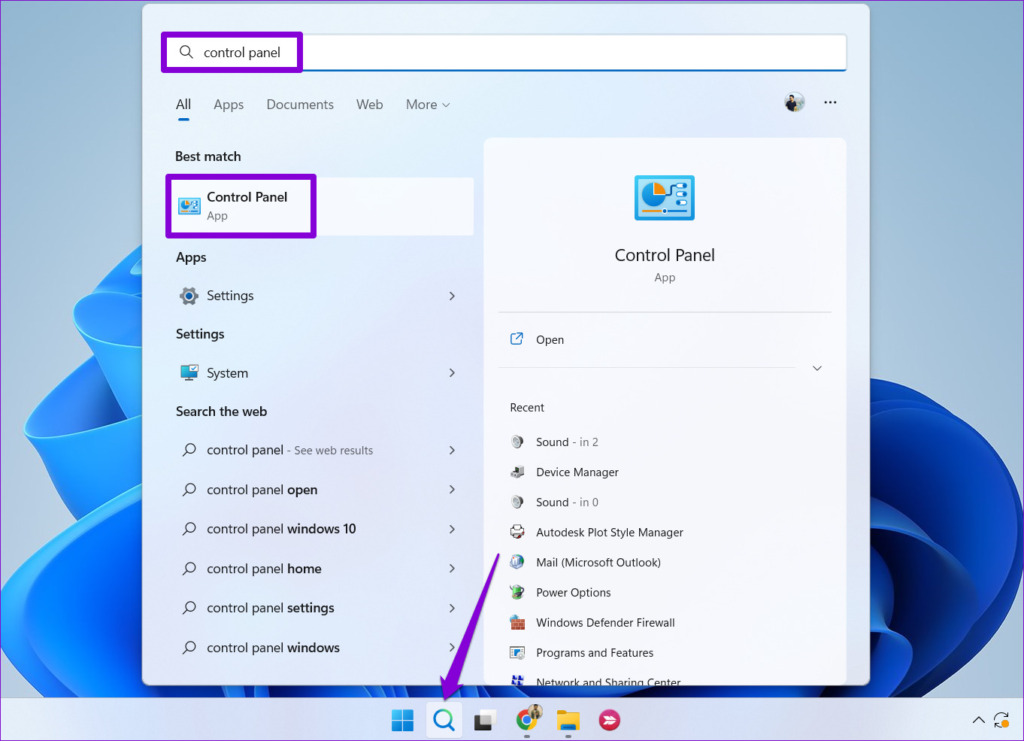
Step 1: Click the search icon on your taskbar, type control panel, and hit Enter.
Step 2: Change the view type to Large icons using the dropdown menu in the upper right corner, and click on Power Options.
Step 3: Choose High performance from the options.
Fix 5: Update Your Graphics Drivers
Your Roblox experience can be negatively impacted by outdated or faulty graphics drivers. It’s wise to keep them current for optimal performance.
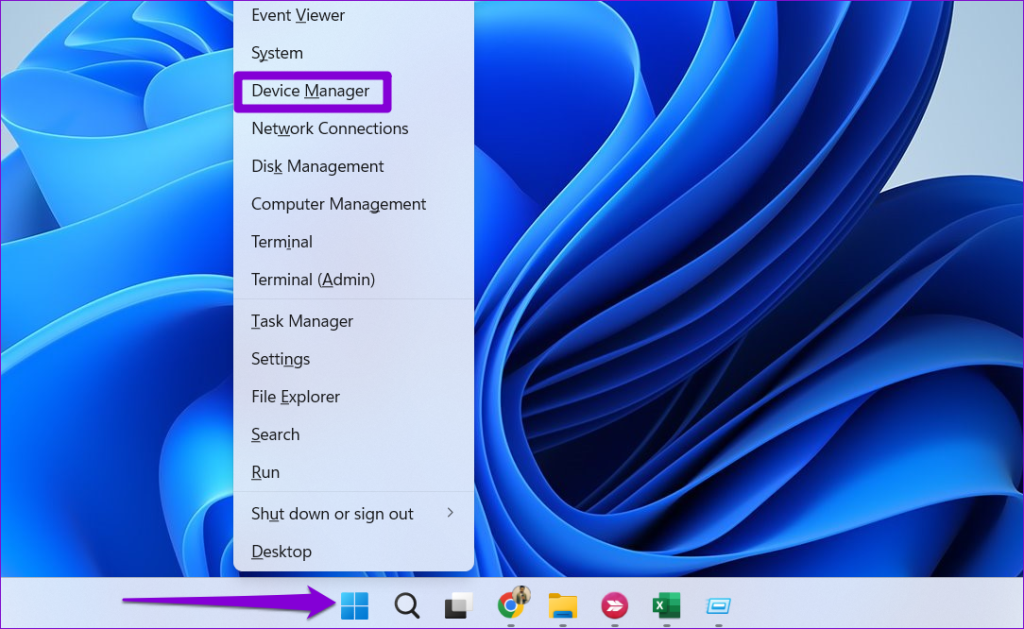
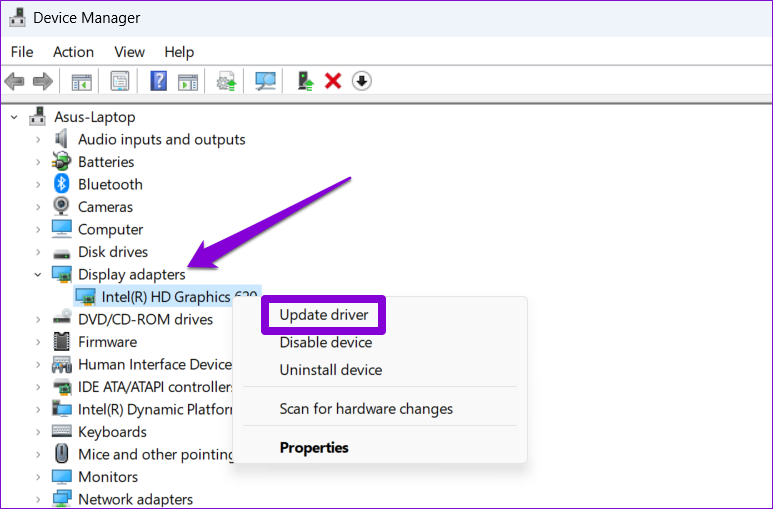
Step 1: Right-click on the Start icon and select Device Manager.
Step 2: Locate Display adapters, right-click on your graphics driver, and select Update driver. Follow the prompts to complete the update.
Fix 6: Use the Roblox FPS Unlocker
Roblox has a default frame rate cap of 60 FPS for all titles. While Roblox doesn’t provide an option to increase this limit, you can use the Roblox FPS Unlocker to bypass it. Here’s how:
Step 2: Choose the rbxfpsunlocker-x64.zip file and select Extract all.
Step 3: Double-click rbxfpsunlocker.exe to execute it.
That’s it! Launch your favorite Roblox game and press Shift + F5 to check the FPS. You should now be able to play at a higher frame rate, depending on your system’s capabilities.