If you want to boost your PC’s performance, utilizing two SSDs instead of just one can make a significant difference. One common approach is to set up these drives in a RAID 0 array, which merges their speeds for faster read and write operations, delivering impressive benchmark outcomes. Alternatively, you can dedicate one SSD for your operating system and use the second for applications and games. This guide will walk you through effective strategies to leverage two SSDs, helping to optimize bandwidth and overall system efficiency.
Isolate the OS from Applications
While configuring SSDs in RAID 0 can seem appealing, it’s not always the best method for everyday speed improvements. That’s because SSDs already operate at high speeds, and RAID configurations primarily show gains in specific benchmark tests rather than real-world performance. A more practical and impactful solution is to separate your operating system from your applications and data.
For example, installing the OS on one SSD and keeping your applications, games, and project files on another prevents them from competing for the same bandwidth. This setup is particularly advantageous for professionals engaged in intensive tasks like video editing or 3D rendering, where speed and responsiveness are crucial.
Upgrading your hardware with multiple SSDs offers many benefits: you can allocate your operating system and data on separate disks, switch out programs seamlessly, and even encrypt each drive individually for enhanced security.
Kingston
Another tip is to store your OS and applications on one drive while placing scratch disks, media files, and project data on the secondary SSD. This arrangement reduces competition for bandwidth, leading to smoother performance.
Understanding SSD Durability
Adding a second SSD generally enhances your system’s reliability. There’s ongoing discussion about the longevity of SSDs — some worry about wear and tear, while others note that SSDs tend to be more durable than traditional hard drives, mainly because they lack mechanical parts.
The reality lies somewhere in between. For instance, implementing two SSDs in a RAID 1 configuration — where data is mirrored across both drives — allows you to safeguard your crucial information and minimize downtime during hardware issues.
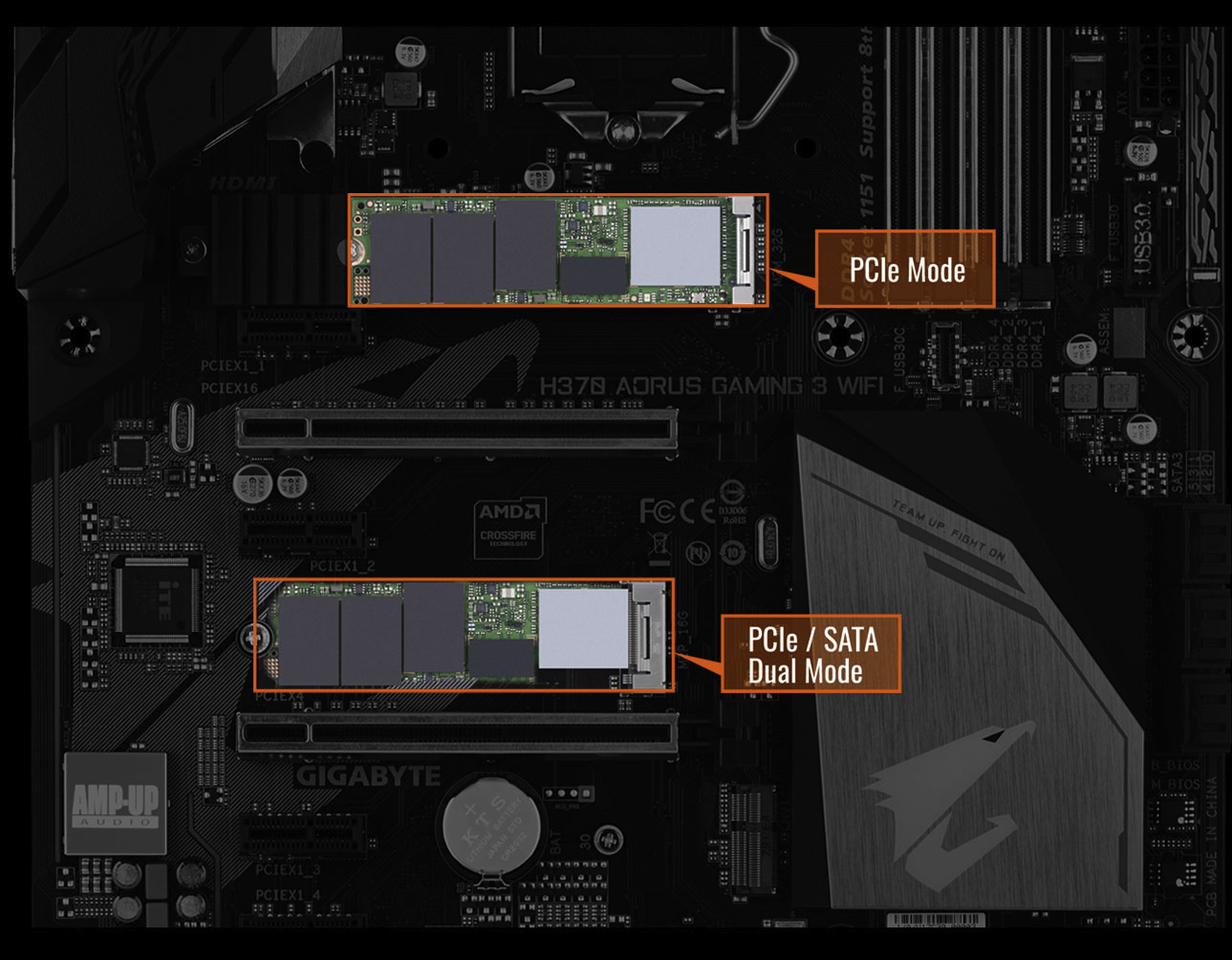
Modern motherboards support dual M.2 SSDs, making it easy and affordable to upgrade. With decreasing costs for NVMe SSDs, expanding your storage and performance capabilities is now more accessible than ever, providing benefits beyond mere capacity.
IDG
Segregate Heavy Write Usage and Encrypt Drives
To bolster reliability further, consider dedicating your primary SSD for write-heavy applications like media editing, gaming, or work-related tasks. Store less demanding files such as documents, media, and project files on your secondary drive.
Finally, using two separate drives offers enhanced data security. You can encrypt each SSD independently, ensuring that even if one drive encounters issues—like a corrupted update or malware—your data remains protected. In the event of such problems, you can safely recover data from the secondary drive, provided you have the encryption key.
Solid State Drives (SSDs) have become the standard storage solution for both laptops and desktop computers. They are small, silent, and significantly outperform traditional hard drives. However, like all technology, they can face issues over time, leading to decreased performance and potential failures.
But don’t worry! There are various strategies you can employ to maintain your SSD’s peak performance. Keep reading to determine if your SSD is experiencing slowdowns and discover ways to enhance its speed.
Related: Our top-rated SSDs tested
Assessing Your SSD’s Performance
There are several factors that could contribute to an SSD running slower than usual: limited storage space, misconfigured Windows settings, or the need for adjustments to the SSD’s configuration.
To check if your SSD is genuinely underperforming or if it’s just a perception, consider using the free benchmark tool, CrystalDiskMark. Regularly running this tool, even once a year, can help you identify potential slowdowns early.
CrystalDiskMark will provide you with your SSD’s sequential read and write speeds, allowing you to compare these numbers with the specifications provided by the manufacturer. If you notice a significant drop in speeds, follow the suggestions outlined below to get back on track. Otherwise, you’re in good shape!
Identifying your system’s installed drives is crucial before proceeding with SSD optimization.
IDG
Additionally, understanding which drives are installed in your computer is pivotal when optimizing SSDs, especially if you’re using multiple drives. The free tool Speccy can quickly provide this information.
Within Speccy, head to the Summary page and locate the Storage section for the necessary details. You’ll also find other relevant information such as interfaces and operational status.
1. Update the Firmware
Just as keeping your Windows operating system updated is essential for resolving issues and enhancing security, SSDs also require firmware updates, albeit less frequently.
These updates mainly address errors, such as miscalculations of the SSD’s lifespan, and can also enhance performance. It’s wise to install any available firmware updates as soon as they are released.
Using your SSD manufacturer’s support tool allows you to check for and install firmware updates more conveniently.
Samsung
Since you won’t receive notifications for firmware updates, it’s essential to regularly check for them. Utilizing the SSD manufacturer’s support tool—like Crucial Storage Executive, Kingston SSD Manager, or Samsung Magician—can simplify this process.
Installing firmware updates can typically be done within these tools, and the process is usually quick, although it’s advisable to back up any important data beforehand.
2. Enhance the DRAM Cache
SSDs use various types of flash memory. Most are equipped with either TLC (Triple Level Cell) or QLC (Quadruple Level Cell) flash, with the former storing three bits per cell and the latter four bits. Higher storage density can reduce manufacturing costs, but it may adversely impact the speeds of individual cells.
The controller chip plays a crucial role in optimizing these speeds and is sometimes supported by a DRAM cache (Dynamic Random Access Memory). This cache stores management data and mapping tables, significantly speeding up access times.
Investing in an SSD with DRAM cache yields faster access speeds and a longer lifespan due to less wear on NAND cells.
IDG
The significant speed advantage of DRAM memory over NAND flash can boost your data transfer rate. In contrast, SSDs lacking a DRAM cache must store data mappings directly in NAND cells, which not only slows access but also increases stress on the memory cells.
Although the technical specifications often indicate whether an SSD has a DRAM module, it isn’t always clearly labeled. You can use TechPowerUp’s SSD Specs Database to clarify.
3. Regular Optimizations
To sustain performance over time, SSDs require regular optimization due to their flash-based storage nature.
SSD drives that are near full capacity struggle to function at their best and require periodic cleanup. Unlike traditional hard drives, SSDs cannot simply overwrite data; they must perform a cleanup cycle to free up space.
This cleanup, also known as “garbage collection,” operates in the background and is initiated by the operating system’s trim command. This ensures that SSDs deliver maximum writing speed without needing to empty or clean blocks beforehand.
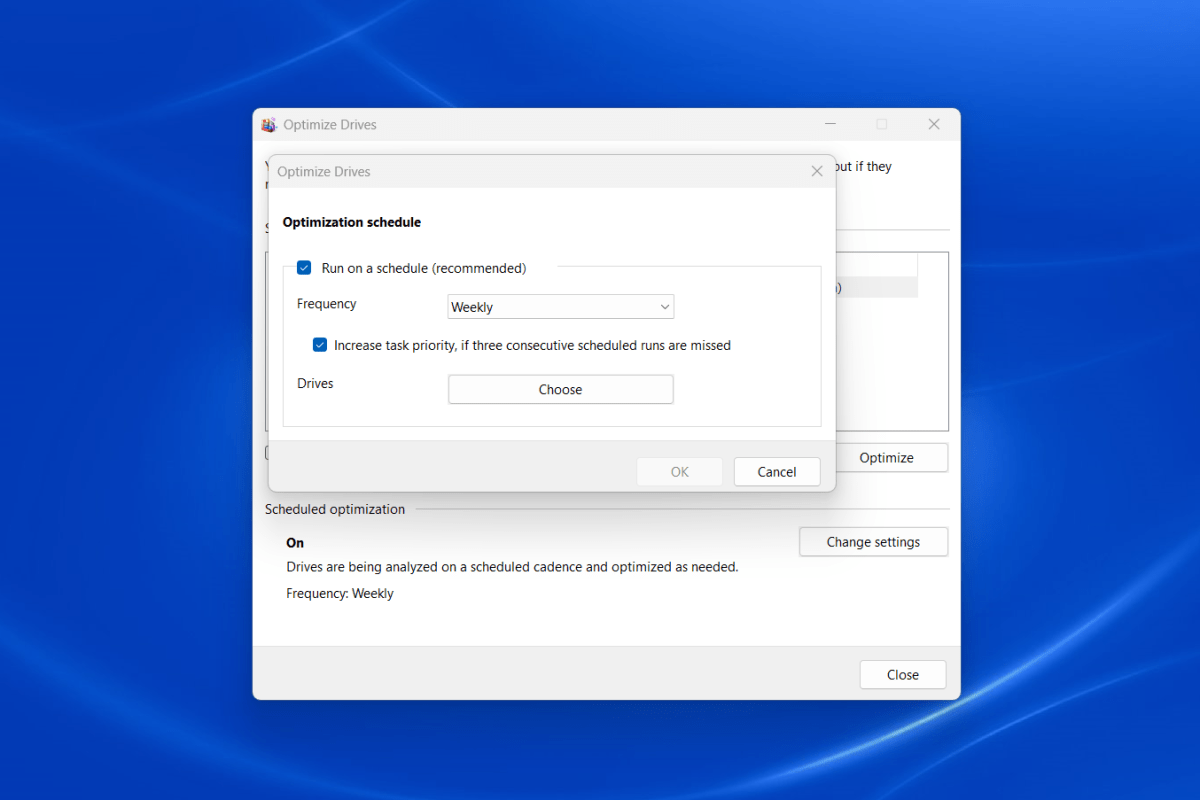
Scheduling regular optimizations in Windows can streamline the cleanup process for your SSD, enhancing performance over time.
Joel Lee / IDG
Windows simplifies the scheduling of this optimization process. Open the Start menu, search for Defragment and Optimize Drives, and select it to open the application.
In the Optimize Drives window, all system drives will be displayed under Status. You can set a distinct optimization schedule for each drive.
To configure a schedule, select the desired drive and click on the Change settings button at the bottom right. Ensure the Run on a schedule (recommended) checkbox is checked and choose your preferred frequency (the default is Weekly, but you can opt for Daily or Monthly).
4. Leverage DirectStorage for Gaming
If your Windows 11 system has multiple SSDs, consider utilizing a high-speed NVMe SSD for gaming to boost performance. This technology, named DirectStorage, streamlines data loading during gaming.
Traditionally, game data is loaded into RAM, processed via the CPU, and then transmitted to the GPU. DirectStorage, however, allows the GPU to pull data directly from the NVMe drive and memory, decreasing load times and latency.
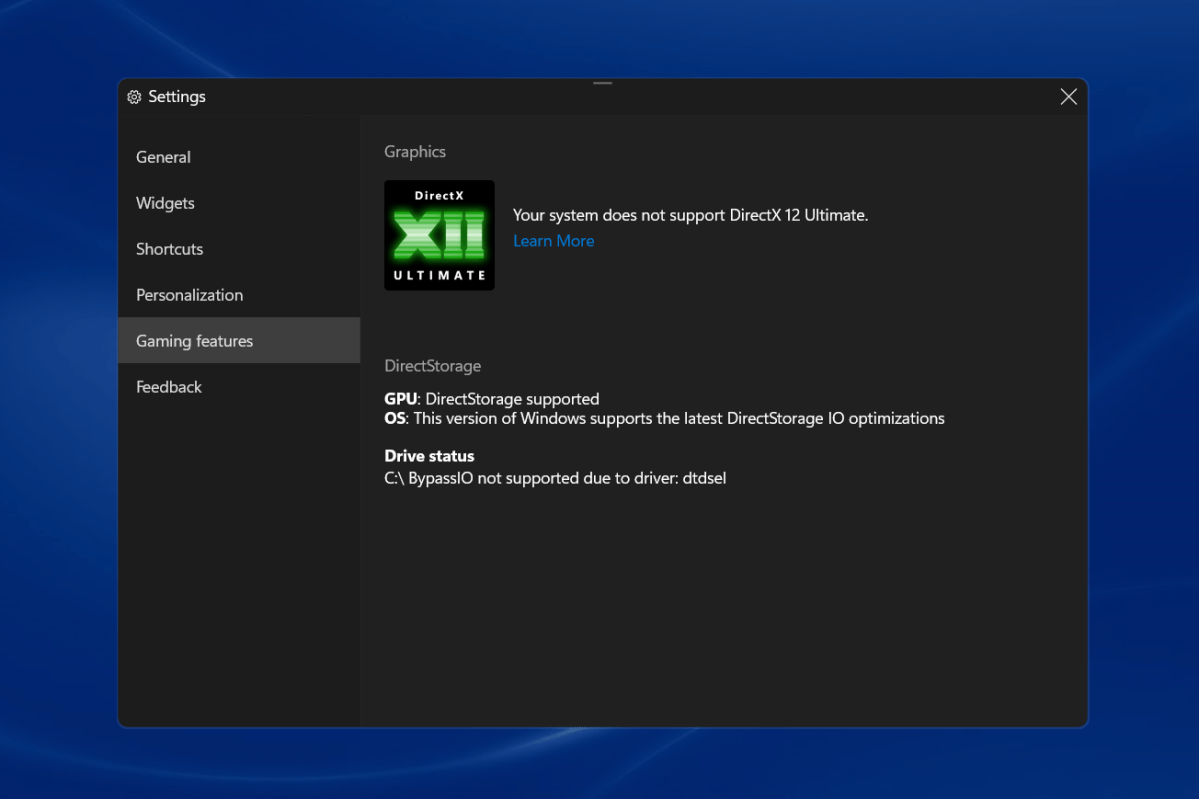
DirectStorage is typically enabled by default if the M.2 module and the SSD support the NVMe protocol, but it’s wise to verify its activation.
On Windows 11, ensuring your NVMe SSD supports DirectStorage can enhance gaming performance drastically.
Joel Lee / IDG
Once you’re in gaming mode, click the gear icon in the top bar to access settings, then navigate to Gaming features to check DirectStorage compatibility for your GPU and OS.
To maximize gaming performance, ensure your games are installed on an NVMe drive that supports DirectStorage.
Related: Essential settings every PC gamer should optimize
5. Disable Sleep Mode and Power Throttling
When your PC or laptop remains inactive for some time, it will enter energy-saving mode, causing the SSD to go into sleep mode as well.
When resuming activity, the SSD takes a few seconds to wake up. While this may not seem like a long delay, it can accumulate and become bothersome over time.
You can adjust the power plan settings in Windows to keep the SSD from sleeping, but keep in mind that this means the SSD will always consume power.
Adjusting Windows power plan settings can prevent SSDs from entering sleep mode when the computer is inactive.
Joel Lee / IDG
To make the adjustment, open the Start menu and look for Edit power plan to access that page in the Control Panel. Alternatively, navigate through Control Panel > System and Security > Power Options > Change plan settings.
Then click on Change advanced power settings. Open the Hard disk section, expand Turn off hard disk after, and set the value to 0 or Never for battery and plugged-in modes.
You can also adjust the PCI Express settings by expanding the Link State Power Management option and setting it to Off for both battery and plugged-in modes. This prevents throttling of the PCIe bus, thereby optimizing SSD performance, albeit with a slight increase in power consumption. (For laptops, opting for Moderate power savings may be more appropriate.)
Related: Warning signs that your SSD might be on the verge of failure.
6. Enhance Cooling with Heatsinks
Overheating can significantly affect SSD performance, prompting many newer models to include heat sinks, and many motherboards also come with built-in heat sinks for M.2 slots.
If your computer has good airflow, additional cooling might not be necessary. However, if your NVMe SSD frequently exceeds its recommended operating temperature, adding a heatsink could be beneficial.
The suitable operating temperature range for most M.2 SSDs is between 32°F (0°C) and 158°F (70°C). You can refer to your drive manufacturer’s support software to check the specific temperature parameters.
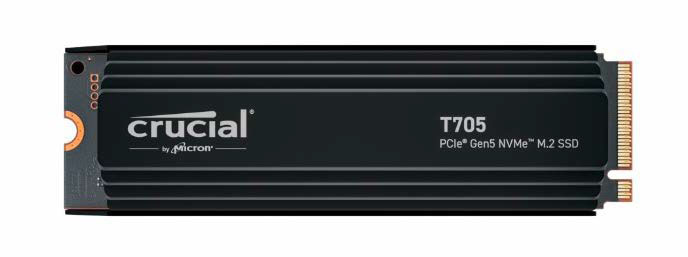
ssds=”” usually=”” include=”” heatsinks=”” to=”” ensure=”” they=”” perform=”” optimally=”” under=”” sustained=”” loads.” data-wp-interactive=”core/image” class=”wp-block-image size-full is-resized wp-lightbox-container”>Modern PCIe 5.0 SSDs often come equipped with heatsinks to preemptively manage heat and maintain efficiency even under heavy loads.
IDG
The need for extra cooling can also depend on the PCIe version. The faster the PCIe version, the greater the heat output. Therefore, manufacturers often recommend heat sinks for the latest PCIe 5.0 SSDs, and these models frequently come pre-installed with thermal protection. Passive cooling solutions typically use aluminum or copper and feature heat-conductive pads that sit atop the flash memory.
These passive heat sinks can be easily added for a modest investment, generally ranging from $5 to $20. Before purchasing, ensure there’s adequate height clearance in your PC case.
Ultimately, your SSD’s cooling needs hinge on how you utilize it daily. Under typical Windows usage, you may not fully engage the SSD’s performance potential since most tasks involve light loads, resulting in minimal input/output operations. Intel’s internal research suggests that most Windows applications operate under a queue depth of three or less, even during boot-up, when many small files are loaded. In contrast, tasks like video editing can push the SSD to its limits, often hitting the performance ceiling in terms of queue depth.
If you’re aiming to enhance your PC’s performance, utilizing two SSDs can be a game changer. One effective approach is to set up the drives in a RAID 0 configuration, which merges the reading and writing speeds of both drives, leading to impressive performance benchmarks. Alternatively, you can assign one SSD for your operating system and the other for your applications and games. This article will guide you on how to maximize the benefits of using two SSDs by optimizing bandwidth utilization.
Organize Your Operating System and Applications
While RAID 0 offers the allure of speed, it may not be the best choice for everyday performance gains, considering the inherent speed of SSDs. Many users may not notice significant differences in typical tasks. A more beneficial strategy for enhancing your PC’s performance is to isolate the operating system from applications and data.
By dedicating one SSD for the operating system and a second for applications and games, you eliminate competition for bandwidth. This method is particularly advantageous for professionals working in fields such as video editing or 3D design, where performance is crucial.
Upgrading to a second SSD provides numerous advantages: you can separate your operating system and data across different drives, and also apply encryption to each drive individually.
Kingston
Consider storing the operating system and applications on one SSD while keeping scratch disks and project files on the second SSD. This organization minimizes bandwidth contention and optimizes performance.
Enhanced Durability of SSDs
When it comes to reliability, using two SSDs can outperform a single drive. The conversation surrounding SSD durability often includes concerns about wear and tear. While SSDs generally surpass traditional hard drives in durability due to their lack of moving parts, opinions can vary.
An ideal setup is to configure two SSDs in a RAID 1 array. This ensures that your critical data remains safe, helping to prevent data loss or downtime during essential tasks.
Modern motherboards can now accommodate two M.2 SSDs, making the upgrade accessible and beneficial, especially as NVMe SSD prices continue to decline.
IDG
Optimize Write-Intensive Applications and Drive Encryption
To further enhance reliability, you can designate your primary SSD for write-heavy applications while reserving the secondary drive for media files, video games, documents, and project data.
Additionally, employing two SSDs boosts your data protection strategy. By keeping your data physically separated, you can encrypt each drive individually. This adds a layer of security that comes in handy if the primary drive faces issues from a faulty update or other operating system errors. As long as you have the encryption key for the secondary drive, you can manage data recovery with confidence.
The longevity of data stored on a USB flash drive is influenced by various factors. Ideally, high-quality USB drives can retain data for a minimum of 10 years, sometimes even longer. But what conditions are necessary for this to be true?
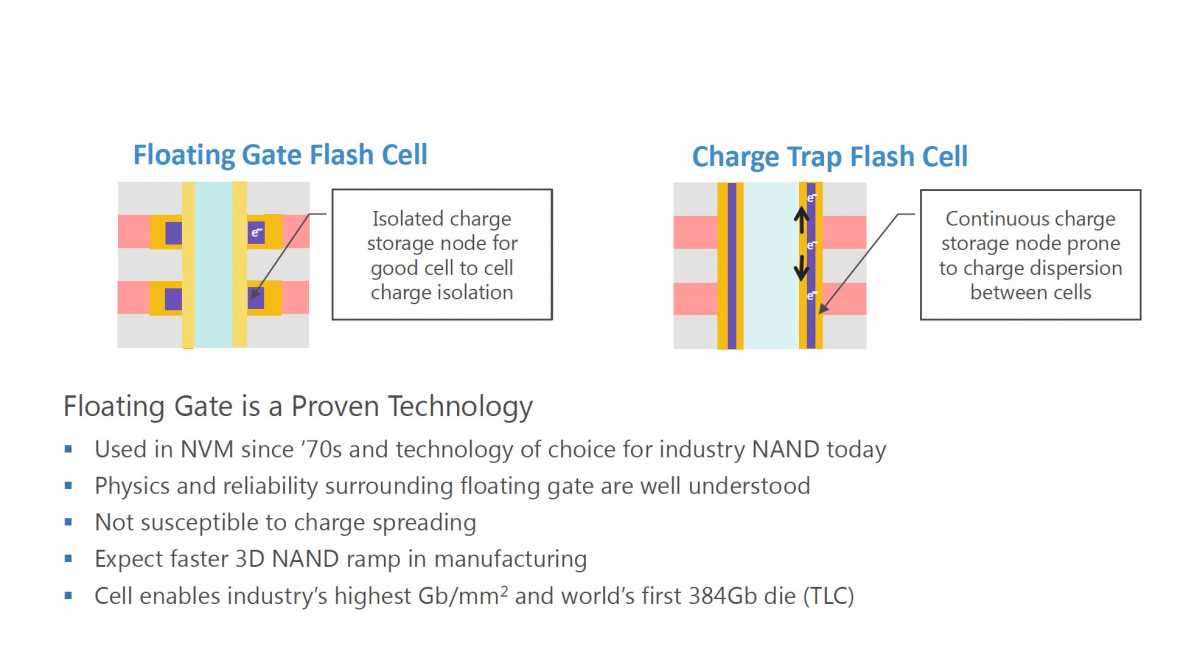
USB drives, or flash drives, utilize NAND flash memory to hold information in binary format—composed of zeros and ones—within tiny memory cells. Within these cells, electrons are captured in a structure called a “floating gate.” However, these trapped electrons can gradually escape over time, leading to data degradation. When this happens, distinguishing whether the charge represents a one or a zero becomes increasingly difficult.
USB drives are great for quick data transfers. However, for long-term data storage, there are better options, such as tapes or optical discs.
Kingston
Several elements can affect how long data lasts on a USB stick. The quality of the NAND flash memory and overall stick craftsmanship are key factors; typically, cheaper options do not last as long. Additionally, the number of write cycles, which indicates how often data can be written to and erased from the drive, is critical.
With each write cycle, the risk of data loss increases. Conditions like extreme temperatures and high levels of humidity or dust can further jeopardize the lifespan of data. Prolonged exposure to heat can accelerate the leakage of electrons, heightening the risk of data corruption.
The floating gate technology has been around for some time. However, it’s susceptible to various conditions leading to electron leakage and potential data loss.
IDG
Considering all these factors, it’s evident that USB drives aren’t the best choice for the long-term storage of critical data, especially not as a sole solution. Regular backups on alternative storage media, such as external hard drives, are essential. For archiving data over extended periods, consider utilizing archival tapes or optical media as more reliable options.
Always remember: it’s risky to rely on a single medium for saving important information. USB drives excel at quick file transfers and can serve well for creating bootable installations.
For more insights: Are you using your USB flash drive effectively? Discover the right way to utilize it.
This article was originally translated from German to English and published on pcwelt.de.
Your newly acquired 3.5-inch floppy drive is designed to be a plug-and-play device, making the setup process straightforward. However, you might encounter a few common issues along the way.
Currently, all modern USB-compatible 3.5-inch floppy drives draw power from USB connections. For instance, my device requires a supply of 5 volts at 500 milliamps (5V/500mA). Any standard USB port should suffice, given that they meet the minimum power requirements. However, if you are using a questionable USB hub or facing connectivity issues with an older computer’s port, you may run into power-related complications that could prevent the drive from functioning.
Matt Smith / Foundry
After plugging the drive into a USB port, you might need to look around a bit to locate it. Unlike conventional USB flash drives, it may not automatically appear in File Explorer. To find your drive, open File Explorer and navigate to This PC. Ensure that you’re viewing This PC fully by clicking on the icon in the File Explorer sidebar.
Matt Smith / Foundry
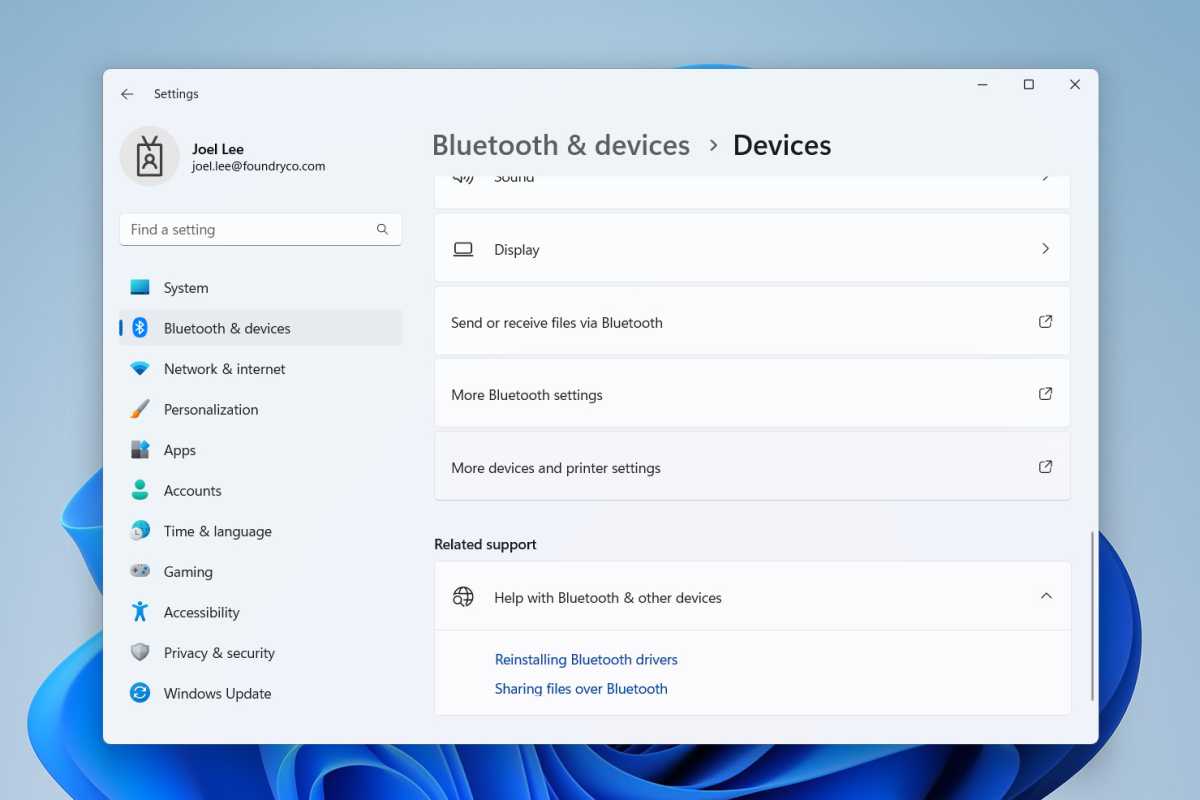
If you still can’t locate the A: drive, open the Settings application, navigate to Bluetooth & devices on the left pane, then scroll down to select Devices. Continue scrolling until you find More devices and printer settings. This action will take you to the classic Devices & Printers window, where you should hopefully see the floppy drive listed under Other Devices.
Joel Lee / Foundry
Once everything is properly connected and functioning, your USB floppy drive will operate much like a slower USB flash drive. You can easily drag and drop files to and from the drive (provided there’s a floppy disk inside). Should you need to create a disk image (which is essential for installing certain software), consider using a disk imaging application like WinImage.