الوسم: Sony PlayStation 5

  • How to Kill the Nord Mines Dragon in Metaphor: ReFantazio (And Why You Should)

    How to Kill the Nord Mines Dragon in Metaphor: ReFantazio (And Why You Should)

    The hours of operation in Metaphor: ReFantazio take you to a diverse range of captivating locations while immersing you in its intriguing world and gameplay. After the initial chapters unfold, you’ll find yourself navigating your first significant dungeon, known as the Nord Mines. This expansive location can take about an hour to explore and features another battle against a human boss. However, as you near the end of the mines, you will discover a chamber where a dragon is peacefully resting. At this point, your team may decide that stealth is the wiser strategy, opting to bypass the creature instead of engaging in combat.

    The game’s nudges toward stealth in this scenario may lead you to think that waking the dragon for a battle would be a poor choice. Surprisingly, this fear is unfounded; the dragon can be defeated more easily than you might expect, and taking it down grants you a powerful weapon. Here’s what you need to know about confronting the dragon in Nord Mines.

    How to defeat the Nord Mines dragon and the reasons for doing so

    Upon entering the area with the sleeping dragon in the Nord Mines, you can either stealthily navigate around the edges or directly approach the beast. It’s advisable to take the bold step and confront the dragon, as defeating it is more manageable than the game suggests.

    Having at least one Mage archetype on your team with the Blizz spell is beneficial, as the dragon is particularly vulnerable to ice attacks. If possible, bringing multiple Mages can simplify this encounter even further; just ensure they remain at the backline to mitigate damage from the dragon’s formidable attacks.

    Atlus

    Fortunately, bringing down the dragon is a straightforward task. Continuously attacking it with the Blizz spell while keeping an eye on health will allow you to defeat it quicker than you might have initially thought. Once you vanquish the beast, you can claim the Dragon’s Indignation greatsword from a chest located where the dragon was resting. With an impressive attack power of 111, this sword stands out as the best weapon available at this stage of the game, making it a perfect fit for your Warrior archetype character to deal significant damage.
  • PlayStation Quietly Doubles Price Of Horizon Zero Dawn

    PlayStation Quietly Doubles Price Of Horizon Zero Dawn

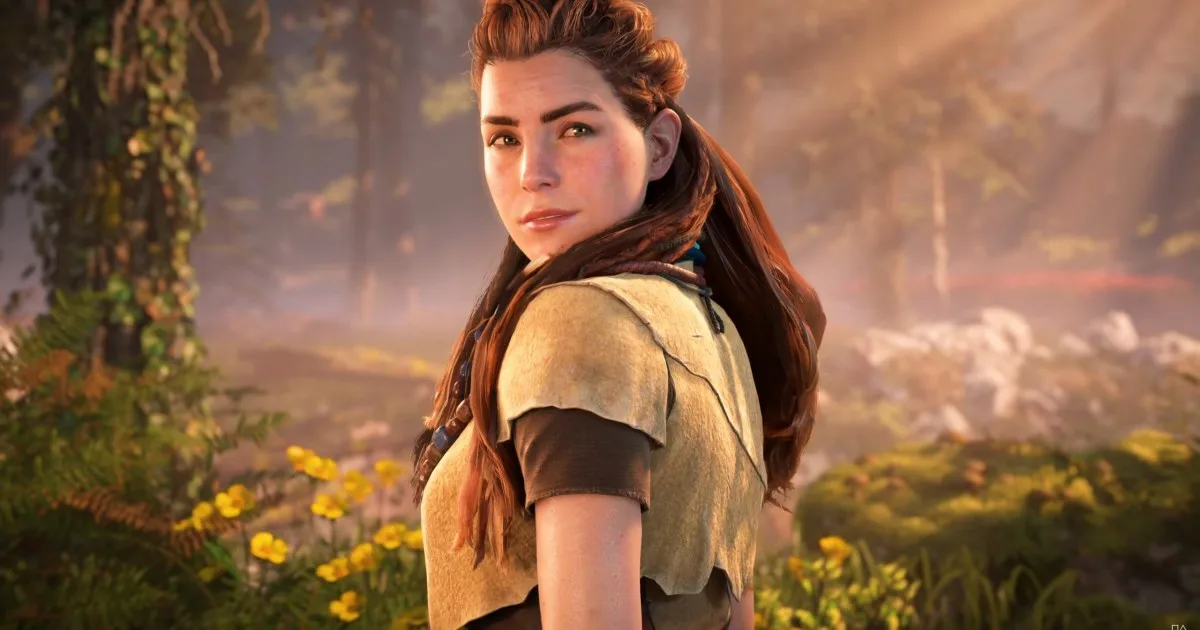
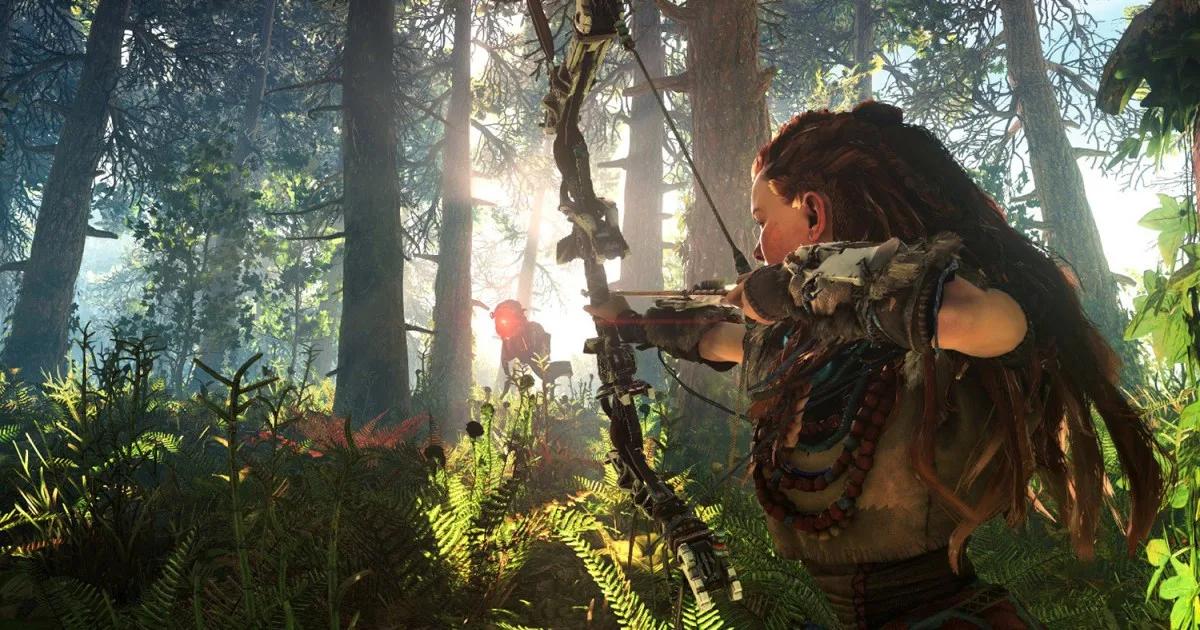
    Aloy aiming her bow at a robot in a forest.
    Sony Interactive Entertainment

    After the announcement of Horizon Zero Dawn Remastered for PlayStation 5 and PC, Sony has decided to increase the price of the original PlayStation 4 Complete Edition by $20 on the PlayStation Store.

    This price hike comes without any prior notice. Previously, the game had been priced at $20 for a couple of years, meaning the cost has effectively doubled overnight.

    This adjustment was first noted by Video Games Chronicle. Additionally, price-tracking sites like PSDeals.net and PSPrices.com have confirmed that the price has risen to $40, the highest it has been since 2018, surpassed only by its initial launch price of $60. If you’re looking for a physical copy, you might still find it for less at third-party retailers such as Amazon, although updated list prices reflect the new $40 tag.

    While Sony has yet to address the price increase publicly, it appears that the launch of the remastered version is intended to steer players away from purchasing the older edition. Current owners of Horizon Zero Dawn can upgrade to the remastered version for just $10, available on both PS5 and PC via Steam and the Epic Games Store.

    This increase follows another unexpected price rise: earlier this month, the cost of the DualSense controller increased by $5 universally across PlayStation Direct and various online retailers. This price change applies to all versions of the controller except the DualSense Edge, which retails at $200.

    Sony introduced Horizon Zero Dawn Remastered during its September State of Play event on Wednesday. The remaster is set to launch on October 31, featuring The Frozen Wilds DLC and numerous enhancements, including PS5-specific 3D audio, DualSense capabilities such as haptic feedback and adaptive triggers, and support for the upcoming PS5 Pro. The update will also include re-recorded motion capture, new dialogue, and visual improvements, ensuring it remains competitive with its sequel, Horizon Forbidden West.

  • Sony Clarifies High Cost Of PS5 Pro And Lack Of Disc Drive

    Sony Clarifies High Cost Of PS5 Pro And Lack Of Disc Drive

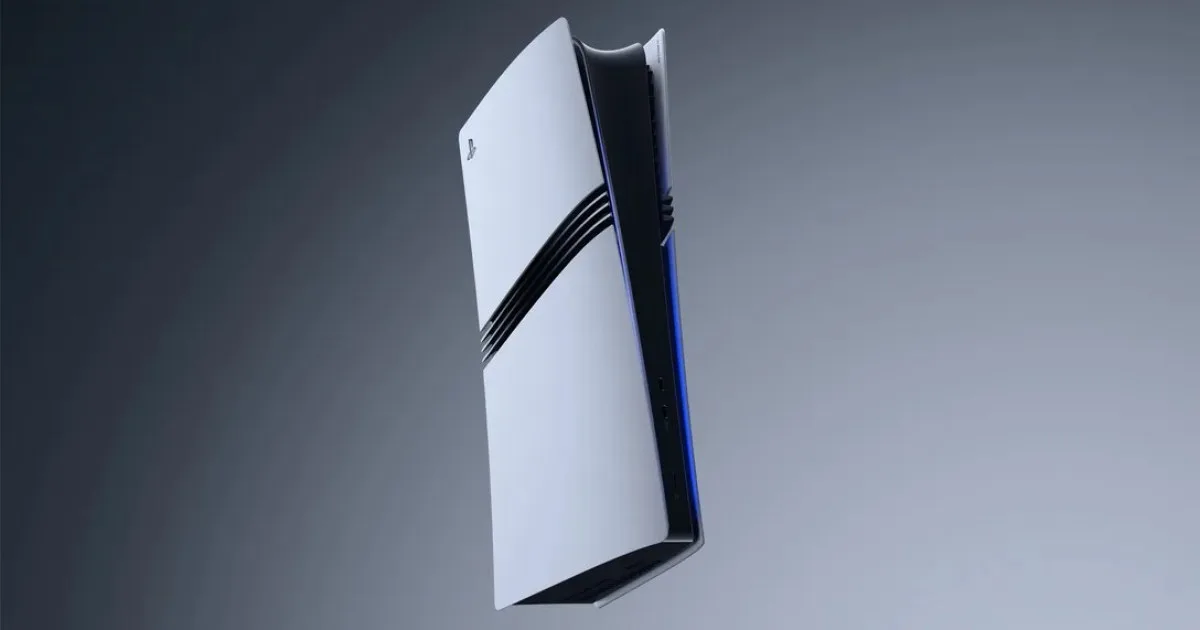
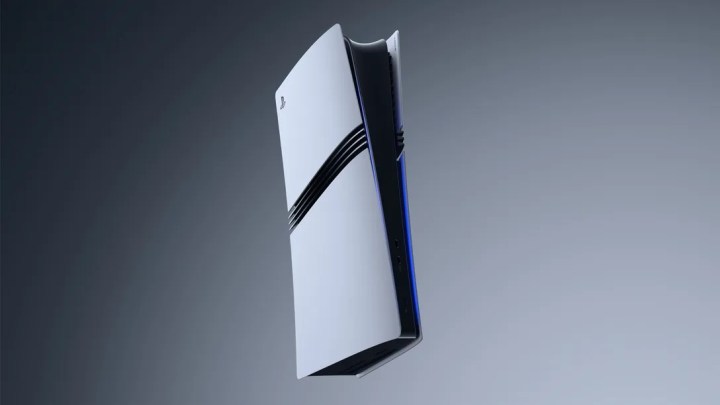
    A PS5 Pro positioned against a gray backdrop, angled to the side.
    Sony

    The PlayStation 5 Pro is shaping up to be an impressive gaming console, offering stunning visuals through its advanced custom GPU and AI-driven machine learning upscaling. This means that performance modes in even the most demanding games will be notably enhanced. However, the console’s $700 price point—significantly higher than the PS5 Slim at $450—has raised eyebrows among potential buyers.

    In a recent interview with IGN, Toshi Aoki, Sony’s senior principal product manager, addressed the high cost, emphasizing the sophisticated technology bundled into the package.

    “[The technologies] that we are putting in to deliver new experiences for game players, and also not just the technological differences, but the SSD, the Wi-Fi 7, and the new technologies that surround the gameplay as well,” Aoki stated. “So it’s more of a full package that will give that exceptional value to the players… the most engaged players that we’re targeting.”

    Concerns about pricing weren’t limited to just the console itself. The PS5 Pro will not include a disc drive by default, requiring gamers to purchase one separately for $80. Although the PS5 Slim offered a bundled disc drive option, this new model does not. Aoki maintained that the PS5 Pro already provides a comprehensive gaming experience, even if its appeal may be more limited.

    “It is an option for players. Not all players have discs, even though most players may…but we have the option for being able to add that for those players. So I think it’s more of the balance of the value proposition that we’re giving,” he added.

    Aoki acknowledged that the PS5 Pro seems tailored for a specific niche of avid gamers willing to invest in premium gaming tech. While the price places it in the ballpark of a basic custom gaming PC, the PS5 Pro brings unique GPU features not found in other AMD PCs. Early previews suggest it may deliver significant performance for dedicated gamers, even if it isn’t the mid-generation upgrade many had anticipated.

  • How to Transfer Data from PS4 to PS5: A Step-by-Step Guide

    How to Transfer Data from PS4 to PS5: A Step-by-Step Guide

    Digital Trends

    The PlayStation 5 is perfect for those invested in the Sony ecosystem. With backward compatibility for PS4 games, players can enjoy their favorite titles on the PS5 without having to keep the original console. Additionally, data from your PS4 can be transferred to the new system, meaning your gaming history remains intact as you upgrade. This transition allows you to use the enhanced PS5 controllers and headsets, adding to the overall experience.

    So, how do you achieve this data transfer? Here’s a guide on how to move your data from the PS4 to the PS5.

    Difficulty

    Easy


    Duration

    20 minutes

    What You Need

    • Wi-Fi connection

    • PlayStation 4

    • PlayStation 5

    • Ethernet cable (optional)

    While we can’t predict the future, let’s hope the PlayStation 6 will also support backward compatibility for earlier games.

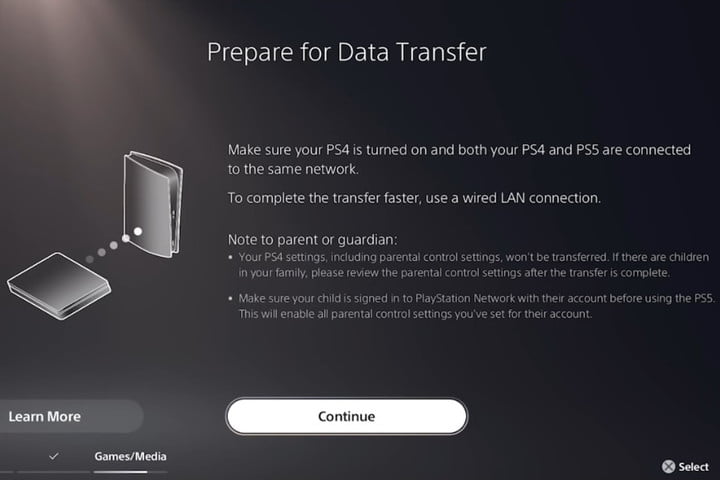
    Prepare for data transfer screen on PlayStation 5.
    Image used with permission by copyright holder

    Steps to Transfer Data from PS4 to PS5

    In this section, we’ll concentrate on transferring the data directly from your PS4. We’ll discuss how extended storage functions with your PS5 later.

    If you’re initializing your PS5 for the first time, you will be prompted to transfer your data as part of the setup. However, this step can be skipped, enabling you to transfer data at a later time. Depending on how much needs to be transferred, the process may take several hours. Consider starting this before heading to bed or at the start of a workday.

    Step 1: Ensure both your PS4 and PS5 are updated to the latest system software. Updates typically occur automatically, but you can confirm your PS4’s software version by navigating to Settings > System Software Update. If your system is current, you will receive a notification.

    Step 2: Connect your PS4 to your PS5.

    • Log into your PS4 using the same account you plan to use on your PS5.
    • Both consoles must be connected to the same network either via Wi-Fi or through an Ethernet cable. Wi-Fi makes the process simpler, but if you prefer a wired connection, using an Ethernet cable is advisable.
    • (Optional) For faster data transfer, consider connecting the two consoles with an Ethernet cable. However, Wi-Fi is completely viable for the transfer.

    Step 3: Select Continue on the Data Transfer screen.

    • Identify the PS4 from which you wish to transfer the data. If you only have one PS4, this will be obvious. If you have multiple PS4s, you’ll need to know your device’s ID.

    • To find your PS4’s ID, navigate to Settings > System > System Information, where you’ll see its name. By default, it will read “PS4” followed by a series of numbers. You can rename your PS4 here for easier identification.

    • When prompted to “Prepare for Data Transfer,” press and hold your PS4’s Power button until you hear a beep (around one second). Read the precautions thoroughly, and then you may proceed with the transfer.

    Step 4: If you missed transferring data during the PS5 setup, you can begin the process manually.

    • Simply go to Settings > System Software > Data Transfer and follow the instructions to complete the transfer.

    Using PS4 Disks and Extended Storage

    As gaming technology has evolved, so have the advantages of extended storage options. Thankfully, you can easily play PS4 games stored on an external storage device by simply connecting it to your PS5. Keep in mind that games offering PS5 upgrades—such as Hitman 3, Yakuza: Like a Dragon, and Cyberpunk 2077—will need to be downloaded to the main storage of your console.

    Be sure to transfer the PS4 version back to the extended storage or delete it. You still have the option to move PS5 games to extended storage, so it’s a good idea to transfer those that are not currently in use.

    For physical PS4 games, simply insert the disc into your PS5 to download it onto your system storage. This action is contingent on whether you own the disc version of the PS5 or the digital model.

    You can also redownload games from the PlayStation Store that you previously purchased. There’s no need to download them back onto your PS4 for this data transfer; you can directly access them on your PS5. For instance, if you claimed Rocket League during its free offer in 2015, you can easily re-download it onto your new console.

    If you’re running low on storage, explore how to manage an external drive on your PS5, as there are certain limitations to consider. Additionally, looking into top internal SSD options for PS5 can provide a more effective way to expand your storage capabilities.

  • Horizon Zero Dawn Remastered Is Coming To PC

    Horizon Zero Dawn Remastered Is Coming To PC

    Horizon Zero Dawn Remastered – Announce Trailer | PS5 & PC Games

    On Tuesday, during the September State of Play event, PlayStation officially unveiled its latest remaster from the PS4 era: Horizon Zero Dawn Remastered. This title is set to receive a significant upgrade for both PlayStation 5 and PC, slated for release on October 31.

    While not an entirely new experience, the remaster boasts a substantial visual enhancement. A PlayStation representative shared that the graphics have been updated to align with the standards established by the sequel, Horizon Forbidden West. This includes revamped character models, updated textures, improved assets, and enhanced camera work.

    In collaboration with Nixes, the team behind the remaster, Guerrilla Games has also incorporated 10 hours of new conversations with motion capture. As is standard with modern remasters, it will include support for 3D audio and utilize DualSense adaptive triggers, making it an ideal experience for PS5 users.

    If you previously enjoyed the game on PS4, you can upgrade to the remastered edition for just $10, a great deal for existing owners.

    Originally launched in 2017 exclusively for PS4 by Guerrilla Games, Horizon Zero Dawn is an open-world action adventure that follows Aloy as she navigates a post-apocalyptic America. In a world where humanity has regressed into smaller tribes, players confront hostile robotic creatures. Aloy embarks on a journey away from her village to unravel the secrets behind the extinction of the previous civilization. Later that year, the game also received the Frozen Wilds story DLC.

    Sony has maintained the momentum of the Horizon series by not only releasing sequels but also expanding its reach. In 2020, Horizon Zero Dawn made its way to PC, and a PS5 patch was issued the following year to unlock 60 frames per second. Additionally, a spin-off, Lego Horizon Adventures, has been announced for release in November.

    The announcement of the remaster followed a leak last week when a rating appeared on the ESRB website, which confirmed information already known from the original Horizon Zero Dawn.

    This remaster adds to the collection of PlayStation first-party titles making their way to PS5 and PC. Other notable projects include an Until Dawn remake launching this October and The Last of Us Part I, which was released in 2023. Sequentially, PlayStation has been transitioning its exclusive titles to PC after an initial window.


  • Ghost Of Yotei Transports Ghost Of Tsushima To New Locale Next Year

    Ghost Of Yotei Transports Ghost Of Tsushima To New Locale Next Year

    At the September 2024 State of Play event, Sucker Punch Productions unveiled Ghost of Yotei, a sequel to the acclaimed 2020 title Ghost of Tsushima. This new adventure is set to launch on the PlayStation 5 in 2025.

    The narrative introduces a fresh female protagonist named Atsu and unfolds in the year 1603, more than 300 years after the original game’s timeline. This installment takes place in the region of Mount Yotei, which is part of what is now known as Hokkaido, Japan. In 1603, this area was not under the governance of Japan and features a diverse landscape that includes both grasslands and tundra. Notably, the story will likely diverge from the organized samurai factions depicted in Ghost of Tsushima, though specific plot details remain under wraps.

    Ghost of Yōtei – Announce Trailer | PS5 Games

    The announcement trailer features Atsu wearing her ghost mask as she rides through vast open landscapes. During her journey, she encounters a wolf that initially appears menacing. However, after a brief standoff, the wolf retreats in the direction of a strong wind. It remains uncertain if this wolf will play a significant role in the storyline, possibly as a companion.

    Ghost of Yotei marks Sucker Punch’s first title specifically designed for the PS5, fully utilizing the console’s advanced technology. Players can expect enhanced sight lines that allow for expansive views of the game world, as well as beautifully detailed night skies adorned with stars and auroras. Furthermore, the developers have teased the inclusion of new gameplay mechanics and weaponry in this upcoming title.

  • Sony Repairs PS5 Issue Hurting Final Fantasy 16

    Sony Repairs PS5 Issue Hurting Final Fantasy 16

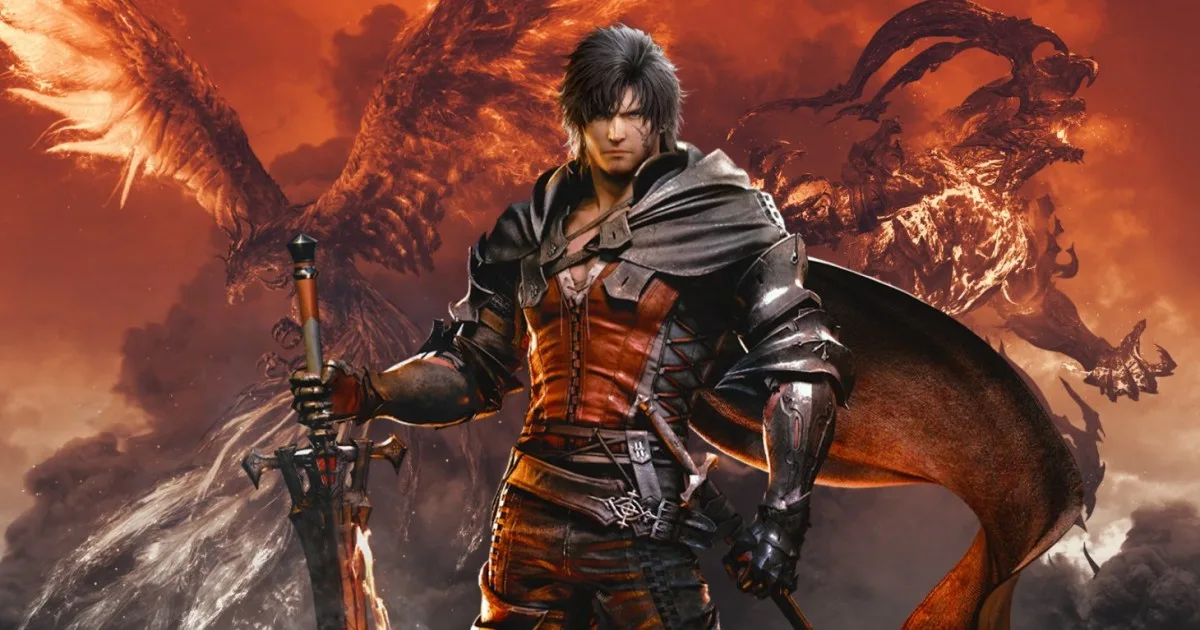
    Players of Final Fantasy 16 on PlayStation 5 encountered severe graphical glitches after a recent firmware update. However, Sony has now released a fix to address these issues. Square Enix confirmed this update on the official Final Fantasy 16 X (formerly Twitter) account on Friday.

    In the statement, Square Enix mentioned, “In response to crashes and graphical issues that occurred on the PlayStation 5 version of Final Fantasy 16, Sony Interactive Entertainment has released a new system update. We encourage players to download and install the update.” Read the full post here. They also added that they will continue to collaborate with Sony on this issue.

    Sony didn’t provide specific details beyond releasing system update 24.06-10.01.00. In their official patch notes, they only stated that the update improves the system’s performance and stability.

    Some PlayStation 5 users also reported problems with other titles, including Death Stranding: Director’s Cut and No Man’s Sky. Although Square Enix is the only studio to publicly address these issues, they confirmed they are collaborating with Sony to resolve them. “Following the recent PlayStation system update, we have received reports of crashes and graphical bugs, and we are working with Sony Interactive Entertainment to investigate,” the studio said earlier this week.

    The bugs surfaced after last week’s release of PS5 system update 24.06-10.00.00, which introduced features like the Welcome Hub, party share, and 3D audio customization. Some users reported extreme glitches, such as one player’s environment in Final Fantasy 16 glitching completely out of existence. The issues became so widespread that the game’s subreddit organized a thread to track and discuss solutions.

  • PlayStation Isn’t Leaving Consoles For PCs Anytime Soon

    PlayStation Isn’t Leaving Consoles For PCs Anytime Soon


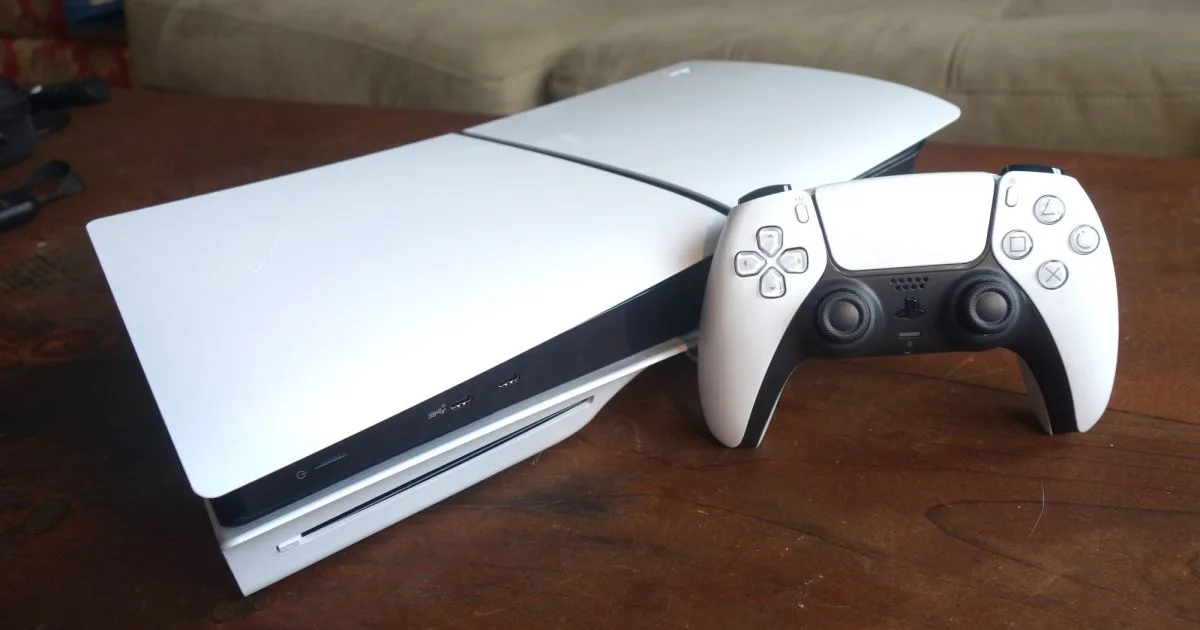
    A PS5 sits on a table with a DualSense standing next to it.
    Giovanni Colantonio / Digital Trends

    Sony has made significant strides in the PC gaming sector by releasing first-party PlayStation 5 titles on the platform, yet the company emphasizes that consoles will always remain at the heart of its operations.

    In a discussion with Nikkei, a prominent Japanese media outlet (reported by Video Games Chronicle), Hideaki Nishino, the head of Sony Interactive Entertainment’s Platform Business Group, asserted that while the company is committed to PC content, “there is no doubt” that its main focus will be on consoles.

    Nishino stated, “We aim to enhance our presence in the overall gaming market by developing PC content as well. While consoles will continue to be central to our business, expanding to other platforms allows us to connect with a broader customer base.”

    He also highlighted the advantages of consoles, including the simplicity of game installation and setup, as well as the inherent ease of purchasing games through dedicated stores.

    Nonetheless, Sony’s strategy for PC is ongoing. The company plans to launch its AAA single-player games on PlayStation first and subsequently on PC, while its live-service games, such as the successful *Helldivers 2* and the ambitious *Concord*, will debut on both PlayStation 5 and PC at the same time. According to Nishino, this approach is effective in attracting players on diverse platforms.

    Sony has also reaffirmed its commitment to console hardware, recently unveiling the PlayStation 5 Pro. This new model features enhanced specifications, including a more powerful GPU, and it is priced at $700, with pre-orders commencing on September 26 and the official launch set for November 7. It is designed for console enthusiasts seeking optimal performance, offered at a price lower than many high-end PC graphics cards.

    Nishino is one of the co-CEOs following the departure of former head Jim Ryan earlier this year, working alongside Hiroki Totoki, who leads SIE’s business group.

  • How to Use Discord on PS5: A Step-by-Step Guide

    How to Use Discord on PS5: A Step-by-Step Guide

    Discord

    For many gamers worldwide, Discord has been the preferred platform for voice and text communication. It was somewhat unexpected that Sony took a while to incorporate Discord into the PlayStation 5. Initially, the console lacked a dedicated Discord app, but a recent update has simplified the process, allowing players to communicate with friends seamlessly while diving into their favorite PS5 titles.

    Using Discord on PS5

    To start chatting through Discord on your PS5, ensure your console’s software is fully updated. Once you’re set up, linking your accounts will allow smoother communication while enjoying multiplayer games.

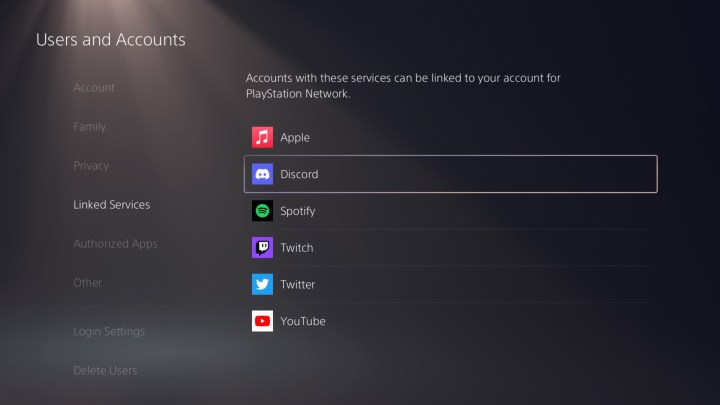
    Step 1: Navigate to Settings > Users and Accounts > Linked Services, and select Discord.

    Screen interface for linking the Discord app on PS5
    Screenshot / Digital Trends

    Step 2: Follow the provided link or scan the QR code with your Discord mobile app.

    Step 3: Enter the code displayed on your PS5 into the app to grant authorization.

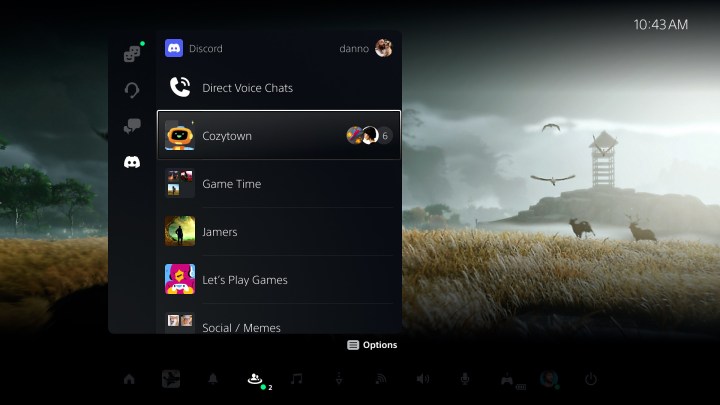
    Step 4: To initiate a chat, access your Game Base station and select the Discord tab.

    User interface for Discord on PS5
    Image used with permission by copyright holder

    Step 5: Select the Discord server or group you wish to join.

    Step 6: If someone calls you through Discord, you will receive a notification and can join the call with a simple click.

    This feature is compatible with all top PS5 headsets and earbuds. If you need assistance connecting your AirPods to the PS5, we can guide you through that as well.

  • How to Use Remote Play on PS5: A Comprehensive Guide

    How to Use Remote Play on PS5: A Comprehensive Guide

    PlayStation

    Just like its predecessors, the PS4 and PS4 Pro, the PS5 allows you to enjoy its top games from afar. With remote play, you can connect your PC or mobile device to your PS5 and stream games to virtually any screen as long as you’re within range of your Wi-Fi. This gives you the freedom to enjoy your favorite PS5 exclusives anywhere in your home, especially when someone else is using the main TV.

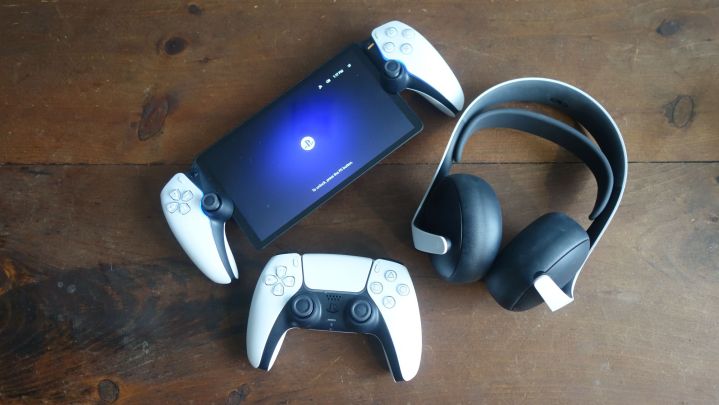
    Pulse Elite, DualSense, and PlayStation Portal on a table.
    Giovanni Colantonio / Digital Trends

    Utilizing Remote Play on PS5

    You can access your PS5 from various devices—PS4, PlayStation Portal, PC, Mac, Android, iPad, or iPhone—using either a DualShock 4 or DualSense controller. For an enhanced audio experience, consider picking one of the top PS5 headsets. Keep in mind that not all devices are compatible with both controllers, and there are specific OS requirements for wireless connections. If you wish to learn more, keep reading, or if you’re ready to dive in, follow these straightforward steps:

    Important: A minimum download speed of 5Mbps is required for remote play, though Sony suggests aiming for 15Mbps. For optimal performance, it’s advisable to connect your PS5 directly through an Ethernet cable.

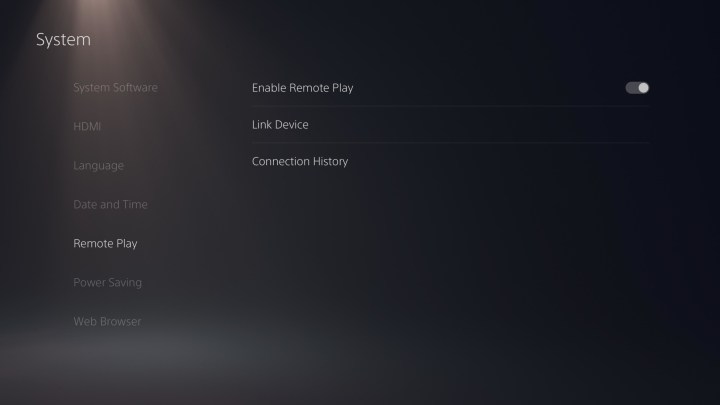
    Step 1: Navigate to Settings > System > Remote Play on your console.

    Settings to enable remote play
    Sony

    Step 2: Enable the Remote Play option.

    Step 3: If you are playing on a mobile device, download the PS Remote Play app for Android, iOS, or for your Windows or Mac computer.

    For PC users, be sure to get the Remote Play app for PC.

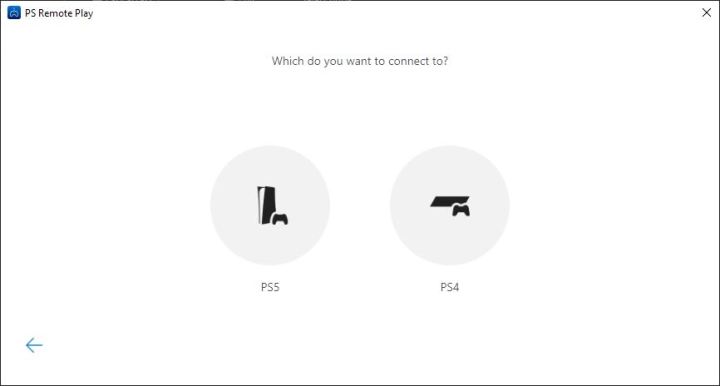
    Step 4: Launch the PS Remote Play app and sign in to your PlayStation Network account.

    Linking devices for remote play.
    Sony

    Step 5: On the following screen, select PS5.

    Once your device is connected to your PS5, you can begin streaming any game of your choice, including popular free PS5 titles, as long as both your console and chosen device are on the same network. The PS Remote Play app also has a feature that allows you to wake your PS5 remotely. This should be enabled by default, but it’s a good idea to verify this setting.

  • How to Factory Reset a PS5: A Step-by-Step Guide

    How to Factory Reset a PS5: A Step-by-Step Guide

    Giovanni Colantonio / Digital Trends

    Factory resetting your PS5 can be beneficial for various reasons, whether you intend to sell the console or simply want to resolve recurring issues. This process will help you get back to enjoying your favorite PS5 games or ensure your console is ready for a new owner.

    Difficulty

    Easy

    Duration

    5 minutes

    We’ll break down the process into two main sections: a quick step-by-step guide and a more detailed explanation for those who prefer a thorough approach. If you want to back up your game data and user settings before resetting, make sure to do that. Help with syncing a PS5 controller is available in a separate guide.

    How to Reset a PS5: Quick Guide

    There are multiple reset methods on the PS5, which we will explain below. Following the steps here will completely wipe your console, including user data and saved games. If you need to back up your content first, refer to the detailed guide below.

    Step 1: Open the Settings menu (represented by the gear icon).

    Step 2: Select System.

    Step 3: Choose System Software.

    Step 4: Go to Reset Options.

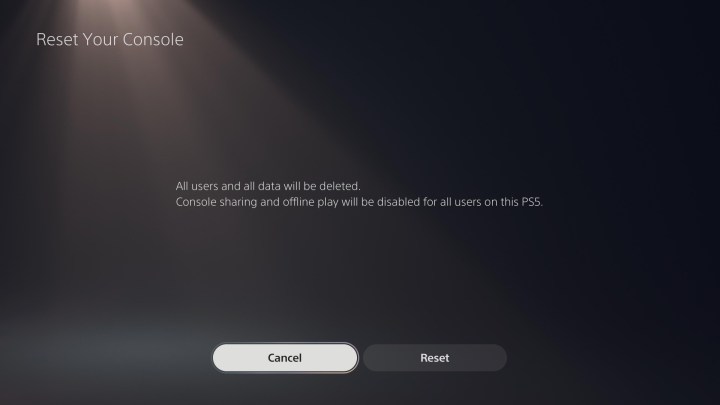
    Step 5: Click on Reset Your Console.

    Step 6: Finally, click Reset.

    After several minutes, your PS5 will reset and present the standard setup screen. If you’re preparing to sell or trade in your console, you can finish here. For troubleshooting or other purposes, continue with the setup process as needed.

    Guide to resetting a PS5
    Image used with permission by copyright holder

    In-Depth Resetting of Your PS5

    While performing a factory reset on your PS5 is relatively straightforward, there are several reset options that may not be clearly outlined by the console. Below, you’ll find detailed explanations of the three reset options available.

    Step 1: Go to System Software.

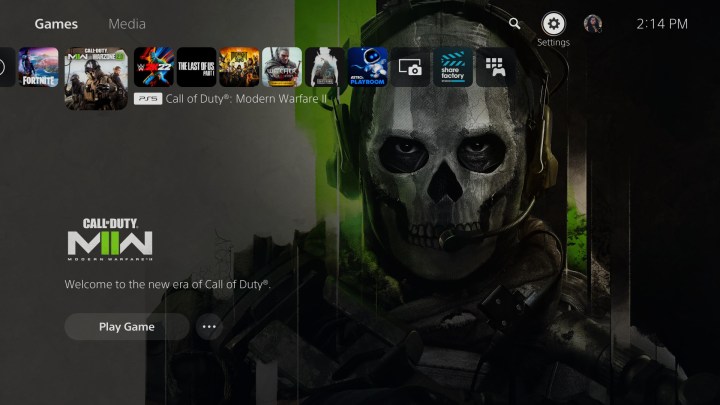
    To begin, power on your PS5 and log into your account. Navigate to the Settings menu from the home screen, which you can reach by pressing and holding the PS button on your DualSense controller if you’re in a game.

    Look for the cog icon in the upper right corner of the home screen to access the Settings menu, then proceed to System > System Software. You will find the reset options here but refrain from selecting them just yet.

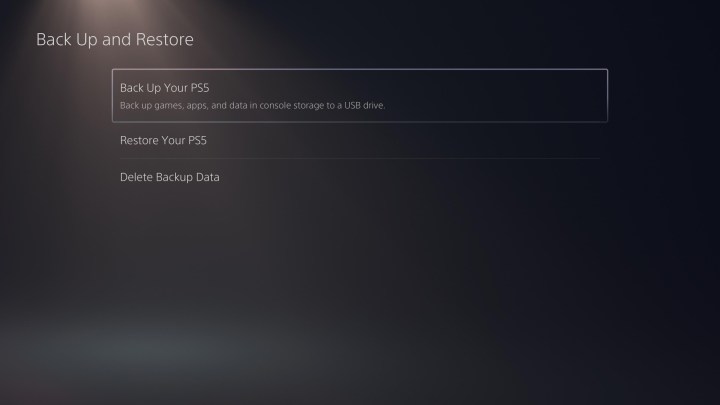
    Step 2: (Optional) Back Up Your Data

    Before choosing Reset Options, select Back Up and Restore to save your games, applications, and other data to a USB drive before proceeding with the reset. This is crucial if you are not a PlayStation Plus subscriber, as your save data is stored locally. Even if you are subscribed, it’s wise to back up to ensure you have a safe copy of your information.

    To back up your data, a USB 3.0 storage device is required. You can refer to our guide on the best external hard drives for suggestions.

    PS5 Settings menu.
    Image used with permission by copyright holder

    Step 3: Select Your Reset Option.

    Once you’ve secured your data, go back to System Software and click Reset Options. The PS5 offers three reset methods; aside from the “Reset Your Console” option, the descriptions can be vague. Here’s a summary of what each setting does:

    Clear Learning Dictionary: This option removes all terms you have entered, which the PS5 uses to predict what you may search for. It won’t affect your saved games, applications, or user data.

    Restore Default Settings: This resets all console settings back to their original factory defaults but leaves saved data, games, applications, and user data intact.

    Reset Your Console: This option erases everything on your PS5 and performs a complete reset. Use this choice only if you’re giving away or selling your console or if you wish to start from scratch.

    Select the option that aligns with your needs, and you’re ready to proceed. If you opt for a factory reset, again, ensure you back up your data before continuing, even if you have PlayStation Plus.

    Resetting the PS5 system.
    Image used with permission by copyright holder