Despite advancements in spam filters and enhanced security protocols, phishing remains a major cybersecurity threat. Perpetrators now craft highly convincing emails using advanced language models like ChatGPT, producing messages with impeccable grammar, coherent sentences, and natural tone, making detection increasingly challenging.
As malicious actors grow more sophisticated, it’s crucial to adopt new detection strategies to stay ahead. Below are effective methods to identify such scams and protect yourself from falling victim.
AI-Generated Phishing Attacks
Barracuda Networks highlights the rise in phishing emails aimed at stealing access to paid ChatGPT memberships, which are currently highly sought after.
IDG
AI tools including ChatGPT and Google Gemini are increasingly vital for organizations seeking to cut costs on routine communications or billing tasks. Both OpenAI and Google monetize their services after a certain usage threshold, charging users accordingly.
Recently, Barracuda Networks reported a widespread phishing effort aimed at compromising paid ChatGPT accounts.
Malefactors send deceitful emails posing as messages from OpenAI, claiming payment issues. Recipients are told they must update their account information within a week to avoid losing access to their ChatGPT account.
An embedded button directs users to an online form where they can input login details, which are then sold through dark web markets.
Streaming Service Account Theft
Cybercriminals frequently target login credentials for platforms like Netflix and Disney+. Recent phishing campaigns have involved emails requesting users to update payment information under threat of account suspension.
These emails typically feature a link or button purportedly directing to the user’s account page, but clicking on them leads to fake websites requesting login credentials.
In most cases, the email’s sender address reveals its fraudulent nature, especially if it doesn’t match the official domain. Spoofed addresses are less common among savvy attackers but can still be spotted with careful inspection.
Hover your mouse over links—without clicking—to see whether the URL matches the legitimate site. Phishing emails often impose urgent deadlines, pressuring victims to act quickly and preventing rational scrutiny of the request.
Rise of Smishing
When phishing via SMS, it’s termed smishing. New tactics include messages resembling, “Hi Dad, this is my new number. Can you message me on WhatsApp?”
If responded to, victims often receive a follow-up claiming an emergency, prompting them to transfer money or share sensitive details to resolve the fabricated crisis.
Password Management Risks
Accessing a password manager’s encrypted database can give hackers access to a wealth of personal and financial information worldwide.
If a criminal obtains the master password, they can unlock all stored credentials—from bank accounts to email and streaming services—without needing individual passwords.
Malefactors aim to steal the master password of LastPass, which would grant access to all stored credentials.
IDG
In early 2024, hackers began exploiting phishing kits that facilitate the creation of counterfeit login pages with authentic-looking branding, often distributed as part of phishing-as-a-service platforms.
This method involves recreating login pages for password managers like LastPass. Automated calls follow, presenting recorded messages about suspicious account access attempts, tricking victims into revealing their passwords.
The attacker then guides the victim to a fake website to input their current master password. Once acquired, the attackers log in, change account recovery details, and lock out the true owner. This tactic is termed vishing, or voice phishing.
Given the high risk associated with stored credentials, enabling two-factor authentication or passkeys is strongly advised to thwart these attacks.
PayPal and Klarna Impersonation Scams
With increased awareness of data privacy laws, scammers capitalize by impersonating legitimate services like PayPal and Klarna, claiming accounts are blocked due to unverified information.
They ask victims to activate fake “Double Authorization” features, prompting them to provide login details and phone numbers, which are then used to execute fraudulent transactions or redirect payments.
Tips for Identifying Phishing Emails
Authentic emails from trusted organizations should have proper domain names. For example, an email claiming to be from ING Bank should come from ing.de, not from a suspicious domain like support@zakitchha.dreamhostps.com.
IDG
Phishing can cause significant financial harm. Always scrutinize emails carefully:
While AI improves phishing message quality, they still often contain errors, awkward phrasing, or odd language. Be wary of messages with strange grammar, missing salutations, or translation issues.
Many phishing attempts create a false sense of urgency, claiming immediate action is required to avoid penalties, account loss, or legal trouble. The less time given, the more likely it’s a scam.
Hover over links or buttons (without clicking) to view the true URL. If it doesn’t match the legitimate site, delete the email immediately.
Search the email’s subject line online. If others report similar messages, it’s probably a phishing attempt.
If in doubt, delete suspicious emails and avoid responding or clicking any links.
If you’re looking to bypass geo-restrictions on streaming platforms or protect your personal information from advertisers, utilizing a VPN on your Fire TV Stick is a smart move.
In this guide, I’ll show you how to set up a VPN on your Fire TV Stick effortlessly. Most modern VPNs offer dedicated apps for Fire TV, but I’ll also cover alternative methods and troubleshooting tips if needed.
Don’t forget to browse our curated list of top VPNs, which highlights services that are compatible with Fire TV Sticks and more.
Get Your Fire TV Stick Ready
First and foremost, you need to have your Fire TV Stick set up. If you’ve already completed this, feel free to skip ahead.
Connect your Fire TV Stick to an HDMI port on your TV and plug in the power cord to an outlet.
Ensure the remote has batteries; if not, insert the provided batteries.
Turn on your TV and switch to the correct HDMI input using the remote (HDMI 1, HDMI 2, etc.).
Your Fire TV Stick should automatically power on.
Follow the on-screen instructions to finalize setting up the device and log into your Amazon account.
If your Fire TV Stick isn’t up to date, go to Settings > Device > Check for System Update to check for available updates.
Your Fire TV Stick should now be updated and ready for use, allowing you to download and install apps, including a VPN.
Download the VPN Application
Most VPN applications can be installed just like any other Fire TV Stick app. As long as your VPN provider offers a dedicated Fire TV app, you’ll find it in the app store on your device.
Here’s a quick guide on how to install a VPN app on your Fire TV Stick:
Navigate to the search feature and type “VPN.”
Locate the VPN app you want to use and ensure you have an active subscription.
Select the application and click “Download” to install it on your Fire TV Stick.
After installation, launch the app and enter your credentials to log in.
If you don’t have a subscription, you can register for an account directly through the app.
Verify VPN Functionality
Open a web browser on your Fire TV.
Access a site that shows your IP address, like whatismyipaddress.com, and note your original IP.
Launch the VPN app and connect to your chosen server, observing a status indicating the connection is “Active” or “Connected.”
Once again, visit the IP address checker site.
Compare the IP address shown. If it differs from the original IP you noted, then your VPN is working as intended.
If the IP address remains unchanged, try restarting the Fire TV, the VPN app, and the web browser, then repeat from step 3.
What to Do If Your VPN Lacks a Fire TV App
Although most major VPNs provide native applications for Fire TV, some may not. In such cases, you have another method to consider.
You can install a VPN application using an Android APK (Android Package Kit), provided your VPN supports Android. However, sideloading does not guarantee functionality on your Fire TV Stick. The process is slightly more complex:
Go to Settings > Device > Developer Options on your Fire TV, and enable “Allow Apps from Unknown Sources.”
Search for “Downloader” in the Fire TV search bar.
Install the Downloader app and launch it once it’s finished.
In the Downloader app, input the VPN’s Android APK URL (e.g., https://windscribe.com/install/mobile/android-direct-tv for Windscribe Pro).
Select “Download .apk.”
Run the installer, following the on-screen directions to complete the VPN app installation.
Keep in mind that using a sideloaded Android APK may not fully function on your Fire TV Stick, but it could serve as a workaround if all else fails.
Every program and file interact with your system, creating digital traces along the way: they may modify other files, utilize system resources, alter entries in the registry, and even install supplementary software.
At best, you might simply clutter your Windows environment if an application’s uninstall process fails to remove all associated files and registry entries. At worst, you could face malware infection or ransomware that compromises your files.
If you’re eager to explore new software or open unfamiliar files, it’s wise to do so within a controlled and secure environment separate from your main system. This is where a sandbox comes into play.
When you execute a program within a sandbox, it functions normally but cannot make lasting changes to your system or interact with resources outside of its designated environment. The sandbox effectively restricts access and ensures that all activities are erased once the session is closed.
Utilizing a sandbox allows you to safely experiment with new applications, install software from questionable sources, browse potentially harmful websites, and keep your system pristine.
We’ll explore different methods to set up and utilize an effective sandbox for files and applications on Windows, which range from built-in Windows features and virtual machines to browsers and sandbox-enabled software.
In particular, we will take a closer look at Sandboxie-Plus — an exceptionally user-friendly and effective sandbox solution for the average user.
Browser Sandbox
Chances are, you’re already utilizing a form of sandbox. Modern browsers, including Chrome and Firefox, incorporate this protective technology.
These browsers leverage Windows security features, allowing them to provide robust protection without significantly taxing system resources that could slow down website loading times.
Most browsers, including Chrome, open each tab in its own isolated process, observable in the Task Manager. This isolation keeps websites separate from each other.
IDG
Each browser tab operates within its own sandbox, which prevents Chrome and similar browsers from executing unauthorized downloads or malicious scripts from websites.
This process also adds a layer of security against attacks that exploit browser vulnerabilities without raising any alarms — these are known as zero-day exploits.
Each tab functions as a separate process with no access to other tabs or the operating system, and initiates with limited permissions. For instance, you often have to grant access for a website to use your computer’s camera.
The separation of tabs ensures that if one website crashes, it doesn’t bring down the whole browser; only the affected tab will shut down.
You can verify how your browser’s sandboxing works by checking the Task Manager in Windows. Under “Processes,” you’ll see multiple processes listed beneath “Google Chrome,” which represent the individual sandboxes for each tab.
For more detailed information, you can type the following command in the browser’s address bar:
chrome://sandbox/
This will provide you with a list of tabs referred to as “Renderer” — the function responsible for displaying web content. Each tab should also display a “Sandbox” column and be marked as “Lockdown.”
The term “Untrusted” next to it indicates that this process possesses very restricted access rights.
For comprehensive insights into Chrome’s sandbox function, input the specified command in the address bar.
IDG
Always make sure to keep your browser updated, as hackers frequently attempt to exploit sandboxing by targeting other security weaknesses to gain elevated permissions for scripts and applications on websites.
Applications with Built-In Sandboxes
Windows also employs sandboxing for certain applications: Apps from the Microsoft Store — or Universal Windows Platform (UWP) apps — operate in an isolated environment with restricted permissions.
This means they can be uninstalled without leaving remnants. Frequently, these applications require approval before accessing files or hardware, like the camera or microphone.
However, UWP apps are not as widely used among users. Most standard programs — referred to as desktop applications — run without sandboxing or permissions limitations.
During installation, you often grant UWP apps specific permissions. To check these permissions pre-installation, visit the app page in the Microsoft Store, where they are listed under “This app can,” and after installation, you can view them under “Privacy > App permissions” in Windows settings.
You can revoke these permissions, though doing so may lead to the app not functioning properly.
Microsoft Store applications run in an isolated environment, but typically request numerous permissions during installation, potentially undermining security.
Foundry
With the Windows 11 version 24H2, a sandbox function for regular programs — Win32 App Isolation — has also been introduced, but developers need to integrate this feature into their software for it to function correctly.
Adobe Acrobat Reader offers a secure sandbox for handling PDF documents. If you receive a PDF attachment from an uncertain source, you can prevent any embedded code from executing or being directed to a harmful website through its links.
To activate PDF sandboxing, navigate to “Settings > Security (advanced)” in Acrobat Reader, and enable the “Enable protected mode on startup” option.
Sandboxie-Plus, an accessible open-source tool, is the perfect choice for isolating suspicious files and programs. You can install it like any typical Windows application and then launch the desired content directly within a sandbox container.
The complete functionality of Sandboxie-Plus is available for $40 annually, payable directly to the developer via PayPal or by purchasing a supporter certificate from the website.
However, for a personal computer, the free basic features detailed below are usually adequate.
With Sandboxie-Plus, programs are executed within a secure environment, preventing any system access and allowing for easy removal without leaving traces.
Foundry
Sandboxie-Plus is compatible with both standard Windows and Arm Windows versions.
The tool can also be installed as a portable version on a USB stick. After installation, you’ll be guided by a setup wizard where you first select “Personal, for non-commercial use” to access free features.
An evaluation certificate for a 10-day trial of the full software can usually be acquired by clicking the highlighted red text during setup. Alternatively, you can simply click “Next.” Choose your preference for the user interface between beginner and expert modes, and select either light or dark themes.
It’s best to stick with the default settings and hit “Next” again. Complete the setup by clicking “Finish” in the last window.
During “Global settings,” you can leave the default options as they are and click “OK.”
Running Risky Programs in Sandboxie-Plus
Sandboxie-Plus features a dual interface: the upper section displays an entry for a “DefaultBox” where you can launch suspect programs, and the lower section logs all actions and settings.
You can access this interface by right-clicking the tool icon in the system tray and selecting “Show / Hide.”
To safely run software in a sandbox, click on “Sandbox > Run in sandbox.” Confirm your selections in the ensuing window by clicking “OK.”
A new window will appear: input the name of the software you wish to launch in Sandboxie-Plus and confirm your entry with “OK.” If you are unsure of the exact name or the tool cannot locate a matching program, you can search for it using Explorer.
This approach is particularly advisable for launching installed programs that you want to execute in a secure environment — for instance, your web browser: firing it up in the sandbox allows you to visit dubious websites worry-free.
Once the program is initiated, you’ll see the relevant EXE file in the upper section of Sandboxie-Plus.
You can recognize that software is operating in the sandbox by these characteristics: The program name both starts and ends with a diamond symbol — for example, opening Chrome in the sandbox, its icon will read [#] New Tab – Google Chrome [#].
If you move your mouse to the top of the program window, a yellow frame will appear. You can also use the window finder in Sandboxie-Plus to check if a program is in the sandbox by selecting the circle in the small program window on the left, holding down the mouse button, and releasing it over the window of the program you wish to check. The answer will display in the window finder.
Moreover, Sandboxie-Plus is included in the context menu of Windows Explorer, allowing you to right-click on the desired program and select “Start Sandboxed.”
Programs recently downloaded can be installed in the sandbox by running the relevant EXE or installation file through Sandboxie-Plus.
It’s advisable to execute every program and file in its own sandbox: When starting through Sandboxie-Plus or the context menu, select the “Run in a new sandbox” option in the following window, and then choose “Standard sandbox.” You may also assign meaningful names to each sandbox here.
Frequent programs, such as your browser, email client, or Windows Explorer, can be started promptly in Sandboxie-Plus: Click on an existing sandbox at the upper right of the tool window.
Then select “Start > Standard programs” and choose the desired application.
Open and Inspect Suspicious Files
In a similar fashion to applications, individual files can also be opened within an isolated sandbox. Sandboxie-Plus will start the default application for this file — for example, Word for a DOCX document.
If the program fails, adjust a setting in Sandboxie-Plus: Open the file in a new sandbox as outlined previously. In the window where you select “Standard Sandbox” as the box type, check the “Configure advanced options” option at the bottom right.
Proceed by selecting “Version 1” for “Virtualization scheme,” then click “Next” multiple times, finishing with “Finish.”
You can verify if software is truly running in the sandbox by noticing the yellow border around the program window and the hashtags preceding and succeeding the program name at the top.
IDG
Important: A program initiated in the sandbox is only able to read files outside of it and cannot alter them. If a file is opened within the sandboxed application, modifications can occur, but these changes will not affect the original file:
For instance, if you launch Outlook in the sandbox and delete an email, it will remain unaffected when you open Outlook normally.
Emails containing suspicious attachments can be scrutinized this way: You can open your email client in the sandbox and view the attachment. If it seems questionable or originates from an unexpected sender, simply delete the sandbox and then remove the email in your standard email program without accessing it or examining the attachment.
Sandboxie-Plus isolates both applications and files by creating separate directories, found in the program directory “C:\Sandbox\username,” where each sandbox has its own folder.
Changes made by isolated applications are also saved in the registry within these folders. Therefore, when deleting a sandbox, no digital remnants are left on the system.
You can easily achieve this by right-clicking on the desired sandbox in the upper window of Sandboxie-Plus and selecting “Remove sandbox” from the context menu. If you wish to retain the sandbox but close all running programs within it, opt for the “Close all processes” command in the context menu.
Alternative: Virtual PC
A Virtual PC (VPC) is another viable option for running risky applications or opening suspicious files. Windows includes a feature called Windows Sandbox for this purpose. It’s powered by Microsoft’s Hyper-V virtualization software, but is only available in Windows Pro editions.
Before use, you need to enable it: Go to the Control Panel, select “Enable or disable Windows features,” and check the “Windows Sandbox” box. A system restart will be required for it to take effect.
Once activated, the program will appear as “Windows Sandbox” among your installed applications. Upon launching, a separate Windows desktop serves as your VPC interface, allowing you to operate it just like your primary system — thus, enabling you to install and test out applications in the Windows Sandbox.
You can copy and paste suspicious files from the main system to this virtual environment.
Since update 22H2 for Windows 11, the VPC supports a restart that preserves its data and applications, but only if you restart the sandbox — closing the VPC window or rebooting the main system will result in the loss of the sandbox’s contents.
If you’re using Windows Home, free virtualization tools like VirtualBox can serve as a VPC, though you will need an operating system for the virtual machine. Installing a Windows OS will require an additional license.
Overall, a VPC is largely disconnected from the main system, providing a secure environment for testing.
However, compared to Sandboxie-Plus, a virtual machine may feel cumbersome for users who only occasionally want to try out unknown applications or examine suspicious email attachments, as you’ll have to go through the process of setting up an operating system within the VPC, which can place heavy demands on your computer’s hardware.
This is especially true for CPU performance and RAM: ideally, you should allocate a minimum of 4GB of RAM solely for the virtual system; more RAM significantly improves VPC usability.
Using a VPC is also not ideal for a quick file check: you’ll need to open the VPC like a regular system and wait for the virtual Windows environment to become operational.
By now, you may have heard about passkeys—a more convenient and secure replacement for traditional passwords. With passkeys, you don’t need to remember complex combinations of numbers, letters, and symbols. They also offer an added layer of protection against phishing attacks, which is increasingly important given the rise in online scams.
While many people I talk to are enthusiastic about the idea of using passkeys, they often feel uncertain about how to start. Fortunately, it’s incredibly straightforward! The first step is deciding how you want to store your passkeys. Here’s a handy guide to the various options available:
Your smartphone. This is probably the easiest choice, particularly for those who use their phones more than computers. Most apps and browsers automate the process of creating passkeys on mobile devices, whether you’re using iOS or Android.
Your tablet. The experience with tablets is similar to that of smartphones. This can be a great alternative for anyone who leaves their tablet at home but is concerned about misplacing their phone along with all their passkeys.
Your PC. If you create a passkey on a Windows laptop or desktop, your computer will save it for you, making the process seamless.
A hardware security key. Devices like YubiKey or Google Titan Security Key not only serve as effective two-factor authentication tools but can also store your passkeys. Make sure your hardware key supports the FIDO2 protocol if it’s an older model!
Your password manager. While traditional passwords aren’t going away just yet, password managers will still be useful for storing passkeys. Just be cautious if you’re using a cloud-based manager; ensure your account is protected with a strong password to safeguard against breaches.
Microsoft is fully on board with passkeys, aiming to transition one billion users away from traditional passwords.
Microsoft
If you’re curious about how passkeys work, we have a comprehensive guide available, but in essence, all you need to do is create them and verify your identity using biometrics (like a fingerprint) or a PIN. This means they are highly secure and cannot be hacked, even in the event of a website breach.
The primary drawback? If you misplace the device where your passkeys are stored, you won’t be able to access them. However, this issue is easily manageable. While individual passkeys can’t be backed up (since each is unique), you can create additional passkeys on other devices, providing alternative log-in methods. Retaining an old password is also a practical backup, especially if you combine it with two-factor authentication for extra security.
Support for passkeys is on the rise. Leading services like Google, Apple, and Microsoft have already adopted this technology, along with major retailers such as Target and Best Buy. Although passkeys haven’t entirely replaced traditional passwords yet, those who’ve switched over some accounts to passkeys often find it significantly simplifies their online experience.
Every time you browse the internet, you leave behind a digital footprint. For instance, various servers and online services collect data about your activity through cookies and super-cookies. The more frequently you interact with a particular service, the clearer the provider’s understanding of your preferences becomes. Additionally, when these providers share information amongst themselves, they can compile a more comprehensive profile of your online habits.
Consider Amazon as an illustrative example. This e-commerce giant tailors product recommendations by analyzing your prior searches and purchasing history. As a result, you might see ad banners featuring items you’ve previously explored on different websites. This relentless data collection can be a double-edged sword, particularly in terms of dynamic pricing. Your purchasing price could fluctuate based on demand, potentially leading you to pay more than expected.
The Role of Your IP Address
Your browser and IP address are key pieces of information that can reveal much about your online presence. The IP address is automatically assigned to you when you connect to the internet, allowing servers to know where to deliver data. While this is essential for web functionality, it also means that anyone can use your IP address to pinpoint your approximate location. Therefore, it’s crucial to explore methods for browsing the web more anonymously.
Your IP address serves as one of the primary identifiers for tracking online behavior, making its protection vital for enhancing privacy. Here, employing a virtual machine (VM) can be extremely helpful.
Utilizing a VM allows you to browse the internet with a semblance of anonymity whenever you wish, particularly useful when shopping online, searching for sensitive information, or accessing private content. For routine activities like checking news sites or streaming media, you might not need the extra level of security that a VM provides.
Enhancing Data Security Through a VPN
VPN services like Windscribe facilitate not only an encrypted VPN connection but also enable bypassing geo-IP restrictions using appropriate servers.
IDG
Using a VPN (Virtual Private Network) is a reliable method for browsing online with a higher degree of anonymity. Instead of your data packets traveling directly from your virtual machine to the intended server, they are rerouted through a VPN server.
This setup means that the logs from the websites you visit will register the IP address of the VPN server rather than your own. Furthermore, data transmitted through a VPN tunnel is encrypted, complicating the efforts of third parties to eavesdrop on your activity.
To establish a stealthy browsing experience, simply install the VPN provider’s software on your VM. Notable recommendations include NordVPN, Cyberghost, and Surfshark, while Windscribe offers a free version with a limit of 10 GB per month.
In addition to masking your IP address, VPN services allow you to sidestep geo-restrictions that prevent access to certain services—typically prevalent in the domain of streaming platforms—whereby content may be unavailable or restricted based on geographical location.
If you access the internet through a VPN server that conceals your German IP address and presents a US IP address instead, the destination server will recognize you as a user from the United States.
Achieving Enhanced Privacy While Browsing
By manipulating and concealing your IP address, you not only evade advertisers but also change your digital footprint. Instead of appearing as one user visiting multiple pages, you might be recorded as different visitors, each having accessed a single page. For this purpose, using the Tor Browser—connected to the Tor network—is recommended. This browser masks your real IP address through a series of intermediate proxy servers.
With Tor, your data does not take the most direct route to its destination; instead, it navigates through multiple relay points. While the first Tor node knows your IP address, subsequent nodes are unaware of both your identity and the final destination server. This architecture significantly complicates efforts to trace the origination of data packets.
However, Tor is not without drawbacks. As network traffic increases, you may experience slower browsing speeds. Congestion at particular nodes can further exacerbate this issue. Moreover, as with any network, the level of security remains dependent on it not being compromised; if a surveillance agency were to monitor a Tor node, it could potentially de-anonymize users.
Ensuring Security and Anonymity with Tails
Tails is a specialized live operating system built on Debian, emphasizing privacy and anonymity. It employs the aforementioned secure Tor browser, alongside other useful software, including the email client Thunderbird, the messaging platform Pidgin, graphic design tools like Gimp and Inkscape, as well as the Libre Office suite for document handling.
You can download three different versions of Tails from the official website https://tails.net/: a USB image for use on data drives, an ISO image for DVD burning, and an ISO image suitable for operation within virtual machines using VirtualBox or VMware.
With over three decades of experience in the IT sector, my journey has largely unfolded at PC-WELT, Germany’s leading technology publication, where I have focused on cybersecurity. My responsibilities include testing antivirus solutions, providing advice on reinforcing Windows security, scouting for the best security tools, and keeping an eye on criminal activities in the cyber realm.
Throughout my career, I’ve cultivated numerous habits and principles that I regard as essential for safety in the digital landscape. Yet, when I observe the behaviors of everyday computer users, I frequently notice practices that are either risky or lack a security-conscious approach.
This realization has inspired me to compile a list of the top 10 actions that, as a seasoned IT security professional, I would never undertake, along with alternative strategies for safeguarding oneself.
1. Opt for Moving Instead of Copying
In Windows Explorer, it’s nearly impossible to tell the difference: photos and videos are moved rather than copied, which can compromise data safety.
Image Credit: IDG
The thought of moving my files instead of copying them is unsettling. This caution particularly applies to unique files like photographs or audio recordings. While losing such files during the moving process is rare, it is a risk I don’t want to take.
Even if the move goes smoothly, the files become available only once. Should the hard drive fail or if I mistakenly delete them, I would lose everything. These hazards are inherent in choosing to move files instead of copying them.
If you find yourself saying, “I need more space on my SD card for new images,” consider investing in a second card. Your data deserves protection. I wait to clear space on my SD card until I’ve verified that my backup plan has successfully saved the copied data on my PC, which I do with a hard drive on a Raspberry Pi network.
Additionally, significant files are automatically encrypted and backed up to the cloud.
2. Save Data Without a Backup
I ensure that all my critical data is automatically backed up. Relying on saved work without a backup is simply too precarious for me. This includes data inputted into apps across platforms, including Android, iOS, or Windows. The absence of a clear backup feature in many apps does not absolve users from being diligent about their data.
A noteworthy incident occurred at two grammar schools in Koblenz, Germany, where a critical error led to the disconnection of several hundred school iPads from the network. Many students had used the Goodnotes app solely on their school-issued iPads, resulting in the complete loss of their written notes during a network failure. The cloud backup, standard for iPads, had been disabled for data privacy reasons, and no other backup solutions were in place. In this case, it was not the students’ fault, but rather the failure lay with the system administrator.
3. Format Storage Without Confirming
The Disk Management tool displays every connected drive along with their partitions, which are generally identifiable by name and size.
Image Credit: IDG
I would never make the mistake of formatting a drive without being certain of selecting the right one; trust me, I have been there. For years, I used multiple external USB drives that had identical folder structures, making it easy to confuse them, especially at late hours when fatigue sets in.
To avoid this mistake, I now clearly name and label my external drives and carefully double-check before formatting. Always verify the drive letter in Windows Explorer before proceeding with any formatting operation.
Related: Strategies to Prevent (or Recover from) a Ransomware Attack
4. Click Links in Emails
Opening links in emails is something I actively avoid, especially those claiming to originate from my bank or payment services. Even genuine messages from PayPal do not prompt me to click links. Why? It’s frighteningly simple for cybercriminals to craft emails that replicate a bank’s communication.
Instead, I visit banking sites and important accounts through bookmarks or by typing in the URL directly. This practice helps ensure that I am accessing legitimate channels. If there’s no message in my customer account, the content of the email is either spam or not significant enough to warrant notification.
Tip: Adjust these 5 Windows settings to enhance your data privacy.
5. Open Suspicious Files
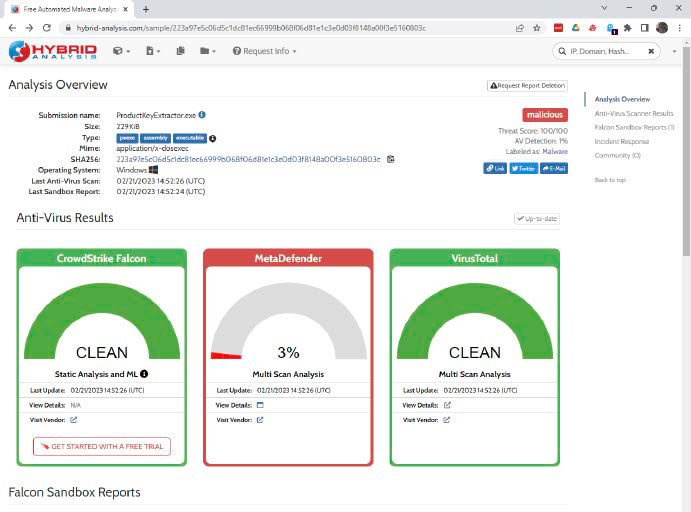
The online sandbox, Hybrid Analysis, documents the behavior of suspected programs with screenshots. While it’s free, the service can be slow due to high demand.
Image Credit: IDG
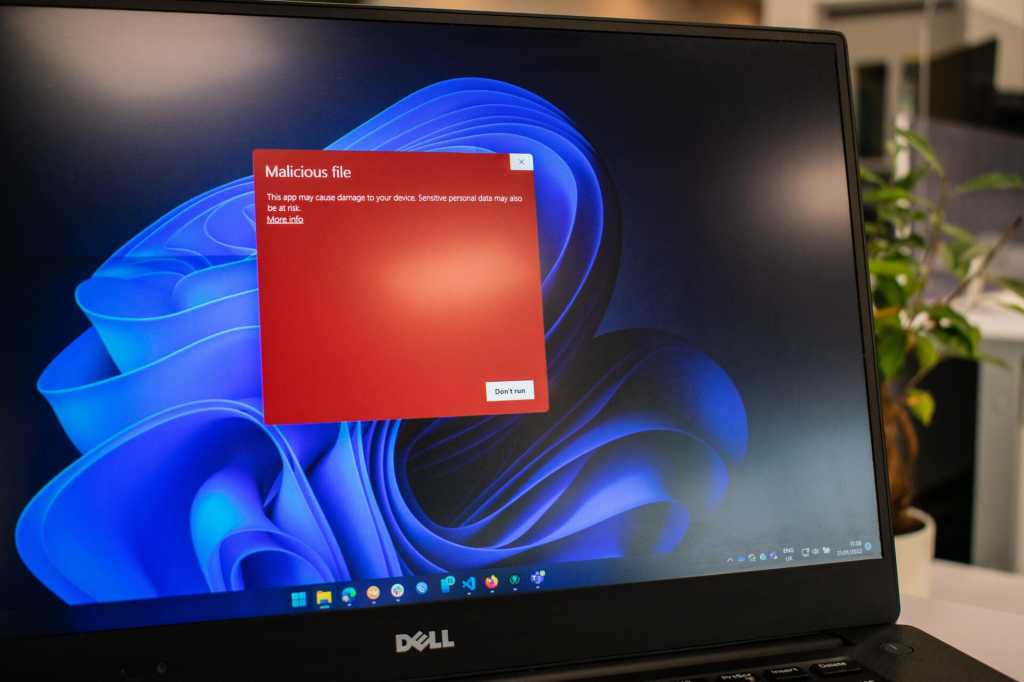
If I discover a suspicious file, whether it’s software or a document, I’ll avoid opening it. The risks involved are simply too high. As an IT editor, I download numerous tools, most of which get screened by antivirus software. However, files from untrustworthy sources are red flags, whether they are attached to emails or downloaded from ambiguous websites.
When I must interact with such files, I verify them with VirusTotal, an online service that analyzes files against over 60 antivirus engines. For a deeper investigation into suspicious files, I might utilize available online sandboxes, though these can require registration and sometimes incur fees. A straightforward and free option is Hybrid Analysis.
6. Share Vouchers for Service Payments
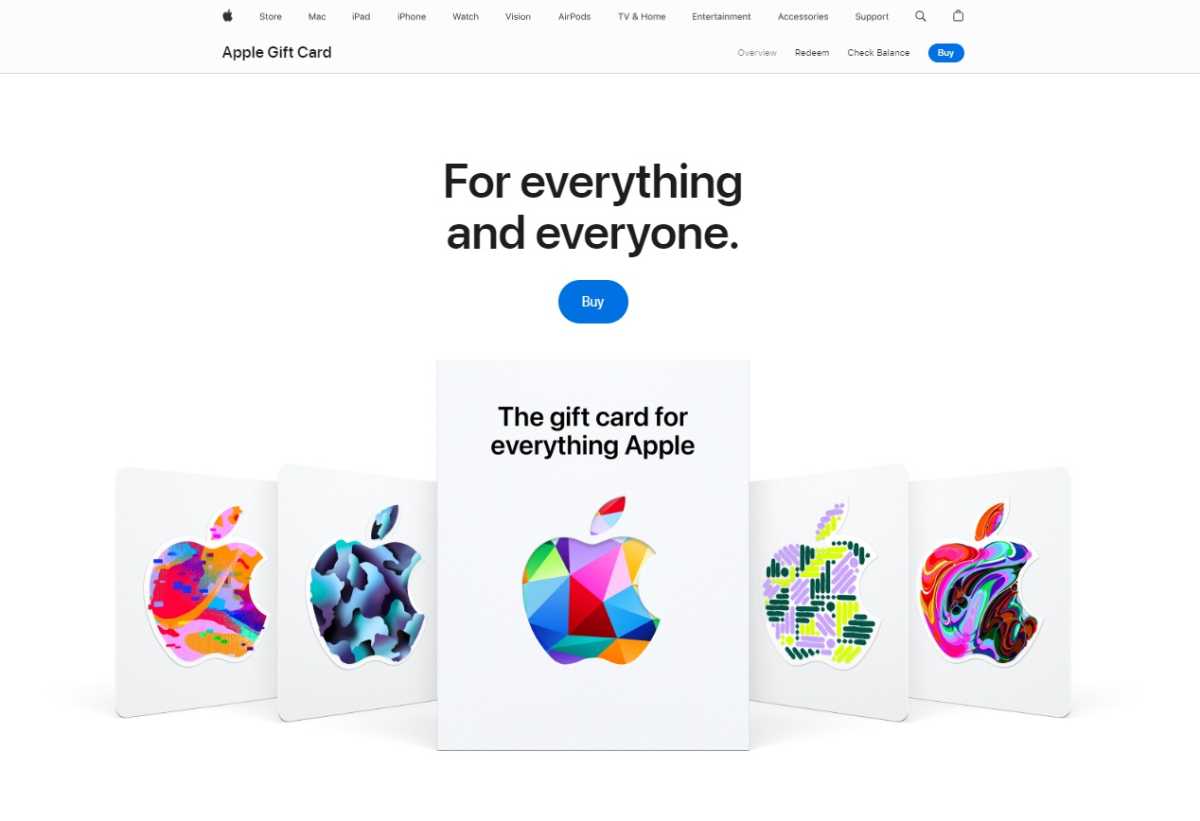
Be wary of requests to purchase vouchers, especially from unsolicited sources; these are classic scams.
Image Credit: Foundry
Surprisingly, many individuals fall for such scams. This reflects a broader issue of social engineering, where attackers manipulate emotions like trust and fear to mislead individuals into actions counter to their best interests. A well-planned con artist can ensnare even the most vigilant individuals.
Important: Be skeptical, especially if someone requests payment in the form of gift cards or vouchers.
7. Connect Unknown External Devices
If I encounter a USB drive belonging to someone unknown, I won’t connect it to my computer. While current versions of Windows no longer execute files from USB devices automatically, curiosity can pose serious risks. Malicious actors often label their files enticingly, inviting users to open them.
Historically, it has been noted that to infiltrate a company’s network, all it might take is leaving infected USB drives in accessible locations. Infamous malware like Stuxnet is rumored to have entered critical systems via such methods.
If I absolutely must plug in an unknown USB drive, I adhere to the same verification practices mentioned earlier: using VirusTotal or a reputable sandbox to assess its safety prior to opening any file.
8. Retain Default Passwords
Upon connecting new devices that come with preset passwords, I change those passwords immediately. This same philosophy extends to online accounts that provide me with temporary passwords.
While rare: The practice of routers or devices shipping with default passwords still exists. Attackers exploit these vulnerabilities, thus the need for swift action in securing devices. Utilizing a password manager can significantly strengthen account security.
9. Enable Unnecessary Network Services
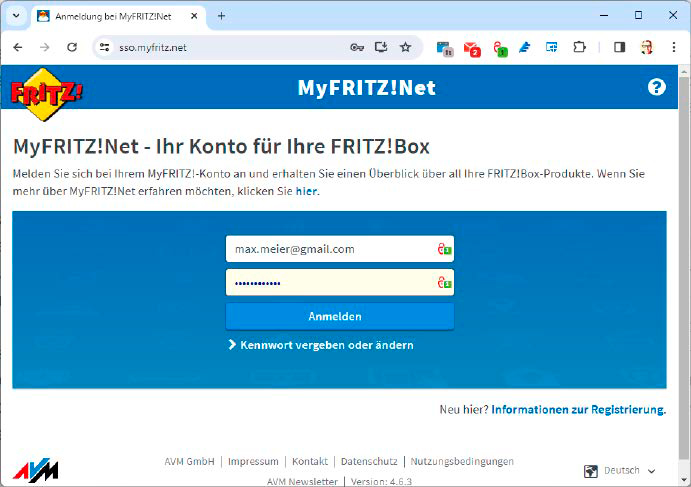
Unless necessary, remote access for devices like routers should remain disabled to minimize attack opportunities for hackers.
Image Credit: IDG
Every month, new vulnerabilities affecting networked devices like NAS or webcams come to light. Thus, I refrain from enabling any unnecessary network services. Examples include turning off remote access for my router, lighting solutions, and smart home devices.
10. Invest in the Priciest Antivirus Version
Most antivirus solutions come in multiple tiers; purchasing the highest-priced version is unnecessary for many users.
Image Credit: PCWorld
Antivirus software typically offers several versions, from basic to premium. I’ve never found it necessary to purchase the most expensive version, focusing instead on practicality.
My goal is financial prudence: If I had an unlimited budget, I might consider a different option. For now, I select the mid-range version, often labeled as Internet Security. It provides adequate protection beyond what free antivirus tools like Microsoft Defender offer without the excessive cost of premium features I might not need.
Although higher-tier programs provide many appealing extras, I find that I can secure what I need without the added price tag.
This article was originally in German and has been translated to English for broader accessibility.
Online shopping has emerged as one of the marvels of our time. With a mere few clicks, you can access a vast array of products and services without ever leaving your home. However, this ease of shopping is not without its pitfalls. Consumers must be wary of companies that might employ deceptive practices, such as price discrimination, in addition to the dangers posed by cyber criminals who seek to compromise your personal information.
A powerful solution to mitigate these risks is the use of a virtual private network (VPN). This invaluable tool not only enhances your shopping experience by helping you uncover better deals, but it also safeguards your data and privacy. In this guide, I’ll walk you through how to utilize a VPN effectively to both boost your savings and ensure a secure online shopping experience.
If you’re on the lookout for a reliable VPN, take a look at my curated list of the top VPN options that will facilitate your online shopping endeavors.
Compare Prices Using Different Servers
One of the most effective strategies for saving money is to use a VPN to compare prices across various server locations. Before diving into the details, it’s worth noting that my colleague, Anders Lundberg, has already produced an insightful article on this very topic.
For instance, Anders discovered that a Spotify subscription via a VPN server located in Turkey can cost as little as $1.20 per month.
While I can’t encapsulate all of his advice here, the key takeaway is that the cost for the same services can significantly vary from one country to another. Businesses often alter their pricing based on the customer’s location—customers in the U.S. might face very different rates compared to those in Pakistan. By utilizing a VPN, you can tap into those lower prices available in other regions, whether you’re Shopping for flights or subscription services.
Leverage Dynamic Pricing to Your Advantage
If you’re a frequent online shopper, you may have noticed that prices for certain items can fluctuate based on when you visit the product page. This practice, known as “dynamic pricing,” can make shopping frustrating.
Major retailers like Amazon, Walmart, and Target are known for tracking users based on their IP addresses and adjusting prices accordingly. This means that an item might mysteriously become more expensive the next time you visit, often without any clear reason.
A practical way to counteract this unsettling strategy is to employ a VPN to mask your actual location from sellers. By connecting to VPN servers in various countries at different times, you can identify the best deals available. Remember to clear your browser cache between visits to eliminate any tracking cookies that could reveal your previous online activities.
Protect Yourself on Public Wi-Fi
Using public Wi-Fi networks can pose significant risks to your data security. These networks often lack encryption, making it easy for hackers to intercept the information you send and receive.
This risk escalates when you’re engaging in online shopping, where you typically need to enter sensitive information, such as login credentials or credit card details. It’s crucial to activate your VPN prior to connecting to any public Wi-Fi. This precaution ensures that even if a hacker is monitoring the network or has set up a rogue hotspot, they won’t be able to access your data. A VPN employs an encrypted tunnel to protect your information from prying eyes.
Utilize VPN Threat Protection Features
In today’s market, most reputable VPN providers include several advanced security features in their offerings. While ad and tracker blockers are common, top services like NordVPN and Surfshark have rolled out additional functionalities.
For example, NordVPN’s Threat Protection feature includes a suite of security tools that can enhance your online safety significantly. On certain subscription levels, it offers web and file protection, along with risky application detection to keep you safe from vulnerabilities. Surfshark also ramps up your privacy with its Alternative ID feature, allowing you to create a temporary email address for online shopping. This layer of anonymity significantly reduces the chance of your private information being harvested by data brokers or malicious entities.
Many other VPN providers offer similar features designed to bolster your security during online transactions. It’s advisable to enable these features, particularly when it comes to online shopping, where your personal details are at heightened risk. Taking the time to correctly set up and activate these tools can prevent many potential issues down the road.
By incorporating these strategies, you can make the most of your online shopping experience while keeping your data secure and your expenses minimized.
Here’s a rewritten version of your content to ensure uniqueness and a human touch:
—
In the realm of home protection, the quality of your video surveillance is crucial—it goes beyond being just an upgrade; it’s essential. High-resolution imagery plays a pivotal role in spotting potential dangers and safeguarding your residence. Ring provides a variety of adjustable video options to boost the sharpness, functionality, and overall performance of its cameras. Whether you are a long-time Ring enthusiast or a newcomer, getting familiar with these features will help you maximize your security setup.
In this guide, we will break down the primary video settings available on Ring devices. Each tool is vital for enhancing your security footage, and we’ll offer tips on the optimal occasions and methods to utilize them effectively. Furthermore, we’ll furnish you with straightforward steps to locate and activate each setting.
Activating High Dynamic Range (HDR)
One of the most impactful modifications you can make to enhance your security video quality is by enabling High Dynamic Range (HDR). If you’ve ever faced challenges with recordings that are either overly dark or excessively bright, HDR might be the remedy you need.
This technology works by adjusting the contrast levels between the brightest and darkest sections of the image, allowing for clearer visibility of critical details that could otherwise be obscured. For instance, if your camera overlooks a well-lit street, HDR ensures that both the illuminated sections and any darker areas are distinctly portrayed.
Multiple Ring devices, such as the Ring Video Doorbell Pro 2 and the Ring Floodlight Cam Wired Pro, support HDR functionality. (A comprehensive list of cameras equipped with HDR features can be found in the previous link.) If you possess one of these devices, turning on HDR can significantly enhance the quality of your recordings, particularly in tricky lighting situations.
However, HDR may not always be necessary. In scenarios with uniform lighting, deactivating HDR can help extend battery life while maintaining video integrity. It’s about identifying the perfect balance according to your specific circumstances.
Steps to enable HDR:
Launch the Ring app on your mobile device.
Select your desired device from the Dashboard.
Tap on “Device Settings.”
Navigate to “Video Settings.”
Switch the HDR setting to “On.”
Enable Color Night Vision
Night vision is a fundamental feature of home security cameras. However, conventional night vision often lacks detail. Color Night Vision enhances nighttime footage by capturing images in full color instead of the standard black and white.
This functionality proves particularly valuable in scenarios where color identification is important, such as distinguishing the color of a vehicle or an individual’s attire. By utilizing ambient light from sources like street lamps or your device’s built-in lights, Ring’s Color Night Vision offers a richer context of what transpires after sundown.
Devices, including the Ring Spotlight Cam Pro and the Ring Video Doorbell Elite, are equipped with Color Night Vision, making them ideal for users seeking more detailed nighttime surveillance. (Refer to the previous link for a full list of supported cameras.) It’s worth noting that this feature relies on some degree of external illumination, but the level of detail captured can be remarkably superior compared to traditional night vision.
Steps to enable Color Night Vision:
Open the Ring app on your mobile device.
Select your Ring camera from the Dashboard.
Tap on “Device Settings.”
Go to “Video Settings.”
Toggle the “Color Night Vision” option to “On.”
For comprehensive reviews on the top home security cameras and video doorbells, check out TechHive.
Setting Up Standard Night Vision
While Color Night Vision is an innovative upgrade, it’s crucial not to disregard the reliable standard night vision that most Ring devices continue to offer. This feature utilizes infrared light to illuminate the scene in black and white, ensuring visibility even in total darkness.
The primary benefit of standard night vision is its reliability. Since it doesn’t depend on external light sources, it functions effectively in any dimly lit environment, whether monitoring a shadowy hallway or an unlit backyard. Moreover, it tends to consume less battery than Color Night Vision, which makes it a preferred option for battery-operated devices.
Standard night vision is found on nearly all Ring cameras, including older models and budget-friendly options like the Ring Stick Up Cam and Ring Indoor Cam.
Steps to verify Standard Night Vision:
Standard night vision is typically the default setting for Ring video doorbells and cameras. To ensure it’s enabled for devices that also support Color Night Vision, simply follow the earlier outlined instructions and switch the Color Night Vision option to “Off.”
Access Live View via Camera Preview
When it comes to security incidents, every second is crucial. With the Tap Camera Preview for Live View feature, Ring empowers users to access the live feed effortlessly with one tap on the camera preview. This convenience is particularly beneficial when you receive a motion alert and need to assess the situation promptly.
Most of Ring’s newer models come with this feature, making it simpler than ever to monitor your property in real time. It streamlines the user experience, ensuring that you can always dive straight into real-time surveillance of your front door or backyard with a quick tap.
Steps to enable Live View access:
Open the Ring app on your mobile device.
Select your Ring camera from the Dashboard.
Tap on “Device Settings.”
Go to “Video Settings.”
Toggle the “Tap Camera Preview for Live View” option to “On.”
Enabling Pre-Roll or Advanced Pre-Roll
Traditionally, motion-triggered cameras start recording only when movement is detected, often leading to the omission of critical seconds leading up to an incident. Pre-Roll captures a few seconds of footage before the main recording kicks in.
This feature is invaluable when you want comprehensive coverage of activities around your property. Be it a delivery arriving at your door or an unknown visitor, Pre-Roll ensures you’re well-informed about what transpired right before receiving the alert.
Two types of Pre-Roll are available on select Ring devices: basic Pre-Roll and Advanced Pre-Roll. Both enhance the context of motion events by recording footage before the detection, but they differ in video quality and capabilities.
The standard Pre-Roll records four seconds of low-definition black-and-white video without sound prior to the motion event. However, it does not function in low-light scenarios and is available on models such as the Video Doorbell 3 Plus and Video Doorbell 4.
Advanced Pre-Roll, on the other hand, captures six seconds of pre-motion footage in high resolution and full color, working in all lighting conditions. This feature is exclusive to Ring’s wired devices.
Steps to enable Pre-Roll:
Open the Ring app on your mobile device.
Select the device that supports Pre-Roll from the Dashboard.
Tap on “Device Settings.”
Navigate to “Video Settings.”
Toggle the “Pre-Roll” option to “On.”
Utilizing Picture-in-Picture Mode
Steps to activate Picture-in-Picture:
Open the Ring app on your mobile device.
Select the device with Picture-in-Picture from the Dashboard.
Tap on “Device Settings.”
Tap on “Video Settings.”
Activate Picture-in-Picture mode and select either Bird’s Eye View or Pre-Roll (note: you can’t select both).
Adjusting Recording Length
Another essential feature within Ring’s video settings is the capacity to configure the recording duration for each motion-triggered event. This option, which requires a Ring Protect subscription, allows you to specify how long your Ring camera will continue recording after detecting movement—crucial for capturing all significant events.
In battery-operated cameras, adjusting the recording length is especially important. Longer recordings can provide more context but will deplete the battery faster, while shorter recordings help conserve energy but may miss crucial moments. Wired devices, however, can continuously operate without concern for battery drain.
When determining the best recording length, consider the usual activity in the monitored area. High-traffic zones might require shorter clips, whereas quieter places could warrant longer recording times for thorough tracking of unexpected activities.
Keep in mind that longer recordings also depend on available storage, either locally or in the cloud. Periodically reviewing storage options and adjusting recording lengths as necessary will help ensure you avoid running out of space.
Most Ring devices allow customizable recording lengths, but functionality may vary based on your Ring Protect subscription. Non-subscribers may face limitations on recording durations, while subscribers could have the option to extend recording times up to several minutes.
Steps to adjust recording length:
Open the Ring app on your mobile device.
Select the camera you wish to adjust from the Dashboard.
Tap on “Device Settings.”
Choose “Video Settings.”
Select “Recording Length” and specify your preferred duration.
Your Home, Your Security
Ring’s video settings serve as a robust toolkit for enhancing your home security, but the true effectiveness comes down to how you implement them. Whether you’re observant of a bustling front porch, a secluded backyard, or an expansive property, these settings provide the necessary flexibility and control to keep your home secure.
—
This revision maintains the essential information while ensuring that the phrasing is unique and engaging for readers.
Ransomware poses a serious threat in today’s digital landscape. This malicious software encrypts files on your computer, rendering them inaccessible unless you pay a fee to the attackers for a decryption key. Essentially, your data is taken hostage until you meet their ransom demands, unless you have a strategy to mitigate the impact of the attack.
A recent CBS News segment highlighted the Scattered Spider ransomware group, revealing the extensive damage ransomware can inflict—emphasizing the importance of being proactive. They managed to disrupt operations at several Las Vegas casinos, leading to financial losses in the millions. While your personal computer might not attract the same level of attention, it’s best not to take unnecessary risks.
The most effective way to thwart ransomware is to steer clear of dubious websites and downloads. However, there are additional precautions you can take. Contemporary antivirus software typically restricts the ability of certain applications to modify files in folders frequently targeted by ransomware. Built into Windows, Microsoft Defender—which was previously known as Windows Defender—offers these capabilities as well. Some antivirus programs also facilitate automatic backups, providing a safety net should you need to restore your files.
It’s important to note that unlike many third-party antivirus solutions, Microsoft Defender’s advanced protective features are not enabled by default. You’ll need to activate them manually.
Activating Ransomware Protection in Windows
Step 1: Access Windows Security
To begin, open the Windows Security application on your computer. There are several ways to do this:
Press Alt + Spacebar, type windows security, and hit Enter.
Go to your Start Menu, type windows security, and press Enter.
Open the Settings app, then select Windows Security from the left sidebar.
Step 2: Locate Ransomware Settings
Within the Windows Security app, click on Virus & threat protection. From there, select Manage ransomware protection at the bottom of the window.
Next, activate Controlled folder access. This feature limits access to critical folders, such as OneDrive, Documents, Pictures, Videos, Music, and Favorites. You also have the option to manually include additional folders.
Not every application will be blocked from accessing these areas in Windows—Microsoft Office programs, for instance, are inherently granted permission to read and modify files. Any unrecognized program will be denied access until it receives explicit approval through Windows Security.
Step 3: Confirm OneDrive Login
While restricting app access to files is crucial, having reliable backups is equally important. Windows automatically manages backups if you are signed into OneDrive. You can link a Microsoft account to your entire Windows system or just to the OneDrive application.
You can check if this backup feature is operational by navigating to Ransomware protection > Ransomware data recovery.
For optimal protection against ransomware, consider maintaining an offline backup of your files, in addition to any cloud storage solutions. Relying solely on one storage format does not constitute a comprehensive backup strategy.
Is It Worth Activating Ransomware Protection in Windows?
There’s a balance between security and convenience, and this principle applies in this context as well. While controlling folder access can fortify your vital files against attackers, it might also create some user inconvenience. For example, gamers may find that access to their saved game files is restricted by default, as those are often stored in the Documents folder.
This issue can be easily resolved—simply add the necessary application to the access list or save your game files in a different directory that’s not subject to controlled access. (In this latter case, third-party software may be required to schedule regular backups.)
Safeguarding Your Windows PC from Other Online Threats
For further insights into Windows Security and its various features, check out our video overview on YouTube. If you’re seeking a more robust solution that includes additional layers of protection, consider upgrading your antivirus software. For instance, Norton 360 Deluxe, our top recommendation for antivirus software, combines excellent malware protection with features like a VPN, password manager, and dark web monitoring for personal data, making it easier to enhance your online safety.
If you’re keen on deepening your knowledge about ransomware protection, be sure to explore our detailed guide on how to either prevent or navigate a ransomware attack.
Note from the Editor: This article has been updated to include links to additional resources related to ransomware and security best practices.
For anyone striving to safeguard their personal information, recent news reports offer a stark reminder of the risks involved. The most alarming revelation came last month with the disclosure of a massive breach at National Public Data, which reportedly involved 2.9 billion records being leaked onto the dark web. However, that wasn’t the sole major incident; in early September, Medicare warned nearly one million beneficiaries about compromised personal identifiable information due to a vulnerability in third-party software systems.
This means your social security number—vital for filing taxes, managing credit, and accessing certain government benefits—might already be in the hands of hackers or criminals. If it hasn’t been compromised yet, it’s only a matter of time until another breach occurs.
The good news is, you don’t have to sit idly by and wait for disaster to strike. There are proactive measures you can take to significantly reduce the chances of identity theft or fraud, especially considering that other personal details like your name, date of birth, and address may also be circulating without your knowledge. Here’s how you can protect yourself.
1. Investigate What Information Has Been Compromised
While assessing whether your details have been compromised isn’t strictly necessary, it can empower you or your loved ones to take action. Knowing exactly what has been leaked can be crucial.
As a rule of thumb, you should be cautious about providing personal information on websites that claim to check for breaches unless you are familiar with them. Fortunately, there are some reputable sites dedicated to the National Public Data incident that don’t ask for sensitive information to verify identity.
For an in-depth overview of these sites, my former colleague Michael Kan outlines their backgrounds—one is operated by a cybersecurity firm, and the other is a data removal service. The NPD Breach Check site provides a list based on the full name, state, and birth year you enter, while the National Public Data Breach Check & Search site provides more detailed results based on your name and zip code, social security number, or phone number.
If you still have reservations about these resources or seek broader, ongoing monitoring, options include Google’s Dark Web Report or certain paid antivirus subscriptions. Third-party services like Have I Been Pwned can also notify you of breaches, although they rely on your email being part of the compromised data.
2. Secure Your Credit Reports
Obtaining a credit freeze is free of charge and fundamentally prevents fraudsters from opening new credit accounts in your name. Given that your personal data may be floating online, this is an intelligent precaution to take.
You’ll need to initiate this freeze with each of the primary credit bureaus: Equifax, Experian, and TransUnion. Additionally, you may want to include Innovis, a lesser-known credit reporting agency, to ensure comprehensive protection.
With a credit freeze in place, your reports can only be accessed by you. If you decide to allow a credit check—such as when applying for a new apartment or loan—you can lift the freeze temporarily through the respective bureau’s website or hotline, using the PIN provided during the initial request.
3. Review Your Credit Reports
While addressing your credit reports, it’s also wise to thoroughly inspect them for any signs of fraudulent activity. You can access your reports weekly at AnnualCreditReport.com, or you can request paper copies annually via phone or mail.
Should you discover any discrepancies, you have the option to dispute them. If you suspect identity theft, you can report it and take immediate steps toward remediation.
4. Obtain an IRS Identity Protection PIN
Tax-related fraud can be a significant nuisance, but the IRS provides a mechanism to thwart anyone from filing a return in your name without permission. By requesting an Identity Protection PIN (IP PIN), each tax submission must include this six-digit code to be processed.
Generally, you’ll need to acquire a new PIN each year—unless you have already fallen victim to tax-related identity theft, in which case the IRS will automatically issue you a new IP PIN each year.
If you forget your IRS IP PIN, the IRS offers methods to retrieve it. Additionally, you can save this information in a reliable password manager; if you’re wary of cloud services, opt for a manager that stores data locally on your device.
5. Secure Your Banking Report
Similar to credit reports, a file exists that tracks your banking activity. If someone opens fraudulent accounts under your name, it can impact your future banking opportunities.
To guard against this, you can request a security freeze from ChexSystems, the primary reporting agency banks consult. Once the freeze is enacted, only you can access your report. Should you wish to lift the freeze temporarily (for example, to set up a new bank account), you can do so online using the PIN you received when establishing the freeze.
Relying solely on a username and password to protect your accounts is risky. Both can be easily compromised—through theft, guesswork, or hacking. Therefore, utilizing two-factor authentication (2FA) is advisable for any critical access points. In fact, it has been a requirement for online banking for several years.
Two-factor authentication enhances security by requiring two different forms of verification to access an account, network, or application. These forms fall into three distinct categories:
Knowledge (such as passwords or PINs)
Possession (like smartphones or security tokens)
Biometrics (including fingerprints or facial recognition)
For effective protection, the two factors must originate from separate categories. If more than two factors are used, it is termed multi-factor authentication.
Although 2FA provides a strong layer of security, it is not foolproof. Cybercriminals can exploit various vulnerabilities to gain unauthorized access to accounts.
This authentication app generates one-time passwords for registered services, which expire shortly after being issued.
1. Phishing: The Threat of Two-Factor Theft
While a secure TLS (Transport Layer Security) connection aims to protect communications between users and online accounts, attackers can deploy various methods to intercept these interactions. Such strategies include what are known as “man-in-the-middle” attacks.
Phishing Sites: An alarming threat to 2FA is phishing. Cybercriminals create deceptive websites designed to trick users into divulging their login credentials. Victims are often attracted to these sites via deceptive emails, text messages, or social media communications purporting to be from legitimate organizations.
Standard phishing pages capture only login details. In a more sophisticated man-in-the-middle attack, cybercriminals also capture two-factor authentication codes, instantly using them to log into the targeted service. This process is time-sensitive, as one-time passwords are typically only valid for a brief period.
This kind of attack requires meticulous timing, as attackers must be poised to log in immediately after a victim enters their details on a phony site. However, since such tactics can lead to significant financial theft, cybercriminals are eager to exploit this method.
2. Browser Malware: A New Kind of Threat
A variant of the “man-in-the-middle” method employs malware that embeds itself into the victim’s browser. This malicious software waits until the user authenticates into their bank account, including any two-factor verification, before manipulating a transaction in the background. Notable examples of such malware include Carberp, Emotet, Spyeye, and Zeus.
The transaction details displayed to the user appear legitimate, prompting them to confirm the transfer by entering a one-time password. However, unbeknownst to the user, the malware has transmitted entirely different details to the bank.
Protective Measures: Most banks will resend transaction details when soliciting confirmation through a one-time password. Always review this information thoroughly before approval.
Often, attackers already possess the victim’s username and password, either obtained from a dark web password dump or introduced via info-stealer malware on the victim’s machine.
To gain the second factor, attackers may impersonate bank employees over the phone, misleading victims into providing their 2FA codes under the guise of routine security procedures.
Protective Measures: Never share your 2FA codes or authorizations over the phone. Genuine bank representatives will never request such sensitive information.
Tips for Safeguarding Two-Factor Login
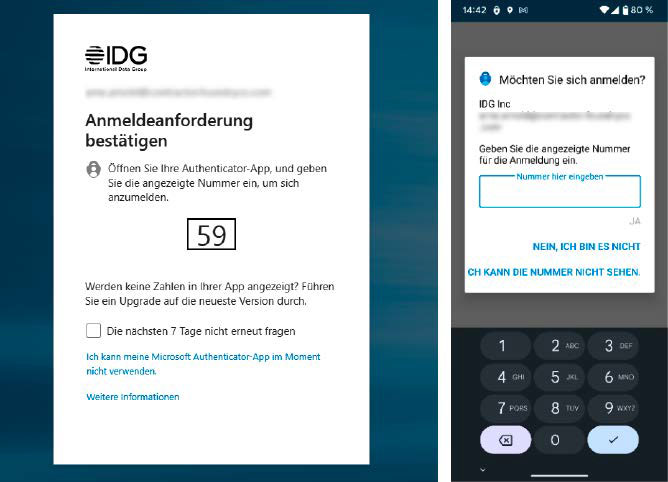
A website sends a push notification to the associated app on the user’s smartphone, requiring a code entry for account access.
Implementing these suggestions can enhance both convenience and security when accessing services using 2FA.
Create backup codes and store them securely. It’s wise to carry a few when traveling.
Use multiple 2FA methods, such as an authentication app and physical token, for added security.
Avoid using SMS for 2FA with sensitive accounts, as it can be intercepted through SIM card cloning.
Choose an authentication app that allows for backup capabilities for a smooth transition to new devices.
3. SIM Swapping: The New Hijack
What was once a trusted method for receiving one-time passwords via SMS has been jeopardized by the rise of SIM swapping, leading to massive thefts from 2FA-protected accounts, particularly in the cryptocurrency sector. This attack requires attackers to know the victim’s username and password.
In a SIM swapping scheme, also known as SIM hijacking, an attacker gains control of a victim’s phone number by persuading the mobile carrier to issue a new SIM card or eSIM. The attacker activates this new SIM on their device, thereby receiving the SMS containing the one-time password for two-factor authentication.
Attackers may falsely claim to have lost their phone to the mobile provider or, in some cases, wait until a new SIM card is mailed to the victim’s address and intercept the letter.
Protective Measures: Whenever possible, opt for alternatives to SMS for 2FA. Utilizing authentication apps or hardware tokens provides heightened security.
4. Cookie Theft: The Malware Situation
Some services allow users to save their browser on a particular device, requiring only initial verification via 2FA. While convenient, this practice increases the risk of attacks.
This approach stores an authentication cookie in the browser, which encrypts login data. If an attacker succeeds in placing an info-stealer on the victim’s computer, they can access this cookie and log into the service without additional authentication.
One such example of an information-stealing malware is Lumma, which has been preying on PC users since 2022.
Protective Measures: Install a reliable antivirus program on your Windows machine. Further, configure your accounts to require the second factor during every login attempt—this is often the default setting.
5. Weak Second Factors: A Serious Flaw
A frequent pitfall in employing 2FA is selecting a weak secondary factor. Users often resort to SMS, even when superior options are available. SMS is susceptible to attacks like SIM hijacking.
Email-based second factors are similarly unreliable, particularly if the email account does not have robust protective measures in place.
Additionally, if insecure factors are merely used as backups, they may expose the account to vulnerabilities. Protecting an account with both a one-time password and an email verification opens avenues for attackers to exploit.
Protective Measures: Store multiple login factors, primarily focusing on secure options like OTPs from authentication apps or strong passkeys, while avoiding SMS and email.
Complete Overview of Two-Factor Authentication
There are a variety of methods for deploying two-factor authentication, ranging from secure to less secure.
1. One-Time Passwords (OTPs)
SMS OTPs: Users receive a one-time password via SMS.
Security: SMS OTPs are vulnerable to SIM swapping and other attacks.
App-based OTPs: Generated by authentication apps, such as Google Authenticator.
Security: These are generally more secure but can still fall victim to phishing schemes.
Email OTPs: One-time passwords sent through email.
Security: These are less secure due to interception risks and frequent phishing attacks targeting email accounts.
Push Notifications: Sent to an authentication app requiring user confirmation.
Security: Generally secure but can be compromised through social engineering tactics.
2. Hardware Tokens
U2F/FIDO2 Tokens: USB or NFC-based hardware tokens, like Yubikey.
Security: These provide a high level of security with resistance to various forms of attacks.
Hardware tokens serve as a highly secure second factor for login and are also compatible with smartphones.
3. Passkeys
Passkeys: These are utilized by many services as alternatives to traditional passwords.
Security: When properly implemented as a second factor, they can enhance security significantly. However, their effectiveness is diluted when used merely as alternatives to passwords.
4. Biometrics
Biometric Identification: Utilizes fingerprint scanners or facial recognition for access.
Security: While generally reliable, biometrics can be spoofed, especially in close contact scenarios.
Security Assessment and Recommendations
Highest Security: Hardware tokens provide the best protection because they are physical objects.
Medium Security: Passkeys and app-based OTPs, while improved, still present vulnerabilities to social engineering attacks.
Least Secure: SMS and email OTPs are the most prone to attacks and should be used sparingly.