Tag: retro

  • Sony dropping discs: how I’ll play PS2 games on vintage hardware instead of PS5

    Sony dropping discs: how I’ll play PS2 games on vintage hardware instead of PS5

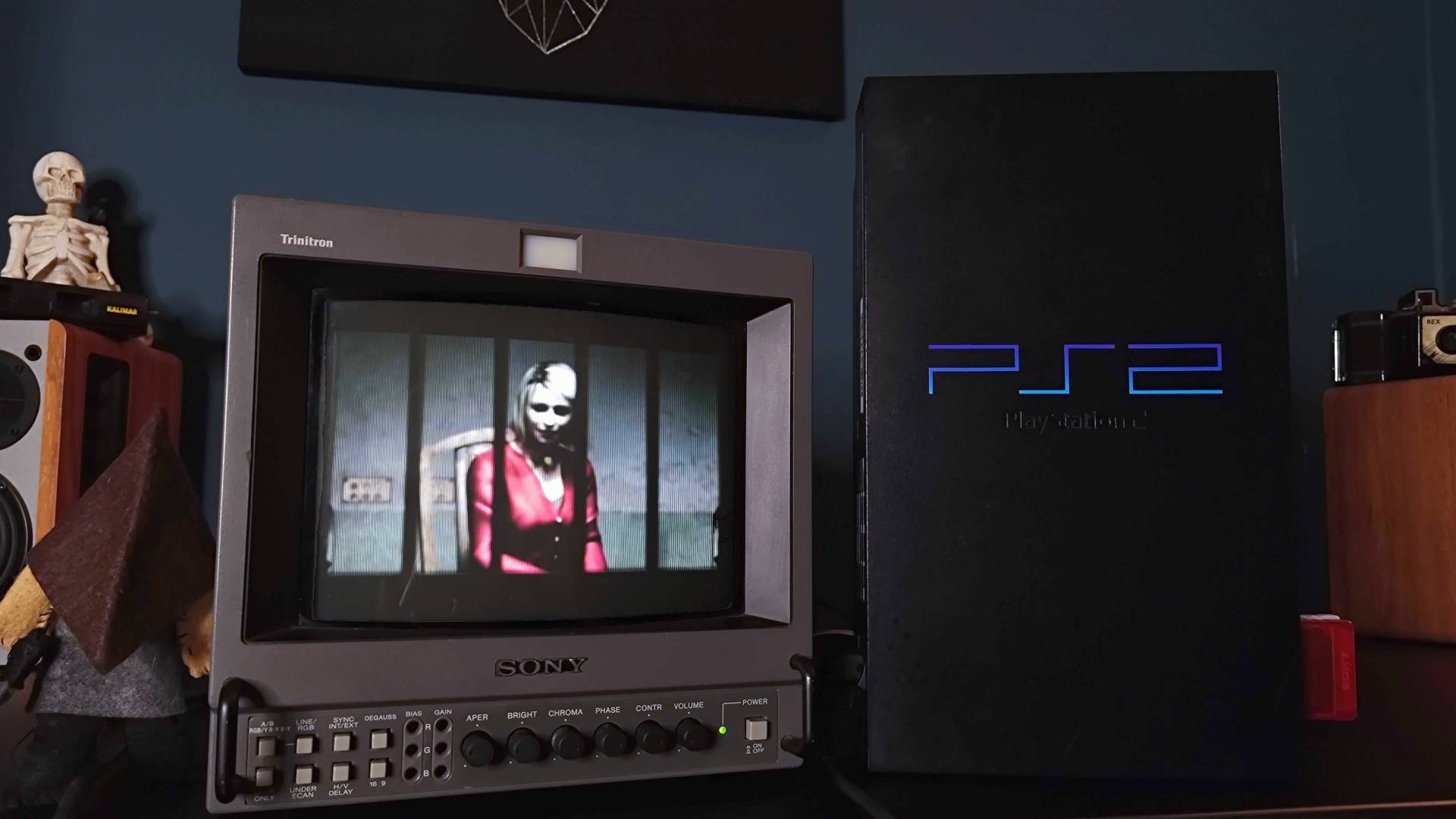
    For many years, friends and family have been asking me how to play PS2 games today that the console is considered “retro.” It’s tempting just to recommend finding an original console and give a thumbs up, but even if you have Sony’s system from the early 2000s, playing those classic PS2 titles now can turn into a complicated process.

    More people I know ask about PS2 games than any other vintage gaming collection. That makes sense because PS2 is the best-selling game console of all time. Now that the original fans are adults with money to spend, all it takes is hearing about a legendary game like Silent Hill 2 or Grand Theft Auto: San Andreas to spark searches on how to relive those moments.

    Of course, some of you didn’t spend your teenage hours gaming on PS2, whether because gaming wasn’t your thing back then or you’re new to it. Now is a good time to try out this influential console that changed gaming forever. My goal is to guide you on how to play PS2 games, whether using the original hardware or through modern emulation technology.


    PS2 Console vs. Emulation

    Before diving into the best PS2 games, you’ll face a choice. If you care about the authentic experience of inserting discs and hearing that nostalgic startup jingle from 26 years ago, then the original PS2 hardware is the way. But if you’re open to playing on newer devices like handhelds or computers, then emulators offer a different route.

    I’ll admit, I’m a traditionalist and believe the disc spinning sound and indicator lights are part of the proper PS2 vibe. Still, emulation can be more convenient if you own physical copies and want a cleaner, more flexible setup.

    Pros and Cons:

    Original PS2 console:

    • Play physical discs easily
    • Consistent performance
    • Compatibility with original hardware
    • Supports standard controllers
    • Displays natural 480i images
    • Needs adapters or upscalers for modern TVs

    Emulation:

    • Load games at higher resolutions
    • Play on handheld devices
    • Features like save states and faster gameplay
    • Can use USB controllers
    • No need for discs
    • May have bugs or performance issues

    Using a PS2 Console

    Getting a working PS2 setup starts with locating the console itself. If you don’t own one, prices for used models hover around $100 for the original “fat” systems or less for slim versions, often with controllers and cables included. You might find good deals on local classifieds or Facebook Marketplace, sometimes for under $30 in the UK.

    Once you have the console, figure out what video cables you need. If your TV has only HDMI, you’ll have to buy an upscaler or adapter. Older CRTs or some LCD screens with composite or component inputs work with standard RCA cables, making the process simpler.

    Keep in mind, older CRT TVs and certain HDMI adapters aren’t perfect. They can produce blurry images or input lag. Devices like the GBS-C can improve picture quality by providing a clean RGB signal, ensuring your games look solid. For the best results, line-doubling scalers like the OSSC can produce sharper images by avoiding the flickering common with basic deinterlacing methods.

    Connecting your PS2:

    • If your TV supports RGB via SCART or component, use those for cleaner visuals.
    • For HDMI, consider a quality upscaler, but beware of cheap adapters that can degrade image quality.
    • To use newer controllers, a Bluetooth retro receiver (like the 8Bitdo model) can connect modern pads wirelessly to your PS2.

    Controllers and Accessories

    The original DualShock 2 controller works perfectly, but over time, controllers can get sticky or buttons may become unresponsive. Buying new or refurbished controllers avoids hassle mid-game. Be aware: older PS1 controllers won’t work with PS2 games.

    You can also connect newer controllers, including the PlayStation 5 DualSense, via accessories like the 8Bitdo Bluetooth Retro Receiver. This tiny device plugs into the PS2 controller port and links wireless controllers, so you can enjoy modern comfort while firing up old favorites.

    Additionally, because light guns like Time Crisis 2 relied on CRT screens, playing them on modern TVs is tricky. Gadgets like the Intec Time Breaker Lightgun use infrared sensors to give an experience close to the original aiming accuracy, though they tend to be pricey.


    Playing Discs

    Once everything’s set, playing PS2 discs is straightforward: eject the tray or top cover, insert your game label-up, and enjoy. Many PS2s support playing PS1 discs automatically, thanks to their backward compatibility.

    Watch out for scratched discs. The laser in older systems can struggle with damaged media, leading to error messages. You may need to clean, buff, or resurface your discs if they won’t load. Some folks are experimenting with disc repair machines or software backups using tools like FreeMcBoot and disc imaging programs.

    Remember, buying used copies runs the risk of disc issues, especially with older titles like Rule of Rose. It’s often worth investing in nicer disc repairing services or digital backups if you want to keep a collection that’s playable.

    Additional functions:

    The PS2 also plays CDs and DVDs, which let it serve as a media player. Certain models even include built-in DVD remote controls, making it a versatile entertainment device.


    Quick Tips for Setup Success

    • Check which ports your TV has. If you only have HDMI, an upscaler is necessary.
    • Use RGB or component cables for best image quality.
    • Test controllers before buying used; original PS2 controllers might show wear.
    • Stock up on multiple memory cards—originals hold just 8MB, which fills quickly.
    • If recordings or imports give trouble, region locking could be the culprit—special firmware modifications can help bypass this.
    • Be cautious with laser alignment inside the Slim model, as a misaligned laser can scratch discs and make them unreadable.
    • Dirty or scratched discs may need cleaning or resurfacing, but sometimes you might have to replace them.

    PS2 Emulation on Modern Devices

    If you prefer using emulators, remember the legal side: owning the original console and game copies is recommended. To start, you’ll need to extract your console’s BIOS, which requires a PS2, a used memory card like the PSxMemCard that stores it, or a software tool like Biosdrain.

    Once you have the BIOS and your game files (ripped into ISO images), emulate on PC or Android using software like PCSX2 or NetherSX2. Setting up is mostly about configuring the BIOS, loading your game folder, and mapping controllers.

    Older or less powerful systems might show slowdown, especially with demanding titles like God of War or Gran Turismo 4. Investing in a more capable device, like those with Snapdragon 865 chips, provides smoother performance and additional scaling options.


    Playing PS2 Games on Handhelds

    Today’s portable devices, often running Linux or Android, can emulate PS2 games with ease. Many come with pre-installed software but lack game files or BIOS. You’ll need to obtain BIOS dumps and own the original games.

    Recommended handhelds include the Retroid Pocket 5, Mangmi Pocket Max, or the Anbernic RG Cube. Devices with stronger chips allow for better scaling and more demanding titles without slowdown.


    Playing PS2 on PC

    Using a personal computer offers the same flexibility. Download PCSX2 or similar emulators, load your BIOS and game images, connect a gamepad, and tweak graphics settings for optimal performance. Modern portable PCs like the Steam Deck make emulation straightforward with high compatibility.


    Playing on iOS

    Playing PS2 games on iPhones or iPads is more involved. Since emulators like Play! or iPSX2 aren’t on the App Store, you must sideload them using tools like SideStore. A recent iOS device with a strong single-core CPU (like an iPhone 15 Pro or M-series iPad) is recommended to handle emulation smoothly.

    Steps:

    • Install SideStore
    • Download emulator IPA files
    • Sideload on your device
    • Configure folder paths
    • Load BIOS and game files

    Summary

    Whether you prefer the legendary experience of a physical PS2 or the flexibility of emulation, both paths have their perks and challenges. The original hardware offers nostalgia and authenticity but can be costly and prone to disc issues. Emulation provides convenience, higher resolutions, and control options, but requires some technical setup and legal considerations.

    Enjoy diving back into classic titles like Jak and Daxter, Silent Hill 2, or Time Crisis 2, whether on original hardware or through modern tech. The choice depends on your priorities—nostalgia or convenience—and how much effort you want to invest. Happy gaming!

  • How to Best Set Up Your Store in Retro Rewind: Completing and Solving

    How to Best Set Up Your Store in Retro Rewind: Completing and Solving

    When you first start in Retro Rewind, you only have a few shelves and a couple of genres to manage. Over time, you’ll unlock new genres, buy more tapes, and start decorating your store. To keep things running smoothly, it’s important to plan your layout carefully.

    From choosing where to place shelves and signs to adding eye-catching entertainment and snacks, a well-designed store can earn over $500 daily if you plan correctly. Here’s everything you need to know about creating the perfect store layout in Retro Rewind.

    Best Store Layout in Retro Rewind

    Initially, your store space is limited, so focus on arranging shelves for the three genres plus New Releases, with only a small number of VHS tapes. In the early days, set up your shelves in a way that makes the store look organized and inviting.

    As you expand, you’ll add more genres like Sci-Fi and Action, and include snack shelves to encourage customers to spend more money. Maximize wall space by lining shelves along the walls, and use signs and lights to guide customers to different sections.

    Snacks can be placed between movie shelves or stacked back-to-back in the center of the store. It’s best to buy at least two snack shelves so you can display all available snacks. Decorate the store with balloons or movie-themed items in open spaces to attract customers and boost sales.

    When your finances allow, purchase store expansions—starting with Section A for $1,250 or Section B for $1,000. This extra space lets you display more VHS tapes. Section A offers a more dynamic area, while Section B provides a simple backroom extension; the choice depends on your store’s needs. Keep in mind, buying all expansions unlocks an achievement.

    As your store grows, focus on generating more income by adding entertainment items like refrigerators, TVs, and arcade machines. Dedicate a section of your store to these, lining a wall with arcade machines and candy dispensers. These generate passive income and can greatly increase your cash flow, making them worthwhile investments.

    With more room, arrange shelves in aisles or centered displays, leaving clear paths for customers to browse comfortably. Place balloons or movie-themed decorations near popular sections to encourage customers to look at VHS tapes or buy snacks. Avoid overcrowding by leaving enough space around displays so customers can move freely and easily ask questions.

    High-traffic areas are typically near the register and around popular genre shelves. Some genres will see variable popularity depending on the day of the week, so check your in-game calendar to plan accordingly.

    Keep the cash register area as clear as possible, especially to the right where customers queue, and the front-left where customers ask for reserved titles. A cluttered checkout can create chaos and make the store look messy.

    When expanding to the back sections (D, E, and F), consider creating a dedicated arcade zone with gaming machines and candy dispensers. The smallest backroom — Section F — is ideal for storing adult genre VHS out of view from sensitive customers. Decorate this room with adult-themed displays, neon lights, and red balloons for a sensual vibe.

    Don’t hesitate to rearrange your layout as your store develops. Move genre sections to different locations and combine genres like Kids with Christmas, Western with Police, Action with Horror, or Romance with Fantasy as space allows. Flexibility helps keep your store fresh and more appealing to different customer interests.

  • How to Make More Money in Retro Rewind by Completing and Solving

    How to Make More Money in Retro Rewind by Completing and Solving

    To purchase new stock, expand your store, and unlock exciting features to attract customers, your shop in Retro Rewind Video Store Simulator needs to make a profit. This can be challenging, especially early on when you’re busy increasing your movie collection and decorating the space.

    To help boost your earnings and improve your progress in Retro Rewind, here are some simple tips. This guide covers everything you need to know to make a profit in the game.

    ### How to Make a Profit in Retro Rewind

    At the end of each day, you’ll see how much money was spent and earned, with the final amount being your profit. The goal is to keep your income higher than your expenses, avoiding unnecessary purchases.

    In the early days, adding a few decorations can encourage customers to rent more movies. However, don’t go overboard, as money saved can be used later for bigger improvements like store expansions or arcade machines. Typically, you can expect to earn around $200 a day during your first few weeks. While this isn’t a lot, it’s enough to start saving for larger upgrades, but you will need strategies to increase your income, such as giving out flyers.

    ### Flyers

    Distributing flyers is a great way to attract new customers passing by. It’s easier if a staff member can hand out flyers when you’re busy outside, but it’s also useful during slow moments inside the store.

    You can hold up to five flyers at a time and only give them to people who aren’t already planning to visit the store. When approaching someone, an icon will appear; tap it to give a flyer. They will either respond positively, saying something like “Thanks! I’ll check it out,” or negatively, with a groan or a “meh” and a comment like “No thanks, I’m busy.” Regular flyer handouts can significantly boost your daily earnings, sometimes raising profits from around $200 to $500.

    ### Careful Spending

    To save money for expansions—which can be quite pricey—you should cut back on expenses. For example, firing your staff and waiting a few days before rehiring can save about $40 a day. If you prefer having staff, consider hiring cheaper employees or firing and re-hiring to save costs.

    Avoid buying new VHS tapes, shelving, or decorations during this period to keep profits high. You’ll be surprised how quickly your savings grow when you don’t spend on unnecessary items. If you need more videos, purchase those priced under $10 and visit the Video Guy on Tuesdays and Thursdays for affordable titles. When new releases are moved onto regular shelves, put extras into the clearance bin to clear space and recover some of your costs.

    ### Snacks, Sales, and Customer Service

    Snacks are very profitable—costing less than a dollar to buy and selling for two—but they shouldn’t be your main income source. Your best revenue will come from videos, so keep your shelves well-stocked by checking returns multiple times daily.

    Customers may request specific movies either in person or by phone. Always answer the phone, especially early in the morning before opening, since it could be a customer wanting to reserve a movie, someone offering spare VHS tapes, or even a wealthy supporter!

    Be sure to charge a damage fee if it appears in the system during checkout; $20 is standard and can cover lost tapes or add to your daily earnings. Although customers might not be happy about it, it’s a helpful way to increase profits.

  • Completing a Successful Store in Retro Rewind: A Step-by-Step Guide

    Completing a Successful Store in Retro Rewind: A Step-by-Step Guide

    To make a profit in Retro Rewind – Video Store Simulator, you need to start your business strong. As you progress, running the store becomes more efficient, and you’ll eventually hire staff to handle most tasks—if they’re capable, of course.

    Being a manager is never easy, and you’ll have to do everything possible to increase profits while meeting customer needs. Here’s what you need to know when starting out.

    Whatever the Weather
    Before opening each day, check the calendar. It shows the date, weather conditions, and upcoming events. Rainy days tend to bring in more customers eager to rent movies for a cozy night, while special events or themed days promote specific genres.
    Weekends and Fridays are the busiest days. If the forecast calls for a rainy Friday, prepare accordingly with plenty of VHS tapes, snack shelves fully stocked, and a good staff member to help out.

    Flying High
    On slow days when fewer customers visit and there are no returns to process, assign a staff member to the cash register while you focus on passing out flyers. Consistent promotion can significantly boost income during quiet times.
    Currently, you must handle flyer distribution yourself, as staff aren’t automated for this. Keep handing out flyers outside the store or near the movie theater across the street, especially to people who are outside looking in, as they are more likely to respond positively.

    By Genre
    Organizing your inventory by genre is the best approach. Instead of randomly stacking tapes, create labeled sections for genres like “Old Action Movies” so you can quickly find what a customer requests. This neat setup improves the store’s appearance and makes reorganization easier when expanding or remodeling.
    Decorate shelves with themed lighting, balloons, or props to attract attention and encourage rentals. You can also replace shelves with larger models when upgrading your store.

    Trashy Titles Matter Too
    Customers love poorly-rated movies that are fun to watch, even if critics dismiss them. These “so-bad-it’s-good” movies are cheap and often in demand.
    While highly-rated films can command higher rental prices, don’t overlook the value of cheap, bad movies—many customers specifically seek them out and they are guaranteed to turn a profit eventually.
    Remember to regularly check in with the Video Guy outside the back door on Tuesdays and Thursdays for interesting new titles.

    Cherry-Pick Charges
    Some customers might try to avoid late fees by sneaking in a late return and posting it through the slot at night. When they come back, you’ll see the late fee on their account—usually $2.
    You can choose to charge the fee or waive it as a gesture of good customer service. Most customers accept paying the fee, but some may threaten to never come back. Decide what’s best for your store—either enforce the fee or waive it to keep a loyal customer base.
    It’s recommended not to waive damage fees, as $20 typically covers replacing a lost VHS tape.

    Movie Munchies
    Snacks are a great way to increase profit. Set up a few snack shelves once you unlock them at level 4. Snacks cost a few cents, but you can sell them for over a dollar, making for a high margin.
    Since customers don’t come to rent movies for snacks, these are impulse buys. Place snack shelves near the checkout or in high-traffic areas to encourage more sales, especially as customers walk past them frequently.

    Logical Layout
    Your store layout impacts profits. Customers dislike spending too long searching for movies or feeling cramped. Design your store to promote easy movement for shoppers, with wide aisles and clear labels for each genre.
    Expanding your store gives more space to arrange larger displays and promotional boards for new releases, helping persuade passersby to rent certain titles.
    Use the Decor button (B) to change the wall and shelf colors freely, customizing your store’s look.

    High Staff Turnover
    At level 6, you can hire your first employee, with a second available at level 20. Each staff member costs a fixed daily fee, so ensure your budget allows before hiring. The staff hire sheet is located in the stockroom.
    Initially, assign employees roles like handling returns and operating the register. Avoid hiring slow workers; look for those with “Average,” “Good,” or “Fast” ratings.
    Check their smaller details, like customer service skills or health, to prevent frequent sick days. During busy times, you can ask staff to speed up, but overdoing it may lead to quitting. If you notice slacking or poor performance, you can fire staff immediately. Keep in mind, firing and hiring staff within the same day will cost double wages.

  • How to Complete All Achievements in Retro Rewind: Video Store Solver

    How to Complete All Achievements in Retro Rewind: Video Store Solver

    Retro Rewind: Video Store Simulator allows players to experience nostalgic memories as they run their own VHS rental shop, aiming to earn profits. You will stock a mix of classic and recent movies, gradually adding different genres to your collection as you progress.

    The game features 18 achievements to unlock, starting with opening your store for the first time and hiring staff, up to unlocking every movie genre. Completing these achievements rewards you with in-game money and experience points, making it worthwhile even if you’re not a completionist.

    You earn rewards each time you unlock an achievement. For example, finishing your first day as a business owner grants you $100 and 50 XP. Helping customers or hiring staff also gives similar rewards. Some achievements involve specific tasks, like selling 20 slushy drinks, owning 250 movies, or checking in 1,000 movies at the return station. Others challenge you to display holographic movies or sell 20 popcorns, rewarding you with cash and XP for success.

    Certain achievements require reaching store levels to unlock new equipment or features, such as the cotton candy machine at level 12 or arcade machines at level 18. You can unlock all store expansions by checking the poster in the office and paying the required costs, boosting your store’s size and capabilities.

    Completing major financial milestones, like generating $10,000 in revenue or owning 1000 movies, also counts towards achievements. To reach these goals, save your earnings, hold off on unnecessary purchases, and manage staff wisely. Unlocking all movie genres and fully staffing your store also unlocks special achievements, adding to your progression.

    New updates may introduce additional achievements, which will be added to this list as they become available.

  • Retro Hardware Companies Leaving The US Market

    Retro Hardware Companies Leaving The US Market

    At least two companies specializing in retro gaming hardware have halted shipments to the United States due to tariffs imposed during the Trump administration, which they claim could lead to shipping delays and lost items. Recently, Retrotink announced a pause on U.S. orders, effective April 28, and Anbernic has since updated its shipping policy accordingly.

    Mike Chi, the CEO of Retrotink, explained, “Because there’s no clear direction on how tariffs will be administered starting May 2nd, we’ve made the tough choice to temporarily stop shipments to the U.S.” He noted that there is still limited stock available within the United States, so customers might be able to purchase Retrotink products for a little while longer. “We are hopeful that this situation will be resolved, but it’s difficult to predict when or how,” Chi added.

    Anbernic also updated its shipping guidelines, stating, “Due to modifications in U.S. tariff regulations, we are suspending all orders shipping from China to the United States starting today. We encourage customers to prioritize products shipped from our U.S. warehouse, which are currently unaffected by import fees and can be purchased with assurance.”

    The company does not view these measures as permanent. They declared, “Once we have confirmed updates regarding import charges, we will inform our customers promptly and publish our revised policy on our website.”

    The tariffs have significantly impacted the gaming industry. While the pricing for the Nintendo Switch 2 remained unchanged from its initial announcement, various accessories associated with it have experienced price increases. Other companies, like Razer, have also put a hold on their products directed at the U.S. market. While some businesses are discovering ways to adapt and maintain their supply chains without raising prices, others have opted to withdraw entirely from the market until conditions stabilize.

  • Retro Tech Trend Focuses on Old iPhone Cameras

    Retro Tech Trend Focuses on Old iPhone Cameras

    In South Korea, there’s a growing trend that’s seeing a spike in interest for older Apple iPhone models, particularly due to the unique qualities of their cameras. This fascination doesn’t just encompass “vintage” smartphone cameras but also includes outdated, discontinued digital cameras, as reported by The Korea Times, based on findings from the Hankook Ilbo newspaper.

    This phenomenon, known as “youngtro” (a blend of “young” and “retro”), is predominantly embraced by Millennials and Generation Z. The appeal is further amplified by popular musicians and public figures who are hopping on the bandwagon, sharing images on social media that prominently feature these classic devices alongside their subjects.

    But what drives someone to choose an original iPhone SE for photography when the new iPhone 16 series boasts an advanced camera? One student shared, “I find the design of older iPhones from the Steve Jobs era more nostalgic and visually appealing compared to contemporary models,” while another noted, “Photos taken with old iPhones exhibit more distinctive colors than those captured with newer versions.”

    K-pop stars using old iPhone cameras and old digital cameras.
    Jisoo (left), SinB, and Kim Chaewon Instagram

    Interestingly, many individuals immersed in this trend carry both a modern smartphone and an older device or vintage digital camera for their photography needs. They often utilize these cameras in conjunction with retro filters, mirroring the very aesthetic that propelled Instagram to fame long ago. This obsession with nostalgia doesn’t stop at smartphone photography; wired headphones have also gained traction, fueled by celebrity endorsements in mid-2024. Additionally, there’s been a resurgence in the popularity of instant cameras, leading to recent studies indicating that the instant camera market is thriving, despite the dominance of smartphones.

    This renewed interest has led to a notable increase in prices for these once-overlooked devices. Reports suggest that the cost of popular older digital cameras has surged threefold over the last few years, with increasing numbers of people seeking to sell outdated iPhone models like the iPhone 6S for potential profit. This resurgence of nostalgia isn’t entirely new—think of the renewed interest in vinyl records and retro gaming consoles—but it’s intriguing to observe how relatively recent smartphone models are now joining this nostalgic wave.

    With Apple gearing up to unveil a new version of the iPhone SE, set to feature a 48MP camera to replace the old 12-megapixel rear camera, the original iPhone SE from 2022 may soon become a highly sought-after collectible, particularly in South Korea.

  • I Played Atari Gamestation Go And Felt Its Retro Glory

    I Played Atari Gamestation Go And Felt Its Retro Glory

    CES 2025 logo.
    CES 2025
    Check out our comprehensive coverage of CES.
    Updated less than 41 seconds ago

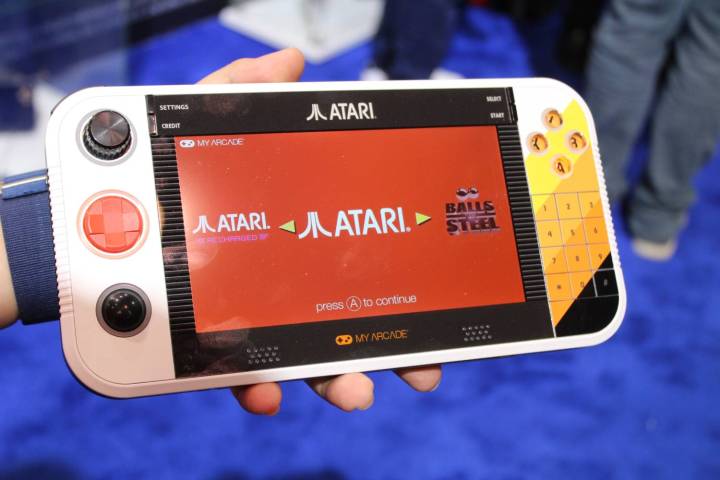
    This week at CES 2025, I’ve encountered numerous handheld gaming devices, many of which share similar functionalities. However, the Atari Gamestation Go stands out as a distinct and exciting option. This retro handheld console boasts over 200 preloaded Atari games, including three variations of Pac-Man. In essence, it serves as a portable version of the Atari Gamestation Pro, a compact home console—but it surpasses it in many ways.

    Before diving deeper, it’s essential to clarify that although “Atari” is featured in the product name, both the Gamestation Go and Pro are produced by a company named My Arcade. My Arcade specializes in delivering the nostalgic experience of playing retro arcade games, and this is evident in their latest offerings showcased at the event. The Atari Gamestation Pro includes a 7-inch 16:9 display, which provides an enjoyable gaming experience. The handheld device is lightweight and comfortable to hold.

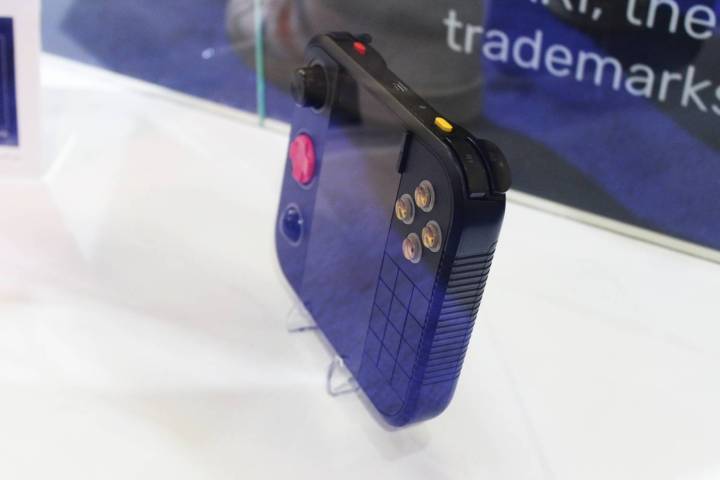
    Atari Gamestation Go controller
    Luke Larsen / Digital Trends

    What really makes this device special are the controls. While it’s easy for anyone to simply load retro games onto a handheld, the Gamestation Go takes it a step further by recreating the essence of these games beautifully. It features a joystick, D-pad, trackball, four buttons, and a number pad, offering a versatile control scheme where some options are game-specific.

    For instance, the number pad is tailored for Atari5200 games, while the trackball is essential for playing Millipede. When you select an Atari5200 game, the number pad will light up, and the trackball illuminates for Millipede. This thoughtful design caters to both seasoned fans and newcomers who may not recognize every title in the extensive library, enhancing the overall nostalgic experience.

    The Gamestation Go also includes a microSD card slot and built-in storage, although the exact capacity has not yet been disclosed. For multiplayer action, it features two USB-C ports for connecting wired controllers, whether they’re from Xbox or PlayStation, or My Arcade’s retro options. Additionally, it offers HDMI output and comes with a built-in kickstand for easily connecting to larger displays.

    While My Arcade didn’t provide details about battery life, it’s worth noting that some of the software was still in development, meaning not all games were accessible during my brief experience. Nevertheless, I genuinely enjoyed playing a quick round of Asteroids.

    The Atari Gamestation Go is slated for release in the third quarter of 2025, with a price tag of $150.

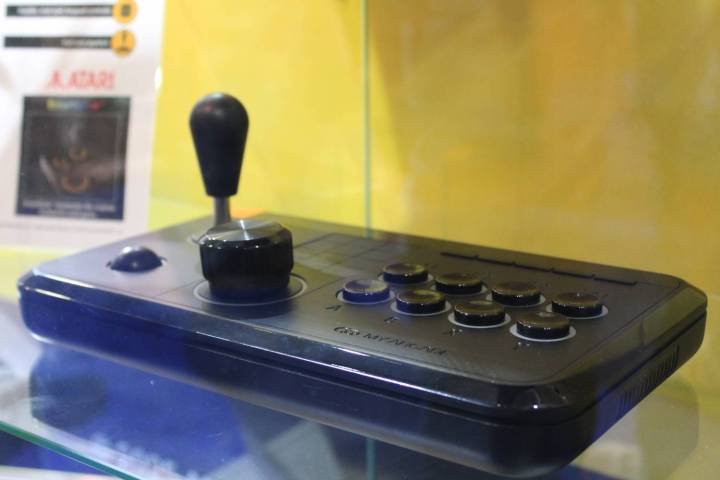
    My Arcade has also unveiled the Gamestation Retro, which I had the chance to see, although it was not operational as it was still a prototype.

  • This Retro Gaming Monitor Is Seriously Cute

    This Retro Gaming Monitor Is Seriously Cute

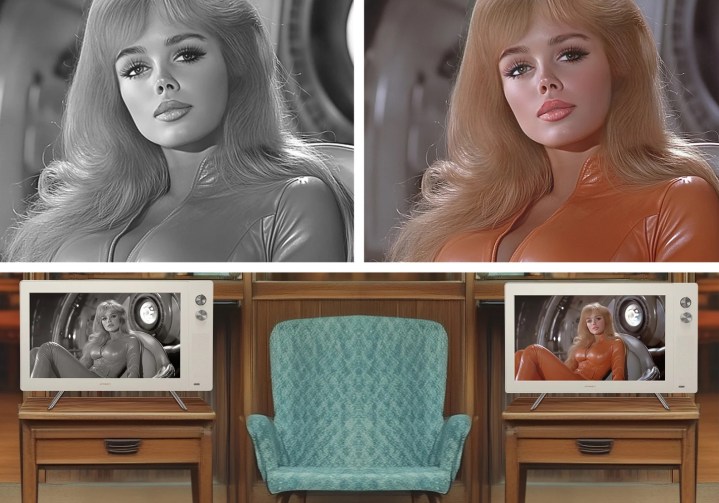
    If you’re a fan of themed products and eye-catching designs, the latest retro-inspired monitor from Japannext (JN-V236G180F-RETRO) is likely to pique your interest. Featured in an article by Tom’s Hardware, this monitor aims to merge nostalgic design with contemporary technology, complete with an intriguing twist — you can enjoy movies or games in monochrome.

    The specifications may not position this monitor among the top performers for gaming, but given its price point of just 20,000 yen (approximately $200), it hardly matters. It features a 23.6-inch display with a 16:9 aspect ratio, a 1080p resolution, and a refresh rate of 180Hz. With a response time of 1ms, it covers 90% of the sRGB color gamut and 80% of DCI-P3, along with a maximum brightness of 300 nits.

    While the specifications might not be groundbreaking, the visual appeal is certainly striking. The monitor is encased in a retro-style housing that sports a thick off-white bezel and includes built-in speakers and manual dials on the right side. These dials allow you to adjust settings like brightness and volume, reminiscent of televisions from the mid-20th century.

    Japannext gaming monitor.
    Japannext

    Additionally, you can switch to the monochrome mode at any time, making it possible to play a new PlayStation 5 game in black-and-white. This may seem unconventional, but sometimes products simply exist for enjoyment. The Japanese market is known for its playful innovations, and this offers just that.

    The monitor easily connects to various devices, such as PCs and PS5 consoles, and it is compatible with VESA stands and arm mounts. Other notable features include a blue light filter, flicker-free technology, and support for AMD FreeSync.

    For enthusiasts of retro gaming, this monitor could complement vintage CRT displays, allowing gamers to enjoy modern titles without disrupting the retro aesthetic of their setup. However, if you’re located in the United States, you may find it challenging to locate this specific product, although JapanNext occasionally markets its offerings in certain European countries.