الوسم: problem

  • Nvidia GPUs May Not Have A Pricing Issue After All

    Nvidia GPUs May Not Have A Pricing Issue After All

    European markets are experiencing a decrease in the prices of Nvidia’s RTX 50-series GPUs, attributed to the strengthening exchange rate between the euro and the dollar. As a result, Nvidia has been able to reduce the prices of several of its graphics cards by around five percent.

    As reported by Videocardz, Nvidia has adjusted the pricing on its German sector webpage. The price of the RTX 5090 has been lowered from €2,330 to €2,230, while the RTX 5080’s price has changed from €1,170 to €1,120. The RTX 5070 has also seen a reduction from €650 to €620. Interestingly, the RTX 5070 Ti’s price remains unchanged at €880, likely due to the absence of a Founders Edition variant for this particular model.

    Recent price adjustments for Nvidia graphics cards in Europe
    Nvidia

    Elsewhere, in the U.K., the RTX 5090 has seen a drop from its launch price of £1,940 to £1,890, largely due to the sluggish performance of the dollar against the pound, as noted by the Verge.

    The U.S. dollar saw instability beginning in late January, and it has now leveled off to about a 4% decrease, according to reports from Videocardz.

    Stay updated on tech trends in PC gaming


    Check your inbox!

    It’s important to note that the exchange rate changes do not reflect the inflated prices many GPUs are being sold at by third-party retailers. Previous reports indicated that certain models, including the RTX 5070 Ti, RTX 5080, and RTX 5090, were being marked up significantly beyond Nvidia’s suggested retail prices, with comparisons made to scalper pricing.

    Insiders inform that customers remain hesitant to purchase graphics cards, despite the decrease in prices, which is primarily influenced by the exchange rate rather than an increase in demand.

    Additionally, Nvidia is grappling with supply issues for its RTX 50-series GPUs. While the company has expressed intentions to stabilize supply levels in the upcoming weeks and months, it has also claimed to have had a more successful launch of this series compared to the previous RTX 40-series. However, some analysts have cast doubt on this assertion, highlighting that Nvidia released four RTX 50-series models in five weeks, whereas only one RTX 40-series GPU debuted in that same timeframe during fall 2022.


  • RTX 50-Series Price Hikes Show More Than Just Scalpers Issues

    RTX 50-Series Price Hikes Show More Than Just Scalpers Issues

    Upon launch, Nvidia’s RTX 50 series encountered significant challenges. Now, six weeks later, those issues persist, primarily revolving around pricing and availability. It’s not just scalpers inflating prices; Asus has recently increased the costs of several of its top graphics cards by several hundred dollars, completely disregarding the manufacturer suggested retail price (MSRP).

    Whether you’re browsing the Asus Store or looking for specific GPUs, locating one that sells at MSRP is incredibly difficult. This isn’t necessarily surprising. Asus, as a partner for Nvidia and AMD, creates its own iterations of GPUs, which typically come with a higher price tag due to enhancements like better cooling systems and increased overclocking capabilities. While premium prices are expected, it’s reasonable to assume that add-in board manufacturers (AIBs) would still feature a selection of models at MSRP.

    Though higher prices are somewhat anticipated, the ongoing price increases are concerning.

    As reported by VideoCardz, Asus has adjusted the pricing for its RTX 5090 graphics cards. The flagship model, the ROG Astral LC, remains at its already exorbitant price of $3,410; this is the price for the liquid-cooled version. In comparison, the air-cooled variant has surged to $3,360, only slightly less than its liquid-cooled counterpart and a staggering $280 higher than before.

    Prices for the RTX 5090 at Asus Store.
    Asus

    The prices for the TUF models have also increased, with the overclocked version now priced at $3,000, while the non-OC variant costs $2,760. These figures are significantly above the original MSRP of $1,999 for the RTX 5090 that was set back in January.

    Lower-tier GPUs aren’t immune to these price hikes either. The AMD RX 9070 XT is unavailable at its MSRP, while Nvidia’s supposedly $550 model has climbed to $700 and even higher.

    This is a challenging time for PC gamers. Some RTX 5090 cards are being listed for as much as $6,000, primarily due to scalper activities, though such prices are rare. The persistent lack of availability paired with the high demand for these new GPUs is pushing prices upward. While there is hope that they might someday return to MSRP, such a prospect doesn’t seem likely in the near future.

  • AMD’s New GPUs Might Face A Surprise Motherboard Issue

    AMD’s New GPUs Might Face A Surprise Motherboard Issue

    Component manufacturers are continually enhancing their protocols, and AMD is part of that evolution. Widely recognized for its graphics cards, the company is transitioning its latest 9000 series GPUs to the Unified Extensible Firmware Interface (UEFI) firmware standard. This shift marks a move away from the traditional pre-boot BIOS setup that has served as the standard for executing various system tasks over the years.

    According to PC World, some computer enthusiasts might assume that UEFI and pre-boot BIOS serve the same function. However, AMD has made it clear in its support documentation that UEFI will be its exclusive firmware standard for graphics cards like the Radeon RX 9070 and 9070 XT. The reasons for this transition include enhanced security, wider compatibility with various interfaces, quicker firmware updates, support for larger hard drives, compatibility with newer PC hardware, Windows Secure Boot support, and faster shutdown, startup, sleep, and resume times.

    While AMD has confidence in its decision, some users running Windows 10 on older motherboards might find themselves facing challenges. As noted by PC World, most systems that are at least a decade old typically feature motherboards that support UEFI. Nevertheless, many Windows 10 users seem inclined to stick with their familiar operating system until after October 14, 2025, when Microsoft plans to cease support.

    Statistics from the gaming platform Steam reveal that more than 40% of users are currently on PCs running Windows 10, which could present issues regarding compatibility with Windows 11 if their hardware does not meet the standard. Unfortunately, testing a PC motherboard’s compatibility with UEFI versus BIOS isn’t straightforward based on Steam’s data.

    This development could be AMD’s strategy to encourage the transition to Windows 11. Users are still able to circumvent the problem by upgrading their motherboards while continuing to use Windows 10.

    Moreover, customers reluctant to upgrade should expect increasing pressure to move away from outdated software. Importantly, Microsoft has indicated that it aims to implement a fee for Extended Security Updates (ESU) for anyone who continues to use Windows 10 past its end-of-life date.

    Discover the latest insights on PC gaming technology


    Check your inbox!

  • Samsung Galaxy S25 Ultra Camera Issues: What We Know

    Samsung Galaxy S25 Ultra Camera Issues: What We Know

    Users who purchased the Samsung Galaxy S25 Ultra early on are facing a bug related to its camera. Fortunately, Samsung has recognized the issue and is working on a resolution.

    As reported on Reddit and Samsung’s community forum, the camera issue primarily disrupts the night mode functionality, resulting in unexpected artifacts and blurriness. Tom’s Guide further verified that the glitch specifically involves the device’s 200MP main camera.

    Users have described the problem as stemming from the night mode’s image processing, highlighting “strange artifacts appearing near the edges” of captured images.

    The images shared demonstrate three visible bands running horizontally across the photos:

    Example of Samsung Galaxy S25 Ultra camera issue. Example of Samsung Galaxy S25 Ultra camera issue.

    A Samsung representative stated, “We are aware of a small number of reports where images taken in Night Mode on the Galaxy S25 Ultra appear blurry. A fix will be included in the upcoming software update, which is set to roll out this week.”

    It’s not uncommon for newly released phones to encounter bugs, especially related to camera software. Similar issues were reported with the Samsung Galaxy S23 Ultra and Galaxy S24 Ultra shortly after their launches.

    The Galaxy S25 Ultra boasts several upgrades compared to its predecessor, including the Qualcomm Snapdragon 8 Elite chipset, a revised camera system, a new feature called “Now Brief,” and enhanced AI capabilities. The new lineup also includes the standard Galaxy S25 and the Galaxy S25 Plus.

    An update to resolve the camera issue for the Galaxy S25 Ultra is anticipated to be released by Samsung shortly.

  • How Can Fix My Asus Problem With Games Not Loading?

    How Can Fix My Asus Problem With Games Not Loading?

    Experiencing issues with games not loading on your Asus device can be frustrating. Whether you’re a casual gamer or a dedicated player, unexpected errors can hinder your gaming experience. Here, we’ll explore some common causes of these problems and provide practical solutions to get your games up and running smoothly.

    Common Reasons Games Won’t Load

    Before diving into solutions, it’s essential to understand the typical reasons your games may not be loading on your Asus device:

    • Insufficient System Requirements: Every game has specific requirements, and if your hardware doesn’t meet them, you might encounter loading issues.
    • Outdated Drivers: Graphics and other essential drivers need to be updated to ensure compatibility with the latest games.
    • Software Conflicts: Background applications or software conflicts can interfere with the game loading process.
    • Corrupted Game Files: Game files can become corrupted due to various reasons, resulting in load failures.
    • Operating System Issues: Problems with the operating system can also impact game performance.

    Steps to Resolve Game Loading Issues on Asus Devices

    Check System Requirements

    1. Identify Game Requirements:

      • Refer to the game’s official website or the platform from which you downloaded it (e.g., Steam, Origin) for hardware requirements.

    2. Compare with Your Specs:

      • Right-click on "This PC" and select "Properties" to view your system specifications.
      • Ensure that your processor, RAM, and graphics card meet or exceed the game’s requirements.

    Update Drivers

    1. Access Device Manager:

      • Right-click on the Start button and select "Device Manager."

    2. Update Graphics Drivers:

      • Expand the "Display adapters" section.
      • Right-click your graphics card and choose "Update driver."
      • Select "Search automatically for updated driver software."

    3. Check Other Drivers:

      • Make sure other important drivers (like audio and chipset) are also updated.

    Optimize Background Applications

    1. Close Unnecessary Programs:

      • Use Task Manager (Ctrl + Shift + Esc) to identify and close background applications that may affect performance.

    2. Disable Startup Programs:

      • In Task Manager, navigate to the "Startup" tab and disable programs you don’t need running at startup.

    Verify Game Files

    If you downloaded your game through a platform like Steam or Epic Games, you can verify the integrity of the game files.

    1. Steam:

      • Open Steam and go to your Library.
      • Right-click on the game title, select "Properties," then go to the "Local Files" tab and click "Verify Integrity of Game Files."

    2. Epic Games:

      • Open the Epic Games Launcher, go to the Library, click on the three dots next to the game, and select “Verify.”

    Troubleshoot Operating System Issues

    1. Run Windows Updates:

      • Go to Settings > Update & Security and check for updates. Make sure your OS is up to date.

    2. Check for Corrupted System Files:

      • Open Command Prompt as an administrator and type sfc /scannow. This will scan for and repair corrupted system files.

    Reinstall the Game

    If you’ve tried the above steps and your games still won’t load, a fresh installation might be required.

    1. Uninstall the Game:

      • Go to Settings > Apps > Apps & features, find the game, and click "Uninstall."

    2. Reboot Your Device:

      • Restart your computer to clear any residual data.

    3. Reinstall:

      • Download the game again from your preferred platform.

    Additional Tips

    • Check for Compatibility Mode: Right-click on the game’s executable file, go to Properties > Compatibility. Run the compatibility troubleshooter.
    • Disable Full-Screen Optimizations: Under the Compatibility tab, you can also try disabling full-screen optimizations.
    • Monitor Temperature: Use software to check CPU/GPU temperatures. Overheating can lead to performance issues.
    • Consider Upgrading Hardware: If your system consistently struggles to run several games, it may be time to look into hardware upgrades.

    By following the steps outlined above, you should be able to troubleshoot and resolve loading issues with games on your Asus device. Remember to keep your system clean and well-maintained to enhance gaming performance in the long run.

  • Where Can Find The Problem On Asus Laptop?

    Where Can Find The Problem On Asus Laptop?

    Asus laptops are known for their reliability and performance, but like any electronic device, they can run into problems. Whether it’s a software glitch, hardware issue, or connectivity problem, knowing where to look can help you troubleshoot and resolve these issues effectively. This guide will help you identify common problems and their solutions for your Asus laptop.

    Common Issues with Asus Laptops

    1. Performance Problems

    Performance issues can manifest in slow processing speeds or unresponsive applications. To diagnose these issues:

    • Check Task Manager:

      • Press Ctrl + Shift + Esc to open Task Manager.
      • Look for high CPU or memory usage by specific applications.

    • Run a Virus Scan:

      • Use Windows Defender or a trusted antivirus program to check for malware.

    2. Battery and Power Issues

    A laptop that won’t charge, discharges quickly, or won’t turn on can be frustrating. Steps to identify the issue include:

    • Inspect the Charger:

      • Check for any visible damage to the charger or the charging port.

    • Battery Health Check:

      • Hold down the F2 key while powering on the laptop to enter BIOS, then navigate to the battery health section.

    • Power Reset:

      • Remove the battery (if removable), disconnect the charger, press the power button for 15-20 seconds, and then reconnect everything.

    3. Display Problems

    If your screen is flickering, not turning on, or displaying strange colors, consider the following:

    • External Monitor Test:

      • Connect an external monitor to see if the issue persists. This can help identify if it’s a screen or a graphics card issue.

    • Update Graphics Drivers:

      • Go to Device Manager, expand Display adapters, right-click on your graphics card, and select "Update driver."

    Hardware Diagnostics

    1. Use Built-in Diagnostic Tools

    Most Asus laptops come with built-in diagnostic tools. Here’s how to access them:

    • Windows Memory Diagnostic:

      • Search for ‘Windows Memory Diagnostic’ in the Start menu, follow the prompts, and restart your laptop to check for RAM issues.

    • Asus Hardware Diagnostic:

      • Download the Asus Hardware Diagnostic Tool from the official website for a comprehensive check.

    2. Check Physical Components

    Look inside your laptop for loose connections or damaged components:

    • RAM:

      • Ensure the RAM sticks are seated properly. If necessary, remove and reseat them.

    • HDD/SSD:

      • Listen for unusual noises from the hard drive, which could indicate failure. Use software such as CrystalDiskInfo for a health report.

    Software Issues

    1. Operating System Glitches

    Problems with the Windows operating system can affect your Asus laptop’s performance. Address these by:

    • Windows Update:

      • Regularly check for updates via Settings > Update & Security. Install any pending updates.

    • System Restore:

      • If problems began recently, use System Restore to revert to a previous state without losing files.

    2. Application Crashes

    If specific applications are crashing:

    • Reinstall the Application:

      • Uninstall the problematic app and reinstall the latest version.

    • Compatibility Mode:

      • Right-click the application shortcut, go to Properties > Compatibility, and try running it in compatibility mode for an earlier version of Windows.

    Connectivity Issues

    1. Wi-Fi Problems

    A failure to connect to Wi-Fi can be due to several factors:

    • Network Troubleshooter:

      • Go to Settings > Network & Internet > Status and select Network Troubleshooter for automatic diagnostics.

    • Forget & Reconnect:

      • Forget the problematic Wi-Fi network and reconnect by entering the credentials again.

    2. Bluetooth Connectivity

    For Bluetooth issues, consider these steps:

    • Toggle Bluetooth:

      • Ensure Bluetooth is turned on in Settings > Devices > Bluetooth & other devices.

    • Device Visibility:

      • Make sure the device you are trying to connect to is in pairing mode and close enough.

    By following these guidelines, you can effectively identify and troubleshoot most problems that may arise with your Asus laptop. Regular maintenance and updates can also help prevent many issues from occurring in the first place.

  • How Solve The Problem On Asus Laptop Games Not Loading?

    How Solve The Problem On Asus Laptop Games Not Loading?

    If you’re an avid gamer, encountering issues with your Asus laptop where games refuse to load can be frustrating. Fortunately, many solutions are available to get you back in the game quickly. This article discusses various methods to troubleshoot and resolve this problem, ensuring your gaming experience is smooth and uninterrupted.

    Common Reasons for Games Not Loading on Asus Laptops

    Before diving into solutions, it’s important to understand the potential reasons behind games not loading. A few common culprits include:

    • Insufficient System Requirements: Your laptop may not meet the minimum requirements for the game.
    • Graphics Driver Issues: Outdated or corrupt graphics drivers can prevent games from launching.
    • Software Conflicts: Other applications might interfere with game startup.
    • Corrupted Game Files: An incomplete installation or corrupted files can stop a game from running.
    • Operating System Issues: Problems with the operating system can impact game performance.

    Basic Troubleshooting Steps

    To begin resolving the issue, try the following basic troubleshooting steps:

    1. Restart Your Laptop

    • Sometimes, a simple restart can fix various issues.
    • This action clears the memory and stops any conflicting processes.

    2. Check System Requirements

    • Verify that your laptop meets the required specifications for the game.
    • Consult the game’s official website or platform for details on minimum and recommended requirements.

    3. Update Windows

    • Keeping your operating system up to date can ensure compatibility with new games.
    • Go to Settings > Update & Security > Windows Update, and check for updates.

    Update Graphics Drivers

    Having up-to-date graphics drivers is crucial for gaming performance. To update your drivers:

    1. Use Device Manager

    • Press Windows + X and select Device Manager.
    • Expand the Display adapters section, right-click your graphics card, and select Update driver.
    • Choose the option to search automatically for updated driver software.

    2. Visit the Manufacturer’s Website

    • Alternatively, you can download the latest drivers directly from the Asus or graphics card manufacturer’s website for more control and options.

    Check for Software Conflicts

    Certain software programs might conflict with your games. To identify and resolve these:

    • Disable Background Applications: Close any unnecessary applications running in the background while gaming.
    • Check Anti-virus Settings: Sometimes, anti-virus software can mistakenly block game files. Consider adding your game directory to the exception list.

    Verify Game Files

    If you’ve downloaded your game through a platform like Steam or Epic Games Store, you can verify the integrity of the game files:

    For Steam Users:

    1. Open Steam and go to your Library.
    2. Right-click on the game that’s having issues and select Properties.
    3. Click on the Local Files tab.
    4. Select Verify Integrity of Game Files.

    For Epic Games Store Users:

    1. Open the Epic Games Launcher.
    2. Go to your Library and find your game.
    3. Click on the three dots (or settings icon) next to the game and select Verify.

    Reinstall the Game

    If the game still won’t load after verifying files, consider reinstalling the game:

    1. Uninstall the game from your laptop.
    2. Restart your laptop.
    3. Re-download and install the game.

    Adjust Graphics Settings

    Sometimes, lowering the graphics settings can help games load better, especially if your laptop is struggling to handle higher settings:

    • Launch the game and access Options or Settings.
    • Reduce the resolution and graphics quality.
    • Turn off additional effects such as anti-aliasing or shadows.

    Perform System Maintenance

    Regular maintenance can help keep your Asus laptop running smoothly:

    Disk Cleanup

    • Use the built-in Disk Cleanup tool to remove temporary files:

      1. Type Disk Cleanup in the Windows search bar and open the tool.
      2. Select the drive you want to clean (usually C:).
      3. Follow the prompts to delete unnecessary files.

    Check for Malware

    • Performing a malware scan can rule out malicious software as a cause of issues:

      • Use Windows Defender or a reputable anti-virus program.
      • Run a full system scan to detect and remove any threats.

    Contact Support

    If none of these solutions work, consider reaching out for additional assistance:

    • Asus Customer Support: Visit the official Asus support website for troubleshooting tips specific to your model.
    • Game Support Forums: Check the game’s official forum or support page for additional solutions or advice from other gamers.

    With these steps, you should be able to troubleshoot and resolve the issue of games not loading on your Asus laptop, allowing you to dive back into your gaming adventures without interruption.

  • How Solve The Problem On Asus Laptop?

    How Solve The Problem On Asus Laptop?

    Asus laptops are known for their reliability and performance, but like any other electronic device, they can experience issues over time. This article aims to provide effective solutions for common problems you may encounter with your Asus laptop.

    Common Issues Faced by Asus Laptop Users

    Performance Issues

    Many users complain about their laptops running slowly or lagging. Here are some steps you can take to speed up performance:

    • Close Unused Programs: Make it a habit to close applications running in the background that you are not actively using.
    • Upgrade RAM: If your laptop allows it, consider increasing the RAM to enhance performance.
    • Manage Startup Programs: Disable unnecessary startup programs through the Task Manager.

      1. Press Ctrl + Shift + Esc to open Task Manager.
      2. Click on the Startup tab.
      3. Right-click on the programs you want to disable and select Disable.

    Overheating Issues

    Overheating can lead to serious damage over time. Follow these tips to manage the temperature:

    • Keep Vents Clear: Ensure that the laptop’s air vents are not obstructed.
    • Use a Cooling Pad: Investing in a cooling pad can help dissipate heat more efficiently.
    • Regularly Clean Internals: Dust buildup can block airflow. Consider cleaning the internals or taking it to a professional.

    Connectivity Problems

    Wi-Fi Connection Troubles

    If you’re facing issues connecting to Wi-Fi, follow these steps:

    • Check Airplane Mode: Ensure that airplane mode is turned off. You can find this in the settings or use the function key (often Fn + F2).
    • Run Windows Troubleshooter:

      1. Go to Settings > Update & Security > Troubleshoot > Internet Connections.
      2. Follow the on-screen prompts to diagnose and fix issues.
    • Update Network Drivers:

      1. Right-click on the Start Menu and select Device Manager.
      2. Expand the Network adapters section, right-click your Wi-Fi adapter, and choose Update driver.

    Bluetooth Problems

    If Bluetooth isn’t functioning as it should, try these methods:

    • Toggle Bluetooth Off and On: Go to Settings > Devices > Bluetooth and switch it off, then back on.
    • Remove and Re-Pair Devices: Remove paired devices and try reconnecting them.
    • Update Bluetooth Drivers using the same method as for Wi-Fi.

    Screen and Display Issues

    Flickering Screen

    A flickering screen can be annoying and can stem from several issues:

    • Check the Display Cable: If you are comfortable doing so, check to see if the display cable is loose.
    • Update Graphics Drivers: Ensure your graphics drivers are up to date by following these steps:

      1. Open Device Manager.
      2. Expand Display adapters.
      3. Right-click your graphics card and select Update driver.

    Screen Resolution Problems

    Issues with screen resolution can often be resolved through:

    • Display Settings: Right-click on the desktop and select Display settings. Adjust the resolution to recommended levels.
    • Graphics Control Panel: If you have dedicated graphics, open the control panel (like NVIDIA Control Panel) to adjust settings.

    Battery Problems

    Short Battery Life

    If your Asus laptop battery isn’t lasting as long as it used to, consider these tips:

    • Power Settings: Switch to Power Saver mode under Settings > System > Battery.
    • Battery Calibration: Allow the battery to drain completely and then fully charge it to recalibrate.
    • Disable Unused Features: Turn off Bluetooth, Wi-Fi, or location services when not in use.

    Laptop Not Charging

    If the laptop doesn’t charge, troubleshoot with these steps:

    • Check Power Source: Ensure the outlet is working. Try a different outlet or power cable.
    • Inspect Charging Port: Look for dust or debris in the charging port.
    • Perform a Hard Reset: Shut down the laptop and remove the battery (if applicable). Hold down the power button for 15 seconds, then reconnect the battery and power up.

    By following these guidelines, many common issues can be resolved quickly and efficiently. Whether it’s performance lags, connectivity hiccups, or hardware troubles, you’ll be well-equipped to tackle them on your Asus laptop.

  • How Can Solve The Problem Asus Play Store?

    How Can Solve The Problem Asus Play Store?

    If you own an Asus device and are experiencing issues with the Play Store, you’re not alone. Problems can range from downloading errors and app crashes to the store not functioning at all. Fortunately, there are several steps you can take to address these issues effectively.

    Common Issues with Asus Play Store

    Understanding the specific problems can help in finding the right solutions. Here are a few common issues users might face:

    • Download Errors: Apps may fail to download or update.
    • App Crashes: The Play Store may crash unexpectedly during use.
    • Inaccessibility: The Play Store might not open at all.
    • Authentication Issues: Problems with signing into your Google account.

    Basic Troubleshooting Steps

    Check Your Internet Connection

    Before diving into more complex solutions, ensure your device is connected to the internet.

    • Wi-Fi vs. Mobile Data: Check if the issue persists on both Wi-Fi and mobile data.
    • Signal Strength: A weak signal can lead to connectivity issues, affecting the Play Store.

    Restart Your Device

    Sometimes, a simple restart can resolve various problems.

    1. Press and hold the power button.
    2. Select "Restart" from the menu.
    3. Once rebooted, try opening the Play Store again.

    Clear Cache and Data

    If the Play Store is still misbehaving, clearing its cache and data might help.

    Steps to Clear Cache:

    1. Go to Settings on your device.
    2. Tap on Apps or Application Manager.
    3. Locate and select Google Play Store.
    4. Choose Storage.
    5. Tap on Clear Cache.

    Steps to Clear Data:

    1. Follow steps 1-3 above.
    2. Select Clear Data after clearing the cache.
    3. Restart your device again and check if the Play Store works.

    Check Google Account Settings

    A lot of problems can arise due to issues with your Google account. Here’s how to troubleshoot:

    1. Go to Settings.
    2. Tap on Accounts.
    3. Select Google.
    4. Ensure your account is active.
    5. If not, consider removing and re-adding it.

    Steps to Remove and Re-add Google Account:

    • To Remove:

      • Press your Google account and select Remove Account.

    • To Re-add:

      • Go back to Accounts and select Add Account.
      • Choose Google and follow the prompts to log in again.

    Update Google Play Services

    Outdated Google Play Services can hinder the Play Store’s functionality. Here’s how to check for updates:

    1. Open the Google Play Store.
    2. Tap the three horizontal lines in the upper left corner (the menu).
    3. Select My apps & games.
    4. Look for Google Play Services in the list and update if an update is available.

    Factory Reset as a Last Resort

    If all else fails, a factory reset might be necessary. Keep in mind, this should only be done after backing up your data.

    How to Perform a Factory Reset:

    1. Go to Settings on your device.
    2. Tap on System and select Reset options.
    3. Choose Erase all data (factory reset).
    4. Follow the prompts to reset your device.

    Seeking Support from Asus

    If troubleshooting does not resolve the issue, consider reaching out to Asus support. They can provide specific guidance tailored to your device model.

    How to Contact Asus Support:

    • Visit the official Asus support website.
    • Use their chat feature or submit a support ticket.
    • Call their customer service for immediate assistance.

    Following these steps should help you tackle any issues related to the Asus Play Store. With a bit of patience and effort, you’ll be back to downloading your favorite apps in no time.

  • Samsung Galaxy S22 Bootlooping Problem Is Common

    Samsung Galaxy S22 Bootlooping Problem Is Common

    The Samsung Galaxy S22 series has garnered praise, but many users have experienced frustrating bootloop issues for over a year. If you find yourself in this situation, rest assured — you’re not the only one, and Samsung is looking into potential solutions. A quick look at the r/SamsungGalaxy subreddit reveals numerous threads discussing bootloops associated with the One UI 6.1 beta update, as well as other complaints from well over a year ago. This is clearly a widespread problem.

    The main solution for this issue involves sending your device back to Samsung for a motherboard replacement, which isn’t free since the S22 series is typically out of warranty. However, one Reddit user, u/HenryTan, reported that Samsung may cover the repair costs. It might depend on your individual case, but u/HenryTan proposes that reaching out to the Samsung CEO via email could expedite the process. They also hinted that being a Samsung Care member might have impacted the decision.

    Several recent posts on the r/GalaxyS22 subreddit express discontent following the release of One UI 6.1, highlighting an ongoing trend with this problem that has persisted for many months.

    In addition to seeking official repairs, some users have resorted to unconventional methods. It’s important to note that any non-traditional solutions are not backed by experts. They may only provide a temporary fix and could inadvertently cause further damage to your phone.

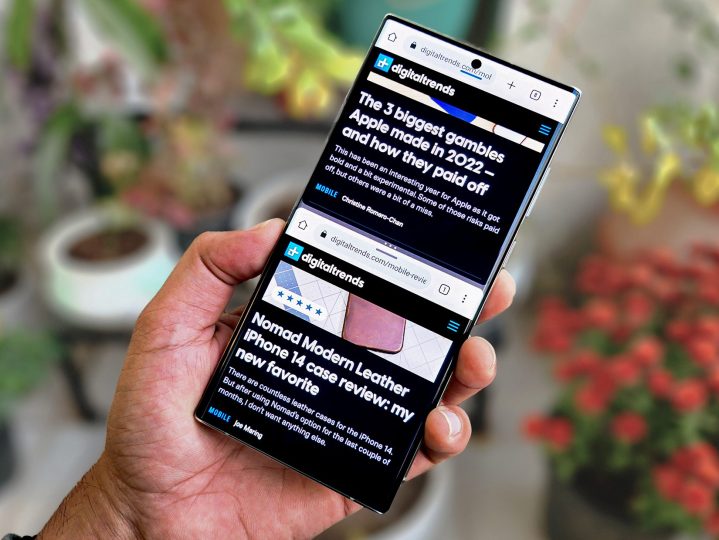
    A close-up image of dual Chrome apps open on a Samsung Galaxy S22 Ultra held in a hand.
    Tushar Mehta/Digital Trends / Digital Trends

    User u/Pleasant-Apartment84 shared an unusual trick: placing their Galaxy S22 in the freezer for 20 minutes reportedly resolved the bootloop issue temporarily. However, the phone began to loop again once it heated up. Given that Samsung is handling motherboard replacements, this freezer method seems a bit peculiar, especially since it could affect the battery adversely. Fortunately, this temporary fix allowed u/Pleasant-Apartment84 to back up their data, although the device later presented an additional green line on the screen.

    The root cause of the bootloop remains unclear, and Samsung has yet to publicly acknowledge the problem or the unconventional workaround suggested by some users. If your device is caught in a bootloop, it’s wise to consult a professional for help. While the freezer method might save you some money, it also poses the risk of further damage.

  • Mac Mini Hub Makes Power Button Placement Issue Worse

    Mac Mini Hub Makes Power Button Placement Issue Worse

    Satechi, renowned for its premium tech accessories, is enhancing its Mac mini hub to accommodate the new M4 model. Similar to its predecessors, this updated hub allows Mac mini users to expand storage and enhance port connectivity while maintaining optimal airflow, wireless connectivity, and overall performance. The design is visually striking, but it also brings attention to a less-than-ideal aspect of the new Mac mini: the location of the power button.

    In earlier Mac mini versions, the power button was conveniently located at the back, making it accessible even when the device was connected to a Satechi hub. However, with the power button now positioned on the bottom of the new model, it could become a hassle for users wanting to utilize this accessory.

    While the frequency with which individuals turn off their Mac mini varies, having to remove the device from its hub each time is certainly inconvenient. The awkward placement of the power button adds frustration, particularly when paired with a hub.

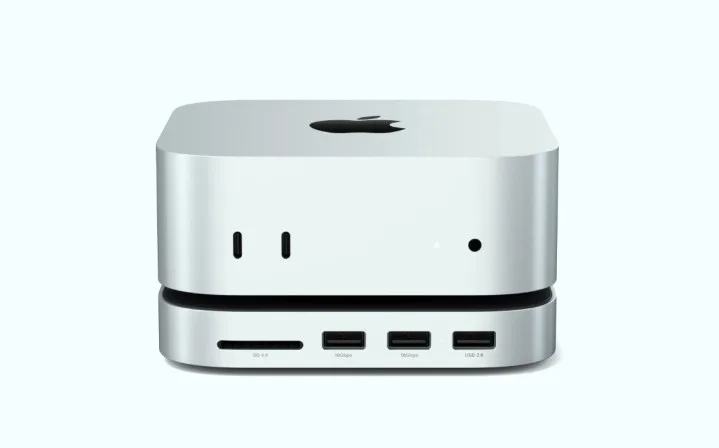
    Despite this design flaw, Satechi’s hub shines in other areas. If you’re running low on storage with your new Mac mini, this hub offers one of the easiest and most cost-effective solutions for increasing storage capacity. The M4 hub supports up to 4TB and delivers speeds of 10Gbps.

    A press photo of Satechi's Mac mini hub.
    Satechi

    In addition to the two USB-C ports located on the front of the Mac, the new hub features three USB-A ports and an SD card slot. While many modern peripherals have transitioned to USB-C, a significant number of users still possess devices that utilize USB-A, making these legacy ports valuable. This is particularly pertinent since this latest model of the Mac mini is the first to omit USB-A ports entirely.

    For those who simply want extra connectivity options and do not require additional storage, Satechi will also offer a version of the hub without the storage expansion feature.

    Both the Mac mini and the hub aim for a sleek design and a tidy workspace, yet needing to unplug and partially disassemble this setup just to power off the PC seems contrary to the intended user experience.

    If Satechi has any potential solutions to mitigate this design inconvenience, they have not yet been disclosed. Nevertheless, if the power button issue isn’t a dealbreaker for you, the product is set to be available for purchase in the spring of 2025.