الوسم: Portal

  • Where To Find Azure Kelp For Completing a Portal In Hytale

    Where To Find Azure Kelp For Completing a Portal In Hytale

    The world of Hytale is full of danger and mystery. At night, monstrous creatures from the Void emerge, and undead warlocks hide in ruined towers. However, magic isn’t just for these monsters — you can use it both as a weapon and as a tool to make your life easier.

    Besides brewing healing potions or casting fire spells, you can craft magical teleporters that let you travel long distances quickly. To make these teleporters, you’ll need special magical ingredients. One key ingredient is Azure Kelp, which is essential for building a Teleporter. To gather it, you need to visit the Azure Forest, a specific biome within Zone One. The Azure Forest is easy to spot because it features deep blue grass, spiral-shaped trees with blue leaves, and it appears blue on the map.

    In the Azure Forest, look for lakes and rivers to find Azure Kelp. It only grows in water at least two blocks deep, usually at the bottom of lakes or partially submerged. Nighttime is actually the best time to search for Azure Kelp because it glows in the dark, making it easier to spot in illuminated water pools from a distance. The glow and sparkle of the kelp are more visible at night, and fewer Void enemies spawn in the forest during this time.

    To collect Azure Kelp, use the Interact With A Block key to harvest it. Don’t whack it with an axe or sickle, as that will give you Azure Petals instead, which aren’t currently used in recipes. The main purpose of Azure Kelp is to craft Teleporters at an Arcanist’s Table. Once placed, these teleporters allow you to fast travel between linked locations, making exploration and movement much easier.

    If it’s your first time exploring the Azure Forest, remember to gather some Azure Wood from the surrounding trees. You’ll need 100 logs to upgrade the Armorer’s Workbench to Tier Two, so bringing back wood is a good idea. Each Teleporter costs two Azure Kelp, which is quite affordable considering how plentiful the kelp can be and because there are multiple Azure Forests across Zone One.

  • Understanding Portal’s Difficulty Modifiers in Destiny 2: Completing Solving Challenges

    Understanding Portal’s Difficulty Modifiers in Destiny 2: Completing Solving Challenges

    In the latest expansion of Destiny 2, titled The Edge of Fate, almost all PvE content has undergone significant changes. A revamped Portal menu has transformed the way activities are accessed and initiated within the game. Additionally, a new gear tier system has introduced long-term loot goals for nearly all new items, encompassing both weapons and armor.

    So, what influences the gear tiers you receive? The answer lies in difficulty modifiers, a new feature that lets you customize your experience in all PvE activities. By selecting modifiers that match your playstyle and increasing the difficulty, you can enhance your Power level while also acquiring better gear across the board.

    What Are Difficulty Modifiers?

    Most activities you can access via the Portal come equipped with difficulty modifiers. Before starting an activity, you can click the “Customize” button to tweak the mission settings. In older expansions, difficulties were fixed with set modifiers. Now, you have the freedom to choose all modifiers yourself.

    Every modifier you add will adjust your activity score. This score determines the quality of the rewards you receive at the end of the activity. Increasing the Power requirement and applying optional modifiers boosts the gear tier for all items that drop, including the number of drops.

    How to Add Activity Modifiers

    Once you’ve picked your activity, use the “Customize” button to open the modifier page. Here, you’ll find a variety of options to explore.

    Note that these options are not applicable to Crucible playlists.

    • Difficulty: This represents the base Power of the activity and forms the foundation for all rewards.
    • Rule Modifiers: These are game-imposed adjustments that cannot be altered.
    • Challenge Modifiers: Optional changes that increase the game’s difficulty, making enemies tougher or diminishing player capabilities.
    • Player Stakes: Extra rules affecting rewards, such as time limits, which are also unchangeable.
    • Boons and Events: Helpful modifiers that make gameplay easier if you plan your strategy around them.

    Base Difficulty

    Before applying any modifiers, you must first choose the activity’s base difficulty, which sets the initial Power levels and health scaling of enemies. Higher difficulties result in tougher opponents and significant health increases.

    Choosing a harder difficulty comes with advantages, particularly regarding rewards. The tougher the base difficulty, the better your score can become. Reaching a high score at Grandmaster level may grant you T5 weapons and armor, the best available in the game.

    Challenge Modifiers

    After selecting a base difficulty, you can introduce modifiers. Challenge modifiers let you alter enemy characteristics and introduce new gameplay challenges that penalize certain strategies. Aim for modifiers that don’t negatively impact your build to enhance your score.

    Caution: Certain modifiers can raise the activity’s Power level.

    Banes are specific modifiers that give enemies new abilities, such as summoning mini enemies when damaged continuously. You can select two banes at advanced difficulty levels, with more available at higher tiers.

    Challenge Modifiers introduce additional mechanics, such as enemies applying slow effects on melee hits. Some can be advantageous, depending on your playstyle. For instance, the Oscillation Trade-Off modifier alternates weapon damage, which could be beneficial if you frequently switch weapons.

    Boons and Events

    This category focuses on bonuses that enhance your build, allowing you to choose up to three boons, each offering distinct advantages. One popular choice is the Grappler modifier, which replaces your grenade with three charges that recharge instantly upon contact with a surface. While you can’t use Grapple for melee attacks, it greatly enhances mobility, making speedrunning easier.

    Activity Score and Rewards

    Every modifier you activate will influence your mission’s activity score. Similar to how Nightfalls operated in the past, a higher activity score opens the door to better rewards and increased Power boosts. A baseline score is set at B, which can rise to A, but exceeding A or dropping below B doesn’t have any effect. Your objective is to add enough modifiers to achieve an A rank.

    Since modifiers aren’t applicable in PvP, all drops depend on your current Power level and match performance, which also applies to Trials of Osiris and Iron Banner.

    The chosen base difficulty dictates the reward rank, ranging from Copper to Platinum. Picking a greater difficulty level will raise this ranking, impacting the Power level and gear tier of all items earned from rewards.

    To secure top-tier gear in this expansion, aim for an A rank in Grandmaster content. This requires reaching a Power level of at least 350, paired with a solid build. While boons can help, they won’t trivialize the challenge. Completing this high-level difficulty rewards you with T5 gear and significant Power boosts for your character.

  • Completing Destiny 2: How to Solve the Portal Mechanics

    Completing Destiny 2: How to Solve the Portal Mechanics

    Bungie has completely revamped the interface of Destiny 2 with the new Edge of Fate expansion. The new system, called the Portal, has replaced the Director and organized various playlists to help players find activities with ease. Now, there’s no need to memorize each destination’s layout to locate an activity.

    If you’re a newcomer or returning player to Destiny 2, the Portal system might seem a little overwhelming. Although it marks a significant change for the game, using this playlist system becomes straightforward once you understand its mechanics. In this guide, we’ll explore how the Portal operates, what each playlist offers, and give a brief overview of the new difficulty system.

    What Is the Portal?

    The Portal is a new starting point that takes over the role of the old Director map. From this Portal menu, you can access any activity in Destiny 2, whether it’s from the latest expansion or older content that has been brought back. However, keep in mind that not all older content is available; only selected activities are currently playable.

    Upon launching Destiny, you will notice an “Open Portal” button replacing the old Director map. Clicking on it will reveal a menu filled with various options:

    • Latest Expansion: Displays the most recent content update. Choosing this will guide you to that expansion’s location or, if it’s unavailable, the opening mission of the campaign.
    • Playlists: There are four playlists to explore: Solo, Fireteam, Pinnacle, and Crucible.
    • Seasonal Hub: This replaces the old Seasonal Challenges with listings of daily and weekly challenges that you can complete for rewards.
    • Tower: This option takes you to the Tower, the central hub of Destiny 2.

    If you’re new to Destiny 2, a good strategy is to start with the latest expansion and then grind one of the playlists for better gear. Expansions typically introduce new subclass features, types of gear, and titles. When your inventory is full, head over to the Tower to decode any Engrams you’ve obtained and stash any high-value items in your Vault.

    Playlists

    Experienced players might notice that significant activities—like Vanguard content, lost sectors, dungeons, and raids—are missing. They’ve been grouped into playlists that you can find at the bottom of the Portal interface. Now, activities in Destiny 2 are organized by playlist types.

    Playlist

    Activities

    Notes

    Solo Ops

    Remixed versions of lost sectors, empire hunts, and strikes designed for solo play.

    • Solo only
    • No matchmaking
    • Most activities take 5-10 minutes.
    • Lower reward yield

    Fireteam Ops

    Previously known as Vanguard Ops. Includes strikes, battlegrounds, empire hunts, and seasonal content.

    • Three players
    • Matchmaking enabled
    • Most activities take 10-15 minutes
    • Moderate reward yield

    Pinnacle Ops

    Longer, non-matchmade activities. Includes Exotic missions and challenging seasonal content like The Coil.

    • Three players
    • No matchmaking
    • Activities typically take 20-40 minutes
    • High reward yield

    Crucible

    Player vs. player (PvP). Trials of Osiris and Iron Banner are included in this playlist.

    • 3v3 or 6v6
    • Matchmaking enabled
    • Matches last 5-15 minutes
    • Moderate reward yield

    When you enter the Portal, selecting a playlist will show you a grid of available missions. Choosing an activity will set up a matchmaking lobby and, if relevant, a difficulty card that you can adjust before starting. We’ll go more in-depth about difficulty modifiers in the next section.

    For most players, Fireteam Ops is where you’ll want to be. This playlist includes almost all matchmade content in Destiny 2 accessible for players of all skill levels, covering strikes, battlegrounds, and earlier seasonal activities like Savathun’s Spire. The available seasonal content will shift with each quarterly update.

    All four playlists offer rewards related to the completed activity. For instance, completing the Crucible playlist grants PvP gear as its reward. Completion rewards always translate to Power increases for your character, so feel free to grind through any playlist, as there is no more weekly time limitation.

    Destiny 2 Seasonal Hub

    Finishing daily and weekly challenges under the “Seasonal Hub” section of the Portal grants account rewards, including Strange Coins, Seasonal Gear Engrams, and tokens for redemption at Zavala.

    The reward system resets weekly, replacing the previous Seasonal Challenge framework.

    Where Can I Find Raids and Dungeons?

    Destiny 2 Director Map Desaturated

    Currently, raids and dungeons aren’t linked to any playlist at the launch of the new system. It’s likely they will be included in the Pinnacle Ops playlist later on. For now, you can find dungeons and raids at their specific locations on the “World” map, which was previously known as the Director. If you are a new or returning player, the activities can be located in the destinations outlined below.

    Destination

    Raids

    Dungeons

    Moon

    Savathun’s Throne World

    • Spire of the Watcher
    • Sundered Doctrine

    Cosmodrome

    Neomuna

    Pale Heart

    Europa

    Dreaming City

    Legends

    • Vault of Glass
    • Crota’s End
    • King’s Fall
    • Prophecy
    • Ghosts of the Deep

    Difficulty Modifiers

    Destiny 2 Portal Difficulty Modifiers

    Almost every activity in the Portal menu offers difficulty modifiers, excluding PvP. This optional difficulty system enables you to adjust Power Levels, bonuses, and penalties throughout the activity. By adding these modifiers, you can aim for a higher score, which will translate into better rewards. Higher scores yield higher-quality loot, including items of greater gear tiers and additional drops.

    Before starting an activity, click the “Customize” button to access the difficulty modifiers page. From there, you can set your Power deficit to establish the primary score for the activity. You can adjust this using Challenge Modifiers and Boon & Event Modifiers. Using these tools effectively can boost your score and enhance the quality of the loot. A more detailed guide on the difficulty system is on its way, so stay tuned for more information.

  • How to Connect a PlayStation Portal to Your PS5: A Step-by-Step Guide

    How to Connect a PlayStation Portal to Your PS5: A Step-by-Step Guide

    The PlayStation Portal is an impressive handheld console, but in order to fully utilize its capabilities, you must set it up to stream from your PlayStation 5. This guide will walk you through the settings you need to enable and the steps required to connect your devices so you can stream games seamlessly.

    Sony

    Connecting Your PlayStation Portal to Your PS5

    To connect your PlayStation Portal to the PS5, follow these steps:

    Step 1: On your PS5, go to Settings > System > Remote Play and enable “Remote Play.”

    Step 2: Next, navigate to Settings > System > Power Saving > Features Available in Rest Mode. Here, make sure to select “Stay Connected to the Internet” and “Enable Turning on PS5 from Network.” This ensures that Remote Play can function while your PS5 is in Rest Mode.

    Step 3: Ensure you are logged into your PlayStation Portal using the same PlayStation account that you use on your PS5, and confirm that both devices are connected to the same Wi-Fi network.

    Step 4: During the setup of your PlayStation Portal, it will prompt you to choose a PS5 to connect to. If you have more than one PS5 at home, make sure to select the specific console from which you wish to stream.

    Step 5: Ensure your PS5 is powered on. Your PlayStation Portal will detect it and initiate the connection process once you indicate readiness.

    Every time you activate your PlayStation Portal in the future, you’ll see a screen asking you to confirm the PS5 connection you previously selected, allowing you to stream games effortlessly. Enjoy your gaming experience!

  • How to Cloud Stream PS5 Games on the PlayStation Portal: A Complete Guide

    How to Cloud Stream PS5 Games on the PlayStation Portal: A Complete Guide

    Giovanni Colantonio / Digital Trends

    The PlayStation Portal may not have been the exact mobile handheld experience that many were hoping for, but it fulfills its role effectively as a companion device. Users who acquired one have often appreciated the ability to stream their console games on the portable display. Nonetheless, gaming enthusiasts still yearn for a true handheld gaming console. While that aspiration isn’t fully realized yet, the latest PlayStation Portal functionality gets us closer than ever. Here’s a guide on using the PlayStation Portal to stream PS5 games directly from the cloud without needing a console.

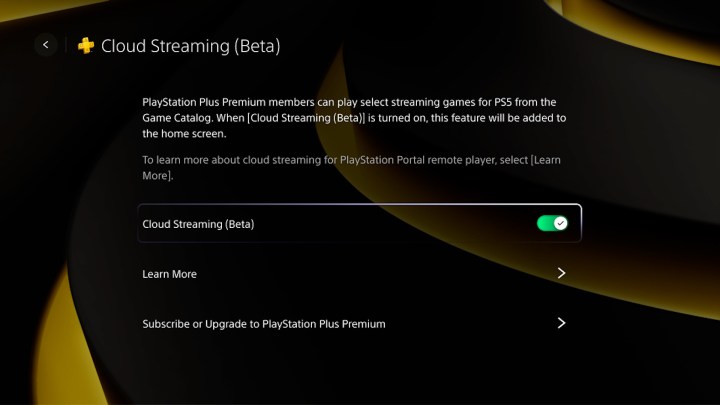
    The PlayStation Portal cloud streaming menu.
    PlayStation

    How to stream PS5 games from the cloud on PlayStation Portal

    An update has enabled the PlayStation Portal to stream certain PS5 titles directly via the cloud—no PS5 console necessary. This means you can enjoy some of the finest PS5 games without being in close proximity to a console. Here’s how to set it up:

    Step 1: Power on your PlayStation Portal.

    Step 2: Access the Quick Menu and select Settings.

    Step 3: Choose Cloud Streaming (Beta) from the menu.

    Step 4: Enable the Cloud Streaming (Beta) option.

    Step 5: Return to the home screen where you will find a new option for cloud streaming games directly over the internet.

    Keep in mind that, since this feature is still in beta, there are certain restrictions. A PS+ Premium subscription and a robust internet connection are necessary for streaming to function correctly. Additionally, not all games on Premium are available for cloud streaming; only around 120 PS5 titles are eligible, with no PS4 or PS3 options currently offered. Furthermore, access to game trials and some features like party chat or game invitations are not available at this time.

    As the beta progresses, we anticipate more games and functionalities will be introduced in its final version.


  • PlayStation Portal Getting A Highly Requested Feature

    PlayStation Portal Getting A Highly Requested Feature

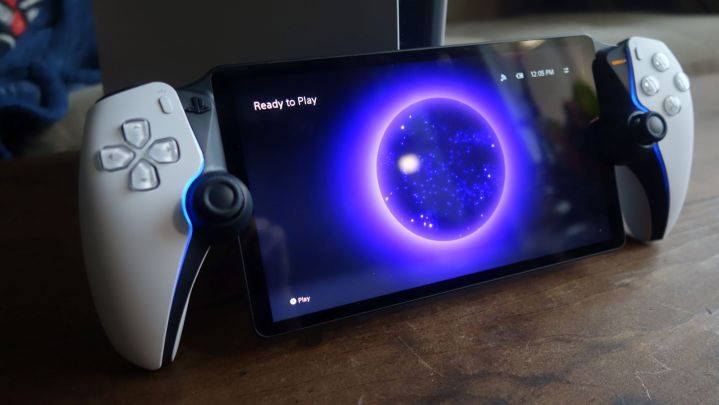
    PlayStation Portal bundle home screen turned on.
    Giovanni Colantonio / Digital Trends

    Sony is set to enhance the functionalities of the PlayStation Portal with the introduction of a beta cloud streaming feature. This update will allow users to stream select games directly to the device, eliminating the need for a console.

    This development is part of a broader OS update for the PS Portal, which also includes various audio improvements and is scheduled to roll out on Wednesday. While the exact duration of the beta testing phase remains unspecified, Sony is actively seeking user feedback and may adjust the features based on input over time.

    However, users should be aware of certain limitations as outlined in a PlayStation Blog post. Access to cloud streaming will be restricted to PlayStation Plus Premium subscribers, which costs $160 annually for a 12-month subscription. Additionally, only 120 PlayStation 5 titles from the PlayStation Plus catalog will be supported. Notable entries include Dave the Diver, Marvel’s Spider-Man: Miles Morales, Ratchet & Clank: Rift Apart, and Ghost of Tsushima, specifically the PS5 versions. Nevertheless, this is still a substantial list of games to explore, and streaming will allow users to enjoy all DualSense controller features, including haptic feedback.

    Cloud streaming will be capped at a resolution of 1080p and 60 frames per second. While this may seem modest compared to the PS5 Pro’s capability for 4K streaming, it reflects the realities of cloud gaming, which relies heavily on internet connectivity. To achieve 1080p, a minimum internet speed of 13 Mbps is recommended.

    Furthermore, several features will not be permitted, such as the ability to stream games already owned by users, demos, voice chat during parties, and 3D audio capabilities. Streaming will only be available for games within the PS Plus library through the PS Portal.

    The PS Portal stands out in the increasingly crowded handheld gaming market. You can purchase it for $200. Although this price point is comparatively lower than many alternatives, its functionality is specific to streaming, appealing to a niche audience (with dedicated fans). Initially, users could only stream when their PS5 was powered on, but this new beta feature allows access to PlayStation’s servers for streaming games, similar to how Nvidia GeForce Now operates.