الوسم: Note-Taking Apps

  • Leveraging AI for Enhanced Knowledge Management Strategies

    Leveraging AI for Enhanced Knowledge Management Strategies

    Managing a personal knowledge base can be quite challenging, particularly when the motivation to organize and structure your notes is lacking. Artificial intelligence can simplify this task by helping you organize, process, and manipulate your data efficiently.

    1. Processing Large Amounts of Information with ChatGPT

    Imagine I need to develop firmware to operate a display using a particular microchip. I might not be familiar with the workings of this microchip, but the manufacturer has provided a PDF with all the necessary technical information. In such a case, I would utilize ChatGPT to analyze the PDF, extract the relevant details, and format the information for my note-taking application. To do this effectively, I adhere to a straightforward three-step method.

    Step 1: Upload Files and Configure ChatGPT

    When I want ChatGPT to extract notes from a file, I always disable the Search function to guarantee that all my notes originate from my source material. For technical subjects like manuals, I enable the Reason function, while I turn it off for more creative topics like literature.


    Here’s a look at my typical process:

    1. Upload the source material.
    2. Disable the Search function.
    3. Enable Reason for technical materials and disable it for creative subjects.
    4. Select the most suitable AI model for your needs: I use the o3-mini model for technical subjects and GPT-4o for creative tasks.

    Step 2: Crafting a Prompt

    The quality of the notes you obtain from ChatGPT hinges largely on the prompt you provide. While different topics may require distinct prompts, I generally follow a structure that includes three main components: Goal, Filter, and Format.

    • Goal: Clearly define what you aim to achieve with ChatGPT.
    • Filter: Specify exactly what information you want from the source material.
    • Format: Include formatting guidelines, best practices, and examples tailored for your note-taking application.
    Prompting ChatGPT on what to do with my files

    Since the formatting section can often be lengthy and reusable, I usually keep it in a separate text file from my main prompt. This file usually includes a condensed version of the official formatting rules and guidelines from Logseq (my preferred note-taking app), alongside my personal examples.

    Step 3: Transfer Notes to Note-Taking App

    If you’ve provided a good prompt, you should be able to seamlessly copy the notes from ChatGPT into your note-taking app. However, there may be instances where additional effort is required to ensure everything displays correctly.

    I2C diagram not displaying on Logseq

    In this situation, some diagrams and images I wanted are not displayed as intended. ChatGPT has generated the proper links for the images, but I still needed to manually download them and place them in my assets folder.

    Formatted Logseq notes with ChatGPT

    After downloading all the necessary images from ChatGPT, everything is now properly formatted! My notes are organized, populated with useful tags and backlinks for easy navigation, and include relevant images. I now have everything needed to program my firmware.

    2. Expanding My Knowledge Base with Perplexity

    AI chatbots are readily accessible in numerous ways today, making it much easier for me to take notes with AI, thus expanding my knowledge bank throughout the day.

    I particularly enjoy using Perplexity as my daily note-taking assistant because it meshes well with my note-taking habits.

    I utilize the Perplexity Chrome extension to gather information from various web pages. For instance, if I am keen on hydroponics, I will navigate to a specialized hydroponics website and select the Perplexity extension, focusing my search on This Domain.

    This allows me to query about hydroponics and receive answers sourced directly from that specific website.

    Using Perplexity Chrome extension on website

    When I’m away from my laptop, I prefer using the mobile app for Perplexity as my daily AI assistant. It’s incredibly convenient! For note-taking, I can simply long-press my phone’s power button and employ the voice functionality to ask my questions.

    This method works great for me since I frequently have quick inquiries throughout the day. Having an AI assistant allows me to take notes without actively conducting research.

    At the end of the day, I can go to the Perplexity web or desktop app to process all my notes.

    Perplexity search library

    Since Perplexity keeps all my queries in its Library, I can simply press Ctrl + a and then Ctrl + c to select all the notes, paste them into a prompt, and then upload my Logseq formatting rules text file (the same one mentioned earlier) to process the data just as I would with ChatGPT.

    Logseq notes with Perplexity

    And just like that, I’ve organized all my Perplexity queries from the day into Logseq notes!

    3. Organizing, Querying, and Creating Flashcards with Logseq and Gemini

    After using ChatGPT and Perplexity to funnel data into Logseq, I then utilize Gemini to query and further manipulate the data within my note-taking app. Although Logseq doesn’t have built-in AI integration, I can use a plugin that connects to various AI models to manipulate the data.

    If you want to give it a try, install AssistSeq as a Logseq plugin. Just open AssistSeq’s settings to input your API key, and you’re set!

    I personally use a Gemini API key (1.5 Flash), which they offer for free. To obtain your own free Gemini API key, simply visit Google AI Studio, sign up with your Google account, and click Create API to generate a key that you can use with AssistSeq.

    Generating free Gemini API key

    I find various ways to use Gemini in my Logseq knowledge base. The first method involves querying information.

    Using assistseq to query Logseq with Gemini

    Another way I utilize Gemini is for organizing or modifying my notes. In the example below, I observed that both the “tags” and “Related” sections contained overlapping keywords. To fix this, I instructed the AI assistant to eliminate redundant keywords from the “Related” section. After that, I simply clicked on “Add to Page” to append the newly formatted version on my page.

    Using Gemini to manipulate my knowledge base

    Lastly, I have also employed Gemini to create flashcards while memorizing information. For instance, Gemini generated 14 flashcards based on my knowledge base regarding hydroponics.

    Using Gemini to generate flashcards from my knowledge base

    However, since you can’t upload files onto AssistSeq, I needed to manually provide the Logseq flashcard format, which required a few additional steps. Nevertheless, this approach proved to be a quicker way to create flashcards than doing so manually.

    While there are numerous methods to incorporate AI into your note-taking system, consistency is crucial for developing an effective knowledge base. I advise starting with a solid foundational system (like I have presented here) and gradually experimenting with new AI tools over time. Ultimately, the goal is to establish a consistent and reliable system.
  • Google’s AI Notebook Enhances Features with Mind Mapping

    Google’s AI Notebook Enhances Features with Mind Mapping

    NotebookLM began as a small-scale AI project, but it has evolved tremendously over time. Initially, it received a significant enhancement with the introduction of AI-generated podcasts. This was followed by live interactive discussions, and now it boasts another powerful feature designed to maximize your note-taking experience.

    NotebookLM: Visualizing Ideas With Mind Maps

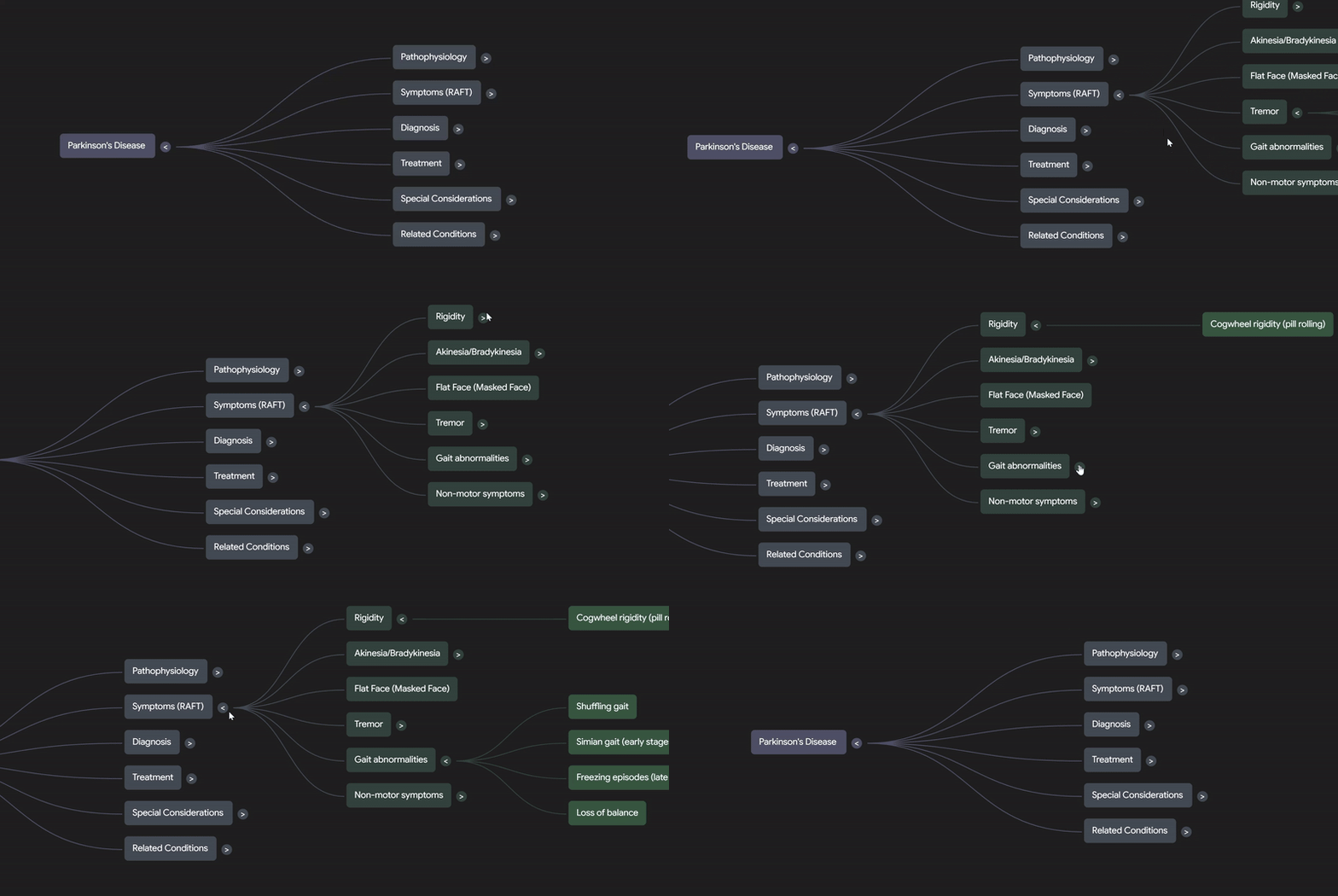
    The newest feature added to NotebookLM is its Mind Map tool, which offers a novel way to engage with your notes and references. This functionality creates a visual representation of your material, enabling you to understand intricate concepts at a glance.

    To utilize the Mind Map feature, open any notebook in NotebookLM and click on Mind Map. In no time, an interactive Mind Map will be generated, ready for you to explore.

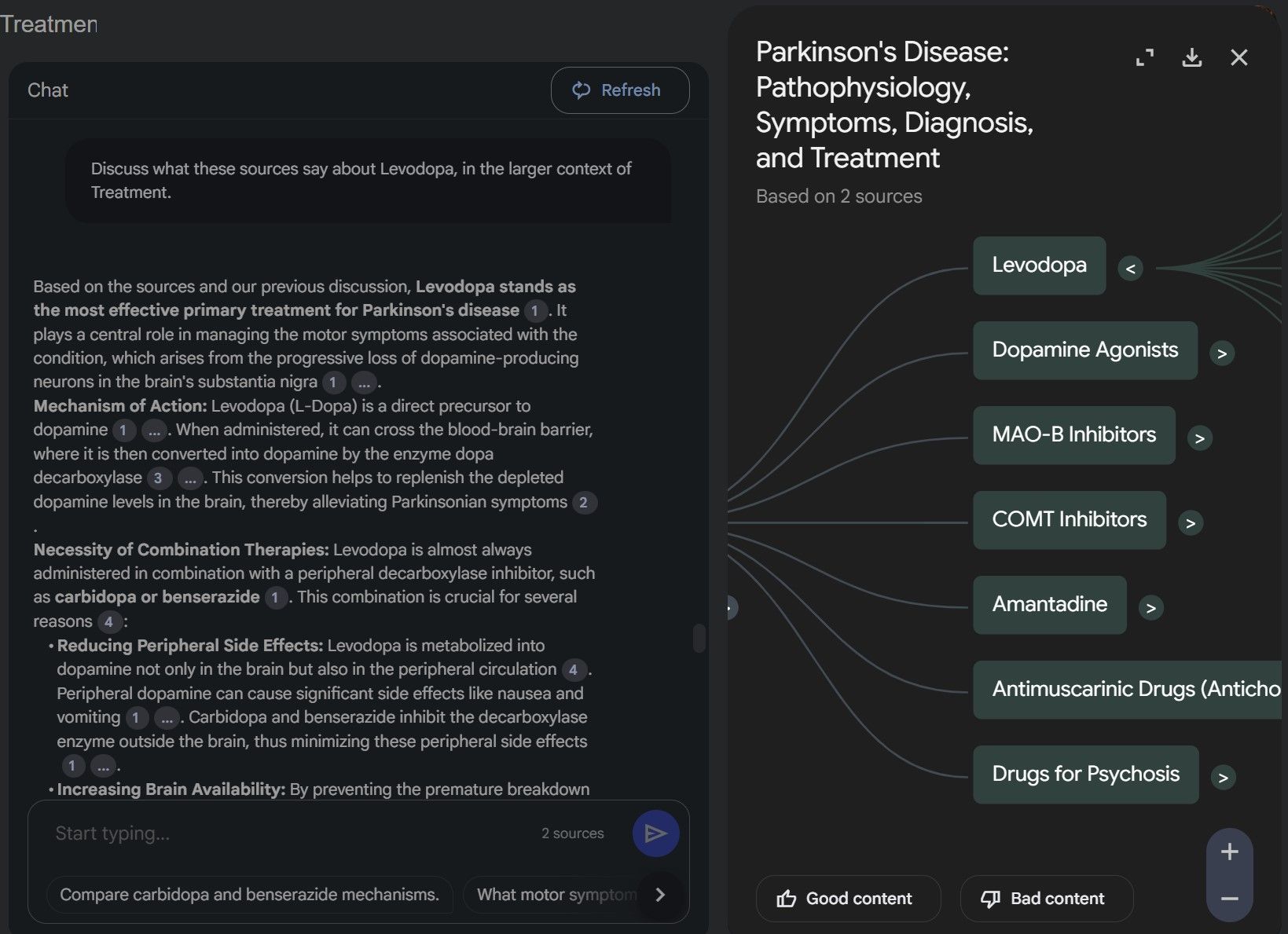
    Every node in the Mind Map signifies an idea from your notes, and you can expand them by clicking the arrows to uncover sub-nodes. This interactive format allows you to break down information into easily digestible segments. Additionally, selecting a node provides a summary from NotebookLM, and you can ask follow-up questions to delve deeper into the topic.

    Following up on a node in NotebookLM Mind Map

    For your convenience, you can download the Mind Map as a PNG file. Keep in mind, however, that the downloaded image reflects the Mind Map’s state at the time of the download. If all nodes are expanded, they will be visible in the image, which functions like a screenshot since the downloaded version is not interactive.

    As with many Google features, this update is being rolled out gradually. If you don’t have access yet, don’t worry—Google assures users that the Mind Map feature will be available to everyone within the next two weeks.

    How Useful Is NotebookLM’s Mind Map?

    Since the addition of AI-generated podcasts, NotebookLM has become essential to my study routine. Typically, I listen to AI-generated podcasts while reviewing materials and navigating the graph view in my Obsidian vault. With the introduction of the Mind Map feature, I’m tempted to make it my primary tool for daily study sessions.

    An expanded Mind Map in NotebookLM

    As a dedicated Obsidian user, that’s where my actual notes reside. However, Google is making NotebookLM increasingly appealing as a potential replacement. Every new feature enhances its value and functionality.

    Currently, I rarely need to leave NotebookLM, aside from reviewing my flashcards. Should Google incorporate AI-generated flashcards into NotebookLM, it would transform into a comprehensive tool for studying.

    Related

    Google’s AI Notebook Creates Podcasts From Your Notes, and They’re Exceptionally Good

    With NotebookLM’s Audio Overview, your notes are brought to life in engaging conversations featuring AI hosts.

    NotebookLM: A Top AI Experiment?

    NotebookLM is quickly establishing itself as one of the standout applications resulting from Google’s AI explorations. I have always felt that Google’s experimental tools showcase more innovation and usability compared to many of its polished products. While I wasn’t a fan of Gemini, the unique AI tools in Google’s AI Test Kitchen and NotebookLM consistently impress me.

    And let’s not forget—NotebookLM is completely free! Although a Plus version is available through Google One, I find that I don’t require any additional features, even with my extensive use of NotebookLM.

    With the introduction of Mind Maps, NotebookLM is edging closer to being the ultimate resource for studying and research. If Google maintains this pace, it may very well revolutionize how we connect with and organize information.

  • Top Note-Taking Tools: Which One Reigns Supreme?

    Top Note-Taking Tools: Which One Reigns Supreme?

    Quick Links

    • Summarization Capabilities
    • Final Verdict: Which Tool is Right for You?

    Key Takeaways

    • Notion comes out on top due to its superior user-friendliness, customizable notes, diverse third-party integrations, and a variety of non-AI features.
    • NotebookLM outshines Notion in summarization capabilities, offering clear, concise overviews of key topics and quick summaries.
    • While Notion provides extensive customization and integrations, its non-AI features give it a significant advantage over NotebookLM.

    Artificial intelligence has transformed the note-taking landscape, making it smarter, quicker, and more intuitive. Two leading contenders in this arena are Notion and NotebookLM, both equipped with cutting-edge AI features aimed at boosting your productivity. But when it comes to choosing the best option, which one truly stands out?

    AI Power

    NotebookLM relies on Google Gemini as its large language model, and although it was still in beta at the time of this writing, its potential is significant. Gemini can be utilized in various other applications, and I’ve tested its performance in Google Sheets to determine if it offers more than just surface-level benefits.

    In contrast, Notion claims to utilize a variety of large language models (LLMs) hosted internally and through organizations like Anthropic and OpenAI. This diverse foundation equips Notion AI with extensive knowledge, adding to its functionality.

    While both platforms feature impressive AI, Notion takes the lead for its broader integration of AI capabilities, though it doesn’t diminish the strengths of Google Gemini, which remains a powerful tool within the Google ecosystem.

    Winner: Notion

    User Experience

    I was drawn to Notion initially for its ease of use, and my opinion has only solidified after three years. I’ve experienced challenges with other note-taking apps across different devices, but my usage of Notion has been seamless on mobile, desktop, and tablet. The web application also performs well across most browsers.

    Conversely, NotebookLM was adequate after I got accustomed to it, but I initially found its navigation frustrating. This might be an unfair comparison since Notion feels more polished, while NotebookLM is still in its beta phase and has room for improvement. The sidebar navigation could benefit from more streamlining, and the settings menu’s responsiveness needs enhancement.

    Winner: Notion

    Summarization Capabilities

    NotebookLM efficiently summarized documents, providing clear and concise overviews. However, when I sought additional insights through various questions, the app fell short, requiring more comprehensive documents for detailed summaries.

    What impressed me about NotebookLM is how clearly it identified the essential topics within my documents, presenting them well in the toolbar for easy note-taking. It also quickly condensed my documents into summaries.

    On the other hand, Notion AI’s summarization tool left me disappointed due to its sluggish performance. It took longer than expected to load summaries on various platforms. Though Notion AI’s layout was more organized—the ability to see points and expandable sections was a plus—it still lagged behind NotebookLM in terms of stability.

    Winner: NotebookLM

    Note Customization

    When it comes to customizing notes, NotebookLM and Notion are worlds apart. While I could change the titles of my notes in NotebookLM, further adjustments were minimal.

    In contrast, Notion is one of the best apps for note customization. You can add comments, highlight text, and format your notes in a variety of ways—like creating tables or embedding external documents. Notion also simplifies collaboration by allowing you to mention others in your notes.

    Another bonus is the ability to choose from different fonts for your notes. Overall, Notion excels in customization, not just for notes but also for tailoring your entire workspace.

    Winner: Notion

    Third-Party Integrations

    Notion boasts numerous integrations with apps like Google Drive, Asana, and GitHub. If you prefer not to pay for Notion AI (for unlimited access), you can connect with several AI tools, including Nightfall AI and Cloudeagle.ai.

    One of the features I appreciate about Notion is how effortlessly you can access integrated apps. For instance, embedding a Google Doc is instantaneous. Notion can also be integrated with tools like Miro, ClickUp, and Trello, enhancing your note-taking experience.

    NotebookLM, on the other hand, mainly integrates with Google Workspace tools. If you’re already using Google Workspace, you might find NotebookLM useful. However, it lacks the ability to integrate with non-Google applications. For broader integration needs, Notion is the clear choice.

    Winner: Notion

    Non-AI Features

    Notion and NotebookLM significantly differ in their non-AI offerings. NotebookLM focuses solely on AI functions, which can lead to frustration if you’re looking to perform other tasks, as the app requires you to upload a source document, website, or other material to function.

    In contrast, Notion isn’t solely built around its AI feature, which was introduced in early 2023. The app offers a wealth of non-AI functionalities that I have found invaluable over the years, including the ability to create notes from scratch, multiple workspaces, templates, Gantt charts, calendars, and much more. Notion’s versatility here solidifies its strength.

    Winner: Notion

    Final Verdict

    While Notion takes the overall win, NotebookLM is still a valuable tool. Notion’s breadth of use cases makes it the ideal choice for those who want to create detailed notes and then summarize them using NotebookLM.

    I recommend Notion if you need to collaborate with others, as its commenting, highlighting, and mentioning features facilitate teamwork in both work and academic settings. Notion’s extensive integration options surpass those of NotebookLM, making it the better choice for users outside of the Google Workspace ecosystem.

    If your primary need is summarizing notes efficiently, then NotebookLM is a solid option. It performs faster and is similar to Notion in summarization features, but just ensure you provide it with sufficient content to work with!