الوسم: not working

  • Completing Solutions for Your Dealer Issue in Schedule 1

    Completing Solutions for Your Dealer Issue in Schedule 1

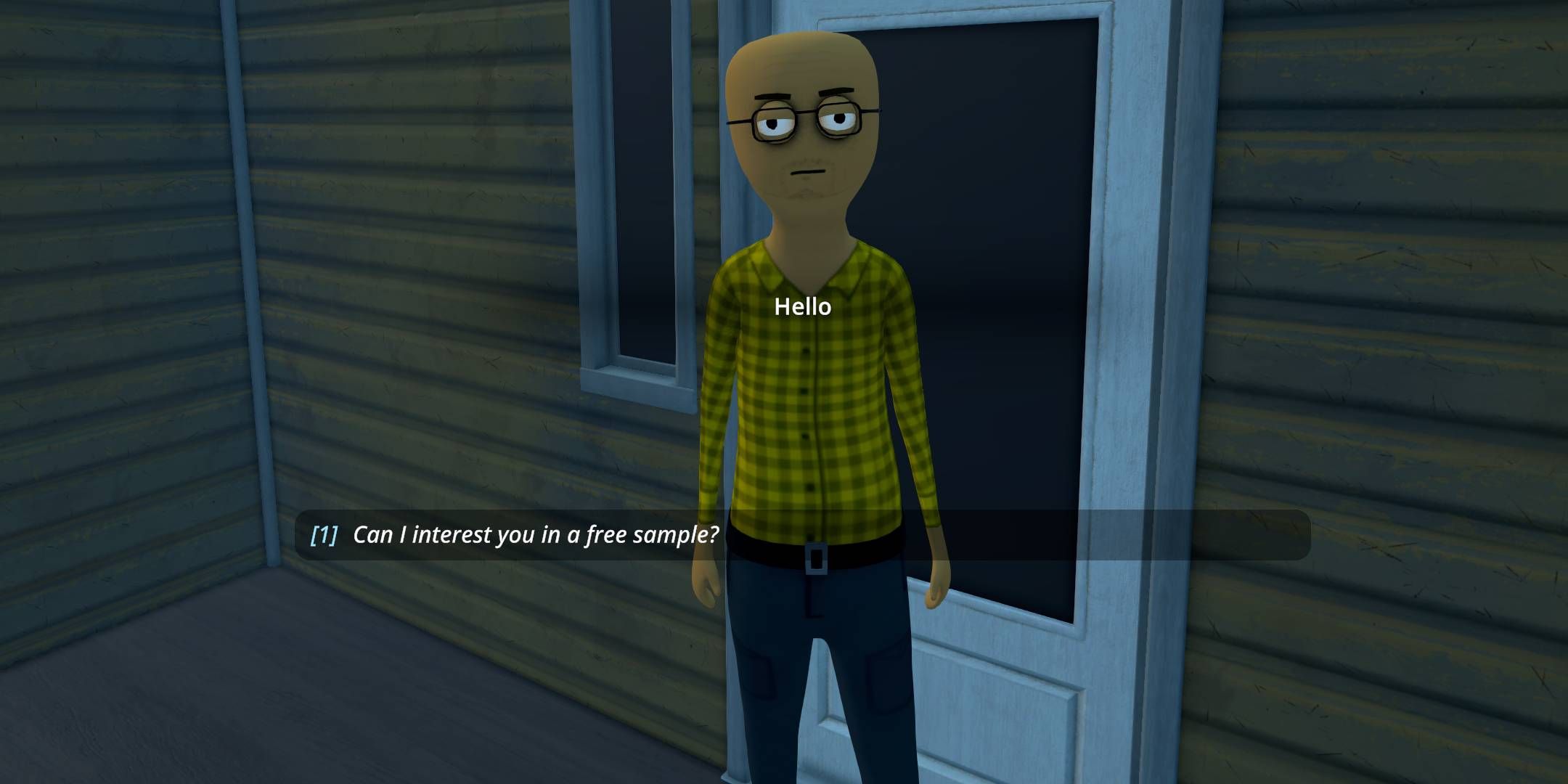
    Dealers play a vital role in expanding your drug empire in Schedule 1. In the initial zone, you’ll meet Benji, your first dealer. The process with dealers is quite simple: you supply them with a product along with a list of customers, they handle the sales, and you gather the profits. This arrangement gives you more time to focus on production and sourcing additional materials.

    Being a new game, Schedule 1 has a few glitches that might prevent your dealer from functioning properly. These bugs can arise from certain interactions or game mechanics that confuse the non-player character (NPC) dealer. Let’s explore some solutions to get things back on track.

    Restart the Game, Clear Steam Cache, Validate Files


    Players have reported several issues with Schedule 1, including crashes or dealers failing to sell items. A simple solution discovered through discussions on Steam forums—and validated by personal experience—is to first restart your game.

    If that isn’t effective, go into Steam, navigate to Settings, then Downloads, and Clear Your Download Cache.

    This action will reset Steam. After it’s finished, go to the Properties of Schedule 1 and validate the game files.

    This may also resolve issues you’ve encountered when playing cooperatively with friends.

    Check Your Dealer’s Inventory and Customers
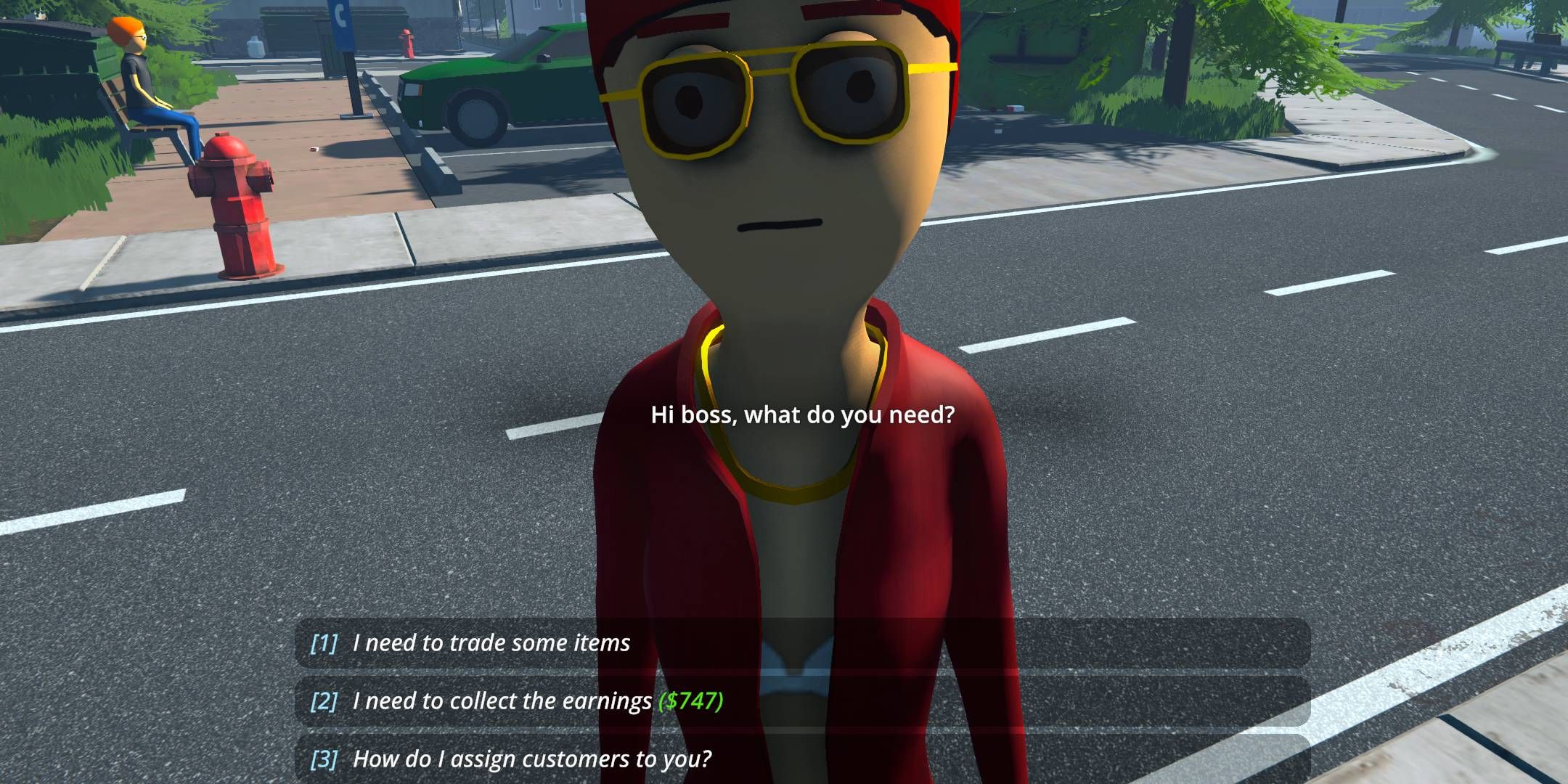

    Schedule 1 Dealer

    At times, the game might malfunction if you’re attempting to sell to customers already assigned to your dealer. This could result in a scenario where the dealer is repeatedly trying to sell to a customer you’ve already serviced.

    To remedy this, ensure that you’re not selling to any customers listed with your dealer. Even if these customers continue to reach out to you (they shouldn’t after having a dealer designated), ignore their messages and let your dealer handle sales.

    Always check that your dealer has enough products in stock to sell. They’ll send you a text when they run out. To replenish their inventory, visit their location or catch them early in the day before they roam around town.

    Last Resort…Take Out Your Dealer


    schedule_1_heisenberg

    If you’re in a real bind, a drastic step to reset your dealer is to eliminate them. This can be done in several ways, such as knocking them out, disposing of their body, or simply shooting them. Don’t worry; dealers won’t lose their inventory and will come back the following day. This should clear up any pathing issues and reset their behaviors, helping to fix any mistakes that may have disturbed their operation.

  • Why is my Mac keyboard not working?

    Why is my Mac keyboard not working?

    Understanding Keyboard Issues on Mac

    Experiencing a non-responsive keyboard on your Mac can be frustrating. Before diving into solutions, it’s essential to understand the possible reasons behind the malfunction.

    Common Reasons for a Non-Working Keyboard

    Several factors can contribute to your Mac keyboard not functioning as expected:

    • Software Glitches
    • Hardware Issues
    • Connection Problems
    • Battery Issues

    By identifying the potential cause, you can determine the best course of action to resolve the issue.

    Software Glitches

    Software-related problems can often lead to keyboard failures. Consider the following:

    System Updates

    • Outdated software: Ensure your macOS is up to date, as outdated software may lead to compatibility issues.
    • Software conflicts: Third-party applications can sometimes interfere with keyboard operation.

    Resetting Settings

    Try resetting the keyboard settings to eliminate software conflicts:

    1. Go to System Preferences.
    2. Click on Keyboard.
    3. Choose Modifier Keys and return to defaults.

    Hardware Issues

    Hardware problems can significantly impact your keyboard’s functionality. Here are some common hardware-related issues:

    • Dust and debris: Accumulated dirt beneath the keys can hinder their movement.
    • Physical damage: A spill or impact can lead to malfunctioning keys.

    Cleaning Your Keyboard

    If you suspect debris:

    1. Turn off your Mac.
    2. Use compressed air to blow out dust.
    3. Wipe down the keys gently with a microfiber cloth.

    Connection Problems

    For wireless keyboards, connectivity issues may be the culprit.

    Bluetooth Connectivity

    If you’re using a Bluetooth keyboard, check the following:

    • Battery life: Ensure your keyboard has sufficient battery power.
    • Bluetooth settings: Go to System Preferences > Bluetooth to verify that the keyboard is connected.
    • Reconnect the keyboard: If it’s unresponsive, try removing and re-pairing it.

    USB Connection

    For wired keyboards, consider:

    • Loose connections: Ensure the USB connector is securely plugged in.
    • Try another port: Switch to a different USB port to see if that resolves the issue.

    Additional Troubleshooting Tips

    If standard solutions fail to work, consider these extra troubleshooting methods:

    • Reset SMC/PRAM: Resetting the System Management Controller (SMC) or Parameter RAM (PRAM) can sometimes resolve keyboard issues.
    • Create a new user account: Logging into a new user profile helps determine if the problem is user-specific or system-wide.
    • Check for software updates: Install any pending updates to fix possible bugs affecting keyboard performance.

    Seeking Professional Help

    If none of the above solutions work, it might be time to consult a professional. Hardware issues, especially those involving internal components, might require expert assistance.

    When visiting an Apple Store or certified repair center, be prepared to discuss the symptoms you’ve experienced and what troubleshooting steps you’ve already attempted. This information can help technicians diagnose the problem more efficiently.

    Understanding the reasons behind your Mac keyboard’s unresponsiveness can guide you toward effective solutions. With a bit of troubleshooting and maintenance, you’ll be back to typing in no time.