الوسم: MS Office

  • How to Freeze Rows and Columns in Excel: A Step-by-Step Guide

    How to Freeze Rows and Columns in Excel: A Step-by-Step Guide

    If you’ve ever navigated a sprawling Excel spreadsheet, you understand how overwhelming extensive rows and columns can be. Once you surpass ten or fifteen different data points and labels, it can become quite challenging to recall the details from those initial cells. Thankfully, there’s a straightforward technique to keep those essential pieces of information visible.

    The crucial concept here is “freezing,” and the process is as uncomplicated as it sounds. Utilizing Microsoft Excel’s built-in feature, you can freeze specific rows and columns (typically headers), ensuring that these cells remain visible as you scroll through the spreadsheet.

    Now, let’s dive into a step-by-step guide on how to freeze rows and columns in Excel!

    How to Freeze a Row in Excel

    Step 1: Identify the row or rows you wish to freeze. These rows will remain visible as you scroll. Select the row right beneath the last row you want to freeze. For instance, if you want to freeze the first three rows, select row four.

    Digital Trends

    Step 2: Navigate to the View tab in the ribbon menu at the top of the screen.

    Step 3: Click on Freeze Panes from the drop-down menu.

    If you only want to freeze the top row of your spreadsheet, you can skip the row selection step entirely. Just click the View tab, followed by Freeze Panes > Freeze Top Row.
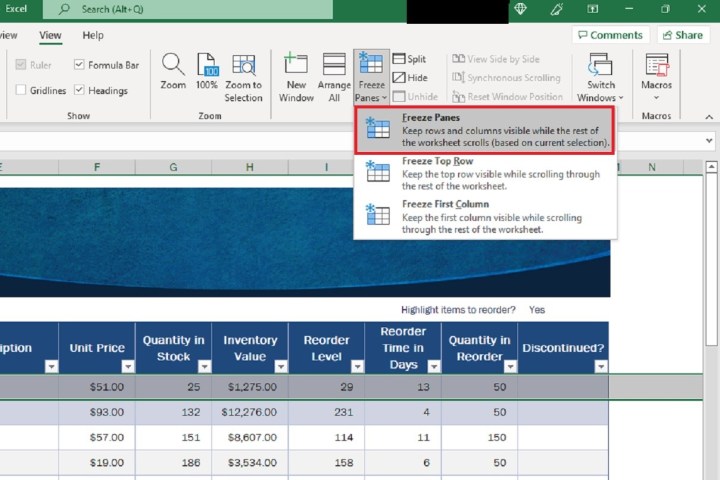
    Screenshot of the Excel Freeze Panes drop-down menu.
    Digital Trends

    Step 4: To unfreeze your previously frozen rows, go back to the View tab, select Freeze Panes, and then choose Unfreeze Panes from the drop-down menu.
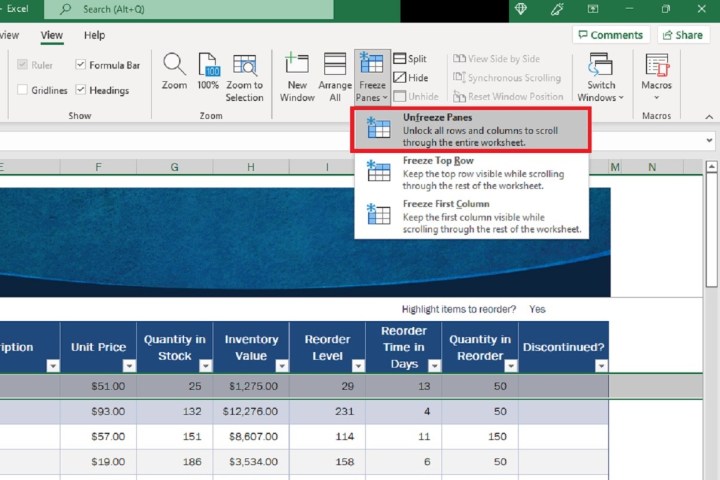
    Screenshot showing the option to unfreeze panes in Excel.
    Digital Trends

    How to Freeze a Column in Excel

    Step 1: Choose the column or columns you want to freeze. Then select the column immediately to the right of those you wish to freeze. For instance, to freeze columns A, B, and C, select column D.
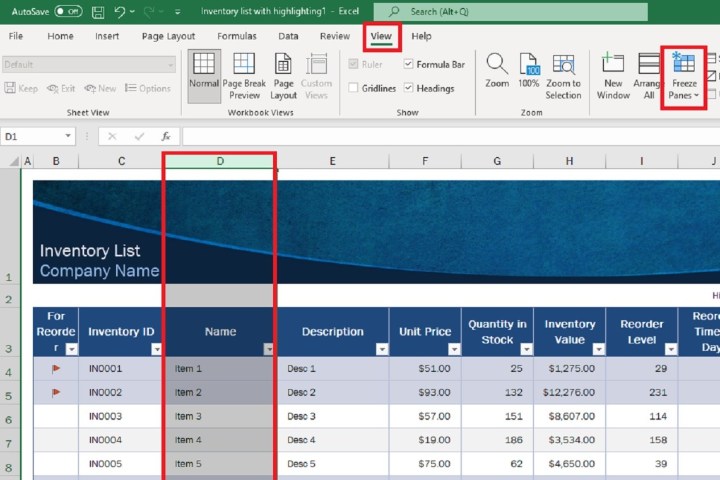
    Screenshot illustrating column selection and access to the View tab in Excel.
    Digital Trends

    Step 2: Click on the View tab located in the ribbon menu at the top.

    Step 3: Choose Freeze Panes from the drop-down options.

    If your goal is merely to freeze the first column of your spreadsheet, click the View tab, and select Freeze Panes > Freeze First Column.

    Excel Freeze Panes drop-down menu options screenshot.
    Digital Trends

    Step 4: To unfreeze your columns, go back to the View tab, and select Freeze Panes > Unfreeze Panes. Remember, if you add a column amidst frozen columns, it will also be frozen.

    Excel unfreeze panes option screenshot.
    Digital Trends

    Freezing Rows and Columns with Keyboard Shortcuts

    Step 1: To freeze both rows and columns: Press Alt+W+F+F. This command freezes the rows and columns located before the chosen cell.

    Step 2: To freeze only the top row: Press Alt+W+F+R. This command will freeze the first row regardless of which cell is currently selected.

    Step 3: To freeze the first column: Press Alt+W+F+C. This will freeze the leftmost column no matter which cell is selected.
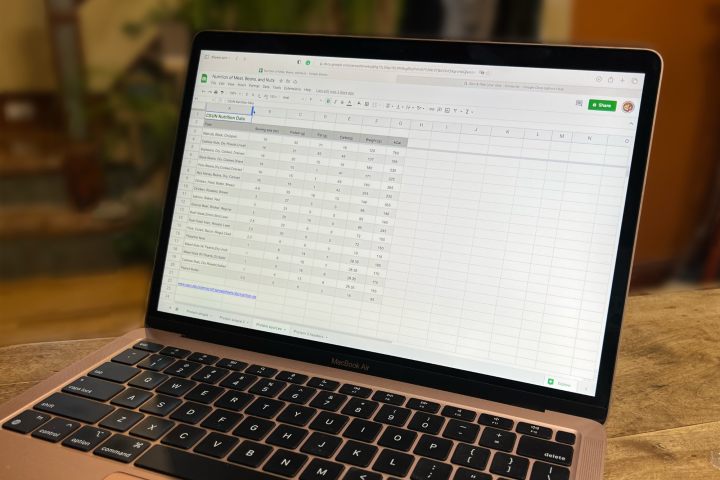
    Google Sheets displayed on a MacBook Air.

    Digital Trends

    How to Freeze Rows and Columns in Google Sheets

    Similar to Excel, Google Sheets offers options to freeze and unfreeze rows and columns. Here’s how to use these features:

    Step 1: Open a new spreadsheet in Google Sheets.

    Step 2: Choose the row or column you want to freeze or unfreeze. Click on View > Freeze at the top of the page.

    Step 3: Select the number of rows or columns you wish to freeze. To unfreeze, click View > Freeze > No rows or No columns.

    If this method seems simpler, consider converting your Excel file to Google Sheets.

    How to Freeze Rows and Columns in MacOS Numbers

    Apple’s spreadsheet software, Numbers, doesn’t offer the same freeze-unfreeze functionality as Excel or Google Sheets. However, you can still freeze header rows, header columns, or both. Here’s how:

    Step 1: Open a Numbers spreadsheet and click anywhere within the table. Then click Table at the top of the page.

    Step 2: Select Freeze Header Rows, Freeze Header Columns, or both. You can also specify how many rows or columns to freeze by selecting Header Rows and Header Columns.

    While you’ve streamlined your scrolling in Excel, it’s crucial to safeguard important data from accidental changes. Learn how to lock cells in Microsoft Excel to keep your data secure.

  • How To Add Hyperlinks in Word: A Step-by-Step Guide

    How To Add Hyperlinks in Word: A Step-by-Step Guide

    When crafting a document in Microsoft Word that you’ll be sharing with others, consider enhancing it by adding hyperlinks. You can create links to various destinations such as web pages, files, sections within your document, or even email addresses. This handy feature allows your readers to click through directly, saving them some extra steps.

    Inserting hyperlinks isn’t just advantageous for your audience; it can also serve you well. Hyperlinks make it easier to verify references, conduct further research, access additional files, or navigate through your own document—just click the link!

    In this guide, we will walk you through the steps to add hyperlinks in Word to various types of content.

    Link to a Web Page in Word

    Linking to a website or specific webpage provides your readers direct access to a source or footnote you’ve referenced.

    Step 1: Highlight the text in your Word document that you want to hyperlink.

    Step 2: Navigate to the Insert tab, click on Links > Link, and select Insert Link. Alternatively, right-click the highlighted text, go to Link, and choose Insert Link from the menu.

    Image used with permission from copyright holder

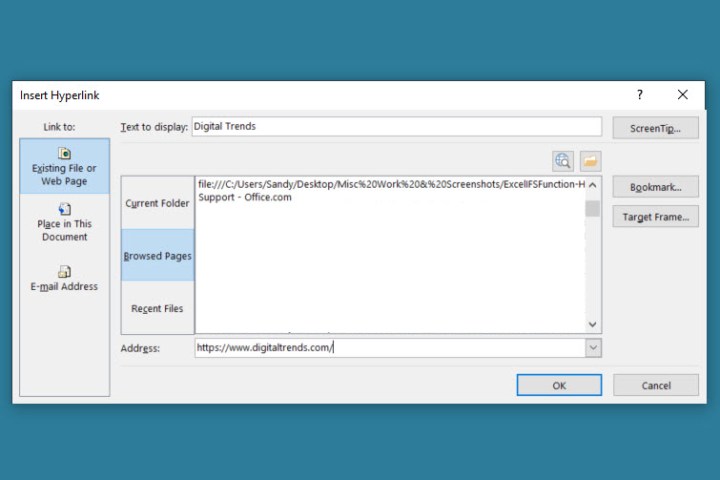
    Step 3: When the Insert Link window appears, select Existing file or web page from the left sidebar.

    Step 4: If you’ve recently visited the page, it might show up in the list. Reference Browsed Pages in the center window and select your desired page, which will populate the Address field. If it isn’t listed, you can manually enter or paste the URL into the Address field.

    Browsed Pages in the Insert Link box in Word.
    Image used with permission from copyright holder

    Step 5: Press OK to finalize the link.

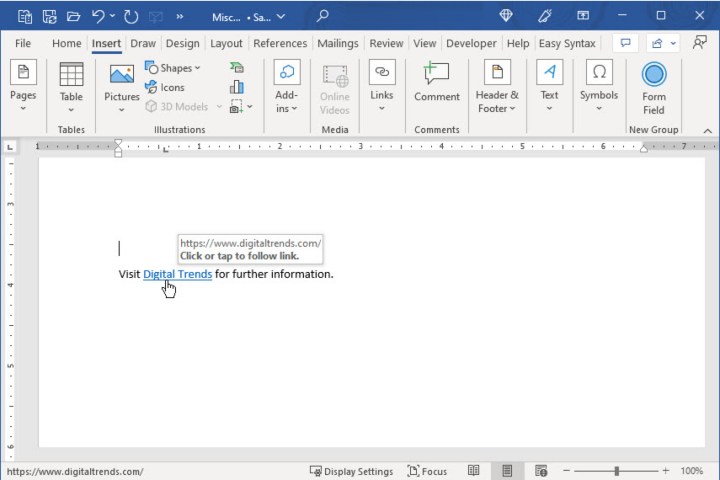
    Step 6: The highlighted text in your document will now appear linked, displayed in blue and underlined. Clicking the link will open the website or webpage in your default web browser.

    Text linked to a website in Word.
    Image used with permission from copyright holder

    Link to Another File in Word

    Hyperlinks can also connect your current document to other files, such as spreadsheets or different documents, which is beneficial to you as the writer.

    Step 1: Highlight the text in your Word document that you wish to hyperlink.

    Step 2: Go to the Insert tab, click on Links > Link, and select Insert Link. You may also right-click the text, go to Link, and choose Insert Link.

    Step 3: In the Insert Link dialog, select Existing file or web page.

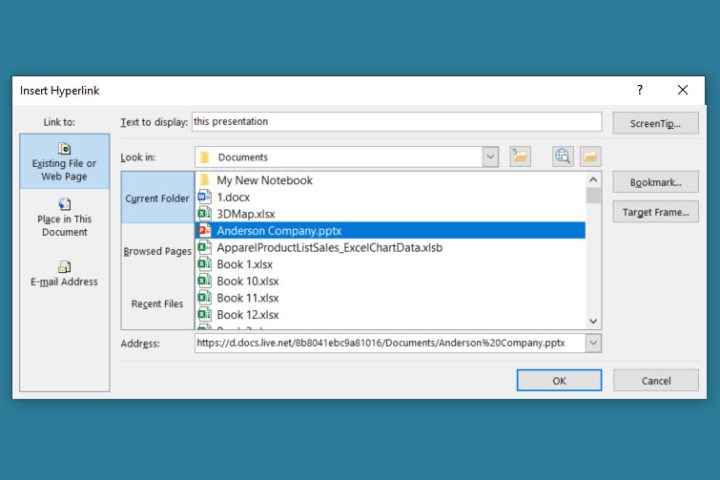
    Step 4: Choose the file by either:

    • Selecting Current folder if the file is located in the same directory as the document.
    • Picking Recent files if you’ve recently accessed the file, then selecting it from the list.
    • Entering the full file path in the Address field.
    Current Folder in the Insert Link box in Word.
    Image used with permission from copyright holder

    Step 5: Click OK to set the hyperlink.

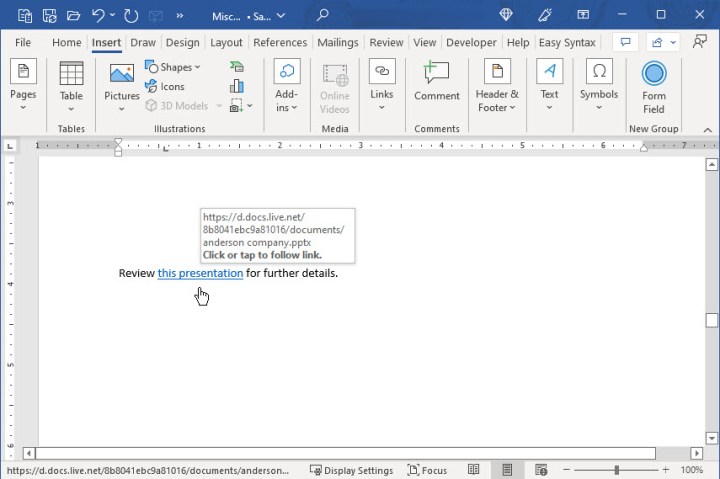
    Step 6: The highlighted text in your document will now be linked, and selecting it will open the respective file.

    Text linked to a file in Word.
    Image used with permission from copyright holder

    Link to a Place in the Document

    You can create links within your Word document to specific text sections for improved navigation, enabling connections to headings, bookmarks, or the top of the document.

    Step 1: Select the text you want to hyperlink in your Word document.

    Step 2: Head to the Insert tab, select Links > Link, and click on Insert Link or right-click, go to Link, and choose Insert Link.

    Step 3: When the Insert Link window appears, click on Place in this document on the left.

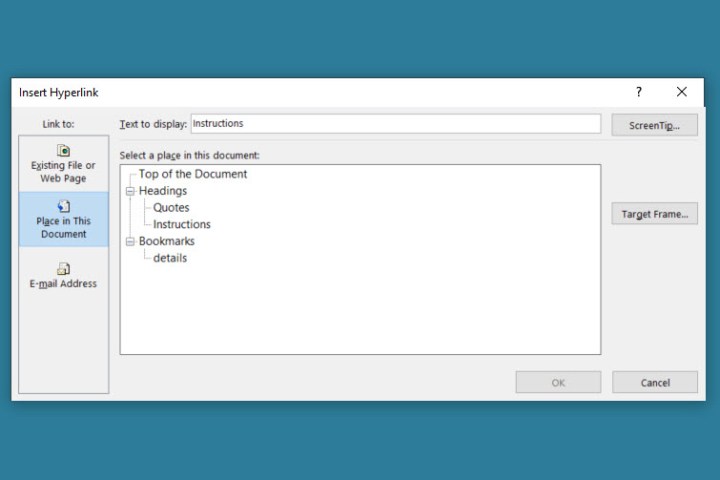
    Step 4: A list of options will appear on the right. If you have not created headings or bookmarks, you will only see Top of the document as an option.

    Choose the specific location in the document you wish to link to and click OK to apply the link.

    Place in This Document in the Insert Link box in Word.
    Image used with permission from copyright holder

    Step 5: The selected text will now be linked, allowing you to jump to that specific section of your document when clicked.

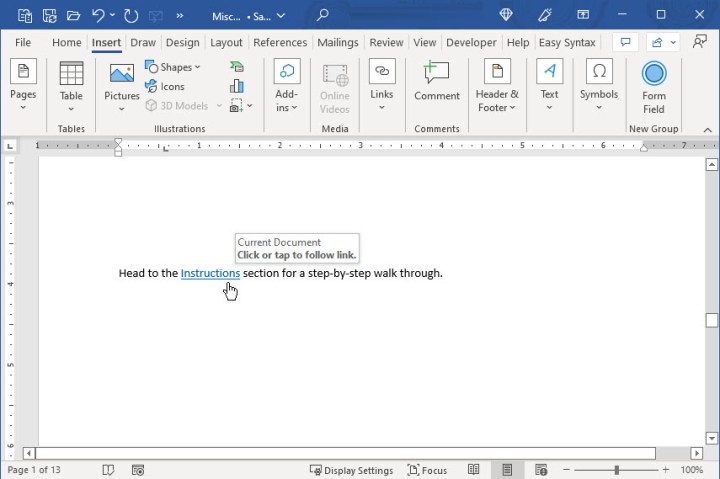
    Text linked to a heading in the Word document.
    Image used with permission from copyright holder

    Link to an Email Address

    Should you want to provide readers with the ability to contact you directly, you can create a link to your email address, complete with an optional subject line.

    Step 1: Select the text in your Word document that you want to link to an email address.

    Step 2: Go to the Insert tab, select Links > Link, and choose Insert Link or right-click on the text, hover over Link, and select Insert Link.

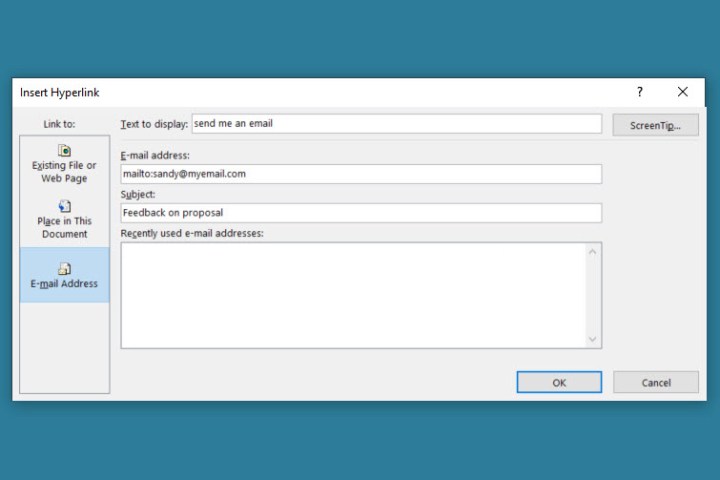
    Step 3: In the Insert Link window, choose Email Address from the options on the left.

    Step 4: If you’ve used the email address recently, it may appear in the Recently used email addresses box. If it’s listed, click on it. If not, manually input your email address in the Email address field at the top.

    Step 5: Optionally, enter a subject line in the provided field to populate an email automatically with that subject when clicked.

    Email Address in the Insert Link box in Word.
    Image used with permission from copyright holder

    Step 6: Click OK to finalize the link.

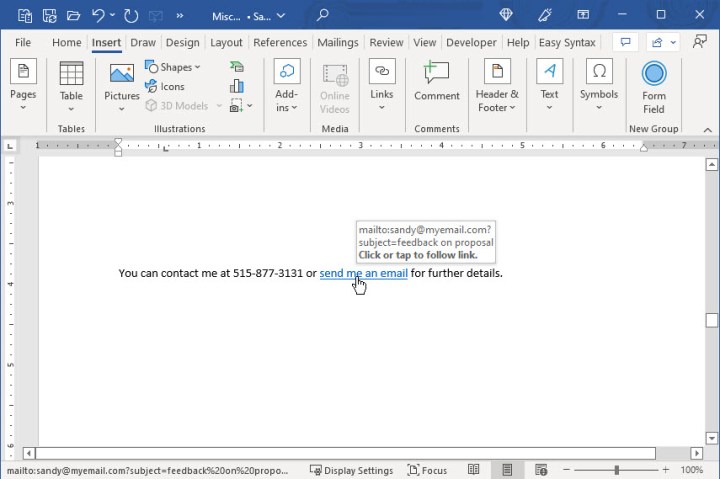
    Step 7: The selected text will now be linked in your document. When clicked, it should open a new message window in your default email client.

    Text linked to an email address in Word.
    Image used with permission from copyright holder

    Edit, Copy, or Remove a Hyperlink in Word

    The hyperlinks you insert into your Word document will remain clickable even when you share the document, including when it is converted to PDF format.

    After adding a hyperlink, you might wish to modify, copy, or remove it for any reason. To manage your links:

    Right-click on the hyperlink in the document and select one of the following:

    • Edit Hyperlink to make changes, which will bring up the same window you used for adding the link.
    • Copy Hyperlink to copy it to your clipboard, allowing you to paste it elsewhere.
    • Remove Hyperlink to delete the link. The text will remain, but it will be unlinked.

    Whether you’re creating links for your readers or for your own reference, inserting hyperlinks in Microsoft Word is straightforward.

    Now that you’re familiar with how to add hyperlinks in Word, you might want to explore other features like adding watermarks or utilizing headers and footers.