الوسم: Monitor

  • MSI Eases OLED Monitor Protection Challenges

    MSI Eases OLED Monitor Protection Challenges

    If you have invested in one of the top OLED monitors, you're likely aware of their exceptional color vibrancy and contrast. However, these monitors come with a notable downside: burn-in problems. Manufacturers recognize this issue, and many are working to find solutions. MSI has already implemented some protective measures, and with their latest firmware update, they aim to make the process of safeguarding your monitor even easier.


    What is OLED burn-in?

    Burn-in is a problem that results in permanent discoloration or ghosting on certain OLED displays when static images remain on-screen for prolonged periods. This often includes elements like logos, gaming HUDs, or news tickers—essentially anything that is displayed consistently over time. Running your monitor at its maximum brightness can worsen burn-in, as it leads to uneven wear on the organic compounds responsible for generating light in OLED screens.

    Fortunately, contemporary OLED technology has made significant strides in reducing the risk of burn-in, though it can still occur and is quite annoying to deal with. You may notice a faint lingering shadow of a previously displayed static image, which remains visible regardless of the content currently being shown.

    When burn-in occurs, it is typically irreversible. This is why companies like MSI are proactive in employing strategies to prevent it from arising in the first place—no one wants their gaming monitor marred by lasting ghosting imagery.


    How does MSI’s new update help prevent burn-in?

    MSI has implemented a strategy called MSI OLED Care, a suite of features designed to extend the life of OLED displays and prevent burn-in. While MSI monitors generally come with a three-year warranty, utilizing these protective technologies is crucial to maintaining that warranty.

    One key feature within OLED Care 2.0 is Panel Protect, which refreshes each pixel to ensure consistent display quality and mitigate the risk of ghosting. This process, however, can disrupt gameplay if it occurs during an intense gaming session. Previously, the refresh happened every 16 hours—while not too common, it could still be poorly timed.

    MSI has acknowledged user feedback and is extending the refresh interval to once every 24 hours. If your monitor is used for over four hours, the system will prompt you to perform a Pixel Refresh. You can postpone this notification a few times, but overdoing it could result in the refresh happening regardless of your preference. Fortunately, it will now be scheduled for 24 hours instead of 16, which should be a relief for avid gamers who tend to leave their systems running for extended periods.

    The only way to access this update is to download the new firmware. If you're satisfied with the current 16-hour refresh cycle and it's working for you, feel free to skip it. However, for those who appreciate extended operational intervals, waiting an extra eight hours may be beneficial. MSI has also released an update for their Claw handheld device, reflecting similar user-driven enhancements.

  • Why Is My Asus Monitor Changing Brightness?

    Why Is My Asus Monitor Changing Brightness?

    Many users encounter the perplexing issue of their Asus monitor automatically adjusting its brightness. This phenomenon can be both irritating and distracting, especially when trying to concentrate on work, gaming, or watching videos. Let’s delve into the reasons behind this occurrence and explore potential solutions.

    Understanding the Issue

    Automatic brightness changes can manifest in several ways, such as:

    • Sudden brightness fluctuations during use
    • Dimming or brightening based on content displayed
    • Monitor brightness adjusting based on ambient light

    These changes can stem from a variety of factors, including system settings, software configurations, or hardware issues.

    Potential Causes of Brightness Variability

    1. Adaptive Brightness Setting

    Adaptive Brightness is a feature available on many devices. This option uses sensors to monitor environmental light and adjusts the screen brightness accordingly. Here’s how it works:

    • Built-in Sensors: Monitors equipped with light sensors detect the room’s lighting conditions.
    • Functionality: The screen brightness fluctuates to provide optimal viewing conditions.

    2. Windows Settings

    Windows offers specific settings that may influence your monitor’s brightness:

    • Power Settings: Certain power plans may adjust brightness to conserve energy.
    • Night Light Feature: This mode can change brightness based on time of day.

    3. Graphics Card Settings

    Your graphics card software may also affect monitor brightness:

    • Driver Settings: Adjustments in your graphics driver may inadvertently alter brightness.
    • Game Mode: Some games automatically adjust brightness for better visual performance.

    4. Monitor-Specific Features

    Many Asus monitors come with features that may influence brightness:

    • ASUS Eye Care Technologies: This feature can automatically adjust brightness and color depending on your display activity.
    • GameVisual Technology: Different modes may alter brightness for optimal performance in gaming scenarios.

    Troubleshooting Brightness Issues

    Resolving brightness issues often involves checking various settings. Here’s a systematic approach to troubleshoot:

    Step 1: Check Adaptive Brightness

    1. Windows Search: Type “Control Panel” into the search bar.
    2. Go to Hardware and Sound: Click on the option.
    3. Power Options: Click on "Change plan settings" for your selected power plan.
    4. Change Advanced Power Settings: Inside, check if adaptive brightness is enabled and turn it off if necessary.

    Step 2: Monitor Settings

    1. Access Monitor Menu: Use the buttons on your monitor to navigate to its settings.
    2. Check for Auto Brightness: Disable any auto-brightness or energy-saving modes.

    Step 3: Graphics Card Control Panel

    1. Open Graphics Driver Software: This could be NVIDIA Control Panel, AMD Radeon Settings, or Intel Graphics Command Center.
    2. Adjust Brightness Settings: Look for any settings that may affect brightness or display output.

    Step 4: Update Drivers

    Ensure your drivers are current to eliminate compatibility issues. Here’s how:

    • Windows Update: Go to Settings > Update & Security and check for updates.
    • Graphics Card Manufacturer’s Website: Download the latest drivers from the manufacturer’s site.

    Step 5: Check for Malware

    Sometimes, unexpected changes can be a sign of malware. A full system scan may help identify and eliminate any threats affecting your display.

    When to Seek Professional Help

    If you’ve attempted all troubleshooting suggestions with no success, the issue may lie within the hardware itself. Indicators that professional assistance might be necessary include:

    • Persistent Fluctuations: Brightness changes despite all adjustments.
    • Other Display Issues: Flickering, color distortion, or complete screen blackout.
    • Physical Damage: Cracked screens or damaged cables affecting performance.

    In such cases, contacting Asus support or a qualified technician can provide targeted assistance.

    By understanding the potential causes of brightness variability and following these troubleshooting tips, users can often resolve the annoying issue of their Asus monitor changing brightness unexpectedly.

  • How To Take Asus Monitor Out Of HDR Mode?

    How To Take Asus Monitor Out Of HDR Mode?

    High Dynamic Range (HDR) technology enhances the viewing experience by providing brighter highlights and a wider range of colors. However, there are instances when you might want to turn off HDR mode on your Asus monitor for a more conventional display. Whether you’re gaming, working on graphics, or just want to save power, disabling HDR can be beneficial. Here’s a simple guide to help you navigate this process.

    Understanding HDR on Asus Monitors

    Benefits of HDR

    Before diving into the steps, it’s useful to understand why HDR is favored:

    • Improved Color Range: HDR displays often showcase a broader spectrum of colors.
    • Better Contrast: It enhances the differentiation between light and dark areas on-screen.
    • Enhanced Visual Experience: Particularly beneficial for movies, games, and multimedia.

    Scenarios to Disable HDR

    While HDR has its advantages, there are circumstances where users may prefer to turn it off:

    • Gaming Compatibility: Some games perform better without HDR enabled.
    • Power Consumption: HDR can consume more power, resulting in higher electricity bills.
    • Color Accuracy: Certain tasks, like photo editing, may require more accurate color representation.

    Steps to Disable HDR on an Asus Monitor

    Turning off HDR on your Asus monitor can be done through your computer’s display settings. Follow the steps below based on your device’s operating system.

    For Windows Users

    1. Access Settings:

      • Click on the Start button or press the Windows key.
      • Navigate to Settings (the gear icon).

    2. Display Settings:

      • Click on System and then select Display.

    3. Locate HDR Options:

      • Scroll down to find the Windows HD Color section.
      • Here you will see whether HDR is enabled or disabled.

    4. Disable HDR:

      • Toggle the switch to Off under "Play HDR games and apps."

    5. Adjust Color Calibration (optional):

      • If you also need to calibrate your display for better color accuracy, look for the “Color calibration” option under the same menu.

    For macOS Users

    1. Open System Preferences:

      • Click on the Apple logo in the top left corner and select System Preferences.

    2. Select Displays:

      • Click on Displays, then go to the Display tab.

    3. Disable HDR:

      • If your monitor supports HDR, you will see an option that indicates “High Dynamic Range.”
      • Uncheck or toggle off this option.

    4. Adjust Other Settings (optional):

      • You can also tweak other display settings, such as brightness and color profiles, in this menu.

    Using Monitor’s On-Screen Display (OSD) Settings

    In addition to software adjustments, you can often disable HDR directly through your monitor’s own menu:

    1. Access OSD Menu:

      • Locate the menu button on your monitor. This is often found at the back or on the side.

    2. Navigate to Picture or Display Settings:

      • Use the navigation buttons to scroll through and select Picture or Display settings.

    3. Disable HDR:

      • Look for an option labeled HDR or Display Mode and set it to Standard or sRGB instead.

    4. Save Changes:

      • Ensure to save and exit the OSD menu to apply the changes.

    Additional Tips

    • Check for Driver Updates: Sometimes, graphics drivers can affect HDR settings. Ensure your drivers are up-to-date for optimal performance.

    • Refer to the Manual: If you have difficulties navigating through the OSD or settings, check the user manual specific to your Asus monitor model for detailed instructions.

    • Experiment with Settings: Different content types may behave differently with HDR off versus on, so feel free to switch back and forth as needed.

    By following these straightforward steps, you’ll be able to easily toggle HDR mode on your Asus monitor according to your needs.

  • How To Do Firmware Update On Asus Monitor?

    Keeping your Asus monitor up to date with the latest firmware ensures optimal performance, features, and compatibility. This guide walks you through the steps needed to successfully update your monitor’s firmware.

    Why Update Your Firmware?

    Updating the firmware of your Asus monitor can yield several benefits:

    • Improved Performance: Enhancements to existing features and overall system responsiveness.
    • New Features: Access to new functionalities that may not be available with older firmware versions.
    • Bug Fixes: Resolution of known issues and stability improvements.
    • Compatibility: Ensured compatibility with the latest graphics cards, software, and peripherals.

    Checking Your Current Firmware Version

    Before proceeding with the update, it’s helpful to know your monitor’s current firmware version.

    1. Power On Your Monitor: Ensure your monitor is turned on and connected to a computer.
    2. Access the Menu:

      • Use the monitor’s buttons to access the on-screen display (OSD) menu.
    3. Navigate to Information:

      • Look for the "Information" or "Settings" option in the menu. This typically displays your current firmware version.

    Preparing for the Update

    You’ll need to gather a few items before starting the firmware update process:

    • USB Flash Drive: Ensure it’s formatted to FAT32.
    • Access to a Computer: To download the firmware files.
    • Monitor Model Number: Identify your monitor’s model number, usually found on the back of the monitor or in the same OSD menu.

    Steps to Update Firmware on Your Asus Monitor

    Step 1: Download the Latest Firmware

    1. Visit Asus Support: Go to the Asus support website (https://www.asus.com/support).
    2. Search for Your Monitor Model: Enter your monitor’s model number in the search bar.
    3. Select Drivers & Tools: Navigate to the Drivers & Tools section.
    4. Choose the Firmware: Locate the firmware update in the list provided and download it to your computer.

    Step 2: Prepare the USB Flash Drive

    1. Connect the USB Drive: Plug the USB flash drive into your computer.
    2. Format the Drive:

      • Open "This PC" or "My Computer".
      • Right-click on the USB drive and select "Format".
      • Choose FAT32 and click "Start".
    3. Copy Firmware Files: Extract the downloaded firmware files and transfer them to the root directory of the USB flash drive.

    Step 3: Update the Firmware

    1. Power Cycle the Monitor: Turn off your Asus monitor and then back on.
    2. Insert the USB Drive: Plug the USB flash drive into the designated USB port on the monitor.
    3. Access the Update Mode:

      • Again, open the OSD menu using the monitor buttons.
      • Look for the option labeled “Firmware Update” or “Update.”
    4. Select Start Update: Follow the on-screen prompts to begin the firmware update process.
    5. Wait for Completion: Do not power off the monitor during the update. The process may take a few minutes.

    Step 4: Verify the Update

    1. Remove the USB Drive: Once the update process is finished, remove the USB flash drive.
    2. Check Firmware Version Again: Access the OSD menu and revisit the "Information" section to confirm the firmware has been successfully updated to the latest version.

    Tips for a Smooth Update Process

    • Stable Power Source: Ensure your monitor is connected to a stable power source to prevent interruptions during the update.
    • Use Original USB Ports: If possible, use USB ports directly on the monitor instead of third-party hubs.
    • Backup: If you have important settings customized, take note of them as the process may restore to factory settings.

    By following these steps, you can effectively update the firmware on your Asus monitor, ensuring it operates at its best. Keeping up with firmware updates helps maximize your monitor’s longevity and performance.

  • Does Asus eGPU Require Separate Monitor?

    Does Asus eGPU Require Separate Monitor?

    Understanding Asus eGPU: Do You Need a Separate Monitor?

    With the rise of gaming and design demands, many users are turning to external graphics processing units (eGPUs) for enhanced performance. Asus, a well-known player in the tech industry, offers a range of eGPU options. One common question that arises is whether an Asus eGPU requires a separate monitor. This article explores the functionalities of Asus eGPUs and the necessity of using an external display.

    What is an Asus eGPU?

    An Asus eGPU connects to a laptop or desktop using Thunderbolt 3 or USB-C ports, providing additional graphical power. This is especially useful for laptops that have limited internal GPU capabilities.

    Key Features of Asus eGPUs:

    • Improved Performance: Significantly boosts graphics performance for gaming and professional applications.
    • Versatility: Supports various graphics cards, allowing users to select one that fits their needs.
    • Portability: Many models are designed to be compact and easy to transport.

    Connecting an Asus eGPU: Do You Need a Monitor?

    Using an eGPU, particularly an Asus model, does not inherently require a separate monitor, but there are significant advantages to doing so.

    Native Display Usage vs. External Monitor

    1. Using Only the Laptop Display:

      • Pros:

        • Simplified setup without additional hardware.
        • Easiest for users who may not have a spare monitor.
      • Cons:

        • Possible bottleneck in performance due to the laptop’s native display limitations.
        • May not fully utilize the capabilities of the eGPU, especially in high-resolution gaming.

    2. Using a Separate Monitor:

      • Pros:

        • Enhanced gaming experience with higher refresh rates and resolutions.
        • Better performance without relying on the laptop’s display capabilities.
        • Ideal for creative professionals who need accurate color representation in design work.
      • Cons:

        • Initial setup may require purchasing a monitor.
        • Additional workspace needed for equipment.

    Factors to Consider Before Choosing a Setup

    When deciding whether to use a separate monitor with an Asus eGPU, consider the following.

    Display Resolution:

    • Higher Resolutions Require More Resources: If you plan to game or work at 1440p or 4K, an external monitor is recommended.

    Performance Needs:

    • Gaming vs. Casual Use: Gamers and professionals benefit more from an external monitor than casual users who perform basic tasks.

    Connectivity Options:

    • Monitor Compatibility: Ensure your monitor supports the required resolution and refresh rates that match the eGPU’s capabilities.

    Recommended Setup for Optimal Performance

    If you choose to use an Asus eGPU with a separate monitor, here’s how to set it up effectively:

    • Choose the Right Monitor:

      • Look for monitors with high refresh rates (144Hz or higher).
      • Ensure the monitor has a resolution that matches your gaming or design needs.

    • Ensure Proper Connections:

      • Use the correct cables, typically DisplayPort or HDMI, to connect the monitor to the eGPU.

    • Configure Display Settings:

      • Adjust the graphics settings in your system and applications to take full advantage of the eGPU.

    Conclusion

    Deciding whether or not an Asus eGPU requires a separate monitor depends largely on your graphics needs and the type of applications you run. While it is possible to use an eGPU with just a laptop display, many users find that a dedicated monitor greatly enhances their performance experience, particularly in gaming and professional visual tasks. Therefore, if you’re looking to maximize your Asus eGPU’s capabilities, investing in a separate monitor is a worthwhile consideration.

  • Samsung Unveils a Unique 4K Monitor

    Samsung Unveils a Unique 4K Monitor

    CES 2025
    CES 2025
    Explore our full coverage of CES here.
    Last updated just now

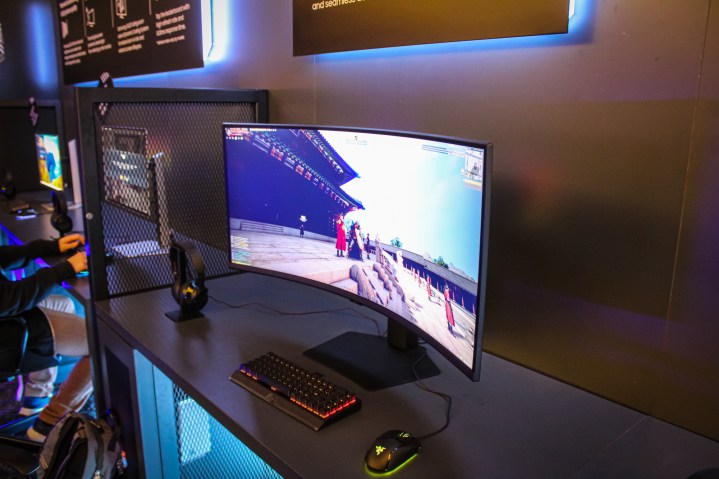
    In addition to its remarkable 500Hz OLED, Samsung is showcasing two other intriguing monitors at CES 2025. The star of the show is a 37-inch 4K display, a size I’ve yet to come across despite exploring a multitude of gaming monitors.

    This may not seem significant at first glance, but when you consider gaming monitors larger than 32 inches, its uniqueness becomes apparent. Most conventional 16:9 displays cap out at 32 inches. Beyond that, you typically find screens that jump to 40 or 42 inches—often TV panels that have been repurposed for gaming use, like my KTC G42P5.

    Samsung is offering a middle ground here. While larger models exist, most fall within the 21:9 aspect ratio. Now, gamers can find a viable option when a 32-inch display feels inadequate, but a full-size television is unnecessary.

    The Samsung Odyssey G7 at CES 2025.
    Luke Larsen / Digital Trends

    The second monitor from Samsung offers a somewhat different experience. The Odyssey G7 features a 21:9 aspect ratio and boasts an impressive 5K resolution. This model is akin to LG’s recently unveiled 5K2K display, albeit without an OLED panel.

    With a 5,120 x 2,160 resolution and a 40-inch size, the Odyssey G7 achieves a sharp pixel density of 139 pixels per inch. This is notably higher than the typical 100 pixels per inch that most monitors aim for. While it doesn’t quite match the pixel density of the Asus ROG PG27UCDM, it comes close.

    Beyond its exceptional pixel density, the Odyssey G7 features a rapid 180Hz refresh rate and a swift 1ms gray-to-gray response time, as per Samsung’s specifications. Additionally, it holds VESA’s DisplayHDR 600 certification and supports Samsung’s HDR10+ Gaming standard, which utilizes dynamic metadata for enhanced HDR gaming experiences.

    As is customary with Samsung’s announcements at CES, details surrounding pricing and availability remain undisclosed. The company has a history of releasing new monitors more slowly compared to more enthusiast-oriented brands such as MSI and Asus, so it’s likely that these models will debut sometime mid-year. But that’s merely speculation for now.

  • LG Launches Huge 5K Bendable OLED Gaming Monitor

    LG Launches Huge 5K Bendable OLED Gaming Monitor

    CES 2025
    Explore our comprehensive CES coverage here.
    Updated just now.

    As CES 2025 approaches, LG has unveiled two impressive additions to its UltraGear GX9 OLED gaming monitor series: a remarkable 45-inch model featuring a bendable display and a 39-inch “smart” gaming monitor integrated with webOS.

    First up is the standout 45-inch model, which boasts a groundbreaking “world’s first” title as the first 5K OLED monitor available. It offers a stunning resolution of 5120 x 2160, known as 5K2K. This is not only the first OLED monitor to achieve a 5K resolution; it’s also the inaugural gaming monitor to launch with this resolution, typically reserved for high-end creator displays like the Apple Studio Display.

    The UltraGear 45GX990A features a pixel density of 125 pixels per inch, utilizing an RGWB subpixel layout. It’s important to note that these panels use LG’s WOLED technology, which sets them apart from Samsung’s QD-OLEDs.

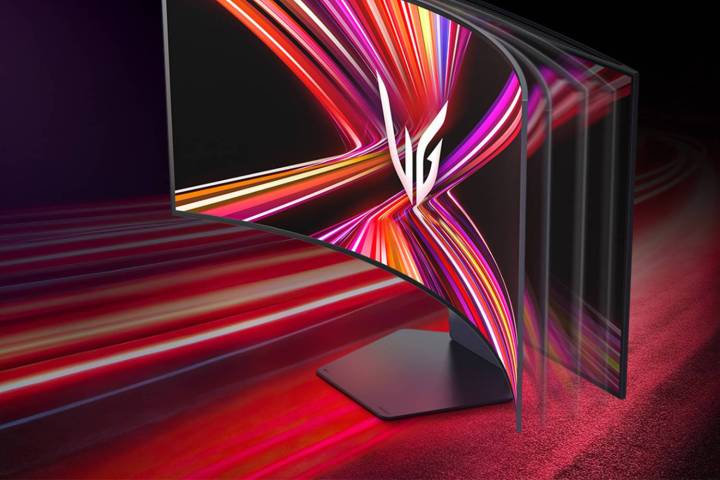
    Illustration of the UltraGear monitor showcasing its bendable screen.
    LG

    The UltraGear 45GX990A’s bendable design allows it to shift from a flat screen to a dramatic 900R curve in mere seconds. While this is not the first bendable OLED monitor seen, with models like Corsair’s Xeneon Flex introduced in 2022 and LG’s own OLED Flex in 2023, this model stands out due to its superior resolution. The 45-inch display has a 21:9 aspect ratio with a resolution of 5120 x 2150.

    LG has enhanced its Dual-Mode functionality with this model, which was present in last year’s monitors, enabling users to toggle between different resolution/refresh rate configurations to suit the game being played.

    Additionally, LG is set to launch a non-bendable version of this monitor called the 45GX950A, retaining the same resolution and improved Dual-Mode features. Specific pricing and availability details are still under wraps, but it’s anticipated that the non-bendable variant will be more budget-friendly.

    Alongside the larger model, LG introduced the UltraGear 39GX90SA, featuring built-in smart capabilities powered by webOS, the same operating system found in their televisions. This means it can operate independently of a connected PC or streaming device. This development follows the trend of smart monitors, similar to LG’s MyView Smart Monitor series, but marks the first instance of smart technology being integrated into a gaming monitor.

    The UltraGear 39GX90SA offers a 39-inch display with a 21:9 aspect ratio and an 800R curvature. Like its larger counterpart, it is OLED and includes an innovative “L-shaped” monitor stand, though LG has yet to disclose the refresh rate for this model.

    More details about these new monitors will be revealed at CES, where we look forward to experiencing them firsthand.

  • What is a monitor to a computer?

    Understanding the Role of Monitors in Computing

    A monitor is a vital component of any computer system, serving as an output device that displays visual information. While many might associate a monitor solely with the function of showing images or text, its importance in the overall computing experience cannot be overstated. Below, we delve into various aspects of monitors, including their types, functions, and specifications.

    Types of Monitors

    Monitors come in various types, each suited for different applications and preferences. Here are some of the most common types:

    • LCD (Liquid Crystal Display)

      • Lightweight and slim design
      • Energy-efficient
      • Offers good image quality
    • LED (Light Emitting Diode)

      • A sub-category of LCDs
      • Enhanced brightness and color accuracy
      • Typically more energy-efficient than traditional LCDs
    • OLED (Organic Light Emitting Diode)

      • Superior color representation
      • Deep blacks and high contrast ratios
      • Flexible designs allow for curved screens
    • CRT (Cathode Ray Tube)

      • Older technology, mostly replaced by flat-panel displays
      • Bulkier and heavier
      • Provides excellent color renditions but is less energy-efficient

    Key Functions of Monitors

    Monitors serve multiple essential functions in a computer system, including:

    • Display Visualization

      • Rendering graphics, images, and videos
      • Presenting text in a readable format
    • User Interface Interaction

      • Facilitating user interactions with the operating system and software applications
      • Supporting touch capabilities in certain models
    • Gaming Experience

      • Providing high refresh rates and low response times for an optimal gaming experience
      • Incorporating technologies such as G-Sync or FreeSync for smoother gameplay

    Monitor Specifications

    When selecting a monitor, it’s crucial to consider its specifications, which can significantly impact performance. Here are some key specifications to evaluate:

    • Resolution

      • Determines the clarity of the screen display
      • Common resolutions include:
      • Full HD (1920 x 1080)
      • 4K (3840 x 2160)
      • 8K (7680 x 4320)
    • Refresh Rate

      • Measured in Hertz (Hz); indicates how many times the image is refreshed per second
      • Higher refresh rates (e.g., 144Hz, 240Hz) are preferred for gaming
    • Aspect Ratio

      • The ratio of the width of the display to its height
      • Common ratios include 16:9 (widescreen) and 21:9 (ultrawide)
    • Response Time

      • Indicates how quickly a pixel can change colors
      • Lower response times (1ms to 5ms) are ideal for fast-paced gaming

    Connectivity Options

    Modern monitors offer various connection methods to ensure compatibility with different devices. Some common connectivity options include:

    • HDMI (High-Definition Multimedia Interface)

      • Transmits both video and audio signals
      • Standard for most modern monitors and televisions
    • DisplayPort

      • Supports high-resolution and high-refresh-rate displays
      • Often used for gaming and professional setups
    • VGA (Video Graphics Array)

      • An older standard, primarily for legacy systems
      • Supports lower resolutions compared to HDMI and DisplayPort
    • USB-C

      • Increasingly popular for new monitors
      • Can carry video, audio, and data simultaneously

    Additional Features

    Monitors often come with additional features that enhance usability and functionality:

    • Built-in Speakers

      • Some monitors include audio output, eliminating the need for separate speakers
    • Adjustability

      • Height, tilt, swivel, and pivot adjustments ensure ergonomic use
    • Blue Light Filters

      • Reduce eye strain during prolonged use
    • Anti-glare Coating

      • Minimizes reflections from ambient light, improving visibility

    Understanding what a monitor is and the various options available allows users to make informed choices whether they are outfitting a home office, engaging in gaming, or delving into graphic design. By focusing on the type, functions, specifications, connectivity options, and additional features, one can select the ideal monitor that meets their specific needs.

  • This Retro Gaming Monitor Is Seriously Cute

    This Retro Gaming Monitor Is Seriously Cute

    If you’re a fan of themed products and eye-catching designs, the latest retro-inspired monitor from Japannext (JN-V236G180F-RETRO) is likely to pique your interest. Featured in an article by Tom’s Hardware, this monitor aims to merge nostalgic design with contemporary technology, complete with an intriguing twist — you can enjoy movies or games in monochrome.

    The specifications may not position this monitor among the top performers for gaming, but given its price point of just 20,000 yen (approximately $200), it hardly matters. It features a 23.6-inch display with a 16:9 aspect ratio, a 1080p resolution, and a refresh rate of 180Hz. With a response time of 1ms, it covers 90% of the sRGB color gamut and 80% of DCI-P3, along with a maximum brightness of 300 nits.

    While the specifications might not be groundbreaking, the visual appeal is certainly striking. The monitor is encased in a retro-style housing that sports a thick off-white bezel and includes built-in speakers and manual dials on the right side. These dials allow you to adjust settings like brightness and volume, reminiscent of televisions from the mid-20th century.

    Japannext gaming monitor.
    Japannext

    Additionally, you can switch to the monochrome mode at any time, making it possible to play a new PlayStation 5 game in black-and-white. This may seem unconventional, but sometimes products simply exist for enjoyment. The Japanese market is known for its playful innovations, and this offers just that.

    The monitor easily connects to various devices, such as PCs and PS5 consoles, and it is compatible with VESA stands and arm mounts. Other notable features include a blue light filter, flicker-free technology, and support for AMD FreeSync.

    For enthusiasts of retro gaming, this monitor could complement vintage CRT displays, allowing gamers to enjoy modern titles without disrupting the retro aesthetic of their setup. However, if you’re located in the United States, you may find it challenging to locate this specific product, although JapanNext occasionally markets its offerings in certain European countries.

  • Which Monitor Is Best for Home?

    Which Monitor Is Best for Home?

    Choosing the right monitor for home use can significantly enhance your productivity and overall experience whether you’re working, gaming, or streaming content. With a plethora of options available, it’s essential to consider factors such as screen size, resolution, type, and price. Here’s a look at what to consider when selecting the best monitor for your home needs.

    Understanding Your Needs

    Before diving into specific models, it’s crucial to assess what you’ll primarily be using the monitor for. Different activities require different features:

    1. For Work or Office Use

    • Screen Size: Ideally, a monitor between 24 to 32 inches for multitasking.
    • Resolution: Full HD (1920×1080) is sufficient, but 4K (3840×2160) can be beneficial for detailed tasks.
    • Adjustability: Look for height, tilt, and swivel options for ergonomic comfort.

    2. For Gaming

    • Refresh Rate: A higher refresh rate (e.g., 144Hz or 240Hz) provides smoother motion.
    • Response Time: A lower response time (5ms or less) reduces blurring.
    • Adaptive Sync Technology: Features like NVIDIA’s G-Sync or AMD’s FreeSync help eliminate screen tearing.

    3. For Multimedia and Entertainment

    • Color Accuracy: Look for monitors with IPS panels for better color reproduction.
    • Screen Curvature: Curved monitors can provide an immersive viewing experience.
    • Built-in Speakers: Some monitors come with integrated audio for convenience.

    Key Specifications to Consider

    When evaluating monitors, keep these specifications in mind:

    Resolution

    • Full HD (1080p): Most versatile and cost-effective choice for general use.
    • Quad HD (1440p): Offers sharper images and works well for gaming and creative professionals.
    • 4K Ultra HD (2160p): Best for video editing, gaming, and high-definition content consumption.

    Panel Types

    • IPS (In-Plane Switching): Excellent color accuracy and viewing angles; ideal for creative work.
    • TN (Twisted Nematic): Faster response times but poorer color fidelity; suitable for budget gaming.
    • VA (Vertical Alignment): Offers good contrast and decent color performance; a middle ground in terms of price and performance.

    Connectivity Options

    • HDMI & DisplayPort: Essential for connecting to modern devices, such as gaming consoles and PCs.
    • USB-C: Increasingly common for laptops and newer devices.
    • VGA/DVI: Might be necessary if you’re using older hardware.

    Ergonomics

    • Adjustable Stands: Height and pivot adjustments can prevent neck and eye strain.
    • VESA Compatibility: Allows you to mount the monitor on walls or adjustable arms.

    Budget Considerations

    Setting a budget will narrow down your options. Here’s how to classify monitors based on price:

    1. Entry-Level Monitors (Under $200)

    • Typically 24 inches with 1080p resolution.
    • Best for basic tasks like browsing and document editing.

    2. Mid-Range Monitors ($200 – $500)

    • 24 to 32 inches with resolution options up to 1440p.
    • Offers a balance between performance and price, with features suitable for gaming and creative work.

    3. High-End Monitors ($500+)

    • 27 inches and above, often featuring 4K resolution and advanced technologies.
    • Ideal for professionals in graphic design, video editing, and serious gamers.

    Popular Monitor Recommendations

    Here are some standout models that cater to various needs:

    Best for General Use

    • Dell Ultrasharp U2720Q: 27 inches, 4K resolution, great for productivity and accurate colors.

    Best for Gaming

    • ASUS ROG Swift PG259QN: 24.5 inches, 360Hz refresh rate, ideal for competitive gaming.

    Best for Creative Work

    • LG UltraFine 5K: 27 inches, incredible color accuracy, perfect for video editors and graphic designers.

    Best Budget Option

    • Acer R240HY: 24 inches, 1080p, great performance at an affordable price.

    By evaluating all these factors, you can find the perfect monitor that suits your home environment, meets your specific needs, and stays within your budget. Happy shopping!

  • Is It OK to Buy 2nd Hand Monitor?

    Is It OK to Buy 2nd Hand Monitor?

    In today’s tech-driven world, monitors are essential for everything from work to entertainment. However, purchasing brand-new equipment can be quite expensive. This leads many consumers to consider the option of buying a second-hand monitor. But is it a wise decision? Let’s explore the pros and cons.

    Benefits of Buying a Second-Hand Monitor

    Cost Savings

    One of the most significant advantages of acquiring a used monitor is the cost savings involved. Here are a few points to consider:

    • Lower Price: Second-hand monitors typically sell for a fraction of the original price, enabling buyers to secure high-quality equipment without breaking the bank.
    • Variety of Choices: Buying used often means access to models that may have been discontinued or are otherwise hard to find at retail prices.

    Environmental Impact

    Choosing a second-hand monitor can also be an environmentally friendly choice. Here’s how:

    • Reduced E-Waste: Purchasing used electronics helps extend the lifespan of devices and reduces electronic waste, contributing to a more sustainable lifestyle.
    • Less Resource Consumption: Every new monitor manufactured uses resources and energy. By opting for a second-hand option, you are minimizing your carbon footprint.

    Potential Drawbacks of Buying a Second-Hand Monitor

    Risk of Quality Issues

    While there are many benefits, there are also potential downsides to consider:

    • Uncertain Condition: The monitor may have underlying issues that aren’t immediately apparent. It’s vital to inspect the item thoroughly.
    • Limited Warranty: Many second-hand monitors come without a warranty or with limited coverage, which can leave you vulnerable if a problem arises shortly after purchase.

    Technological Obsolescence

    As technology advances quickly, older monitors may not meet the needs of today’s users:

    • Performance Standards: Second-hand monitors may not offer the latest features such as higher refresh rates, better resolution, or connectivity options like USB-C or HDMI.
    • Compatibility Issues: Older models may not be compatible with modern devices or may require additional adapters.

    Tips for Purchasing a Second-Hand Monitor

    What to Look For

    When considering a used monitor, keep the following factors in mind:

    • Physical Inspection: Look for any visible damage, scratches, or signs of wear. A clean screen with no dead pixels is essential for a good viewing experience.
    • Functional Testing: If possible, test the monitor before purchasing. Check its brightness, color accuracy, and overall functioning.
    • Brand and Model Reputation: Do some research on the specific brand and model. Some manufacturers are known for higher durability and better support than others.

    Where to Buy

    The source of your second-hand monitor can significantly impact your experience:

    • Reputable Retailers: Some electronics stores offer certified refurbished monitors, complete with warranties and return options.
    • Online Marketplaces: Websites like eBay, Craigslist, or Facebook Marketplace can have good deals, but be cautious and verify the seller’s credibility.
    • Local Classifieds: Check local listings to find nearby sellers, which can minimize shipping costs and allow for easier inspection.

    Making an Informed Decision

    Buying a second-hand monitor can be a practical choice, but it’s essential to weigh the pros and cons carefully. By keeping an eye out for potential pitfalls and ensuring you’re purchasing from a reliable source, you can make an informed decision.

  • Is 32 Inches Too Big for a Monitor?

    Is 32 Inches Too Big for a Monitor?

    In today’s world, where technology continues to transform our daily lives, the choice of monitor size plays a crucial role in both productivity and entertainment. The debate around whether a 32-inch monitor is too big is common among users with varying needs and preferences.

    Understanding Monitor Size

    When discussing monitor size, it’s essential to recognize how screen dimensions impact the user’s experience. Here are some key aspects to consider:

    Viewing Distance

    • Closer Viewing: The smaller the monitor, the closer you can comfortably sit. A 32-inch screen usually requires a greater viewing distance to avoid straining your eyes.
    • Recommended Distance: For a 32-inch display, sitting about 3 to 5 feet away is generally advised. This distance allows for a comfortable viewing experience without losing detail or clarity.

    Screen Resolution

    • Higher Resolutions: A monitor’s size should match its resolution to maximize image quality.

      • 4K (3840 x 2160): Ideal for a 32-inch screen, delivering sharp and detailed images.
      • 1080p (1920 x 1080): While usable, it may not provide the clarity desired for larger screens.

    Use Cases

    Different scenarios might dictate whether a 32-inch monitor is appropriate or too large for your needs. Consider the following use cases:

    Gaming

    For gaming enthusiasts, a larger screen can provide an immersive experience:

    • Pros:

      • Expansive field of view.
      • Enhanced graphical detail and realism.
    • Cons:

      • Requires more desk space.
      • Possible eye strain from increased screen size if viewed too closely.

    Professional Work

    If your profession involves extensive multitasking or design work:

    • Pros:

      • Ability to view multiple windows side by side.
      • Great for detailed graphic work or video editing.
    • Cons:

      • Can be overwhelming if you’re working with text-heavy documents or spreadsheets.

    Entertainment

    When consuming media, larger screens can be more enjoyable:

    • Pros:

      • Larger-than-life movie-watching experience.
      • Better for presentations.
    • Cons:

      • May dominate smaller rooms or setups.

    Factors Influencing Your Choice

    Desk Space

    Consider the size of your desk before opting for a 32-inch screen. Here are some space factors to weigh:

    • Desk Measurements: Ensure your desk can accommodate the monitor’s width and depth.
    • Cable Management: More space means better organization for cables, which can prevent clutter.

    Budget Considerations

    Evaluate your budget, as larger monitors usually come with a higher price tag.

    • Cost of 32-Inch Monitors: Depending on the specs, these can range significantly.
    • Expense Versus Benefit: Consider if the investment aligns with your needs.

    Personal Preference

    Ultimately, comfort and personal taste will greatly influence your decision.

    • Ergonomics: Ensure your setup promotes good posture and reduces eye strain.
    • Aesthetic: Some people prefer a minimalist look that a smaller monitor offers, while others may enjoy the dramatic appearance of a 32-inch screen.

    Final Thoughts

    In the end, whether a 32-inch monitor is too big largely depends on your individual needs, workspace setup, and how you plan to use it. By carefully considering the factors mentioned above, you can make a well-informed decision tailored to your preferences and lifestyle.

  • Is There a Big Difference Between a 27-Inch and 32 Inch Monitor?

    Is There a Big Difference Between a 27-Inch and 32 Inch Monitor?

    When selecting a monitor, size is a significant factor that can influence your experience, productivity, and even your comfort. Consumers often find themselves questioning the merits of choosing between a 27-inch and a 32-inch display. While both sizes offer advantages, understanding the differences can help you make an informed decision.

    Understanding Monitor Sizes

    Monitors are measured diagonally from corner to corner, and this measurement can affect various aspects of your user experience.

    Benefits of a 27-Inch Monitor

    • Space Efficiency: A 27-inch monitor is a great choice for smaller desks or workspaces. It fits easily without overwhelming the area.
    • Ideal for FHD and QHD: A 27-inch screen is optimal for Full HD (1920×1080) and Quad HD (2560×1440) resolutions, especially if you’re sitting fairly close to the screen.
    • Cost Effectiveness: Generally, 27-inch monitors are more affordable than their larger counterparts. This makes them an attractive option for budget-conscious consumers.
    • Good Pixel Density: With high resolutions, a 27-inch monitor typically provides sharp images and text, perfect for graphic design, gaming, and general usage.

    Benefits of a 32-Inch Monitor

    • Increased Screen Real Estate: A 32-inch monitor offers more space for multitasking, allowing you to have multiple windows open side by side without needing to switch between them.
    • Enhanced Immersion: The larger display can enhance your gaming or movie-watching experience due to the increased field of view.
    • Better for 4K Resolutions: If you’re looking to take advantage of 4K resolution (3840×2160), a 32-inch size can make the most of the pixel density, offering greater visual clarity.
    • Improved Accessibility: Larger screens can be easier on the eyes, reducing the need for squinting or leaning in, especially useful for long hours of work or play.

    Key Differences Between 27-Inch and 32-Inch Monitors

    Viewing Distance

    • 27-Inch Monitor: Ideal for closer viewing distances, making them suitable for gaming or detailed work where users are usually 2-3 feet away.
    • 32-Inch Monitor: Best viewed from a distance of 3-4 feet or more, which can be a plus if you want to set it further back on your desk.

    Resolution Capabilities

    • Common Resolutions:

      • 27-Inch: Supports FHD and QHD resolutions well.
      • 32-Inch: Often used for 4K, leveraging its larger size for unparalleled clarity.

    Price Range

    • 27-Inch Monitors: Typically range from $200 to $600 based on features and specifications.
    • 32-Inch Monitors: Generally cost between $400 and $1,200, reflecting the enhanced size and capabilities, particularly at higher resolutions.

    Type of Use

    • 27-Inch: Great for gamers, designers, and office work where space is limited but detail is essential.
    • 32-Inch: More suited for professionals who work with multiple applications simultaneously, such as video editing or financial analysis, or for media consumption.

    Considerations When Choosing

    When deciding between the two sizes, consider the following factors:

    • Workspace Size: Assess the dimensions of your desk and overall workspace; will a larger monitor fit comfortably?
    • Usage Scenarios: Determine what you’ll primarily use the monitor for (gaming, design, general use) to identify which size supports your needs best.
    • Budget: Factor in the price difference, especially if you’re leaning towards features that come with the larger size.
    • Personal Preference: Some users might prefer the compactness of a 27-inch, while others may favor the spacious openness of a 32-inch screen.

    By evaluating the above aspects, you can make an informed choice between a 27-inch and a 32-inch monitor, ensuring it aligns with your specific requirements and preferences.

  • LG Unveils Fastest OLED Monitor Priced at $800

    LG Unveils Fastest OLED Monitor Priced at $800

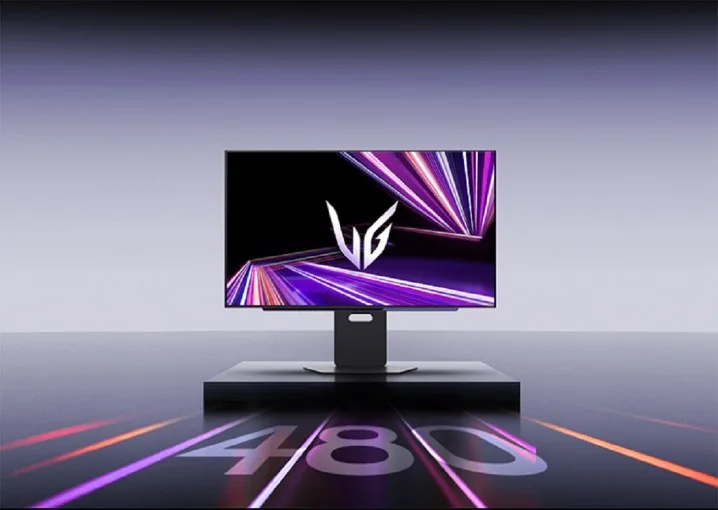
    LG's UltraGear GX7 OLED gaming monitor on its stand.
    LG

    LG is set to release its swiftest OLED gaming monitor yet. The new UltraGear GX7 boasts a 1440p resolution with a WOLED panel designed by LG Display, achieving an incredible 480Hz refresh rate that positions it among the elite gaming monitors available.

    Similar specifications have appeared before, notably with the Sony InZone M10S and the Asus ROG Swift PG27AQDP, both featuring the same 1440p panel and 480Hz refresh rate. However, the UltraGear GX7 distinguishes itself with a price point of $1,000, which is $100 less than Sony’s offering.

    Additionally, LG has integrated a DisplayPort 2.1 connection to enhance compatibility with next-gen graphics cards expected to debut in early 2025. This aligns with the anticipated release of Nvidia’s RTX 50-series and AMD’s RDNA 4 GPUs, making the DisplayPort 2.1 feature a noteworthy inclusion.

    As of now, only Sony has included DisplayPort 2.1 in its 1440p, 480Hz OLED model, the PG27AQDP, which also retails at $1,000. Given the favorable pricing compared to Sony and the superior DisplayPort standard over Asus, LG may present the top version of this panel to date. While Acer is also working on a version of this panel, it has yet to officially launch one.

    Although LG previously introduced a 480Hz OLED with its unique UltraGear Dual Mode OLED, this marks its first high-refresh-rate 1440p model. Observations of other monitors featuring this panel indicate that OLED technology effectively utilizes the high refresh rate, surpassing competitors like the Alienware 500Hz gaming monitor in motion clarity.

    Currently, LG has made the available for pre-order until December 22. Additionally, LG is offering a holiday promotion where eligible UltraGear monitor purchases, including the new GX7, will come with a free $200 prepaid MasterCard. This promotion effectively reduces the cost to below $800 for the next month, offering a more attractive deal compared to both Asus and Sony.

  • What is better 27-inch or 32 inch monitor?

    What is better 27-inch or 32 inch monitor?

    When it comes to choosing a monitor, size is one of the most critical factors to consider. Both 27-inch and 32-inch monitors have their proponents, and both sizes offer distinct advantages and disadvantages. Understanding these differences can help you make an informed decision about which monitor best fits your needs.

    The Appeal of 27-Inch Monitors

    Optimal Pixel Density

    • Higher Pixel Density: A 27-inch monitor typically has a higher pixel density compared to a 32-inch monitor of the same resolution. This means sharper images and clearer text, which is especially important for graphic design and detailed work.
    • Ideal for Close Viewing: Given the smaller screen size, a 27-inch monitor is often better suited for desk setups. Sitting closer to the screen can enhance the viewing experience without noticeable pixilation.

    Space Efficiency

    • Desk Space: If your workspace is limited, a 27-inch monitor takes up less physical space. It can fit better into cramped work environments.
    • Multi-Monitor Setup: For those looking to set up multiple monitors side by side, a 27-inch model provides an easier fit alongside another screen.

    Cost-Effective

    • Affordability: Generally, 27-inch monitors are more budget-friendly. This can make a significant difference for individuals or businesses looking to outfit several stations without breaking the bank.

    The Advantages of 32-Inch Monitors

    Immersive Experience

    • Wider Field of View: A larger screen size offers a more immersive experience, making it ideal for gaming, watching movies, or multitasking with several windows open simultaneously.
    • Enhanced Detail Visibility: In tasks like video editing or design work, the extra screen real estate can help in visualizing details better, allowing for more comfortable editing.

    Improved Viewing Distance

    • Comfortable Viewing Distance: While a 27-inch screen is suitable for close viewing, a 32-inch monitor is designed to be viewed from a slightly farther distance, which can be easier on the eyes during prolonged use.
    • Less Strain on Eyes: The larger display may reduce the need to squint or adjust your seating position, leading to a more comfortable long-term viewing experience.

    Better for Media Consumption

    • Streamlining Entertainment: If you plan to use your monitor for gaming or media consumption, the 32-inch screen can elevate the experience with its larger display area.
    • Split-Screen Capabilities: The larger space allows for easier multitasking. You can comfortably split the screen to view multiple applications without feeling cramped.

    Key Considerations When Choosing Between Them

    Resolution

    • Check the Resolution: Both 27-inch and 32-inch monitors typically come in resolutions like 1080p, 1440p, or 4K. A higher resolution can help maintain image clarity, especially on larger displays.

    Use Case

    • Professional Work: If your primary tasks involve graphic design, photo editing, or text-heavy work, a 27-inch monitor may offer the clarity you need.
    • Gaming and Entertainment: Opt for a 32-inch screen if you’re focused on immersive gaming or watching movies, where larger visuals can enhance the experience.

    Adjustability and Ergonomics

    • Adjustability Features: Look for monitors that offer height, tilt, and swivel adjustments. This can contribute significantly to comfort, especially for longer use.
    • Consider Eye Comfort Technologies: Features like blue light filters and flicker-free technology can make a significant difference in reducing eye strain, regardless of the monitor size.

    Personal Preference

    • Your Viewing Environment: Consider the layout of your workspace, the distance between your eyes and the monitor, and your personal comfort level with screen size.
    • Aesthetic Appeal: Sometimes, the choice may also boil down to personal preference in design and how the monitor fits visually into your workspace.

    Choosing between a 27-inch and a 32-inch monitor ultimately depends on your personal needs, preferences, and use cases. Assessing factors like pixel density, immersion level, and the physical space available will help you find the best fit for your work or entertainment setup.

  • Which monitor is better 24-inch or 27-inch?

    Which monitor is better 24-inch or 27-inch?

    When deciding between a 24-inch and a 27-inch monitor, several factors come into play, including your usage needs, available space, budget, and personal preferences. Both sizes have their advantages and can cater to different applications, whether for gaming, professional work, or general use. Here’s a deeper dive into the nuances of choosing between these two popular monitor sizes.

    Understanding Screen Size Differences

    Size Matters

    • 24-Inch Monitor:

      • Diagonal measurement of 24 inches
      • More compact design, ideal for smaller desks or limited spaces
      • Typically used for general tasks such as browsing, word processing, and casual gaming

    • 27-Inch Monitor:

      • Diagonal measurement of 27 inches
      • Offers a larger screen area, providing a more immersive experience
      • Suitable for graphic design, gaming, and multitasking with multiple windows

    Resolution and Screen Real Estate

    Both 24-inch and 27-inch monitors can come in various resolutions, such as Full HD (1920 x 1080) or 4K (3840 x 2160). However, the wider screen of a 27-inch monitor allows for a greater pixel density when using higher resolutions.

    • For 24-Inch:

      • Commonly available in 1080p resolution
      • Adequate for everyday tasks and light gaming

    • For 27-Inch:

      • Frequently offered in higher resolutions, including 1440p and 4K
      • Better suited for professional work where image clarity is essential

    Pros and Cons

    24-Inch Monitors

    Pros

    • Space Efficient: Easier to fit in smaller workspaces
    • Cost-Effective: Typically less expensive than larger monitors
    • Adequate for Basic Use: Sufficient for general tasks without overwhelming the user

    Cons

    • Limited Screen Real Estate: Can feel cramped when multitasking
    • Less Immersive: Smaller screen could hinder the gaming or viewing experience

    27-Inch Monitors

    Pros

    • Enhanced Immersion: Larger screen amplifies gaming and movie-watching experiences
    • Better for Multitasking: More screen space allows for the efficient arrangement of windows
    • Higher Resolutions Accessible: Often supports 1440p or 4K, enhancing clarity

    Cons

    • Requires More Space: Larger footprint needs more desk space
    • Higher Price Point: Usually more expensive than 24-inch options

    Ideal Usage Scenarios

    When to Choose a 24-Inch Monitor

    • Limited Desk Space: If your working area is small, a 24-inch monitor can fit without dominating the desk.
    • Budget Constraints: If you are looking for a more affordable option, 24-inch monitors are generally less expensive.
    • Casual Use: Ideal for students or users who mainly browse the internet, use office applications, or play light games.

    When to Opt for a 27-Inch Monitor

    • Graphic Design or Video Editing: Professionals who work in design or editing benefit from the larger screen and higher resolution.
    • Serious Gaming: A larger display with the capability of higher resolutions enhances the gaming experience.
    • Multimedia Entertainment: Watching movies or streaming content is more enjoyable on a bigger screen.

    Personal Preferences and Ergonomics

    Another important factor in this debate is personal comfort.

    • Viewing Distance: A 27-inch monitor generally requires sitting back a bit further than a 24-inch monitor. Assessing your workspace and where you will be sitting is crucial.
    • Adjustability and Mounting: If you frequently use your monitor for extended periods, consider the ergonomics. Larger monitors may require adjustable stands or wall mounts to achieve comfortable viewing angles.

    Final Thoughts on Choosing the Right Size

    Choosing between a 24-inch and a 27-inch monitor ultimately depends on your specific needs, preferences, and the space you have available. Assess your primary use cases, how much desk space you can dedicate, and your budget constraints to make an informed decision that enhances your work or gaming experience.

  • Is it better to game on TV or monitor?

    Is it better to game on TV or monitor?

    When diving into the world of gaming, one crucial decision gamers face is whether to play on a television or a computer monitor. Each option comes with its own set of characteristics that can affect your gaming experience. Let’s take an in-depth look at both choices.

    Advantages of Gaming on a TV

    Bigger Screen Size

    • Immersive Experience: Larger screens can deliver a more engaging visual experience
    • Group Play: Easier to share the excitement with friends and family in the same room

    Compatibility

    • Console-Friendly: Most gaming consoles are designed to sync effortlessly with TVs
    • Streaming Services: TVs often have built-in apps for streaming games and other media

    Comfort and Ergonomics

    • Relaxed Posture: Playing from a sofa or a comfortable chair can be more enjoyable for longer sessions
    • Adjustable Distance: Sitting further away from a TV can relieve eye strain

    Disadvantages of Gaming on a TV

    Input Lag

    • Response Time: TVs often have higher input lag which can affect competitive gaming
    • Reduced Precision: This delay can impact the responsiveness during fast-paced action

    Variability in Quality

    • Resolution Options: Not all TVs support high refresh rates or resolutions optimized for gaming
    • Color Accuracy: Some televisions may not have as high-quality color reproduction compared to monitors

    Advantages of Gaming on a Monitor

    Superior Refresh Rates

    • Faster Response: Monitors typically offer higher refresh rates (e.g., 120Hz, 240Hz) which lead to smoother gameplay
    • Reduced Input Lag: Monitors generally have lower input lag, crucial for competitive players

    Enhanced Visual Quality

    • Higher Resolution: Many monitors support 1440p or 4K gaming with excellent clarity
    • Better Color Accuracy: Gaming monitors often come with features like HDR for richer visuals

    Customizability

    • Varied Sizes: A wide range of sizes to fit any gaming setup
    • Adjustable Settings: Features like G-Sync or FreeSync improve visual stability, reducing screen tearing

    Disadvantages of Gaming on a Monitor

    Smaller Screen Size

    • Limited Viewing Experience: Compared to a television, monitors can feel cramped, especially in multiplayer settings
    • Less Group Integration: Not ideal for playing games with friends in a casual setting

    Ergonomics Challenges

    • Focused Distance: Requires sitting closer, which can cause eye strain over long periods
    • Posture Impact: Gaming desks may not always be the most comfortable for extended sessions

    Making the Right Choice

    Choosing between a TV and a monitor largely depends on several personal preferences and gaming styles:

    • Type of Games: If you prefer fast-paced, competitive games, a monitor might serve you better. For casual gaming, especially with friends, a large TV could be the way to go.
    • Space and Setup: Consider the layout of your gaming area. A small room may benefit from a monitor, while a larger space can accommodate a TV comfortably.
    • Viewing Distance: Think about how far you plan to sit from the screen. A living room scenario often lends itself to a TV, while a desktop setup is best served by a monitor.

    Ultimately, both options bring distinct advantages and disadvantages, and your choice should align with your unique gaming habits and preferences.