الوسم: Kindle

  • How to Change the Font Size on a Kindle: A Step-by-Step Guide

    How to Change the Font Size on a Kindle: A Step-by-Step Guide


    Christine Romero-Chan / Digital Trends

    If you’re an avid reader looking to lighten your load, an e-reader could be a perfect solution for you. The Amazon Kindle stands out as one of the top choices available today, offering various models tailored to meet different preferences and requirements.

    Difficulty

    Easy


    Duration

    5 minutes

    What You Need

    • Any model of Amazon Kindle

    When using your Kindle, you might find the default font and text size don’t suit your reading needs. Fortunately, personalizing your Kindle’s settings is straightforward and allows for an improved reading experience.

    Whether you’re using the standard Kindle, the Kindle Paperwhite, the Kindle Colorsoft, or the Kindle Scribe, here’s a simple guide on how to customize your font settings.

    Steps to Adjust Your Kindle’s Font Size

    Having the right font size and style can significantly enhance your reading comfort. A text that is too small can lead to eye strain, while overly large text can necessitate more frequent page turns.

    Step 1: Open your Library on the Kindle device.

    Step 2: Choose a book you want to dive into.
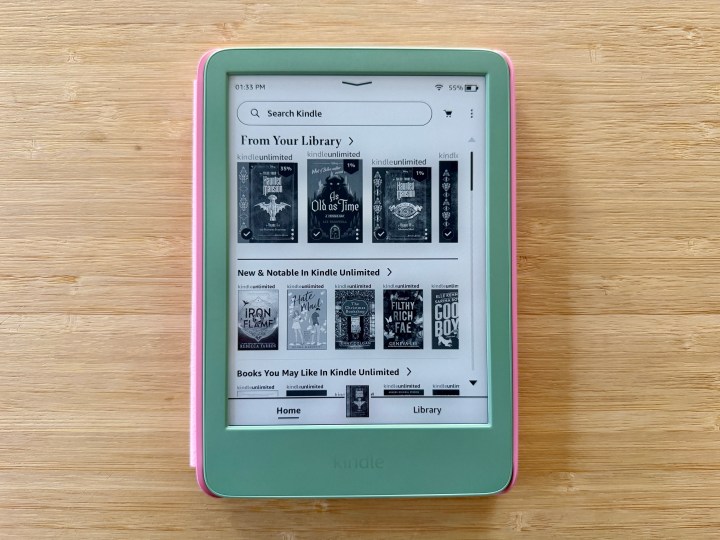
    Navigate to your Kindle library and pick a book.

    Christine Romero-Chan / Digital Trends

    Step 3: Tap the top of the screen to access the menu options.
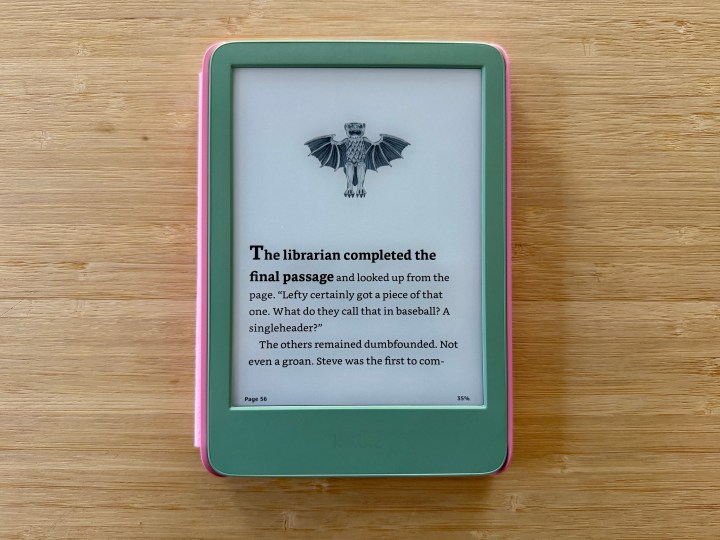
    Access the menu by tapping near the top of the screen on your Kindle.

    Christine Romero-Chan / Digital Trends

    Step 4: Select Book text settings from the menu, identified by the icon resembling “Aa.”
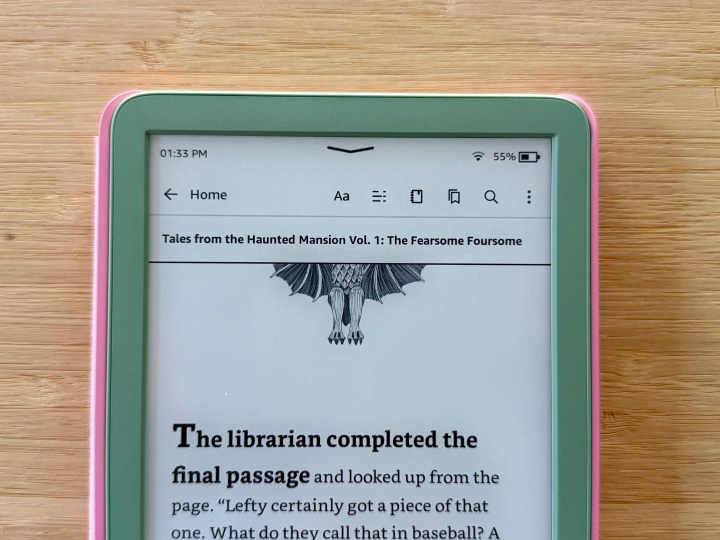
    Select book text settings from the menu.

    Christine Romero-Chan / Digital Trends

    Step 5: Tap Font to reach the font options.

    Choose Font to access various font options including types, boldness, and sizes.

    Christine Romero-Chan / Digital Trends

    Step 6: To modify the typeface, select Font family. The default is Bookerly, but you have eight other options available, including a font specifically designed for enhanced readability by individuals with dyslexia (OpenDyslexic).
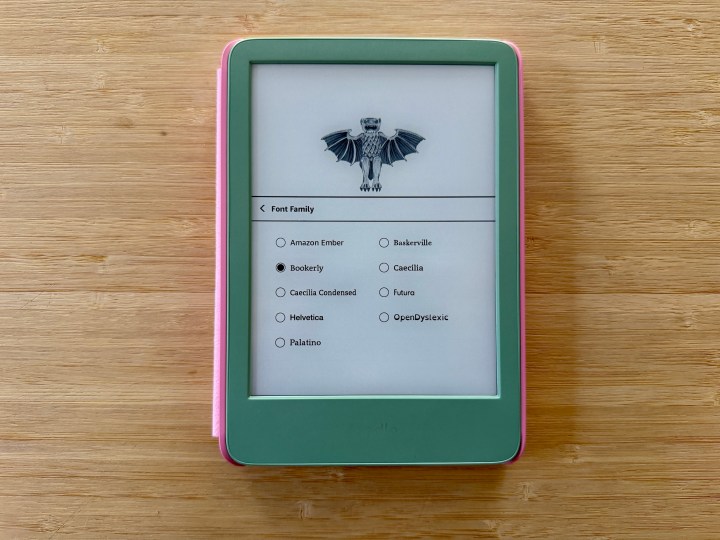
    Available typeface options on the Kindle.

    Christine Romero-Chan / Digital Trends

    Step 7: Use the minus (-) or plus (+) options to modify the Bold setting as needed.

    Step 8: Adjust the Font size by selecting minus (-) or plus (+) under Size.

    Step 9: Tap outside the settings box to apply changes and exit.

    Steps to Adjust the Theme and Layout on Your Kindle

    Besides changing the font type and size, you can also personalize the theme and layout of your e-books. A theme offers a preset for font size and layout, but it can be customized to suit your preferences as well.

    Step 1: Start by accessing your Library on the Kindle device.

    Step 2: Pick a book you wish to read.

    On your Kindle, select a book from the library.

    Christine Romero-Chan / Digital Trends

    Step 3: Tap at the top of the screen to reveal the menu.

    Open the menu by tapping the top of your Kindle screen.

    Christine Romero-Chan / Digital Trends

    Step 4: Select Book text settings, marked by the icon “Aa.”

    Access book text settings from the menu.

    Christine Romero-Chan / Digital Trends

    Step 5: Tap on Layout next.

    Choose Layout and customize as desired.

    Christine Romero-Chan / Digital Trends

    Step 6: Adjust your orientation, alignment, margins, and spacing as per your preference.

    Step 7: Select Theme from the menu options.
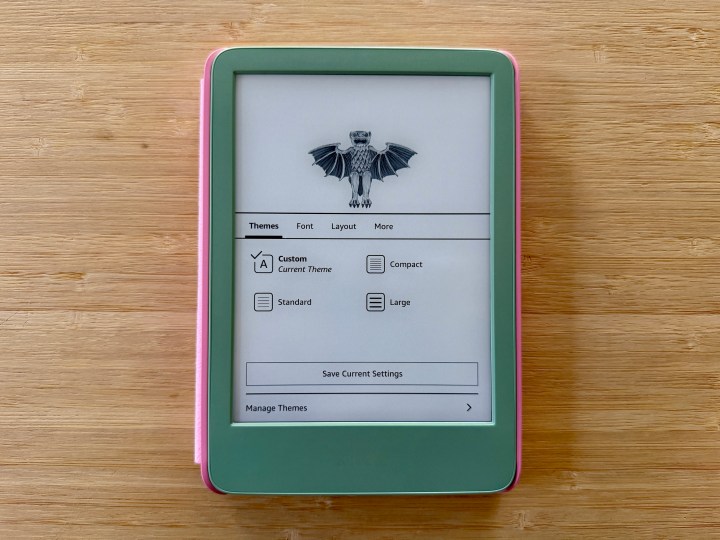
    Choose a Theme for the book.

    Christine Romero-Chan / Digital Trends

    Step 8: You can choose a preset theme that will apply to all font and layout settings while customizing will create a Custom theme.

  • Amazon Kindle Colorsoft Display Problem Gets Worse

    Amazon Kindle Colorsoft Display Problem Gets Worse

    If you’ve recently placed an order for the Kindle Colorsoft Signature Edition, there’s some disappointing news. According to Good e-Reader, Amazon has put a temporary stop on shipping this innovative color Kindle due to issues with the display.

    Reports from early users indicate that a yellow discoloration appears at the bottom of the screen. This defect has had a detrimental effect on customer feedback, leading to an average rating of just 2.7 out of 5 on Amazon’s site.

    For those who preordered the Kindle Colorsoft and still haven’t received it, the new shipping window is expected to be between November 9 and 18 in the U.S., and by November 26 in the U.K. In the meantime, Amazon is working on a software update to fix the display problem.

    Additionally, Amazon has begun reaching out to early customers who left unfavorable reviews. The company is asking for device logs and, in some situations, requesting that these customers send their devices to Amazon’s engineering team for replacements.

    Amazon Kindle Colorsoft Signature Edition on a table.
    Amazon

    Before the official software fix is rolled out, Amazon has suggested a temporary measure: reboot the device and leave it powered off for several minutes before turning it back on, which may help alleviate the yellow bar issue.

    Besides the discoloration problem, it’s worth noting that the Kindle Colorsoft has also been shipped without the promised dark mode feature. This feature, which allows for a darker background and lighter text, is currently inactive on the device. Amazon’s U.S. website has confirmed this, stating: “Dark Mode is currently not available on this device. Customers can enable a similar reading experience within millions of books using the Page Color feature, which, like Dark Mode, inverts the book page color to black and the book text color to white.”

    The Kindle Colorsoft, which combines the capabilities of a Kindle Paperwhite Signature with a vibrant color display, marks a significant leap for Amazon’s e-reader lineup. Since the launch of the original Kindle in 2007, the device has undergone numerous enhancements, but this is the first instance of a color display. It’s clear that Amazon is committed to addressing these concerns quickly and effectively.

  • Discolored Line On Your New Kindle? You’re Not Alone

    Discolored Line On Your New Kindle? You’re Not Alone

    The Kindle Colorsoft Signature Edition marks the debut of the first full-color e-reader, which excited many avid readers. Unfortunately, a significant number of users are noticing a discolored yellow patch at the bottom of the display. This issue has become so prevalent that the Kindle Colorsoft’s average rating has plummeted to 2.6 out of 5, despite it still being the top-selling eBook reader on the market.

    The reason behind the discoloration remains unclear. Some users claim it only manifests when the edge lighting feature is activated, while others experienced it following a software update (as reported by The Verge). Regardless of the cause, the yellow tint poses a significant drawback, particularly for those who enjoy comics and graphic novels. It can be challenging to appreciate the vibrant artwork if it appears distorted.

    To date, Amazon has not issued an official comment about this situation. However, a Reddit user shared a screenshot suggesting that the company is aware of the issues and is looking into it. According to this user, an Amazon support representative mentioned that a forthcoming update should resolve the problem and advised checking back in 48 hours.

    Amazon Kindle Colorsoft Signature Edition in the hands of a person
    Amazon

    Feedback regarding the Colorsoft has been mixed. Some users report that the issue is hardly noticeable; in fact, many didn’t realize their device had the discoloration until it was brought to their attention. On the other hand, some find the yellowing too distracting, negatively impacting their overall experience.

    It is hoped that Amazon will address this issue promptly. If it stems from software, correcting it should be relatively straightforward. Conversely, if it’s a hardware problem, the solution could be more complex. If you’re affected by this display issue, contacting Amazon support could expedite a resolution, as the more reports they receive, the quicker they may address it.

  • Is Kindle Free With Prime?

    Is Kindle Free With Prime?

    Prime reading is included in the Prime subscription. It offers a variety of books with different genres.

    Amazon Prime Membership doesn’t offer free Kindle devices. But Prime members can access Prime reading. Prime Reading provides a selection of ebooks and audiobooks. No additional cost is charged for this.

    Prime Reading vs Kindle Unlimited

    Prime Reading is included with your Prime membership. It offers a rotating library of books and audiobooks. 

    Kindle Unlimited is a separate subscription It service offers a larger selection. It is over 1 million titles for a monthly fee.

    About Prime Reading 

    Prime Reading features a variety of genres. The available titles change regularly. Thus, offering a mix of popular books, hidden gems, and classics.

    What do you get with Prime Reading

    You get the different genres in Prime reading. This includes fiction and non-fiction as well.

    It also offered audiobooks and magazines

    How to access Prime Reading

    • Visit the Prime Reading section on Amazon’s website or app.
    • Browse the selection or search for a specific title.
    • Click on the item you want to read or listen to.
    • Select between the two options borrow or read to add it to your library.

    There is a misconception. This is why you need a Kindle device to enjoy Prime Reading. This is not the case. The free Kindle app can be downloaded on various devices. This feature allows you to carry your library wherever you go.

    Other Kindle Services

    For those who want more than what Prime Reading offers, you can purchase individual ebooks and audiobooks from the Kindle store or subscribe to Kindle Unlimited for a broader range of content.

  • Amazon Kindle Paperwhite 2021: Review, 11th gen, Prices, and Deals

    Amazon renews the offer of ebook readers by presenting the new Kindle Paperwhite, or rather the new Kindle Paperwhite because this year the product is offered in two variants:

    (المزيد…)