الوسم: iPadOS

  • iPadOS 26 Compatibility: Which iPads Get the New Features

    Apple’s annual updates often introduce exciting features and improvements, and iPadOS 26 is no exception. With new functionalities on the horizon, users are eager to find out which devices will benefit from these enhancements. This article breaks down iPadOS 26’s compatibility and the features that come with it.

    New Features in iPadOS 26

    iPadOS 26 is set to roll out a range of new features that enhance productivity, creativity, and entertainment. Some highlights include:

    • Advanced Multitasking: Improved split-screen capabilities for a smoother user experience.
    • Enhanced Apple Pencil Functionality: New gestures and improved latency for drawing and note-taking.
    • Updated Widgets: More customization options and interactive widgets for better accessibility.
    • Revamped Safari Experience: Enhanced tab management and better privacy controls.
    • Focus Modes: Enhanced focus features that allow for greater customization of notifications.

    Compatibility Overview

    Not all iPads will support the latest version. It’s essential to check if your device is eligible for the update.

    Supported Devices for iPadOS 26

    iPadOS 26 is compatible with several models, specifically:

    • iPad Pro (2018 and later): The latest Pro models are always first in line for updates.
    • iPad Air (3rd generation and later): Mid-range powerhouses that receive regular enhancements.
    • iPad (8th generation and later): A great option for entry-level users wanting updated features.
    • iPad Mini (5th generation and later): Compact devices that don’t miss out on new functionalities.

    Devices Not Supporting iPadOS 26

    Unfortunately, some older models will not receive iPadOS 26. These include:

    • iPad (7th generation and earlier)
    • iPad Mini (4th generation and earlier)
    • iPad Air (2nd generation and earlier)
    • All original iPad Pro models prior to 2018

    Understanding the Upgrade Process

    For those fortunate enough to have compatible devices, upgrading to iPadOS 26 is a straightforward process. Here’s what to do:

    1. Backup Your iPad: Always back up your data via iCloud or iTunes.
    2. Check for Updates:

      • Open Settings.
      • Tap General.
      • Select Software Update.
    3. Install the Update: If iPadOS 26 is available for your device, follow the prompts to install it.

    User-Centric Changes

    Apple has aimed to improve user experience in several key areas with iPadOS 26. Features designed with the user in mind include:

    • Customizable Control Center: Add or remove controls for easy access to frequently used features.
    • Multi-User Support: For families or shared devices, allowing individual profiles for a personalized experience.
    • Improved Voice Control: Enhanced voice recognition, making navigation hands-free and more efficient.

    Conclusion

    With iPadOS 26 enhancing the capabilities of compatible devices, users can look forward to better performance and a wide array of new features. Checking device compatibility is crucial, as only select models will benefit from the latest advancements.
  • iPadOS 19 May Finally Get A macOS-Style Update

    iPadOS 19 May Finally Get A macOS-Style Update


    Apple undoubtedly produces some of the most powerful and refined tablets on the market. For creatives, the iPad Pro series stands out as the top choice, particularly since the introduction of M-series chips, which have significantly elevated performance levels.

    However, one aspect that has lagged behind is iPadOS. Other than features like Stage Manager, the operating system hasn’t provided a unique experience and has often felt like an extended version of iOS. That may be about to change later this year.

    According to reports, Apple is gearing up for a substantial update with iPadOS 19, aiming to make the software much more akin to macOS. This marks the first credible indication of Apple's intentions to enhance iPadOS functionality substantially in the near future.

    What is changing?

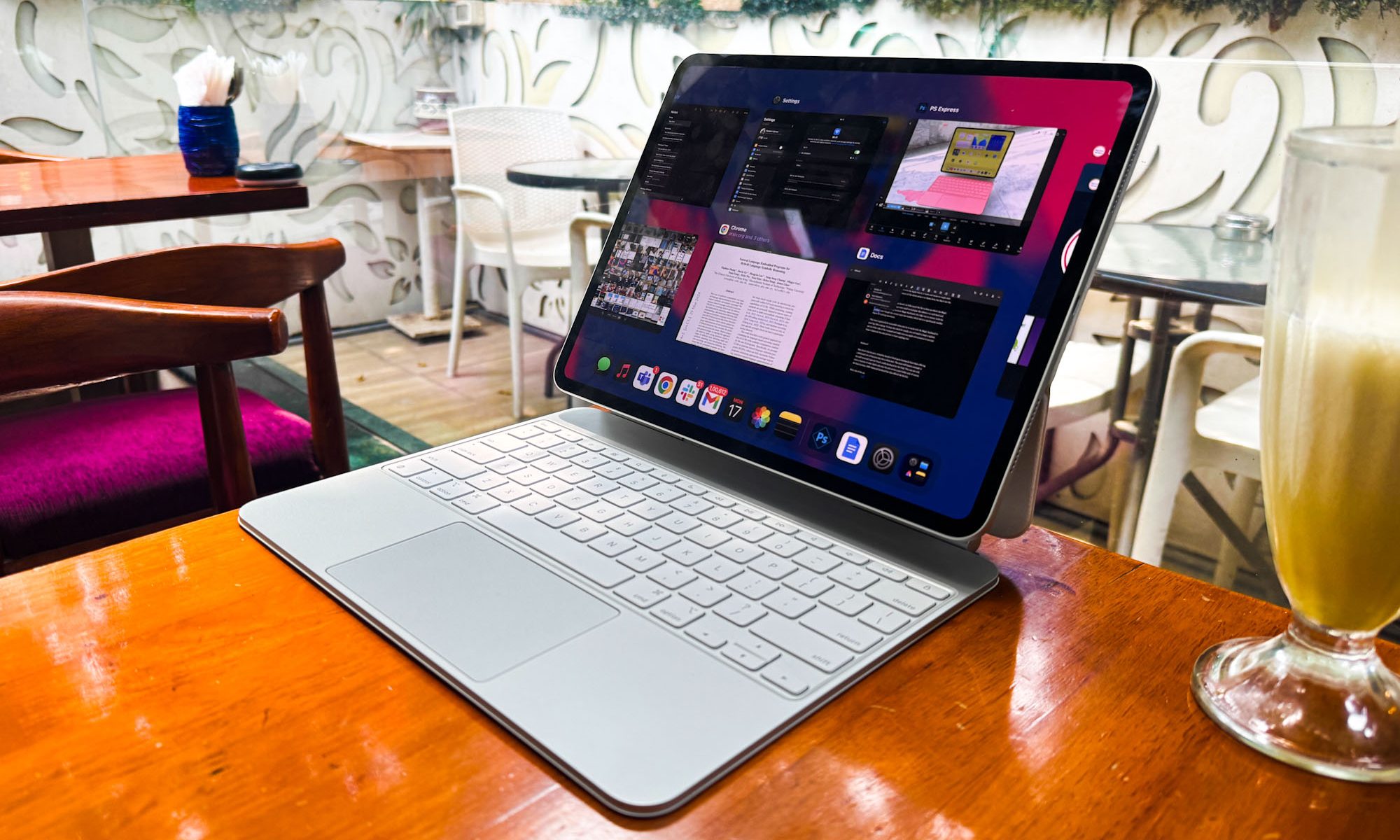
    Magic Keyboard and iPad Pro.
    Nadeem Sarwar / Digital Trends

    Bloomberg’s Mark Gurman notes that this year’s upgrade is set to emphasize productivity, multitasking, and app window management, prioritizing a Mac-like operating environment. Gurman states, “I’ve been informed that this year’s upgrade will focus on productivity and multitasking, aiming for the device to operate more similarly to a Mac.”

    The report lacks specifics regarding the macOS-inspired refresh for iPadOS, aside from the promise of improved window management. Currently, the resizing of app windows on iPads has been somewhat restrictive. Despite the fact that Apple tablets now have screen sizes comparable to a MacBook Air, users still cannot resize app windows freely.

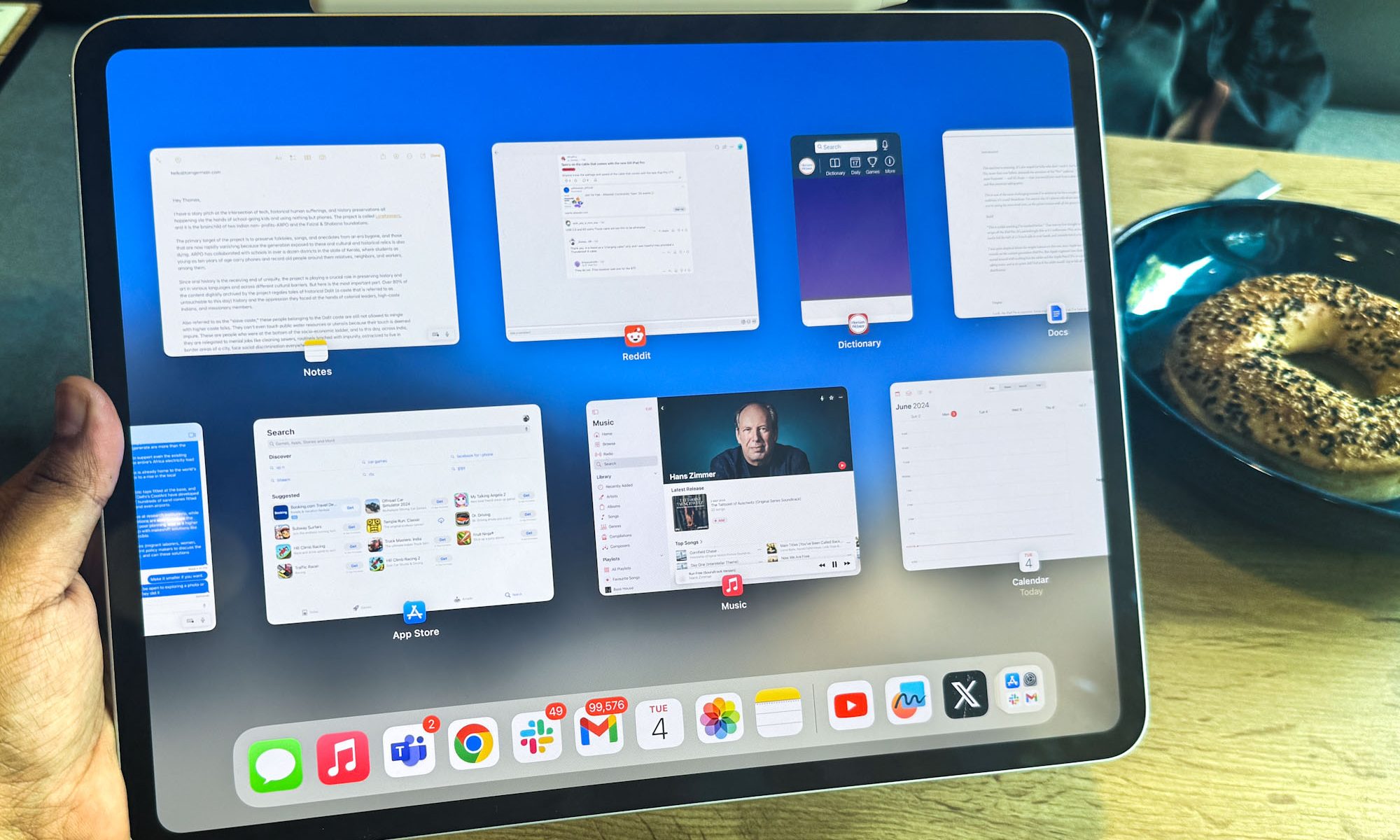
    Stage Manager, which enhances the iPad's usability when connected to larger screens and mimics macOS’s multitasking features, has yet to deliver a fully satisfactory experience. Its implementation feels superficial, lacking the flexibility found in macOS, despite the iPad’s powerful hardware.

    Apple could learn from Samsung’s DeX system and the impressive Open Canvas interface found on newer OnePlus tablets. My personal experience with the M4-equipped iPad Pro has been unsatisfactory. I often sense that this device is underutilized and would greatly benefit from a more expansive, desktop-like interface.

    Why does it matter?

    Stage Manager on M4 iPad Pro.
    Nadeem Sarwar / Digital Trends

    According to Bloomberg, the focus on productivity will be central to the upcoming iPadOS 19, which is anticipated to debut at WWDC in June. While the exact plans remain unclear, a touch of flexibility towards a desktop-like software experience would be immensely beneficial.

    As I pointed out in my review of the iPad Pro last year, the situation has not changed:

    “Unless you are a creative relying on tools such as Procreate, Adobe Creative Suite, or Logic Pro, you will find that a robust web browser is essential. Safari is lacking, and Chrome’s mobile version disappointingly falls short of its desktop counterpart. Basic browser extensions are unavailable on a $1,500 tablet.”

    There are indications that Apple is planning an overhaul for its operating systems, including iPadOS, with the next yearly upgrade. I remain optimistic that this will accompany more professional-grade applications and better integration between the tablet environment and its Mac counterpart. The recent experience with Oppo’s Find N5 foldable device showcases the potential for such connected advancement, and I believe Apple is capable of achieving this.

  • Ultimate Guide to Potions in Pokémon Go

    Ultimate Guide to Potions in Pokémon Go

    In Pokemon Go, potions are vital consumables that help restore HP and keep your Pokémon battle-ready. To acquire them, however, you’ll first need to unlock access to potions.

    Potions can heal Pokémon when their health is low, but if a Pokémon gets knocked out or faints, you’ll need to use a revive instead. Let’s delve into more details regarding potions in Pokemon Go.

    How to Farm Potions in Pokemon Go?

    Potions are essential for trainers who frequently participate in gym battles and raids. Try these strategies to boost your chances of obtaining potions.

    1. Level Up

    One of the first steps you should take is to level up your character. You can do this by catching Pokémon and spinning PokéStops. As you accumulate Experience Points (XP), you’ll eventually level up and earn potions as rewards.

    2. Spinning PokéStops

    Pokemon Go Potions

    Make sure to spin any PokéStops you come across, as they have a 22% drop rate for potions.

    Regular Potions can be obtained starting at level 5, Super Potions at level 10, Hyper Potions at level 15, and Max Potions become available once you reach level 25.

    3. Spinning Gym Spots

    Once you defeat a Pokémon from the team that controls a gym, you can place your Pokémon at that gym. This action allows you to spin the gym’s photo disk, earning rewards similar to the ones you would get from PokéStops.

    4. Earned as Rewards/Gifts

    You can acquire potions as rewards from raids or by defeating members of Team Go Rocket. Another reliable source is from friends—higher friendship levels increase your odds of receiving Hyper and Max Potions.

    5. Getting from the In-Game Shop

    If you are struggling to find potions with the methods mentioned earlier, your last resort may be to buy them from the in-game store. Occasionally, you can find bundles of potions available for purchase using Pokecoins.

    You can purchase x10 Max Potions for 200 Pokecoins or $2 in the shop.

    How to Get All Potions in Pokemon Go?

    Pokemon Go Potions
    Potion Effects Unlock Level Location
    Regular Potion Restores 20 HP Level 5 Found at PokéStops and Gym discs
    Super Potion Restores 50 HP Level 10 Found at PokéStops and Gym discs
    Hyper Potion Restores 200 HP Level 15 Found at PokéStops and Gym discs
    Max Potion Restores full health Level 25 Found at PokéStops and Gym discs

    Spinning a PokéStop or Gym Disk for 7 consecutive days will grant you a bonus daily spin that has an increased chance of yielding Hyper Potions.

    How to Heal Without Potions in Pokemon Go?

    If you have run out of potions and can’t find any at PokéStops or Gyms, look for a healing station at these locations to let your Pokémon rest. This will restore their health to 100%.

    Another option is to have a Pokémon that can provide healing candies or to level up your Pokémon to completely restore their health.