Subtitles provide a straightforward solution for understanding the dialogue in films and shows, especially in different languages or when the sound is too low to catch the subtleties of the conversations. However, after finishing a viewing, you might find yourself searching for the options to disable subtitles on Netflix. The steps can vary based on the device you’re using, but Netflix makes it relatively straightforward. Below is a guide on how to turn off subtitles across some of the more popular devices.
Difficulty
Easy
Estimated Time
5 minutes
Requirements
Netflix account
Internet access
Phil Nickinson / Digital Trends
How to Disable Netflix Subtitles on Android
Step 1: While watching your content, tap the screen.
Step 2: Tap the Dialogue icon that appears in the bottom right, labeled Audio & Subtitles.
Step 3: Choose the off option under Subtitles.
How to Disable Netflix Subtitles on iPhone and iPad
Step 1: Tap on your screen while the movie or show is playing.
Step 2: Select the Dialogue icon in the bottom right, which shows Audio & Subtitles.
Step 3: Choose the Off option under Subtitles.
Step 4: Tap the X icon to continue watching.
Phil Nickinson / Digital Trends
How to Disable Netflix Subtitles on Chromecast and Google TV
These steps apply to both older Chromecast models and newer Google TV devices.
Step 1: Tap the screen while your content is playing, or press the down button on your Google TV remote.
Step 2: Once the Dialogue icon shows up, click on it. For Google TV, select Audio & Subtitles.
Step 3: Select the Off option under Subtitles.
Step 4: Hit OK or the X icon to resume playback.
Derek Malcolm / Digital Trends
How to Disable Netflix Subtitles on Roku
Step 1: After selecting your content, click on Audio & Subtitles on the description page.
Step 2: Choose the Off setting for subtitles.
Step 3: Press the back button to exit the description page.
Step 4: Click Play to start your show or film.
Derek Malcolm / Digital Trends
How to Disable Netflix Subtitles on Apple TV
Step 1: Swipe down on your remote while the content is playing. (For Apple TV models 2 and 3, hold down the Center button.)
Step 2: Choose the Off option under Subtitles when your audio and subtitle options appear.
Jen Karner / Digital Trends
How to Disable Netflix Subtitles on Mac or PC
Step 1: Launch Netflix and select the content you want to watch.
Step 2: As the movie or show plays, move your mouse to reveal the options.
Step 3: Click on the Dialogue icon that appears in the bottom right corner.
Step 4: Opt for the Off option under Subtitles from the options that come up.
How to Disable Netflix Subtitles on a Blu-ray Player
Due to the vast variety of Blu-ray players available, the following steps may not work on every model.
Step 1: While a video plays, press the Down button on your remote.
Step 2: Highlight the Dialogue icon and select it.
Step 3: Various audio and subtitle options will appear. Under Subtitles, select the Off option.
How to Disable Netflix Subtitles on Most Consoles
These steps should work across most gaming consoles. If subtitles continue to display after this, you might need to adjust the accessibility settings for closed captioning directly on your console.
Step 1: Bring up the in-player menu during playback.
Step 2: Navigate to the Dialogue menu.
Step 3: Toggle the Subtitles option off, which might be nested under an Audio and Subtitles submenu.
If you’re looking to turn off subtitles on other streaming platforms, check out our guides for Disney+ and Max for more assistance.
Fubo offers an extensive range of sports programming, a rich video-on-demand library, and a variety of live TV options. However, if the sports season has concluded or the service doesn’t meet your expectations, it may be time to consider canceling your subscription.
The process of canceling Fubo is quick and uncomplicated. The key detail to remember is how you initially signed up.
Here’s a step-by-step guide on how to cancel your Fubo subscription.
Difficulty
Easy
Duration
5 minutes
What You Need
Internet connection
Fubo subscription
Canceling your Fubo subscription is straightforward and shouldn’t take longer than a few minutes. If you’re unsure how you signed up, don’t worry—details on figuring that out are included as well!
Phil Nickinson / Digital Trends
How to cancel your Fubo subscription from the website
If you registered for Fubo via the website, you’ll also cancel your membership there. Go to the Fubo website and log into your account.
Step 1: Click on the settings icon located in the upper-right corner, resembling a gear.
Step 2: From the drop-down menu, choose My Account.
Step 3: Next, select Subscription.
Step 4: At the bottom of the page, click Cancel.
Step 5: You might be given a special offer to encourage you to stay. Finalize your cancellation by selecting Cancel Subscription.
Step 6: A confirmation message will appear to verify your cancellation. Click OK to close it.
Derek Malcolm / Digital Trends
How to cancel Fubo online at Roku.com
Roku website.
Step 1: Log in and go to your subscriptions on the Roku site.
Step 2: Click on Unsubscribe.
Step 3: Confirm your cancellation by selecting Yes, unsubscribe.
Phil Nickinson / Digital Trends
How to cancel your Fubo subscription through your Roku device
You can also cancel your Fubo subscription directly on your Roku device without needing a computer or additional equipment.
Step 1: Press the Home button on your Roku remote.
Step 2: Use the directional pad to select either the partner subscription channel or The Roku Channel.
Step 3: Press the star button to access the channel options menu.
Step 4: Choose Manage Subscriptions.
Step 5: Select Cancel Subscription. A pop-up will notify you of how long you can keep accessing programs.
Step 6: Press Done to finalize the process.
Phil Nickinson / Digital Trends
How to determine where you signed up for Fubo
If you’re unsure how you registered for Fubo, it can complicate the cancellation process. Fortunately, Fubo provides a straightforward method to check your signup details, ensuring you know how to proceed with cancellation.
Step 2: If you registered through the website, you’ll see your account details and your next billing date. If you signed up through Roku, it will indicate Roku Subscription.
That’s all you need to successfully cancel your Fubo subscription! If you’re looking for a new streaming option, consider checking out Hulu with Live TV or YouTube TV, which offer both live and on-demand programming. You’ll be all set to catch your favorite shows!
Hulu stands out as one of the premier streaming services available today, accessible on a vast array of devices, including smartphones, tablets, computers, gaming consoles, and various streaming devices. Its extensive collection of films and television series, featuring acclaimed originals like The Handmaid’s Tale and Only Murders in the Building, provides entertainment for all tastes. However, even a leading streaming service like Hulu can encounter issues from time to time.
Users may experience performance setbacks that hinder their viewing pleasure. These might include troublesome audio interruptions, such as moments when sound drops out or becomes garbled, in addition to frustrating delays and buffering that can interrupt your show. The notorious “spinning wheel of death” may even appear while the app struggles to keep up.
Difficulty
Easy
Duration
5 minutes
Requirements
Hulu account
Reliable internet connection
Fortunately, many of these issues can be easily fixed with a few straightforward solutions. By restarting your device, verifying your internet connection, or clearing the app’s cache, you can usually resume streaming your favorite content without delay.
Keep Your App Updated
First and foremost, ensure that you have the most recent version of the Hulu app installed on your streaming devices, whether you’re using a standard Hulu package or one of its live TV options.
While updating may not resolve every technical glitch you encounter, developers typically release updates that address new features, optimization, and security enhancements. Upgrading to the latest version could potentially fix existing Hulu issues.
Down Detector
Check for Service Outages
It’s not uncommon for the Hulu service to experience outages, impacting some users or the entire platform. Before attempting any troubleshooting steps, confirm whether the issue lies with Hulu’s servers. A useful website for checking service status is DownDetector.com.
This site provides a live outage map and displays user reports. Additionally, searching for #huludown or #hulu on X (formerly Twitter) may help you quickly identify any widespread problems.
Hulu
Simple Solutions for Hulu Issues
If you’ve established that the issue isn’t related to Hulu’s service, several home remedies may help. Try these steps to troubleshoot, and if one doesn’t work, move down the list until you find a solution.
Step 1: Close the Hulu app completely on your device and then open it again.
Step 2: Restart your device.
Step 3: Reset your router. If you’re unsure how, follow our straightforward guide to resetting a router.
Step 4: Make sure you have the latest version of the Hulu app by checking your device’s app store for any available updates.
Step 5: Delete and reinstall the Hulu app.
Step 6: Remove your device or console from your Hulu account and then re-add it.
Step 7: If you’re using a VPN, ensure it’s turned off for U.S. customers.
Phil Nickinson / Digital Trends
A Deeper Troubleshooting Method
If Hulu still isn’t functional, your internet speed may be insufficient for streaming. Perform a speed test to check if your connection is fast enough for Hulu’s requirements. According to Hulu’s guidelines, you should aim for a minimum of 3.0 Mbps for regular viewing, 8.0 Mbps for live streams, and 16 Mbps for 4K content. If you need assistance checking your speed, Hulu provides a guide on conducting speed tests on various devices, including computers, smart TVs, mobile devices, and game consoles.
Other devices connected to your Wi-Fi could be slowing down your connection, which could affect your Hulu experience. If you’re relying on Wi-Fi, consider connecting your device directly to the router using an Ethernet cable, or enhance your network with a Wi-Fi extender to minimize dead zones.
If issues persist, you might want to look up the specific Hulu error code you’re encountering or visit the Hulu Community for insights and solutions from other users facing similar challenges.
Simon Cohen / Digital Trends
Dealing with Audio Issues
When enjoying Hulu content, you might run into audio problems, ranging from complete silence to distorted sounds or out-of-sync dialogue. Here are a few strategies to address these audio glitches.
Step 1: Pause your current film or show and try watching a different title. Sometimes switching content can help reset the Hulu app. Alternatively, you may fully exit the app and relaunch it.
Step 2: Verify the audio settings on your TV or streaming device. Much of Hulu’s content is only available in stereo sound. If your equipment is trying to output surround sound, it may cause odd audio issues.
Adjust your device’s settings to PCM, stereo, or another non-surround option to see if that resolves the sound problem.
Step 3: The way you connect your streaming device to your TV via HDMI can also affect audio performance. HDMI ARC inputs can sometimes complicate audio delivery, leading to sync issues.
If your streaming device has a separate audio output (like a digital optical or similar), consider using one HDMI cable for video and a separate audio cable for sound to simplify the connection.
Also, ensure that your HDMI cables are connected appropriately, as some may have directional arrows indicating input and output. Having them reversed could lead to audio problems.
Closed Captioning Problems
Hulu offers closed captioning for the majority of its titles, but this feature can also run into issues.
Step 1: If captions are unresponsive, remember that not all titles on Hulu support this feature. If you discover a title lacking captions, you can submit a request to Hulu at DS.hulucaptionsfeedback@disney.com.
Step 2: If your captions are displayed in the incorrect language, check the settings on your TV or streaming device to ensure you’ve selected the right language.
If settings are correct, try closing and reopening the Hulu app, enabling captions once again. Often, this simple reset can resolve captioning issues.
Setting up a new account is one thing, but the process of deleting one can be quite complicated. It often isn’t as straightforward as clicking a delete button, and the option to remove your account can be difficult to locate. Fortunately, if you’re fed up with your Epic Games account and prefer not to appear offline when it’s not in use, deleting it is manageable. Plus, Epic offers a 14-day window for account recovery following deletion, just in case you change your mind.
Difficulty
Easy
Duration
5 minutes
What You Need
PC or smartphone
While Epic Games Store is attracting numerous indie titles, it might not offer the specific PC games you desire. Alternatively, you may wish to start fresh with a new Epic Games account. Regardless of your reasoning, it’s crucial to understand the procedure for removing your Epic Games account. Just follow the steps outlined below to successfully delete your Epic Games account, either on your PC or mobile device.
Epic Games
How to Delete Your Epic Games Account on PC
The simplest method to delete your Epic Games account is through a web browser on your computer. Keep in mind that deleting your account will erase any purchases, personal data, game progress, in-game assets, Unreal projects, and balance in your Epic Games Wallet.
Step 1: Log into your Epic Games account and navigate to the Account Settings page.
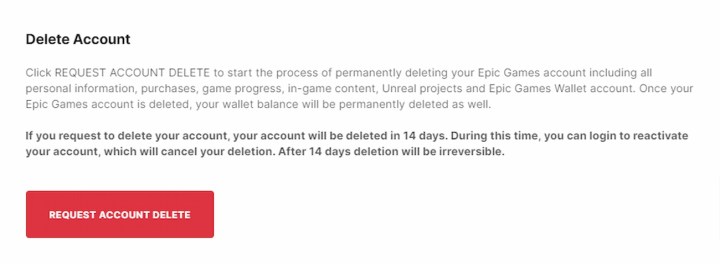
Step 2: Scroll down to the Delete Account section and click the red Request Account Delete button.
Digital Trends
Step 3: Review the warning that appears, and if you’re certain you want to proceed, click Delete Account.
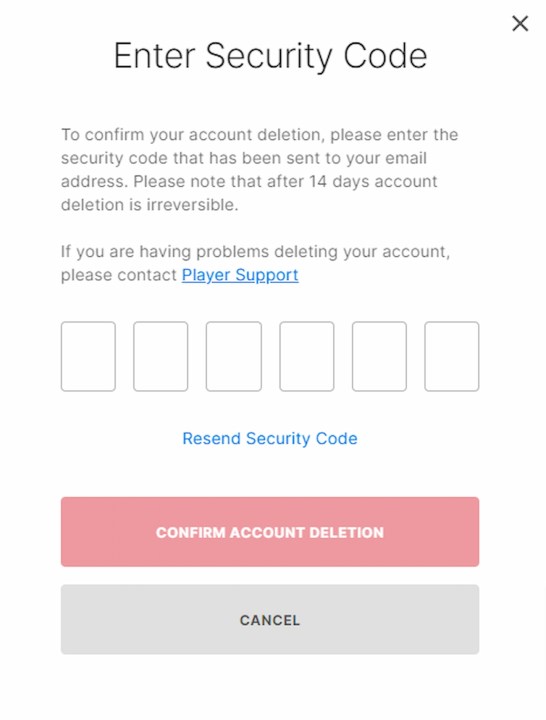
Step 4: Enter the six-digit security code you received in the email associated with your Epic Games account, then click Confirm Account Deletion.
Step 5: Choose a reason for deleting your Epic Games account from the drop-down menu, then click Continue. Alternatively, you can skip this step.
Step 6: In the final pop-up, decide whether to log out of your deactivated account or log back in if you’ve changed your mind.
Epic Games Store
How to Delete Your Epic Games Account on Mobile
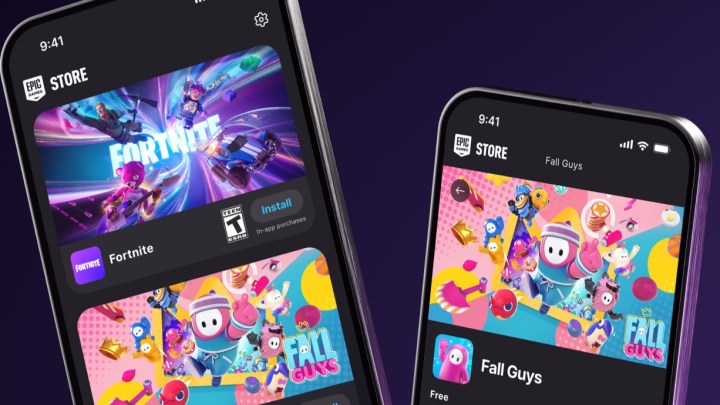
You can also delete your Epic Games account directly within the Fortnite mobile app. This method is similar to the PC process but allows for easier navigation if you’re using the app on your smartphone.
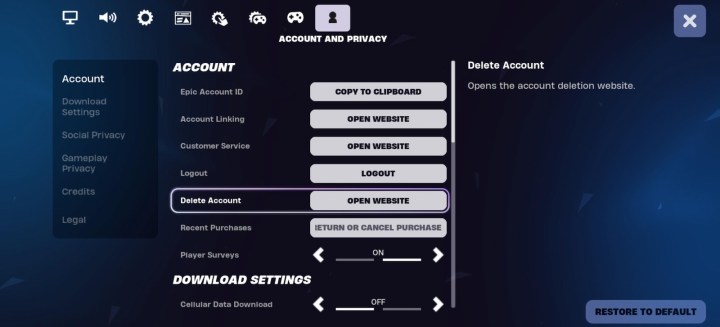
Step 1: Open the Fortnite mobile app, navigate to Account and Privacy in the settings. Under Account, find Delete Account and click the Open Website button.
Digital Trends
Step 2: After being redirected to the website, scroll down to the Delete Account section of your Account Settings and select the red Request Account Delete button.
Digital Trends
Step 3: Carefully read the warning that appears, then select Delete Account if you are ready to proceed.
Step 4: Enter the six-digit security code sent to the email associated with your Epic Games account, and then click Confirm Account Deletion.
Step 5: Choose a reason for deleting your account from the drop-down menu, and click Continue. You may also opt out of providing a reason.
Step 6: In the final prompt, you can either log out of your deactivated account or log back in if you’ve had second thoughts.
As a reminder, after you’ve initiated the deletion process, you have a 14-day grace period to log back into your account to recover it if you wish. After this two-week period passes, recovery will no longer be possible.
Congratulations on your new laptop! The excitement of unboxing and experimenting with a fresh machine is exhilarating—an experience I still cherish even after unboxing more than 200 different devices. Each device brings its own unique features, which certainly appeals to our desire for novelty.
However, there’s nothing worse than discovering a defect after the return period has lapsed. Why hang on to a machine with a significant issue when returning it is an easy option? Here are some essential checks to perform to help ensure you don’t end up with a problematic laptop or waste hours on warranty calls.
Difficulty
Moderate
Duration
1 hour
What You Need
Operating system
Cinebench
Unigine Heaven
Apple MacBook Air 14 Screen Post/Unsplash
Inspect It Physically
First, ensure all external components are functioning correctly. This includes visible parts that don’t require opening the laptop, which we will avoid to prevent any issues with return policies.
Step 1: Examine the laptop casing thoroughly. Look for misaligned elements, any gaps, or physical damage like scratches or dents. A brand-new laptop mustn’t exhibit any damage, as these issues can allow dust to enter and cause further problems. Confirm that all necessary components, such as rubber feet and screws, are intact and properly secured.
Next, assess the hinge. Open and close it to check if it moves smoothly without any sticking. While larger differences in hinge design may be noticeable between budget and premium models, a poorly functioning hinge should be apparent. Ensure that the hinge remains aligned, and that the display closes correctly against the casing.
Mark Coppock/Digital Trends
Step 2: Now, check the screen. Utilize solid colors like white, black, and other hues to identify dead or stuck pixels. Dead pixels are a valid reason for a quick return, especially if the warranty doesn’t cover it. Look out for image quality problems such as banding or inconsistent color temperatures across the display. For non-OLED screens, inspect for light bleeding at the edges during boot-up.
Your display should function flawlessly; after all, it’s an element you’ll engage with every time you use your laptop.
Mark Coppock / Digital Trends
Step 3: Then, assess the keyboard. Ensure each key functions without any sticking or looseness. Test keys in both standard and shifted states, including any function key variations. For backlit keyboards, check for even illumination across all keys, ensuring RGB lighting reacts appropriately.
Keyboard feel can vary widely across devices, so confirm that it meets your preferences, as this will be a frequently used component.
Mark Coppock / Digital Trends
Step 4: Don’t ignore the touchpad. Verify it’s installed correctly and doesn’t wobble, and test the button clicks to ensure they work as intended. The entire touchpad should respond accurately to swipes and taps. As you press the touchpad, ensure no significant gaps appear between it and the chassis.
Mark Coppock/Digital Trends
Step 5: Finally, check the audio quality. Play various audio tracks using your preferred service or app, and listen for distortion or static. While different laptops will have varying sound quality, you should not hear any noticeable playback issues.
Mark Coppock/Digital Trends Image used with permission by copyright holder
Update Your Laptop
Start by updating your operating system right after setup. Whether you’re on Windows 11, MacOS, or Chrome OS, navigate to system settings and run the update utility until everything is up to date. If the laptop has a separate update application for drivers and firmware, run that as well. Finally, if applicable, check any Nvidia or AMD utilities to ensure your drivers are current.
You’ll be surprised how many initial issues can be fixed by simply making sure everything is updated.
Image used with permission by copyright holder
Run Some Benchmarks
To identify potential inherent CPU issues, conduct stress tests using a program like Cinebench. Test both multicore and single-core performance; if the laptop crashes during these tests, it might indicate a deeper problem.
During the benchmarks, you should hear the fans ramping up. If they don’t, that could be a red flag. When the fans do run, pay attention to any unusual sounds. Consistent noise is acceptable, but if you hear buzzing or whirring that’s out of the ordinary, it could signal a malfunction.
For GPU testing, employ Unigene Heaven. This tool will stress both the CPU and GPU, potentially revealing any significant issues.
Alternative applications are available for stress testing, but those are beyond the scope of this guide.
Image used with permission by copyright holder
Use Your Laptop Frequently
During the return period, make an effort to use your laptop extensively. Open your favorite applications, browse the internet, and perform speed tests to verify your Wi-Fi performance. Engage in some gaming, if that’s part of your usage. Generally, ensure that the laptop operates according to your expectations. Take note of any sluggishness or crashes you experience.
Many problems may not present themselves immediately, some only cropping up well after the return period concludes. Others might surface once the warranty expires. It’s crucial to use your laptop extensively during the return period to confirm whether it meets your needs.
Conduct Research
Before returning a laptop with issues, research to determine whether those problems are widespread. Solutions may already exist, or the manufacturer could be addressing known flaws. Understanding if your situation is common or unique allows for better-informed decisions.
Your research might reveal prevalent issues that typically manifest after the initial testing, which could sway your choice toward a different laptop without the same concerns.
Prior to returning the laptop, be sure to erase your data by restoring it to factory settings. This procedure will vary slightly depending on the operating system, be it Windows, Chrome OS, or macOS. Following this will ensure your data is secure and ready for the next user.
These steps should be completed before the return window closes. Whether or not to return the laptop ultimately depends on your personal criteria—after all, a minor aesthetic issue may be inconsequential if the laptop performs well. Each return and repurchase carries the risk of receiving a problematic unit again.
However, investing in a laptop is significant, and taking these precautions allows you to ensure it operates and looks as expected. Once the return period is over, you may find yourself relying on the warranty, which is certainly acceptable, but it’s always preferable to catch any issues early on.
A thrilling new addition to the Destiny universe is on the way, and it’s taking a surprising turn. Destiny: Rising is an upcoming mobile game designed to bring the iconic sci-fi action RPG we cherish into the palm of our hands as a free-to-play experience.
Crafted by NetEase Games with Bungie’s full support, this is not just a quick adaptation or a subpar mobile variant; it is a comprehensive Destiny adventure. Serving as a prequel and an alternate narrative within the Destiny lore, Destiny: Rising vows to deliver both the player versus environment (PvE) and player versus player (PvP) thrills we expect from the core series. If you have doubts about its execution, you’re not alone. Although a release date has yet to be announced, players have the opportunity to get an early glimpse of the game by signing up for the upcoming alpha test. Here’s how you can register for a chance to take part.
How to Participate in the Destiny: Rising Alpha Test
To take part in the Destiny: Rising alpha test, go to the official website and click on the Pre-register button.
Next, complete the form with details about your mobile device, your location, and your email address. NetEase suggests using an Android device with a Snapdragon 845 processor or newer, or an iPhone 8 or more recent model for optimal performance. After submitting, all that remains is to wait for your selection notification.
The alpha test for Destiny: Rising is set to kick off on November 1, and currently, no end date has been provided. All players who complete the pre-registration will be entered into a selection pool, and a certain number of participants will be randomly chosen to join the alpha test, notified via email. There is no advantage to registering early, but since we do not know when registration will close or when selections will be made, it is advisable to register as soon as possible.
Are you frequently sending text messages to someone overseas? Perhaps you want to contact a colleague who’s currently enjoying some time off without bothering them? Or maybe you wish to remind your partner every day around the same time that you’re about to head home and check if they need anything picked up?
If any of these situations sound familiar, you might be interested in learning how to schedule text messages on your iPhone. This functionality has become standard on Android devices, and it can be incredibly useful.
Skill Level
Easy
Estimated Time
5 minutes
Requirements
An iPhone with iOS 18 or later
An iPhone running iOS 13 or higher
The Shortcuts app installed
The crucial question is: Can you schedule text messages on your iPhone? With iOS 18, you can do this natively for other iMessage users. However, for standard SMS messages or to send messages multiple times, you’ll need to utilize the Shortcuts app. Below are both methods to get the job done.
Christine Romero-Chan / Digital Trends
How to Schedule a Message in iOS 18
With the release of iOS 18, Apple introduced the ability to use the Send Later feature, which also allows for RCS support to enhance communication with Android users.
However, this Send Later functionality only applies to conversations between iMessage users. To schedule SMS or RCS messages to Android devices, you’ll need to deploy the Shortcuts app, which is explained in the following section.
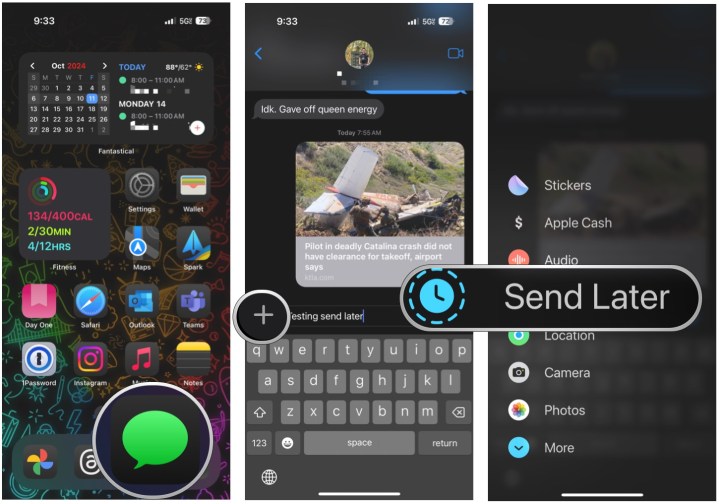
Step 1: Launch the Messages app on your iPhone running iOS 18.
Step 2: Open the conversation with the iMessage user.
Step 3: Compose your message.
Step 4: Tap the Plus sign (+) next to the text entry field.
Step 5: Choose Send later from the options shown.
Christine Romero-Chan / Digital Trends
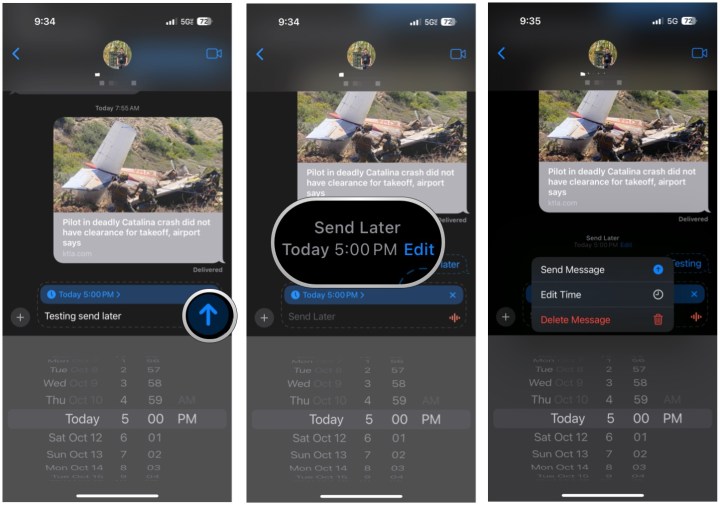
Step 6: Set the desired date and time for sending your message.
Step 7: Press the Send button, and your message will be scheduled.
Step 8: You can tap Edit on the scheduled message to send it immediately, change the scheduling, or even delete it entirely.
Christine Romero-Chan / Digital Trends
Nadeem Sarwar / Digital Trends
How to Schedule an SMS or RCS Message on iPhone Using Shortcuts
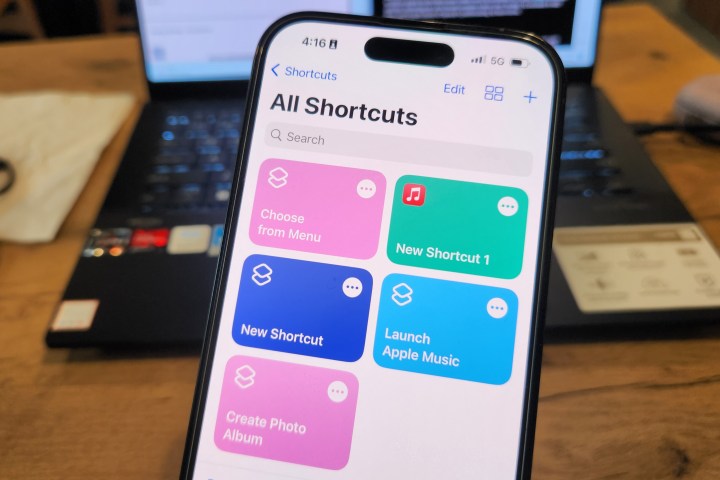
If you need to send SMS or RCS messages to someone who doesn’t use iMessage, you can use the Shortcuts app to create an automation. This allows you to set up recurring messages based on a specific timeline you determine.
The Shortcuts app is pre-installed on iPhones running iOS 13 or higher. If it’s missing, you can easily download it from the App Store at no cost.
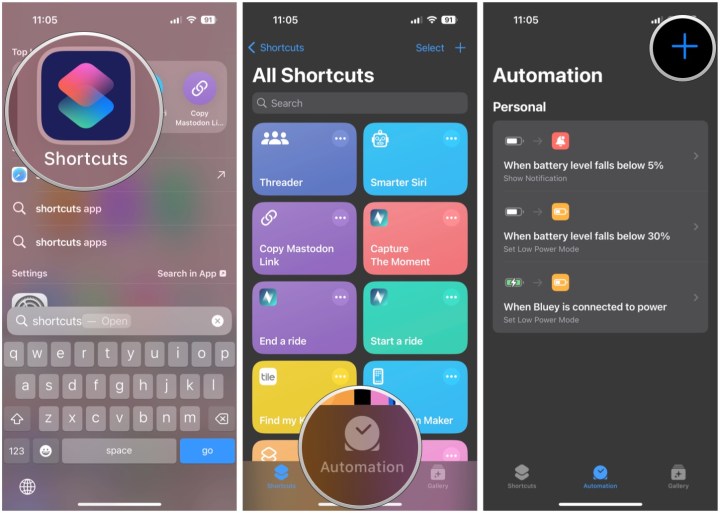
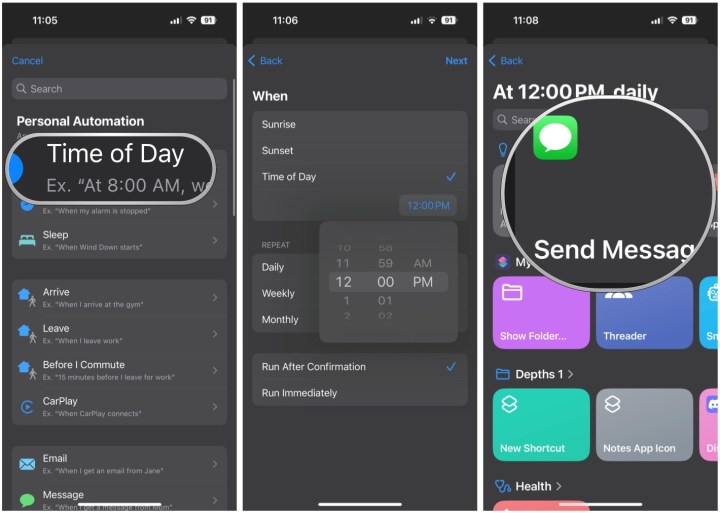
Step 1: Open the Shortcuts app on your iPhone.
Step 2: Tap the Automation tab at the bottom of the screen.
Step 3: If you haven’t previously set up any automations, tap Create personal automation. This option will not appear if you have existing automations.
Digital Trends
Step 4: If you already have automations, tap the Plus sign (+) in the upper-right corner.
Step 5: Choose the Time of day option.
Step 6: Set the time you would like your message to be sent. You can also specify how frequently it should repeat and whether you want confirmation prompts to appear. Once you’re done, tap Next.
Step 7: From the Actions menu, select Send message. If you don’t see this option, use the search bar at the top.
Digital Trends
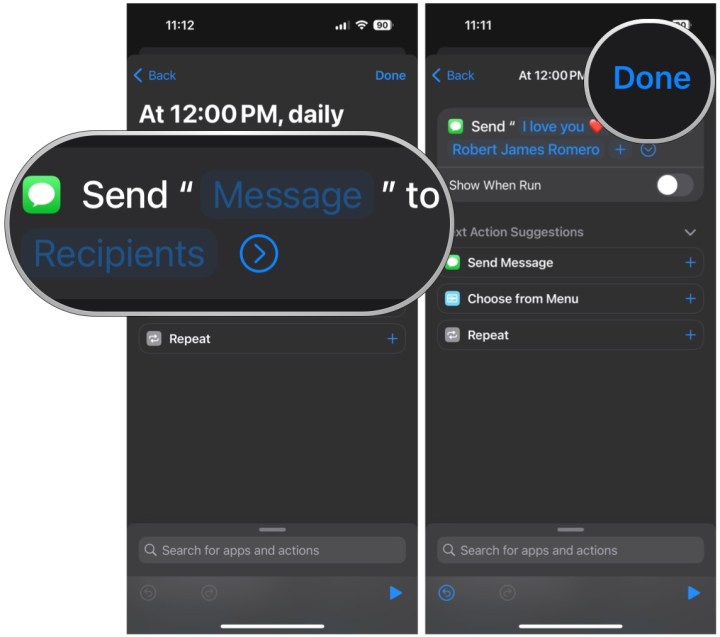
Step 8: Tap Message and enter the content of your message.
Step 9: Tap Recipients to add the contacts who should receive the message.
Step 10: Tap Done to save your automation.
Digital Trends
Step 11: Once saved, your automation will activate at the scheduled time and frequency you’ve selected. If you decide you no longer want the automation, swipe left on it in the list and select Delete.
Screenshots play a vital role in grabbing visuals from your computer screen, yet the process of capturing one on a Windows laptop or PC may not be straightforward if you haven’t done it previously.
Fortunately, there are several methods to accomplish this simple task in the Windows operating system, and we’ll outline each available approach below. These methods are applicable in both Windows 10 and Windows 11. Continue reading to discover how to take a screenshot on your Windows device.
Image used with permission by copyright holder
Using the Snipping Tool in Windows 10 and 11
The most effective built-in tool for taking screenshots in Windows is the Snipping Tool. Although it doesn’t offer the most extensive options for saving images, it provides users with the ability to conveniently capture specific portions of their screen. Here’s how to utilize it:
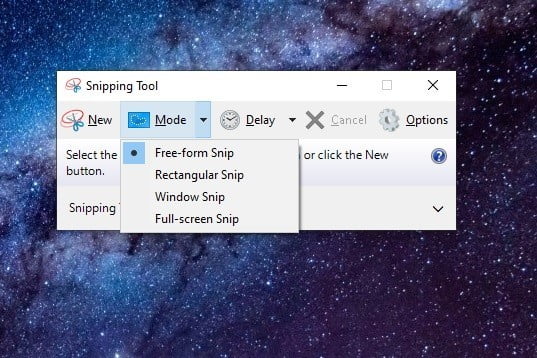
Step 1: Begin by typing snipping tool in the taskbar search bar and select the app that appears. For users on Windows 10, there will be a notice about it “moving to a new home” in an upcoming update. However, you can still find it in Windows 11, where Microsoft suggests using the Win + Shift + S keyboard shortcut instead.
Step 2: In Windows 10, click the Mode button to reveal various capturing options: Free-form snip, Rectangular snip, Window snip, and Full-screen snip. For Windows 11, you need to hit either New or the Windows key + Shift + S shortcut to activate the snipping interface, where you’ll see the same options at the top of your screen.
Select one of the modes to start capturing your screenshot.
Step 3: After you take a screenshot, the Snipping Tool will show your captured image. You can make minor edits, such as using a pen or highlighter.
(In Windows 11, the editing screen may appear automatically, or you may need to click a notification that shows up first.)
Step 4: Once you finish editing, click File in the upper left, followed by Save as from the dropdown menu. In Windows 11, use the Save as disk icon at the top right, give your file a name in the pop-up window, and click Save.
Image used with permission by copyright holder
Snip & Sketch Tool in Windows 10
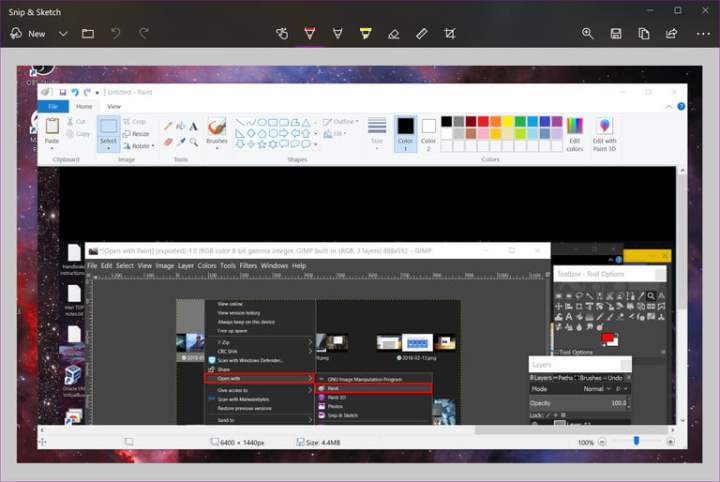
Snip & Sketch serves as Microsoft’s updated snipping utility, providing an excellent way to capture images on your Windows computer. You can access this tool via the Start menu or by pressing Win + Shift + S. Follow these steps to use it:
(Note: Snip & Sketch is no longer available in Windows 11 and has been replaced by an updated version of the Snipping Tool app that includes features from Snip & Sketch. Nonetheless, the upcoming instructions should still apply to Windows 11’s Snipping Tool.)
Step 1: If you use the keyboard shortcut, your screen will dim and display a toolbar with five buttons. This includes the same functions from the older Snipping Tool, but screenshots will go directly to your clipboard instead of saving them immediately.
Step 2: A desktop notification will appear confirming that the image has been copied to the clipboard. This notification also provides an option to edit the captured image within the Snip & Sketch app. Click the notification to load the screenshot for cropping and editing with various tools like pens and highlighters.
Step 3: If you launch the Snip & Sketch application, click the dropdown arrow next to the New button located in the upper left corner and select Snip now. Your screen will dim, and the toolbar will show up. Capture your desired snip, and it should automatically open in the app for edits.
Step 4: To save the image, use the Disk icon button to choose where on your PC you want to save the file. If you wish to edit and save the screenshot using another image editor, select the Three-dot icon and hit Open with to choose your preferred application. (In Windows 11, select the Edit in Paint option for Microsoft Paint.)
Keyboard Shortcuts for Print Screen
Windows offers six methods for capturing screenshots using keyboard shortcuts. Three rely on the Print Screen (PrtScn) key while the other three involve the Windows (Win) key.
On external keyboards, the PrtScn key is typically located in the upper-right corner. The Win key is usually found in the lower-left corner, situated between the Control (Ctrl) and Alt (Alt) keys, marked with the Windows logo.
On laptops, the Print Screen function may share a key with another function, necessitating the use of the Function (Fn) key in conjunction with Print Screen.
Here’s a breakdown of the six commands available for capturing screens:
Print Screen (PrtScn): Captures the entire screen. If you have multiple displays, this will take a singular image encompassing all connected displays. By default, it won’t save this image but will place it on the Windows clipboard for further use.
Alt + Print Screen: Captures only the currently active window. Remember to click on the window you wish to capture before using this combination. Similar to the previous command, it will put the captured image on the clipboard.
Win + Print Screen: Takes a screenshot of the entire screen and saves it as a file automatically. It is saved by default in either C:UsersPictures>Screenshots or C:UsersOneDrive>Pictures>Screenshots on your device.
Win + Shift + S: Activates the Snip & Sketch tool (or the new Snipping Tool in Windows 11). The screen will darken, displaying four options to choose your capture area. This tool also uses the clipboard rather than saving the file directly.
Win + G: Opens the Xbox Game Bar. You can then click the Capture button followed by the Camera icon to save images in C:Users>(user name)>Videos>Captures by default.
Win + Alt + Print Screen: Captures only the active window and saves the file by default to C:Users>(user name)>Videos>Captures.
In many instances, your screen might flicker or dim, indicating that Windows has successfully captured a screenshot. However, if that doesn’t occur, you can always check the default file locations through File Explorer to verify if the screenshot was saved.
Image used with permission by copyright holder
Using OneDrive in Windows 10 and 11
If you’re utilizing OneDrive, you can save screenshots to the cloud for easy access across devices, but it won’t do this automatically. To enable this feature, click the Cloud icon next to the System Clock (or find it in the Hidden Icons menu marked with an upward arrow).
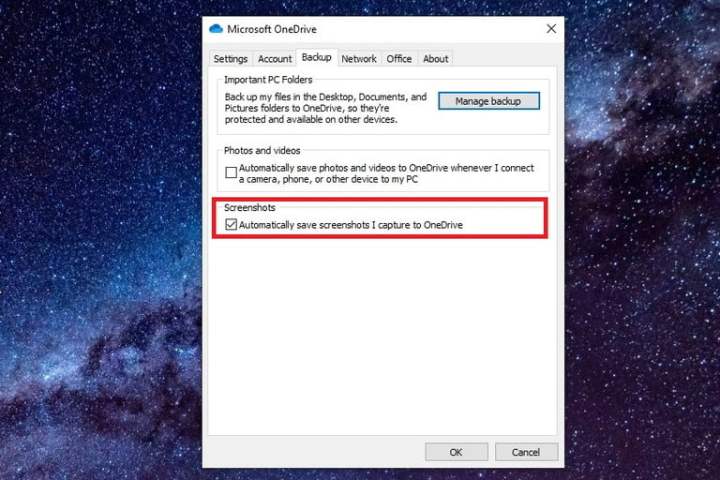
If the icon isn’t visible, you may have to launch the OneDrive app and sign into your account first. Click the Cloud icon, select the Help & Settings gear icon, and go to Settings. Next, navigate to the Backup tab and check the box for Screenshots, then hit OK.
(In Windows 11, after selecting Settings, go to the Sync and Backup tab and toggle on the option to save captured screenshots to OneDrive.)
Once this feature is set, pressing any of the first two Print Screen commands will automatically save your image files to OneDrive. You won’t see a flicker on the screen—rather, you’ll receive a notification confirming the action. Just ensure to sync the Screenshots folder if you want to retrieve these images on your computer.
Capturing Screenshots on Other Devices
If you need instructions on how to capture a screenshot on a Mac, it’s quite simple as well. There are various ways to accomplish this, but perhaps the easiest method is through keyboard shortcuts. Use Command + Shift + 3 to capture the entire screen, or Command + Shift + 4 to select a specific area.
You can also easily capture screenshots on a Microsoft Surface.
For taking a screenshot on a Chromebook, again, a few methods exist, but the simplest is a keyboard shortcut. Use Control + Show Windows to capture the entirety of your screen, or use Control + Shift + Show Windows for a selected area.
Image used with permission from the copyright holder
Minecraft is filled with valuable resources such as diamonds and saddles, but each update brings even more motivation to explore its perilous biomes. The Nether update introduced players to Netherite, a rare and immensely strong resource that surpasses diamonds. If you’re preparing to embark on daring missions like confronting the Ender Dragon, Netherite is key.
However, acquiring Netherite is not as straightforward as mining or finding ores. To truly excel in obtaining this formidable material, keep these tips in mind.
Mojang
Crafting Netherite
To begin your journey in mining Netherite, you’ll need to follow these essential steps, which might seem unusual for typical mining operations.
Step 1: Gather 12 pieces of Obsidian to construct a Nether portal.
Step 2: Locate Ancient Debris, an exceptionally rare ore found exclusively in the Nether. Ancient Debris is located deep beneath the surface, and your chances of discovering it improve the lower you dig in the world.
Mojang
Step 3: Place your Ancient Debris in a furnace to turn it into Netherite Scrap.
Step 4: Combine four Netherite Scraps with four Gold Ingots to create a Netherite Ingot.
Mojang
Step 5: After collecting your Netherite Ingots, you’re well-equipped to craft powerful tools and armor!
If you’re considering a factory reset on your computer, it likely means you’ve tried all other options for rebooting and repairing. While a complete factory reset isn’t the most exciting solution, it can often be essential for restoring your laptop or desktop to optimum performance.
Difficulty
Easy
Duration
10 minutes
Requirements
An HP laptop running Windows 10 or 11
If you own an HP laptop that needs a factory reset, you’ll be happy to know that the process is straightforward. It’s essential to pay attention to certain aspects, which is why we’ve created a step-by-step guide just for you.
Before you start, if you’re planning to transfer ownership of your laptop, it’s a good idea to check the battery health, as this could factor into your decision or affect resale value.
Also, make sure you’ve backed up any important data that you want to keep.
How to Factory Reset an HP Laptop on Windows 11 or 10
Step 1: Launch the Settings menu by pressing Windows Key + I.
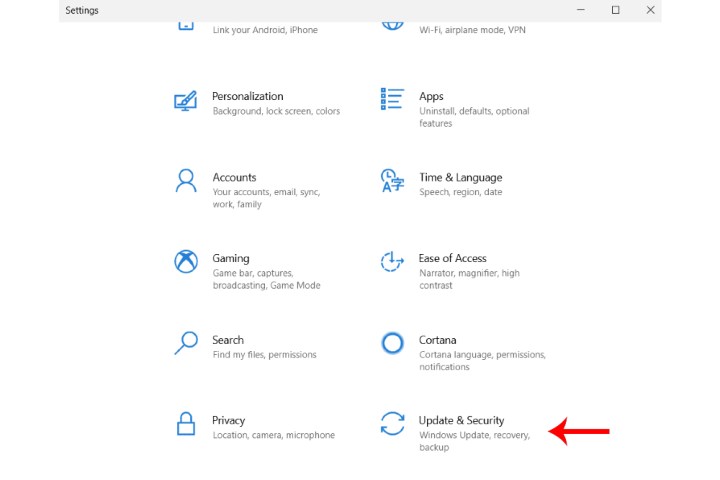
Step 2: Select Update & Security, then click on Recovery.
Image used with permission from copyright holder
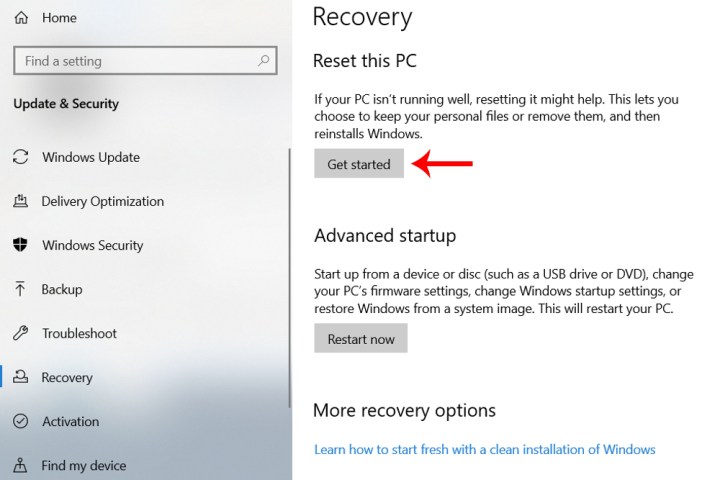
Step 3: For a complete reset of your HP laptop, click on Get started found under the Reset this PC section.
Image used with permission from copyright holder
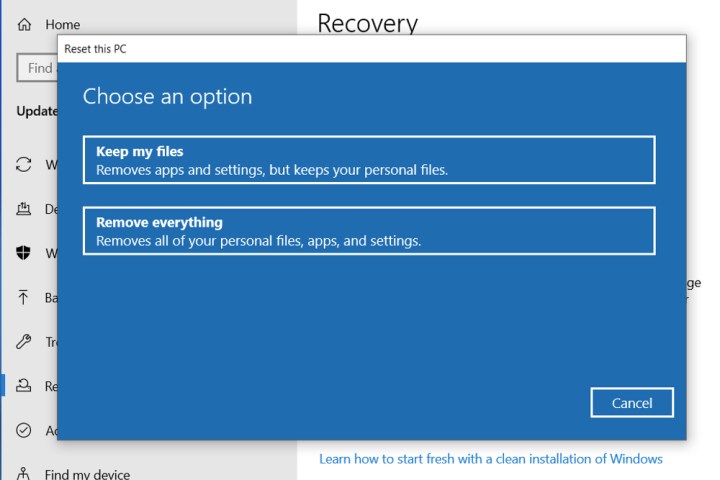
Step 4: Decide whether you want to keep the files on your device after the reset. If you choose Keep my files, you can further select Change settings if you don’t want to restore the pre-installed apps or settings.
If you prefer to start fresh, select Remove everything, which will reset the system to its original factory settings, erasing all files and downloaded programs.
Choosing Remove files and clean the drive will make your device feel brand new; however, selecting Just remove my files will not thoroughly wipe the hard drive.
After making your selection, click Next; you’ll then be prompted to connect your laptop to a power source. Once the reset is completed, your laptop will display a setup window for configuration.
(Alternatively, you could replace the existing SSD with a new one and reinstall Windows for a completely refreshed system.)
Image used with permission from copyright holder
How to Factory Reset an HP Laptop Without a Password
Step 1: Start by fully powering off your HP laptop and then turn it back on.
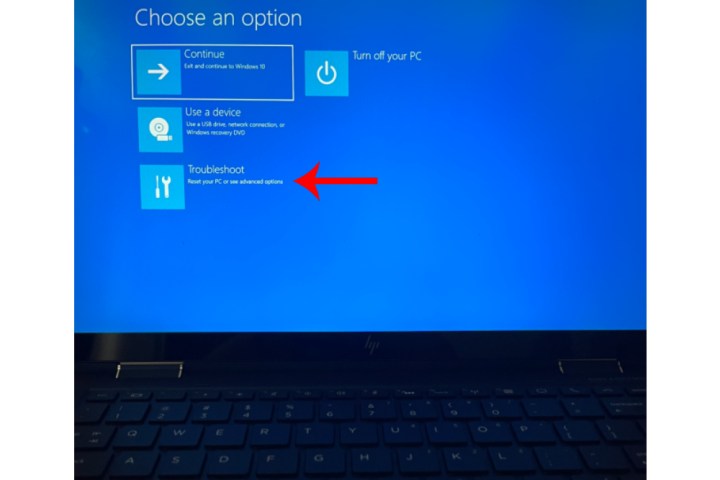
Step 2: Press F11 immediately when your system begins booting to enter Troubleshooting. If F11 doesn’t work, you may try F9 or F10.
Image used with permission from copyright holder
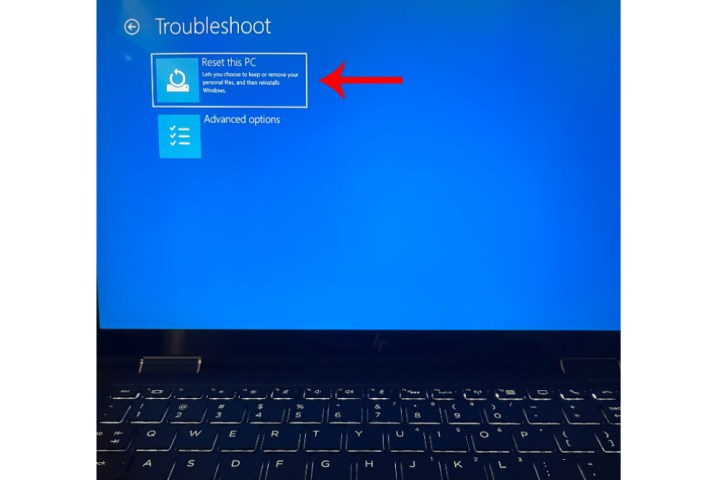
Step 3: Select Troubleshoot followed by the Reset this PC option, then follow the previous steps to complete the factory reset.
Image used with permission from copyright holder
Can You Factory Reset an HP Laptop Running Windows 7 or 8?
If your HP laptop operates on Windows 7 or 8, you can still execute a factory reset, but the steps will be slightly different from the more recent versions.
For HP laptops with Windows 8, the restoration procedure is similar to what you would follow in Windows 10 or 11.
Factory Resetting a Windows 7 HP Laptop (If It Boots Properly)
Step 1: Power on the laptop and navigate to the Control Panel.
Step 2: Click on System Security > System > System Protection > System Restore.
Step 3: Decide whether to reset to the latest restore point (Recommended Restore) or opt for a different restore point (Choose a different restore point).
Step 4: Click Next > Finish, then confirm with Yes to initiate the restoration.
Factory Resetting a Windows 7 HP Laptop (If It Doesn’t Boot)
Step 1: Restart your computer. As it reboots, press the F8 key repeatedly until the Advanced Boot Options screen appears.
Step 2: Use the arrow keys on your keyboard to highlight Repair Your Computer and press Enter.
Step 3: Select your language settings, and click Next.
Step 4: Log in as the administrator and click OK, then proceed to System Restore > Next.
Step 5: Choose whether to restore from the most recent restore point (default) or select Show more restore points to find a different option.
Step 6: Hit Yes to start the restoration. Once finished, click Restart.
If you’re looking to reset Windows on a different type of computer, check our guide on how to factory reset various Windows versions regardless of the manufacturer.
If you frequently work on a laptop, you know how uncomfortable it can be to stare at a 13-inch screen for extended periods. Thankfully, most modern laptops allow you to connect to a television. This not only provides you with a larger display but also lets you continue using your laptop with its convenient trackpad gestures.
Whether you own a budget laptop or a top-of-the-line model, connecting it to your TV is quite simple. The most reliable method is via an HDMI cable—though we’ll also explore wireless options!
Difficulty
Easy
Duration
5 minutes
What You Need
Laptop with video output capability
HDMI cable
HDMI adapter (if your laptop lacks an HDMI port)
Riley Young / Digital Trends
How to connect your laptop to a TV using an HDMI cable
The most effective method for connecting your laptop to a TV is through an HDMI cable, which is designed to transmit both digital audio and video from your computer to the display. Here’s how to set it up:
Step 1: Locate your laptop’s HDMI port, typically found on the back or side. If your laptop doesn’t have a standard HDMI port, it might feature a mini- or micro-HDMI, which you can connect using a converter. Many modern laptops have USB-C or Thunderbolt ports, which can also connect with an HDMI adapter. If no HDMI port is available, consider a VGA connector, but keep in mind it only transmits video—so you’ll need a separate audio cable for sound.
Step 2: Connect one end of the HDMI cable to your laptop and the other end to your TV’s HDMI input. This connector is usually located at the back, although some slimmer models may have it on the side. If you’re having trouble finding it, a quick glance at your TV’s user manual can help.
Step 3: Your TV and laptop might automatically recognize each other and begin displaying content. If not, you’ll need to switch the TV’s input manually. Power on the TV and use the remote to set the source to the HDMI port you’ve connected to. Instructions for adjusting display options can vary by model, so consult your user manual if needed.
Step 4: After selecting the correct source on your TV, you need to adjust the output settings on your laptop. For Windows PCs, press the Windows key and “P” to access display settings; for Macs, click on the Apple icon in the upper left corner, select System Settings, then go to Displays.
Arif Bacchus / Digital Trends
How to wirelessly connect your laptop to a TV
If you prefer to avoid cables, it’s possible to set up a wireless connection between your laptop and TV, similar to how you would connect your smartphone or tablet.
The specific steps depend on your operating system, whether it’s macOS, Windows, or ChromeOS.
Simon Cohen / Digital Trends
How to wirelessly connect to a TV using AirPlay on a Mac
If you have an Apple computer and an Apple TV, screen mirroring to your TV is a breeze.
Step 1: Ensure both devices are connected to the same Wi-Fi network.
Step 2: Open the display settings by going to the Apple menu, clicking System Settings, then Displays, and look for AirPlay Display.
Step 3: From either the System Settings or the menu bar, select your Apple TV from the dropdown. Your screen will either mirror or extend to the TV depending on your setup.
Step 4: If you don’t have an Apple TV, many modern smart TVs support Apple AirPlay. In your display settings, your TV may appear as an option. Check your TV settings to ensure AirPlay is enabled.
How to wirelessly connect to a TV using a Windows laptop
You can wirelessly connect your laptop to a TV if you have a computer running Windows 10 or 11. Ensure your laptop supports screen mirroring.
Additionally, you’ll need a smart TV that connects to Wi-Fi and supports screen mirroring. Refer to your device’s manual if you’re unsure about compatibility.
Step 1: Connect both devices to the same Wi-Fi network.
Step 2: Use your remote to select screen mirroring on your TV, which will display a list of sources. Add your TV to your laptop’s approved devices by navigating to Settings, then Connected Devices, and choosing Add Device. Select your TV from the list, and your laptop will mirror its display.
Insignia
How to connect a laptop to a soundbar or AV receiver
Modern soundbars and AV receivers offer various ports, including HDMI, USB, and Bluetooth. For transmitting both video and audio, HDMI is usually your best bet.
The USB ports on soundbars and AV receivers are typically reserved for devices like external hard drives or USB drives. While you may be able to transfer audio from your laptop through a USB connection, video will not be supported.
For wireless mirroring, your soundbar or AV receiver must support a suitable wireless protocol. For example, Apple AirPlay is popular among Apple users. If your model doesn’t support AirPlay, consider investing in a streaming device like Apple TV 4K or Roku Ultra to enable this function.
If music, radio, or podcasts are what you’re after, pairing your laptop via Bluetooth is a straightforward alternative—just be mindful to stay within about 35 feet of your audio equipment.
How to troubleshoot video output issues
If your laptop is connected to your TV, either via HDMI or wirelessly, but you’re experiencing problems with picture or sound, there are several steps to take to resolve the issue.
Begin by ensuring your operating system is entirely up to date, as many connectivity problems can be traced back to outdated software.
If you still encounter issues, it may help to disable your TV’s HDMI-CEC controls. Although this feature is meant to streamline operations, it can occasionally interfere with HDMI communications.
If you’re using an adapter or dongle, such as USB-C or DisplayPort, double-check its compatibility with your laptop, as well as for any necessary drivers that may need to be installed.
Ultimately, if your devices are incompatible and you find yourself frustrated, purchasing a new TV might be a solution—though until then, take care of your laptop display and keep using it as normal.
Whether you’re using an older graphics card or one of the latest models, keeping your graphics drivers up to date is essential. For most users with Nvidia GPUs, this means utilizing Nvidia’s GeForce Game Ready drivers.
New driver updates can enhance performance and stability, making it necessary to learn how to install them quickly. But what should you do if an update causes issues? Knowing how to uninstall and reinstall drivers can be invaluable in these situations.
Difficulty
Moderate
Duration
15 minutes
What You Need
Windows PC
Nvidia graphics card
No need for third-party programs when updating or uninstalling your Nvidia Game Ready drivers; a Windows PC and a few minutes are all you require. This guide will help you navigate both processes, turning potentially cumbersome tasks into quick actions.
Jacob Roach / Digital Trends
How to Update Drivers via GeForce Experience
The most convenient method to update your drivers is through Nvidia’s GeForce Experience, a utility that simplifies the driver update process along with optimizing game settings and capturing gameplay footage. Keep in mind that it cannot roll back drivers.
Step 1: First, download and install the Nvidia GeForce Experience from the official Nvidia website. Follow the setup instructions and create an account.
Once installed, launch the application, which will automatically detect your graphics card.
Step 2: To update drivers using GeForce Experience, click on the Drivers tab at the top left. Use the Check for updates option to find the appropriate drivers for your GPU.
Make sure to select the Game Ready driver instead of the Studio driver, which is primarily for professional use. Click Download to get the latest driver.
Monica J. White / Digital Trends
Step 3: You will then choose between an Express installation and a Custom installation. The Custom installation allows you to select additional components, such as audio drivers or Nvidia software. You can also opt for a clean installation that resets settings to default.
For most users, the Express installation is recommended. Select it, and the installation process will begin. You may be prompted for additional permissions; make sure to grant them.
Your screen might flicker during installation—that’s normal. After a few minutes, you’ll have successfully updated your driver.
Monica J. White / Digital Trends
How to Manually Update Game Ready Drivers
If you prefer not to use GeForce Experience, you can manually update your drivers. While this method requires more effort, it is straightforward once you gather the necessary information about your GPU model. If you’re unsure of your GPU details, refer to our guide for assistance.
Step 1: Go to Nvidia’s driver download page. You will see several dropdown menus. Make sure to know your graphics card model so you can provide the correct information to download the driver.
Step 2: Under Product Type, select “GeForce.” For Product Series, choose your graphics card’s generation and whether it’s for a laptop or a desktop. Then, pick your exact GPU model under Product.
Choose your operating system from the respective dropdown. If you’re unsure, we have a guide that explains how to check your PC specs. Lastly, ensure Download Type is set to Game Ready Driver (GRD).
Step 3: After downloading the appropriate file, launch the installer and decide where to extract the files. You’ll then have the option to install just the driver or GeForce Experience alongside it.
As with the previous method, you can choose between Custom and Express installation. We advise selecting Express for simplicity. The installation will start, and you may notice your screen flickering during this time, which is perfectly normal.
After following these steps, your Game Ready driver will be fully updated.
How to Uninstall Game Ready Drivers Using Add or Remove Programs
If you need to uninstall your driver, there are three methods you can use: through Add or remove programs, the Device Manager, or a third-party tool like Display Driver Uninstaller. In this section, we will focus on using the Add or remove programs feature, which is a straightforward way to remove Nvidia drivers.
This approach allows you to uninstall supplementary software as well, while Device Manager is limited to just the driver itself.
Step 1: Click the Windows icon on the taskbar and type in Add or remove programs. You can also access this via the Start menu, clicking on the Gear icon for Settings, then navigating to Apps and selecting Installed apps.
Step 2: In the Add or remove programs interface, type Nvidia into the search bar. This will display a list of installed Nvidia software, including GeForce Experience, the Nvidia Control Panel, and the driver itself.
Step 3: Find the Nvidia Graphics Driver in the list, click the three horizontal dots next to it, and select Uninstall. Proceed through the uninstaller steps and choose to remove all driver components for a thorough cleanup. Restart your PC to complete the uninstallation.
Important note: After uninstalling, your PC will revert to a basic graphics driver, which may limit functionality such as dual monitors or resolution settings. To restore full capabilities, perform a clean driver installation using the previously mentioned instructions.
Monica J. White / Digital Trends
How to Uninstall Game Ready Drivers via Device Manager
Using Device Manager to uninstall Game Ready drivers is another simple option, though it may not be as thorough as the previous methods. It’s effective for removing drivers that are causing issues or for rolling back to an earlier version.
Step 1: Open Device Manager by right-clicking the Start button and selecting it from the menu, or by searching for Device Manager in the search bar.
Step 2: Find the Display adapters section, which lists your graphics card(s). Right-click on the GPU you wish to uninstall the driver for and select Properties.
Monica J. White / Digital Trends
Step 3: You can choose to roll back the driver or proceed with the uninstallation by clicking Uninstall Device.
Confirm the action when prompted. If available, check the box to Delete the driver software for this device to ensure complete removal. Click Uninstall and restart your computer to finish the process.
Keep in mind that your system will only have a basic graphics driver afterward, leading to potential performance issues, low resolutions, and other limitations until you reinstall your preferred Game Ready driver.
Monica J. White / Digital Trends
How to Uninstall Game Ready Drivers Using DDU
Display Driver Uninstaller (DDU) is a reliable tool for thoroughly erasing all remnants of a GPU driver. It’s especially useful when switching to a different vendor, such as moving from Nvidia to AMD, as it ensures a clean slate.
DDU is compatible with AMD, Intel, and Nvidia drivers and works on both Windows 10 and 11.
Step 2: For best results, it’s advised to run DDU in Safe Mode. If you’re uncertain how to access Safe Mode, check our guides for doing so on Windows 10 and 11.
Doing this prevents other programs from interfering with the uninstallation and stops Windows from automatically reinstalling the driver.
Step 3: After entering Safe Mode, open the folder where you extracted DDU and launch the application. You can close the options menu that appears, as no changes are necessary.
Step 4: Select Nvidia from the dropdown menu to specify your GPU vendor.
Step 5: Choose from three options: Clean and restart, Clean and do not restart, or Clean and shutdown. We recommend Clean and restart, which you should select now.
DDU will execute several commands to completely remove your Game Ready driver. Your PC will then automatically restart, leaving you to install the new Nvidia Game Ready driver once more, as only the basic Windows graphics driver will be running.
Monica J. White / Digital Trends
These steps are specifically tailored for Nvidia drivers. If your setup includes an AMD GPU, be sure to check our guide on updating AMD drivers for assistance.
The hours of operation in Metaphor: ReFantazio take you to a diverse range of captivating locations while immersing you in its intriguing world and gameplay. After the initial chapters unfold, you’ll find yourself navigating your first significant dungeon, known as the Nord Mines. This expansive location can take about an hour to explore and features another battle against a human boss. However, as you near the end of the mines, you will discover a chamber where a dragon is peacefully resting. At this point, your team may decide that stealth is the wiser strategy, opting to bypass the creature instead of engaging in combat.
The game’s nudges toward stealth in this scenario may lead you to think that waking the dragon for a battle would be a poor choice. Surprisingly, this fear is unfounded; the dragon can be defeated more easily than you might expect, and taking it down grants you a powerful weapon. Here’s what you need to know about confronting the dragon in Nord Mines.
How to defeat the Nord Mines dragon and the reasons for doing so
Upon entering the area with the sleeping dragon in the Nord Mines, you can either stealthily navigate around the edges or directly approach the beast. It’s advisable to take the bold step and confront the dragon, as defeating it is more manageable than the game suggests.
Having at least one Mage archetype on your team with the Blizz spell is beneficial, as the dragon is particularly vulnerable to ice attacks. If possible, bringing multiple Mages can simplify this encounter even further; just ensure they remain at the backline to mitigate damage from the dragon’s formidable attacks.
Atlus
Fortunately, bringing down the dragon is a straightforward task. Continuously attacking it with the Blizz spell while keeping an eye on health will allow you to defeat it quicker than you might have initially thought. Once you vanquish the beast, you can claim the Dragon’s Indignation greatsword from a chest located where the dragon was resting. With an impressive attack power of 111, this sword stands out as the best weapon available at this stage of the game, making it a perfect fit for your Warrior archetype character to deal significant damage.
Disney+ offers an impressive array of beloved classics and the latest films and series among streaming platforms. But what do you do when you’ve finished the entire Marvel Cinematic Universe, revisited distant galaxies, watched every Pixar movie, finished all 34 seasons of The Simpsons, and explored all that Disney+ provides? Perhaps you’re ready to take a break or simply want to cut back on expenses.
If you’re considering deleting your Disney+ account, the procedure is quite simple. What will differ for each user is the method by which they created their Disney+ account.
We’ve prepared this guide to help you through the cancellation of your Disney+ subscription and your overall Disney account. Here’s how to do it.
Difficulty
Easy
Duration
10 minutes
What You Need
A Disney+ account
A home computer (for browser cancellation)
A smartphone or tablet (for cancellation through iOS or Android)
Derek Malcolm / Digital Trends
How to Cancel Your Disney+ Subscription on a Computer
Follow these steps if you registered through a PC rather than a mobile device.
Step 1: Log into your Disney+ account on the Disney+ website.
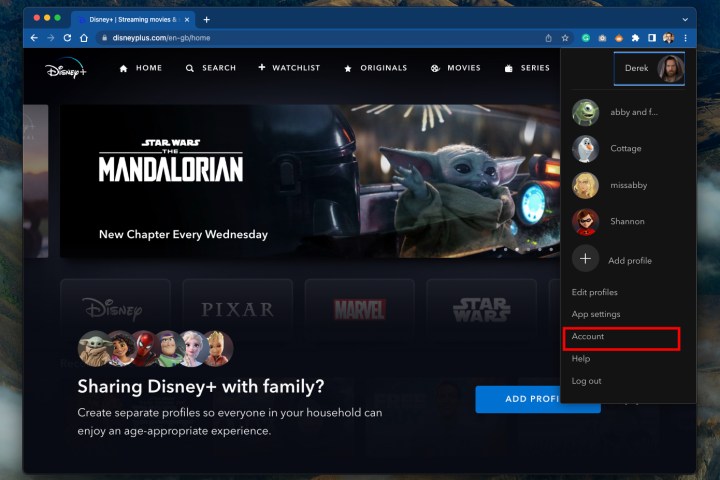
Step 2: Click or hover on the Profile icon in the upper-right corner.
Step 3: From the dropdown, select Account.
Step 4: Under the Subscription section, click on the subscription you wish to cancel.
Step 5: Click the Cancel Subscription link.
Step 6: Provide a reason for your cancellation and then select Continue to finalize the process.
Follow these steps if you registered through the Disney+ app for Apple devices.
Step 1: Open the Settings app and tap your Name/Apple ID.
Step 2: Tap Subscriptions.
Step 3: Choose Disney+, then select Cancel Subscription.
After Cancelling Disney+
You will still have access to Disney+ until the end of your current billing cycle.
If you’re looking for a refund, keep in mind that Disney+ does not provide refunds for partially used billing periods, but you will not incur any cancellation fees.
Even after cancellation, your Disney account (created during your Disney+ signup and used across all Disney platforms) remains active. This account will continue to receive promotional emails unless you opt-out. To delete your Disney account completely:
Step 2: Sign in using the link under Manage your registration account.
Step 3: Here, you can adjust notification preferences, such as email frequencies, or completely remove your Disney account.
Be aware that deleting your Disney account won’t automatically cancel your Disney+ subscription; it will prevent you from accessing Disney+. Therefore, ensure you terminate your Disney+ subscription prior to deleting your Disney account. If you skip this, you may have to contact Disney customer service for support.
Now, you might want to explore what Netflix currently has to offer.
If you’re thinking about canceling your Spotify Premium subscription, whether to switch to another streaming service or cut down on expenses, the process is quite simple. However, there are a few important things to keep in mind to ensure it goes smoothly.
This guide will provide you with detailed instructions on how to cancel your Spotify Premium account via desktop, mobile devices, or tablets, including canceling subscriptions made through the App Store. Additionally, we will explain what happens to your account and your subscription after cancellation, as well as how to reactivate Premium if you decide to return later.
With so many music streaming options available today, consider reading this guide thoroughly before canceling your Spotify Premium membership — it might help you save money or avoid inconvenience in the future.
Difficulty
Easy
Duration
5 minutes
What You Need
Spotify Premium account
Desktop computer
iPhone or iPad
Prakhar Khanna / Digital Trends
How to Cancel Spotify Premium
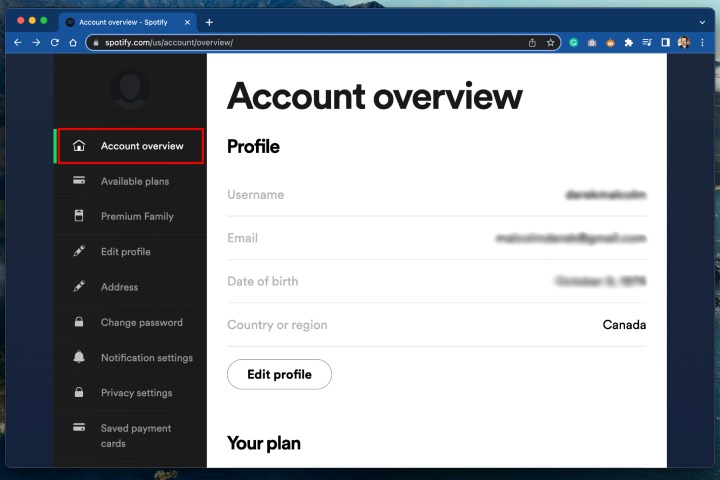
Step 1: Begin by opening your preferred web browser and navigating to spotify.com/account. This link will take you directly to the Account Overview section of Spotify’s website.
If you use the Spotify desktop app, you can access your Account settings from the drop-down menu, which will also open in your browser. Note that this process cannot be completed through the mobile app.
Derek Malcolm / Digital Trends
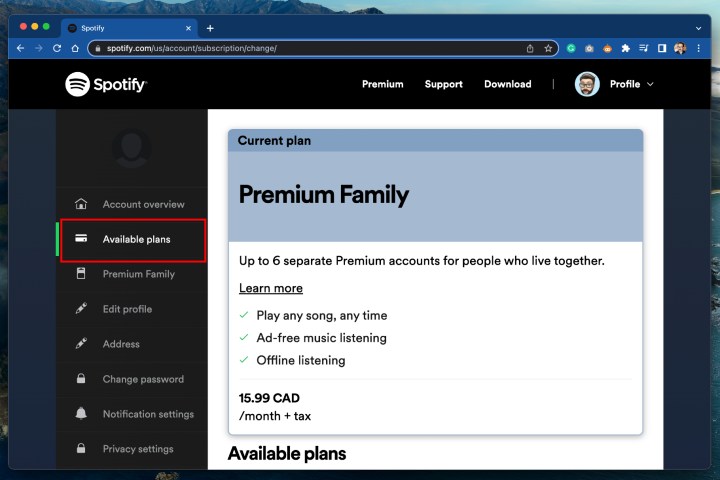
Step 2: Once on your Account overview screen, choose Available plans from the sidebar on the left. A box will appear listing your current membership and other available subscription options.
Derek Malcolm / Digital Trends
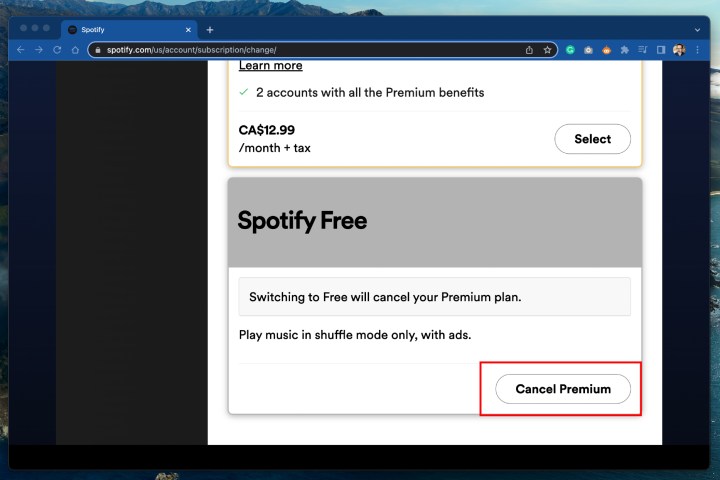
Step 3: Scroll to the bottom of the options and look for the Spotify Free option, which is located at the very end. Click the large Cancel Premium button positioned below it.
Derek Malcolm / Digital Trends
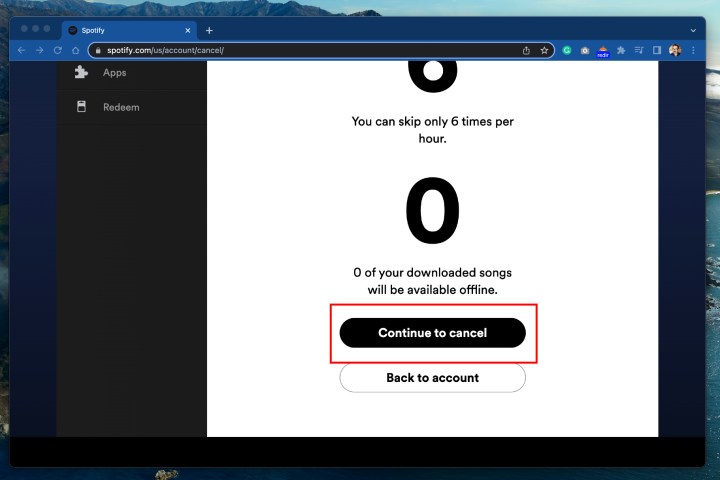
Step 4: The last step is to confirm your cancellation by clicking Continue to cancel and following the prompts. Remember that your membership will not end immediately; you can continue using it until the end of your billing cycle.
Derek Malcolm / Digital Trends
Step 5:Note: Canceling your Spotify account through an Android device follows a similar process as on desktop — it is done via a web browser on the device.
Bryan M. Wolfe / Digital Trends
Canceling Spotify Premium on an iPhone or iPad
If you initially signed up for Spotify on your iPhone or iPad, it’s likely you opted for Apple to manage your billing through the App Store for convenience. This makes the cancellation process slightly different when using an iPhone or iPad.
Step 1: Begin by opening the Settings app on your device and tap your name at the top to access your Apple ID.
Step 2: From there, choose Subscriptions.
Step 3: A list of your subscriptions will be displayed. Find Spotify, then tap the Cancel Subscription button. This will terminate your Premium membership renewal.
After cancellation, you will still be able to use Premium until your next payment date. For instance, if you decide to cancel on September 3 and your membership is set to renew on October 2, you’ll retain access until then, since you’ve already paid for that month.
Keep in mind that Spotify does not offer refunds, even if you cancel before the next billing date and don’t intend to use the service during that period. You can also choose to delete your Spotify account if that’s your goal.
How to Reactivate a Spotify Premium Account
If you change your mind and wish to return to Spotify, reactivating your account is even easier than canceling it. Just visit Spotify’s account page where your previous plan should be listed along with a Renew option. Click on Renew, and you’re all set!
You can also renew your Spotify Premium subscription through the App Store or Google Play Store.
How Much Does Spotify Premium Cost?
Currently, an individual Spotify Premium subscription is priced at $12 per month. If you’re new to Premium, Spotify offers a one-month free trial.
If you enjoy the service and want to share it, a Premium Duo account is available for $17 per month, covering two users. For larger households, a Premium Family plan costs $20 per month and can accommodate up to six users.
Students can take advantage of the Premium Student plan, offering a discounted rate of only $6 per month, which includes access to both Spotify Premium and Hulu. Additionally, an Audiobook Access subscription (excluding music) is available for $10 per month.
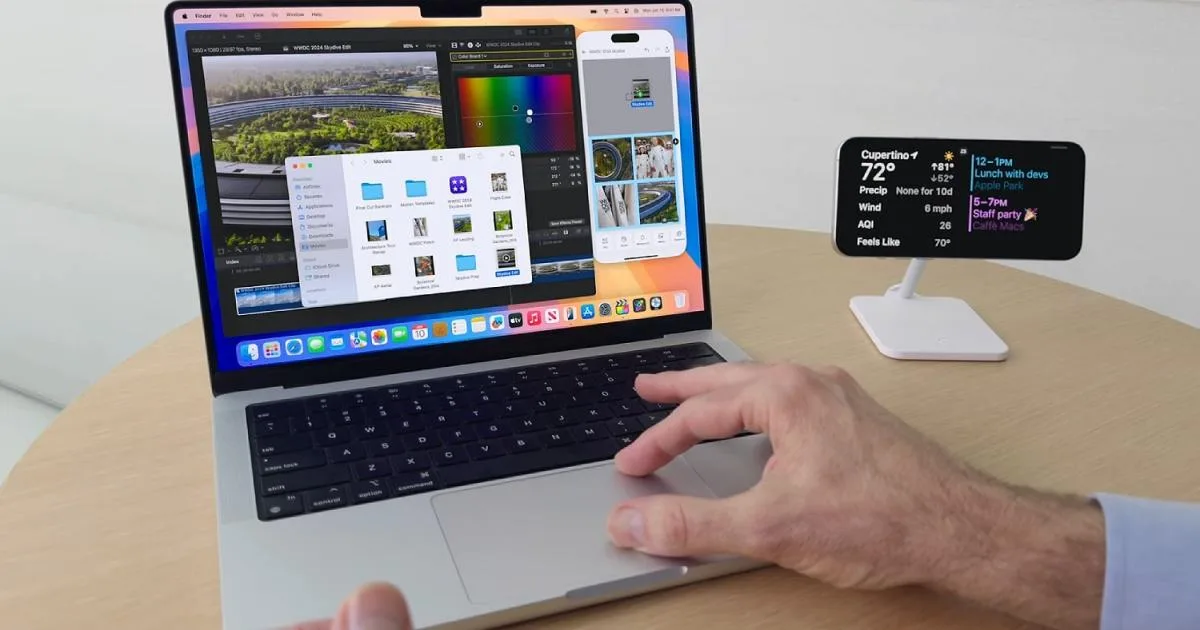
Earlier this year, Apple unveiled iPhone Mirroring, a feature available in macOS Sequoia. This innovative tool creates a mirrored view of your iPhone directly on your Mac’s desktop, allowing you to use your iPhone seamlessly without physically handling the device. With iPhone Mirroring, you can access iOS applications, send messages, adjust settings, and much more directly from your Mac.
Difficulty
Easy
Duration
10 minutes
What You Need
A Mac with either an Apple silicon chip or the T2 Security Chip
macOS Sequoia or later version
An iPhone running iOS 18 or higher
Your Mac and iPhone must be logged into the same Apple Account, with two-factor authentication enabled, and both devices need to have Bluetooth and Wi-Fi turned on
Your iPhone should be within range of your Mac, and neither device should be using a shared internet connection (like a personal hotspot) or utilizing AirPlay or Sidecar features
Keep in mind that while using iPhone Mirroring, access to your iPhone’s camera and microphone is disabled. Attempting to open any app that requires these features will result in a notification indicating their unavailability. Additionally, you can only use one Continuity feature at a time; for instance, iPhone Mirroring and Continuity Camera cannot be activated simultaneously.
If you’re curious about how to effectively utilize iPhone Mirroring or want to discover tips and tricks for this excellent feature, you’re in the perfect place. This detailed guide will cover everything essential for mastering iPhone Mirroring, allowing you to maximize its potential in just a few minutes.
Digital Trends
How to Set Up iPhone Mirroring
Setting up iPhone Mirroring is simple and primarily involves following a few prompts displayed on your Mac and iPhone.
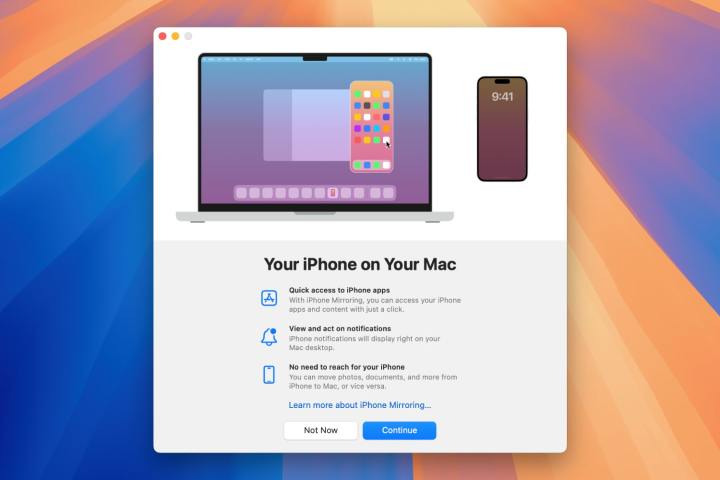
Step 1: Open the iPhone Mirroring icon located in your Mac’s Dock, or find it in the Launchpad or Applications folder within Finder. In the window that shows up, click Continue.
Step 2: Unlock your iPhone. Back on your Mac, you’ll be prompted to enable notifications from your iPhone on your Mac. You can choose to allow or deny these notifications, and you can adjust this preference later through the System Settings app under Notifications > Allow notifications from iPhone.
Step 3: After making your notification choice, click Get Started.
Step 4: Enter your Mac’s password or use the Touch ID to unlock iPhone Mirroring on your Mac.
Digital Trends
Step 5: Your Mac will ask you if you want to require your Mac’s passcode or Touch ID each time you log into iPhone Mirroring, or if you prefer automatic authentication when your Mac is already unlocked. This setting can be changed later via iPhone Mirroring in your Mac’s menu bar, selecting Settings.
Step 6: Your iPhone should now appear unlocked on your Mac’s desktop.
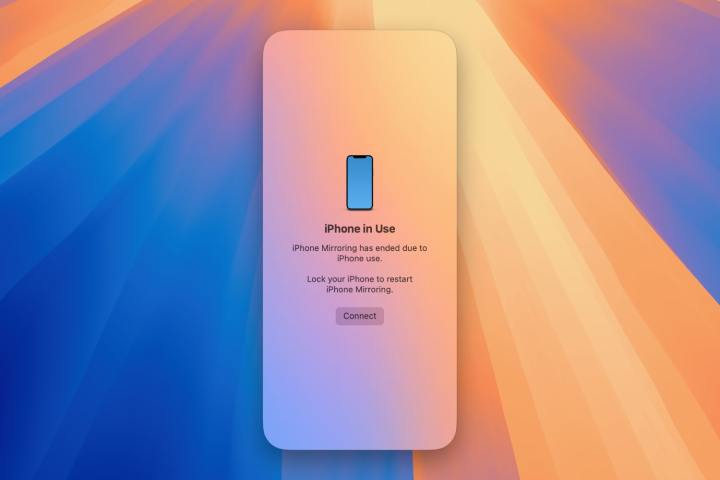
Step 7: If you pick up and unlock your physical iPhone, you’ll see a notification on your Mac indicating that the iPhone is in use, and iPhone Mirroring will pause until you lock your phone again.
Step 8: If you have multiple iPhones signed into your Apple Account, you can choose which one to mirror on your Mac. Open the System Settings app on your Mac, navigate to Desktop & Dock, and select your desired iPhone from the pop-up menu under Use iPhone widgets.
Using iPhone Apps on Your Mac via iPhone Mirroring
One of the key features of iPhone Mirroring is the ability to interact with iPhone applications on your Mac. Once you have iPhone Mirroring open and unlocked, you can use all your iPhone’s apps and settings just like you would on the actual device. Here’s how:
Step 1: With iPhone Mirroring unlocked, click on an app icon on your iPhone’s Home Screen. You can navigate through the app using gestures on your trackpad or by scrolling with your mouse’s scroll wheel.
Step 2: To interact with elements just as you would on iOS, simply click them in the iPhone Mirroring interface. For instance, tapping a button on a webpage in iOS requires a click in iPhone Mirroring. Similarly, if you long-press an item in iOS, you can hold the click in iPhone Mirroring or right-click if using a mouse.
Step 3: You can type in any text boxes or text-focused apps simply by using your Mac’s keyboard. This works across various apps, including Notes, Safari, and messaging apps like WhatsApp and X (formerly Twitter). Keyboard shortcuts are also supported, so you can copy and paste text using Command-C > Command-V.
Digital Trends
Step 4: To return to your iPhone’s Home Screen, click the black bar at the bottom of the screen. Avoid dragging it up, as this mimics the iOS swipe gesture but won’t work in iPhone Mirroring. Alternatively, you can hover your mouse at the top of the iPhone Mirroring window and click the grid icon in the upper right corner (hovering over it reveals Home Screen). You can also use the Command-1 keyboard shortcut for this.
Step 5: Next to the Home Screen button is the App Switcher icon. Click this icon to view the iOS App Switcher, or use Command-2. You can navigate between apps using the trackpad or by clicking and dragging through the app windows with your mouse.
Step 6: There are multiple ways to open Spotlight in iPhone Mirroring. Click the Search box located at the bottom of your Home Screen, press Command-3 on your keyboard, swipe downward with two fingers on the iOS Home Screen, or scroll down using your mouse’s scroll wheel (though this last method can be a bit touchy).
Step 7: While using iPhone Mirroring, any audio from your iPhone is routed through your Mac’s speakers, and you can control the sound using your Mac’s volume controls.
Step 8: If you’re watching a video in landscape mode and click the full-screen button, the iPhone Mirroring app will automatically switch to landscape orientation for your video. Exiting full-screen mode will revert back to the standard orientation. This applies to landscape-oriented games and other apps as well.
Digital Trends
Transferring Files Between Your iPhone and Mac with iPhone Mirroring
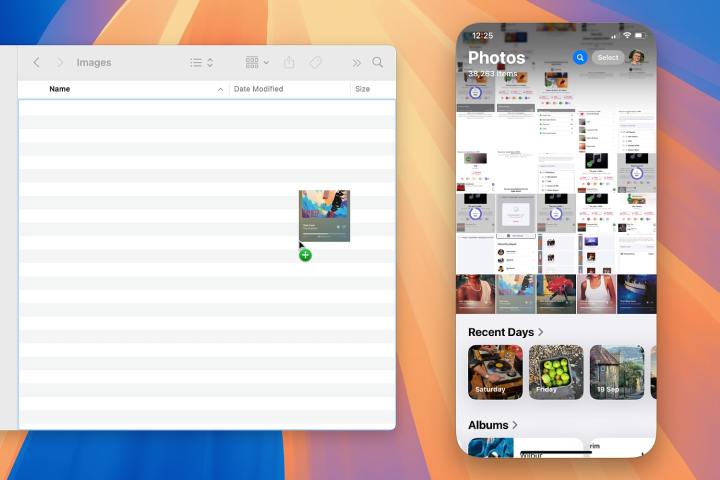
One of the standout features of iPhone Mirroring is its ability to facilitate seamless file transfers between your Mac and iPhone through simple drag-and-drop actions. This minimizes the need for complicated methods of sharing files between devices. You can drag items directly into applications (like a video editor’s timeline) or into storage applications like Files.
Step 1: To transfer a file from your Mac to your iPhone, first open the app in iPhone Mirroring that you wish to send the item to. Then, access a Finder window on your Mac where the file is located and drag the file from Finder to the open application in iPhone Mirroring. You will see a green plus (+) sign next to your cursor, indicating that the file can be added to the app.
Step 2: For transferring a file from your iPhone to your Mac, simply reverse the process. Open the file location in iPhone Mirroring, click and drag the item out of the iPhone Mirroring interface onto your Mac’s destination, be it the desktop, Finder window, or another application.
Digital Trends
Adjusting and Resizing the iPhone Mirroring Window
The iPhone Mirroring application is not fixed in size; you can easily adjust its dimensions and position on your Mac’s desktop.
Step 1: Move the iPhone Mirroring window around your Mac’s desktop. When connected, simply position your mouse pointer above the iPhone Mirroring window, and you’ll see a bar with standard controls for closing or minimizing the app (note that full-screen mode is not available). Click and drag anywhere in this bar to reposition the iPhone Mirroring window. Alternatively, when paused or disconnected, you can click anywhere inside the window to move it.
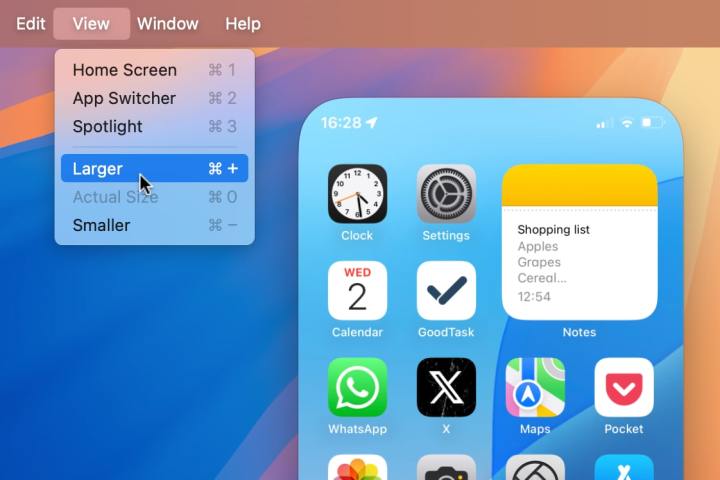
Step 2: Resizing the iPhone Mirroring window is also possible, though options are somewhat limited. Select View from the menu bar, then choose either Larger or Smaller (or use Command along with the plus key or minus key). You can revert to the standard size by selecting Actual Size from the View menu or pressing Command-0.
Apple
Managing Notifications in iPhone Mirroring
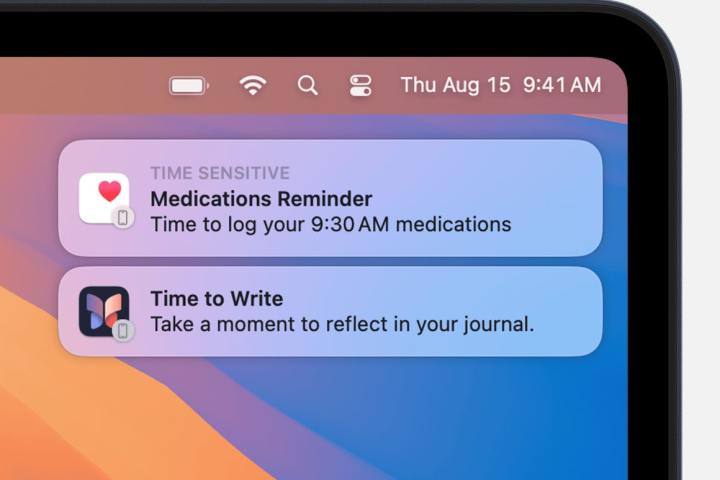
Receiving notifications from your iOS device on your Mac allows you to manage alerts without switching devices. Notifications from your iPhone will appear in the top-right corner of your Mac’s display like standard macOS notifications, complete with an iPhone badge on the app icons for easy identification.
Step 1: After connecting iPhone Mirroring, you will start seeing iOS notifications on your Mac. If your iPhone is nearby, clicking on a notification will open the corresponding app in iPhone Mirroring.
Step 2: Once set up, you’ll continue to receive iOS notifications on your Mac, even if iPhone Mirroring isn’t actively being used.
Step 3: You can disable iOS notifications in a couple of ways. On your Mac, go to the System Settings app and navigate to Notifications > Allow notifications from iPhone, then toggle off Allow notifications from iPhone. Alternatively, you can disable notifications for individual apps listed below. To manage this on your iPhone, go to the Settings app, select Notifications, pick the app, and then turn off Allow Notifications to stop all notifications (this does so for both devices) or disable notifications from showing on your Mac by toggling off Show on Mac.
Digital Trends
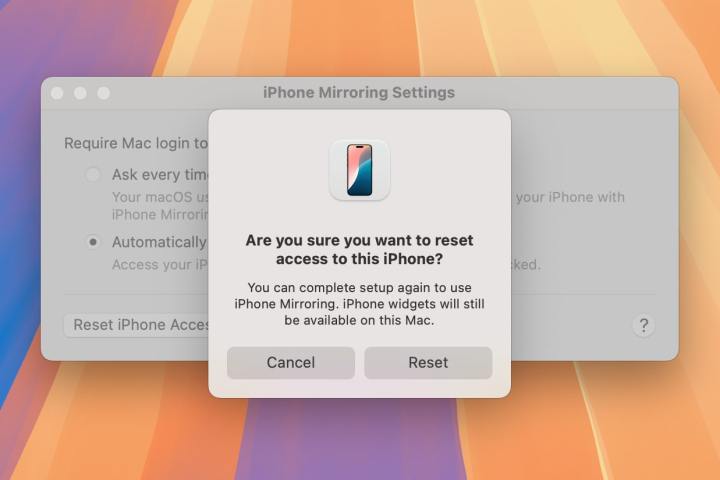
Disabling iPhone Mirroring
If you decide to turn off iPhone Mirroring, the process is quick and straightforward.
Step 1: On your iPhone, access the Settings app, then navigate to General > AirPlay & Continuity > iPhone Mirroring. Here, you can see which Macs are connected to your iPhone via iPhone Mirroring.
Step 2: To disconnect your iPhone from your Mac, either select Edit or swipe the Mac’s name from right to left, and then tap the red delete button followed by Delete.
Step 3: To reactivate iPhone Mirroring, simply launch the iPhone Mirroring app and follow the initial setup steps outlined above.
Apple’s iPhone Mirroring app is an incredibly useful tool for sharing files between devices and engaging with iOS applications without needing your iPhone close at hand. It’s easy to use and surprisingly versatile given its straightforward concept. Once you get the hang of it, you may find yourself incorporating it into your routine frequently.
If you’re diving into an MMORPG like Throne and Liberty, you’re bound to find yourself on a quest for upgrades. Unlike traditional class systems, this game lets you focus on enhancing your character and their equipment. While it can be enjoyable to develop your gear, it sometimes presents a dilemma: why move on to a new weapon when you’ve invested so much experience in an older one? Fortunately, you can transfer XP from one weapon to another. Here’s a comprehensive guide on how to do it.
Amazon Games
How to Transfer Weapon Stats
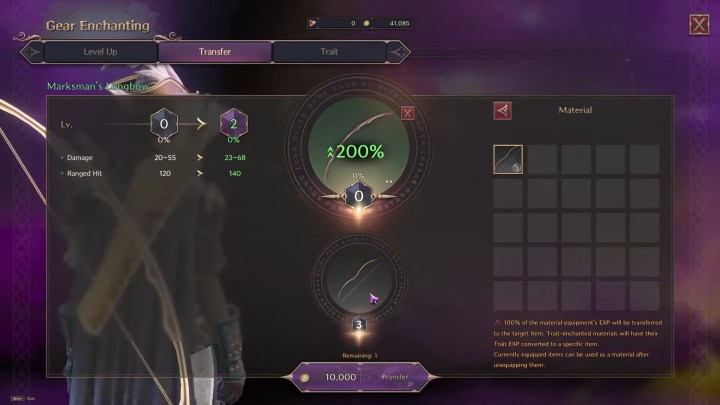
You’ll unlock the function to transfer stats soon after acquiring your first upgradable gear piece. This feature should become available early in your journey. To carry out a transfer, you’ll need two weapons of the same type and some Sollant.
Step 1: Obtain two items of the same type of gear or weapon.
Make sure the weapon you wish to channel XP into is of a higher level than the one you’re drawing experience from; you cannot transfer XP to a lower-tier weapon.
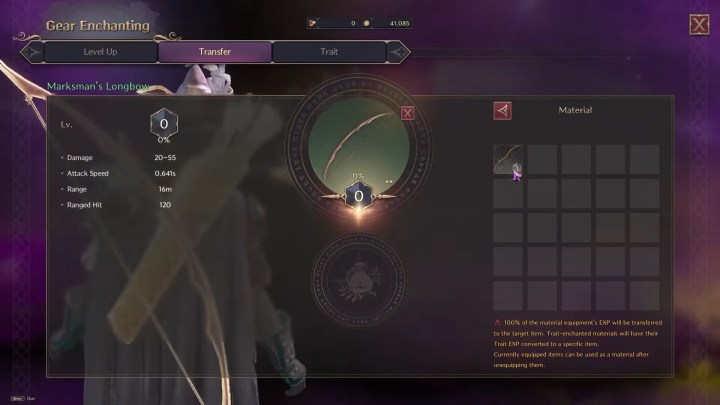
Step 2: Access the Gear Enchantment menu and navigate to the Transfer tab.
Amazon Games
Step 3: Position the gear you want to enhance in the top circle, and the weapon from which you want to extract XP in the bottom circle of the grid on the right side of the screen.
Step 4: After arranging the items, you will be able to preview the stats of the upgraded gear.
Step 5: Click on Transfer at the bottom of the screen. A warning will inform you that the weapon you’re drawing XP from will be permanently destroyed during the process.
Additionally, be aware that the newly upgraded item will be bound to your account, meaning you won’t be able to trade it.