الوسم: Google TV

  • How To Convert Your Smart TV into a Dumb TV Using Google TV Basic Mode

    How To Convert Your Smart TV into a Dumb TV Using Google TV Basic Mode

    It’s almost impossible to find a good TV these days that isn’t also a smart TV. Honestly, most top-tier models come with built-in smart features—whether they run on Google TV, Amazon Fire, Tizen, Roku, or WebOS, major brands typically ship their sets with a smart operating system pre-installed.

    However, there are still people who prefer the idea of a “dumb” TV—one without all the smart functionalities.

    So, what exactly is a dumb TV? It’s essentially a television stripped of any smart features: no automatic internet connection, no automatic login to apps, no software updates, and no ads. It’s just the TV’s home screen, plain and simple.

    You might wonder why this is appealing. Some folks prefer not to have their viewing habits or personal information tracked through their TV—though, in reality, much of that data is already being collected on your smartphone and other devices. That’s a whole other discussion, though.

    Today, let’s walk through the steps to set up a basic, non-smart TV.

    Applicable Models

    For this guide, we’re using the TCL QM6K, which comes with native Google TV. But the setup process is quite similar for other TVs that run on Google’s operating system, such as many Sony, Hisense, and other TCL models.

    How to Set Up a Basic TV Mode on Google TV

    Step 1: Power on your TV
    Turn on your device and begin the initial setup process. [Insert image illustrating this step.]

    Step 2: Choose your language
    Select your preferred language from the on-screen options.

    Step 3: Select your country
    Pick your country or region to proceed.

    Step 4: Choose your setup path
    You’ll be presented with two options:

    • Set Up Google TV (which enables streaming apps, recommendations, and Google Assistant)
    • Set Up Basic TV (which offers only live TV and external devices, without internet functions)

    For a dumb TV setup, choose Set Up Basic TV.

    Step 5: Skip Wi-Fi connection
    The device will prompt you to connect to Wi-Fi. Scroll to the bottom and select Skip to avoid connecting to the internet.

    Step 6: Pair your remote
    Follow the on-screen instructions to pair your remote. Keep in mind that voice search features won’t be available in Basic TV mode.

    Step 7: Explore the home screen
    You’ll see a simplified home screen showing just your TV, input sources, and a few pre-installed apps that won’t work without Wi-Fi.

    Factory Reset for Existing TVs
    If your TV is already a smart device but you want to convert it into a dumb TV, perform a factory reset:

    1. Open the Settings menu.
    2. Navigate to System.
    3. Select About.
    4. Choose Reset > Factory Reset.
    5. Confirm your choice when prompted to erase all data and start fresh.

    Switching Back to Smart Features
    If you decide later that you want your smart TV functionalities, you can reconnect to Wi-Fi, sign into your Google account, and enable all the smart features again.

    Additional Notes
    A device set up as a dumb TV simply relies on external devices like gaming consoles, Blu-ray players, or streaming sticks for content. For example, you can connect your PlayStation 5 or Apple TV 4K without sharing personal information with the TV itself.

    This approach is particularly useful in rental properties, public spaces, or places with multiple users, where you don’t want the TV tracking your habits. At home, though, most people prefer the convenience—and enhanced experience—that come with a smart TV operating system. Plus, for high-quality content, external devices like dedicated Blu-ray players can sometimes outperform streaming apps in picture quality.

    In the end, you paid for the TV’s hardware and processing power—so, let it do what it does best and enjoy the simplicity of a basic, no-frills television experience.


  • Google TV Might Help You Find Your Next Weekend Binge

    Google TV Might Help You Find Your Next Weekend Binge

    According to Adamya Sharma from Android Authority, Google TV is set for an overhaul that includes several exciting features. A recent dive into a beta version of Google TV revealed clues in the code pointing toward a new aesthetic, which will transition the interface color from grey to a vibrant blue, as well as the introduction of a section dedicated to discovering your next binge-worthy series.

    The most prominent change appears to be the revamped interface, with highlights converting from grey to blue on both the “Watch Now” and “Connect TV” buttons. Sharma also mentioned the possibility of additional enhancements, including a list showcasing recent searches.

    Perhaps the most intriguing anticipated feature is the “Hot and New” tab. Currently, there isn’t a corresponding tab in Google TV, but this new addition could spotlight the latest and most popular shows and movies. However, Sharma encountered difficulties in activating the feature, suggesting that Google is still in the development phase and that the final design may differ by the time it is publicly available.

    Google TV Streamer alongside Onn 4K Pro and Chromecast With Google TV.
    Phil Nickinson / Digital Trends

    This update is part of a broader trend of improvements to the Google TV platform. Earlier this year, Google revealed plans to integrate Gemini, aiming to enhance navigation, recommendations, and various other functions. These efforts position Google TV competitively alongside devices like Roku and the Amazon Fire Stick, establishing it as a top contender in the streaming market.

    While the inclusion of features found during beta testing is never a guarantee, the proposed “Hot and New” tab stands out as a valuable addition for users. Unless it presents significant technical challenges, it seems likely to be included in future updates.

  • How to Watch Apple TV+ on Chromecast or Google TV Devices

    How to Watch Apple TV+ on Chromecast or Google TV Devices

    Derek Malcolm / Digital Trends

    Are you eager to catch up on popular shows like Severance, Ted Lasso, and Silo on Apple TV+ but don’t own an Apple device? Fortunately, there’s a workaround that enables you to stream all your favorite Apple TV+ content using Chromecast, Google TV, or even smart TVs with casting capabilities.

    This guide provides a straightforward method to cast Apple TV+ from your Chrome browser on a computer to your Chromecast or Google TV without needing any Apple-specific hardware.

    If you happen to have a newer Chromecast featuring Google TV or a Google TV Streamer, you can download the Apple TV app directly on those devices. This allows for a complete Apple TV+ experience, complete with watchlists and tailored suggestions. Follow these steps to stream Apple TV+ on your Chromecast or Google TV.

    Difficulty

    Easy


    Duration

    5 minutes

    What You Need

    • A Chromecast device, like Chromecast Ultra

    • A Google TV device, such as the Google TV Streamer

    • The Apple TV app

    • Active Internet connection

    • Apple TV+ subscription

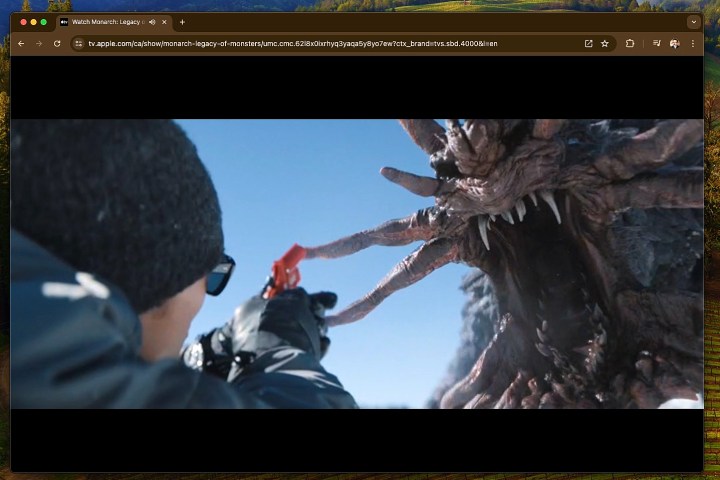
    Apple TV+ showing 'Monarch: Legacy of Monsters' in Chrome.
    Screengrab / Digital Trends

    How to Stream Apple TV+ Using Chromecast

    Before diving in, here’s how to cast Apple TV+ content to a Chromecast device. This method applies to both Chromecast dongles and devices like the Chromecast Ultra.

    Step 1: The Apple TV app itself cannot be directly cast to Chromecast from smartphones or desktop apps. However, you can cast Apple TV+ via the Chrome web browser on a computer. Note that this does not work on mobile Chrome browsers.

    To begin, ensure your Chromecast dongle is connected to the HDMI port on your TV, computer monitor, or projector.

    Step 2: Confirm that your Chromecast is properly set up and connected to the same Wi-Fi network as your computer.

    Step 3: Open the Chrome browser and go to the Apple TV+ website. Log in using your Apple ID.

    Step 4: Once logged in, browse for a show or movie you’d like to watch and hit play. You may want to pause it while preparing to cast, so you don’t miss anything.

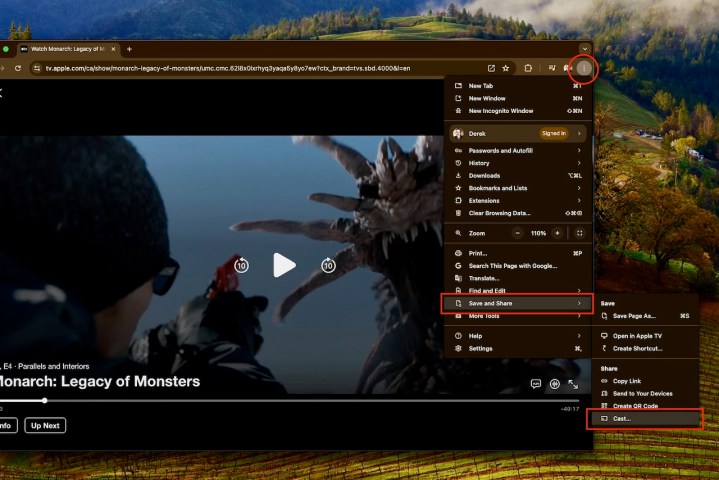
    Step 5: To cast the selected content, right-click in the browser window and choose Cast… from the menu. Alternatively, access the three-dot menu in the upper right corner, click Save and share, then select Cast….

    Chrome casting options for Apple TV+ content.
    Derek Malcolm / Digital Trends

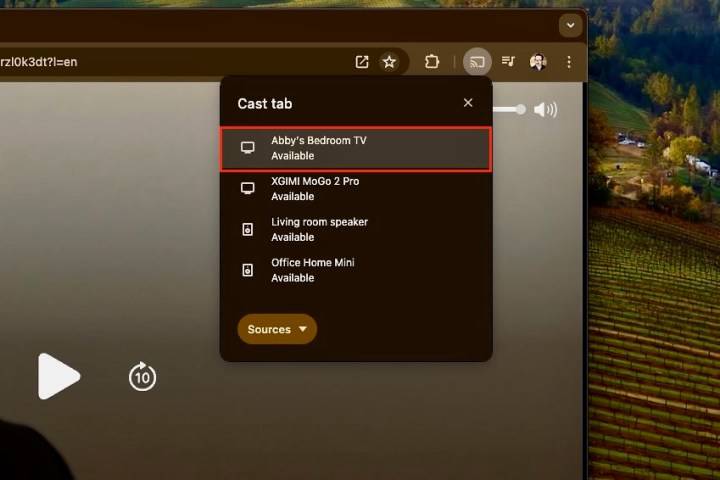
    Step 6: A list of available Chromecast devices will appear. Choose the device you wish to cast to—like “Abby’s Bedroom TV” featuring a Chromecast Ultra.

    Selecting the Chromecast for Apple TV+ streaming.
    Derek Malcolm / Digital Trends

    Step 7: Your selected Apple TV+ content will start playing on the screen connected to your Chromecast, and playback can be managed directly through the Chrome browser.

    Step 8: Remember, this casting method also works with other devices featuring Google’s Cast technology, including TVs, projectors, and connected speakers, provided they are on the same Wi-Fi network. You’ll be able to see and select these options in the Cast menu.

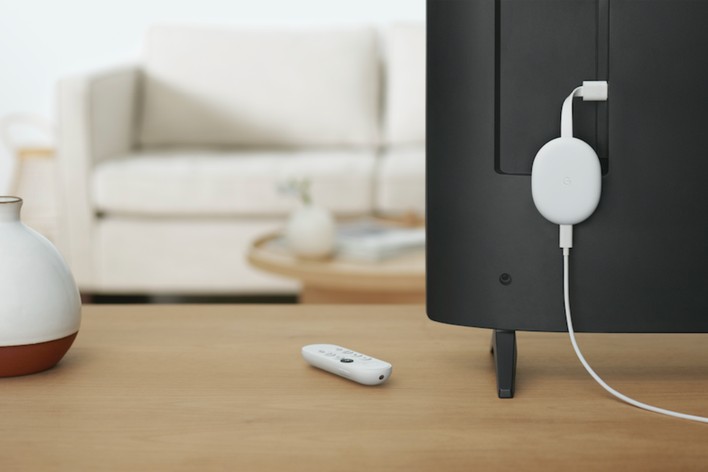
    Chromecast connected to the back of a TV.
    Google

    Watching Apple TV+ via Google TV or Google TV Streamer

    The Chromecast has evolved significantly since its early versions, which relied on a source device for control. The Chromecast with Google TV and Google TV Streamer offer a fully integrated streaming platform, allowing you to install various streaming service apps, including Apple TV+, right on the device.

    With the Google TV operating system available on numerous TVs and built into the Chromecast with Google TV, installation is a breeze.

    To access Apple TV+ on a Chromecast with Google TV or Google TV Streamer, simply install the app.

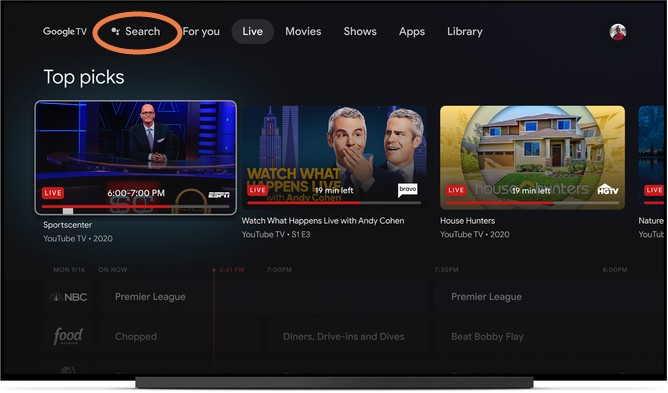
    Google TV search function.
    Google

    Installing the Apple TV App on Google TV

    Step 1: If you haven’t yet signed up for Apple TV+, visit the Apple TV+ website and create an account using your Apple ID, or you can easily do so on an Apple device. The subscription costs $10 a month and typically includes a seven-day free trial. Sometimes, Apple offers extended complimentary access when you purchase a new Apple device, like an iPhone.

    Step 2: Next, locate the Apple TV app. In your Chromecast with Google TV or Streamer’s menu, navigate to the Apps section and select Search for apps (or simply search for “Apple TV”). You should find the app in the Google Play Store.

    Step 3: Install the app and open it once the installation completes. You’ll need to sign in with your Apple ID. Alternatively, the app can also be installed via a smartphone or tablet using the Google Play Store, with the option to select your Chromecast with Google TV during the installation process.

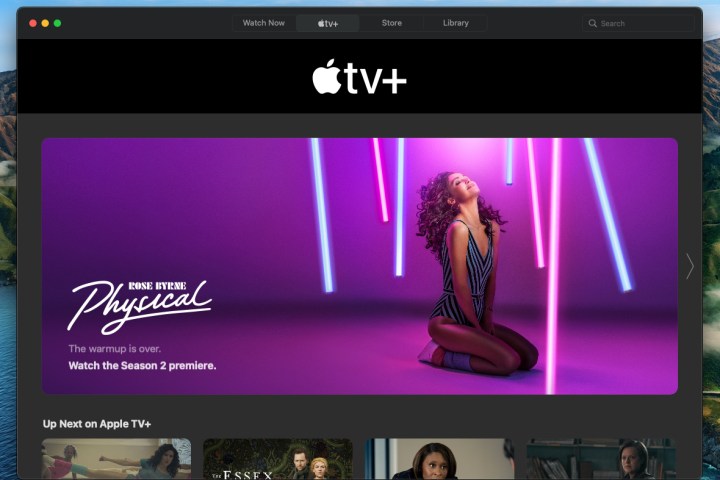
    Apple TV+ home screen showcasing the show 'Physical'.
    Apple

    Begin Discovering Shows to Watch

    Step 1: The app should now function as it does on an Apple device. Browse through the shows and add them to your Google TV Watchlist for easy access later.

    Step 2: Be aware that Apple may suggest shows across various services, so you might see options from Hulu, Prime Video, and others, similar to Google TV’s functionality.

    Furthermore, if you’re using an Apple Family Sharing plan, you can invite up to six people to log in with their Apple IDs, allowing everyone to enjoy their own viewing experiences under a single subscription.

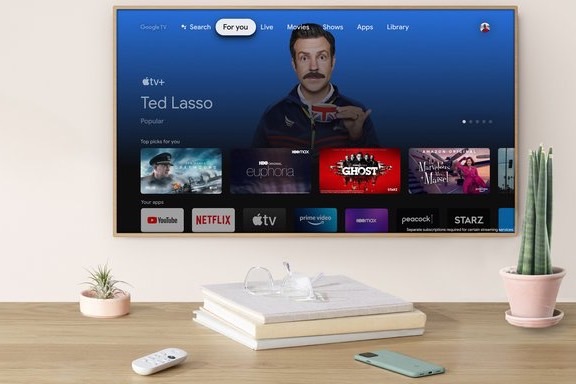
    Apple TV app displayed on Chromecast with Google TV.
    Google

    Utilizing Google Features for Your Apple TV+ Experience

    Lastly, when streaming Apple TV+ on a Chromecast, you can leverage Google Assistant for searching and controlling playback alongside your Watchlist. This ensures you retain all your features while enjoying Apple’s fantastic content!

    Don’t forget: a subscription to Apple TV+ is necessary to access this service, as it remains one of the top streaming options available.