A young child plays with a ball near a sign that reads “Lake Ontario, Now and Always,” near Grimsby, Ontario, Canada, on August 29, 2026. — Reuters
Google Maps has updated the name of “Lake Ontario” to “Lake America” for users in the United States, following an executive order from President Donald Trump, according to an official Google statement.
On Thursday, Trump declared that he was renaming the smallest of the five Great Lakes as part of an ongoing trade dispute with Canada, which has led to both nations implementing reciprocal tariffs on billions of dollars worth of goods.
This presidential order affects the U.S. Geographic Names Information System (GNIS), which governs the standards for official American maps. It does not influence Canadian name conventions or how the rest of the world refers to the lake.
“Because Google Maps reflects official government sources—namely GNIS in the U.S.—users in the U.S. will see ‘Lake America,’ while Canadians will still see ‘Lake Ontario.’ Outside North America, both names will appear,” Google explained in a Saturday blog post.
The White House, the office of Commerce Secretary Carney, and the office of Governor Ford did not immediately respond on Sunday to Google’s decision.
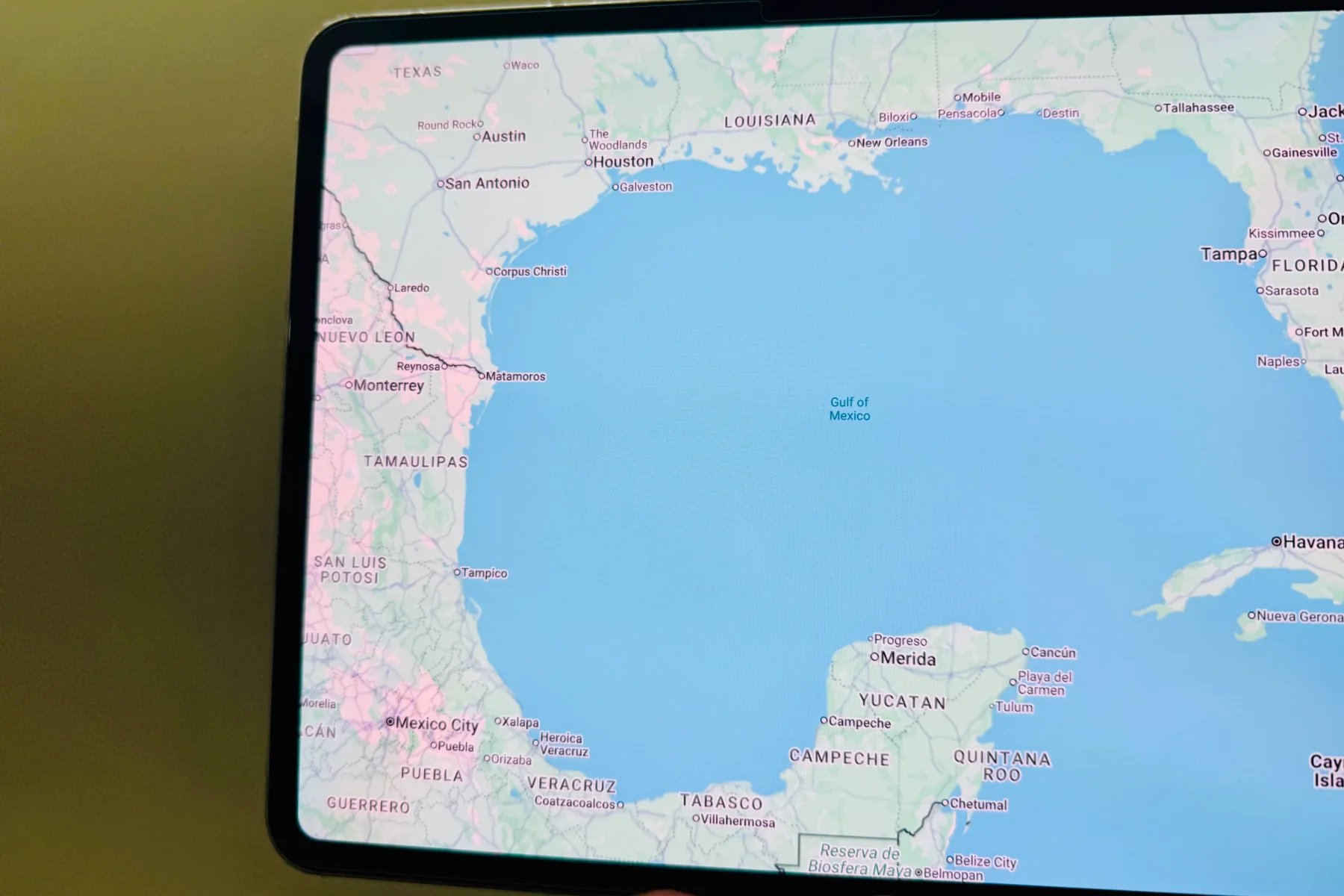
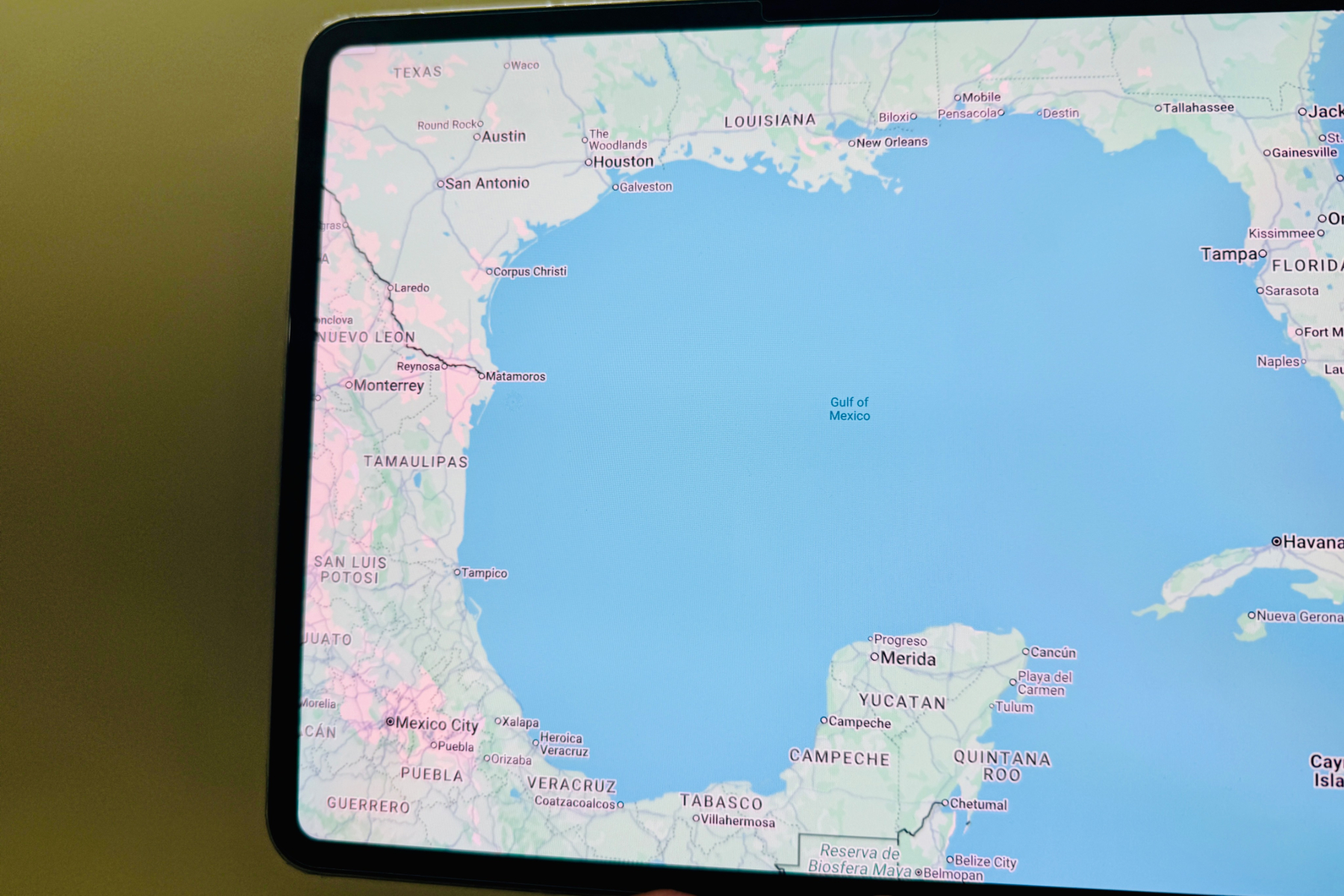
In a similar move last year, Google Maps changed the Gulf of Mexico’s name to “Gulf of America” after Trump issued an executive order on his first day in office.
Canadian Prime Minister Mark Carney strongly rejected the name change on Thursday. Meanwhile, Democratic New York Governor Kathy Hochul stated that “New York won’t be calling it that,” and Vermont’s Republican Governor Phil Scott called Trump’s action “petty and disappointing” on social media.
Ontario Premier Doug Ford unveiled a large lakeside sign Saturday, reading “Lake Ontario: Now and Always,” in both English and French.
“President Trump can call it whatever he wants, but the rest of the world will always refer to it as Lake Ontario,” Ford asserted.
Pins offer a straightforward way to mark exact locations in Google Maps, especially when addresses are inaccurate, missing, or too vague to be helpful. You can drop a pin to save a spot, get directions, share a location for meetups, or mark a place you want to find later.
Google Maps allows you to drop pins on various devices—iPhone, Android, and desktop—though the steps differ slightly depending on the device. The core process involves locating the desired spot, clicking or pressing on the map, and then using the location card to save, share, or navigate to it.
To mark multiple locations simultaneously, Google Maps’ standard view only permits working with one temporary pin at a time. For managing several pins, it’s best to use Google’s custom map feature, available through Google My Maps on desktop.
Here’s a step-by-step guide to creating and managing multiple pins:
Navigate to Google Maps on your computer.
Click the menu icon in the upper-left corner.
Select “Saved” and then click the “Maps” tab.
Click “Create Map,” which opens Google My Maps in a new window.
Name your map by clicking “Untitled map” and add a short description if needed.
Use the marker tool (under the search bar) to add pins by either searching for locations or clicking directly on the map.
You can connect locations into a route using the directions icon.
To share your custom map, click “Share” and set the desired access permissions.
If you want to save a specific dropped pin for later reference, on mobile, tap the location card and then select “Save,” choosing a list like Favorites or Want to go. On desktop, click the pin’s info box and choose “Save,” ensuring you’re signed into your Google account for synchronization across devices.
To remove a dropped pin, simply clear it from your current view—tap the “X” in the search bar or click elsewhere on the map on mobile. On desktop, click the “X” in the location info panel or click elsewhere on the map. If the pin is saved to a list, you’ll need to remove it from that list separately.
FAQs:
Can I drop a pin at my current location?
Yes. Tap the blue dot that shows your current position on mobile; from there, you can share or save your location depending on what’s available.
Can I drop a pin without signing into Google?
Yes. You can drop a temporary pin without signing in. To save pins or create lists, you’ll need to sign in.
Can I send a dropped pin to someone?
Absolutely. Drop the pin, open its location card, and select “Share.” Google Maps will generate a link you can send via messaging, email, or other sharing options.
Can I drop multiple pins at once?
Not in the standard Google Maps view. For multiple pins on the same map, use Google My Maps on desktop to create a customized map.
update today that offers instructions on how to enable it. Initially, it's available mainly for iOS, but an Android version is expected soon.
Why is it important?
This new Google Maps feature that scans screenshots and saves locations is brilliant! It's something I've needed for a long time because I have so many random screenshots.
Ensure you have the latest version of the Google Maps app installed on your iPhone.
Open the Google Maps app and select the “You” option located in the bottom row.
On the following page, you'll see a new list titled Screenshots, marked with a “Try it out!” badge.
By tapping on it, the app will present a brief tutorial video explaining its functionality. At this stage, you'll need to grant the app permission to access locally stored media files on your iPhone.
The next time you capture a screenshot containing address-related information, it will be scanned in the background. Upon reopening the Google Maps app, you'll receive a notification indicating there are new location details for your review.
Select the addresses you'd like to retain, and they will be automatically added to the dedicated list. Users can also conduct a manual screenshot scan from within the “You” tab of the app.
The saved addresses will be displayed in both the “Screenshots” list and on the map view.
Have you ever found yourself saving stunning travel inspirations from blogs and TikTok videos, only to completely forget about them when it’s time to plan your next getaway? If your answer is “yes,” you’re not alone. With the overwhelming amount of information available, it’s easy for those exciting places to slip your mind. Fortunately, Google Maps’ new Gemini AI features can help keep your travel aspirations front and center, ensuring that your intriguing finds don’t get lost among countless screenshots on your device.
With the recent integration of Gemini’s advanced capabilities, Google Maps is enhancing how you explore and plan your trips. The app now includes a “screenshot list” feature that extracts text from your saved screenshots, making it easier than ever to gather information about potential destinations. As detailed in a blog post from Google, you can also compile a list of places you want to visit, which can be shared with fellow travelers.
Google
Currently, this screenshot list feature can only recognize text from your images. While having image recognition would be a fantastic addition for identifying obscure destinations, that functionality has not yet been implemented. One potential reason for this limitation could be to ensure that all processing can be done directly on your device, rather than sending your images to Google’s cloud services.
Additionally, users will need to manually enable the screenshot list option, which is a great way to protect privacy while still enjoying the benefits of this feature.
As of now, this feature is being rolled out exclusively for iOS users, with plans to extend it to Android users in the near future.
Reducing the Stress of Travel Planning
Beyond simply helping you compile a list of places to explore, Google Search’s AI capabilities will assist you in crafting travel itineraries tailored to specific locations and the length of your stay. This makes organizing your trip even more straightforward.
Furthermore, Google is enhancing its flight price drop alerts to include hotels. When searching for hotel rates, users can now set alerts for price drops on specified dates and locations. If there’s a decrease in room prices, you’ll receive an email notification to keep you informed.
Imagine you’re exploring a coffee shop’s Google Maps listing. To access the information card, just click on the location pin and invoke Gemini.
With Gemini, you can inquire about the quickest route, receiving a concise, natural language response. Conveniently, all significant landmarks and navigation points mentioned in the answer are hyperlinked for easy access.
You can also engage with Gemini to find out about operating hours, read reviews, check menu items, and gather other relevant details. Whether you want suggestions for the best nearby restaurants, the top-rated spots, or information about open libraries in a specific area, Gemini has you covered.
The main goal is to streamline your search experience so that you don’t have to alternate between Google Search and Maps. Instead, you can ask all your questions in one spot, using typed or spoken natural language.
Requires Some Refinement
Currently, the integration of Gemini with Maps encounters a few functional issues. For instance, even though it has access to public reviews, it sometimes fails to provide a summarized view of community feedback.
In another instance, it misinterpreted a straightforward query regarding the top dishes at a restaurant and instead offered a summary of menu options from nearby eateries. This capability was first noted by Android Authority, but the timeline of its rollout remains unclear. While I tested it with a Gemini Advanced subscription account, I couldn’t determine if this feature is being made available to non-subscribers as well.
Shortly after taking office, President Donald Trump enacted several executive orders, one of which aimed to rename a few significant landmarks.
Named “Restoring Names That Honor American Greatness,” this executive order proposed changing the designation of the Gulf of Mexico to the Gulf of America. Google has announced it will adopt this change and will soon reflect the new name in Google Maps.
The tech giant has articulated its policy regarding the renaming of places, emphasizing that it aligns location names with their descriptions in official government databases, specifically citing the Geographic Names Information System (GNIS) directory.
When that happens, we will update Google Maps in the U.S. quickly to show Mount McKinley and Gulf of America.
According to an official post on X, “When that happens, we will update Google Maps in the U.S. quickly to show Mount McKinley and Gulf of America.” However, this name change has not yet been implemented for users in the U.S. as of this writing.
It’s worth noting that the updated name will only be visible to users within U.S. borders or areas under U.S. jurisdiction. Meanwhile, international users will continue to see the designation Gulf of Mexico on their maps.
In 2009, Google published an explanation regarding name discrepancies, particularly in situations involving territorial disputes and conflicting names. The company stated that it considers “guidance from authoritative references, local laws, and local market expectations.”
Nadeem Sarwar / Digital Trends
As part of his executive directive, Trump instructed the Secretary of the Interior to revise the GNIS, replacing Mount Denali with Mount McKinley to honor President McKinley’s heritage.
In the same vein, references to the Gulf of Mexico are to be eliminated and substituted with Gulf of America. The executive order states, “The naming of our national treasures, including breathtaking natural wonders and historic works of art, should honor the contributions of visionary and patriotic Americans in our Nation’s rich past.”
This type of name adjustment is not new. For example, Japanese users on Google Maps see “Sea of Japan,” while South Koreans view it as “East Sea.”
Efforts to standardize geographical names often ignite intense debates, including discussions at the United Nations level.
In 2015, Google removed the name “Zhongsha Islands” from a disputed marine area, opting for Scarborough Shoal instead, a location that has sparked tensions between China and the Philippines. Filipino citizens urged Google to replace the Chinese name, interpreting it as an illegal territorial claim.
A Google representative acknowledged, “We understand that geographic names can raise deep emotions, which is why we worked quickly once this was brought to our attention,” as reported by the BBC.
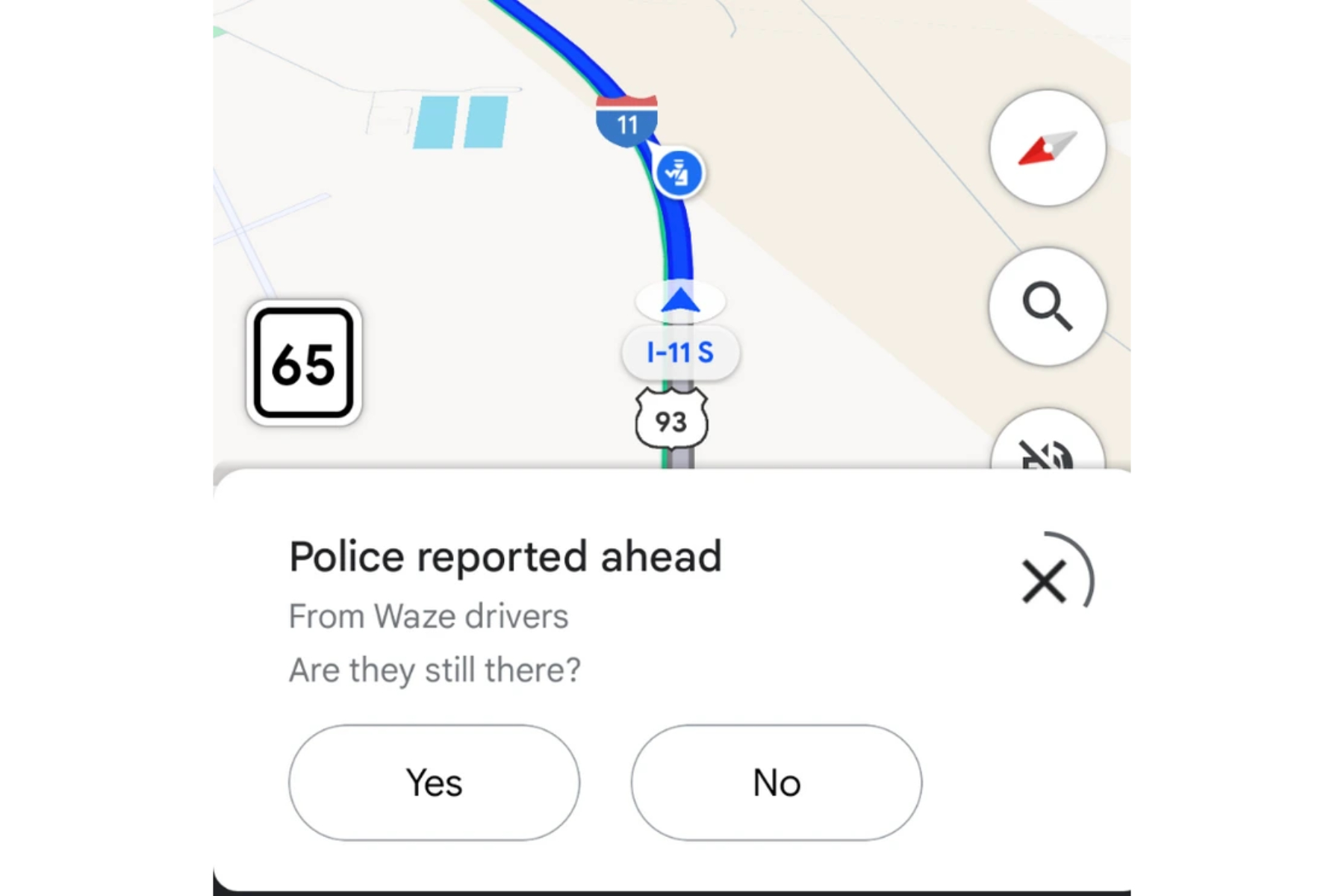
In July of this year, Google unveiled several enhancements to the incident reporting feature in Maps, including larger icons and a user-friendly confirmation interface for drivers on similar routes. The company also shared that incident reports would be collected from both Google Maps and Waze, providing context regarding the report’s source.
Users of Google Maps have already started to see these changes. An image shared on the Google Maps subreddit showed a pop-up alert about an incident, which indicated it was reported by a Waze user.
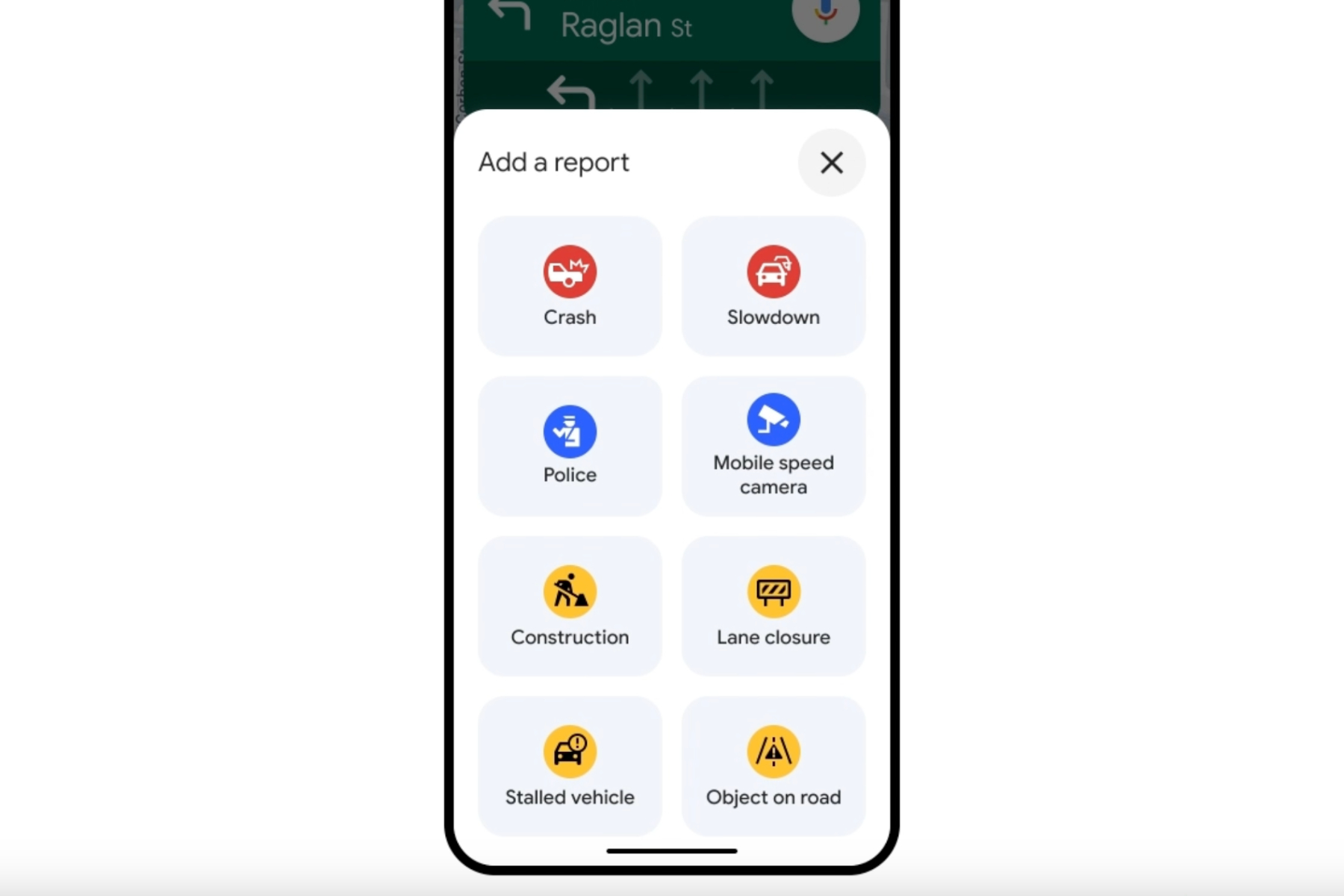
Google Maps enables users to report various incidents such as accidents, traffic delays, speed traps, and police activities. This feature is accessible on both iOS and Android devices, along with their respective in-car platforms. Users can also update others about road debris, broken-down vehicles, construction zones, and lane closures.
Truckin_18 / Reddit
The aim is to assist fellow travelers on the same route by alerting them about potential obstacles in advance. Reporting an incident is straightforward: tap the “+” icon on the navigation screen and select the type of incident you’d like to report.
The collaboration between the Waze and Google Maps communities for reporting issues extends to Apple CarPlay, Android Auto, vehicles with Google built-in, as well as iOS and Android devices. Besides this, Waze has expanded its support for users to report various types of traffic cameras used for analysis.
Nadeem Sarwar / Digital Trends
Moreover, a new traffic events feature has been introduced that offers real-time notifications and detailed insights into active traffic incidents. Users will receive specific information, including the cause of the event, road closures, and the current traffic situation.
The app has also revamped the lock screen navigation interface. According to Google, “Waze drivers can now receive navigation guidance—including turn-by-turn directions and real-time traffic updates—while their phone is securely locked.”
In October, another feature update was rolled out, allowing users to report incidents using natural language instead of just selecting from preset options. Waze refers to this as Conversational Reporting. Users can simply press the reporting button, verbalize their details, and Google’s Gemini model will take care of the rest.
“Waze will comprehend your input and promptly create a real-time report on the map for you,” Google stated in a blog entry. The app may also ask follow-up questions if clarification is needed, automatically categorizing the report accordingly.
“The influence of reviews is significant; they shape customer opinions and can sway future purchasing decisions with just a few words.”
Reviews are essential for any business, profoundly affecting customer choices. A single review can determine whether someone decides to make a purchase from you. In fact, 90% of consumers are influenced by reviews, with 63% checking Google reviews before visiting a business.
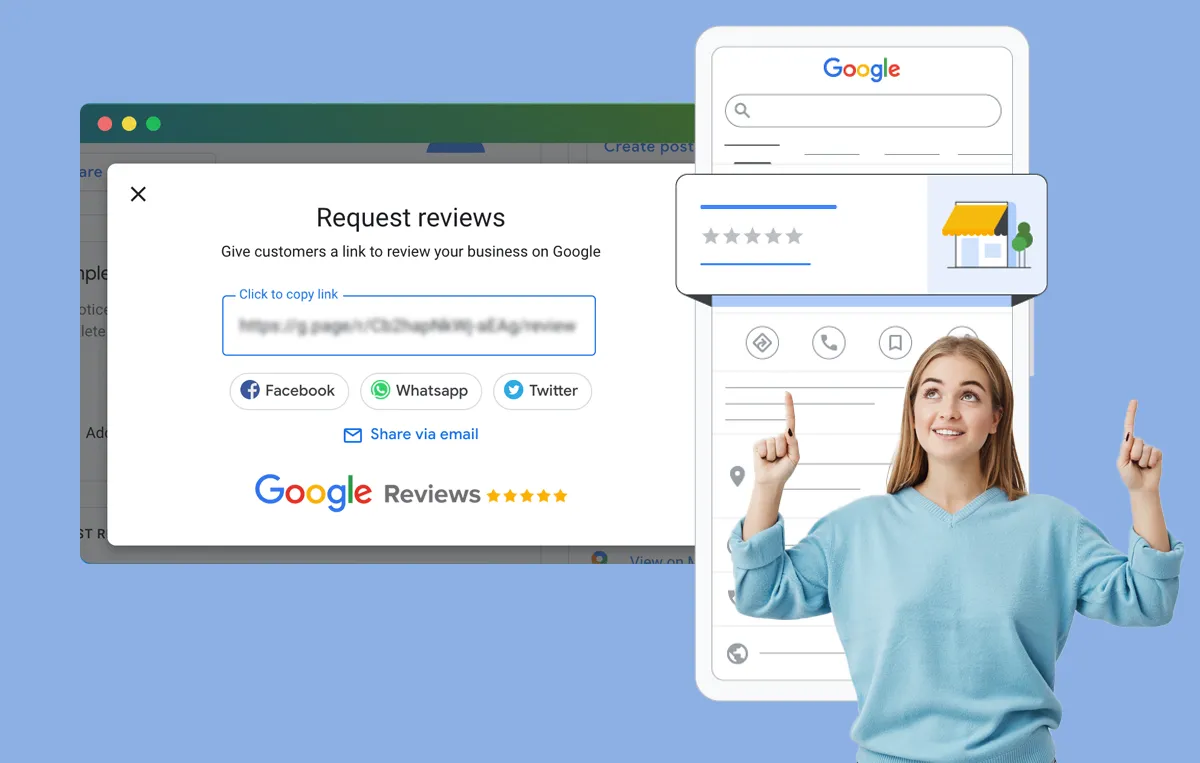
So, how can you tap into this influence? It all starts with simplifying the review process for your customers, and that’s where the Google Review link comes into play.
But what exactly is a Google review link? Let’s break it down.
Google review links are convenient URLs that direct customers to your Google Business Profile, making it effortless for them to provide feedback. Generating and sharing your Google Review link can help you increase the volume of reviews, enhance your search rankings, and ultimately grow your business.
Now, you might be curious about how to obtain a Google review link. Let’s explore four straightforward options to generate your Google business review link and how to share it effectively.
How to Get Your Google Review Link (4 Simple Methods)
Option 1: Google Search
Option 2: Google Business Profile Manager
Option 3: Google Maps
Option 4: Using a Place ID Finder
Option 1: Google Search
This method is one of the easiest. You can get your Google review link with a simple Google search. Let’s break down the steps.
Step 1: Find your business on Google Search and click the link that displays the number of reviews you have.
Step 2: Click on the option that says “Get more reviews.”
Step 3: Voilà! Copy and share the link with your customers via email, SMS, or social media.
The image below highlights where to find the link displaying the number of reviews you have. Click on it to get your Google reviews link.
Option 2: Google Business Profile Manager
You can also generate a custom URL link that leads directly to your review page via the Google Business Profile. Follow these steps:
Step 1: Log into your Google Business Profile.
Step 2: Once logged in, select the business for which you want to obtain a link to the Google reviews.
Step 3: Scroll down and locate the “Share your Business Profile” option.
Step 4: There’s your Google reviews link! Just copy it and share it through your preferred channels.
Option 3: Google Maps
You can also create direct links to your business’s Google review page using Google Maps. Follow these steps:
Step 1: Begin by logging into your Google Business account.
Step 2: Open the Google Maps application, either on your desktop or mobile device.
Step 3: Search for your business by its name and address.
Step 4: Access the business information panel on the left side of the screen.
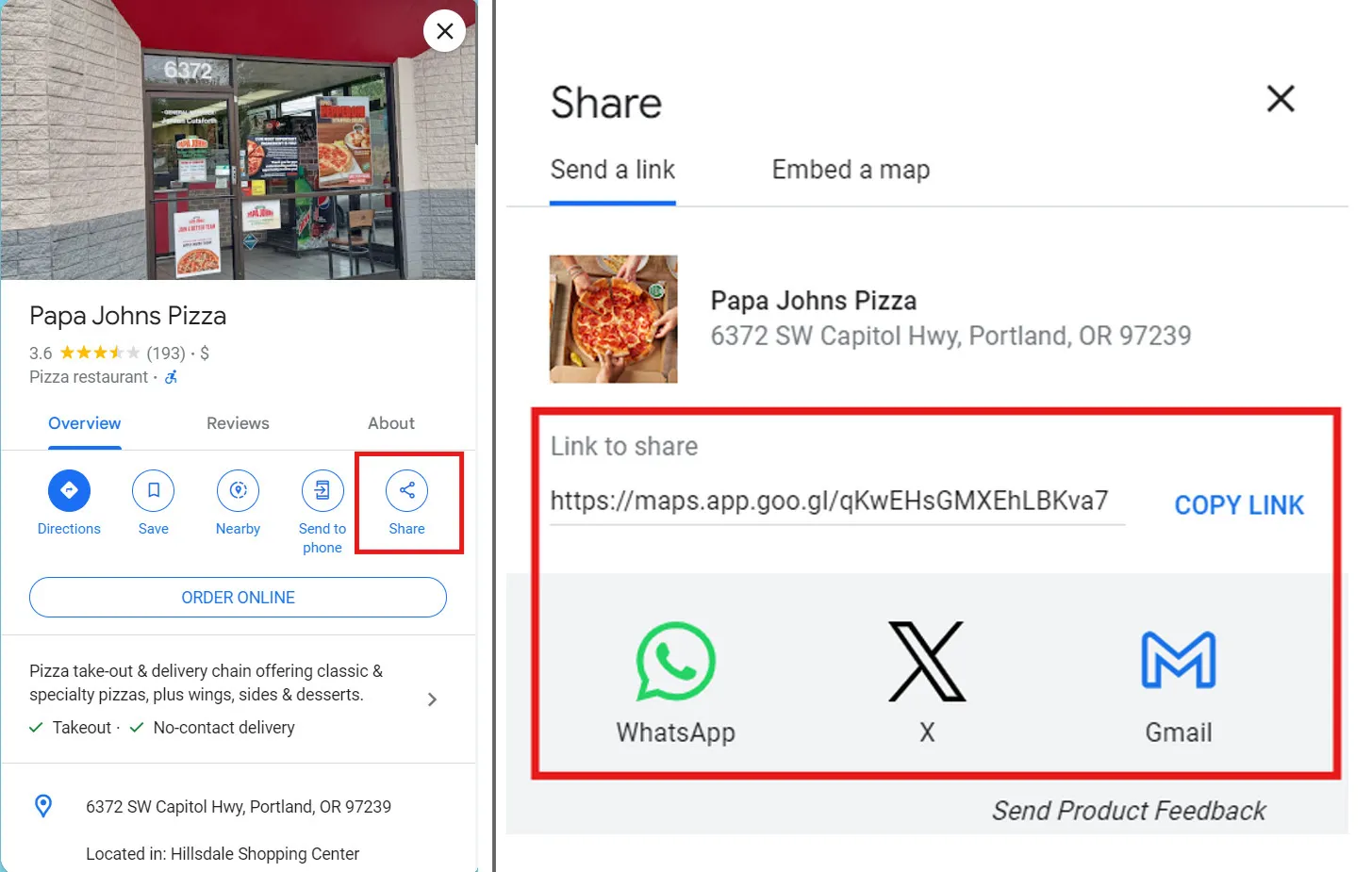
Step 5: Look for the “Share” button and click it.
Step 6: Choose “Copy Link” or select a platform like Facebook, Gmail, or Twitter to share your review page.
The image below shows the share button. When clicked, a pop-up appears that allows you to find your Google review link.
Option 4: Using a Place ID Finder
You can also utilize a Place ID Finder tool to create Google review links for your business. A Place ID is a unique identifier that Google assigns to each location. This tool simplifies the process of locating your Place ID.
Step 1: Open the Place ID Finder from Google Maps for developers.
Step 2: Search for your business by its name and location.
Step 3: Select your business from the search results.
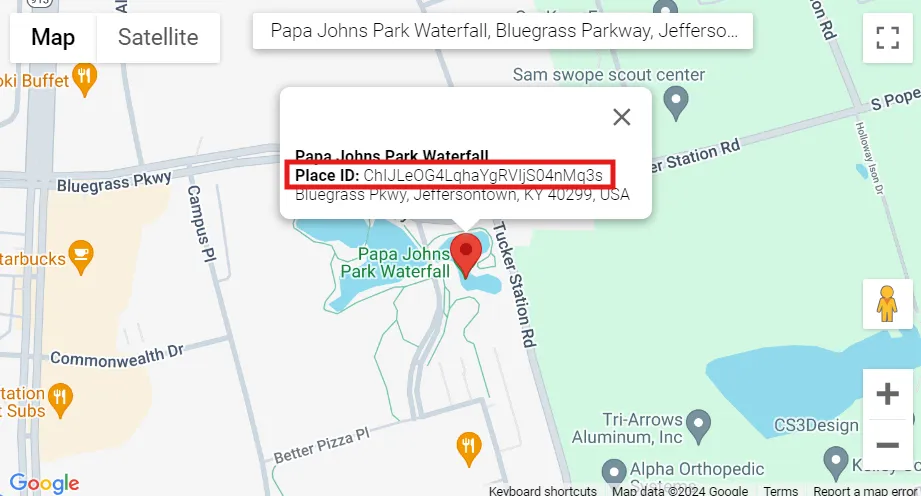
Step 4: When your business appears, copy the unique Place ID, which includes a series of numbers and letters.
Step 5: Add this Place ID to the end of the following URL:
Step 6: There you go! Your Google review link is ready to be shared with your audience:
https://search.google.com/local/writereview?placeid=[Insert your Place ID]
The image below shows how your Place ID will appear in the Google Place ID tool.
How to Share Your Google Review Link?
Once you have your Google Business review link, the next step is to share it with your customers so they can easily access your review page and leave positive feedback.
Here are five effective ways to share your review link:
1. Send Email Review Requests to Your Customers
Approximately 70% of online reviews result from email review requests. Therefore, crafting visually appealing and engaging emails that include your Google review link can encourage customers to provide meaningful feedback, attracting more customers.
Here are two email review request templates you can use:
Email Review Request Template 1:
Subject Line: We Value Your Feedback! 🌟 Share Your Experience
Hi [Customer Name],
I’m [Your Name], the [Your Position] at [Your Business Name]. Thank you for choosing us! We hope you had a great experience.
Could you take a moment to share your thoughts? Your feedback helps us improve and attract more wonderful customers like you. Please click the link below to leave a review:
[Google Review Link]
If you have any additional feedback, feel free to reach out to us at [Your Contact Information].
Thank you for your time!
Best regards,
[Your Name]
Email Review Request Template 2:
Subject Line: Help Us Improve! Leave a Quick Review
Dear [Customer Name],
I hope this message finds you well. I’m [Your Name] from [Your Business Name], and I wanted to thank you for your recent visit.
We’d love to hear about your experience! Would you mind leaving a short review? It only takes a few minutes and greatly helps us enhance our services.
You can leave your feedback here: [Google Review Link]
If you’d prefer, feel free to contact us directly at [Your Contact Information] for any other comments or questions.
Thanks so much!
Sincerely,
[Your Name]
2. Send Text Review Requests to Customers
You can use your mobile devices to create a direct line of communication with your customers. Your text message should be concise and attention-grabbing.
Since most text messages are opened within minutes, using a shortened link along with a clear and brief message increases the likelihood that customers will leave valuable reviews.
Here are two sample text messages you can send to request reviews from your customers:
Message Template 1:
Hi [Customer Name], thank you for choosing [Your Business Name]! We’d love to hear your thoughts. Please take a moment to leave us a review: [Shortened Google Review Link]. Your feedback means a lot to us!
Message Template 2:
Hey [Customer Name], we hope you enjoyed your experience at [Your Business Name]. Could you share your feedback? It only takes a minute! [Shortened Google Review Link]. Thank you for your support!
3. Share Your Review Link on Social Media
Social media platforms like Facebook, Twitter (now X), and Instagram are excellent for promoting your Google review link. You can share review links through engaging posts, videos, and stories that highlight happy customer experiences, along with a clear link to your Google review page.
The more interactive and engaging you make it for readers, the more likely they will leave valuable reviews!
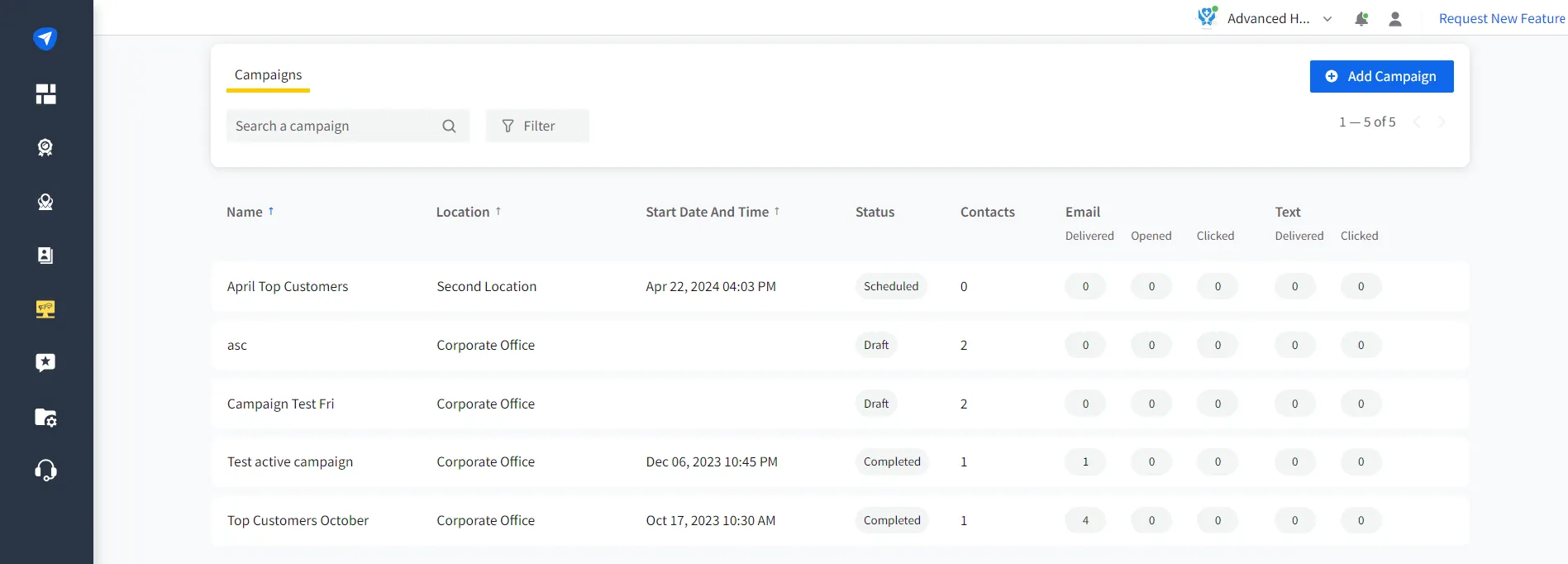
To effectively manage your review generation campaigns, consider using a review management tool to track your progress from one dashboard.
Managing review request emails and SMS campaigns can be challenging, especially with multiple locations to oversee. What if there’s an easier way?
Utilize SocialPilot Reviews to manage campaigns across multiple locations efficiently. With smart campaign management, customize your email and SMS campaigns for specific customer journeys, maximizing review volume with minimal effort.
Start Your 14-Day Trial
4. Share Your Review Link on Your Website
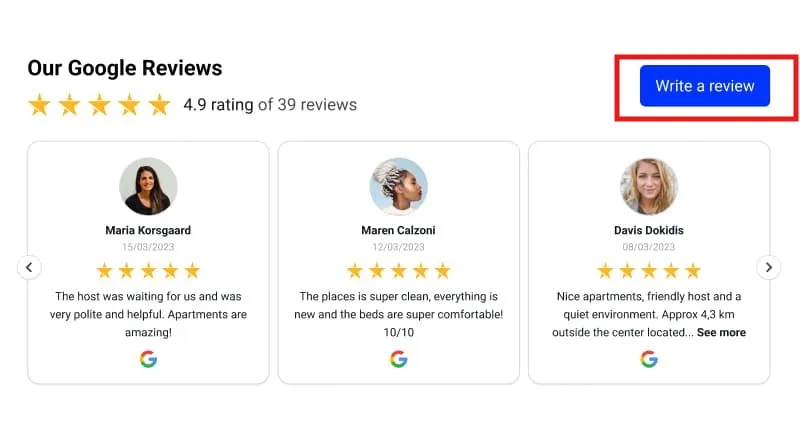
Another effective way to share your link is through your website. Adding a widget or a prominent call-to-action (CTA) button can enhance your online credibility and ranking. By making it easy for visitors to leave reviews directly from your site, you encourage more customer feedback, positively influencing your online reputation and search engine ranking.
As shown in the image below, a Google review widget features a ‘Write a Review’ button.
5. Use a QR Code
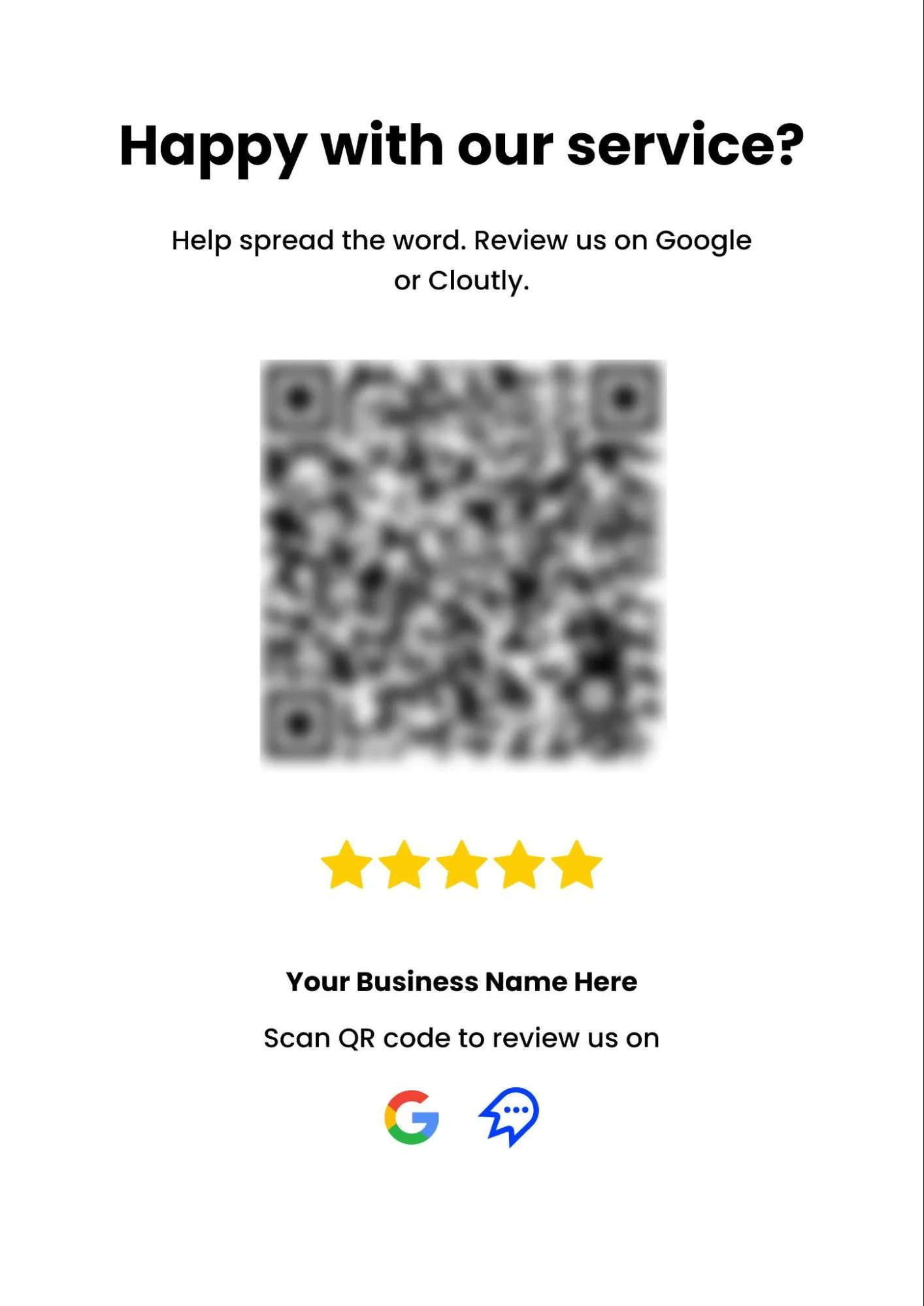
Finally, a QR code can be a creative way to share review links and gather more customer feedback. You can include this QR code on product packaging, marketing materials, and receipts. Customers can easily scan the code to leave a review, boosting traffic to your review page.
The image below illustrates how these QR codes can be shared with your customers. They simply scan the code to access your review page.
Conclusion
Sharing your Google review link is a crucial strategy for enhancing your online presence and credibility. Whether through emails, text messages, social media, your website, or QR codes, making it easy for customers to leave reviews can significantly improve your business’s reputation and search engine ranking.
By leveraging these various methods, you can encourage more customer feedback, ultimately fostering greater trust and growth for your business. Start sharing your review link today to maximize your impact!
TEL AVIV – A spokesperson for the company confirmed to Insider on Tuesday that Google has ceased providing live traffic updates in Israel and the Gaza Strip amidst the ongoing conflict.
According to Bloomberg’s report, both Google Maps and Waze have been impacted by a change made at the request of the Israel Defense Forces.
In consideration for the safety of local communities, Google has temporarily disabled the live traffic conditions and busyness information feature in conflict situations and in response to the changing situation in the region. A spokesperson for Google informed Insider that despite this, users will still receive routes and estimated time of arrival that factor in the current traffic conditions when navigating to a specific location.
In response to the Russian invasion of Ukraine in 2022, Google took a comparable measure by disabling live traffic updates within the country. This was allegedly done to prevent the apps from being utilized to monitor military activities.
Israel’s military response to the October 7 terrorist attacks by Hamas, a Palestinian militant group, has resulted in an ongoing escalation of the conflict. As of October 23, the death toll stands at over 5,000 Palestinian residents in Gaza by Israeli bombing and over 1,400 Israelis. Additionally, approximately 15,273 Palestinians have been injured in Gaza, while more than 5,400 Israelis have also sustained injuries during this period of time.
The anticipated ground invasion by Israel into Gaza has prompted the most recent change in Google Maps and Waze. This alteration takes into consideration the potential impact on traffic that could arise from troop movements in such a scenario.
Google Maps‘ live traffic updates function by retrieving data from smartphones equipped with the application. Utilizing location tracking, it assesses the number of vehicles present on a specific road and their respective velocities. Users who have installed the app can receive real-time notifications regarding the severity of traffic congestion in a particular vicinity.
Those located in the vicinity can continue to utilize Google Maps and Waze for navigational purposes. Nevertheless, it is advisable for American citizens to exercise caution when considering travel to the conflict zone. The US Department of State strongly recommends that Americans “reconsider” their travel plans to Israel and the West Bank, and completely avoid traveling to Gaza. In recent weeks, over 40 airlines have cancelled flights from North America to Israel.
Google Bard is a smart assistant that can answer your questions and help you with various tasks. You can use Google Bard to find information, summarize articles, create content, and more. But did you know that you can also use Google Bard to access your Gmail, Drive, Maps, and Search accounts?
Table of Contents
By enabling Google Bard Extensions, you can allow Google Bard to access the information in your Gmail, Drive, Maps, and Search accounts when you ask it questions. This way, you can use Google Bard to find emails, files, directions, and web pages without leaving the Bard website.
How to enable Google Bard Extensions
Visit the official Bard website.
To enable Google Bard Extensions, you need to visit the Bard website.
Navigate to the Extensions tab.
Click on the Extensions tab. There, you will see a list of extensions that you can enable for Gmail, Drive, Maps, and Search.
Enable Access
You can enable each extension by clicking on the Enable button next to it.
Once you have enabled the extensions, Bard will be able to access the information in your Gmail, Drive, Maps, and Search accounts when you ask it questions.
Using Bard Extensions
Bard Extensions offer a wide range of functionalities that can significantly improve your workflow. Here are some examples of how you can leverage these extensions:
Gmail: Need to find an important email from your boss about an upcoming meeting? Simply ask Bard: “Find the email from my boss about the upcoming meeting.”
Drive: Looking for a resume you worked on last week? Ask Bard: “Find the resume I worked on last week.”
Maps: Need directions to the nearest coffee shop? Just ask Bard: “Give me directions to the nearest coffee shop.”
Search: Want a summary of an article about climate change that you read yesterday? Ask Bard: “Summarize the article about climate change that I read yesterday.”
These are just a few examples of how you can utilize Bard Extensions to streamline your daily tasks and access information more efficiently.
Enabling Access to Google Drive
If you are using a Workspace account, you will need to enable access to Google Drive for Bard Extensions. Here’s how:
Go to the Google Admin console.
Click on Apps, then select Google Workspace > Gmail > Settings.
Scroll down to the Bard Extensions section and click on Enable.
Enabling access to Google Drive for Bard Extensions will allow Bard to access the files in your Google Drive account when you ask it questions.
How to disable Google Bard Extensions
If you want to disable Google Bard’s access to your Gmail, Drive, Maps, and Search accounts, you can do so at any time. To disable Google Bard Extensions, you need to visit the Bard website and click on the Extensions tab. There, you will see a list of extensions that you have enabled for Gmail, Drive, Maps, and Search. You can disable each extension by clicking on the Disable button next to it.
Once you have disabled the extensions, Google Bard will no longer be able to access the information in your Gmail, Drive, Maps, and Search accounts. You can still use Google Bard for other purposes, such as finding information or creating content.
You can also revoke Google Bard’s access to your accounts from your Google Account settings. To do so, go to https://myaccount.google.com/permissions and click on Third-party apps with account access.
Enabling Google Bard to access your Gmail, Drive, Maps, and Search accounts can greatly enhance your productivity and make information retrieval more convenient. By following the steps outlined in this article, you can unlock a range of features that will streamline your daily tasks and help you stay organized.
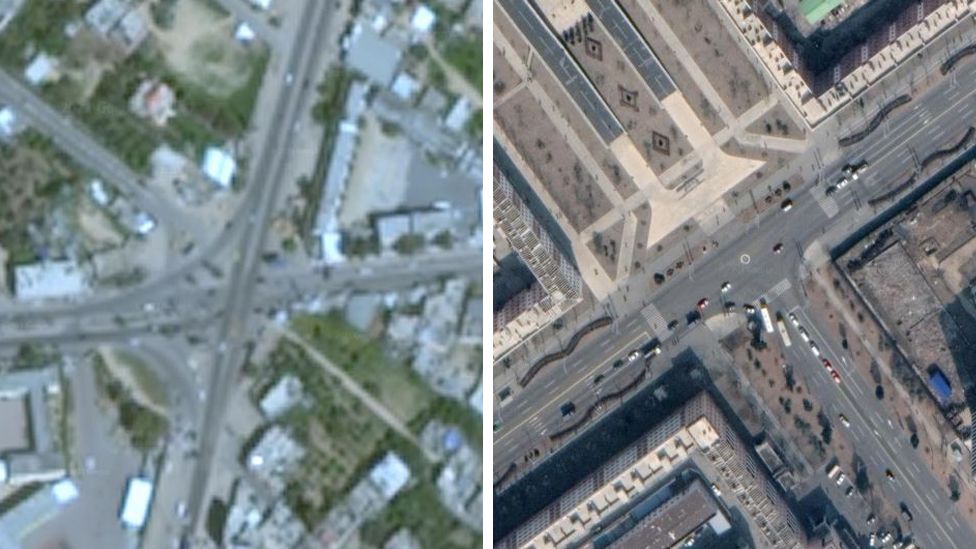
We have been getting questions such as why Google is blurring the images of Gaza on Google maps. Still, you can clearly see the images of any city in North Korea.
The majority of the people can see densely populated Gaza being blurred on Google maps. The area is currently in a deadly conflict.
Some part of Israel also appears as the low-resolution while other areas are shown as the high definition.
Comparing Gaza and Pyongyang together, you can see images of North Korean city (right) is more clear than Palestinian city (left):
Samir, an open-source investigator, confirmed that the Google maps are being used to find locations for missile attacks, whether it is Israel or Palestine.
A journalist for Bellingcat, Aric Toler, tweeted;
The most recent Google Earth image is from 2016 and looks like trash. I zoomed in on some random rural area of Syria and it has had 20+ images taken since that time, in very high resolution. pic.twitter.com/KrYbku1oxe
US government bars the company from capturing Israel/Palestine at a higher resolution upon the request from the Israeli Defense Forces.
Is Google Maps Blurring The Images of Gaza?
Yes. But not deliberately
Digital Phablet reached out to the two tech giants, Apple and Google, to ask about their agenda behind blurring the images of Gaza and some parts of Israel on their Mapping apps.
Apple confirms having the blurred images, but they ensured that the high-quality images would be uploaded with the latest app update.
While Google says they get these images from different sources, but they refused to comment on this plan.
Images of Gaza’s destruction with the timeline feature on Google Maps;
Google and Apple rely on third-party companies that take pictures. Still, the apps face a great amount of pressure from the movement to blur the images of Israel and Palestine. But it is not deliberate. Apple and Google want to show high definition images, but they’re bound by the law to show low-quality images.
2020 is the year where you can’t go out without the fear of being infected. Google has made your life easier by adding the COVID-19 layer, which helps you spot Coronavirus affected areas in Google Maps app before you travel.