الوسم: Gmail

  • How to Find Archived Emails in Gmail and Return Them to Your Inbox

    How to Find Archived Emails in Gmail and Return Them to Your Inbox

    If your Gmail inbox feels cluttered but you’re not ready to delete emails, archiving is often the best solution. It clears messages from your main inbox without deleting them completely, serving as a helpful middle ground between keeping everything visible and sending emails to the trash.

    The tricky part is that Gmail doesn’t have a dedicated archive folder like some other email services. Instead, archived emails vanish from your inbox but remain stored in “All Mail,” where they can still be searched, reopened, and moved back into your inbox when needed. Basically, an archived message is never truly gone—just out of sight.

    The good news is that returning to those archived messages is straightforward once you know where to look. Whether you’re using Gmail on a computer, an Android device, or an iPhone, accessing archived emails only takes a few taps. And if you decide you want an archived email back in your inbox, Gmail makes that easy to do.

    Here’s how to find your archived emails and move them back into your inbox when necessary:

    Finding Archived Emails on the Web

    If you’re using Gmail in a browser, retrieving archived emails is simple. You can search directly using the search bar at the top, which will include archived messages in the results. Alternatively, you can access all your mail, including archived emails, beneath the “All Mail” section.

    Steps:

    1. Go to Gmail’s website and log in.
    2. In the left sidebar, click on More.
    3. Select All Mail.
    4. Browse through your emails—archived messages are included here.

    Finding Archived Gmails on an Android Phone

    For Android users with Gmail, accessing archived messages is just as easy. Use the search bar to find archived emails or view all messages under the “All Mail” folder.

    Steps:

    1. Open the Gmail app.
    2. Tap the menu icon (three horizontal lines) at the top left.
    3. Tap All Mail.
    4. You’ll see all your emails, including archived ones, ready to browse.

    Moving an Archived Email Back to Your Inbox

    If you decide an archived message should be back in your inbox, you can move it easily.

    Using the web:

    1. Sign in to Gmail online.
    2. Find and select the email you want to move.
    3. Click the Move to inbox icon (an inbox tray with a downward arrow).
    4. The email will move back into your inbox. To archive it again later, select the email and click the Archive button (a small box with a down arrow).

    On Android:

    1. Open Gmail app.
    2. Find and tap the email.
    3. Tap More (three dots).
    4. Choose Move to inbox.

    Archiving vs. Muting Emails

    While archive and mute functions may seem similar, they differ significantly. Archived emails can return to your inbox if they receive replies, but muted conversations stay hidden even if new replies arrive, keeping your inbox neater.

    To mute an email:

    1. Open Gmail.
    2. Select the email.
    3. Tap the More icon (three vertical dots).
    4. Choose Mute.
      To unmute, follow the same steps but select Unmute.

    Archiving on iPhones and iOS Devices

    On iPhones and other iOS devices, archiving is slightly different:

    Steps:

    1. Find the email in All Mail.
    2. Tap the sender’s profile icon.
    3. Tap More (three dots).
    4. Select either Move to inbox or Move to > Primary.

    By mastering these steps, you can keep your Gmail organized without losing any important messages, making your email management more efficient and less stressful.

  • Gmail Simplifies Order Updates and Manages Chaos

    Gmail Simplifies Order Updates and Manages Chaos

    In recent years, Google has rolled out a variety of updates to Gmail that simplify managing events, logistics, and travel tasks by automatically extracting relevant information from your emails. Now, the platform is introducing two new features designed to help you effortlessly keep track of recent purchases and stay informed about special deals and ongoing promotions.

    Effortless Order Tracking

    Keeping tabs on your online orders can often feel chaotic. Between order confirmations, shipping notifications, and promotional emails, your inbox can quickly become cluttered. To address this, Gmail now offers a new layout that consolidates all purchase and delivery updates into a single, organized view, making it easier to locate and monitor your orders.

    This streamlined view provides a clear snapshot of upcoming package deliveries, grouping related emails together. Orders scheduled to arrive within the next 24 hours are highlighted at the top, while a more comprehensive list can be accessed within the Purchases section available through a side panel.

    This new display will coexist with existing summary cards, which appear at the top of emails to give quick snapshots of package statuses. The updated design is now available on both mobile and desktop versions of Gmail, accessible globally.

    A Fresh Approach to Finding Deals

    I receive numerous emails daily about special offers and discounts from brands I’ve done business with, along with marketing messages from various sources. This influx of deal emails can be both useful and overwhelming. On one hand, it’s easy to miss out on great sales; on the other, your inbox can become cluttered with promotional clutter.

    To help manage this, Gmail is adding a new “most relevant” sorting option to the Promotions tab. Additionally, it will feature a “nudge” system that alerts you to upcoming deals and discounts scheduled in the coming days.

    The goal is to make it easier for you to see updates from the brands and senders that matter most to you, including those you interact with frequently. If you prefer, you can still switch back to the traditional “most recent” sorting method. This new feature will initially be available on the mobile app in the upcoming weeks, giving users a more tailored and streamlined promotional email experience.

  • Gmail’s New AI Feature Could Annoy You—Disable It Now!

    Gmail’s New AI Feature Could Annoy You—Disable It Now!

    Google’s New AI Summaries are Reshaping Gmail

    Remember that email you intended to read later? Chances are, Google’s Gemini has already summarized it for you. The tech giant is now incorporating summary cards at the top of your inbox, providing AI-generated overviews right in Gmail—no clicks or prompts required.

    AI Summaries: A Game Changer for Gmail

    Google is frequently updating Gmail with exciting new features powered by Gemini. One of the latest additions allows this AI to summarize your emails automatically within the Gmail app for both iPhone and Android users. The recaps appear at the top of lengthy emails without any input needed from you.

    If you think this sounds familiar, it’s because Gemini already existed in the side panel of Gmail, offering functionalities like draft suggestions and quick replies. However, now these summary cards will surface on their own when Gmail determines that an email is lengthy enough to merit one.

    In theory, this could save you a lot of time. You can still use the manual “Summarize this email” option for shorter messages if you prefer. The side panel tools remain available, but this update makes Gemini more of an active participant in your email interactions rather than just an optional assistant.

    Privacy Concerns and AI Reliability

    Whether you see this as a useful upgrade or a privacy invasion depends on your comfort level with AI anticipating your needs. Apple attempted something similar by using AI to summarize app notifications, but it led to numerous errors—especially with news summaries—which eventually forced Apple to stop the feature for news apps altogether. That’s one reason I remain skeptical about Apple’s AI capabilities.

    Google has its share of issues too. Its AI-generated summaries in search results have occasionally produced misleading or nonsensical information. While Gemini’s email summaries are unlikely to make bizarre suggestions, the accuracy of these auto-generated snippets is certainly a concern. A slightly off-base summary could misrepresent tone or meaning, especially in sensitive or professional emails.

    How to Disable Auto Summaries

    Currently, this feature only supports emails written in English. Depending on your location, it may be enabled or disabled by default; it’s turned off in the EU, U.K., Switzerland, and Japan due to stricter privacy regulations. If you reside outside these areas, you’ll have to manually turn it off.

    In a Google Workspace setting, your administrator can disable the feature entirely. As it stands, you can’t turn off the summaries individually; you’ll need to opt out of all personalized Gmail features by switching off Smart Features. For specific guidance on disabling these features, check Google’s support page.

    I personally advise turning this feature off to safeguard your email privacy. Allowing AI more access to potentially sensitive correspondence feels uncomfortable to me.

    For Google, this is just another way to integrate AI into the daily products you use. For busy individuals overwhelmed with emails, this might feel like a blessing. However, for those who prioritize privacy, it’s important to be cautious—perhaps even consider alternatives like Proton Mail or similar services.

    Regardless, Google has announced the rollout of this feature to Gmail, so it’s only a matter of time before it appears in your inbox.

  • Gmail Introduces AI-Driven Search Features Just for You

    Gmail Introduces AI-Driven Search Features Just for You

    Finding a specific email among countless others can feel like searching for a needle in a haystack. Gmail’s search functionality has had its challenges, but now Google is harnessing artificial intelligence to improve the accuracy of your results.

    Google Introduces an AI Search Feature for Gmail

    Guess what? More AI is on the way! Following the introduction of a new Gemini feature for better scheduling in Gmail, Google is launching an AI-enhanced search tool for the email platform. According to The Keyword, you’ll soon have the option to choose between Most relevant and Most recent results, allowing you to have greater control over how you search for and filter your emails.

    Previously, Gmail offered a list of emails that matched your search words in chronological order. Now, with the help of AI, search results will not only consider your keywords but also prioritize emails from people you communicate with frequently. Google articulates this enhancement as follows:

    Rather than simply listing emails by date related to your keywords, Gmail search results will now highlight factors like recency, the most-clicked emails, and frequent contacts. With this change, you’re much more likely to find the emails you need at the top of your search results—saving you time and making it easier to locate essential information.

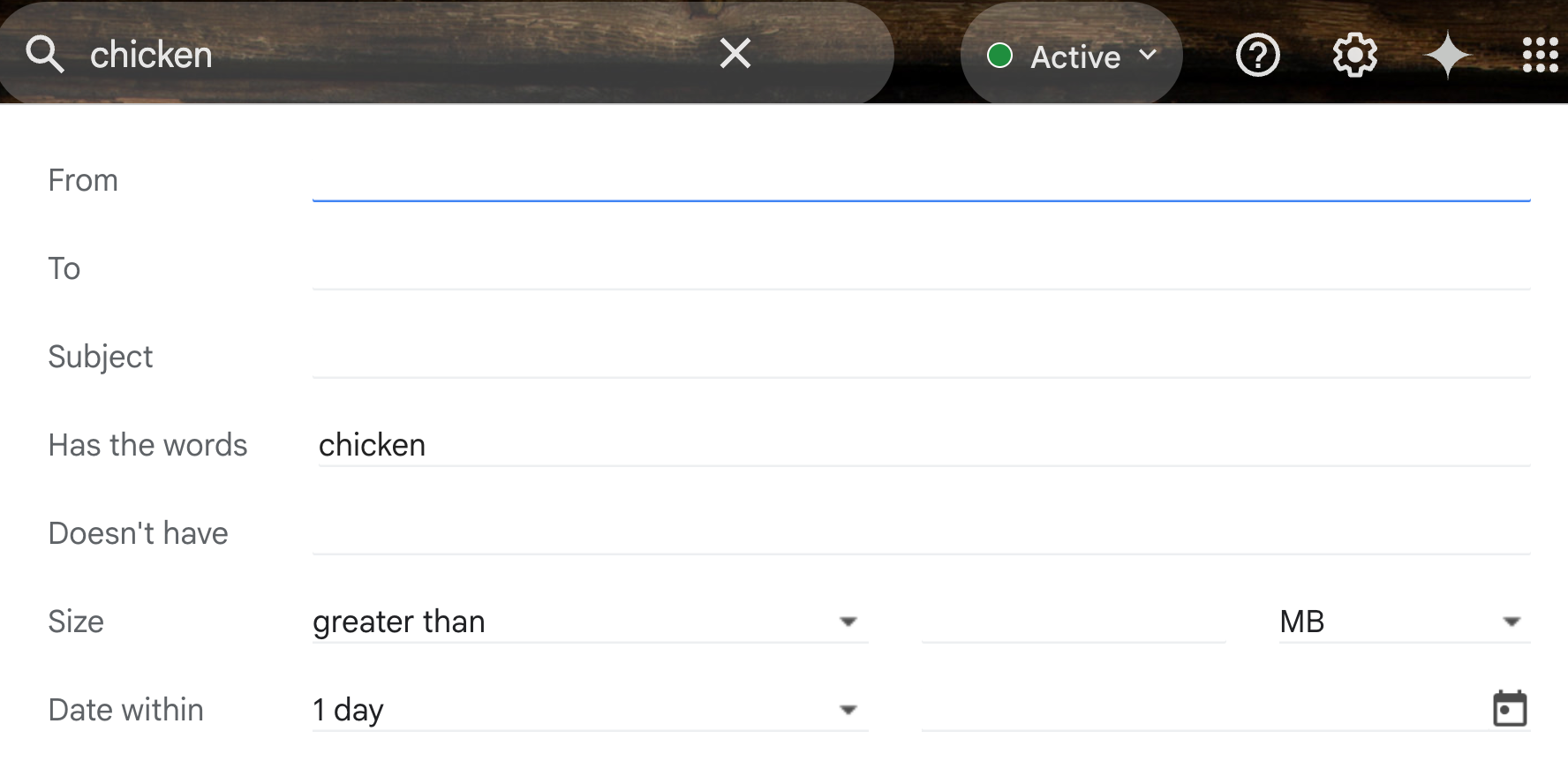
    For instance, I was recently on the hunt for my cat’s next food delivery date. When I searched using the term “chicken,” the first six emails that appeared were either promotional messages (looking at you, Whole Foods) or newsletters I rarely open. The auto-ship notice from my pet food supplier, Chewy, was buried further down the list.

    While the new Most relevant search feature isn’t visible to me yet, I imagine the new AI functionality would recognize my interactions with Chewy far exceed those with Whole Foods. Consequently, it should have prioritized the email I was truly seeking at the top of the search results.

    Timeline for Gmail’s “Most Relevant” Search Feature

    If you use a personal Gmail account, you can expect to see the Most relevant search filter rolling out to you very soon, as Google is making this feature available worldwide. It will be accessible via web or the Gmail app on both Android and iOS devices.

    Google indicated that the feature will be available for business accounts shortly after personal accounts.

    More AI Coming from Google

    While I consider this feature to be beneficial, I’m still somewhat wary of incorporating more AI into my daily routine. Ideally, I prefer these AI enhancements to be optional tools that I can turn off if desired. Fortunately, it seems that the new Gmail AI search option will be available as an option. You can choose to stick with the traditional Most recent filter and handle your email searches manually.

    However, I’m uncertain about what the default setting will be for Gmail. For example, will there be a clearly visible button to select your desired search mode before conducting a search? Will it be buried in advanced search options, or only adjustable after the fact? If it’s the latter, that means AI will be analyzing our emails at least once regardless of our preferences.

    An example of Gmail's advanced search options, which currently do not include reference to the AI search tool

    I truly hope that Google grants users comprehensive control over this new AI feature that will review their emails. If we look at how other companies have launched similar AI tools, there’s reason for optimism. For instance, when Microsoft integrated Copilot into its Office 365 apps, there was a clear opt-out option available. However, Google’s track record with user privacy isn’t always the best.

  • Gemini Gains Image Creation in Docs and Calendar in Gmail

    Gemini Gains Image Creation in Docs and Calendar in Gmail

    Google has rolled out an extensive array of feature enhancements for Workspace users, emphasizing the integration of its Gemini AI into applications like Gmail, Docs, and Calendar.

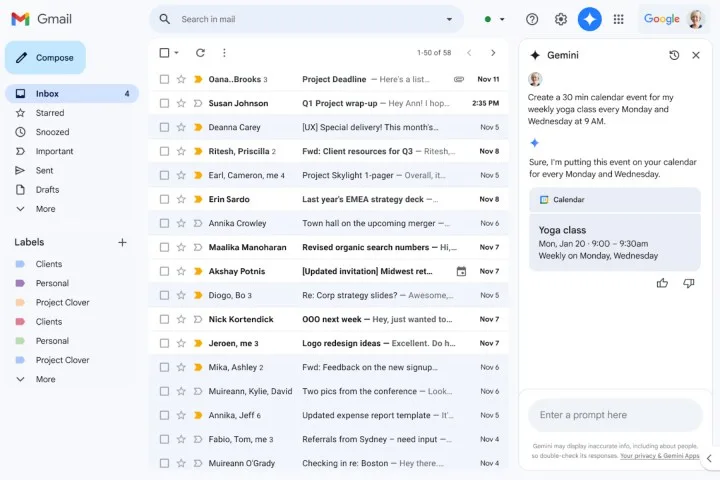
    If you frequently utilize the side panel in Gmail, there’s positive news. Gemini has gained the ability to access Calendar information directly within the inbox side panel and can perform relevant actions.

    Imagine you’re composing an email and need to reference your calendar events; now, Gemini can assist. You can instruct it to check schedules for specific dates, ask it to create events (whether one-time or recurring), and even generate new entries without leaving the Gmail interface.

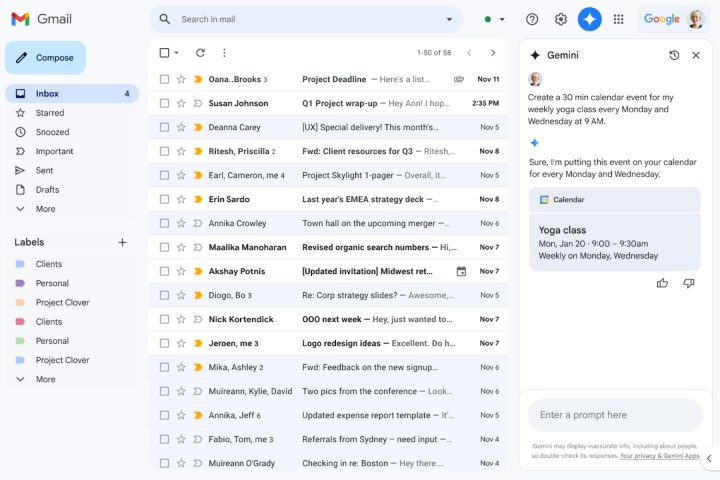
    Using Gemini for Calendar access in the Gmail side panel.
    Google

    While this new functionality is beneficial, it’s not comprehensive. Currently, Gemini in Gmail can’t handle tasks such as adding or removing participants from an event, displaying attachments, coordinating schedules to find optimal meeting times, designating work locations, or managing meeting rooms.

    Access to Calendar details via Gemini in Gmail is available exclusively to paid Gemini users and subscribers of the Google One AI Premium plan. Presently, this feature supports only the English language.

    Moreover, Google’s AI toolkit is empowering Docs with image creation capabilities. In a previous update in September, Google introduced the option to upload full-bleed cover images. Users can choose from a curated collection accessible through the new “Cover Image” feature in Docs or upload images from their local galleries.

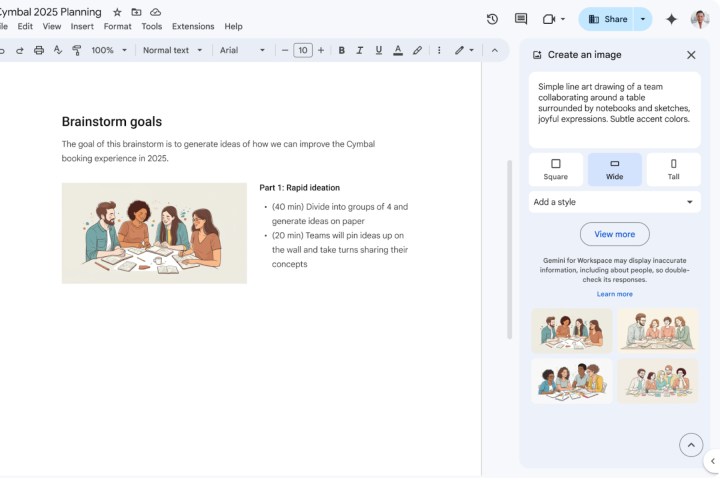
    Now, users can leverage Gemini to generate images directly for use as cover photos or inline visuals. The image generation process utilizes Google’s Imagen 3 model, allowing for the creation of photorealistic images.

    Creating images directly using Gemini.
    Google

    More significantly, users can not only dictate the style of images but also specify their aspect ratio. To create a cover image, navigate through Insert > Cover Image > Help me create an image.

    For adding inline images, follow this path: Insert > Image > Help me create an image > (enter an image description).

    This feature is currently in the process of being rolled out for business and educational users of Gemini, as well as for those subscribed to Google One’s AI Premium service. Additionally, Google recently released a standalone Gemini app for iPhone users.

    Earlier this week, Google also enabled the direct upload of Docs and Sheets from Google Drive and introduced the option to create a personalized Gem assistant. The updated list of supported document formats includes “TXT, DOC, DOCX, PDF, RTF, DOT, DOTX, HWP, HWPX, and Google Docs,” according to Google.

  • Elon Musk To Launch XMail: Competitor to Gmail

    Elon Musk To Launch XMail: Competitor to Gmail

    Elon Musk has announced his intention to launch a fresh email platform that will directly rival Google’s Gmail, a strategic move bound to disrupt the IT sector. Musk shared this news on his platform X through a social media post, teasing the upcoming release of a product named “XMail.”

    Musk’s latest endeavor further broadens his collection of groundbreaking innovations. In a recent development, his xAI initiative introduced Grok, an artificial intelligence project aimed at challenging ChatGPT.

    Musk has remained tight-lipped about the forthcoming email service, refraining from divulging any specifics regarding its features or expected release date. However, experts in the industry speculate that it will be seamlessly integrated into the X platform, aligning with Musk’s ambitious vision of transforming X into the ultimate “everything app.”

    Even though Gmail boasts over 1.8 billion active users globally, Musk remains determined to develop a robust alternative. While surpassing Gmail as the dominant player in the industry is a challenging endeavor, Musk’s track record of bold initiatives underscores the potential impact of his latest venture.

    Musk ventured into the email sector following his acquisition of Twitter over a year ago, where he implemented controversial modifications. Beyond mere communication platforms, his vision is to integrate various functionalities into a comprehensive all-in-one program for X.

    Musk’s relentless pursuit of innovation extends beyond his tech ventures through his company Neuralink. A recent study on a patient with a Neuralink brain implant revealed promising results, highlighting Musk’s multifaceted approach to advancing biotechnology.

    Meanwhile, Google’s Gemini, an AI-driven tool for generating images, is facing criticism for suspected racial bias. Musk’s X indicators hint at a potential threat to Google’s dominance in various tech fields, despite Gemini’s recent apologies and removing certain features.

    Several people have voiced their desire to transition to Xmail as they have lost faith in Gmail, whereas some individuals intend to stick with Gmail for less significant emails.

    One person mentioned losing faith in Gmail and deciding to switch to Xmail immediately, while another stated that they will start using Gmail like they currently use Hotmail, for junk emails.

  • How To Enable Google Bard To Access Gmail, Drive, Maps and Search

    How To Enable Google Bard To Access Gmail, Drive, Maps and Search

    Google Bard is a smart assistant that can answer your questions and help you with various tasks. You can use Google Bard to find information, summarize articles, create content, and more. But did you know that you can also use Google Bard to access your Gmail, Drive, Maps, and Search accounts?

    By enabling Google Bard Extensions, you can allow Google Bard to access the information in your Gmail, Drive, Maps, and Search accounts when you ask it questions. This way, you can use Google Bard to find emails, files, directions, and web pages without leaving the Bard website.

    How to enable Google Bard Extensions

    Visit the official Bard website.

    To enable Google Bard Extensions, you need to visit the Bard website.

    Navigate to the Extensions tab.

    Click on the Extensions tab. There, you will see a list of extensions that you can enable for Gmail, Drive, Maps, and Search.

    Enable Access

    You can enable each extension by clicking on the Enable button next to it.

    Once you have enabled the extensions, Bard will be able to access the information in your Gmail, Drive, Maps, and Search accounts when you ask it questions.

    Using Bard Extensions

    Bard Extensions offer a wide range of functionalities that can significantly improve your workflow. Here are some examples of how you can leverage these extensions:

    1. Gmail: Need to find an important email from your boss about an upcoming meeting? Simply ask Bard: “Find the email from my boss about the upcoming meeting.”
    2. Drive: Looking for a resume you worked on last week? Ask Bard: “Find the resume I worked on last week.”
    3. Maps: Need directions to the nearest coffee shop? Just ask Bard: “Give me directions to the nearest coffee shop.”
    4. Search: Want a summary of an article about climate change that you read yesterday? Ask Bard: “Summarize the article about climate change that I read yesterday.”

    These are just a few examples of how you can utilize Bard Extensions to streamline your daily tasks and access information more efficiently.

    Enabling Access to Google Drive

    If you are using a Workspace account, you will need to enable access to Google Drive for Bard Extensions. Here’s how:

    1. Go to the Google Admin console.
    2. Click on Apps, then select Google Workspace > Gmail > Settings.
    3. Scroll down to the Bard Extensions section and click on Enable.

    Enabling access to Google Drive for Bard Extensions will allow Bard to access the files in your Google Drive account when you ask it questions.

    How to disable Google Bard Extensions

    If you want to disable Google Bard’s access to your Gmail, Drive, Maps, and Search accounts, you can do so at any time. To disable Google Bard Extensions, you need to visit the Bard website and click on the Extensions tab. There, you will see a list of extensions that you have enabled for Gmail, Drive, Maps, and Search. You can disable each extension by clicking on the Disable button next to it.

    Once you have disabled the extensions, Google Bard will no longer be able to access the information in your Gmail, Drive, Maps, and Search accounts. You can still use Google Bard for other purposes, such as finding information or creating content.

    You can also revoke Google Bard’s access to your accounts from your Google Account settings. To do so, go to https://myaccount.google.com/permissions and click on Third-party apps with account access.

    Enabling Google Bard to access your Gmail, Drive, Maps, and Search accounts can greatly enhance your productivity and make information retrieval more convenient. By following the steps outlined in this article, you can unlock a range of features that will streamline your daily tasks and help you stay organized.

    Happy exploring with Google Bard! ????

  • Top 5 Best ChatGPT For Gmail Extensions [year]

    Chatgpt For Gmail: In today’s fast-paced digital world, email remains an important tool for personal and professional communication.

    However, keeping up with many emails and providing timely responses can be overwhelming.

    This is where ChatGPT extensions for Gmail come in. These powerful tools harness the power of artificial intelligence to improve your email experience, automate responses and ensure effective communication. This article will explore six of the best Gmail ChatGPT extensions that can transform your email workflow.

    1. ChatGPT Prompt Genius

    ChatGPT Prompt Genius is a versatile browser extension designed to enhance your ChatGPT experience in Gmail. With features like syncing local chat history for easy access and searching, the ability to save chats in different formats and customization options like themes, it offers a seamless and personalized experience. In addition, you can discover, share, import and use the best ChatGPT prompts to improve your communication. The extension ensures data protection as all data is stored locally on your device, and you have complete control over it.

    2. WriteAssist – ChatGPT

    ChatGPT is an invaluable tool for Gmail users, providing AI-based assistance in writing emails and social media posts. Thanks to ChatGPT AI integration, this additional extension allows users to type faster and more accurately. Its latest version includes customizable prompts, faster response time, and a plugin for real-time status updates. Using ChatGPT’s advanced language processing capabilities, WriteAssist-ChatGPT allows users to create professional emails and engaging social media content easily. Experience the convenience and efficiency of WriteAssist-ChatGPT to make your writing tasks easier and improve communication.

    3. ChatGPT for Gmail

    ChatGPT for Gmail is a browser extension that integrates ChatGPT with Gmail, improving your email writing experience. By simply providing the basic context of your email, ChatGPT generates suggestions for improving your email, including ways to add conjunctions and typos. With an easy-to-use button, you can easily write your emails on ChatGPT. The plugin can be enabled or disabled and supports using the ChatGPT API key. Perfectly integrated with Gmail, ChatGPT for Gmail offers a user-friendly solution to simplify and improve the email writing process.

    4. InstantGPT

    InstantGPT is a powerful plugin extension that integrates OpenAI ChatGPT to provide instant access to data and simplify article summarization. With a simple keystroke, users can engage a ChatGPT-enabled assistant to ask questions and get quick answers. The plugin also allows you to customize API parameters for user experience. In particular, InstantGPT excels at summarizing web content by allowing users to highlight text, right-click and select Summary for a concise summary. To get started, users must obtain a free API key from the OpenAI website. Enhance your browsing experience and get the most important information effortlessly with InstantGPT.

    5. WebChatGPT

    WebChatGPT is an invaluable Chrome extension that enhances ChatGPT prompts with real-time online results, ensuring more accurate and up-to-date conversations. This free plugin lets users add online information to their ChatGPT interactions easily. It provides online results for queries, extracts text from any web page URL, and even allows you to use prompt templates. The plugin works without a backend server, which ensures complete privacy and no data collection. Users can join the Discord server for support and discussions. Enhance your ChatGPT experience with WebChatGPT and stay connected during Gmail chats.

    The five best Gmail ChatGPT extensions discussed in this article will revolutionize email communication using the power of artificial intelligence. With tools like WebChatGPT, Instant GPT, ChatGPT Prompt Genius, WriteAssistChatGPT, and ChatGPT for Gmail, you can automate responses, handle customer inquiries, and improve overall productivity. Adding these ChatGPT extensions to your Gmail workflow can streamline the email management process and improve communication.

  • Google Launches Gmail Blue Tick: How To Get It?

    A new Gmail blue tick feature from Google aims to make it easier for you to determine whether a sender is legitimate or whether they might be a scammer. A blue checkmark will appear next to a company’s name in your inbox when you receive an email from one that has confirmed its identity.

    The checkmark update was made possible by Google’s use of Brand Indicators for Message Identification (BIMI) technology. In 2020, Google conducted the first BIMI test in Gmail, enabling registered businesses to include verified logos in their emails. The blue check mark added to a sender’s name is a more obvious sign of their authenticity.

    Gmail will display a pop-up message when you mouse over the blue check that reads, “The sender of this email has confirmed ownership of [the domain from which it was sent] and the logo in the profile image.” The pop-up also offers a link that takes users to a page with more information.

    gmail blue tick

    Google posted a blog, By giving readers an immersive experience and boosting reader confidence in email sources, this improves the email ecosystem overall. By the end of the week, all users should have access to the feature, and workspace administrators can assist with configuring BIMI for their organization.

    How To Get Gmail Blue Tick

    Get Google Workplace

    You can get it here.

    DMARC (Domain-based Message Authentication, Reporting, and Conformance) enrollment.

    DMARC (Domain-based Message Authentication, Reporting, and Conformance) enrollment for your company is a must. A common email authentication protocol called DMARC works to stop phishing and email spoofing.

    Create a BIMI record for your domain

    A verified brand may now display their logo in the avatar section of Gmail thanks to a new email specification called BIMI (Brand Indicators for Message Identification).

    Publish your BIMI record in your DNS (Domain Name System) records.

    This enables Gmail to confirm that you are the owner of the domain and have permission to use the logo.

    Start sending emails with Blue check on Gmail

    Google will automatically show the blue checkmark next to your sender name in Gmail after you have finished the aforementioned steps.
  • How To Turn On Dark Mode on Gmail Android and iOS App

    Here is How To Turn On Dark Mode on Gmail Android and iOS Application.

    (المزيد…)
  • [SOLVED]: We’ve detected a problem with your cookie settings.

    Here is the fix for the error “detected a problem with your cookie settings” when you’re trying to open Gmail on chrome or mozilla.

    (المزيد…)