الوسم: get better

  • Samsung Promises Better Animations in One UI 7

    Samsung Promises Better Animations in One UI 7

    Users of the Samsung Galaxy S24 have been testing the One UI 7 beta for about a week, and some noticeable issues have already come to light. The One UI subreddit is buzzing with discussions about stuttering and various animation glitches. Fortunately, Samsung has acknowledged these concerns, stating they are actively working on solutions to enhance user experience. Their response includes a commitment to delivering “smoother and more dynamic transitions” in future updates.

    This scenario illustrates the purpose of beta testing. Although One UI 7 is functional, it still requires refinements. By introducing the update to a select group of users in advance, Samsung can pinpoint problematic areas and address them before the full rollout.

    Animation plays a crucial role in shaping the user’s experience with software. While it may seem like a minor detail, the smoothness of transitions can significantly impact how users interact with their devices. Take the case of Amazon’s Kindle Paperwhite: older models exhibited jarring page turns that disrupted the reading experience, whereas enabling the optional page-turn animation led to a more enjoyable encounter.
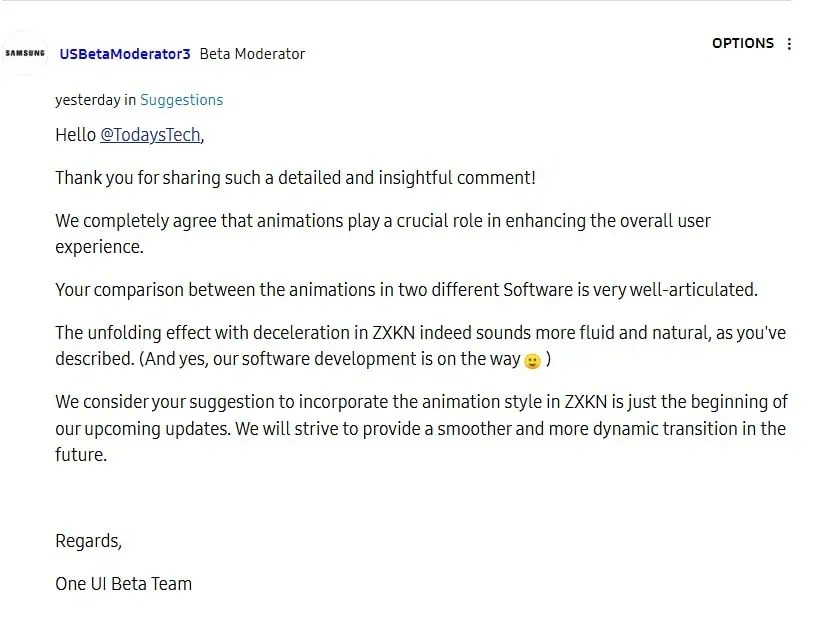
    Screenshot showing comments from a Samsung developer regarding the One UI 7 beta's animations.
    Samsung

    Some users have reported issues with the One UI 7 beta, complaining of sluggish performance and a delay in gradient animations. A Reddit user, u/teneman, shared a series of screenshots highlighting these problems. The images indicated cases of unexpected blurring where it shouldn’t have occurred and a lack of blur where it was needed. Another user noted that the notification panel had become slow to open and the animation could not be interrupted during the process.

    In response to these user observations, Samsung confirmed it is working to improve the situation. The company noted that the current animations aren’t as refined as they were during the initial testing phase. Samsung is dedicated to enhancing these animations to meet its standards and encourage users experiencing any irregularities with the One UI 7 beta to report them via the Samsung Members app.
  • Tips for Improving Ping in Marvel Rivals Gameplay

    Tips for Improving Ping in Marvel Rivals Gameplay

    Marvel Rivals is an exciting shooter featuring heroes engaged in action-packed battles across different dimensions. While the gameplay is thrilling, achieving smooth performance depends heavily on having a stable internet connection.

    Occasionally, server instability or internet issues can cause sudden spikes in ping. This can result in lag and stuttering, negatively impacting your gaming experience. Fortunately, there are several steps you can take to improve this situation. By adjusting some in-game settings and tweaking your hardware, you can enjoy lower ping rates and a better gaming experience.

    Optimal Marvel Rivals Settings for Lower Ping

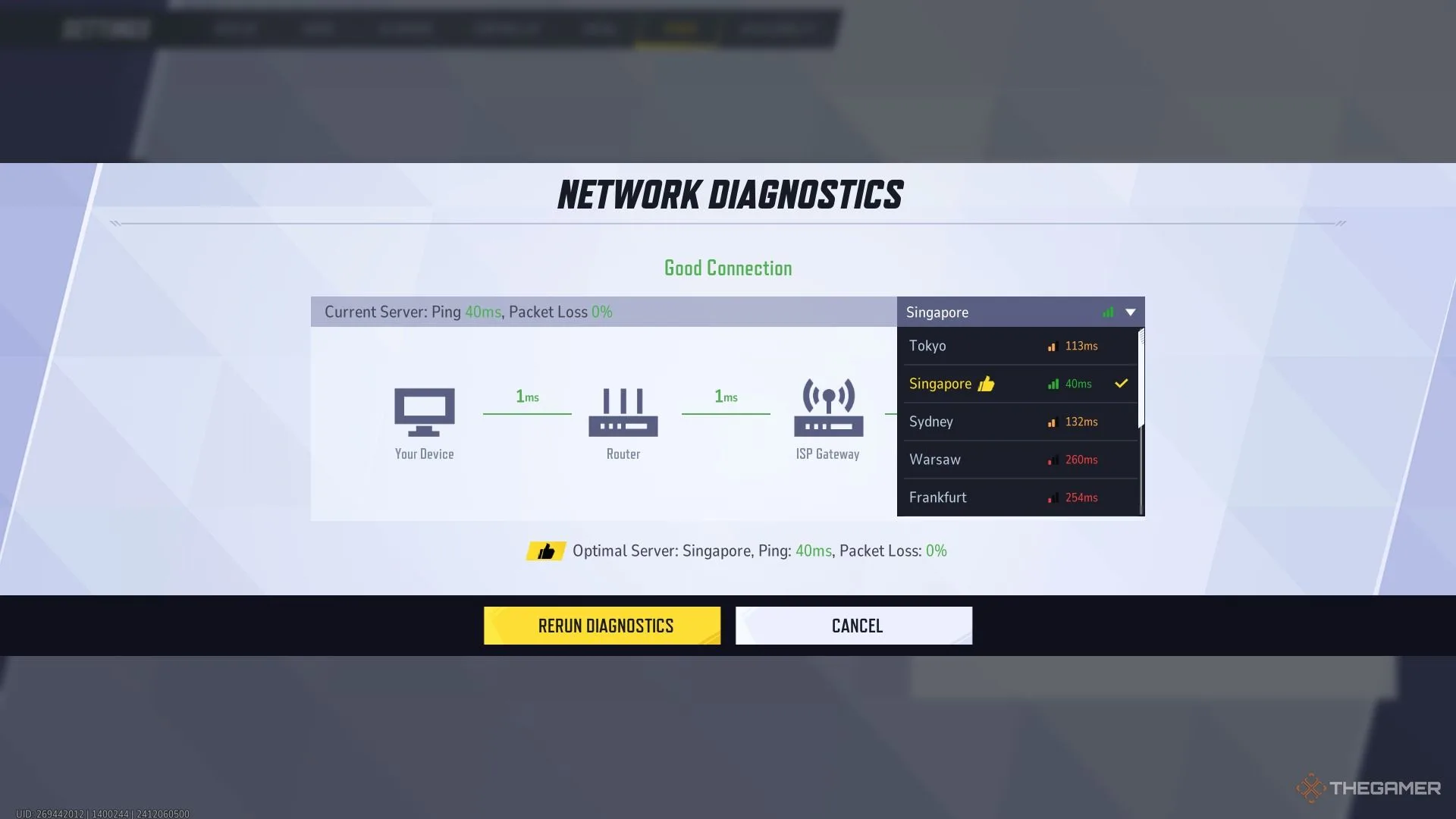
    Finding the right settings for Marvel Rivals is crucial since the game hinges on quick action and fluid movements. To maintain consistent latency and achieve a lower ping, connect to the closest server available.

    To do this, navigate to the game’s settings and look for the Other tab. Here, you can choose Network Diagnostics to run a quick test. This will assess your connection to the servers and highlight any latency issues. You can also opt to manually connect to your preferred server.

    How to Optimize Your Internet for the Best Ping

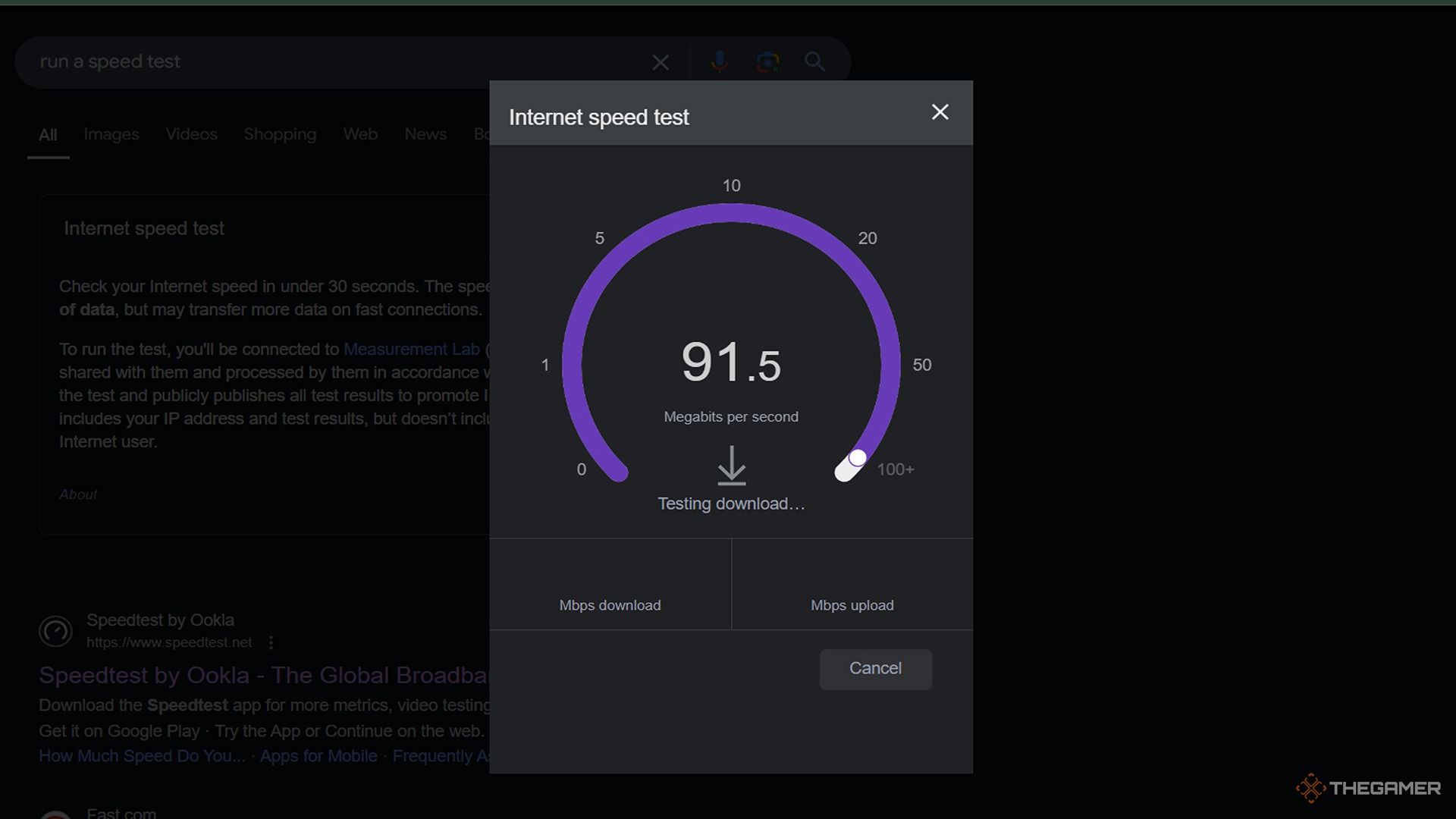
    Using Google for internet speed test.

    If you find that there are issues with your connection, it’s essential to take proactive steps. Whether on PC or console, there are several adjustments you can make to improve your ping.

    • Use an Ethernet cable: Connecting via Ethernet offers a more stable internet connection, minimizing packet loss compared to Wi-Fi.
    • Conduct a speed test: Use services like Fast or Speedtest, or simply search “run speed test” to analyze your internet connection. If speeds are low or inconsistent, it may be time to reach out to your internet provider.
    • Check your console’s network settings: On Xbox or PlayStation, access the network settings to assess your internet connection and check signal strength.
    • Monitor background downloads: Regardless of your platform, ensure no updates or downloads are occurring in the background, as they can interfere with a strong connection.

    Finally, if you’re using a PC, verify that your firewall and VPN settings aren’t causing issues. Upgrading your Wi-Fi router can also greatly enhance connection stability.