الوسم: Factorio

  • Mastering Belt Balancing Techniques in Factorio

    Mastering Belt Balancing Techniques in Factorio

    In Factorio, belts are essential for transporting materials from one location to another. As your factory grows, you’ll need to enhance your belt system by adding more lines, dividing them, and boosting overall efficiency.

    Splitters play a key role in this process, as they allow you to evenly distribute materials between two outputs. However, complications may arise if you decide to include a second or third splitter further down the line. To tackle this, you can apply the concept of belt balancing, which we’ll explore below.

    How to Balance Belts


    Placing a splitter at the end of a belt will evenly divide the materials, so the left side of the splitter will receive 50% of the materials, with the other 50% going to the right. If you add another splitter to the left side, it will split its side into two sections, each receiving 25% of the original materials, and the process continues.

    While this division isn’t inherently problematic, managing the correct amounts for your machines can become tricky. This is where belt balancers come into play, designed specifically to distribute materials evenly across multiple belts.

    There are several methods to set up a belt balancer, but one standard approach works well for most situations.


    A basic design for a universal belt balancer.

    This setup uses four belt lines split into two pairs, combining the contents of the first two and the last two pairs. An additional splitter then evenly merges everything, ensuring a balanced distribution from all four lines.

    This method generally requires at least two inputs to distribute the four belts correctly, but alternative designs allow for a single-input setup as well.


    A simple design for distributing materials across four belts.

    This design effectively stacks three splitters so that all four belts can receive materials. While it doesn’t evenly balance the materials initially, the main balancer will handle that task effectively.

    Getting Materials on Both Sides of a Belt


    A design for filling both sides of a belt.

    Belts have two sides from which materials can be accessed. It makes sense to utilize both sides for efficiency. Since inserters only place materials on the nearest side, you can either use inserters on both sides or apply a design like the one shown above.

    This straightforward design splits the belt and loops it back onto itself, ensuring that both the left and right sides receive materials. You can integrate this mechanism anywhere along your belt lines for optimal efficiency.

  • Guide to Relocating and Demolishing Items in Factorio

    Guide to Relocating and Demolishing Items in Factorio

    Factorio is a complex game centered around managing factories and constantly expanding your operation. As you grow your factory, you’ll be handling a greater volume of resources, which can become quite overwhelming. If you tend to hoard every item you come across, you may find yourself short on storage space later on.

    If you’ve ever tried to delete an item but found it tricky to do so, there’s good news. There is actually a method to delete items, although it might not be as simple as it sounds at first. Below is an explanation of how to move and delete items from your inventory.

    How To Move Items


    If you want to reposition an item you’ve placed, just pick it up and put it down in the new location. To do this, hold down right-click on the selected item to destroy it, which will return it to your inventory. You can then place it wherever you want.

    You can also rotate items you’ve already placed by hovering over them and pressing the R key. This is handy for quickly adjusting the direction of belts without needing to dismantle them.

    How To Delete Items


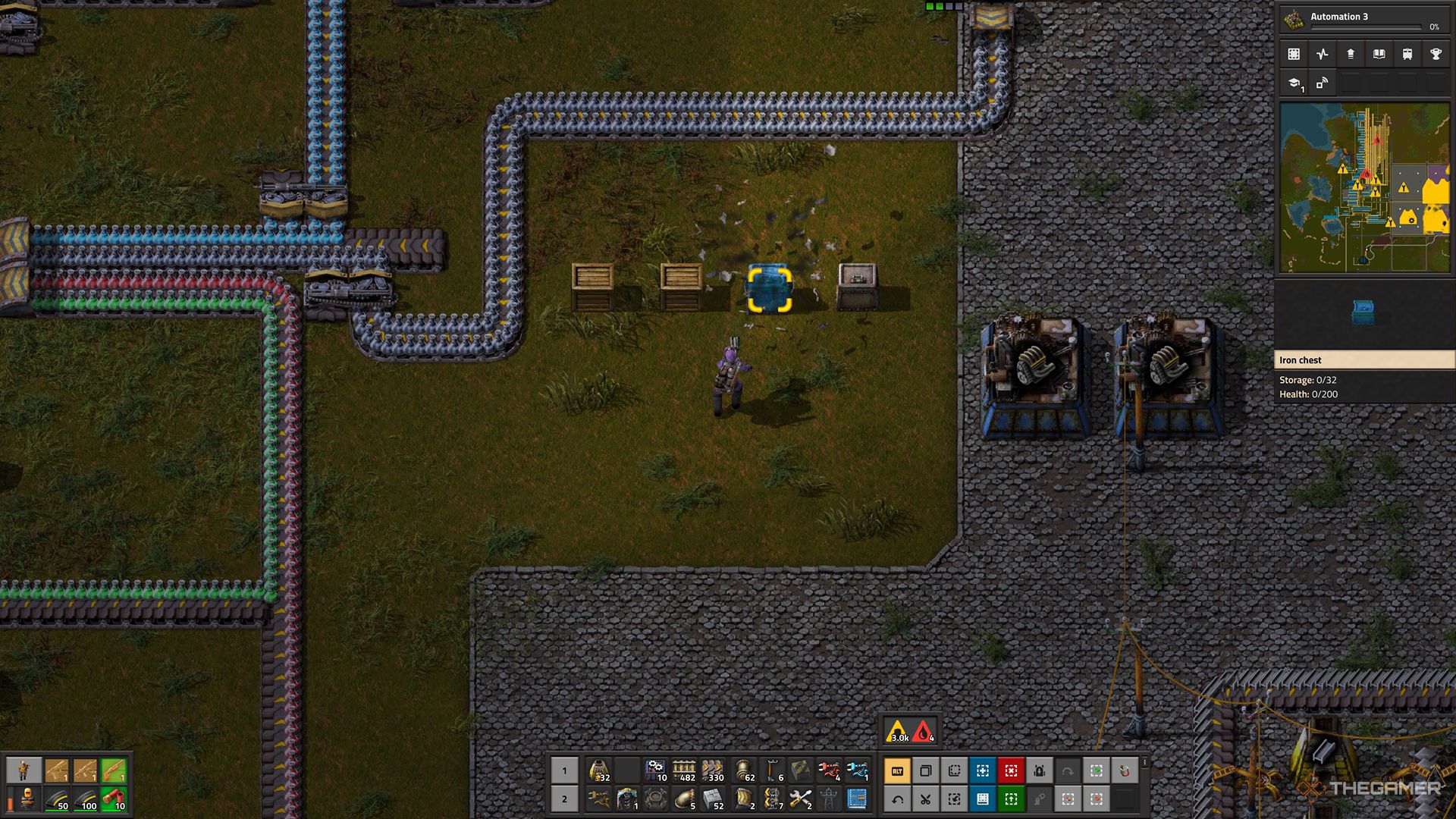
    The player destroying a chest using a gun to permanently delete items.

    To permanently remove an item or a stack of items, start by creating a storage chest from any material. Place it down and left-click to access its inventory, then move all the items you want to delete into it.

    Next, aim and shoot the storage chest to destroy it, which will permanently delete all items inside. Keep in mind this will also destroy the chest itself, so if you have many items to dispose of, you’ll need to craft several chests.

    Wooden chests have the least health, making them the easiest to destroy. However, feel free to use whichever type of chest you have available.

  • Correcting Overextended Pipes in Factorio: A Quick Guide

    Correcting Overextended Pipes in Factorio: A Quick Guide

    With the release of Factorio‘s first expansion, Space Age, the game also received an update to version 2.0. This update introduced various fixes, features, and enhancements to the base game. If you’re diving back into your factory after this update, you might be surprised to see red warning indicators scattered across your map, signaling that your pipes are overextended.

    The 2.0 update revamped how fluids move through pipes, eliminating the ability to have an endless pipeline. In the following sections, we will discuss how to resolve this issue and restore fluid flow in your factory.

    How to Resolve Overextended Pipes

    The 2.0 update altered the mechanics of pipe systems. Previously, as a fluid traveled through a pipeline, it would lose saturation over distance. Now, fluids fill each section of the pipe equally, but there’s a catch: pipe segments can only be a maximum of 320 tiles long.

    If any segment exceeds 320 tiles, it will be considered overextended, and fluids will stop flowing through it. Fortunately, you can easily remedy this by installing a pump every 320 tiles. As long as these pumps are wired to a power source, they will transfer the fluid from one segment to the next.

    To craft a pump, you’ll need one steel plate, one engine unit, and one pipe.

    You can determine the length of a pipeline segment by hovering over any pipe within the segment. The ‘Pipeline extend’ number out of 320 will display how many tiles are in that segment.

  • Importing and Utilizing Blueprints in Factorio: A Guide

    Importing and Utilizing Blueprints in Factorio: A Guide

    As you grow your factory in Factorio, you’ll find that your production needs increase significantly while you strive to generate more Science for new technology research. One effective way to speed up this expansion is by utilizing Blueprints, allowing you to create identical copies of specific sections of your factory.

    You have the option to create your own Blueprint by duplicating a part of your factory or by using designs made by other players. To use someone else’s Blueprints, you first need to import them into your game. Here’s how to import and utilize another player’s Blueprints.

    The instructions for importing Blueprints below are specifically for the PC version of the game, as importing Blueprint strings is not available on the Switch.

    How to Import Blueprints

    When you export a Blueprint, it gets saved as a text string. To import one, click the Import String button on your hotbar and paste the string for the desired Blueprint. This action places the Blueprint into your hand, allowing you to either deploy it immediately in the game or save it in your inventory as a Blueprint Book for future use.

    You can find Blueprints shared by other players on websites such as Factorio Prints, request them from other players, or even use ones saved in your own files.

    How to Use Imported Blueprints

    To utilize the Blueprint you’ve imported, click on it in your inventory to select it. This action creates a ghost version of all elements within the Blueprint, allowing you to initiate its placement in the game. This ghost serves as a guide for constructing machines or, more commonly, directs robots to build it for you, provided that the required materials are accessible in their logistics network.

    If your Blueprint is located in a Blueprint Book along with other designs, you can right-click the Blueprint Book to reveal a list of all the Blueprints stored within and select whichever individual Blueprint you wish to use. You can also navigate between active Blueprints by using Shift + Mouse Wheel.