الوسم: engine

  • How to Find and Use Oil for Engine Repair in Your RV: Solving the Issue

    How to Find and Use Oil for Engine Repair in Your RV: Solving the Issue

    A functional RV is essential for safely transporting you and your team to the next destination in the physics-based survival game RV There Yet?. Nothing stops your trip faster than a broken or damaged engine.

    Whether you’ve slipped on rocky ground or been nearby a bear attack, your RV can only handle so much before the engine takes the hit. To keep your adventure going, you’ll need to learn how to fix your engine and recognize when repairs are required.

    How to Find Oil

    A bottle of Motor Oil can be found at the campsite when you start the game. You can also find motor oil at checkpoints and points of interest, but there’s no guarantee. You’ll need to decide when to use the oil you have or if it’s better to push a little further before stopping for repairs.

    Make sure your RV has enough space to store the motor oil because it’s the only way to fix a damaged engine. Keep it secured inside cupboards so it doesn’t roll around when you’re driving.

    Note: If your engine becomes completely broken, unfortunately, it’s game over for you and your crew, and you’ll have to start over.

    How to Repair Your Engine

    You’ll know when your engine needs fixing by looking at the damage bar at the top of the screen. If it turns red, your engine has taken a beating. When possible, grab some motor oil to help repair it.

    The engine is hidden beneath the bed at the back of the RV. Approaching the bed allows you to open it and see the engine underneath. With motor oil in hand, follow the prompt (on PC, use the left mouse button) to repair the engine. Once fixed, your RV is ready for the next part of your journey.

  • Top Engine Rifle Build in Abyssus for Completing and Solving Tasks

    Top Engine Rifle Build in Abyssus for Completing and Solving Tasks

    In Abyssus, there are many factors to consider when preparing a loadout before starting a new expedition. Your playstyle influences your choice of weapons and fire modes, but regardless of your preferences, you’ll begin your first run with the Engine Rifle.

    If you’re new to Abyssus, here’s a breakdown of some of the best build options for each weapon, focusing on the optimal setup for the Engine Rifle.

    How Does the Engine Rifle Work?

    The Engine Rifle is a fast-firing weapon that operates like a machine gun. It boasts a high rate of fire, with both primary and secondary fire modes that modify the firing speed in exchange for damage output.

    • Primary Ammo: 40 rounds
    • Secondary Fire: lasts 4 seconds, with a 5-second cooldown

    This weapon excels at delivering a wide spread of damage across long distances. Its damage output is average, depending on which fire modes you use. Generally, increasing fire rate reduces damage per shot, but it allows you to land more hits quickly.

    Best Build For The Engine Rifle

    While experimenting to find what work best for you is encouraged, leveraging the Rifle’s high fire rate is recommended. There’s value in weapons that deal more damage per shot but fire more slowly.

    Primary and Secondary Fire Options

    The Engine Rifle is effective for hitting groups of enemies thanks to its broad spread. Here’s what works well:

    • Primary Fire – Gatling: As you fire, your rate of fire increases the longer you hold the trigger, eventually dealing higher damage in a short burst. Recoil and reload times can be reduced with upgrades later in the game, so prioritizing these can be beneficial.
    • Secondary Fire – Split Shot: Creates a wide spread for secondary attacks, excellent for groups. Pairing this with Charms and Aspects can further improve its effectiveness.

    To unlock these, you need to:

    • Kill 15 enemies without reloading for the Gatling fire.
    • Kill 30 enemies with explosions while firing the Split Shot.

    Other fire modes that focus on higher damage tend to reduce overall bullet output, so if you prefer fewer but stronger shots, guns like the Brine Revolver or Shotgun might be better suited.

    Best Ability

    Using the Frag Grenade is highly recommended with the Engine Rifle. It aids in maximizing damage and provides excellent crowd control during group fights. Keep in mind, unlocking additional abilities involves specific achievements—check your Logbook for details.

    Best Aspects

    Since each run can vary, you might not always get to choose your Aspects. However, if possible, consider these three:

    • Barrier: Your primary fire charges a barrier as you shoot—useful for defense, especially if you have Gatling equipped since it charges quickly.
    • Lightning: Focus on upgrading Chain Lightning; with a broad spread, it can hit multiple targets efficiently.
    • Spirits: Summons spirits to attack enemies after your Grenade, adding extra damage and combos.

    Best Charms

    Though Charms are randomly granted, if you find these, it’s advisable to pick them:

    1. Marksman – Boosts your damage with each consecutive hit, ideal given the spread of the Engine Rifle.
    2. Piercing Rounds – Bullets pierce enemies, significantly enhancing crowd control capabilities.

    Experimentation and dealing with the random nature of Charms can lead to powerful combinations, but these options generally enhance the Rifle’s effectiveness.

  • Turning Off Animations in Wallpaper Engine: A Quick Guide

    Turning Off Animations in Wallpaper Engine: A Quick Guide

    Wallpaper Engine is an excellent application for adding animated wallpapers to your Windows desktop. It offers a wide variety of community-created wallpapers, allowing users to personalize their systems and make them stand out.

    While these wallpapers are visually stunning, they do come with a downside: they can heavily utilize system resources when rendering animations. Fortunately, Wallpaper Engine provides the option to disable animations. Here’s a straightforward guide on how to do it.

    How to Turn Off Animations

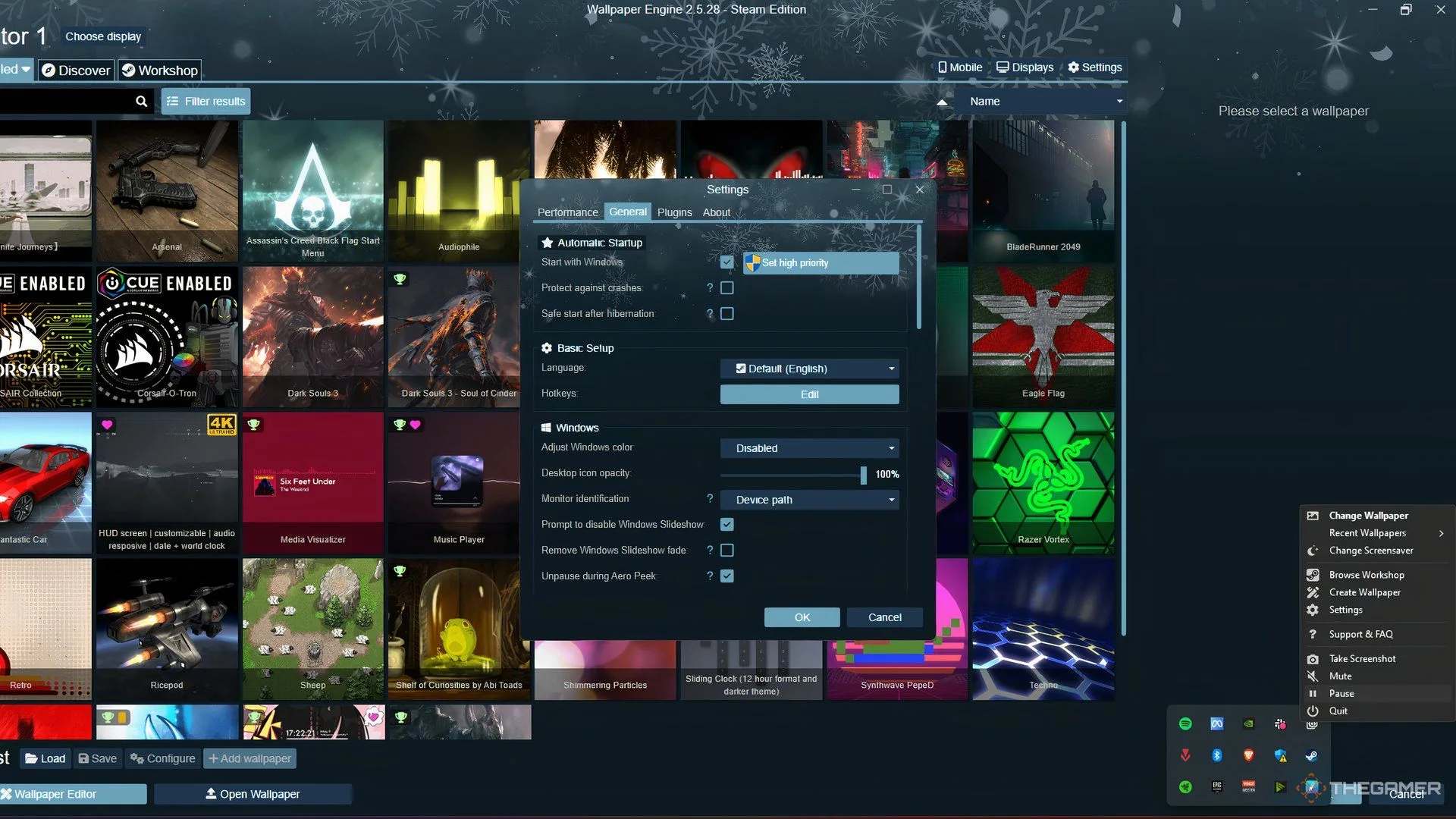
    To stop the wallpaper animations, just pause the wallpaper from the Windows system tray. Follow these simple steps:

    1. Launch Wallpaper Engine from either Steam or the Desktop shortcut.
    2. Look for an up arrow icon on the right side of the Windows Taskbar. Click it to open the system tray.
    3. Right-click the Wallpaper Engine icon (which resembles a gear with two boxes) and select the pause button to halt all animations.

    You can also create a shortcut for this function to make things easier. Here’s how to set up a hotkey:

    1. Open Wallpaper Engine through Steam or by clicking the Desktop icon.
    2. In the top right corner, find and click on the Settings button.
    3. When the settings window opens, navigate to the General tab.
    4. Under Basic Setup, look for the Hotkeys section and click on the Edit Button.
    5. Enter a key combination that includes either Ctrl, Alt, or Shift by clicking in the box next to Pause Wallpaper. For instance, you might use Ctrl+Shift+Q.
    6. Once you’ve set your hotkey, click the OK button.

    If you wish to remove or reset a hotkey, simply click the “x” next to your chosen hotkey. You can also establish hotkeys for other functions in Wallpaper Engine, such as starting a screensaver or taking screenshots.

    Important Note:

    You can only pause the wallpaper when you’re on your desktop. You can use the same hotkey to turn the animations back on again.

    Additionally, wallpapers will automatically pause while you’re gaming. If you’re using a dynamic wallpaper, those will also pause automatically.