الوسم: Discord

  • تسريب حملة ديسكورد GTA 6 مع ثيم تطبيق حصري ومهمة محتملة

    تسريب حملة ديسكورد GTA 6 مع ثيم تطبيق حصري ومهمة محتملة

    حملة تسويق غاضبة من شركة روكستار للعبة GTA 6 وصلت إلى منصة ديسكورد، حيث تشير تسريبات جديدة إلى استعداد المنصة لإطلاق حملة مؤقتة بعنوان “Hexagon” ستتضمن ميزات خاصة بموضوع GTA 6 داخل التطبيق، بما في ذلك مهمة محتملة قبل إصدار اللعبة المقرر في 19 نوفمبر 2026.
    وفقًا لمصدر موثوق على منصة X، ستشمل حملة GTA 6 على ديسكورد ما يلي من خصائص حصرية للتطبيق:
    – أيقونة تطبيق مستوحاة من GTA 6
    – ثيم خاص باللعبة داخل التطبيق
    – خط مخصص لاسم العرض يتماشى مع أسلوب GTA 6

    كما تم الكشف عن معاينة لثيم جديد يضيف لوحة ألوان بنية وردية وصفراء مستوحاة من مدينة Vice، والتي ستتاح لكل من مستخدمي نيترو ومع عدم نيترو. يتوقع أن تتضمن الحملة مهمة داخل التطبيق مع مكافأة غير معروفة حتى الآن، على أن تستمر لفترات مختلفة بحسب نوع الاشتراك:
    – تبدأ في 17 نوفمبر 2026
    – تنتهي لمستخدمي غير نيترو في 8 ديسمبر 2026
    – وتنتهي لمستخدمي نيترو في 15 فبراير 2027

    ومن المتوقع أن يُطلق تحديث الثيم الخاص بـ GTA 6 في نفس اليوم، أي قبل يوم من مباراة NBA التي ستقام في ميامي بين فريق Miami Heat وفريق Milwaukee Bucks في مركز Kaseya، مما يعكس خطة تسويقية متكاملة من روكستار.

    جدير بالذكر أن تسريبات Wumpus Central كانت دائمًا موثوقة، وقد سبق وأن كشفوا عن تعاونات مماثلة مثل شراكة كول أوف ديوتي: مودرن وورفير 4 على ديسكورد التي منحت المستخدمين رمز بيتا.
    هل أنت متحمس لحملة GTA 6 على ديسكورد؟ شاركنا رأيك في التعليقات أدناه.

  • How to Add Discord Friends in Battlefield 6 by Completing and Solving

    How to Add Discord Friends in Battlefield 6 by Completing and Solving

    Battlefield 6 lets you connect your EA and Discord accounts if you haven’t done so already. This automatically gathers all your friends into one central place, making it easier to team up. You can access this feature anytime through the social menu, and it’s completely free.

    If you already use Discord to chat with friends, it’s a good idea to link your accounts right away. This saves you the hassle of searching for player IDs or using third-party profiles for cross-platform play. The setup process doesn’t take long.

    Connecting your accounts is straightforward. First, open the friends menu. Then, click on the ‘Connect to Discord’ button. A QR code will appear—scan it or click the link provided. Next, authorize the connection through Discord and EA. After that, go back to Battlefield 6 and click on the prompt saying, “I’ve connected my accounts.” Once linked, your profiles will be connected, and your Discord friends will show up in-game. If you want to see detailed steps, there’s more information below.

    To start, open the friends menu on the right side of your screen, known as the EA Connect tab. Click the ‘Connect to Discord’ button, which will bring up a QR code.

    Scanning the QR code will open Discord, showing a screen with the features available if you agree to link your accounts. These include messaging other Discord users in-game, sharing your activity on your profile, receiving personalized content and promos, and merging up to 1,000 friends into your Battlefield 6 friends list. You can also click the link below the QR if you prefer.

    Next, at the top of this menu, you’ll see a prompt to ‘Connect to Discord.’ Click it and a QR code appears.

    Scanning this QR will direct you to Discord, where you’ll see a breakdown of the features you’ll gain by linking your accounts.

    To authorize, scroll to the bottom of the disclaimer and click ‘Authorize the merge.’ This action will take you to an EA page where you can confirm.

    If you aren’t logged into EA, do so now. Then, click ‘Link Accounts’ to continue.

    Once linked, return to Battlefield 6. Open the friends menu and find the new option to ‘Connect to Discord’ if it’s not already active. Confirm the connection, and your Discord friends will be added to your game friends list under a new tab called Discord Friends.

    From there, you can invite anyone who owns the game to join your party. Since many players use Discord for cross-platform communication, you likely already have your friends added there for Xbox, PC, and PlayStation.

  • How Does Bitchat App Compare to Discord?

    How Does Bitchat App Compare to Discord?

    In the ever-evolving landscape of online communication, platforms like Bitchat and Discord are gaining popularity among users looking for engaging ways to connect. While both offer features aimed at facilitating conversations and community interaction, they cater to different audiences and use cases. This article delves into the core differences and similarities between Bitchat and Discord.

    Overview of Bitchat and Discord

    What is Bitchat?

    Bitchat is an emerging messaging app that emphasizes minimalism and user privacy. It has gained attention for its user-friendly interface and straightforward features. Designed to foster intimate conversations and small communities, Bitchat appeals to users who prefer simplicity over complexity.

    What is Discord?

    Discord, on the other hand, is a well-established platform primarily designed for gamers but has expanded to serve various communities. With robust features like voice chat, video calls, and screen sharing, Discord provides tools for large groups and communities to interact seamlessly.

    Feature Comparison

    User Interface

    • Bitchat:

      • Minimalistic and intuitive layout
      • Simple navigation aimed at direct messaging
      • Less clutter, making it easy for new users

    • Discord:

      • Feature-rich interface with numerous options
      • Channels for different topics, enhancing organization
      • A steeper learning curve due to extensive functionality

    Messaging and Communication

    • Bitchat:

      • Primarily text-based communication
      • Focus on direct messaging with a few group options
      • Limited multimedia support

    • Discord:

      • Supports text, voice, and video communication
      • Varied modes of interaction (e.g., public servers, private groups)
      • Rich multimedia sharing, including images, videos, and links

    Community Features

    • Bitchat:

      • Limited community-building features
      • No dedicated channels or server management options
      • Ideal for small, close-knit groups

    • Discord:

      • Extensive community management features
      • Customizable servers with roles, permissions, and channels
      • Ability to integrate bots for enhanced functionality

    Privacy and Security

    • Bitchat:

      • Strong focus on user privacy
      • Minimal data collection policies
      • Options for encrypted messaging

    • Discord:

      • Standard privacy measures but has faced scrutiny over data handling
      • More complex data collection due to the wide range of features
      • Users must navigate privacy settings for optimal security

    Target Audience

    Bitchat’s User Base

    • Individuals seeking straightforward communication
    • Small communities or friend groups
    • Users prioritizing privacy and simplicity over advanced features

    Discord’s User Base

    • Gamers looking for in-game communication
    • Various interest-based communities (tech, art, education, etc.)
    • Users who appreciate extensive features and customization options

    Pricing Structure

    Bitchat

    • Offers a free version, focusing on essential features
    • Paid tiers may be available for additional functionalities, but details can vary

    Discord

    • Free to use with most features
    • Discord Nitro subscription available for additional perks, such as higher quality streaming and larger file uploads

    Summary of Key Differences

    Feature Bitchat Discord
    User Interface Minimal and clean Feature-rich but complex
    Communication Modes Text-based primarily Text, voice, video
    Community Features Limited Extensive and customizable
    Privacy Focus Strong Standard with scrutiny
    Target Audience Small groups and privacy Gamers and large communities
    Pricing Structure Free with potential paid tiers Mostly free, Nitro subscription available

    Final Thoughts

    When choosing between Bitchat and Discord, the decision ultimately depends on individual needs. Bitchat is an excellent choice for users seeking simplicity and privacy, while Discord is better suited for those who thrive in larger, more dynamic communities.

  • Mobile Discord Experience Set for Major Deterioration

    Mobile Discord Experience Set for Major Deterioration

    If you’ve been using Discord for a while, one of the reasons you might have stayed is its status as an ad-free platform. However, it seems that Discord is ready to change that narrative.

    Ads Are Coming to Discord Mobile

    Discord recently revealed in a press release that users can expect to see third-party ads on its mobile app starting in June 2025. The good news is that these won’t be the disruptive ads that completely ruin your gaming experience.

    Instead, Discord is introducing something called Video Quests to mobile. If you’re not familiar with this feature, let me explain. There are two types of Quests—Play Quests, which reward you for playing or streaming games, and Video Quests, which offer rewards like in-game items and Discord avatar decorations for watching video ads.

    With the launch of Video Quests on mobile, ads will appear as a “Quest bar” at the bottom of your screen. The best part? A full-screen ad only activates if you choose to accept the Quest. If you’re not interested, you can easily dismiss it and won’t be bothered with further notifications for that specific Quest.

    Video Quests were first launched on PC and consoles in March 2024. Despite some initial backlash, many users found them manageable since opting out of Discord ads was straightforward.

    The Verge has confirmed that mobile users will also have the option to opt out of personalized ads or hide in-app promotions for certain Quests, which should provide some relief.

    It’s important to note that this announcement isn’t entirely unexpected. Numerous users on platforms like Reddit have documented Discord testing Quests on mobile for some time now, and it’s clear that many gamers are not too pleased with this development.

    Peter Sellis, Discord’s product leader, mentioned that “extending Video Quests to mobile will create new opportunities for businesses to engage with our community,” clearly indicating that this move is primarily beneficial for advertisers.

    While I appreciate that Discord’s ads won’t be as intrusive as those found on some other platforms (looking at you, YouTube), I still find myself nostalgically wishing for the days when the platform was completely ad-free.

  • Mute Your Discord Friend Discreetly Without Offending Them

    Mute Your Discord Friend Discreetly Without Offending Them

    While each social media platform has its own unique features, one aspect remains essential: the ability to block unwanted interactions. Although this function was initially popularized by gamers, Discord has taken it a step further with its subtler “ignore” feature.

    Discord Introduces an “Ignore” Feature to Mute Unwanted Conversations

    As part of its commitment to online safety, Discord has launched a new function named Ignore. According to a post on Discord’s blog, this feature is designed to help you “manage your social boundaries in a more gentle manner,” positioning it as a valuable tool in your “safety toolbox.”

    It’s important to note that Discord still includes a Block option, but the Ignore function offers a less confrontational approach to disengaging from someone. When you block a user, they receive a clear notification that they’ve been blocked, as their messages will no longer get through. Here’s what Discord says about why this might not always be the best choice:

    “While blocking a user prevents you from interacting with them, we’ve heard feedback that this can often feel intimidating or aggressive.”

    When you choose to ignore someone on Discord, they won’t be alerted to your decision. The platform will simply hide the following from you:

    • Messages from them
    • Direct message or server notifications
    • Their profile and activities

    In essence, ignoring a user on Discord allows them to still see your profile and reach out to you; you’ll just no longer be disturbed by their communications.

    How to Ignore Someone on Discord

    The process for ignoring a user on Discord closely resembles the steps for blocking someone. Here’s how to do it:

    1. Open the user’s profile.
    2. Click on the three-dot menu.
    3. Select Ignore, which appears just above the Block option.

    Engaging on social media can be thrilling but also risky, especially for younger users. Many will inevitably encounter adversities online—from dealing with annoying users who spam their feeds to facing more severe forms of online harassment. Thankfully, Discord provides various methods to uphold your online limits, and its new Ignore feature is an excellent addition to those tools.

  • Unlock the Marvel Rivals Jeff the Land Shark Avatar on Discord

    Unlock the Marvel Rivals Jeff the Land Shark Avatar on Discord

    If you want to give your Discord profile a touch of Marvel Rivals, the Jeff the Land Shark Avatar Decoration is the way to go. This special reward can only be earned through Discord, and you’ll need to complete a quick in-game quest to get it. Don’t wait too long, though—the quest is only available for a short period.

    For fans of Marvel Rivals who use Discord, this is a fun opportunity to show your enthusiasm for the game. Plus, the quest is easy to complete, making it simple to unlock your prize.

    How to Obtain Jeff the Land Shark Avatar Decoration

    To get the exclusive Jeff the Land Shark avatar decoration in Marvel Rivals, you’ll need to finish a special quest that’s available only on the Discord app.

    The quest will kick off with the launch of Season One on January 10th and end on January 16th. Be sure to complete the quest during this time to secure your adorable Jeff the Land Shark decoration for your Discord avatar.

    The quest is only available on the desktop or browser version of Discord, so it can’t be completed on the mobile app.

    First, make sure you download both Discord and Marvel Rivals. Then, open the Discord app and find the “Discover” button, represented by a compass icon, on the left side of your screen. From there, head to the “Quests” section, which is also located on the left.

    In the next window, you’ll see various quests from different games. Look for the one related to Marvel Rivals, which should be right at the top. Click on “Accept Quest” to get started.

    Once you’ve accepted the quest, all you need to do is play Marvel Rivals for a total of 15 minutes while Discord is running in the background.

    To keep track of your progress, return to the Quests tab in Discord, where you can see how far along you are in percentage.

    After reaching the 15-minute mark, head back to the Quests page in Discord to claim your cute Jeff the Land Shark avatar decoration.

    This is a limited-time offer, so you’ll only be able to enjoy this decoration for the next two months.

  • Why I Only Use Reddit and Discord for Social Media

    Why I Only Use Reddit and Discord for Social Media

    Main Points

    • I’ve discovered that sticking to just Reddit and Discord for my social media needs is sufficient for connecting with people who share my interests, along with accessing a wealth of information and entertainment.
    • Reddit serves as an excellent platform for engaging in niche communities and getting news, while Discord allows for more meaningful, real-time conversations and various entertainment options.
    • While this strategy might limit encounters with trending content and wider networks, it alleviates stress and the fear of missing out (FOMO), fostering more significant interactions centered on my personal passions.

    With so many social media platforms at our fingertips today, it often feels like we’re expected to juggle multiple accounts—posting on Instagram, tweeting on X, connecting with friends on Threads, and keeping up with TikTok trends. It’s dizzying, draining, and largely unnecessary for most people.

    After several breaks from social media, I realized I didn’t need to keep up with multiple platforms. I’ve simplified my online presence to just Reddit and Discord, and here’s how they’ve got me covered.

    How Reddit and Discord Enhance My Social Connections

    When it comes to meeting new individuals, especially those who share my interests, there’s no better place than Reddit. A simple keyword search on the platform quickly leads me to relevant communities.

    Recently, I learned that I have joint hypermobility—something I hadn’t even heard of before. I turned to Reddit, joined a hypermobility community, and found valuable stretches and discussions about the experience of being someone with flexible joints.

    I’m part of several Reddit communities related to my health, hobbies, and beliefs. These targeted groups connect me with people who not only share similar interests but also provide support and insights I might not find elsewhere. Whether it’s discussing chronic pain or joining conversations about hobbies, Reddit creates a space for meaningful connections.

    I’ve also discovered many Discord servers through Reddit. Discord is a more intimate platform, ideal for deeper discussions. While private messages and group chats are available on both platforms (like the Duolingo German Learners chat I’m part of), Discord offers unique options, such as voice chats and game streams.

    So, I can meet new friends on Reddit and move the conversation to Discord when I want, or keep building relationships on Reddit. I can also search for enticing Discord servers to join or create my own and extend the invitation to others. Either way, I feel well-connected thanks to both platforms.

    Ideal for Information Exchange and Discovery

    Staying informed is a big reason many of us are glued to social media apps like X, Snapchat, and Instagram. We want to know who said what and when, plus any additional information that can help us stay in the loop.

    Reddit is fantastic for gathering community-driven content and news on everything from celebrities and gadgets to global events. By enabling notifications, I can effortlessly keep track of what’s trending in technology, updates from around the world, and fresh discussions on current affairs.

    Discord adds another layer with its real-time interactions. It’s like having a messaging app with social media elements, allowing me to communicate directly with people I may not know personally.

    If I’m searching for quick updates or niche advice, I can jump into relevant server discussions or send a direct message to someone. It’s a productive way to gather information, whether from experts or fellow fans.

    Reddit and Discord Provide Endless Entertainment

    Before I learned how to avoid the rabbit hole of endless scrolling, I often found myself spending hours watching reels, saving memes, participating in Instagram debates, and reposting tweets. If I conducted a survey, I’m confident that many would agree this is why we’re drawn to mainstream social media.

    However, Reddit and Discord offer countless ways to unwind. On Reddit, I can browse through an endless stream of memes, enjoy hilarious videos, or engage in lighthearted discussions. Each day, I launch the app unsure of what delight I’ll find, since the entertainment is continually refreshed. Plus, the upvoting system ensures I see the best content from communities.

    Discord ups the fun factor by allowing me to interact with friends, listen to music together, game together, and much more.

    Pros and Cons: Are You Really Missing Anything?

    Limiting my social media to just Reddit and Discord comes with its downsides, but none significant enough to make me want to go back to how things were before. As an influencer, perhaps I’d be missing out. Having a vibrant presence on Instagram, X, TikTok, or similar platforms is essential for sharing an audience and staying relevant. However, for the average person, this doesn’t seem to matter much.

    If you need to use apps like X or Facebook for professional purposes—whether for marketing or using tools like MuckRack—you can still set up accounts for work without getting caught up in personal social media interactions.

    One major benefit of streamlining my social media usage is a noticeable drop in stress and fear of missing out (FOMO). I no longer feel I’m neglecting what everyone else is doing because I tailor my online experience around what truly matters to me. It also helps me avoid the fatigue that comes with endlessly scrolling and attempting to keep up with everyone’s posts, many of which don’t interest me.

    When I used to keep my Instagram account active, I turned off notifications and checked it every few days. That meant I returned to an overwhelming heap of reels—many sent from friends with good intentions—filled with cat videos, average jokes, and mundane content that offered more stress than enjoyment.

    Another perk is that I can engage in more meaningful interactions. With fewer platforms, I can focus on participating in communities that genuinely interest me instead of spreading myself too thin across too many spaces. It’s less about public visibility and more about fostering connections with like-minded individuals.

    Still, there are trade-offs. By focusing on Reddit and Discord, I miss features like reels, live streams, and the opportunity to connect with a broader audience. My reach is more limited, and I often miss out on the latest viral trends. That said, I don’t truly feel deprived. I’ve achieved a simpler, more focused social media experience without sacrificing the connections and information that matter most to me.

    Ultimately, this approach works for me, although it might not suit everyone. However, if you’re seeking to cut down on social media overload, Reddit and Discord could be your ideal alternatives too.
  • Discord Unveils End-to-End Encryption for Audio and Video Calls

    Discord Unveils End-to-End Encryption for Audio and Video Calls

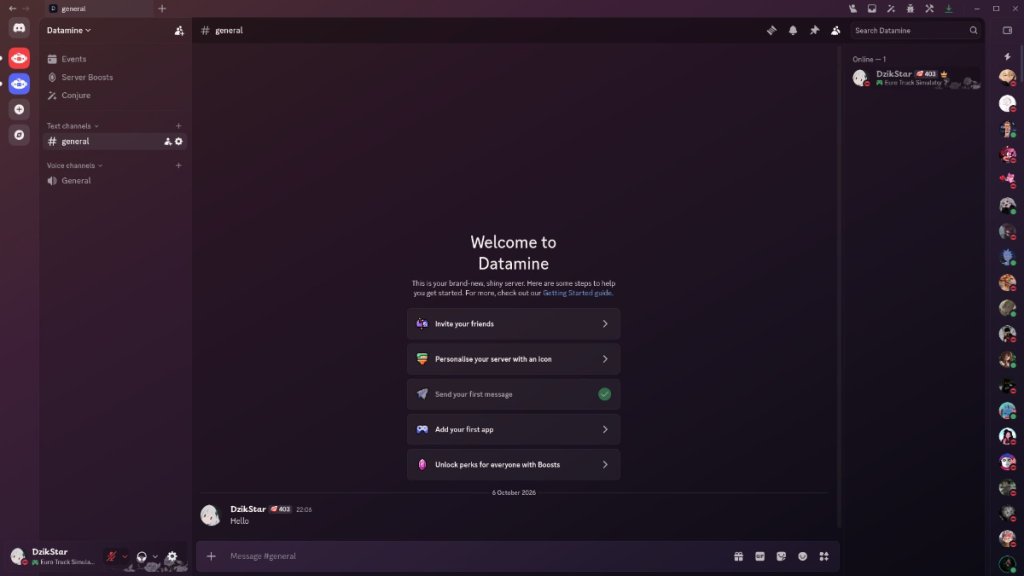
    Discord has introduced end-to-end encryption (E2EE) for its audio and video calls, enhancing security for direct messages, group chats, voice channels, and Go Live streams. This feature is now accessible on both desktop and mobile versions, with plans to roll it out to other platforms next year.

    The company prioritizes transparency regarding its encryption methods, providing the public with detailed information about the protocols in use. Discord reassures users that the quality of calls will remain unaffected by the implementation of E2EE. However, text messages will not be encrypted to maintain moderation under Discord’s content policies.

    E2EE has become more common across various platforms, including Signal, WhatsApp, and Zoom, where it is offered as either a default or optional feature for secure communications.

    Last year, Discord revealed that they were testing new encryption technologies for audio and video interactions. The team has now formally announced the launch of their DAVE protocol for E2EE in a recent blog post.

    To facilitate this new encryption feature, Discord has updated its user interface to indicate when voice and video calls are secured with end-to-end encryption and has added options for members to use Verification Codes for out-of-band verification during E2EE calls.

  • How to Use Discord on PS5: A Step-by-Step Guide

    How to Use Discord on PS5: A Step-by-Step Guide

    Discord

    For many gamers worldwide, Discord has been the preferred platform for voice and text communication. It was somewhat unexpected that Sony took a while to incorporate Discord into the PlayStation 5. Initially, the console lacked a dedicated Discord app, but a recent update has simplified the process, allowing players to communicate with friends seamlessly while diving into their favorite PS5 titles.

    Using Discord on PS5

    To start chatting through Discord on your PS5, ensure your console’s software is fully updated. Once you’re set up, linking your accounts will allow smoother communication while enjoying multiplayer games.

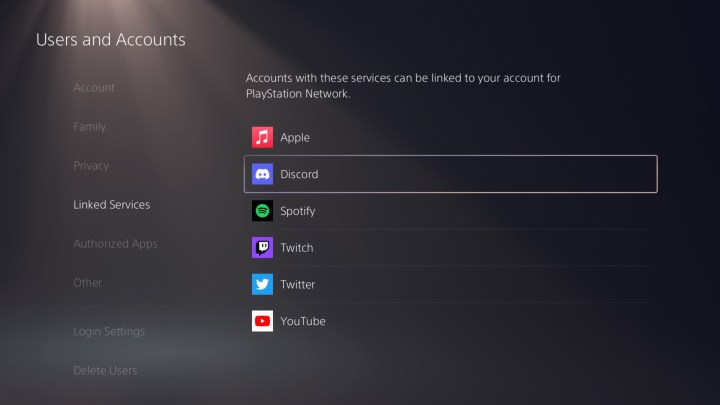
    Step 1: Navigate to Settings > Users and Accounts > Linked Services, and select Discord.

    Screen interface for linking the Discord app on PS5
    Screenshot / Digital Trends

    Step 2: Follow the provided link or scan the QR code with your Discord mobile app.

    Step 3: Enter the code displayed on your PS5 into the app to grant authorization.

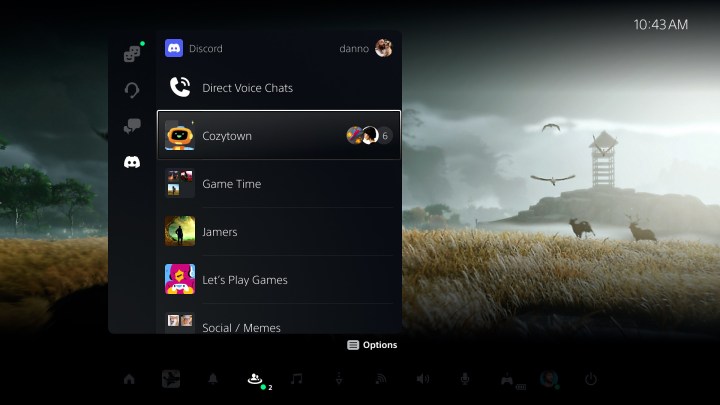
    Step 4: To initiate a chat, access your Game Base station and select the Discord tab.

    User interface for Discord on PS5
    Image used with permission by copyright holder

    Step 5: Select the Discord server or group you wish to join.

    Step 6: If someone calls you through Discord, you will receive a notification and can join the call with a simple click.

    This feature is compatible with all top PS5 headsets and earbuds. If you need assistance connecting your AirPods to the PS5, we can guide you through that as well.

  • Jockie Music Bot: How To Add To Discord (With Commands)

    Jockie Music Bot: How To Add To Discord (With Commands)

    Jockie music bot is an excellent addition to any Discord server, whether it’s one you’re running or one that you want to join, and it’s easy to add if you know-how. With this guide, you’ll be able to add the Jockie music bot to your Discord in just five simple steps.

    You’ll also learn about the numerous commands that allow you to easily control the bot and its many features, which include changing volume levels, playing songs from YouTube, and adding tracks from your own playlist and library. Ready? Let’s get started!

    How To Add Jockie Music bot To Discord

    Log in with your discord

    You can log in here.

    Open Top gg website

    Open the top gg website in a new tab.

    Adding you bot

    You will see many bots and servers for Discord there; you can search the top bots or type in the name of the bot you want to add manually.

    Search for Jockie Music Bot

    Adding ‘Jockie Music bot’ is as simple as typing the name and pressing enter; click the ‘Invite’ button for Jockie Music.

    Select the server

    You will see many bots and servers for Discord there; the bot will be accessible from your Discord account through a new tab. Select the server where the bot should be added.

    Click continue

    Click on ‘Continue’ to continue

    Verify I am Human

    Click on ‘I am human’ after clearing the captcha.

    Bot added

    The bot will now appear under ‘Online’ on the right side of your server in Discord.

    Done!

    You can now play music on Discord once you have added the desired bot.

    How To Play Music In Discord Bot – (Jockie Music Bot Commands)

    Since Jockie music bot has been added to your Discord server to play music. Connect to the voice channel of your server after that. You will then have to give commands to Discord to play, pause, or stop music based on the music bot you added.

    Now that Jockie Music bot has been added to Discord, here is how you can use it:

    1. In the ‘Voice Channels’ section, click on the name of the voice channel you wish to join.
    2. At the bottom left corner of the screen, you will see the confirmation message ‘Voice connected’
    3. You will then need to enter the commands for the bot. Here are the basic commands:
      • m!play – Play tracks by link or search
      • m!skip – Skip the track currently playing
      • m!leave – Exit the voice channel with the bot
      • m!pause – Stop the track
    4. Let’s say, you want to play the ‘Shape of You’ track, simply type in the right command for the Jockie Music bot in the text channel i.e. m!play – Shape of You and press ‘enter’. Jockie Music will search for the track and start playing it.
    5. Similarly, you can try giving other commands to the bot to see how it works. You can even give more than one command to the bot at a time; it will follow all the commands one by one automatically.

    As one of the leading VoIP, instant messaging, and digital distribution platforms, Discord has over 300 million registered users. When it comes to multitasking, Discord is great when it comes to gaming and listening to music.

    Music, games, and talking to your friends can all be played simultaneously. It may be for this reason that Discord manages 19 million active servers every week.

    You probably already know that Discord has a music feature if you have been a loyal user. The fun and entertainment you could have had if you had done so are missing out on if you have not done so.

  • How To Connect Your Discord Account With Playstation 5?

    The announced partnership between Sony and Discord is taking shape: it is now possible to connect your discord account with your PS5.

    (المزيد…)
  • Discord Nitro: Price, Perks, Codes, Free Trial and Review

    All of you have been asking what is Discord Nitro and is it really worth buying? We have expained everything in this article.

    (المزيد…)