Tag: difference

  • What Is the Age Difference Between Rawaa El Saadi and Hassan Khalil?

    What Is the Age Difference Between Rawaa El Saadi and Hassan Khalil?

    Digital Phablet – Syrian actress Rawaa El Saadi became engaged to Syrian actor Hassan Khalil on Wednesday, with their families, close friends, and some celebrities present.

    After years of speculation regarding their relationship, Rawaa El Saadi and Hassan Khalil decided to settle the rumors by officially sharing news of their engagement on July 22, 2026. The intimate celebration was shared with fans, highlighting a warm family atmosphere.

    The pair uploaded a series of images from the engagement party on their Instagram profiles, featuring moments with family members and marked with the date and a ring emoji: “22/7/2026.” Rawaa was dressed in a pink gown by Alaa G Sarkis, keeping her hairstyle simple, with makeup done by artist Wesaam Hsseno.


    What is the age gap between Rawaa El Saadi and Hassan Khalil?

    Fans celebrated the engagement of Rawaa and Hassan, congratulating them especially after years of rumors about their relationship. However, many noted the difference in their ages.

    Rawaa El Saadi was born on April 1, 1988, while her fiancé Hassan Khalil was born on April 23, 1993. Khalil is 33, and Rawaa is 38, meaning there’s a five-year age difference. Nonetheless, their engagement demonstrates that love truly transcends all boundaries.


    Photos from Rawaa El Saadi and Hassan Khalil’s engagement:

    Rawaa El Saadi and Hassan Khalil

    Rawaa El Saadi and Hassan Khalil

  • What Is the Age Difference Between Mai Ezz Eldin and Ahmed Taymour?

    What Is the Age Difference Between Mai Ezz Eldin and Ahmed Taymour?

    Digital Phablet – Egyptian actress Mai Ezz Eldin stunned her fans yesterday by revealing her marriage to blogger Ahmed Taymour.

    Also Read:
    Who is Ahmed Taymour, Mai Ezz Eldin’s husband?
    Who is Ahmed Taymour, Mai Ezz Eldin's husband?

    Despite many friends and artists expressing their happiness about Mai Ezz Eldin’s marriage, social media reactions have been mixed. Many fans and followers pointed out the significant age gap between the newlyweds after their photos surfaced online.

    Mai shared three pictures from her wedding ceremony, captioning, “All praise be to Allah, by His grace, good deeds are completed. I pray for success from God, and your sincere and kind prayers for us are greatly appreciated.”

    Ahmed Taymour and Mai Ezz Eldin
    Ahmed Taymour and Egyptian star Mai Ezz Eldin (Instagram)

    One of the most notable attendees was Mai’s close friend, Egyptian artist Ahmed El Saadany, who also shared a photo with the couple and expressed his happiness for them.

    How old is Ahmed Taymour, Mai Ezz Eldin’s husband?

    Actress Mai Ezz Eldin, who is 45, was born on January 19, 1980. The precise age of her husband is still unconfirmed, but many believe he appears to be in his early 30s.

    Meanwhile, a social media source revealed that Ahmed Taymour Khalil posted a photo in 2016 celebrating his graduation from the Faculty of Pharmacy, which suggests he was born in the 1990s.

    Based on calculations, it appears Ahmed Taymour was born in January 1993, making the age difference between him and Mai roughly 10 to 13 years.

    Who is Ahmed Taymour, Mai Ezz Eldin’s husband?

    Ahmed Taymour Khalil, thought to be in his 30s, considers himself a pharmacist and nutritionist.

    He has approximately 140,000 followers on his personal Instagram account, where he shares content related to travel and health.

    Many recognize Ahmed as a blogger, while others know him as a model or personal trainer. He frequently posts videos about physical fitness and healthy eating habits.

    He has a love for traveling and enjoying seaside atmospheres, often taking trips outside Egypt during summer vacations.

  • Whatʼs the Difference Between a WiFi Booster and Extender?

    Whatʼs the Difference Between a WiFi Booster and Extender?

    In today’s digitally driven world, a robust WiFi connection is crucial for both work and leisure activities. If you’ve ever experienced dead zones or weak signals in your home or office, you might have come across the terms “WiFi booster” and “WiFi extender.” While they are often used interchangeably, there are key differences between the two devices.

    Understanding WiFi Boosters

    WiFi boosters are devices designed to amplify the existing WiFi signal within your space. They work by receiving the current signal from your router and then re-broadcasting it to expand coverage.

    Features of WiFi Boosters:

    • Signal Amplification: Boosters strengthen the signal, making it more powerful and capable of reaching further.
    • Simple Setup: Often plug-and-play, installation usually involves connecting to a power outlet and pairing with the existing network.
    • Ideal for Minor Enhancements: Best used in situations where the WiFi signal is decent but requires a bit more reach.

    When to Use a WiFi Booster:

    • You have a small area that needs improved signal strength.
    • The router is functioning well, but there are small dead zones.
    • You’re looking for a budget-friendly option.

    Understanding WiFi Extenders

    WiFi extenders, although similar in purpose, operate in a slightly different manner. They create a new network by picking up the original WiFi signal and transmitting it, effectively extending the range without relying solely on amplification.

    Features of WiFi Extenders:

    • New Network Creation: Extenders generate a new network name (SSID), which may require you to reconnect devices.
    • Greater Reach: More suitable for larger areas where the signal weakens significantly.
    • Flexible Placement: Can be strategically placed in areas with a good signal to push connectivity into weaker zones.

    When to Use a WiFi Extender:

    • Your space is too large for a single router’s coverage.
    • You encounter significant dead zones in specific areas.
    • Home or office layout includes thick walls or obstructions that hinder signal flow.

    Key Differences Between Boosters and Extenders

    Understanding the core differences between WiFi boosters and extenders can help inform your choice.

    Signal Processing:

    • Booster: Amplifies the existing signal.
    • Extender: Relays and creates a new signal.

    Network Configuration:

    • Booster: Generally keeps the same SSID, providing a seamless experience.
    • Extender: Often creates a separate SSID, which requires manual reconnection.

    Coverage Area:

    • Booster: Suitable for small to medium-sized areas needing enhancement.
    • Extender: More effective for larger areas, especially with many obstacles.

    Summary of Benefits

    To summarize the benefits of each device:

    WiFi Booster:

    • Cost-effective solution for minor issues.
    • Requires less technical knowledge to set up.
    • Ideal for amplifying weak signals.

    WiFi Extender:

    • Effective for larger homes or offices.
    • Can handle multiple devices more efficiently.
    • Provides stable connections in challenging environments.

    Choosing the right device largely depends on your specific needs. Whether you opt for a WiFi booster or an extender, ensuring a strong and reliable signal throughout your space can significantly enhance your internet experience.

  • What Is the Difference Between a Laptop and a PC Laptop?

    When it comes to personal computing, the terms "laptop" and "PC laptop" are commonly used, but many people may not fully understand the distinctions between them. Both devices serve similar functions but cater to different needs and preferences. Let’s break down the differences to help you make an informed choice.

    Understanding Laptops

    A laptop is a portable computer that combines all the components of a traditional desktop computer into a single unit. Laptops are designed for mobility, making them ideal for users who need to work on the go.

    Key Features of Laptops:

    • Portability: Lightweight and compact, easy to carry.
    • Integrated Components: Contains built-in keyboard, trackpad, and display.
    • Battery Powered: Can operate without a constant power source.
    • Variety of Operating Systems: Runs on Windows, macOS, or Linux.

    What is a PC Laptop?

    "PC laptop" typically refers to laptops running Windows operating systems or those that are compatible with the PC ecosystem. Essentially, it’s a laptop that is designed primarily for users who prefer the Windows environment or have specific needs associated with PC software.

    Characteristics of PC Laptops:

    • Operating System: Primarily uses Windows, offering compatibility with most software.
    • Hardware Customization: Offers a variety of configurations tailored for gaming, business, or general use.
    • Expandability: Many PC laptops allow for upgrades in RAM, storage, and graphics.

    Key Differences Between Laptops and PC Laptops

    Understanding the primary differences can help users decide which option best suits their needs.

    Operating System and Software Compatibility

    • Laptops: May run different operating systems (Windows, macOS, or Linux).
    • PC Laptops: Usually runs Windows, ensuring compatibility with a broader range of software applications.

    Design and Build

    • Laptops: Often designed for portability, featuring lightweight and compact designs.
    • PC Laptops: May vary significantly in size and weight, catering to different user needs—some may prioritize portability, while others may focus on performance.

    Use Cases

    • Laptops: Great for everyday tasks like browsing, streaming, or light productivity work.
    • PC Laptops: Ideal for users who need specific applications that require a Windows environment, including gaming, software development, or enterprise applications.

    Performance Capabilities

    • Laptops: Performance can range widely but tend to be suitable for casual users.
    • PC Laptops: Generally pack more powerful hardware options, making them suitable for demanding tasks.

    Price Range

    • Laptops: Price can vary but often provides budget-friendly options for casual users.
    • PC Laptops: Prices can vary more dramatically depending on specifications; high-end options are available for gamers and professionals.

    Battery Life

    • Laptops: Battery life tends to vary; some prioritize efficiency over performance.
    • PC Laptops: Performance-heavy laptops may have shorter battery life due to powerful hardware but often aim to balance power with usability.

    In Summary

    When deciding between a generic laptop and a PC laptop, it’s essential to consider your specific needs. If you’re looking for portability and everyday functionality, a laptop may be ideal. On the other hand, if you rely on Windows for professional applications and need high performance, a PC laptop could be the better choice. Choosing between them will ultimately depend on your usage patterns, preferences, and budget.

  • What Is the Difference Between a Regular TV Antenna and a Digital TV Antenna?

    What Is the Difference Between a Regular TV Antenna and a Digital TV Antenna?

    Understanding TV Antennas: Regular vs. Digital

    When it comes to receiving television signals, many people often wonder about the differences between regular TV antennas and digital TV antennas. While they may seem similar on the surface, the technology behind them and their performance can vary significantly. This article aims to clarify these differences so you can make an informed decision about your viewing options.

    What is a Regular TV Antenna?

    Regular TV antennas, commonly known as analog antennas, have been used for decades to receive over-the-air television signals.

    Key Features of Regular TV Antennas:

    • Signal Type: Receives analog signals, which often results in a lower resolution and can lead to a grainy picture.
    • Design: Typically comes in traditional shapes, such as rabbit ears or loop designs.
    • Reception Range: Generally effective for short to medium distances from broadcast towers (typically up to 30 miles).
    • Compatibility: Best suited for older TV models that do not support digital tuning.

    What is a Digital TV Antenna?

    Digital TV antennas are designed specifically to receive digital signals, which provide a clearer picture and better sound quality.

    Key Features of Digital TV Antennas:

    • Signal Type: Primarily tuned to receive digital broadcasts, resulting in high-definition (HD) quality.
    • Design Variations: Available in various forms, including indoor models and outdoor versions, optimized for different settings.
    • Reception Range: More effective for a longer range (often up to 100 miles), depending on the model and installation.
    • Compatibility: Can be used with modern TVs that have built-in digital tuners, as well as older TVs with separate digital converter boxes.

    Major Differences Between Regular and Digital TV Antennas

    Understanding the key differences can help you decide which type of antenna is best suited for your needs.

    Signal Quality and Resolution

    • Regular Antennas: Deliver analog signals that may be susceptible to interference and often result in a less-than-ideal visual experience.
    • Digital Antennas: Offer crisp, clear images and better audio quality. If the signal is sufficiently strong, viewers will receive a high-definition feed.

    Performance

    • Regular Antennas: More vulnerable to disruptions caused by physical obstructions, such as buildings or trees, which can degrade signal quality.
    • Digital Antennas: Generally more robust, with features aimed at filtering out noise and enhancing the quality of digital signals.

    Installation and Range

    • Regular Antennas: Often easier to install but may require frequent adjustments to maintain a strong signal.
    • Digital Antennas: Installation may be more complex, particularly for outdoor models, but they usually provide a wider coverage area and minimize the need for readjustment.

    Cost Implications

    • Regular Antennas: Typically lower in cost due to their simpler technology and manufacturing processes.
    • Digital Antennas: May have a higher price point, but the investment often translates to better performance and viewing quality.

    Selecting the Right Antenna for Your Needs

    Choosing between a regular and a digital TV antenna involves understanding your unique circumstances and preferences.

    Considerations to Keep in Mind:

    • Location: Determine how far you are from broadcast towers and whether there are physical barriers that may impact signal reception.
    • Viewing Preferences: If you prioritize picture quality and sound, a digital antenna is likely the better choice.
    • Budget: Assess how much you’re willing to invest in an antenna and weigh that against the long-term benefits of better signal reception.

    • TV Compatibility: Make sure to check whether your current television set is digital-ready or if a converter box may be needed.

    Conclusion

    By considering the differences outlined above, you can better navigate the world of TV antennas and select the one that best fits your needs. Whether you opt for a regular or digital TV antenna, understanding the technology behind them will enhance your viewing experience and ensure you make a smart choice.

  • What Is the Difference Between Earbuds and Earphones?

    What Is the Difference Between Earbuds and Earphones?

    The world of audio gear can be a bit confusing, especially when it comes to terms like "earbuds" and "earphones." Although they may seem similar at first glance, these two types of audio devices have distinct features that can significantly affect your listening experience. Below, we’ll break down the differences between earbuds and earphones, covering aspects such as design, sound quality, and comfort.

    Understanding Earbuds

    Definition and Design

    Earbuds are small, lightweight speakers that fit directly in the outer ear. They typically rest on the ear rather than forming a seal inside the ear canal. Common features of earbuds include:

    • Open Design: Often lacking silicone tips, they allow for ambient sound to enter, which can provide a more natural listening experience.
    • Compact Size: Easy to carry and store, ideal for on-the-go lifestyles.

    Sound Quality

    The sound quality of earbuds can vary widely based on brand and design. However, some general characteristics include:

    • Bass Response: While they can deliver good sound, the bass response may not be as pronounced as that of earphones due to the open design.
    • Sound Leakage: Because they don’t create a seal, sound might escape, possibly disturbing those nearby.

    Comfort and Usability

    Earbuds are often favored for their convenience but can be less comfortable for extended use. Key points include:

    • Fit: They may not fit securely for everyone, especially during physical activities.
    • Weight: Their lightweight nature makes them comfortable for short durations.

    Exploring Earphones

    Definition and Design

    Earphones, often referred to as in-ear monitors (IEMs), are designed to fit snugly inside the ear canal. This design differs significantly from that of earbuds:

    • Closed Design: They come with silicone or foam tips that create a seal in the ear canal, isolating sound from the environment.
    • Variety of Styles: Available in wired and wireless variations, offering flexibility based on user preference.

    Sound Quality

    Earphones typically deliver superior sound quality compared to earbuds. Consider the following:

    • Audio Isolation: The snug fit helps block out external noise, allowing for a more immersive audio experience.
    • Enhanced Bass: Many earphones are designed to produce deeper bass, making them ideal for bass-heavy music genres.

    Comfort and Usability

    While earphones can provide a better audio experience, they also have specific comfort considerations:

    • Secure Fit: Being fitted inside the ear canal often provides a more secure and stable fit, especially during physical activities.
    • Potential Discomfort: The tight fit may cause discomfort for some users over extended periods, especially if the wrong size tips are used.

    Key Comparisons

    Feature Earbuds Earphones
    Design Open, sits on the ear Closed, fits in the ear canal
    Sound Quality More ambient, less bass Isolates sound, better bass
    Comfort Lightweight, less secure Secure fit, potential discomfort
    Portability Highly portable Portable, but can be bulkier

    Summary of Preferences

    Choosing between earbuds and earphones ultimately depends on personal preferences and intended use:

    • Choose Earbuds If:

      • You prefer a more open sound experience.
      • You want something lightweight for casual listening.
      • You often find yourself in environments where awareness of surroundings is necessary.

    • Choose Earphones If:

      • You desire superior sound quality and noise isolation.
      • You want a secure fit for active use, such as workouts or commuting.
      • You enjoy genres of music that benefit from enhanced bass and clarity.
  • Is There a Big Difference Between a 27-Inch and 32 Inch Monitor?

    Is There a Big Difference Between a 27-Inch and 32 Inch Monitor?

    When selecting a monitor, size is a significant factor that can influence your experience, productivity, and even your comfort. Consumers often find themselves questioning the merits of choosing between a 27-inch and a 32-inch display. While both sizes offer advantages, understanding the differences can help you make an informed decision.

    Understanding Monitor Sizes

    Monitors are measured diagonally from corner to corner, and this measurement can affect various aspects of your user experience.

    Benefits of a 27-Inch Monitor

    • Space Efficiency: A 27-inch monitor is a great choice for smaller desks or workspaces. It fits easily without overwhelming the area.
    • Ideal for FHD and QHD: A 27-inch screen is optimal for Full HD (1920×1080) and Quad HD (2560×1440) resolutions, especially if you’re sitting fairly close to the screen.
    • Cost Effectiveness: Generally, 27-inch monitors are more affordable than their larger counterparts. This makes them an attractive option for budget-conscious consumers.
    • Good Pixel Density: With high resolutions, a 27-inch monitor typically provides sharp images and text, perfect for graphic design, gaming, and general usage.

    Benefits of a 32-Inch Monitor

    • Increased Screen Real Estate: A 32-inch monitor offers more space for multitasking, allowing you to have multiple windows open side by side without needing to switch between them.
    • Enhanced Immersion: The larger display can enhance your gaming or movie-watching experience due to the increased field of view.
    • Better for 4K Resolutions: If you’re looking to take advantage of 4K resolution (3840×2160), a 32-inch size can make the most of the pixel density, offering greater visual clarity.
    • Improved Accessibility: Larger screens can be easier on the eyes, reducing the need for squinting or leaning in, especially useful for long hours of work or play.

    Key Differences Between 27-Inch and 32-Inch Monitors

    Viewing Distance

    • 27-Inch Monitor: Ideal for closer viewing distances, making them suitable for gaming or detailed work where users are usually 2-3 feet away.
    • 32-Inch Monitor: Best viewed from a distance of 3-4 feet or more, which can be a plus if you want to set it further back on your desk.

    Resolution Capabilities

    • Common Resolutions:

      • 27-Inch: Supports FHD and QHD resolutions well.
      • 32-Inch: Often used for 4K, leveraging its larger size for unparalleled clarity.

    Price Range

    • 27-Inch Monitors: Typically range from $200 to $600 based on features and specifications.
    • 32-Inch Monitors: Generally cost between $400 and $1,200, reflecting the enhanced size and capabilities, particularly at higher resolutions.

    Type of Use

    • 27-Inch: Great for gamers, designers, and office work where space is limited but detail is essential.
    • 32-Inch: More suited for professionals who work with multiple applications simultaneously, such as video editing or financial analysis, or for media consumption.

    Considerations When Choosing

    When deciding between the two sizes, consider the following factors:

    • Workspace Size: Assess the dimensions of your desk and overall workspace; will a larger monitor fit comfortably?
    • Usage Scenarios: Determine what you’ll primarily use the monitor for (gaming, design, general use) to identify which size supports your needs best.
    • Budget: Factor in the price difference, especially if you’re leaning towards features that come with the larger size.
    • Personal Preference: Some users might prefer the compactness of a 27-inch, while others may favor the spacious openness of a 32-inch screen.

    By evaluating the above aspects, you can make an informed choice between a 27-inch and a 32-inch monitor, ensuring it aligns with your specific requirements and preferences.

  • Wizard, Warlock, Sorcerer: DnD’s Magical Archetypes Explained

    Wizard, Warlock, Sorcerer: DnD’s Magical Archetypes Explained

    Dungeons & Dragons: Understanding Magic Users

    In Dungeons & Dragons, players have various magical classes to choose from. While some like the bard and cleric are easily distinguished by their names, the differences among wizards, sorcerers, and warlocks can be more complex. Although the term "warlock" might suggest a sinister character, confusion can arise due to the many tales of dark wizards and rogue sorcerers. Each of these spellcasters—wizards, sorcerers, and warlocks—has a unique identity and history tied to their magical abilities.

    Sources of Power for Spellcasters

    The principal difference among these three types of magic users lies in how they acquire their powers.

    Type How They Gained Power
    Wizard Wizards gain their magic through extensive study, either through formal education or self-teaching. They create specific formulas that produce magical effects by tapping into the Weave, a magical foundation of reality. Wizards can choose to specialize in particular schools of magic.
    Sorcerer Sorcerers are born with innate magical abilities, often traced back to ancestry linked with dragons, fey, or other mystical creatures. Their connection to the Weave is natural and intuitive, typically favoring the type of magic associated with their lineage.
    Warlock Warlocks acquire their magic through pacts with powerful entities called patrons. Unlike sorcerers, they don’t inherently possess magic but have to negotiate for their powers, which can lead to a range of different relationships with their patrons—from collaborative to exploitative.

    While these categories provide a general understanding, there are exceptions. Some sorcerers may discover their magical abilities later in life due to events unrelated to their heritage, such as random magical occurrences. Warlocks might even gain their abilities through stealth rather than negotiation.

    Playing Styles of Wizards, Sorcerers, and Warlocks

    Each class has a distinct style of magic use, which affects gameplay significantly. They manage their magical energy in different ways, which can influence their advantages and weaknesses in different scenarios.

    Spellcaster Strengths Example Play Weaknesses
    Wizard They are prepared casters, capable of changing their list of known spells daily. They can choose spells suited for specific challenges. A wizard might prepare fire spells to combat trolls, adapting to the situation through careful planning. If caught unprepared, their effectiveness suffers significantly.
    Sorcerer They operate as spontaneous casters, having immediate access to all their learned spells but cannot easily add new ones. Their metamagic abilities allow for spell modifications. A sorcerer could use metamagic to cast a spell that hits multiple targets instead of just one. Limited in their adaptability, making tactical responses challenging.
    Warlock Although fewer spells per level, they cast their spells at maximum power and regain spell slots after short rests, helping them excel in short combat bursts. A warlock could regain all spell slots by resting after combat, allowing for a quick comeback. They struggle in extended battles where spell slots are depleted.

    Even with fewer spells, warlocks enhance their abilities with unique features like invocations and pacts, adding further depth to their gameplay.

    Roleplaying As Wizards, Sorcerers, and Warlocks

    The motivations and personalities of magic users can greatly differ, amplifying the variety in gameplay.

    Roleplaying a Warlock

    Warlocks’ relationship with their patrons is key to their character development. They may wield their powers with joy, reflecting a less restrained approach compared to wizards or sorcerers, or they may even feel fear about their abilities.

    Roleplaying a Sorcerer

    Sorcerers might perceive their powers as an inherited gift or as a burden. They can struggle to control their magical abilities, influencing their decisions and outlook.

    Roleplaying a Wizard

    The wizard stands apart as someone who has deliberately chosen their path, reflecting their dedication to magic or potentially a desire for power. Wizards often have specific goals or projects they aim to achieve through their studies.

    All in all, diving into the world of Dungeons & Dragons offers a rich landscape filled with opportunities for storytelling, strategy, and character development among its many magical classes. Each has its unique way of engaging with the world, whether through studying, born talent, or arcane bargains, all contributing to a vibrant gameplay experience.

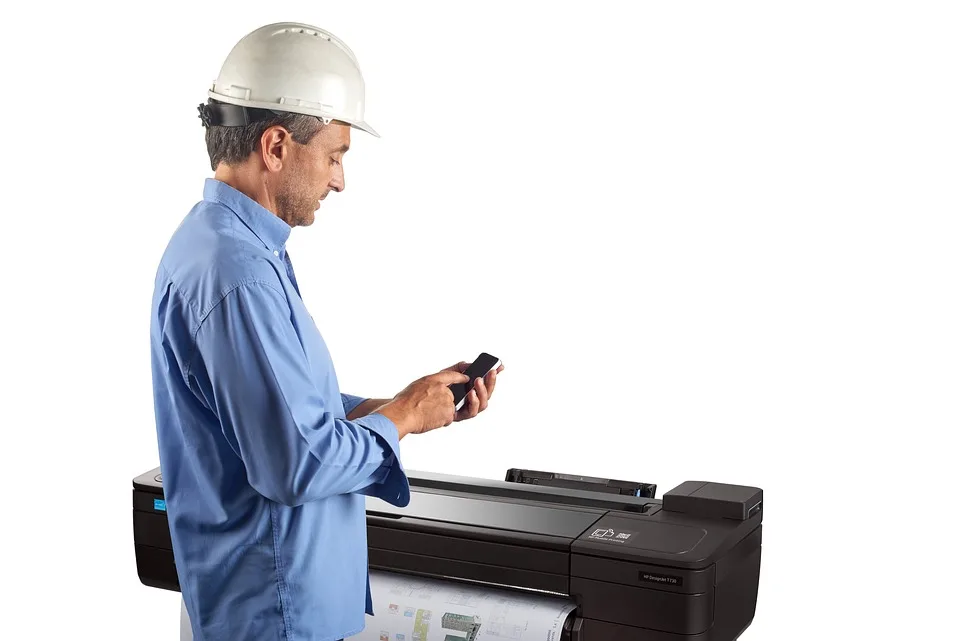
  • What is the difference between a wireless printer and a Wi-Fi printer?

    What is the difference between a wireless printer and a Wi-Fi printer?

    As technology continues to evolve, the terms used to describe various devices can often become confusing. When it comes to printers, you might have encountered the terms "wireless printer" and "Wi-Fi printer." While they are frequently used interchangeably, they refer to different functionalities. This article will clarify the differences between these two types of printers, helping you make an informed decision when purchasing or utilizing printing solutions.

    What is a Wireless Printer?

    A wireless printer refers to any printer that can print documents without the need for a physical connection, such as USB or parallel cables. Instead, it can communicate with other devices over radio signals. Wireless printers generally use one of the following methods to connect:

    Types of Wireless Connections

    • Bluetooth:

      Bluetooth-enabled printers allow you to print from compatible devices within a short range, typically up to 30 feet. They are ideal for quick, one-off tasks and small environments without complex networking needs.

    • Infrared (IR):

      Although less common today, some older printers utilize infrared connections. This technology requires a line of sight between the printer and the device, making it less practical than newer wireless options.

    What is a Wi-Fi Printer?

    A Wi-Fi printer is a specific type of wireless printer that connects to a local area network (LAN) using Wi-Fi technology. This connectivity allows multiple devices to access the printer from various locations within the network. Features of Wi-Fi printers include:

    Characteristics of Wi-Fi Printers

    • Network Access:

      Wi-Fi printers can be easily connected to your home or office Wi-Fi network, allowing any compatible device on the same network to print.

    • Multiple Device Compatibility:

      These printers support connections from smartphones, tablets, and computers, making them versatile for multiple users.

    • Cloud Printing Capabilities:

      Many Wi-Fi printers enable cloud printing, allowing users to print from anywhere with an internet connection, utilizing services like Google Cloud Print.

    Key Differences Between Wireless and Wi-Fi Printers

    While all Wi-Fi printers are technically wireless printers, the reverse isn’t true. Here are some key distinctions:

    1. Connection Method

    • Wireless Printer:

      Connects using technologies like Bluetooth or infrared.

    • Wi-Fi Printer:

      Connects specifically through a Wi-Fi network.

    2. Range and Accessibility

    • Wireless Printer:

      Generally limited by the range of the specific technology (Bluetooth, etc.).

    • Wi-Fi Printer:

      Can be accessed from anywhere within the Wi-Fi network range, often extending throughout an entire home or office.

    3. User Capability

    • Wireless Printer:

      Usually designed for individual use or a small number of users directly connecting through Bluetooth or similar technology.

    • Wi-Fi Printer:

      Designed for multiple users; ideal for home offices, small to medium-sized businesses, or environments where several people need access.

    4. Features and Functionality

    • Wireless Printer:

      Basic printing functionalities may be limited; not all wireless printers support advanced features.

    • Wi-Fi Printer:

      Often comes with additional features like duplex printing, scanning, and copying, along with more sophisticated connectivity options.

    Advantages of Each Type of Printer

    Wireless Printers

    • Simplicity:

      Easy to set up and use, especially in small spaces with limited connectivity options.

    • Cost-Effective:

      Generally more affordable than extensive networking equipment.

    Wi-Fi Printers

    • Flexibility:

      Ability to print from multiple devices, including smartphones and laptops, enhances usability.

    • Remote Printing:

      Capability to print documents from outside the local network with cloud features.

    Conclusion

    Understanding the distinct functionalities of wireless printers and Wi-Fi printers is crucial when selecting the right printing solution for your needs. Whether you choose a wireless printer for personal use or a Wi-Fi printer for a shared work environment, knowing these differences ensures you make a choice that aligns best with your printing requirements.

  • What is the difference between desktop and desktop computer?

    What is the difference between desktop and desktop computer?

    Understanding the Difference: Desktop vs. Desktop Computer

    When discussing personal computing devices, the terms "desktop" and "desktop computer" often come up. While they may seem interchangeable at first glance, subtle distinctions between the two terms can lead to confusion. In this article, we will clarify these differences and help you better understand both terms.

    What is a Desktop?

    The term "desktop" can refer to multiple contexts depending on its use, mainly revolving around the user interface and computing environment. Here are the primary meanings of "desktop":

    • Desktop Interface: Refers to the graphical user interface seen on a computer screen. Components typically include icons, taskbars, and a background, allowing users to interact with applications and files efficiently.
    • Physical Space: In a broader sense, "desktop" also relates to the physical workspace where a computer is situated. This could refer to the surface area of a desk where users place their monitors, keyboards, and other peripherals.

    What is a Desktop Computer?

    A "desktop computer," on the other hand, specifically signifies the hardware that resides in a stationary setup typically used for tasks such as work, gaming, or internet browsing. Here are its defining features:

    • Form Factor: Desktop computers generally consist of a bulky chassis that houses the computer’s internal components like the motherboard, CPU, RAM, and hard drive. This design provides ample upgrade potential compared to portable devices.
    • Components:

      • Monitor: A separate display that allows users to visualize their work or entertainment.
      • Keyboard and Mouse: Input devices that facilitate interaction with the desktop computer.
      • Upgradeability: Desktops often allow for easier upgrades and component replacements compared to laptops or all-in-one computers.

    Key Differences Between Desktop and Desktop Computer

    Understanding the differences can shed light on when to use which term. Here are some of the primary distinctions:

    • Definition:

      • Desktop: Generally refers to the visual workspace or interface on a screen, or the actual top surface of a desk.
      • Desktop Computer: Specifically refers to a type of computer that is designed to be stationary, composed of multiple physical components.

    • Context of Use:

      • Desktop: Often used in discussions about operating systems, user interfaces, or physical workspace arrangements.
      • Desktop Computer: Commonly mentioned in the context of hardware specifications, performance, and computing capabilities.

    Why Does This Matter?

    Understanding the distinction between these terms can enhance clarity in communication, particularly in tech discussions. Here’s why being precise with terminology matters:

    • Product Selection: Knowing whether you are discussing a workspace setup (desktop) or the hardware (desktop computer) helps in making better purchasing decisions.
    • Technical Discussions: It aids in effective dialogue about computing environments, software interfaces, and hardware specifications.

    Summary of Features

    Here’s a quick summary outlining the differences:

    Feature Desktop Desktop Computer
    Definition Interface or workspace Stationary hardware device
    Context User experience, layout Technical specifications
    Upgradeability N/A Typically high
    Components N/A Monitor, keyboard, CPU, etc.

    By grasping the nuances between "desktop" and "desktop computer," you can navigate discussions about technology more effectively and make informed decisions regarding your computing needs.

  • What is the difference between security cameras and surveillance cameras?

    What is the difference between security cameras and surveillance cameras?

    In recent years, the terms "security cameras" and "surveillance cameras" have been used interchangeably, leading to confusion for many consumers. While both types of cameras aim to enhance safety and monitor activities, there are distinct differences that set them apart. Understanding these differences can help individuals and businesses decide which system best meets their needs.

    What are Security Cameras?

    Security cameras are designed primarily to protect a specific area. They serve as a deterrent to potential intruders and provide real-time monitoring.

    Key Features of Security Cameras

    • Purpose: Primarily for crime deterrence and property protection.
    • Installation: Commonly installed on residential properties, businesses, and public areas.
    • Integration: Often integrated with alarm systems.
    • Alerts: Many models send notifications or alerts to your smartphone in case of unusual activities.

    Types of Security Cameras

    1. Dome Cameras: Often used in retail environments, these cameras have a rounded shape and provide a 360-degree view.
    2. Bullet Cameras: These cameras feature a cylindrical design and are typically used for outdoor surveillance.
    3. PTZ Cameras (Pan-Tilt-Zoom): These can be remotely controlled to pan, tilt, or zoom in on a specific area.

    What are Surveillance Cameras?

    Surveillance cameras are utilized primarily for monitoring and recording activities over longer periods. Their primary goal is to observe rather than to deter.

    Key Features of Surveillance Cameras

    • Purpose: Focused on monitoring behaviors and collecting information rather than immediate protection.
    • Installation: Commonly used in public spaces, workplaces, and other settings where ongoing observation is necessary.
    • Recording: These cameras often come with extensive storage options for long-term video capture.
    • Analysis: Advanced systems may include capabilities for analytics, such as motion detection and facial recognition.

    Types of Surveillance Cameras

    1. CCTV Cameras: Closed-circuit television cameras that offer continuous recording capabilities and are often used in public areas.
    2. IP Cameras: These are internet protocol cameras that can transmit data over networks, allowing for remote access.
    3. Wireless Cameras: They eliminate the need for extensive cabling, making installation easier while maintaining monitoring capabilities.

    Comparing Security Cameras to Surveillance Cameras

    To further clarify the distinctions between security and surveillance cameras, consider the following comparisons:

    Functionality

    • Security Cameras:

      • Primarily focus on deterrence and immediate response.
      • Often equipped with alarm features and integration with existing security systems.

    • Surveillance Cameras:

      • Focus on observation and documentation over time.
      • Emphasize recording and analysis of behaviors and events.

    Usage Scenarios

    • Security Cameras:

      • Ideal for homes or businesses where preventing crime is a priority.
      • Commonly used in areas requiring frequent monitoring, such as entrances or parking lots.

    • Surveillance Cameras:

      • More suited for environments needing long-term observation, like schools, warehouses, or public spaces.
      • Often deployed in conjunction with other technology for comprehensive analysis.

    Cost Consideration

    • Security Cameras:

      • Typically more affordable, given the focus on primary features.
      • Installation costs may be lower due to simpler setups.

    • Surveillance Cameras:

      • Often more expensive due to advanced features and technology.
      • Additional costs for software and storage may apply, especially for analytic capabilities.

    Legal and Privacy Implications

    • Security Cameras:

      • Generally have fewer legal restrictions as they primarily monitor private property.

    • Surveillance Cameras:

      • May raise privacy concerns, particularly in public spaces; laws and regulations can vary significantly by location.

    These distinctions help clarify the roles that security and surveillance cameras play in safety and monitoring. Whether you’re looking to beef up home security or monitor workplace behavior, understanding these differences will guide you in choosing the right system for your specific needs.

  • What’s the difference between a smart TV and a Roku TV?

    What’s the difference between a smart TV and a Roku TV?

    In today’s digital age, television options have evolved significantly, leading to an array of choices for consumers. Among these options are smart TVs and Roku TVs, both designed to enhance your viewing experience. However, they differ in functionality, features, and user experience. Let’s explore these differences in detail.

    Understanding Smart TVs

    What is a Smart TV?

    A smart TV is a television set that is equipped with internet connectivity and has built-in capabilities to stream content from various online services. These TVs allow users to access streaming platforms, browse the web, and even run applications similar to a smartphone or tablet.

    Key Features of Smart TVs

    • Streaming Capabilities: Most smart TVs come preloaded with popular streaming apps such as Netflix, Hulu, and Amazon Prime Video.
    • Integrated Browsers: Users can surf the internet directly on their TV, accessing websites and online content.
    • App Availability: Many smart TVs allow users to download and install apps from app stores specific to the brand, such as Samsung Smart Hub or LG Content Store.
    • Voice Control: Many models support voice-activated features through assistants like Amazon Alexa or Google Assistant.

    What is a Roku TV?

    An Overview of Roku TVs

    Roku TVs are a specific type of smart TV that runs on the Roku operating system. They are designed to provide an intuitive streaming experience and are well-known for their vast library of channels and user-friendly interface.

    Key Features of Roku TVs

    • Roku OS: This proprietary operating system is designed specifically for streaming and is regularly updated to include new features and improvements.
    • Roku Channel Store: Users can access a wide variety of channels from the Roku Channel Store, including both free and subscription-based options.
    • Unified Interface: Roku TVs offer a single interface that aggregates content from different streaming platforms, making it easy for users to browse cross-platform content without needing to switch apps.
    • Roku Remote: Most Roku TVs come with a remote that has dedicated buttons for popular streaming services, enhancing convenience for users.

    Smart TV vs. Roku TV: Key Differences

    Operating System

    • Smart TVs: Various brands use different operating systems (e.g., Samsung’s Tizen, LG’s webOS).
    • Roku TVs: All Roku TVs operate on the Roku OS, which is streamlined specifically for streaming capabilities.

    User Interface

    • Smart TVs: The interface can vary significantly across different brands, often leading to a disjointed user experience.
    • Roku TVs: Offer a consistent and user-friendly interface, making it easier for users to find and manage their content.

    Content Access

    • Smart TVs: Have access to various apps, but the range depends on the operating system and the brand’s app store. Users may be limited in terms of available channels.
    • Roku TVs: Provide access to thousands of channels, including exclusive ones, and generally offer a more comprehensive selection of content.

    Software Updates

    • Smart TVs: Update schedules vary by brand; some may not support continuous updates, thus limiting new features over time.
    • Roku TVs: Regularly receive updates from Roku, which ensures ongoing support and improves functionality.

    Additional Considerations

    Price Range

    • Smart TVs can vary in price widely depending on the brand, features, and screen size.
    • Roku TVs are generally competitively priced, often offering good value for their features.

    Compatibility with Other Devices

    • Smart TVs: Many smart TVs work with multiple third-party devices, but compatibility may depend on the specific TV model.
    • Roku TVs: They usually integrate seamlessly with various devices, including Amazon Alexa and Google Assistant, enhancing the smart home experience.

    Internet Connection Requirements

    • Both smart TVs and Roku TVs require a robust internet connection for optimal performance, especially when streaming high-definition content.

    By understanding these differences, consumers can make informed decisions when choosing between a smart TV and a Roku TV, ensuring they select a device that fits their viewing habits and preferences.

  • What’s the difference between an e-bike and an electric bike?

    What’s the difference between an e-bike and an electric bike?

    When delving into the world of cycling, you may come across terms like "e-bike" and "electric bike." While they may seem interchangeable, subtle distinctions differentiate the two categories. Understanding these differences is essential for potential buyers or enthusiasts looking to choose a suitable ride.

    Understanding E-Bikes

    Definition of E-Bike

    An e-bike, short for electric bicycle, refers to a bicycle that incorporates an electric motor to assist with pedaling. The motor’s assistance can vary, allowing for a more enjoyable cycling experience, especially on inclines or during long distances.

    Key Features of E-Bikes

    • Pedal Assist System: E-bikes typically come with pedal assist, meaning the motor activates only when the rider pedals.
    • Battery-Powered: They are equipped with a rechargeable battery that powers the motor, which can vary in capacity and voltage.
    • Types of E-Bikes: E-bikes fall into various categories, including:

      • Commuter E-Bikes: Designed for urban commuting, often featuring racks and fenders.
      • Mountain E-Bikes: Built for off-road trails with sturdy construction and enhanced suspension.
      • Folding E-Bikes: Compact designs that are easy to store and transport.

    Understanding Electric Bikes

    Definition of Electric Bike

    Electric bike is a broader term that encompasses various bicycles equipped with electric motors. While all e-bikes are technically electric bikes, not all electric bikes function in the same way as an e-bike.

    Key Features of Electric Bikes

    • Variety of Assistance Levels: Electric bikes may include a different level of motor assistance, ranging from fully electric (where the motor does all the work) to hybrid models.
    • Throttle Control Options: Some electric bikes offer throttle control, allowing riders to propel the bike without pedaling.
    • Less Emphasis on Cycling: While many electric bikes maintain pedaling functionality, some models are designed purely for electric operation and might not include a pedal-assist feature.

    Notable Differences

    Motor Functionality

    • E-Bikes: Primarily focused on pedal assist with an emphasis on enhancing the rider’s efforts.
    • Electric Bikes: Often feature multiple modes, including options for full electric operation without pedaling.

    Riding Experience

    • E-Bikes: Provide a cycling experience similar to traditional biking, preserving the need for pedaling.
    • Electric Bikes: Can cater to riders seeking a non-cycling experience, especially in models focused on convenience.

    Regulations and Classification

    • E-Bikes: In many regions, e-bikes fall into specific classes based on speed and motor assistance, often affecting where they can be legally used.
    • Electric Bikes: The classification can be broader, leading to more variability in usage rights based on local laws.

    Choosing Between E-Bikes and Electric Bikes

    Consider Your Riding Style

    When deciding whether to opt for an e-bike or a more general electric bike, consider these factors:

    • Commute Distance: Longer distances may benefit from the motor assistance offered by e-bikes.
    • Terrain: If you plan to tackle hills or rough terrain, a mountain e-bike would be beneficial.
    • Physical Condition: If you require significant assistance due to mobility issues, an electric bike with throttle capabilities may be more suitable.

    Evaluate Battery Life and Range

    Both options vary in battery life and range, so consider:

    • Recharge Frequency: How often are you willing to recharge your bike?
    • Battery Capacity: Larger batteries often translate to longer rides, but they may also increase weight.

    Budget Considerations

    Price ranges between e-bikes and electric bikes can vary widely:

    • E-Bikes: May have a higher initial cost due to advanced technology and specialized components.
    • Electric Bikes: Offer a broader range of prices, including more affordable options lacking high-end features.

    By understanding these distinctions, you can make a more informed decision when selecting between an e-bike and an electric bike, tailored to your specific needs and preferences.

  • What is the difference between desktop and computer desktop?

    What is the difference between desktop and computer desktop?

    When discussing computers, the terms "desktop" and "computer desktop" can sometimes lead to confusion. While they may seem synonymous at first glance, they refer to distinct concepts within the realm of computing. This article will clarify these terms and their differences.

    What is a Desktop?

    A desktop generally refers to a type of personal computer designed to fit conveniently on a desk. This setup is characterized by its components, which include:

    • Tower Case: Houses the internal hardware, such as the CPU, motherboard, and power supply.
    • Monitor: The display screen that visualizes the output from the computer.
    • Keyboard: The input device used for data entry and commands.
    • Mouse: A pointing device that allows users to navigate the computer interface.

    Key Characteristics of Desktops

    • Size: Desktops are larger than laptops and come in varying sizes, including mid-tower and mini-tower configurations.
    • Performance: They generally offer better performance compared to laptops due to more powerful processors and larger cooling systems.
    • Upgradability: Desktop components can be replaced or upgraded more easily than those in laptops, allowing users to enhance performance over time.

    What is a Computer Desktop?

    In contrast, a computer desktop refers more to the graphical user interface (GUI) of a personal computer, which is visible when the operating system loads. It represents the workspace where users interact with applications, files, and system functions.

    Key Features of a Computer Desktop

    • Desktop Environment: The area on your screen where icons, files, and folders are displayed.
    • Taskbar: A horizontal bar at the bottom of the screen that houses open application windows and system tray icons.
    • Shortcuts: Icons that provide quick access to files, applications, or system functions without navigating through menus.

    Differences Explained

    Nature of the Terms

    • Physical vs. Digital:

      • Desktop: Refers to a physical piece of hardware.
      • Computer Desktop: Refers to a digital interface displayed on the monitor.

    Functionality

    • Purpose:

      • Desktop: Designed primarily for computing tasks and includes hardware for processing data and running applications.
      • Computer Desktop: Serves as a platform for user interaction, encompassing the layout and organization of apps and files.

    Usage Context

    • In Communication:

      • Desktop: Typically used when discussing computer types or hardware specifications.
      • Computer Desktop: Used in the context of operating systems, software interaction, and UI design.

    Common Uses

    Desktop Computers

    • Ideal for gaming, graphic design, and other resource-intensive applications.
    • Frequently used in offices and home environments for tasks like word processing, browsing, and programming.

    Computer Desktop Environments

    • Commonly seen in different operating systems—Windows, macOS, and Linux—each offering unique features and customization options.
    • Enhances user productivity through organizational tools, multi-tasking capabilities, and access to applications.

    In summary, while "desktop" and "computer desktop" may sound similar, they serve different purposes and contexts. Understanding these differences can enhance your appreciation of both the hardware and the user interface as you navigate the world of computing.