Saving a webpage as a PDF is one of the simplest ways to keep important information accessible offline. Whether it’s a receipt or a page you might want to revisit later, converting it into a PDF ensures the content remains available and easy to manage. Additionally, editing or signing PDF files becomes straightforward once you have the document saved in this format.
The process of saving a webpage as a PDF is quick and user-friendly. Here’s a simple guide to help you do it:
On a desktop computer, simply press Ctrl + P or select Print from your browser’s menu. When the print dialog appears, choose the option to Save as PDF instead of printing on paper. For iPhone or iPad users, you can take a screenshot of the full page, then select Save PDF to Files from the share options. Android users can open the browser menu, tap Share, then choose Print and select Save as PDF to complete the process.
If you’d like more detailed step-by-step instructions, including visual aids, follow along to make sure you get your webpage saved properly in PDF format every time.
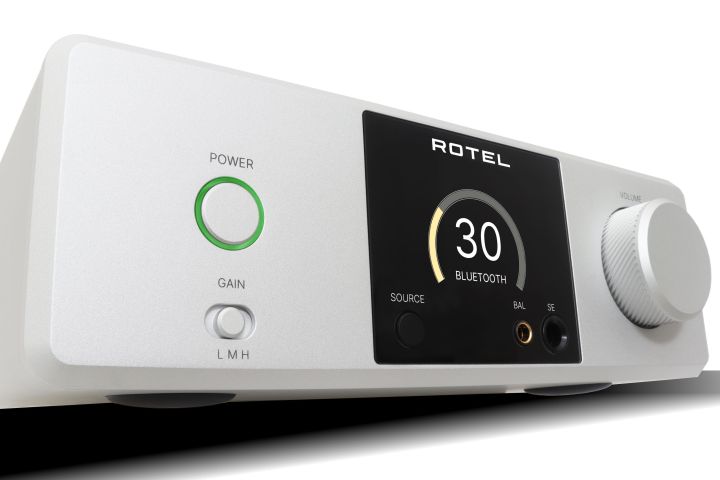
If you’re in the market for high-quality wired headphones or in-ear monitors (IEMs), investing in a headphone amplifier is a wise choice. One notable option is the newly released Rotel DX-3. It marks the company’s inaugural headphone amplifier and integrates top-notch amplification technology with advanced digital-to-analog conversion capabilities. Set to hit the shelves in Europe and the U.K. in March, it will be available in both black and silver. The expected launch in the U.S. will follow shortly after, with a price tag of $1,499.
Rotel
What stands out about the DX-3 is its compact design. Measuring 8.5 inches in width, 3 inches in height, and 9.75 inches in depth, it’s slightly larger than the Wiim Ultra network music streamer, making it an ideal fit for desktop setups. Its aluminum exterior houses a vibrant color display, dual headphone outputs (4.4mm balanced and 6.35mm unbalanced), a three-position gain switch, a source selection button, and an oversized diamond-textured volume knob.
Internally, the DX-3 boasts impressive components. The digital-to-analog conversion is managed by the ESS Sabre ES9028PRO chip, an 8-channel DAC providing four dedicated channels for each side (left and right).
Rotel
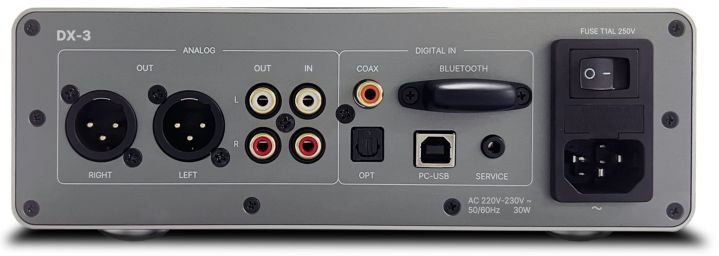
This DAC can handle an impressive array of formats, supporting PCM up to 32-bit/384kHz and native DSD up to DSD256. Digital audio can be input via optical, PC-USB, coaxial, or through Bluetooth, with compatibility for AAC, aptX, and aptX-HD codecs.
If you’d like to access the analog amplification path, the DX-3 offers dedicated stereo RCA outputs.
According to Rotel, the amplification leverages a “custom-built, ultra-low noise toroidal transformer featuring high-current drivers and quality capacitors.” The power control utilizes an audiophile-grade NJW1195A fully differential analog controller to ensure precise adjustments down to 0.5dB. The three-step gain option allows users to tailor the output to their headphones’ specific impedance and sensitivity.
Rotel
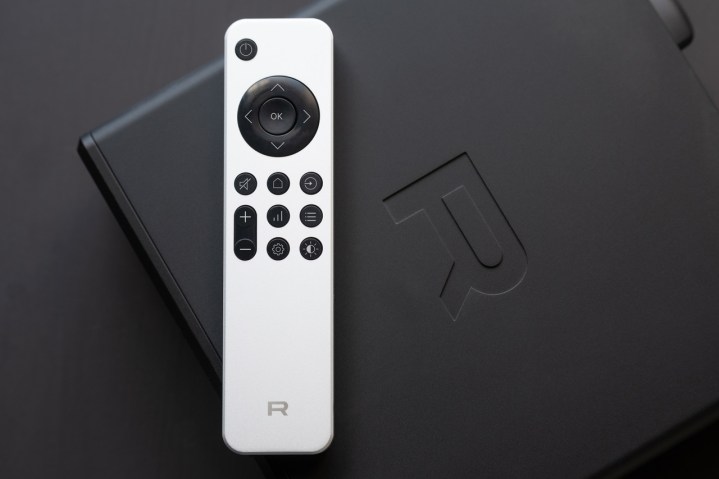
Moreover, the DX-3 can serve as a standalone DAC or preamp, with options for unbalanced RCA or XLR balanced analog outputs. It also comes with an aluminum remote control, enabling you to adjust settings from a distance.
While the DX-3 lacks networking features like Ethernet or Wi-Fi, Roon users can still stream their favorite content through the PC-USB input, which is recognized as a Roon endpoint.
TikTok is enhancing the experience of watching popular short videos on desktop. The company has announced a new modular layout for its web app, which features a full-screen LIVE video feed and a unique floating player optimized for desktop users.
On the left side of the screen, users will find a persistent panel that includes essential controls such as For You, Explore, Messages, account settings, and your live options, among others.
In contrast to mobile, the desktop client organizes features that typically require a swipe or tap on a mobile device into a neatly arranged Home Screen. Engagement tools like likes, comments, and sharing options are conveniently located on the right side of the video display.
TikTok
To enhance the desktop experience, TikTok will allow users to create custom categories for saving videos, enabling easy revisiting whenever desired. This feature is reminiscent of Instagram’s collections, which can be both personal or shared with friends.
Content creators will benefit from the ability to initiate live broadcasts in both landscape and portrait modes. Mobile viewers can conveniently rotate their devices to match the orientation of the broadcast.
Drawing inspiration from the picture-in-picture feature seen in web browsers, TikTok’s floating media player keeps the platform accessible while users multitask, allowing them to engage with content without interruption. Currently, this floating feature is exclusive to the Chrome browser, leaving uncertainty about its availability on other browsers that use the Chromium engine, such as Microsoft Edge.
Recently, TikTok made its return to both Google Play and Apple’s App Store in the U.S. after a brief hiatus. However, the possibility of a ban still looms over the platform following a temporary executive order that extended the deadline for potential restrictions.
When considering a new desktop computer, one of the most pressing questions is how much it should cost. The answer isn’t straightforward, as it greatly depends on the specific needs, usage, and brand preference of the user.
Factors Influencing Desktop Computer Prices
Understanding the aspects that determine the price of a desktop can help you make an informed decision. Here are the key factors:
1. Purpose of Use
Basic Tasks: For tasks such as web browsing, email, and word processing, you can find budget-friendly options.
Gaming: High-performance gaming desktops require powerful graphics cards and processors, resulting in higher prices.
Professional Applications: If usage involves video editing, graphic design, or software development, expect to invest in higher-end components.
RAM: Desktops with higher RAM (16GB and above) generally cost more.
Storage: Solid State Drives (SSDs) offer better speed than traditional Hard Disk Drives (HDDs) and will impact cost.
Graphics Card: Dedicated graphics cards can add significantly to the price, especially for gaming and graphic design.
3. Brand
Established brands like Dell, HP, and Apple often charge a premium for their desktops, while lesser-known brands may offer more budget-friendly options without sacrificing quality.
Budget Ranges for Desktops
When evaluating desktop prices, consider your budget and needs. Here are some common price ranges:
1. Entry-Level Desktops ($300 – $600)
Ideal for basic tasks.
Often equipped with limited specs suitable for web browsing and office applications.
Examples: Basic HP Pavilion, Lenovo IdeaCentre.
2. Mid-Range Desktops ($600 – $1,200)
Suitable for more intensive tasks, casual gaming, and multitasking.
Enhanced specifications generally include better processors and increased RAM.
Examples: Dell XPS desktops, iMac.
3. High-End Desktops ($1,200 and above)
Designed for gaming, professional content creation, and advanced applications.
Features high-performance CPUs, significant RAM, and powerful graphics cards.
Examples: Alienware, custom-built gaming rigs.
Additional Costs to Consider
When shopping for a desktop, it’s important to factor in additional costs that may not be included in the initial price:
Accessories
Monitor: The price can vary widely; budget for quality if you want a better viewing experience.
Keyboard and Mouse: Basic peripherals come cheap, but gaming or specialized peripherals can add to your costs.
Speakers or Headphones: Good audio quality may require additional investment.
Warranties and Support
Extended warranties or support packages can ensure your desktop runs smoothly but might increase the overall price.
Software
Many desktops come with pre-installed operating systems, but you may need to purchase software such as productivity suites or antivirus programs.
Tips for Finding the Best Desktop for Your Budget
Assess Your Needs: Determine what you will use the desktop for and set a budget accordingly.
Research Comparisons: Look into performance benchmarks and customer reviews to make an informed choice.
Watch for Sales: Major retailers often have sales around holidays or back-to-school seasons, providing opportunities for discounts.
Consider Refurbished Options: Certified refurbished desktops can offer significant savings while still providing quality performance.
By weighing these factors and understanding these price ranges, you can make a confident decision about how much to spend on a desktop that fits your needs.
As technology evolves, the computing landscape continuously shifts to meet user needs. Among various computing devices, all-in-one (AIO) desktops have gained substantial traction. But are they truly a good choice for everyone? This article explores the advantages and disadvantages of AIO desktops to help you make an informed decision.
What is an All-in-One Desktop?
An all-in-one desktop combines the monitor and computer components into a single unit. This design reduces clutter and can save space compared to traditional desktops where the monitor and CPU are separate.
Key Features of All-in-One Desktops
Integrated Design: A streamlined look with fewer cables.
Space-Efficient: Ideal for small apartments, dorms, or offices.
User-Friendly: Often easier to set up than traditional systems.
Variety of Specs: A range of specifications fits different user needs.
Benefits of All-in-One Desktops
All-in-one desktops offer several advantages that make them appealing to a wide range of users.
Space Saving
Compact Footprint: The lack of a separate tower makes them excellent for limited spaces.
Less Clutter: Fewer cables and parts contribute to a cleaner workspace.
Aesthetic Appeal
Sleek Design: AIO desktops often feature modern, stylish designs that blend well with home and office decor.
Less Bulk: These devices can look more sophisticated compared to traditional setups.
Ease of Use
Simple Setup: Just plug it in and you’re good to go, making them user-friendly for non-tech-savvy individuals.
Touchscreen Options: Many models feature touchscreen capabilities for a more interactive experience.
Good for Casual Users
Ideal for Basic Tasks: Perfect for web browsing, streaming, and office tasks.
All-in-One Convenience: Eliminates the need to buy separate components like a monitor, keyboard, and mouse.
Drawbacks of All-in-One Desktops
While AIO desktops have many strengths, they also come with some limitations you should consider.
Limited Upgradeability
Fixed Components: Upgrading hardware can be challenging as most parts are integrated.
Obsolescence Risks: As technology evolves, you may have to replace the entire unit rather than just upgrading parts.
Performance Limitations
Less Powerful Options: Typically, they may not match the performance capabilities of separate, high-end desktop computers.
Heat Management: Compact design may lead to overheating issues in more powerful models.
Price Considerations
Higher Initial Cost: AIO desktops can often be pricier than equivalent desktop systems with separate components.
Less Value for Gamers: Gamers may find more competitive pricing and performance in traditional setups.
Ideal Use Cases for All-in-One Desktops
Knowing when an AIO desktop may be the right choice for you can make your decision easier. Here are some scenarios where these devices shine:
Home Office or Students
Great for Remote Work: Ideal for video calls and document editing with limited desk space.
Perfect for Students: Use for online learning and general study without needing excess equipment.
Casual Users
Media Consumption: A good choice for users who mainly stream video and use social media.
Family Use: Easy for families to share because of its user-friendly nature.
Design and Creativity
Stylish Aspect: Beneficial in creative settings where aesthetics matter, such as design studios.
Conclusion
Considering both the advantages and disadvantages of all-in-one desktops can provide a clearer picture of whether they meet your needs. Their space-saving design, user-friendly setup, and aesthetic appeal make them suitable for many users, while their limited upgradeability and performance may deter more demanding users. Depending on your requirements, an AIO desktop might just be the perfect choice for your computing life.
A desktop computer is more than just a machine; it’s a fundamental tool for work, entertainment, and communication in the modern world. Designed for stationary use, desktop computers provide significant power and versatility, making them popular among both casual users and professionals.
Components of a Desktop Computer
Understanding the various parts that make up a desktop computer is crucial for anyone interested in technology. Each component plays a specific role in the overall functionality of the system.
Essential Hardware
Central Processing Unit (CPU)
The "brain" of the computer.
Processes instructions and performs calculations.
Motherboard
The main circuit board.
Connects all components and peripherals.
Random Access Memory (RAM)
Temporary storage that allows fast access to data.
Affects the speed of everything from applications to the operating system.
Storage Drives
Hard Disk Drive (HDD): Older technology, generally offers more storage at a lower price.
Solid State Drive (SSD): Newer technology, faster, more efficient, and more reliable, though typically more expensive per gigabyte.
Graphics Processing Unit (GPU)
Handles rendering of images and videos.
Essential for gaming, video editing, and graphic design.
Power Supply Unit (PSU)
Converts electrical power from an outlet into usable power for the computer.
Input and Output Devices
Keyboard and Mouse: Main input devices for user interaction.
Monitor: Displays visual output from the computer.
Types of Desktop Computers
Various types of desktop computers cater to different needs and preferences.
All-in-One Computers
Combines the monitor and CPU in one unit.
Saves space and is often more aesthetically pleasing.
Popular for home or office environments.
Tower Desktops
Traditional form factor with a separate monitor.
Offers more upgrade options and customization.
Typically more powerful, making them ideal for gaming or professional use.
Mini PCs
Compact size suitable for limited spaces.
Less powerful than traditional desktops but still capable of everyday tasks.
Excellent for users who prioritize portability without sacrificing functionality.
Advantages of Desktop Computers
Choosing a desktop computer comes with several benefits:
Performance: Often more powerful than laptops, especially for intensive tasks.
Upgradability: Easier to replace or upgrade components such as RAM, storage, or graphics cards.
Cost-Effectiveness: Generally, desktops provide better performance per dollar compared to laptops.
Durability: Fixed components and better cooling often lead to longer lifespans.
Ergonomics: Larger screens and separate keyboards/mice can create more comfortable working environments.
Disadvantages of Desktop Computers
However, desktops also come with some drawbacks:
Lack of Portability: Designed for stationary use, making them unsuitable for mobile use.
Space Requirements: Larger footprint compared to laptops can be a drawback in small living spaces.
Power Dependency: Must be plugged in and cannot operate on batteries.
Conclusion
Desktop computers continue to evolve, adapting to the needs of users in various environments. With a deeper understanding of their components, types, advantages, and disadvantages, individuals can choose the best system that aligns with their specific requirements and workflows. Whether for gaming, professional tasks, or everyday use, desktop computers provide a solid foundation for technology needs.
Selecting the right desktop PC brand can be overwhelming, especially with the multitude of options available today. Factors such as performance, customer service, design, and value for money play crucial roles in making an informed choice. Below, we’ll explore some of the top desktop PC brands and what makes each of them stand out.
Leading Desktop PC Brands
When it comes to desktop PCs, several brands consistently receive positive reviews from consumers and tech experts alike. Here are some of the most reputable brands:
1. Dell
Strengths:
Wide range of product offerings, catering to gamers, professionals, and everyday users.
Excellent customer support and warranty options.
Highly customizable systems, particularly for business users.
Popular Models:
XPS Series: Known for premium build quality and high performance.
Inspiron Series: Aimed at general users with budget-friendly options.
2. HP (Hewlett-Packard)
Strengths:
Strong focus on design and aesthetics.
Comprehensive support services and warranty options.
Good balance of performance and affordability, especially for home and small businesses.
Popular Models:
Pavilion Series: Offers a mix of performance and style, targeting casual users.
Omen Series: Designed specifically for gamers, featuring powerful hardware.
3. Lenovo
Strengths:
Highly durable devices with robust build quality.
Innovative design, especially with all-in-one PCs.
Excellent for business with their ThinkCentre series.
Popular Models:
ThinkCentre: Aimed at professional environments with reliable performance.
Legion Series: A solid choice for gaming enthusiasts.
4. Apple
Strengths:
Superior design and build quality, iconic aesthetic.
Seamless integration with the Apple ecosystem.
Strong performance, particularly for creative professionals.
Popular Models:
iMac: Known for its all-in-one design and high-resolution displays.
Mac Mini: Compact and versatile, suitable for a variety of uses.
Factors to Consider When Choosing a Desktop PC Brand
When deciding which brand suits your needs, it’s important to weigh several factors:
Performance
Processor Type: Look for modern multi-core processors for better performance.
Graphics Capability: Essential for gaming or graphic-intensive tasks.
Memory and Storage: Adequate RAM and SSD options can greatly influence performance.
Customer Support
Warranty Offerings: Check for warranty length and coverage options.
Support Channels: A brand that offers multiple ways to reach customer service (phone, chat, email) is preferable.
Design and Build Quality
Aesthetic Appeal: Choose a design that fits your workspace.
Durability: Consider brands known for their robust materials and construction.
Budget and Value
Pricing Range: Determine your budget and find brands that offer good value within that range.
Customization Options: Some brands allow you to build your PC to better fit your needs without overspending.
Recommendations
Choosing the right desktop PC brand ultimately hinges on individual preferences and requirements. Here are some tailored suggestions based on common needs:
For Gamers
Best Option: Dell’s Alienware or HP’s Omen Series
Why: Both brands offer powerful graphics cards and high refresh rates ideal for gaming.
For Creative Professionals
Best Option: Apple’s iMac or Dell’s XPS
Why: These models provide excellent display quality and processing power for creative software.
For Home Use
Best Option: HP’s Pavilion or Lenovo’s IdeaCentre
Why: Both brands combine simplicity, affordability, and solid performance for everyday tasks.
For Business
Best Option: Lenovo’s ThinkCentre or Dell’s OptiPlex
Why: Designed with durability and support in mind, ideal for enterprise environments.
In summary, finding the best desktop PC brand comes down to assessing your specific needs and preferences. Whether you prioritize performance, aesthetics, or customer service, the right choice can enhance your computing experience and productivity.
Choosing the right desktop computer can be a daunting task, especially with the myriad of options available today. Whether you need one for gaming, work, or casual use, understanding your requirements and the specifications available is key to making a wise investment. Here’s a guide to help you navigate this process effectively.
Determine Your Primary Use Case
The first step in selecting a desktop computer is to identify how you will utilize it most often. Different tasks require different specifications.
For Gaming
If you’re a gamer, consider the following:
Graphics Card: Look for a powerful GPU, as it directly impacts gaming performance.
Processor (CPU): A multi-core processor, like AMD Ryzen or Intel i7, is recommended.
RAM: At least 16GB of RAM for smooth gameplay.
Storage: An SSD for faster load times alongside a larger HDD for additional game storage.
For Work or Productivity
Professionals often need:
Processor: A strong multi-core CPU to handle multitasking efficiently.
RAM: 16GB or more, especially for design, video editing, or programming.
Display: Consider dual monitors or a high-resolution screen for improved multitasking.
For Casual Use
If your usage is more basic, such as web browsing or document editing, look for:
Processor: A dual-core or entry-level quad-core CPU.
RAM: 8GB of RAM should suffice for everyday tasks.
Storage: An SSD will enhance speed even for casual usage.
Set a Budget
Establishing a budget early on can streamline your purchasing process. Desktop computers come in a range of prices, so knowing how much you are willing to spend will help narrow down your options.
Price Ranges
Entry-Level ($300 – $600): Suitable for basic tasks; often includes integrated graphics.
Mid-Range ($600 – $1,200): Good for gaming, productivity; generally includes discrete graphics.
High-End ($1,200 and above): Designed for enthusiasts; offers the best performance and upgradability.
Evaluate Key Specifications
Once you’ve determined your needs and budget, it’s essential to look into the specifications of the computers you’re considering.
Key Components to Review
CPU: Look for newer generation processors for better performance efficiency.
RAM: More RAM allows for smoother multitasking. Aim for at least 8GB, with 16GB or more for demanding tasks.
Storage:
SSD: Faster boot and load times.
HDD: Larger capacity at a lower price, beneficial for storing large files.
Graphics Card: Important for gaming and graphic design. A dedicated GPU will enhance performance compared to integrated graphics.
Additional Features
Port Availability: Ensure there are enough USB ports, HDMI, etc., to connect your peripherals.
Form Factor: Decide between a compact design (All-in-One, Mini PC) or a traditional tower based on your space availability.
Warranty and Support: Look for manufacturers that offer robust technical support and warranties to cover future issues.
Research Brands and Models
After identifying the right specifications, it’s time to smartly research brands and models.
Popular Brands
Dell: Known for the variety of options and customer service.
HP: Offers a range of desktops catering to both casual and professional needs.
Apple: Great for users invested in the Apple ecosystem, but generally higher priced.
Lenovo: Excellent for customizable configurations and business desktops.
Reading Reviews
Browse online reviews to understand the performance and reliability of specific models.
Check tech blogs and customer testimonials to gauge real-world usage experiences.
Consider Upgradability
Think about the future; the ability to upgrade your desktop can significantly extend its lifespan.
Upgradeable Components
RAM: Ensure your system can accommodate more RAM down the line.
Storage: Look for an additional drive bay for future storage upgrades.
Graphics Card: Desktop designs that allow for easy GPU upgrades are preferable, especially for gamers.
Check for Special Features
Depending on your needs, certain features may enhance your experience:
Built-in Wi-Fi: For wireless connectivity without the need for an Ethernet cable.
Touchscreen: Can be beneficial for creative tasks or presentations.
Customizable Lighting: While more aesthetic, RGB lighting can enhance the look of gaming rigs.
By thoroughly understanding your requirements, budget, and the specs that matter, selecting the right desktop computer can become a manageable process. The key is to balance your needs with informed choices to make a sound investment that will serve you well for years to come.
Understanding the Difference: Desktop vs. Desktop Computer
When discussing personal computing devices, the terms "desktop" and "desktop computer" often come up. While they may seem interchangeable at first glance, subtle distinctions between the two terms can lead to confusion. In this article, we will clarify these differences and help you better understand both terms.
What is a Desktop?
The term "desktop" can refer to multiple contexts depending on its use, mainly revolving around the user interface and computing environment. Here are the primary meanings of "desktop":
Desktop Interface: Refers to the graphical user interface seen on a computer screen. Components typically include icons, taskbars, and a background, allowing users to interact with applications and files efficiently.
Physical Space: In a broader sense, "desktop" also relates to the physical workspace where a computer is situated. This could refer to the surface area of a desk where users place their monitors, keyboards, and other peripherals.
What is a Desktop Computer?
A "desktop computer," on the other hand, specifically signifies the hardware that resides in a stationary setup typically used for tasks such as work, gaming, or internet browsing. Here are its defining features:
Form Factor: Desktop computers generally consist of a bulky chassis that houses the computer’s internal components like the motherboard, CPU, RAM, and hard drive. This design provides ample upgrade potential compared to portable devices.
Components:
Monitor: A separate display that allows users to visualize their work or entertainment.
Keyboard and Mouse: Input devices that facilitate interaction with the desktop computer.
Upgradeability: Desktops often allow for easier upgrades and component replacements compared to laptops or all-in-one computers.
Key Differences Between Desktop and Desktop Computer
Understanding the differences can shed light on when to use which term. Here are some of the primary distinctions:
Definition:
Desktop: Generally refers to the visual workspace or interface on a screen, or the actual top surface of a desk.
Desktop Computer: Specifically refers to a type of computer that is designed to be stationary, composed of multiple physical components.
Context of Use:
Desktop: Often used in discussions about operating systems, user interfaces, or physical workspace arrangements.
Desktop Computer: Commonly mentioned in the context of hardware specifications, performance, and computing capabilities.
Why Does This Matter?
Understanding the distinction between these terms can enhance clarity in communication, particularly in tech discussions. Here’s why being precise with terminology matters:
Product Selection: Knowing whether you are discussing a workspace setup (desktop) or the hardware (desktop computer) helps in making better purchasing decisions.
Technical Discussions: It aids in effective dialogue about computing environments, software interfaces, and hardware specifications.
Summary of Features
Here’s a quick summary outlining the differences:
Feature
Desktop
Desktop Computer
Definition
Interface or workspace
Stationary hardware device
Context
User experience, layout
Technical specifications
Upgradeability
N/A
Typically high
Components
N/A
Monitor, keyboard, CPU, etc.
By grasping the nuances between "desktop" and "desktop computer," you can navigate discussions about technology more effectively and make informed decisions regarding your computing needs.
When deciding between a desktop or a laptop, it’s essential to evaluate personal needs, preferences, and specific use cases. Both types of computers have unique advantages and disadvantages that cater to different scenarios. Let’s break down the key differences to help you make an informed choice.
Advantages of Desktops
Desktops have long been a popular choice for both home and office settings. Here are some compelling reasons to consider a desktop:
Performance
Higher power: Desktops typically come with more powerful hardware components, allowing for better performance, especially in gaming, video editing, or graphic design.
Upgradeability: Many desktops can be easily upgraded with additional RAM, storage, or better graphics cards, extending their lifespan and performance.
Cost Efficiency
More value for money: Desktops generally offer more power for less money compared to laptops. You can often find more capable components within a similar price bracket.
Cost of repairs: Repairs can be simpler and less expensive due to easier access to parts.
Ergonomics
Comfortable setup: A desktop can be set up with larger monitors, a comfortable keyboard, and other ergonomic accessories, creating a more enjoyable user experience.
Multiple displays: Many desktops support multiple monitors, enhancing productivity for tasks such as coding or multitasking.
Advantages of Laptops
Laptops offer a unique set of benefits, particularly for those who value mobility. Here are the main advantages:
Portability
Take it anywhere: Laptops are designed for on-the-go use. You can easily carry them to work, school, or a café.
Built-in battery: Without a need for constant power supply, you can work anywhere without worrying about finding an outlet.
Convenience
Integrated components: Laptops come with built-in webcams, microphones, and speakers, making them ideal for video calls and remote meetings without requiring additional accessories.
Compact design: They take up less space and can easily fit into bags, making room management much easier.
Energy Efficiency
Lower power consumption: Laptops are generally more energy-efficient than desktops, resulting in lower electricity bills, especially for long hours of use.
Considerations Before Choosing
Before making a decision, consider the following factors:
Usage Scenarios
Gaming: If gaming is a priority, a desktop might be the better option due to higher specs and upgrade potential.
Travel: If you frequently travel or move locations, a laptop’s portability becomes invaluable.
Budget
Initial cost vs long-term investment: Think about what you can afford now and what you may need down the line. A budget-friendly desktop might serve your needs, while a laptop with lower specs could become obsolete faster.
Personal Preferences
Work environment: Do you prefer a designated workspace or need flexibility in where you work?
Screen size: Laptops may limit your screen size and resolution options compared to multiple monitor setups with desktops.
Future Needs
Technological advancements: Consider how quickly technology evolves and whether you want the ability to upgrade easily in the future.
Final Thoughts
Both desktops and laptops have their distinct benefits, and the ideal choice largely depends on individual preferences and needs. Evaluating your specific use cases, budget, and workflow can help you determine which type of computer will ultimately serve you best.
When it comes to choosing a computer, two popular options often come to mind: all-in-one computers and traditional desktops. Each has its own set of advantages and drawbacks, making the choice highly dependent on individual needs and usage scenarios. Below, we delve into the features of both options to help you decide which might be better suited for you.
Understanding All-in-One Computers
All-in-one computers combine the monitor and the internal components into a single unit. This design provides a sleek, space-saving alternative that has gained popularity in homes and offices alike.
Key Features of All-in-One Computers
Compact Design: All-in-one units occupy less space, making them ideal for environments where room is at a premium.
Aesthetic Appeal: With minimal cables and a streamlined appearance, they tend to look more modern and aesthetically pleasing on desks.
Portability: While not as portable as laptops, all-in-ones are easier to move compared to traditional desktop setups.
Built-in Components: Many all-in-one computers come with integrated webcams, speakers, and audio systems, reducing the need for additional peripherals.
Pros and Cons of All-in-One Computers
Pros
Space Efficiency: The compact design is perfect for small areas.
Ease of Setup: Fewer components to manage means less hassle during setup.
Multi-functionality: Many models come with touch screens and can double as entertainment systems.
Cons
Limited Upgrade Options: Upgrading components like RAM or storage can be more complicated compared to desktops.
Higher Cost: All-in-one computers can be pricier than desktops with similar specifications.
Heat Dissipation Issues: A compact design can lead to overheating, especially under heavy usage.
Exploring Traditional Desktops
Traditional desktop computers consist of separate components: a monitor, tower, keyboard, and mouse. This long-standing configuration has its own set of loyal users.
Key Features of Desktops
Modular Design: Since components are separate, building or upgrading is often simpler and more cost-effective.
Higher Performance Options: Desktops can accommodate more powerful hardware, making them better for gaming and resource-intensive tasks.
Customizability: Users can tailor their machines to their specific needs, whether for gaming, graphic design, or basic office tasks.
Pros and Cons of Traditional Desktops
Pros
Better Performance: The ability to house powerful components leads to superior performance for demanding applications.
Cost-Effective Upgrades: Swapping out components is usually cheaper than purchasing a new all-in-one unit.
Longevity: With the ability to upgrade, desktops can last significantly longer than all-in-ones.
Cons
Space Consumption: The separate components take up more room, which can be impractical in small spaces.
Aesthetic Clutter: With multiple parts and cables, a desktop setup can appear less organized.
Portability Limitations: Desktops are heavy and cumbersome, making them less ideal for users who may want to relocate their setup frequently.
Key Factors to Consider
When contemplating whether an all-in-one computer or a traditional desktop is the right choice, consider the following factors:
Space and Aesthetics: How much room do you have available? What kind of look do you prefer?
Performance Needs: Are you using your computer for basic tasks, or do you require high-performance components for gaming, video editing, or software development?
Budget: Determine your spending limits. Keep in mind that while all-in-ones may seem more expensive upfront, a desktop might require ongoing investment in upgrades.
Longevity and Upgrades: Are you someone who likes to keep up with the latest technology? If so, the upgradeability of desktops may be more appealing to you.
In the end, both all-in-one computers and traditional desktops offer unique benefits tailored to different user needs. Whether you prioritize design, performance, or upgradeability, evaluating your personal or professional requirements can guide you to the ideal choice for your next computer.
The term "desktop" has evolved significantly over the years, transitioning from its original meaning to its current usage in technology. Understanding its roots can provide insight into how language adapts to cultural changes.
Historical Background
The word "desktop" finds its origins in the early days of furniture design and architecture.
Evolution of the Term
Furniture Context: Originally, “desktop” referred to a flat surface, typically the top of a desk, where one could write, work, or place objects.
Integration into Technology: As computers began to enter the mainstream, the term transitioned into the digital realm, leading to its contemporary meaning.
The Modern Interpretation
In today’s context, a "desktop" primarily refers to the graphical user interface (GUI) displayed on a computer screen.
Features of a Computer Desktop
Interface: The desktop serves as the main workspace for users, displaying icons, programs, and files.
Customization: Users can modify their desktop’s appearance with wallpapers, widgets, and organization methods.
Functionality: It acts as a launching point for applications, similar to how a physical desk might hold tools for work.
Usage in Contemporary Context
The term has become ubiquitous in the digital age, but it retains echoes of its original connotation.
Key Aspects of a Digital Desktop
Files and Folders: Just like a physical desktop where documents and tools are organized, a digital desktop allows users to manage their files.
Shortcuts: Icons on a desktop often represent quick access points to applications, mimicking the physical act of reaching for a pen or paper.
Multi-Functionality: Modern desktops are multi-functional spaces that integrate various tools such as web browsers, spreadsheets, and communication apps.
Cultural Significance
The transformation of the term "desktop" symbolizes a shift in how we interact with our workspaces—both physical and digital.
Impact on Work Habits
Remote Work: The rise of remote work has blurred the lines between physical desktops at home and digital workspaces.
Collaboration Tools: Digital desktops have become vital for collaboration, housing tools that facilitate teamwork and communication.
Final Thoughts
The journey of the term "desktop" from a physical surface to a digital interface highlights the dynamic relationship between language and technology. As our understanding of workspaces continues to evolve, so too will the meanings we assign to the terms that describe them.
In the age of rapid technological advancement, desktop computers remain a staple in both personal and professional environments. While many users are now gravitating towards laptops and tablets for their portability, the traditional desktop model continues to offer a blend of performance, upgradeability, and ergonomics that many find appealing.
Key Components of a Desktop Computer
A typical desktop computer consists of several essential components that work together to perform a wide range of tasks. Understanding these components can help users make more informed decisions when purchasing or upgrading a system.
1. Central Processing Unit (CPU)
Acts as the brain of the computer.
Processes instructions and executes tasks.
Common manufacturers include Intel and AMD.
2. Motherboard
The main circuit board that connects all components.
Provides slots for the CPU, RAM, and expansion cards.
Contains integrated ports for peripherals and storage.
3. Random Access Memory (RAM)
Temporary storage for data currently in use.
Affects the system’s multitasking capabilities and speed.
Typically ranges from 4 GB to 32 GB or more.
4. Storage Devices
Hard Disk Drive (HDD): Traditional spinning disks used for storage. Offers large capacities at lower prices.
Solid State Drive (SSD): Faster than HDDs, these use flash memory to store data and significantly improve boot and load times.
5. Graphics Processing Unit (GPU)
Handles rendering of images, videos, and animations.
Crucial for gaming, video editing, and graphic design.
Can be integrated (built into the CPU) or dedicated (separate component).
6. Power Supply Unit (PSU)
Converts electricity from the wall outlet to a usable form for the computer.
Responsible for powering all components.
Comes in various wattages depending on the system’s needs.
7. Casing
Encloses all components for protection and organization.
Available in various sizes and designs.
Influences airflow and cooling efficiency.
Peripheral Devices
To enhance functionality, desktop computers often utilize peripheral devices. These external components connect to the main system and expand its capabilities.
Common Peripheral Devices:
Monitor: Displays visual output; options include LED, LCD, and OLED types.
Keyboard: Enables user input; comes in various layouts and designs, including mechanical and membrane types.
Mouse: A pointing device to navigate the interface; available in wired and wireless forms.
Speakers/Headphones: Provide audio output for multimedia applications.
Operating System
The operating system (OS) is the software that manages the hardware and software resources of the computer. It provides a user interface and facilitates interactions.
Popular Operating Systems:
Windows: The most widely used OS in personal and office settings, known for its user-friendly interface and application compatibility.
macOS: Developed by Apple, known for its sleek design and integration with Apple products.
Linux: An open-source OS favored by developers and tech enthusiasts for its flexibility and customization options.
Upgradability and Customization
One of the significant advantages of a typical desktop computer is its upgradability. Users can replace or upgrade components easily, allowing the computer to keep pace with evolving technology.
Upgradeable Components:
RAM: Increasing RAM can enhance multitasking capabilities.
Storage: Adding or swapping drives can increase storage capacity and speed.
Graphics Card: Upgrading the GPU can significantly improve gaming and multimedia performance.
Cooling Systems: Enhanced cooling solutions can be added for better thermal management, especially in high-performance builds.
Use Cases
The versatility of desktop computers means they can cater to different user needs. Here are some common use cases:
Office Productivity: Ideal for tasks such as word processing, spreadsheets, and presentations.
Creative Work: Excellent for graphic design, video editing, and music production where processing power is critical.
Gaming: High-performance desktops can handle demanding games, delivering a superior gaming experience with high frame rates.
Home and Multimedia: Perfect for streaming, browsing, and casual gaming.
By understanding the components and capabilities of typical desktop computers, users can make informed decisions tailored to their specific needs. Whether for productivity, creativity, or entertainment, these machines continue to remain relevant in today’s digital landscape.
When we talk about a desktop, we’re referring to the digital workspace displayed on a computer. It’s the primary interface where users interact with their operating systems and applications. A desktop environment can vary significantly based on the operating system, user preferences, and customization options.
The Components of a Desktop
A desktop typically includes several key components that help users navigate their digital tasks and manage applications effectively.
1. Background Wallpaper
Visual Appeal: Users often personalize their desktops with background images or wallpapers, which can be anything from landscapes to abstract art.
Theme Compatibility: Wallpapers may match the overall theme or color scheme of the operating system.
2. Icons
Application Shortcuts: Icons represent different software applications, allowing users to quickly access frequently used programs.
Files and Folders: Users can create shortcuts for documents and folders for quick access to important files.
3. Taskbar or Dock
Access to Open Applications: A taskbar (found in Windows) or dock (found in macOS) displays currently open applications and provides quick access to programs.
System Tray: This area shows system notifications, including updates, battery status, and other utility icons.
4. Start Menu or Application Launcher
Program Organization: Operating systems like Windows use a Start Menu to organize applications, settings, and files.
Search Functionality: Many launchers include a search bar to help users find applications quickly.
5. Widgets and Gadgets
Real-Time Information: These small applications provide at-a-glance information, such as weather updates, calendar events, and system performance metrics.
User Customization: Many operating systems allow users to add or remove widgets according to their preferences.
Navigating the Desktop Environment
Understanding how to navigate and utilize the desktop is essential for effective computer use. Here’s how users can interact with their desktop:
Right-Click Menus
Contextual Options: Right-clicking on the desktop or an icon typically opens a context menu with additional options like renaming, deleting, or creating new folders.
Customization Choices: Users can also access display settings and personalize their desktop from this menu.
Keyboard Shortcuts
Quick Access: Familiarizing oneself with keyboard shortcuts can speed up navigation. For instance, pressing "Ctrl + Esc" can open the Start Menu quickly.
Enhanced Productivity: Shortcuts for opening applications or switching between windows help improve workflow efficiency.
Types of Desktops
Desktops can appear quite different depending on several factors, including the operating system and user preferences. Here are a few common types:
Traditional Desktops
Windows: Characterized by a Start Menu, taskbar, and a customizable background. It is user-friendly and widely recognized.
macOS: Known for its minimalist approach, featuring a dock at the bottom and a menu bar at the top for easy access to applications and system preferences.
Virtual Desktops
Multiple Workspaces: Many operating systems allow users to create virtual desktops, enabling them to organize applications and tasks across multiple screens.
Enhanced Organization: Virtual desktops can help separate work and personal tasks, enhancing focus and productivity.
Customizable Interfaces
Linux: Offers various desktop environments like GNOME, KDE, or XFCE, allowing users to customize their desktop extensively based on personal preferences.
Gamers and Designers: Users in creative fields often customize their desktops for aesthetics or functionality, utilizing software that provides unique organizational tools.
Conclusion
The desktop serves as a crucial element of the computer experience, acting as the primary interface for navigating applications and managing files. With a mix of personalization options and functional components, a desktop reflects both user preferences and operational efficiency. Each component—from icons and widgets to the taskbar—plays a role in creating a smooth and productive digital workspace.
In the modern world, the term "desktop" can refer to various concepts depending on the context. Most commonly associated with computing, the desktop serves as a crucial interface for user interaction with software and files. This article delves into the different interpretations of "desktop" in technology and beyond, enhancing your understanding of this fundamental element.
The Desktop in Computing
Definition and Purpose
A desktop in computing typically refers to the graphical user interface (GUI) that users interact with on a computer. It functions as:
Workspace: Where users can view and organize files, folders, and applications.
Access Point: Launch applications, access system settings, and manage files easily.
Visual Environment: Provides a backdrop that enhances user experience through images, themes, and icons.
Common Features
Most desktop environments share specific characteristics, including:
Icons: Visual representations of applications, files, or system functions.
Taskbar: A toolbar that houses running applications and quick access items.
Desktop Wallpaper: A decorative background that users can customize.
File Manager: Tools for browsing, organizing, and managing files and folders.
Types of Desktops
Physical Desktops
When referring to a physical desktop, it signifies the flat surface in front of a user, often used for placing computer hardware, documents, and other office tools. Key elements include:
Surface Space: Provides the area necessary for monitors, keyboards, and other accessories.
Ergonomics: Designs focused on user comfort and efficiency.
Storage Options: Drawers, shelves, and filing systems to organize office supplies.
Virtual Desktops
Virtual desktops have become popular, especially with cloud computing. These environments allow users to access their desktop remotely on different devices. Notable aspects involve:
Flexibility: Accessing files and applications from anywhere with internet connectivity.
Multiple Desktops: Users can create different workspaces for separate tasks or projects.
Resource Management: Enables efficient use of system resources by centralizing computing tasks.
Desktops in Mobile Devices
Though different in form and function, mobile devices also feature desktop-type interfaces. These interfaces include:
App Launchers: Similar to desktop icons but optimized for touch functions.
Widgets: Interactive elements that provide real-time information like weather or notifications.
Adaptive Layouts: Design changes based on screen size and orientation for optimal usability.
Evolution of Desktop Environments
Historical Context
The concept of the desktop has evolved significantly since its inception in the early 1980s. An overview of its evolution includes:
Command Line Interface (CLI): Early computers relied on text commands, lacking a graphical interface.
Graphical User Interface (GUI): The introduction of GUIs in systems like Apple Macintosh and Microsoft Windows revolutionized user interaction.
Modern Desktops: Today’s desktops incorporate dynamic features, customizable layouts, and touch interfaces.
Current Trends
Emerging technologies are driving new trends in desktop environments. Key trends include:
Cloud Integration: Cloud services are becoming integral to desktop functionality, enabling seamless file access and collaboration.
Personalization: Increased user focus on personalizing the desktop experience to improve productivity and satisfaction.
Collaboration Tools: Integrated platforms like video conferencing and shared workspaces are now standard in desktop applications.
Conclusion
Understanding the concept of "desktop" expands beyond just the physical or software interface on a computer. It spans across various fields, including technology, ergonomics, and user experience, reflecting the multifaceted nature of how we interact with these environments daily. From traditional desks to the desktops on our mobile devices, the evolution of this term illustrates our growing reliance on technology in both professional and personal spaces.
Choosing the best desktop computer involves considering various factors, including performance, design, budget, and specific use cases. With many options on the market, it can feel overwhelming to determine which desktop is right for you. This article aims to break down some of the top choices and what makes them stand out.
Factors to Consider When Choosing a Desktop
Before diving into specific models, it’s crucial to consider several key factors that can guide your decision:
Performance Needs
Processor (CPU): The heart of your desktop, affecting speed and efficiency. Look for AMD Ryzen or Intel Core models.
Memory (RAM): More RAM allows for smoother multitasking. Aim for at least 8GB for basic tasks and 16GB or more for gaming or intensive software.
Storage: SSDs offer faster load times compared to traditional HDDs. Consider a combination of both for optimal performance.
Professional Work: Designers and video editors may need powerful specs to handle demanding applications like Adobe Creative Suite.
General Use: Browsing, streaming, and working from home can be managed effectively with mid-range models.
Budget Constraints
Determine how much you’re willing to spend. Desktops are available in a range of prices, from budget-friendly options to high-end machines.
Top Desktop Options Available
Here are some of the leading desktop models currently on the market, along with their standout features.
1. Dell XPS Desktop
Pros:
Sleek and modern design
High-performance capabilities with Intel Core i9 options
Expandable storage and memory
Cons:
Can be more expensive than other options
2. HP Pavilion Desktop
Pros:
Affordable price point
Decent performance for general use
Easy to upgrade components
Cons:
Limited high-end options for gaming or professional work
3. Apple iMac (24-Inch)
Pros:
Stunning Retina display
Excellent build quality and aesthetics
Optimized macOS experience for creative professionals
Cons:
Higher price tag; fewer customization options
4. CyberPowerPC Gamer Xtreme VR
Pros:
Specifically designed for gaming
Comes with RGB lighting and stylish design
Strong graphics card options like NVIDIA GeForce
Cons:
Larger footprint may not fit all desks
5. Lenovo ThinkCentre M Series
Pros:
Reliable performance for business and education
Compact design fits in tight spaces
Good security features for corporate use
Cons:
Less suited for gaming or high-performance tasks
Additional Considerations
When making your final decision, keep in mind:
Warranty and Support
Check the warranty options and customer support services offered by the manufacturer. A longer warranty can provide peace of mind.
Customization Options
Some desktop models allow you to customize specifications according to your needs, providing a more personalized experience.
Peripheral Compatibility
Ensure that the selected desktop is compatible with necessary peripherals, such as monitors, keyboards, and mice.
Operating System
Choose between Windows, macOS, or even Linux, depending on your preferences and application compatibility.
While there is no one-size-fits-all answer to which desktop is the best, understanding your needs and preferences can help you find the right machine. With options ranging from powerful gaming rigs to sleek all-in-ones, there’s a desktop for nearly everyone.
When it comes to enhancing your desktop computer experience, selecting the right speakers is crucial for audio quality, whether you’re gaming, working, or enjoying music. With various options available, identifying the best speaker for your setup can be a bit overwhelming. This article will explore the essential features, types of speakers, and top recommendations to help you make an informed choice.
Key Features to Consider
Before diving into specific models, it’s important to understand which features matter most. Here are some essential elements to consider when selecting speakers:
Sound Quality
Frequency Response: Look for a wider frequency range for a fuller sound. A speaker that can reproduce lows, mids, and highs well will enhance your audio experience.
Clarity and Detail: Good speakers should reproduce sound accurately, allowing you to hear every detail without distortion.
Connectivity Options
Wired vs. Wireless: Decide if you prefer wired options for reliable sound quality or wireless for convenience and reduced clutter.
Input Ports: Multiple input options (like USB, RCA, or aux) increase versatility, making it easier to connect various devices.
Size and Design
Desktop Space: Smaller speakers are ideal for limited desk space, while larger models can offer better sound but take up more room.
Aesthetics: Choose a design that matches your setup and personal style, whether it’s sleek and modern or classic.
Price Range
Speakers come in a range of prices. It’s essential to find a balance between quality and budget, enabling you to get the most value for your money.
Types of Speakers
There are several types of speakers to consider for your desktop setup. Each has its pros and cons:
2.0 Stereo Speakers
Description: A simple two-speaker system without a subwoofer.
Advantages: Compact, affordable, and easy to set up.
Ideal For: Casual users who primarily listen to music and watch videos.
2.1 Speaker System
Description: Consists of two speakers and a separate subwoofer.
Advantages: Enhanced bass response and overall sound quality.
Ideal For: Gamers and movie enthusiasts seeking immersive audio.
Bluetooth Speakers
Description: Wireless speakers that connect via Bluetooth.
Advantages: Portable and convenient, with no messy cables.
Ideal For: Users who prefer flexibility and want to use speakers for multiple devices.
Studio Monitors
Description: High-fidelity speakers designed for accurate sound reproduction.
Advantages: Superior clarity and precision, making them ideal for music production.
Ideal For: Professionals and audiophiles requiring top-notch sound quality.
Top Speaker Recommendations
Here are some top-rated speakers across various categories to consider for your desktop setup:
Creative Pebble 2.0
Type: 2.0 Stereo Speakers
Price: Affordable
Pros: Compact design, impressive sound quality for size, easy to use.
Cons: Limited bass; not suitable for bass-heavy music.
Logitech Z623
Type: 2.1 Speaker System
Price: Mid-range
Pros: THX-certified sound for cinematic quality, powerful subwoofer for deep bass.
Cons: Pricey compared to basic models; lacks a subwoofer.
Audioengine A2+ Wireless
Type: 2.0 Stereo Speakers
Price: Premium
Pros: Beautiful design, Bluetooth connectivity, excellent audio performance.
Cons: Higher price point; might not suit budget-conscious buyers.
JBL Flip 5
Type: Bluetooth Speaker
Price: Mid-range
Pros: Portable, waterproof, robust sound quality, and battery life.
Cons: Limited functionality for desktop use compared to wired options.
KRK Rokit 5 G4
Type: Studio Monitors
Price: Premium
Pros: Excellent sound detail and frequency range; versatile applications.
Cons: Larger footprint; may require additional setup for optimal use.
Conclusion About Speaker Selection
Ultimately, the best speaker for your desktop computer hinges on your specific needs, budget, and preferences. Whether you prioritize sound quality, connectivity, or design, understanding these factors will help you find a speaker that elevates your audio experience.