الوسم: Console Commands

  • How to Use Console Commands in Warhammer 40K: Dawn of War for Completing and Solving

    How to Use Console Commands in Warhammer 40K: Dawn of War for Completing and Solving

    Dawn of War: Dawn of War – Definitive Edition is a popular real-time strategy game that has been brought back with improved graphics and stability. It retains all the original features, such as glory kills and a thriving modding community. One notable feature that makes a return is the in-game console, which players can use to modify the game to troubleshoot issues or try different build strategies.

    Although the console in Dawn of War has limited command options, it can be very helpful if you encounter bugs or want to test various tactics during skirmishes. This overview will explain how to access the console and highlight some useful commands to enhance your gameplay.

    How To Access The Console

    During a match, press Ctrl + Shift + ~ at the same time. This key combination opens the console at the top of your screen, where you can type commands. To close the console, press the same key combination again.

    When the console is open, you can input different commands to modify the game state or debug issues. For example, typing:

    statgraph_channel(“fps”)

    will display a graph showing your current frames per second (FPS). Remember, you need to activate the statgraph first by typing:

    statgraph

    before entering the FPS command to see the graph.

    Note that some console commands are considered cheats, such as spawning resources or revealing the entire map instantly. These cheat commands aren’t available in standard skirmish or multiplayer games unless the “Enable Cheats” rule is turned on. Cheats are enabled by default in the campaign.

    All Console Commands

    Cheat Commands

    For skirmish games, make sure the “Enable Cheats” rule is active in the pre-game lobby for these commands to work:

    Command Description
    cheat_requisition(#) Grants a specific amount of requisition points. Replace # with the number you want.
    cheat_power(#) Adds power points to your resources. Replace # with the amount.
    cheat_revealall Fully reveals the map and fog of war.
    cheat_killself Make your current army lose the game immediately.
    sd_instant_build Set to “1” to instantly build units and structures. Note: This doesn’t work in skirmish matches currently.

    Utility Commands

    Command Description
    cis Clears the console screen.
    statgraph Turns on all statistical graphs for performance monitoring.
    statgraph_channel("fps") Shows real-time FPS and frame time graph.
    quit Closes the game and returns to desktop.
    fow_revealall Removes all fog of war, revealing the entire map.
    fow_unrevealall Restores fog of war, hiding parts of the map again.

    Note: In skirmish, cheats require the “Enable Cheats” setting to be active in the lobby before starting the game.

  • Completing Console Commands for Effective Solving in SCUM

    Completing Console Commands for Effective Solving in SCUM

    SCUM offers players the chance to survive in any way they choose, whether it’s exploring alone in the wilderness or collaborating with friends on a server. For those interested in enhancing their gameplay, console commands provide powerful tools for customization and administration.

    These commands are valuable for both server admins and those who prefer sandbox-style gameplay. We’ll explain how to utilize console commands in SCUM, including how to enable them, what they do, and provide a list of item IDs at the end.

    How to Use Console Commands

    SCUM features a user-friendly admin console that allows for easy item spawning, player teleportation, stat adjustments, and server management. To use these commands, you need to have administrator permissions—you can gain this by hosting a server or playing solo.

    To open the chat box, simply press T and enter any command preceded by #, like #List to see all available commands, then hit Enter. Familiarizing yourself with a few key commands enables you to tailor your gameplay, manage disruptive players, or experiment with gear and setups in both single-player and hosted environments.

    All Console Commands

    The console commands in SCUM empower admins and solo players alike, granting control over the game world, from spawning gear to managing the weather and teleporting. Below is a comprehensive list of available commands and their effects.

    Basic Commands

    Command Effect
    #Announce Broadcasts a custom message to all online players.
    #Location Displays the location of a specific player on the map. If no name is given, it shows your own position.
    #ListAnimals Provides a list of animals that can be spawned in the game.
    #ListItems Shows all items matching the given keyword; leave empty to view all items.
    #ListMutedPlayers Displays usernames of players who are currently muted.
    #ListPlayers Lists all players currently connected to the server.
    #ListSpawnedVehicles Shows every vehicle on the server, including their locations.
    #ListSquadMembers Displays members of a specific squad; adding “true” copies the list to your clipboard.
    #ListSquads Lists all active squads on the server.
    #ListZombies Lists all zombie NPCs that can be spawned.
    #VisualizeBulletTrajectories Toggles a visual effect showing bullet paths when firing.
    #VisualizePlayerAiming Turns on or off a visual marker indicating where a player is aiming.
    #SetTime Changes the in-game time to the specified hour.
    #SetWeather Adjusts the current weather from clear to stormy conditions.

    Note: The visualization commands only apply to the player who inputs them.

    Character Commands

    Command Effect
    #Ban Removes a player and blocks their access until unbanned.
    #Kick Removes a selected player but allows them to return later.
    #Mute Prevents a player from using in-game chat.
    #ResetSquadInfo Clears the name and details of a squad, resetting its identity.
    #SetFacialHairLength Adjusts the length of a character’s beard (0=clean-shaven, 1=full beard).
    #SetFamePoints Set a player’s Fame Points to a specific number.
    #SetGodMode Toggles invincibility for a player. Use “[godmode]” after their Steam ID.
    #Teleport Moves a player to specified coordinates.
    #Unban Lifts a ban so the player can reconnect.
    #UnMute Allows a previously muted player to chat again.

    Item Commands

    Command Effect
    #DestroyAllVehicles Deletes every vehicle from the map (must say “please”).
    #DestroyVehicle Deletes a specific vehicle using its unique ID.
    #SpawnAnimal Spawns a specified number of the selected animal.
    #SpawnItem Places a specific item right at your feet.
    #SpawnRandomAnimal Summons a random animal in front of you.
    #SpawnRandomZombie Brings a random puppet (zombie) near your location.
    #SpawnVehicle Creates a specific vehicle using its ID.
    #SpawnZombie Spawns a set number of the chosen zombie type.

    Tip: If you’re unsure of the exact name of an item, use #ListAssets to filter the item IDs.

    All Item IDs

    Below is a complete list of item IDs, including weapons, clothing, food (both raw and cooked), tools, and more. Proceed with caution, as some items might disrupt game balance or performance.

    This information should help you make the most of your SCUM gameplay experience, allowing for greater customization and control as you navigate the challenges of survival.

  • Ultimate Guide to Roblox Jujutsu Infinite Console Commands

    Ultimate Guide to Roblox Jujutsu Infinite Console Commands

    If you’re looking to enhance your skills in Roblox: Jujutsu Infinite, understanding some essential console commands can give you an edge. While these commands won’t set you apart from other players completely, they can make certain game actions quicker and easier, which is especially valuable in a competitive setting.

    Many players remain unaware of these handy commands and how to utilize them. To assist you, we’ve compiled a list of key commands below, along with clear instructions on how to implement them within the game.

    All Console Commands


    In total, there are six console commands available in Jujutsu Infinite to enrich your gameplay. Below is a list of these commands along with what each one does:

    Command

    Purpose

    /buff

    Automatically activates all buffs from your available consumables.

    /trade [Username]

    Initiates a trading request with the specified player.

    /duel [Username]

    Launches a 1-vs-1 match against the chosen player.

    /tutorial

    Starts the first part of the tutorial, enabling you to complete it again.

    /tutorialp2

    Begins the second part of the tutorial, allowing repetition.

    /sandbox

    Teleports your character to the Sandbox World.

    How to Use Console Commands


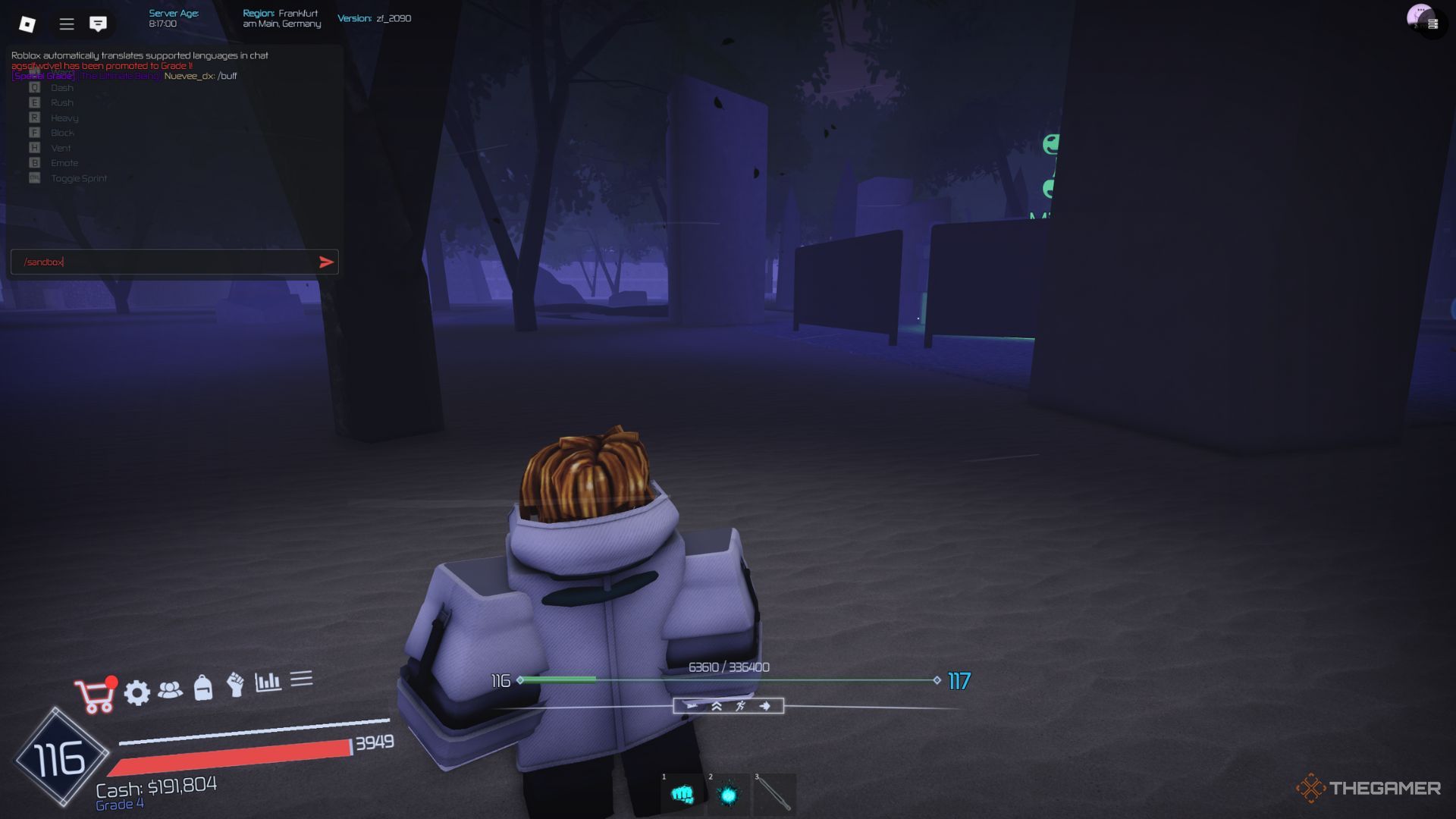
    The player character using a console command in the forest near the main lobby in Jujutsu Infinite.

    Using console commands is easy, whether you’re on mobile or PC. It’s no more complicated than chatting with fellow players. If you’re unsure about the process, follow these simple steps:

    • Open the game’s chat by clicking the button in the upper left corner of your screen.
    • Copy one of the commands listed above and paste it into the chat input box.
    • Finally, press Enter to send your command.

    For commands that require “[Username],” remember to replace it with the actual player’s name, for example, /duel JohnWader.

    You can use these commands anytime without any limits or restrictions.