الوسم: cancel

  • Celebrities Drop Out of America 250 Events Amid Backlash

    Celebrities Drop Out of America 250 Events Amid Backlash

    Digital Phablet – Several celebrities have withdrawn from the America 250 celebration amidst political controversy.

    Multiple performers scheduled to perform at a large celebration of America’s 250th birthday on the National Mall next month have denied rumors of their attendance.

    Morris Day and the Time, Young MC, and the C+C Music Factory all issued online statements confirming they will not be participating in the “Great American State Fair” in Washington.

    “I HAVE INFORMED MY AGENTS THAT I WILL NOT BE PERFORMING AT THE FREEDOM 250 EVENT,” Young MC posted on Facebook. “The artists were never told about any political involvement with the event.”

    “And despite the organizers claiming the event is nonpartisan, SPIN magazine describes it as ‘Trump-backed.’” He added, “I hope to perform in D.C. soon at an event without so much political tension.”

    Other artists have expressed similar sentiments.

    Vocalist Freedom Williams from C+C Music Factory stated on Instagram that he instructed his agency to withdraw him from the event, as he was unaware of its political ties.

    “He didn’t mention Trump. I keep getting messages, ‘We’re canceling C+C Music Factory; the event is going to be a disaster,’” Williams explained in a video post.

    “So I told my agent, no way, I’m not doing that… I don’t mess with Trump. I don’t care about Trump. I understand the chaos he stirs. But the day I let people tell me what to do is the day I die,” he added.

    America 250 Freedom 250

    The Time and Morris Day also decided not to perform.

    “Contrary to reports, Morris Day & The Time will not be taking part in the ‘GREAT AMERICAN STATE FAIR,’” the artist stated in a graphic posted on Facebook Wednesday.

    In the caption, the artist added, “It’s a no for me.”

    Rappers Flo Rida and Vanilla Ice, along with country star Martina McBride, are still scheduled to perform.

    Responses regarding the other artists’ decisions to withdraw from the event were not immediately available from organizers of Freedom 250.

    The event aims to “bring together people from all 56 states and territories to honor the traditions, innovation, music, military heritage, freedom, and entrepreneurial spirit that define our nation,” according to initial statements from CEO Keith Krach about the lineup.

  • Barış Arduç and Hande Erçel Cancel Cannes Trip to Keep “Aşk ve Gözyaşı” On Schedule

    Barış Arduç and Hande Erçel Cancel Cannes Trip to Keep “Aşk ve Gözyaşı” On Schedule

    Digital Phablet – Barış Arduç and Hande Erçel skip Cannes for filming duties.

    This year, Barış Arduç and Hande Erçel will not be attending Mipcom. The popular Turkish actors were scheduled to showcase their drama Aşk ve Gözyaşı (Love and Tears) at Mipcom, the world’s largest international TV market in Cannes, France. Unfortunately, they had to cancel last-minute plans due to ongoing shooting commitments.

    The Mipcom event, which kicked off today in Cannes, attracts industry professionals from around the globe to promote new projects and negotiate deals. The Turkish series Aşk ve Gözyaşı, produced by O3 Medya and Dass Yapım, is expected to draw significant attention at the festival.

    Hande Erçel and Barış Arduç, the leads in the ATV romantic series, had originally planned to attend the event and participate in promotional activities. Their on-screen chemistry and the heartfelt storyline have already sparked buzz across Turkey and beyond.

    However, insiders report that both stars had to cancel their trips to focus on filming. Currently, their team is under intense pressure to complete the upcoming episode on schedule. Delays in shooting could result in the new episode missing its broadcast slot this Friday.


    Aşk ve Gözyaşı Instagram profile

    To avoid further complications, Erçel and Arduç will stay on the set in Istanbul all week, continuing filming without pause.

    Recently, significant changes were made to the production process, including a change in directorship and the show's writer. To stay on schedule, episodes three and four were combined, speeding up the filming process but leaving the team without finished episodes. This has made each day of shooting crucial.

    Even with these challenges, Aşk ve Gözyaşı continues to attract significant viewership and positive social media reception. Fans praise the powerful performances of Erçel and Arduç and the depth of their relationship depicted on-screen.

    The absence of the stars at Mipcom was a disappointment to fans worldwide, but their commitment to keeping the series on track demonstrates their dedication.

  • How to Cancel PlayStation Plus: A Step-by-Step Guide

    How to Cancel PlayStation Plus: A Step-by-Step Guide

    Sony’s PlayStation Plus has undergone significant changes over the years. Originally launched to provide new games monthly, it later incorporated online multiplayer features. Today, the service resembles Game Pass Ultimate more closely, offering an extensive library of games for a monthly fee, though it doesn’t release its first-party titles immediately upon launch. While it still includes the monthly game additions and online gaming capabilities, it now provides different tiers: Essential, Extra, and Premium, each at varying prices and benefits.

    As subscription costs have risen, maintaining a year-long PS Plus subscription might become too pricey for some gamers. Canceling your membership can also be a bit tricky since Sony employs an auto-renewal system that can lead to unforeseen charges.

    If you need to cancel your PS Plus membership—whether you have the Essential, Extra, or Premium tier—you can do this through your smartphone, computer, or directly from your PlayStation console. While the process is relatively straightforward, having a clear understanding of the steps can save you some time. Here’s how to cancel your PlayStation Plus subscription.

    PlayStation

    How to Cancel PlayStation Plus on PS5 and PS4

    To begin, it’s easiest to cancel your subscription through a PS5, though the procedure is nearly the same on a PS4.

    Step 1: From the home screen, go to the Settings menu.

    Step 2: Select Users and Accounts.

    Step 3: Choose Payment and Subscriptions from the Account menu.

    Step 4: Navigate to Subscriptions and select PlayStation Plus.

    Step 5: Select Cancel Subscription on the bottom left.

    Step 6: A confirmation screen will pop up asking if you are sure you want to cancel. Click on Confirm Cancellation. This will end your services on the next renewal date, so you can still benefit from your membership until then.

    How to Cancel PlayStation Plus via a Browser

    If you don’t have access to your PS5 or PS4 but need to cancel your PS Plus membership, you can easily do it from a web browser on your computer or smartphone.

    Step 1: Visit the Sony Account Management page and log in with your PlayStation credentials.

    Step 2: Click on Subscriptions from the menu on the left. Confirm when prompted to proceed.

    Browser page with account info for PS Plus.
    Image used with permission by copyright holder

    Step 3: Once on the next page, a list of options will appear on the right side, including Cancel Subscription at the bottom.

    Previously, users could choose Turn Off Auto Renew to stop charges after their current subscription expired. This option has now been replaced by Cancel Subscription, which serves the same purpose without immediately ending your subscription. This change has led to confusion, with some users mistakenly thinking they must wait until their subscription expires to cancel, resulting in unwanted charges.

    Step 4: Click on Confirm Cancellation to finalize the process.

    What Happens When You Cancel Your PlayStation Plus Subscription?

    It’s crucial to understand the implications of canceling your PS Plus membership. Once your subscription ends (a date is confirmed during the cancellation steps), you’ll lose access to any games obtained through PS Plus. This includes monthly free games, titles from the PS Plus collection, and any games available through the Essential, Extra, and Premium tiers. You will also lose access to online multiplayer, except for free-to-play titles.

    If you choose to resubscribe later, you will regain access to the games associated with your PS Plus subscription.


  • Still A Wait Before Easy Subscription Cancellations

    Still A Wait Before Easy Subscription Cancellations

    The Federal Trade Commission (FTC) has voted to implement a new rule designed to simplify the cancellation process for subscription services. However, the enforcement of this rule has been delayed until July 14. Originally, the regulation, known as the Negative Option Rule, was set to take effect on January 19, with specific provisions scheduled to begin on May 14. These provisions aim to ensure that companies provide an easy cancellation process comparable to their sign-up procedures.

    Numerous telecom companies have voiced their opposition to this ruling. The National Cable and Telecommunications Association has filed a lawsuit challenging the FTC’s authority, arguing that the agency has exceeded its legal boundaries. The FTC stated that the delay of 60 days is necessary because of the “complexities” involved in overhauling compliance processes. They acknowledged that the original timeframe did not adequately consider the challenges businesses would face in adhering to the new rules.

    Details of X Premium+ subscription seen on a phone.
    Nadeem Sarwar / Digital Trends

    Following the new guidelines, companies are required to be fully compliant by July 14, at which point the FTC will begin enforcing the rules. This could be a significant victory for consumers, yet the FTC has issued a cautionary note: “If any issues arise during enforcement, the Commission is willing to make adjustments to the Rule to address those concerns.”

    Many subscription services are infamous for their convoluted cancellation processes. Often, the option to cancel is buried deep within menus, and in some cases, customers must reach out to customer service directly—a process that can take over an hour, especially if disconnections occur. Instances such as gym memberships are particularly notorious, with some individuals even opting to close their bank accounts just to escape the persistent hassle. The FTC’s new ruling is aimed at streamlining this process to better serve consumers, and the changes are welcomed by many.


  • How To Cancel Amazon Music Unlimited: A Step-by-Step Guide

    Although Amazon Music Unlimited may be connected to your Amazon Prime subscription, you’re not obligated to keep using it. Even if you decide to cancel this service, you can still enjoy the standard Amazon Music at no additional cost as part of your Prime membership.

    Whether you're unhappy with rising costs or simply wish to make a change, here's a guide on how to unsubscribe from the Unlimited service.

    Thinking about switching to another music streaming platform afterward? Check out our top picks!

    Difficulty

    Easy


    Duration

    About 5 minutes

    Canceling Amazon Music Unlimited on the Website

    If you prefer managing your account through a desktop or laptop, you can cancel your Amazon Music Unlimited subscription with just a few clicks.

    Step 1: Go to Amazon.com and click on Hello, sign in in the upper right corner if you're not logged in yet.

    Step 2: Access your account by selecting your name in the top-right corner.

    Image showing how to cancel Amazon Music Unlimited.
    DigitalTrends

    Step 3: From the drop-down menu, select Memberships & Subscriptions.

    Image showing how to cancel Amazon Music Unlimited.
    DigitalTrends

    Step 4: Locate your Amazon Music Unlimited subscription from your list of services. To the right, click on the Cancel membership button.

    Step 5: If prompted for a reason, you can provide one, then click Submit and continue to cancel. Be aware that Amazon may display several confirmation messages, but if you genuinely want to cancel, follow through with the cancellation steps.

    Step 6: On the final page, click Confirm cancellation to complete the process. You’ll continue to have access to Amazon Music Unlimited until your next billing date, at which point your subscription will revert to the standard Amazon Music option—more details can be found in our Amazon Music guide.

    Canceling Amazon Music Unlimited on Android

    You can also manage your subscription via the Amazon Music app on your Android device. Here’s how.

    Step 1: Open the Amazon Music app, tap the gear icon in the top-right corner, and select Settings.

    Step 2: Under the "Your Account" section, tap on Amazon Music Unlimited Member.

    Step 3: Select Cancel Subscription and confirm your cancellation when prompted.

    Canceling Amazon Music Unlimited on iPhone and iPad

    When using your iOS device, the cancellation process occurs through the Settings app.

    Step 1: Launch the Settings app on your iPhone or iPad and select your name.

    Step 2: Choose Subscriptions.

    Step 3: Find the Amazon Music Subscription, tap on it, then select Cancel. Confirm if prompted.

    Canceling Amazon Music Unlimited via iTunes

    If you subscribed to Amazon Music Unlimited through iTunes, you’ll need to cancel it via Apple's support website.

    Step 1: Go to support.apple.com.

    Step 2: Scroll to My Support and log in to your Apple account.

    Step 3: Look for Billing and subscriptions, select it, and browse through your subscriptions. Follow the on-screen prompts to cancel Amazon Music Unlimited when located.

    If you registered through Apple, Google, or a mobile provider, you might need to directly contact them for the cancellation process.

    Are you considering a new music streaming service? Here are some popular suggestions you might like.

  • How to Cancel Your Fortnite Crew Pack Subscription

    How to Cancel Your Fortnite Crew Pack Subscription

    Epic Games offers a monthly subscription called the Fortnite Crew Pack, which is packed with amazing benefits. This service is particularly advantageous for players who frequently purchase V-Bucks or who enjoy gaining access to exclusive cosmetics and skins. It also eliminates the worry of missing out on special bonuses and items.

    However, it’s common for users to find certain aspects of the pack unappealing or to prefer not to pay ongoing fees, leading them to seek cancellation. This guide will detail how to cancel your Fortnite Crew subscription, which varies based on the platform you are using.

    Updated January 12, 2025 by Jack Filsinger: Since the launch of the Fortnite Crew pass, there have been several changes regarding its contents and the cancellation process. This guide has been updated to reflect what you can expect from the Fortnite Crew and what happens if you decide to cancel.

    What Is The Fortnite Crew Pack?

    The Fortnite Crew Pack is a monthly subscription service offering exclusive rewards to Fortnite players.

    Upon subscribing, you’ll receive some great benefits, including:

    • 1,000 V-Bucks
    • Access to Premium Battle Pass rewards
    • OG Pass rewards
    • Music Pass rewards
    • LEGO Pass rewards
    • Exclusive Crew Pack cosmetics

    How Much Does Fortnite Crew Cost?

    The price of the Fortnite Crew subscription is $11.99 USD per month if you have recurring payments enabled.

    These payments are set up automatically, so if you don’t want them, you’ll need to cancel manually.

    When Will Your Subscription Renew?

    If you’re subscribed to Fortnite Crew with recurring payments enabled, your billing date will correspond to the day you initially purchased the membership.

    This means that if you want to cancel your subscription and avoid another charge, be sure to do so before this date.

    How To Cancel Your Fortnite Crew Subscription

    Canceling your Fortnite Crew subscription isn’t always straightforward.

    While it would be convenient to just click a ‘cancel’ button, the process varies based on where you initially purchased the membership.

    Below, you’ll find cancellation instructions for various platforms.

    Keep in mind that when you cancel your Fortnite Crew subscription, you will retain any rewards earned from previous Fortnite passes, in addition to the content you’ve received during your subscription.

    However, you won’t be eligible for future rewards, nor will you receive a prorated refund for your subscription.

    PC And Android

    To cancel your Fortnite Crew subscription on PC or Android, you need to visit the Epic Games website.

    • Go to the Epic Games website and log into your account.
    • Click on your username in the top right corner, then select ‘Account‘.
    • Scroll down to the ‘Subscriptions‘ section to manage your subscriptions.
    • Click on the settings icon and then select ‘Cancel Subscription‘.

    Xbox

    If you signed up for Fortnite Crew on Xbox, you’ll need to cancel your subscription via the Microsoft website.

    • Visit the Microsoft website and sign in to your account.
    • Click on ‘Services and Subscriptions‘ from the menu bar, where you’ll see your Microsoft subscriptions.
    • Find the Fortnite Crew section, then click ‘Manage‘.
    • From there, select ‘Turn off recurring billing‘.

    On this page, you’ll see an option to ‘Cancel subscription’, but be cautious as this may lead to confusion.

    Selecting this option directs you to customer support to request a refund for your subscription.

    If you go this route, Fortnite Crew items will be removed from your account, although you’ll keep your Battle Pass; however, you will lose 950 V-Bucks.

    PlayStation

    • Visit the PlayStation Store website and log into your account.
    • Click on your account icon in the top right corner.
    • Go to ‘Manage subscriptions‘ and on the Fortnite Crew subscription, select ‘Turn off auto-renew‘.

    Nintendo Switch

    If you signed up for Fortnite Crew on Nintendo Switch, you’ll cancel through the Nintendo eShop.

    • Open the Nintendo eShop on your console from the HOME page.
    • Click your account icon in the top right corner.
    • Select ‘Subscriptions‘ and on the Fortnite Crew subscription, choose ‘Turn off automatic renewal‘.

    Samsung

    If you subscribed to Fortnite Crew via a Samsung device, you’ll need to cancel it through the Galaxy Store.

    • Open the Galaxy Store on your Samsung device.
    • Access the menu and select ‘Subscriptions‘.
    • Choose Fortnite and then tap ‘Cancel‘.

    Canceling your subscription will not revoke your Fortnite Crew member benefits right away, and you’ll still have access to your items (unless you request a full refund through Microsoft’s site).

    Even if you cancel the day after subscribing, you will remain a member until just before your next billing date.

    For more details about the Fortnite Crew monthly subscription, be sure to check its official page on Epic Games’ site for plenty of useful information.

  • How to Cancel Philo: Easy Steps to Terminate Your Subscription

    How to Cancel Philo: Easy Steps to Terminate Your Subscription

    With numerous streaming services available nowadays, Philo stands out as an excellent choice for live television, offering various channels packed with your favorite shows and films. However, if you've decided to discontinue your Philo subscription, it's essential to know how to do it smoothly.

    Fortunately, canceling Philo is straightforward. All you need is an internet connection and to recall where you initially subscribed.

    Difficulty

    Easy


    Duration

    5 minutes

    What You Need

    • Internet connection

    Philo does not offer refunds for subscriptions once payment has been made for the current month. However, you can continue to access Philo until that billing period concludes.

    Cancelling Philo via Amazon

    If you registered through Amazon, you'll need to cancel it there. Start by signing into your Amazon account.

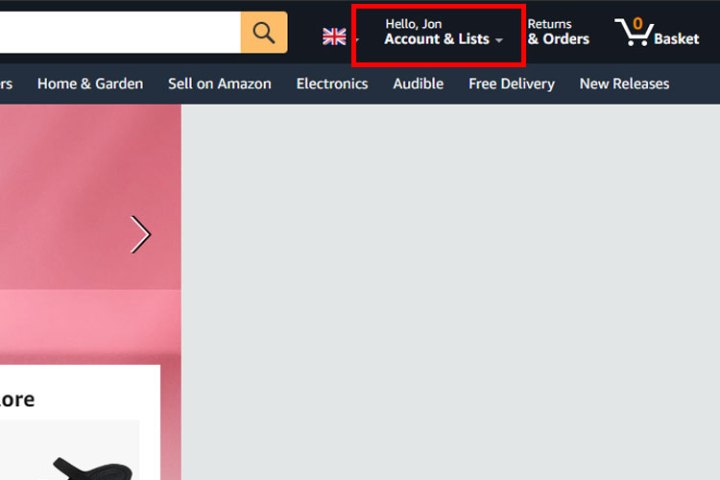
    Step 1: Go to the My Account page, found under Accounts & Lists in the upper-right corner.

    Step 2: Click on Your Apps located under Digital content and devices. It's usually the fifth option down.

    Step 3: Locate Philo in your app list. Click on the Actions drop-down menu next to Philo, then select Turn off auto-renewal.

    Step 4: Confirm by selecting Turn off auto-renewal again.

    Cancelling Philo via Apple

    If you enrolled in Philo through your Apple device, you'll need that device and the Apple ID you used to sign up.

    Step 1: Open the Settings on your device, represented by a gear icon.

    Step 2: Tap on your name, followed by Subscriptions.

    Step 3: Choose Philo under active subscriptions.

    Step 4: Select Cancel Subscription.

    Cancelling Philo via Google Play

    If you registered for Philo using your Google account, make sure to use the same account for cancellation.

    Step 1: Launch the Google Play Store.

    Step 2: Tap your profile icon at the upper-right corner.

    Step 3: Select Payments & Subscriptions.

    Step 4: Choose Subscriptions.

    Step 5: Select Philo: Live and On-demand TV.

    Step 6: Tap on Cancel Subscription.

    Step 7: Indicate a reason for cancelling and hit Continue.

    Step 8: Confirm by selecting Cancel Subscription.

    Cancelling Philo on the Philo Website

    Step 1: Visit the Philo website.

    Step 2: Click your Profile avatar and select Account.

    Step 3: Click on Cancel my subscription.

    Step 4: Confirm by selecting Complete cancellation.

    Cancelling Philo on Roku

    If you registered for Philo via Roku, you can cancel the service directly on your Roku device.

    Step 1: Press the home button on your Roku remote, which looks like a house.

    Step 2: Highlight the Philo app and press the star button on your remote.

    Step 3: Select Manage subscription.

    Step 4: Choose Cancel subscription and confirm by clicking again.

    Step 5: Finally, select Done to finish the cancellation process.

    Cancelling Philo on Vizio

    For those who subscribed to Philo through a Vizio account, you'll need to cancel via the Vizio website. Be sure to log in with the same account you used to subscribe.

    Step 1: Go to the Vizio website and log into your account.

    Step 2: Click on Subscriptions & purchases.

    Step 3: Next to Philo in your subscriptions, select Update.

    Step 4: Tap on Cancel subscription.

    Step 5: Confirm your cancellation by selecting Update subscription.

  • Mastering Animation Cancelling in Genshin Impact: A Guide

    Mastering Animation Cancelling in Genshin Impact: A Guide

    Genshin Impact features a combat system that is simple yet effective. Players can engage in Normal Attacks for quick hits, Charged Attacks that utilize stamina for a more powerful strike, and powerful moves like Elemental Skills or Bursts for elemental damage.

    However, the combat gameplay is much deeper than it appears. There are various techniques to amplify the damage dealt by your characters. One of these techniques is Animation Canceling, which, while not directly increasing damage numbers, is crucial for characters with long animations. In some cases, it can effectively double the damage they deal.

    What Is Animation Canceling?

    Every action in a game triggers a specific animation. While these animations can enhance gameplay by showcasing your character’s actions, they can also slow down your ability to string together combos or perform multiple actions quickly.

    This issue mainly arises with fallback animations that play after actions, such as the animation Hu Tao exhibits after each Charged Attack.

    To work around this and enhance performance, Animation Canceling allows players to skip these fallback animations, optimizing the efficiency of their characters.

    Why Use Animation Canceling?

    The benefits of Animation Canceling are significant. Firstly, it allows you to perform actions faster instead of waiting for slower animations to complete, such as Nahida’s Charged Attack or Eula’s Normal Attack combo.

    An additional reason for using Animation Canceling is to reset your character’s Normal Attack counter, particularly important for characters whose damage varies with different hits. For instance, if your first two attacks hit for 200% damage while the third only does 100%, canceling your combo after the first two strikes lets you repeat those high-damage hits.

    Moreover, Dash Canceling can help evade enemy strikes thanks to the invulnerability frames during dashes.

    Furthermore, Burst Cancels enable you to regenerate Energy without wasting time waiting for particles to appear, which is especially beneficial for characters like Xiangling who rely heavily on energy.

    For characters like Hu Tao, Animation Canceling also aids in positioning. Given her Charged Attack’s reach, it’s easy to overshoot your target, making it difficult to manage multiple enemies effectively.

    Lastly, a primary purpose of Animation Canceling is to maximize the speed of elemental reactions by taking advantage of ICD (Internal Cooldown). Even though most attacks cannot trigger reactions on every hit, certain ones can, and Animation Canceling can accelerate these processes.

    How To Animation Cancel

    Animation Canceling varies in methods, utilizing different inputs to cut animations short. The most versatile technique is Dash Canceling, usable with any character to boost damage per second (DPS). Jump Cancels are also effective but are generally slower and can encounter issues.

    There are niche techniques, such as Swap Cancels or Burst Cancels, which might not yield as much benefit as the others but can still minimize rotation times.

    Finally, there are character-specific cancels for bow users and characters like Neuvillette that can significantly boost your DPS under the right circumstances.

    How To Dash Cancel

    To Dash Cancel, wait until the damage threshold of the animation is reached, then immediately dash by right-clicking, sprinting, or using the designated dash button on your console. Dash Canceling is often the quickest and most efficient Animation Cancel technique available for most characters.

    However, Dash Canceling has its drawbacks, particularly for non-bow characters who rely on Charged Attacks. Since dashing consumes stamina needed for attacks, you can quickly deplete your stamina, making this technique less viable for characters like Keqing or Hu Tao (unless you have her C1).

    How To Jump Cancel

    Jump Canceling is more challenging than Dash Canceling and tends to be slower. To execute this, you need to recognize when damage has been dealt and input a jump command immediately thereafter.

    Be cautious, as if you initiate the jump too soon, you may cancel the damage itself, adversely impacting your overall DPS. Avoiding this is crucial for using Jump Canceling effectively.

    Jump Canceling can also present difficulties against large enemies with unique hitboxes, like the Perpetual Mechanical Array, where trying to jump can trap you in their hitbox. In such instances, not using cancels might be more beneficial.

    How To Aim Cancel

    Most weapon types in Genshin Impact operate similarly, but Bow users can access a unique aiming mode for Charged Attacks. This is particularly useful for characters with special Charged Shots, such as Ganyu or Tighnari.

    Even for characters who primarily use Normal Attacks like Yoimiya, Aim Canceling can be leveraged, offering a speed comparable to Dash Canceling without using stamina.

    To execute an Aim Cancel, quickly tap the aim button (or the R key on PC) twice just before a lengthy fallback animation finishes. For Yoimiya, this occurs after the last Normal Attack in her chain.

    While it can be tricky to master, practice will improve your consistency. However, few characters can capitalize on this technique due to limited Normal Attack usage among Bow users.

    How To Swap Cancel

    Swap Cancel involves changing to a different character to terminate an ongoing animation prematurely. This method can shorten setup time for support characters like Xingqiu by reducing the time it takes to set them up. To perform it, simply press the swap button as soon as your input registers.

    How To Burst Cancel

    Burst Canceling resembles Swap Canceling in that it doesn’t always lead to a massive DPS boost. However, it is effective for generating energy. Execute it by casting your Elemental Burst immediately after using your Elemental Skill.

    This exploit works because time continues during the Burst animation, allowing Elemental Particles to spawn and be gathered by your active character before the animation concludes.

    Swap Burst Cancels

    While transitioning between characters doesn’t take much time, you can expedite it further. This also helps in avoiding damage when introducing a new character since they can use their Elemental Burst immediately for invulnerability.

    Swap Burst Canceling is particularly straightforward on mobile devices, as there is a dedicated button next to your off-field character. On PC, use the ALT key with the corresponding number for your off-field character.

    Neuvillette Animation Cancel

    Neuvillette possesses a special Charged Attack that typically requires time to charge. Nevertheless, he can utilize Sourcewater Droplets to immediately cast his Charged Attack by activating his Elemental Burst or Skill.

    However, you must be close to the Sourcewater Droplets for this technique to be effective.

    You can further optimize this by eliminating the absorbing animation altogether. Just momentarily hold the attack button instead of pressing it fully. Your Charged Attack will still work, but the startup animation will be skipped.

    Can You Do Animation Cancels On Your Phone?

    Yes, Animation Cancels can be performed on mobile devices. However, the difficulty levels can vary, particularly for Aim and Jump Cancels.

    If you find these techniques challenging, the overall gain in DPS isn’t substantial enough to require their use to complete any content. Yet, for characters like Hu Tao, practicing at least one specific technique might prove advantageous.

  • How to Cancel Sling TV: A Step-by-Step Guide

    How to Cancel Sling TV: A Step-by-Step Guide

    Phil Nickinson / Digital Trends

    Sling TV offers an impressive streaming service packed with sports, movies, and a variety of shows that can easily capture your interest. However, if you’ve found that you’re not using it after the season wraps up, it could be time to take a step back and cancel your subscription.

    As one of the most budget-friendly streaming services available, Sling TV operates on a two-tier system with Sling Orange and Sling Blue. While it generally provides excellent value, particularly when compared to more expensive live-streaming services like Hulu + Live TV, it’s smart to cancel if you’re not actively using it.

    Here’s how to proceed with your cancellation.

    Difficulty

    Easy


    Duration

    5 minutes

    What You Need

    • A device with internet access

    • A Sling TV account

    Sling TV Logo
    Sling TV

    How to Cancel Sling TV

    Cancelling your Sling TV account can be done entirely online and should take just a few minutes. Don’t forget to check your email for the cancellation confirmation, which will be sent to the email address associated with your account. If you don’t receive this email, it means your account hasn’t been fully cancelled.

    Step 1: Visit the Sling TV website using your phone, tablet, or computer and log in to your account.

    Step 2: Go to the My Account dashboard.

    Step 3: Click on Cancel Subscription and follow the prompts to finalize your cancellation.

    Streaming Sling TV
    Phil Nickinson / Digital Trends

    How to Pause Sling TV

    If you’re unsure about fully cancelling Sling TV, you do have the option to pause your subscription for up to three months. Your subscription remains active, but you won’t be billed during the pause. This is particularly useful if you’re awaiting the start of the next season or are planning a long work trip.

    The pause will commence at the next billing cycle, so if your payment is due on the 19th of the month, that’s when it will take effect. If you decide you want to resume your service during the pause period, you have the option to do so easily.

    Step 1: Visit the Sling TV website on your device and log into your account.

    Step 2: Navigate to the My Account dashboard.

    Step 3: Select Pause Subscription.

    Step 4: Choose the duration for your pause.

    Step 5: Review the pause details to ensure everything is correct, then click on Confirm Pause.

    Watching Sling TV
    Phil Nickinson / Digital Trends

    Can I continue watching Sling TV after I cancel?

    Sling TV does not provide refunds under any circumstances. Once you’ve paid for a month, you have access to all of that month’s content until the end of the current billing cycle. Therefore, if you reactivate your subscription and cancel the following day, you’ll still be able to enjoy Sling TV until your billing period concludes.

    Sling TV Pricing Information
    Digital Trends / Screenshot

    How much does Sling TV cost?

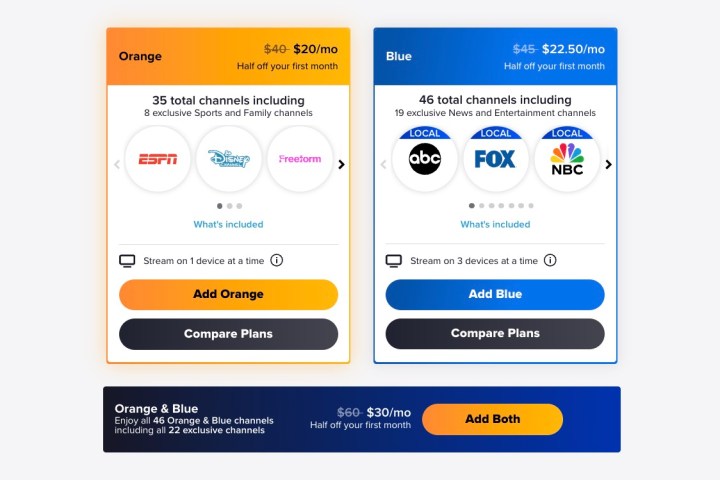
    If you’re on the fence about ending your Sling TV subscription, budget might be a deciding factor. Sling TV features two pricing tiers: the Orange plan costs $40 per month while the Blue plan is $45 per month. Bundling both plans will give you access to more channels for $60 per month, which is what Sling TV encourages customers to do. Pricing may vary based on your location, so be sure to check Sling’s rates in your area.

    Additionally, various extras can be added to your Sling TV setup, each associated with its own costs.

    Cancelling Sling TV is straightforward and should only consume a few minutes of your time. If you aren’t completely sure about cancelling, consider pausing your subscription for up to three months while you make your decision. Either option can be handled seamlessly on your mobile device or computer, allowing you to quickly manage your subscription as you see fit.

  • How do I cancel my subscription to Geek Squad?

    How do I cancel my subscription to Geek Squad?

    How to Cancel Your Subscription to Geek Squad

    If you’ve decided that you no longer need your Geek Squad subscription, whether for technical support, device protection, or other services, canceling it is a straightforward process. Here’s a step-by-step guide on how to effectively terminate your subscription.

    Understanding Your Subscription

    Before diving into the cancellation process, it’s vital to understand what type of subscription you have. Geek Squad offers multiple services, including:

    • Geek Squad Protection: Covers accidental damage for various devices.
    • Tech Support Plans: Provides assistance for software issues, installations, and troubleshooting.
    • Membership Plans: Gives you access to discounted services.

    How to Cancel Your Geek Squad Subscription

    There are a few different ways you can cancel your subscription, depending on your preference.

    1. Online Cancellation

    For a quick and convenient way to cancel, you can use the online portal.

    • Step 1: Visit the Best Buy website.
    • Step 2: Log into your account using your email and password.
    • Step 3: Navigate to “Account Settings” or “Subscriptions.”
    • Step 4: Locate the Geek Squad subscription you wish to cancel.
    • Step 5: Follow the prompts to complete the cancellation process.

    2. Phone Cancellation

    If you prefer speaking with a customer service representative or encounter issues online, you can cancel over the phone.

    • Step 1: Call Geek Squad Customer Support at 1-800-GEEK-SQUAD (1-800-433-5778).
    • Step 2: Follow the prompts to connect with a representative.
    • Step 3: Request cancellation of your subscription. Be prepared to provide your account information for verification.

    • Step 4: Confirm the cancellation details with the representative.

    3. In-Store Cancellation

    If you prefer face-to-face interaction, you can also visit a Best Buy store for assistance.

    • Step 1: Find your nearest Best Buy location.
    • Step 2: Bring your account information and any related documentation regarding your subscription.
    • Step 3: Speak with a customer service associate about canceling your Geek Squad subscription.
    • Step 4: Ensure you receive confirmation of the cancellation.

    Important Considerations When Canceling

    While the cancellation process is pretty straightforward, there are a few key points to consider:

    • Timing: Check whether you are in a billing cycle. Canceling before the renewal date may help avoid extra charges.
    • Refund Policy: Understand Geek Squad’s refund policy regarding unused services. Some subscriptions may be eligible for a partial refund, while others may not be.
    • Confirmation: Always ask for confirmation of your cancellation, whether you do it online, over the phone, or in-store. This will protect you from any further charges.

    Final Thoughts

    Canceling your Geek Squad subscription can give you more control over your finances, especially if you find that you are no longer utilizing the services. By following the steps outlined above and taking the necessary precautions, you can ensure a smooth cancellation process. Choose the method that best suits your needs and don’t hesitate to reach out for assistance if needed.

  • How do I cancel my Geek Squad Protection Plan?

    How do I cancel my Geek Squad Protection Plan?

    The Geek Squad Protection Plan offers peace of mind for many customers who want support and protection for their electronics. However, there might come a time when you decide to cancel the plan for various reasons. If you’re considering this step, here’s a detailed guide on how to cancel your Geek Squad Protection Plan efficiently.

    Understanding Geek Squad Protection Plans

    Before diving into the cancellation process, it’s important to understand what the Geek Squad Protection Plan entails.

    What Does the Protection Plan Cover?

    • Product Support: Technical assistance with setup, troubleshooting, and issues that arise.
    • Accidental Damage Protection: Coverage for mishaps like spills or drops.
    • Repair or Replacement: Options for repairing malfunctioning devices or replacing them entirely.

    Why Cancel?

    People choose to cancel their protection plans for several reasons, including:

    • Not needing the coverage anymore
    • Switching to different protection plans or providers
    • Financial considerations
    • Dissatisfaction with the service provided

    Step-by-Step Guide to Cancel Your Geek Squad Protection Plan

    Canceling your Geek Squad Protection Plan can typically be done in a few straightforward steps. Here’s how you can go about it:

    Step 1: Gather Your Information

    Before you initiate the cancellation, make sure you have the following information readily available:

    • Your account number
    • Your purchase receipt
    • Identification details used during the purchase

    Step 2: Choose Your Cancellation Method

    You have a few options for canceling your plan:

    Phone Cancellation

    • Call the Geek Squad customer service line at 1-800-GEEK-SQUAD (1-800-433-5778).
    • Be prepared for wait times, and have your information handy.
    • Clearly state your desire to cancel the Protection Plan and follow any prompts provided.

    Online Cancellation

    • Visit the Best Buy website and log into your account.
    • Navigate to “Order History” to find your Geek Squad Protection Plan.
    • Follow the instructions to submit a cancellation request.

    In-Store Cancellation

    • Locate your nearest Best Buy store.
    • Bring along your purchase receipt and identification.
    • Speak to a customer service representative about canceling your plan.

    Step 3: Confirm Your Cancellation

    Regardless of the cancellation method, ensure that you receive:

    • A confirmation email or receipt
    • Details regarding any potential refund

    Refund Policies

    • Be aware of the refund policies related to your plan.
    • Refunds can vary based on the time of cancellation and the terms of your original purchase agreement.
    • Generally, if you cancel within 30 days of your plan’s purchase, you may receive a full refund.

    Tips for a Smooth Cancellation Process

    • Timing Matters: Aim to cancel during business hours to get better support.
    • Keep Records: Document all interactions, including dates and names of representatives.
    • Ask Questions: If unsure about any details, don’t hesitate to ask the representative.
    • Consider Alternatives: If you’re canceling due to dissatisfaction, inquire about other plan options that may better suit your needs.

    By following these guidelines, you can effectively cancel your Geek Squad Protection Plan with minimal hassle.