الوسم: Audio / Video

  • How To Troubleshoot and Fix the Most Common Hulu Problems

    How To Troubleshoot and Fix the Most Common Hulu Problems


    Phil Nickinson / Digital Trends

    Hulu stands out as one of the premier streaming services available today, accessible on a vast array of devices, including smartphones, tablets, computers, gaming consoles, and various streaming devices. Its extensive collection of films and television series, featuring acclaimed originals like The Handmaid’s Tale and Only Murders in the Building, provides entertainment for all tastes. However, even a leading streaming service like Hulu can encounter issues from time to time.

    Users may experience performance setbacks that hinder their viewing pleasure. These might include troublesome audio interruptions, such as moments when sound drops out or becomes garbled, in addition to frustrating delays and buffering that can interrupt your show. The notorious “spinning wheel of death” may even appear while the app struggles to keep up.

    Difficulty

    Easy


    Duration

    5 minutes

    Requirements

    • Hulu account

    • Reliable internet connection

    Fortunately, many of these issues can be easily fixed with a few straightforward solutions. By restarting your device, verifying your internet connection, or clearing the app’s cache, you can usually resume streaming your favorite content without delay.

    Keep Your App Updated

    First and foremost, ensure that you have the most recent version of the Hulu app installed on your streaming devices, whether you’re using a standard Hulu package or one of its live TV options.

    While updating may not resolve every technical glitch you encounter, developers typically release updates that address new features, optimization, and security enhancements. Upgrading to the latest version could potentially fix existing Hulu issues.

    Downdetector.com outage map revealing areas with Hulu issues.

    Down Detector

    Check for Service Outages

    It’s not uncommon for the Hulu service to experience outages, impacting some users or the entire platform. Before attempting any troubleshooting steps, confirm whether the issue lies with Hulu’s servers. A useful website for checking service status is DownDetector.com.

    This site provides a live outage map and displays user reports. Additionally, searching for #huludown or #hulu on X (formerly Twitter) may help you quickly identify any widespread problems.
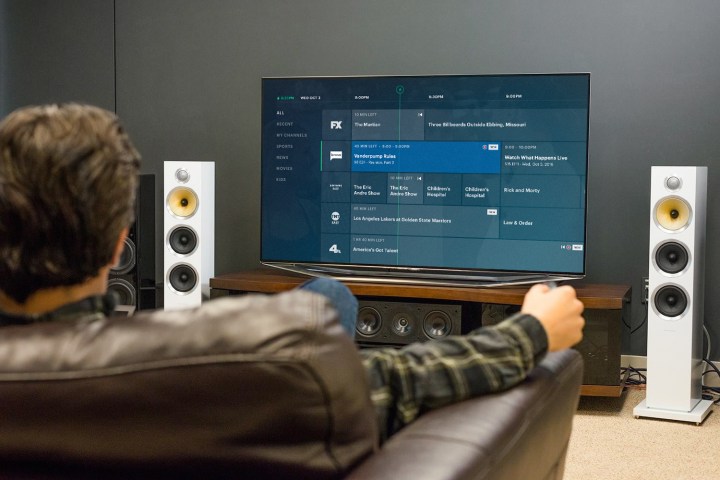
    A person relaxing on a couch watching Hulu.

    Hulu

    Simple Solutions for Hulu Issues

    If you’ve established that the issue isn’t related to Hulu’s service, several home remedies may help. Try these steps to troubleshoot, and if one doesn’t work, move down the list until you find a solution.

    Step 1: Close the Hulu app completely on your device and then open it again.

    Step 2: Restart your device.

    Step 3: Reset your router. If you’re unsure how, follow our straightforward guide to resetting a router.

    Step 4: Make sure you have the latest version of the Hulu app by checking your device’s app store for any available updates.

    Step 5: Delete and reinstall the Hulu app.

    Step 6: Remove your device or console from your Hulu account and then re-add it.

    Step 7: If you’re using a VPN, ensure it’s turned off for U.S. customers.
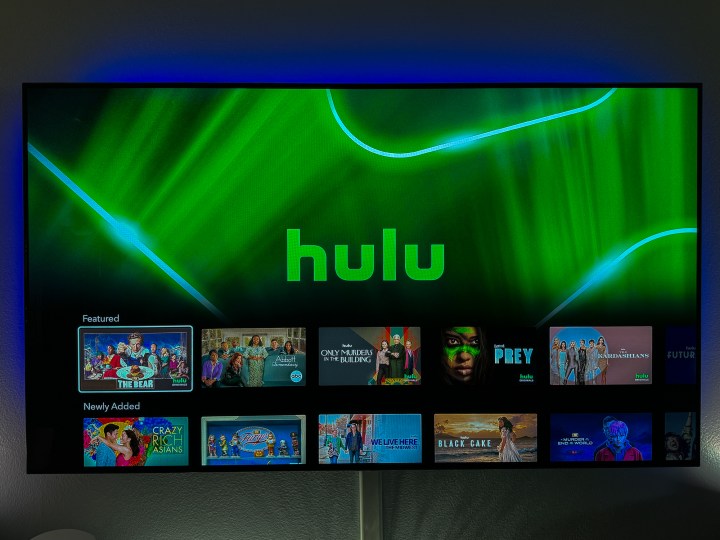
    Hulu's section within Disney+.

    Phil Nickinson / Digital Trends

    A Deeper Troubleshooting Method

    If Hulu still isn’t functional, your internet speed may be insufficient for streaming. Perform a speed test to check if your connection is fast enough for Hulu’s requirements. According to Hulu’s guidelines, you should aim for a minimum of 3.0 Mbps for regular viewing, 8.0 Mbps for live streams, and 16 Mbps for 4K content. If you need assistance checking your speed, Hulu provides a guide on conducting speed tests on various devices, including computers, smart TVs, mobile devices, and game consoles.

    Other devices connected to your Wi-Fi could be slowing down your connection, which could affect your Hulu experience. If you’re relying on Wi-Fi, consider connecting your device directly to the router using an Ethernet cable, or enhance your network with a Wi-Fi extender to minimize dead zones.

    If issues persist, you might want to look up the specific Hulu error code you’re encountering or visit the Hulu Community for insights and solutions from other users facing similar challenges.
    The Platin Audio Monaco 5.1 Tuned by THX WiSA wireless speaker package.

    Simon Cohen / Digital Trends

    Dealing with Audio Issues

    When enjoying Hulu content, you might run into audio problems, ranging from complete silence to distorted sounds or out-of-sync dialogue. Here are a few strategies to address these audio glitches.

    Step 1: Pause your current film or show and try watching a different title. Sometimes switching content can help reset the Hulu app. Alternatively, you may fully exit the app and relaunch it.

    Step 2: Verify the audio settings on your TV or streaming device. Much of Hulu’s content is only available in stereo sound. If your equipment is trying to output surround sound, it may cause odd audio issues.

    Adjust your device’s settings to PCM, stereo, or another non-surround option to see if that resolves the sound problem.

    Step 3: The way you connect your streaming device to your TV via HDMI can also affect audio performance. HDMI ARC inputs can sometimes complicate audio delivery, leading to sync issues.

    If your streaming device has a separate audio output (like a digital optical or similar), consider using one HDMI cable for video and a separate audio cable for sound to simplify the connection.

    Also, ensure that your HDMI cables are connected appropriately, as some may have directional arrows indicating input and output. Having them reversed could lead to audio problems.

    Closed Captioning Problems

    Hulu offers closed captioning for the majority of its titles, but this feature can also run into issues.

    Step 1: If captions are unresponsive, remember that not all titles on Hulu support this feature. If you discover a title lacking captions, you can submit a request to Hulu at DS.hulucaptionsfeedback@disney.com.

    Step 2: If your captions are displayed in the incorrect language, check the settings on your TV or streaming device to ensure you’ve selected the right language.

    If settings are correct, try closing and reopening the Hulu app, enabling captions once again. Often, this simple reset can resolve captioning issues.


  • Redbox Kiosks Are Disappearing Where Are They Going

    Redbox Kiosks Are Disappearing Where Are They Going

    Redbox kiosks, popular across America for nearly two decades, have seen a significant decline in use. These iconic DVD rental machines emerged around 20 years ago, but advancements in technology and the rise of streaming platforms, such as Netflix and Disney+, have led to a drop in their popularity. This dramatic shift culminated in Redbox’s parent company filing for Chapter 11 bankruptcy earlier this year.

    Currently, some of the approximately 34,000 Redbox kiosks remain operational in locations like CVS, Walgreens, Walmart, and Kroger. However, many of these retailers are now planning to retire these machines permanently, according to a report from the Wall Street Journal.

    The process of removing these machines isn’t as easy as it may seem, given that they weigh around 890 pounds and are typically secured to a concrete base. Yet, this didn’t deter North Carolina resident Jacob Helton. He managed to secure his own Redbox kiosk after negotiating with a contractor responsible for its removal from a local drugstore.

    In a conversation with the Journal, Helton expressed his passion for the kiosk, stating, “Redbox is important in the history of American media. Its collapse marks the end of the video rental era.” Each kiosk can house about 600 DVDs (the machines also offered games until 2019), and Helton intends to donate the existing DVDs and replace them with his own collection.

    As retailers look to dispose of these machines, the future of the kiosks, whether they end up in scrap yards or are claimed by enthusiasts like Helton, seems uncertain. For instance, Walgreens spends approximately $184,000 monthly to operate nearly 5,400 of these kiosks, taking up valuable retail space that could be used for other purposes.

    One Alabama-based removal company has reported it has taken down nearly 50 kiosks so far and collected around 20,000 DVDs for recycling, charging up to $200 for each removal and around $70 for the scrap metal. Given the number of machines still in operation nationwide, and the lengthy removal process, it will likely be some time before Redbox kiosks completely vanish from the American landscape.

  • How to Cancel Spotify Premium on Any Device: A Step-by-Step Guide

    How to Cancel Spotify Premium on Any Device: A Step-by-Step Guide

    Bryan M. Wolfe / Digital Trends

    If you’re thinking about canceling your Spotify Premium subscription, whether to switch to another streaming service or cut down on expenses, the process is quite simple. However, there are a few important things to keep in mind to ensure it goes smoothly.

    This guide will provide you with detailed instructions on how to cancel your Spotify Premium account via desktop, mobile devices, or tablets, including canceling subscriptions made through the App Store. Additionally, we will explain what happens to your account and your subscription after cancellation, as well as how to reactivate Premium if you decide to return later.

    With so many music streaming options available today, consider reading this guide thoroughly before canceling your Spotify Premium membership — it might help you save money or avoid inconvenience in the future.

    Difficulty

    Easy


    Duration

    5 minutes

    What You Need

    • Spotify Premium account

    • Desktop computer

    • iPhone or iPad

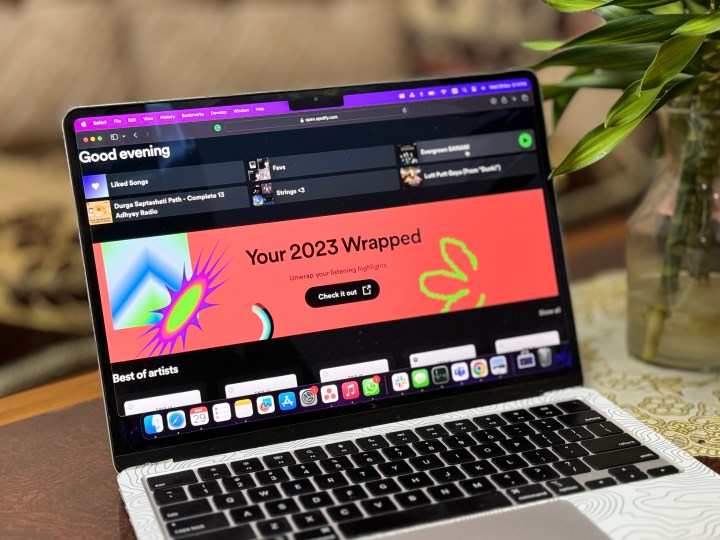
    Spotify Wrapped 2023 on a laptop.
    Prakhar Khanna / Digital Trends

    How to Cancel Spotify Premium

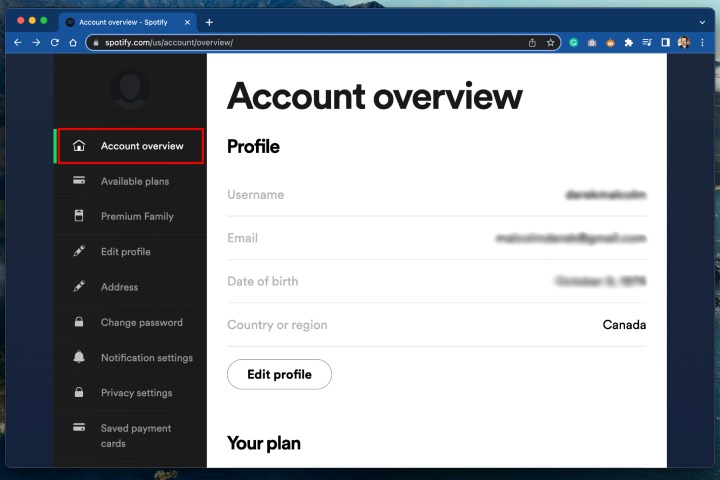
    Step 1: Begin by opening your preferred web browser and navigating to spotify.com/account. This link will take you directly to the Account Overview section of Spotify’s website.

    If you use the Spotify desktop app, you can access your Account settings from the drop-down menu, which will also open in your browser. Note that this process cannot be completed through the mobile app.

    How to cancel Spotify Premium – Account overview page.
    Derek Malcolm / Digital Trends

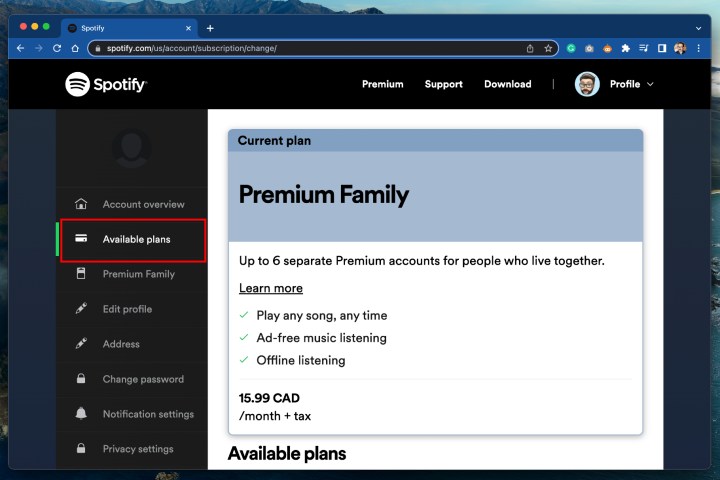
    Step 2: Once on your Account overview screen, choose Available plans from the sidebar on the left. A box will appear listing your current membership and other available subscription options.

    How to cancel Spotify Premium – Available plans.
    Derek Malcolm / Digital Trends

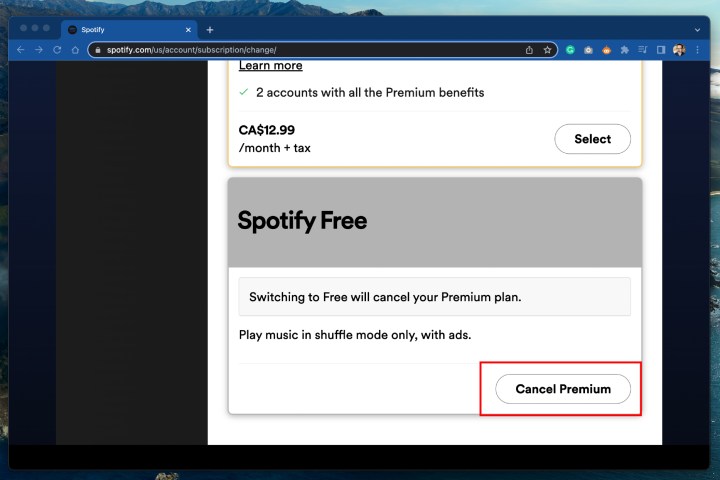
    Step 3: Scroll to the bottom of the options and look for the Spotify Free option, which is located at the very end. Click the large Cancel Premium button positioned below it.

    How to cancel Spotify Premium – Spotify Free.
    Derek Malcolm / Digital Trends

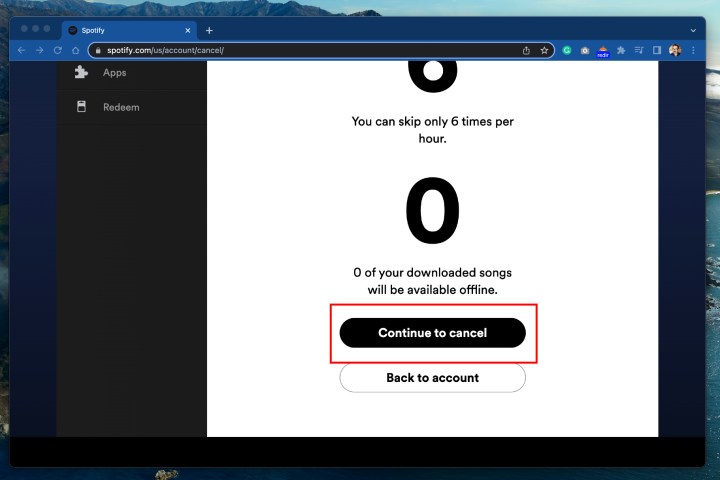
    Step 4: The last step is to confirm your cancellation by clicking Continue to cancel and following the prompts. Remember that your membership will not end immediately; you can continue using it until the end of your billing cycle.

    How to cancel Spotify Premium – continue to cancel.
    Derek Malcolm / Digital Trends

    Step 5: Note: Canceling your Spotify account through an Android device follows a similar process as on desktop — it is done via a web browser on the device.

    Spotify on iPhone.
    Bryan M. Wolfe / Digital Trends

    Canceling Spotify Premium on an iPhone or iPad

    If you initially signed up for Spotify on your iPhone or iPad, it’s likely you opted for Apple to manage your billing through the App Store for convenience. This makes the cancellation process slightly different when using an iPhone or iPad.

    Step 1: Begin by opening the Settings app on your device and tap your name at the top to access your Apple ID.

    Step 2: From there, choose Subscriptions.

    Step 3: A list of your subscriptions will be displayed. Find Spotify, then tap the Cancel Subscription button. This will terminate your Premium membership renewal.

    After cancellation, you will still be able to use Premium until your next payment date. For instance, if you decide to cancel on September 3 and your membership is set to renew on October 2, you’ll retain access until then, since you’ve already paid for that month.

    Keep in mind that Spotify does not offer refunds, even if you cancel before the next billing date and don’t intend to use the service during that period. You can also choose to delete your Spotify account if that’s your goal.

    How to Reactivate a Spotify Premium Account

    If you change your mind and wish to return to Spotify, reactivating your account is even easier than canceling it. Just visit Spotify’s account page where your previous plan should be listed along with a Renew option. Click on Renew, and you’re all set!

    You can also renew your Spotify Premium subscription through the App Store or Google Play Store.

    How Much Does Spotify Premium Cost?

    Currently, an individual Spotify Premium subscription is priced at $12 per month. If you’re new to Premium, Spotify offers a one-month free trial.

    If you enjoy the service and want to share it, a Premium Duo account is available for $17 per month, covering two users. For larger households, a Premium Family plan costs $20 per month and can accommodate up to six users.

    Students can take advantage of the Premium Student plan, offering a discounted rate of only $6 per month, which includes access to both Spotify Premium and Hulu. Additionally, an Audiobook Access subscription (excluding music) is available for $10 per month.

  • Best Buy Prime Big Deal Days 2024: Save 30% on Tech

    Best Buy Prime Big Deal Days 2024: Save 30% on Tech

    Onn.

    Updated on 10/3/24: Our initial edition featured discounts available during Best Buy’s “Member Deal Days” event. We’re refreshing it now with offers outside of that event to provide a comprehensive overview of current deals. Keep in mind that the $50 bonus reward for purchases of $500 or more is still valid for Best Buy Plus or Total members, as it wasn’t limited to the Member Deal Days event.

    As Amazon’s Prime Big Deal Days event kicks off on October 8 and 9, Best Buy has an opportunity to shine with sales and draw in shoppers. Best Buy Plus and Total members can score a $50 bonus reward on purchases of $500 or more from now until October 20. This makes checking out Best Buy’s deals worthwhile, especially if you’re eyeing items from events like the Dell Prime Big Deal Days. We’re highlighting the most appealing deals to streamline your shopping experience and minimize comparison searching.

    Best Buy’s Top TV Deals

    A more extensive selection of deals can be found in our dedicated Best Buy Big Deal Days TV Deals article, where we’ll offer a broader range of options. However, let’s start by showcasing some of the standout deals here.

    Insignia 50-inch Class F30 Series 4K — $190 $300 37% off

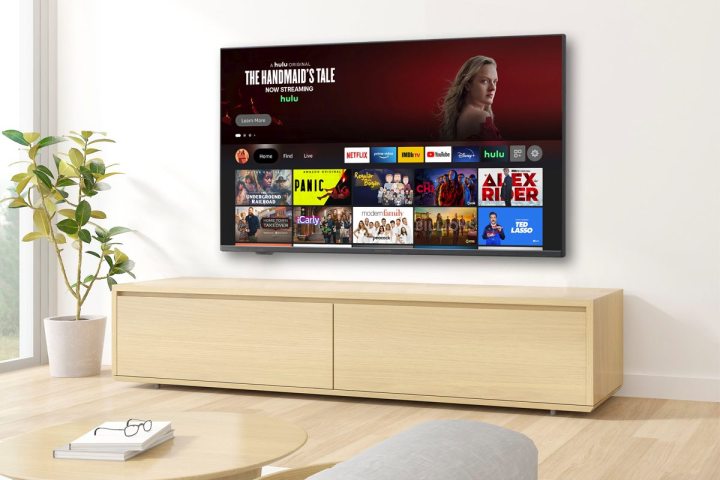
    The Insignia 50-inch F30 Series 4K Smart Fire TV in a living room.

    As Best Buy’s in-house brand, Insignia often has unbeatable deals. This TV features a significant discount of $110, making it an excellent choice without any frills. While it won’t qualify you for the $50 bonus for a $500 purchase, it’s perfect if you’re simply looking for a reliable TV. If you’re curious about how this 4K Fire TV stacks up against competitors, check out our top budget TV recommendations.

    TCL 65-inch Class Q6 Q-Class 4K QLED — $450 $500 10% off

    TCL Q6 mounted on a wall in a bedroom.
    Phil Nickinson / Digital Trends

    This model stands out for budget gamers. Previously praised as a value option for Xbox gamers, this sale reaffirms its status. Our review highlights its suitability for average viewers who aren’t too focused on refresh rates or dimming zones. If this doesn’t resonate with your viewing habits, there are other choices to explore.

    Sony 65-inch Class Bravia 8 OLED 4K (2024) — $1,900 $2,800 32% off

    2024 Sony Bravia 8 4K OLED TV.
    Sony

    This new 2024 model strikes a balance in the current array of deals. It’s a robust OLED television without reaching the extreme price points of more extravagant models, ensuring satisfaction for most users. Currently, it holds an impressive 4.9-star rating on Best Buy from over 100 customer reviews, even at a steeper price before this discount.

    Samsung 65-inch Class Q70D Series QLED 4K (2024) — $800 $1,300 38% off

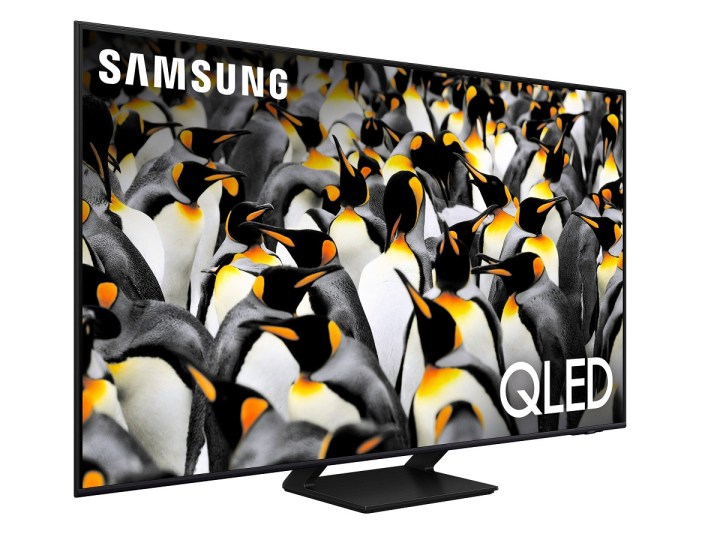
    The Samsung Q70D QLED 4K TV on a white background.
    Samsung

    As an entry-level QLED, this 2024 release offers features like Samsung TV Plus with over 2,700 free channels and the Samsung Gaming Hub for console-free gameplay. The $500 discount enhances its appeal.

    LG 83-inch Class G4 Series OLED evo 4K (2024) — $5,800 $6,500 11% off

    LG G4 OLED
    Zeke Jones / Digital Trends

    Highly regarded as LG’s premier OLED model, this TV has been declared by our review as the brand’s finest offering, justifying its price. With a considerable $700 discount applying now, it’s a compelling option for high-end buyers.

    Best Buy’s Top Laptop Deals

    For those seeking a new laptop for school, work, or personal use, Best Buy offers an impressive selection of quality laptops, including gaming and high-end models. Here are some standout options presently available.

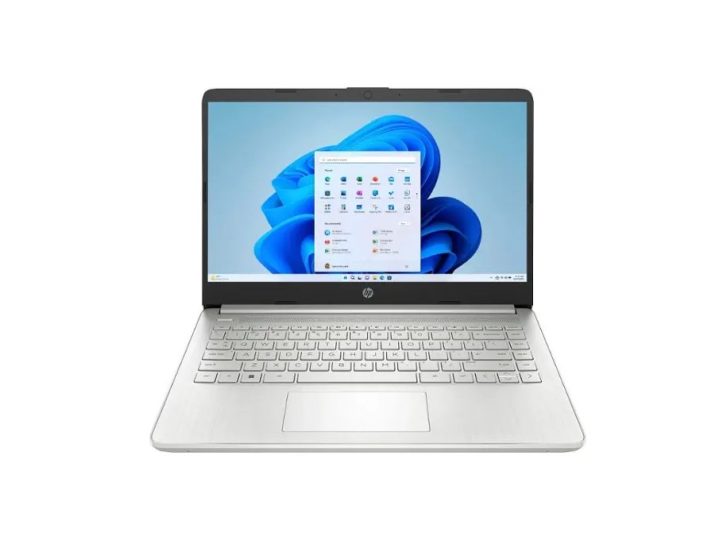
    HP 14-inch Laptop Intel Celeron — $170 $200 15% off

    The HP 14-inch Intel Celeron laptop.
    HP

    This basic Windows laptop, while reminiscent of high-performing Chromebooks, provides 128GB of eMMC storage. It’s a great option if you’re looking for an affordable device for browsing and productivity.

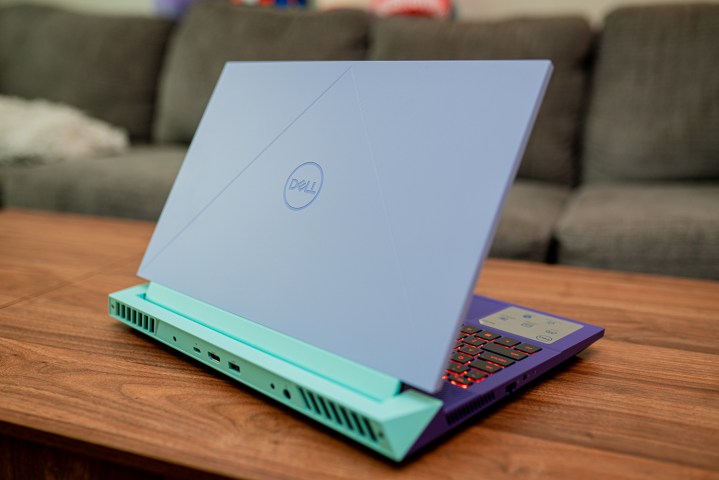
    Dell G15 — $920 $1,150 20% off

    Dell G15 (2023) on a coffee table.
    Jacob Roach / Digital Trends

    This hybrid laptop is ideal for both work and gaming. It’s regarded as one of the best budget options for back-to-school gamers due to its competitive price, performance, and sturdy build. Take advantage of a current 20% discount!

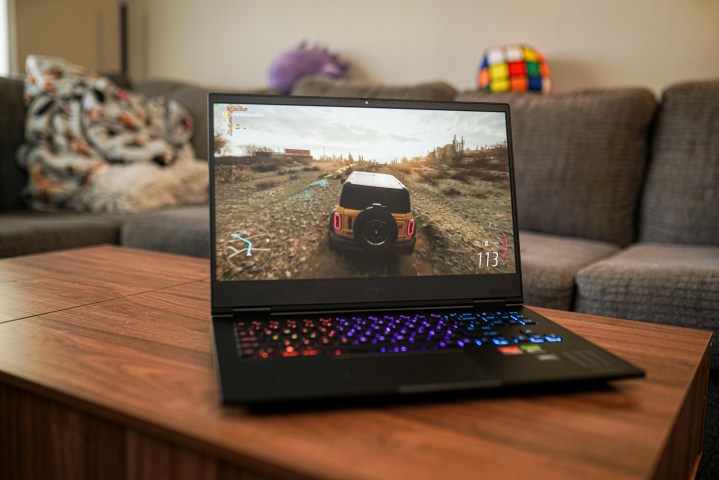
    HP Omen 16 with RTX 4060 — $1,000 $1,300 23% off

    Forza Horizon 5 running on the HP Omen 16.
    Jacob Roach / Digital Trends

    This model of the HP Omen 16 is equipped with an RTX 4060 for a competitively priced $1,000. Unlike pricier configurations previously reviewed, this version maintains an elegant design, a responsive keyboard, and ample connectivity options.

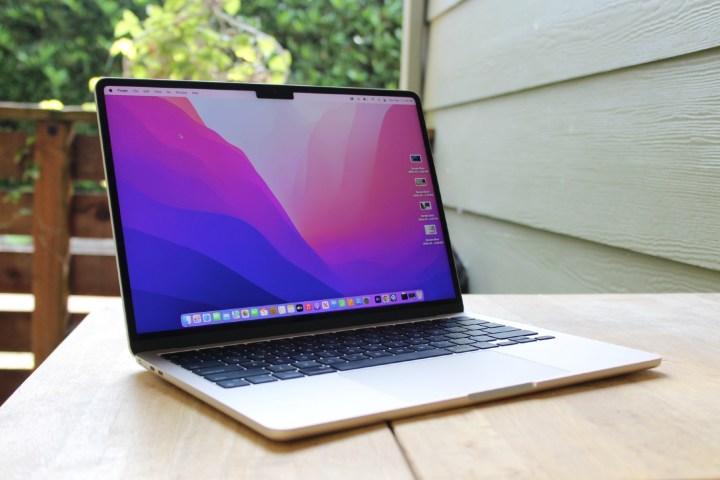
    Apple MacBook Air M2 (512GB SSD version) — $1,049 $1,199 13% off

    The screen of the MacBook Air M2.
    Luke Larsen / Digital Trends

    While some shoppers might consider downgrading to the 256GB version for savings, be aware that the performance of that model is lacking. Our buying guide emphasizes that the 512GB version is the superior choice, combining storage with speed for the best overall experience at Best Buy right now.

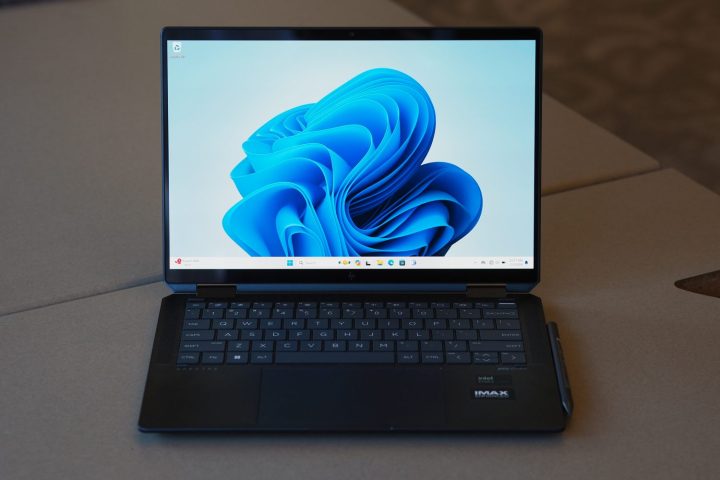
    HP Spectre x360 14 — $1,350 $1,900 29% off

    HP Spectre x360 14 2023 front view showing display and keyboard.
    Mark Coppock / Digital Trends

    This versatile 2-in-1 device offers a stunning 2.8K OLED touchscreen and features 32GB of RAM along with 2TB of SSD storage. According to our review, the HP Spectre 14 combines speed and elegance, now priced in the mid-range despite its premium features.

    Additional Noteworthy Deals at Best Buy

    Best Buy offers a wide variety of products beyond just electronics, from kitchen appliances to smart home devices. Here’s a look at some enticing sales available now.

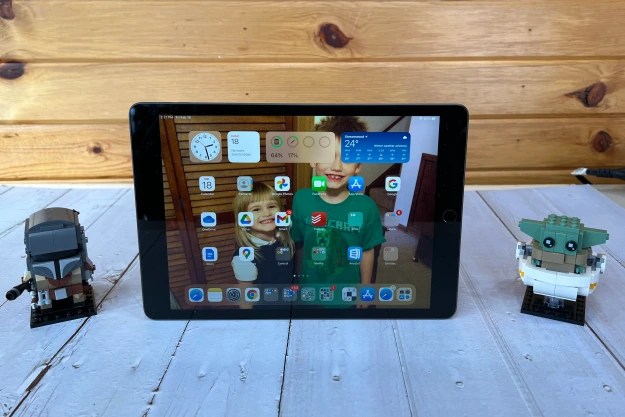
    Apple iPad 9 — $230 $330 30% off

    Apple iPad 9th Gen. 2021 on porch with toys.
    .

    While not delving deep into Apple deals, there are noteworthy savings on slightly older models. The iPad 9 has a $100 discount, representing a great balance of quality and affordability, as discussed in our review.

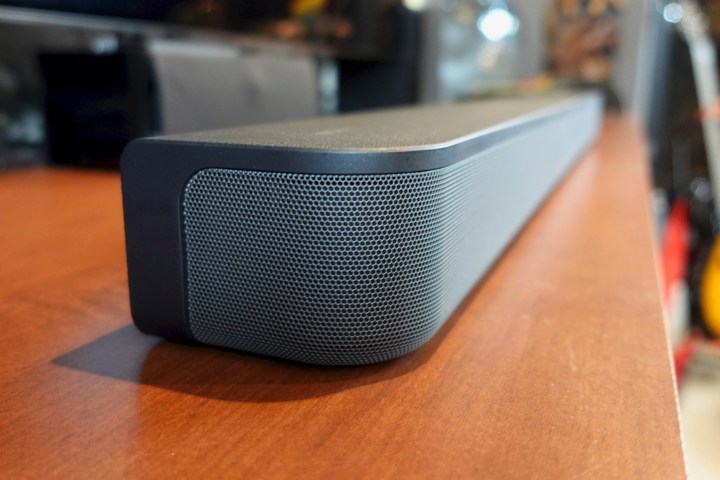
    Sony HT-S400 — $260 $300 13% off

    Side view of the Sony HT-S400 soundbar.
    Simon Cohen / Digital Trends / .

    This soundbar and subwoofer combo boasts an easy setup and exceptional sound clarity. However, our review noted that it was somewhat overpriced, making it an attractive option to reconsider during a sale.

    Insignia Adjustable Standing Desk with Electronic Controls — $300 $370 19% off

    A laptop on the Insignia Adjustable Standing Desk.
    Insignia

    If you’re looking for a way to maintain a healthier posture while working from home, this electronic adjustable desk makes height adjustments easy and fits into any workspace. It accommodates heights from 28.7 to 48.4 inches and measures just over 55 inches wide.

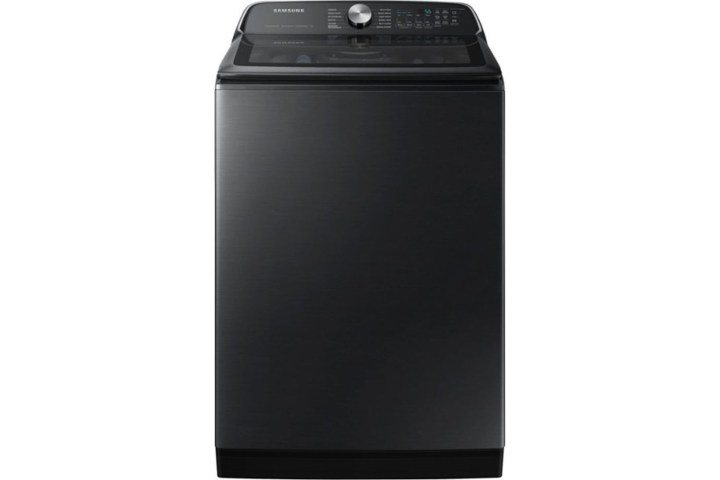
    Samsung 5.5 Cu. Ft. High-Efficiency Smart Top Load Washer — $699 $1,100 36% off

    The Samsung 5.5 Cubic Feet High-Efficiency Smart Top Load Washer on a white background.
    Samsung

    This efficient washer completes a full load in just 28 minutes. If you’re prone to forgetting laundry, the SmartThings integration sends reminders to keep you on track. Explore all features of this smart washer while it’s under $1,000.

    Greenworks Optimow Robotic Lawn Mower — $1,000 $1,600 38% off

    Greenworks Optimow being rinsed off.
    Greenworks

    This robotic lawn mower works like a Roomba for your yard, designed for lawns up to 3/4 of an acre—approximately 80 feet by 400 feet in size.

    Tips for Shopping at Best Buy During Prime Big Deal Days

    During this shopping event, Best Buy frequently matches Amazon’s prices, but be aware that exclusive offers may arise from either retailer. These discrepancies will likely occur before and after the main dates of Amazon’s event (October 8 and 9).

    If you find similar prices and deals, is there still a reason to shop Best Buy? Absolutely!

    Best Buy offers a convenient trade-in program and also provides a $50 bonus for Best Buy Plus and Total members who spend $500 or more during this promotional period—making it a beneficial time to shop at Best Buy over Amazon for eligible members.

    Selection Process for Deals Featured Here

    At Digital Trends, our dynamic team of reviewers and product researchers collaborates to curate this list. Our process utilizes extensive reviews, detailed buying guides, and personal expertise to select these highlighted deals.

    The items showcased were chosen for their appeal to diverse customers, competitive price points, favorable comparisons with similar products, or simply to bring attention to unexpected necessities that are currently discounted.

    While the descriptions may be concise, we encourage you to check out our reviews, buying guides, and competitive analyses for deeper insights.

  • Top Amazon Echo Deals: Save on Pop, Show, Dot and Studio

    Top Amazon Echo Deals: Save on Pop, Show, Dot and Studio

    While Amazon is best recognized for its vast online marketplace and the popular Prime Day sales, it also offers an impressive selection of smart home gadgets that cater to various needs. From top-notch smart speakers to functional smart displays, there’s something for everyone looking to enhance their home with smart technology, especially with the assistance of Amazon Alexa. However, some of these devices can be quite expensive. Even for those that aren’t, snagging a good deal is always a win. That’s why we’ve researched multiple retailers to compile the best offers available.

    If you’re exploring alternatives, you might want to consider deals on Google Nest products as well.

    Top Amazon Echo Offers


    Amazon

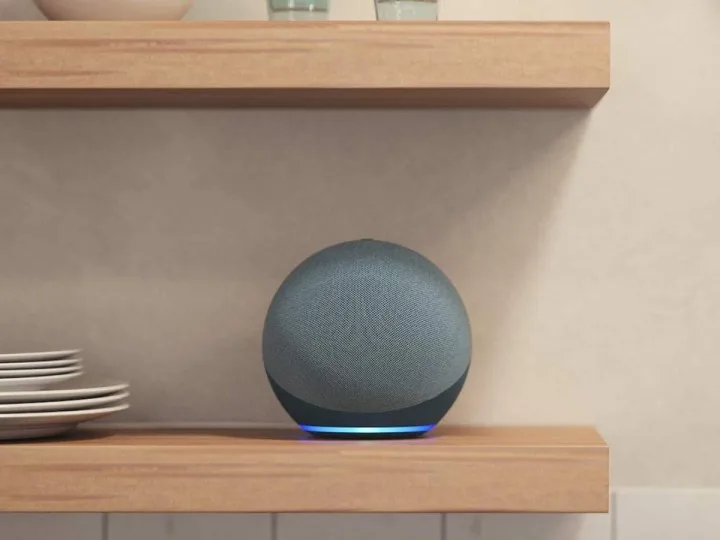
    The Amazon Echo smart speakers are designed to respond to voice commands through Alexa, allowing you to access a variety of skills and features like searching for information, setting alarms, creating reminders, and managing to-do lists. With options that range from the budget-friendly Amazon Echo Pop to the premium Amazon Echo Studio, you can pick a model that fits your budget. Act swiftly to take advantage of these discounts on Amazon Echo devices.

    • Amazon Echo Pop (1st Generation) — $20, was $40
    • Amazon Echo Spot (2024 release) — $45, was $80
    • Amazon Echo (4th Gen) (refurbished) — $55, was $100

    Top Amazon Echo Show Offers


    Amazon Echo Show 10 (3rd Gen) on an angle table.
    John Velasco / Digital Trends

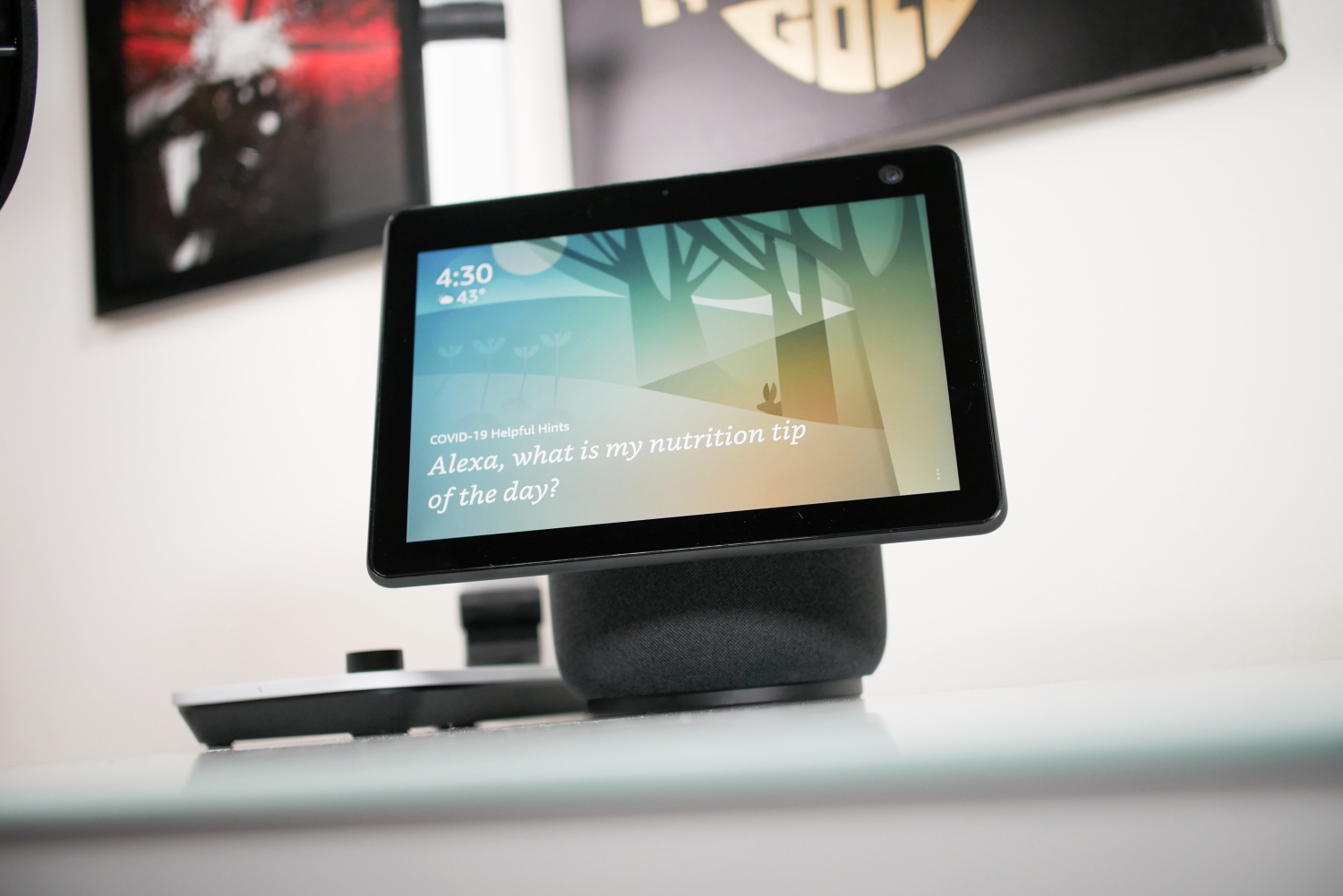
    Amazon Echo Show devices incorporate a display into the smart speaker experience, increasing functionality in many ways. You can ask Alexa to show you a tutorial while you cook, watch shows while your meal is being prepared, and more. Ranging from the compact Amazon Echo Show 5 to the larger Amazon Echo Show 10, these devices come with enticing offers that you won’t want to miss.

    • Amazon Echo Show 5 (3rd Generation) — $50, was $90
    • Amazon Echo Show 8 (3rd Generation) — $85, was $150
    • Amazon Echo Show 15 (refurbished) — $245, was $255

    Top Amazon Echo Studio Offers

    Amazon Echo Studio Alexa Smart Speaker on a table.
    Amazon

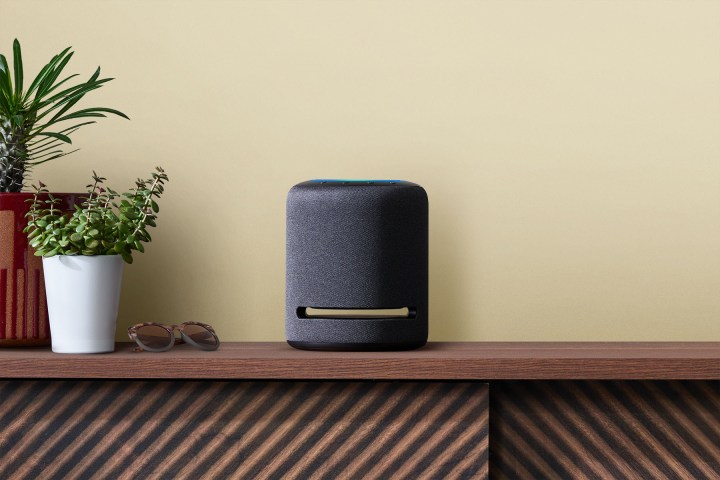
    The Amazon Echo Studio is a high-quality smart speaker that delivers exceptional sound through a t-speaker design, featuring rich bass, dynamic midrange, and crystal-clear highs. It’s equipped with Dolby Atmos, which enhances audio by adding depth and clarity. The Echo Studio can stream from various services, including Amazon Music, Apple Music, Spotify, Pandora, and Tidal, and it includes built-in smart home features, making it a versatile addition to any setup.

    • Amazon Echo Studio with Amazon Echo Sub — $299, was $330

    Amazon Echo Offers FAQs

    When can you find the best Amazon Echo offers?

    Amazon frequently participates in major seasonal and holiday sales such as the Fourth of July, Labor Day, and Black Friday, making these times ideal for finding great deals on Echo devices. However, the highlight of the year is typically Prime Day, occurring in mid-July, which brings offers rivaling those of Black Friday and Cyber Monday. Prime Day exclusive offers are available only to Amazon Prime members, but other retailers often run parallel promotions. If you don’t have a Prime subscription, Best Buy is a good alternative for finding Echo deals.

    How much should you budget for an Amazon Echo device?

    The best starting point is to spend as little as possible. If you’re purchasing your first Echo speaker, consider opting for one of the more affordable Echo Dot models. They’re a budget-friendly way to experience Alexa and explore the features. Many systems expand over time, so investing in a more expensive option right away isn’t necessary. Starting with a more affordable device allows for easy integration into your home, with the option to upgrade later. If the device turns out to be less useful than anticipated, you’ve saved money by starting with a less costly model.

    Ultimately, all Echo models offer the same Alexa capabilities, but the audio quality varies significantly among them. The Echo Dot is great for casual listening, while larger Echo devices produce full sound, perfect for larger spaces or gatherings. You can even connect two Echo speakers for stereo sound, or incorporate an Echo Sub for deep bass. If you’re considering using Echo devices in your home audio-video system, compatibility with Fire TV can enhance your experience.

    Echo Show displays differ in screen size, resolution, and audio quality, which reflects their price range. Additionally, newer Fire TV remotes feature hands-free Alexa capabilities, allowing you to use voice commands to manage your smart home setup. While a smart display adds additional functionality, it’s essential to evaluate whether the extra features justify the cost based on your home automation needs.

  • How to Download Music from Spotify for Offline Listening: A Step-by-Step Guide

    How to Download Music from Spotify for Offline Listening: A Step-by-Step Guide

    Derek Malcolm / Digital Trends

    A Spotify Premium subscription comes with a variety of advantages. Most importantly, you gain access to a vast library of over 100 million songs, all without any ads across your devices. You can also create collaborative playlists with friends and family, and benefit from continuous updates to Spotify’s features. Another significant plus of having Premium is the ability to download music and podcasts for offline listening.

    It’s essential to clarify that the downloaded content doesn’t reside directly on your device. Instead, the term “offline” refers to your ability to play the music through the Spotify app without needing an internet connection. This feature is particularly useful for situations where Wi-Fi is unavailable, like during flights or road trips with spotty signal coverage.

    In this guide, you’ll learn how to download music from Spotify, along with answers to several common questions related to this topic.

    Difficulty

    Easy


    Duration

    5 minutes

    What You Need

    • Spotify Premium account

    • Spotify desktop app

    • Spotify app for smartphone or tablet (iOS or Android)

    A collage of screengrabs for how to download music and podcasts from Spotify on mobile.
    Image used with permission by copyright holder

    How to Download Music from Spotify’s Mobile App

    Start by opening the Spotify app on your smartphone or tablet. Before you dive in, set your download preferences according to your mobile data availability. If you wish to avoid using mobile data, be sure to disable it first.

    Step 1: Navigate to Settings, select Audio Quality, and scroll to Download.

    Step 2: Here, you can choose the audio quality for your downloads if you haven’t selected one yet. If you plan to download mainly over Wi-Fi, consider setting it to Very High for optimal playback.

    Step 3: If you decide to enable Download Using Cellular, you can opt for lower-quality downloads to conserve data. If data usage is not an issue for you, go for a higher quality. With this option turned off, you’ll need to be on Wi-Fi to download any content.

    Step 4: Downloading is straightforward. Simply search for or browse to the playlist, album, or podcast that you want. You can choose from various options—whether they’re from curated sections, playlists you’ve created, Daily Mixes, or full albums (individual songs are not eligible).

    Step 5: Once you’ve made your selection, just tap the Down arrow icon to start the download. This action will also add it to your library (the heart icon next to it will fill in).

    Step 6: You’ll see a green Down arrow next to completed tracks, indicating the download was successful.

    How to Access Your Downloaded Music on Mobile

    After downloading music for a long trip or flight, here’s how to quickly find all your saved content.

    Step 1: In the Spotify app, tap on the Your Library icon in the bottom navigation bar.

    Step 2: Select the Downloaded filter at the top. This will show all your downloaded content, allowing you to listen without an internet connection.

    How to Remove Downloaded Music from Spotify on Mobile

    Deleting downloaded music, playlists, albums, and podcasts is just as straightforward as adding them; it’s essentially the reverse process.

    Step 1: Find the content you wish to remove—be it a playlist, album, or podcast—and simply tap the green Down arrow again. A confirmation prompt will appear asking you to select Remove.

    Step 2: To free up a substantial amount of space, tap the Settings gear in the upper right corner of the home screen.

    Step 3: Scroll down to Storage, where you can see how much space your downloads are taking up. To clear them all, tap Remove all downloads and confirm your choice by selecting Remove.

    How to download music and podcasts from Spotify: The downloads folder.
    Derek Malcolm/Digital Trends

    How to Download Music from Spotify’s Desktop App

    The method for downloading music on the Spotify desktop app is nearly identical to the mobile experience. The primary difference lies in accessing the audio quality settings, which we’ll detail first.

    Step 1: On either Mac or Windows, open the Settings menu from the Spotify app by clicking the drop-down menu from your profile icon at the top right corner.

    How to download music and podcasts from Spotify: Desktop settings.
    Image used with permission by copyright holder

    Step 2: Scroll to Audio Quality and select your preferred option. Since you’re likely connected to a reliable internet source, choose Very High for the best playback experience.

    How to download music and podcasts from Spotify: Setting download quality.
    Image used with permission by copyright holder

    Step 3: To start the download, locate the playlist, album, or podcast you wish to download and click on the green Down arrow icon. The download will commence, and you’ll see the icon fill in to indicate success.

    How to download music and podcasts from Spotify: Downloading a playlist.
    Image used with permission by copyright holder

    How to Access Your Downloaded Music on Desktop

    Finding your downloaded content on the desktop is slightly different from the mobile experience. While you can identify all downloaded items by the green down arrow icons, there isn’t a dedicated Downloads filter.

    To view your downloads, activate Offline Mode.

    Step 1: For Mac users, go to the Apple menu located in the top-left corner and select Spotify from the drop-down options.

    For Windows users, click the … menu at the top and choose File.

    How to download music and podcasts from Spotify: Desktop offline mode.
    Image used with permission by copyright holder

    Step 2: In the dropdown menu, select Offline Mode. You will see a blue indicator next to your profile image confirming that you are in Offline Mode, and all your Music Downloads—including playlists, albums, and podcasts—will be displayed in one location.

    Anything that hasn’t been downloaded will appear grayed out and unplayable until you exit Offline Mode.

    How to download music and podcasts from Spotify: Remove all downloads desktop app.
    Image used with permission by copyright holder

    How to Remove Downloaded Music from Spotify on Desktop

    To remove downloaded tracks from the desktop app, the process is quite similar to the mobile experience.

    Access the Settings menu, scroll to the Storage section, and select Remove all downloads. It’s that simple.

    Can I Listen Offline Without Spotify Premium?

    Unfortunately, you can only listen to downloaded music and podcasts offline with a Spotify Premium subscription.

    This doesn’t necessarily have to be the standard $12 per month plan. Options like Duo, Student, and Family plans also offer the same perks, including offline listening.

    How Much is a Spotify Premium Subscription?

    As of now, the pricing for Spotify Premium is as follows:

    • Individual — $12 per month
    • Duo — $17 per month
    • Family — $20 per month
    • Student — $6 per month

    What Other Music Streaming Platforms Have Offline Listening?

    Many major music streaming services offer offline listening capabilities. This includes competitors like Apple Music, Tidal, Qobuz, and Deezer. Just like Spotify, note that offline access is usually restricted to paid subscribers.

  • How to Turn Off Subtitles in Max: A Step-by-Step Guide

    How to Turn Off Subtitles in Max: A Step-by-Step Guide


    Phil Nickinson / Digital Trends

    The streaming landscape has experienced significant changes in recent years, and Max (previously known as HBO Max) is no different. Following a major merger and several updates, this widely used service now boasts an extensive library of films and television shows. You’ll find not only a vast array of HBO productions but also an impressive selection of Warner Bros. material, featuring titles from the DC Universe, Cartoon Network, and Turner networks.

    Accessible in various regions, Max also includes options for closed captions and subtitles for much of its content. Whether you’re streaming through your iPhone, a top-rated streaming device, or your favorite television, you can easily toggle these features on almost any platform. Let’s get started with how to manage these settings.

    Difficulty

    Easy


    Duration

    5 minutes

    What You Need

    • Access to the Max app, available on many popular devices

    • Access to Max.com (PC only)

    Understanding Closed Captions and Subtitles

    To start, it’s important to differentiate between closed captions and subtitles. Closed captions are primarily designed to assist individuals who are deaf or hard of hearing, providing not only spoken dialogue but also additional descriptions of sounds and music cues.

    Conversely, subtitles translate spoken content into text, helping viewers understand dialogue that may be in a different language or too soft to hear clearly.

    How to Adjust Closed Captions on Max

    You can watch Max on numerous devices, including iOS and Android smartphones, Amazon Fire TV, Roku, Apple TV, Samsung smart TVs, mobile tablets, and on the Max website. Below are instructions for enabling or disabling closed captions on various platforms.

    On iOS and Android Devices

    Step 1: While viewing a video on Max, tap the screen.

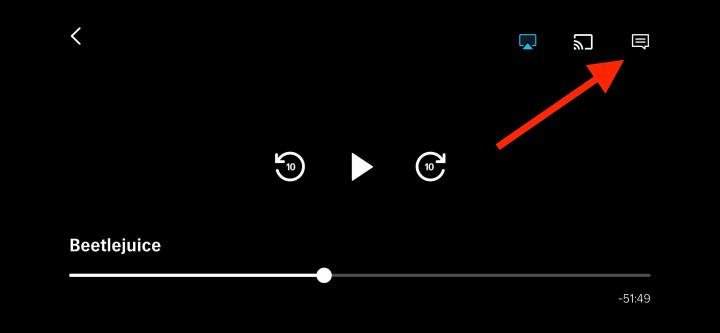
    Step 2: Tap the Audio & Subtitles button located in the upper-right corner.

    The Audio & Subtitles button on Max for iOS.

    Michael Bizzaco / Screenshot

    Step 3: Choose to turn closed captions on or off, then select X to confirm your changes.

    On the Max Website

    Step 1: While watching a video, hover your mouse over it.

    Step 2: Click on the Audio & Subtitles button in the bottom-right corner.

    Step 3: Click the Captions button.

    The Captions button on Max's browser-based web player.

    Image used with permission by copyright holder

    Step 4: Choose either On or Off for captions, and select X to save your choice.

    On Amazon Fire TV

    Step 1: While a video plays, press the Menu button on your remote or in the Fire TV app.

    Step 2: Select Subtitles from the menu and then choose Off.

    On Roku

    Step 1: While watching a video, press the Star button on your remote.

    Step 2: Go to Settings and then select Closed Captioning.

    Step 3: Choose Off to disable captions or select one of the On options.

    The On options include: On Always, where captions are always visible; On Replay, where captions display only after pressing replay; and On Mute, displaying captions only when the sound is muted.

    On Apple TV

    Step 1: While viewing a video, swipe down on the remote’s touch surface.

    Step 2: After swiping right, select Subtitles.

    Step 3: Choose to toggle captions On or Off.

    On Samsung TVs

    Step 1: When a video is playing, press the Down button on your remote.

    Step 2: Several options will appear; highlight the CC option to enable or disable closed captions.

    On LG TVs

    Step 1: While watching, press the Select button on the remote.

    Step 2: Navigate down to Audio & Subtitles.

    Step 3: Select Off, then press the back button to save.

    On Xbox Consoles

    Step 1: While watching something, press the A button on your Xbox controller.

    Step 2: Select the Audio & Subtitles option from the settings menu.

    Step 3: Disable subtitles and press the B button to save your changes.

    Customizing Closed Caption Options

    You can also modify the appearance of subtitles and captions on Max. On iPhones or iPads, open the Settings app, then navigate to Accessibility > Subtitles & Captioning > Style.

    For Android devices, go to Settings and search for Caption, then select Caption style.

    If you’re using a desktop or laptop on the Max web player, log into max.com, then select Settings > Subtitle Style.

    You can also customize subtitles on streaming devices. For Amazon Fire TV, go to Settings > Device Preferences > Accessibility > Captions.

    For Roku devices, hit the Home button on the remote, then go to Settings > Accessibility > Caption style.

    Apple TV users can navigate to Settings > Accessibility > Subtitles & Captioning > Style.