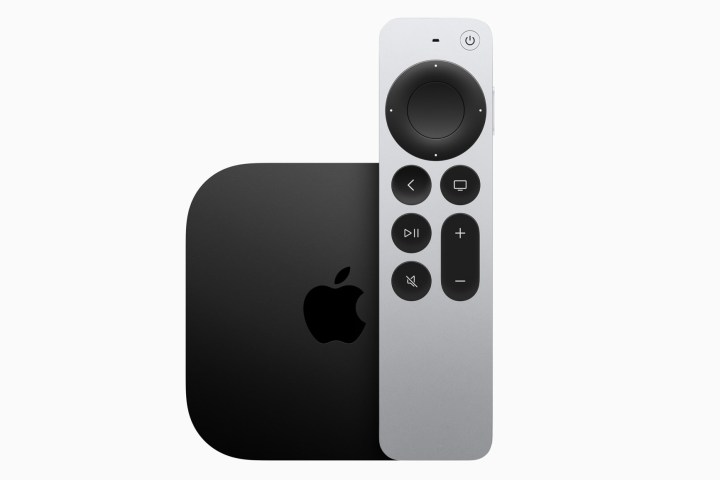
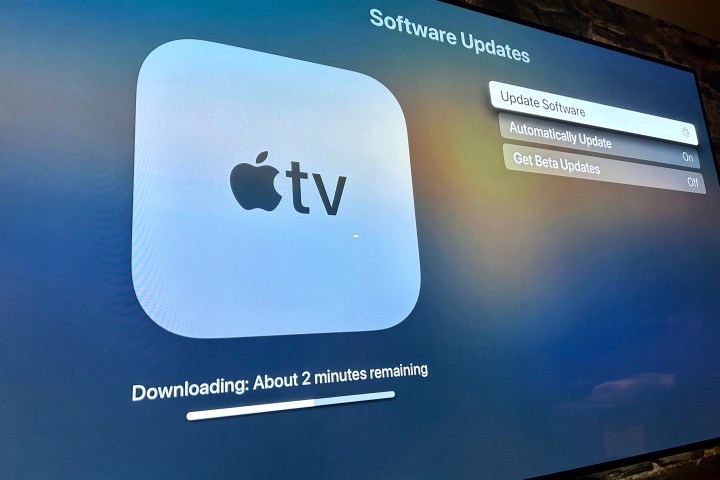
Apple is reportedly working on a new version of its Apple TV box that could be released within the next few months. According to Bloomberg, this update is expected to feature a faster processor and the latest N1 networking chip found in Apple’s newest iPhones. However, the most significant upgrade might be a revamped user experience built on a next-generation Siri assistant, which could function similarly to Gemini or ChatGPT.
What’s particularly exciting is that this new device will support the updated Siri voice assistant and incorporate other Apple-powered intelligence features set to launch next year. While we haven’t yet seen what this advanced version of Siri, often called “LLM Siri,” can do on a TV, there are promising clues about its potential capabilities.
Earlier this year, Google introduced Gemini to smart TVs, opening up a whole new realm of conversational features for users. For example, beyond simply navigating content with natural language commands, Gemini can provide learning-focused responses tailored for children, such as answering questions like “What’s a black hole?” while also suggesting relevant YouTube videos for further exploration. The upcoming Apple TV could offer similar features, including the ability to ask questions and receive detailed responses, along with multimedia suggestions. Additionally, Google’s AI assistant will enable users to create custom artwork, control smart home devices in ambient mode, and get daily news summaries.
This leap in conversational AI might truly be a game-changer. Amazon is also working on a similar feature for its Fire TV devices, where users can instruct their TV to keep a certain show ready, so it’s quickly available when they decide to watch.
Thanks to these advancements, users will be able to discover movies and music based on their mood rather than fixed categories. Apple has already integrated ChatGPT technology into Siri as part of its Apple Intelligence suite, allowing the assistant to handle complex tasks with more advanced AI capabilities.
It remains uncertain whether the next Apple TV will continue to combine Siri with external AI models like ChatGPT or develop a more independent, smarter version of Siri. Reports indicate that Apple is in discussions with Google and Anthropic—backed by Amazon—to create an AI-enhanced Siri built on Gemini and Claude, respectively, which could operate on Apple’s private cloud servers.
As these technological upgrades unfold, they promise to make the next generation of smart TV experiences much more intuitive, personalized, and capable than ever before.
The Television Academy has recognized the intense rivalry between ‘innies’ and ‘outies,’ as *Severance* dominated the 2025 Emmy nominations with an impressive 27. The second season of this acclaimed sci-fi series is considered a strong contender for Outstanding Drama Series. What stands out even more is the six nominations for the main cast, with Adam Scott and Britt Lower vying for Lead Actor and Actress in a Drama Series, respectively.
<p>On the topic of lead performances, Scott will face fierce competition from Noah Wyle, nominated for his role as Dr. Michael “Robby” Robinavitch in *The Pitt*. This marks Wyle's first Emmy nomination since he received five consecutive nods in the '90s for his role as Dr. John Carter on *ER*. While it seems challenging for *The Pitt* to surpass *Severance* for Outstanding Drama, there’s a compelling narrative surrounding Wyle that could boost his chances over Scott.</p>

<p>In total, it was a momentous day for Apple TV+. Besides *Severance* securing the top drama nominations, *The Studio* led the comedy category with 23 nominations. This satirical look into the inner workings of a fictional film studio excelled in several comedic categories, including Outstanding Comedy Series, Lead Actor (Seth Rogen), Supporting Actor (Ike Barinholtz), and Supporting Actress (Kathryn Hahn and Catherine O’Hara).</p>

<p>HBO also showcased robust performances with *The Penguin* scoring 24 nominations, followed closely by *The White Lotus* with 23, and *The Last of Us* with 16 nominations. Other notable contenders included *Hacks* with 14 and *The Pitt* with 13.</p>

<p>The 2025 Emmy Awards are set to occur on September 14, 2025. Comedian Nate Bargatze will host the event, which will take place at the Peacock Theater in Los Angeles, California, airing live on CBS and available for streaming on Paramount+.</p>

<p>Check out the key categories below, and for the complete list of nominees, visit the <a target="_blank" rel="noreferrer noopener" href="https://www.televisionacademy.com/">Television Academy's website</a>.</p>

<h3>Outstanding Drama Series</h3>
<ul>
    <li>*Andor*</li>
    <li>*The Diplomat*</li>
    <li>*The Last of Us*</li>
    <li>*Paradise*</li>
    <li>*The Pitt*</li>
    <li>*Severance*</li>
    <li>*Slow Horses*</li>
    <li>*The White Lotus*</li>
</ul>

<h3>Outstanding Comedy Series</h3>
<ul>
    <li>*Abbott Elementary*</li>
    <li>*The Bear*</li>
    <li>*Hacks*</li>
    <li>*Nobody Wants This*</li>
    <li>*Only Murders in the Building*</li>
    <li>*Shrinking*</li>
    <li>*The Studio*</li>
    <li>*What We Do in the Shadows*</li>
</ul>

<h3>Outstanding Limited or Anthology Series</h3>
<ul>
    <li>*Adolescence*</li>
    <li>*Black Mirror*</li>
    <li>*Dying For Sex*</li>
    <li>*Monsters: The Lyle and Erik Menendez Story*</li>
    <li>*The Penguin*</li>
</ul>

<h3>Outstanding Television Movie</h3>
<ul>
    <li>*Bridget Jones: Mad About the Boy*</li>
    <li>*The Gorge*</li>
    <li>*Mountainhead*</li>
    <li>*Nonnas*</li>
    <li>*Rebel Ridge*</li>
</ul>

<h3>Outstanding Lead Actress in a Drama Series</h3>
<ul>
    <li>Kathy Bates, *Matlock*</li>
    <li>Sharon Horgan, *Bad Sisters*</li>
    <li>Britt Lower, *Severance*</li>
    <li>Bella Ramsey, *The Last of Us*</li>
    <li>Keri Russell, *The Diplomat*</li>
</ul>

<h3>Outstanding Lead Actor in a Drama Series</h3>
<ul>
    <li>Sterling K. Brown, *Paradise*</li>
    <li>Gary Oldman, *Slow Horses*</li>
    <li>Pedro Pascal, *The Last of Us*</li>
    <li>Adam Scott, *Severance*</li>
    <li>Noah Wyle, *The Pitt*</li>
</ul>

<h3>Outstanding Lead Actress in a Comedy Series</h3>
<ul>
    <li>Uzo Aduba, *The Residence*</li>
    <li>Kristen Bell, *Nobody Wants This*</li>
    <li>Quinta Brunson, *Abbott Elementary*</li>
    <li>Ayo Edebiri, *The Bear*</li>
    <li>Jean Smart, *Hacks*</li>
</ul>

<h3>Outstanding Lead Actor in a Comedy Series</h3>
<ul>
    <li>Adam Brody, *Nobody Wants This*</li>
    <li>Seth Rogen, *The Studio*</li>
    <li>Jason Segel, *Shrinking*</li>
    <li>Martin Short, *Only Murders in the Building*</li>
    <li>Jeremy Allen White, *The Bear*</li>
</ul>

<h3>Outstanding Lead Actress in a Limited or Anthology Series or Movie</h3>
<ul>
    <li>Cate Blanchett, *Disclaimer*</li>
    <li>Meghann Fahy, *Sirens*</li>
    <li>Rashida Jones, *Black Mirror*</li>
    <li>Cristin Milioti, *The Penguin*</li>
    <li>Michelle Williams, *Dying for Sex*</li>
</ul>

<h3>Outstanding Lead Actor in a Limited or Anthology Series or Movie</h3>
<ul>
    <li>Colin Farrell, *The Penguin*</li>
    <li>Stephen Graham, *Adolescence*</li>
    <li>Jake Gyllenhaal, *Presumed Innocent*</li>
    <li>Brian Tyree Henry, *Dope Thief*</li>
    <li>Cooper Koch, *Monsters: The Lyle and Erik Menendez Story*</li>
</ul>

<h3>Outstanding Supporting Actress in a Drama Series</h3>
<ul>
    <li>Patricia Arquette, *Severance*</li>
    <li>Carrie Coon, *The White Lotus*</li>
    <li>Katherine LaNasa, *The Pitt*</li>
    <li>Julianne Nicholson, *Paradise*</li>
    <li>Parker Posey, *The White Lotus*</li>
    <li>Natasha Rothwell, *The White Lotus*</li>
    <li>Aimee Lou Wood, *The White Lotus*</li>
</ul>

<h3>Outstanding Supporting Actor in a Drama Series</h3>
<ul>
    <li>Zach Cherry, *Severance*</li>
    <li>Walton Goggins, *The White Lotus*</li>
    <li>Jason Isaacs, *The White Lotus*</li>
    <li>James Marsden, *Paradise*</li>
    <li>Sam Rockwell, *The White Lotus*</li>
    <li>Tramell Tillman, *Severance*</li>
    <li>John Turturro, *Severance*</li>
</ul>

<h3>Outstanding Supporting Actress in a Comedy Series</h3>
<ul>
    <li>Liza Colón-Zayas, *The Bear*</li>
    <li>Hannah Einbinder, *Hacks*</li>
    <li>Kathryn Hahn, *The Studio*</li>
    <li>Janelle James, *Abbott Elementary*</li>
    <li>Catherine O’Hara, *The Studio*</li>
    <li>Sheryl Lee Ralph, *Abbott Elementary*</li>
    <li>Jessica Williams, *Shrinking*</li>
</ul>

<h3>Outstanding Supporting Actor in a Comedy Series</h3>
<ul>
    <li>Ike Barinholtz, *The Studio*</li>
    <li>Colman Domingo, *The Four Seasons*</li>
    <li>Harrison Ford, *Shrinking*</li>
    <li>Jeff Hiller, *Somebody Somewhere*</li>
    <li>Ebon Moss-Bachrach, *The Bear*</li>
    <li>Michael Urie, *Shrinking*</li>
    <li>Bowen Yang, *Saturday Night Live*</li>
</ul>

<h3>Outstanding Supporting Actress in a Limited or Anthology Series or Movie</h3>
<ul>
    <li>Erin Doherty, *Adolescence*</li>
    <li>Ruth Negga, *Presumed Innocent*</li>
    <li>Deirdre O’Connell, *The Penguin*</li>
    <li>Chloë Sevigny, *Monsters: The Lyle And Erik Menendez Story*</li>
    <li>Jenny Slate, *Dying For Sex*</li>
    <li>Christine Tremarco, *Adolescence*</li>
</ul>

<h3>Outstanding Supporting Actor in a Limited or Anthology Series or Movie</h3>
<ul>
    <li>Javier Bardem, *Monsters: The Lyle and Erik Menendez Story*</li>
    <li>Bill Camp, *Presumed Innocent*</li>
    <li>Owen Cooper, *Adolescence*</li>
    <li>Rob Delaney, *Dying For Sex*</li>
    <li>Peter Sarsgaard, *Presumed Innocent*</li>
    <li>Ashley Walters, *Adolescence*</li>
</ul>

<h3>Outstanding Reality Competition Program</h3>
<ul>
    <li>*The Traitors*</li>
    <li>*RuPaul’s Drag Race*</li>
    <li>*The Amazing Race*</li>
    <li>*Survivor*</li>
    <li>*Top Chef*</li>
</ul>

<h3>Outstanding Talk Series</h3>
<ul>
    <li>*Jimmy Kimmel Live!*</li>
    <li>*The Daily Show*</li>
    <li>*The Late Show with Stephen Colbert*</li>
</ul>
Jason Sudeikis charmed audiences as a lovable soccer coach in Ted Lasso, but can Owen Wilson capture similar affection playing a former professional golfer in Stick?
Apple TV+ has unveiled the official trailer for Stick, an upcoming heartwarming sports comedy. Wilson not only stars as Pryce Cahill, nicknamed Stick, but also serves as an executive producer. The character is a once-successful golfer whose career took a downturn after experiencing a “psychotic break” on the course two decades ago. Since then, Cahill has been on a quest for redemption.
Along the way, he meets Santi (Peter Dager), a troubled 17-year-old with a natural talent for golf. Cahill offers to coach and caddy for Santi as they aspire to qualify for the U.S. Amateur Championship. “The game’s finally giving me something back,” Cahill reflects as they embark on this inspiring journey together.
Related
Murderbot trailer: Alexander Skarsgård stars as a rogue security robot in Apple TV+ series
Praise Kier: Severance confirmed for a third season at Apple TV+
Brad Pitt seeks redemption in Apple’s F1 trailer
The cast of Stick includes notable actors such as Marc Maron, Mariana Treviño, Lilli Kay, Judy Greer, and Timothy Olyphant. The show will feature appearances from well-known PGA Tour golfers like Collin Morikawa, Keegan Bradley, Max Homa, and Wyndham Clark, in addition to cameos from broadcasters Jim Nantz and Trevor Immelman, as well as golf enthusiasts Matt Scharff, Brad Dalke, Garrett Clark, and Dan Rapaport.
Apple TV+
Jason Keller, who co-wrote Ford v Ferrari, serves as the showrunner and executive producer for Stick.
Will Stick become golf’s equivalent of Ted Lasso? Only time will tell. The latter series gained immense popularity during the pandemic, resonating with viewers seeking positivity and hope. Ted Lasso managed to capture the spirit of its time, cementing its status as one of Apple TV+’s most beloved series.
Stick consists of ten episodes. It will premiere three episodes on Wednesday, June 4, with one new episode released every Wednesday until July 23.
When it comes to high-quality sci-fi television, Apple TV+ stands out from the crowd. This summer, fans can look forward to the debut of Foundation season 3, an adaptation of Isaac Asimov’s celebrated works. The streamer has revealed a teaser and the release date for the upcoming season, which promises to maintain its tradition of breathtaking visuals and intricate world-building.
“War is upon us,” warns Hari Seldon, played by Jared Harris, in the teaser. Taking place 152 years after the conclusion of season 2, the new season features a weakened Cleonic Dynasty paired with a more robust Foundation. These two factions are compelled to join forces against The Mule, embodied by Pilou Asbæk, a brutal warlord seeking to dominate the universe through tyranny and manipulation. Apple TV+ describes the forthcoming season as a “dangerous game of intergalactic chess.”
The returning ensemble cast for season 3 includes Harris as Hari Seldon, Lee Pace as Brother Day, Lou Llobell as Gaal Dornick, Cassian Bilton as Brother Dawn, Terrence Mann as Brother Dusk, Laura Birn as Demerzel, Leah Harvey as Salvor Hardin, and Rowena King as Kalle.
This season also welcomes new faces, including Asbæk, Cherry Jones, Brandon P. Bell, Synnøve Karlsen, Cody Fern, Tómas Lemarquis, Alexander Siddig, and Academy Award winner Troy Kotsur.
Apple TV+
Foundation is produced by David S. Goyer, renowned for his contributions to the iconic Blade and The Dark Knight trilogies. The series is produced by Skydance Television for Apple.
As one of several prominent sci-fi series on Apple TV+, Foundation joins the ranks of other successful shows like Severance, which currently holds the title of the platform’s most-watched series and is a strong contender in the dramatic categories for the upcoming 2025 Emmys. Other notable sci-fi offerings include Silo, For All Mankind, Dark Matter, Invasion, and See, all of which have enjoyed multiple seasons.
Season 3 of Foundation will premiere with its first episode on Friday, July 11, on Apple TV+, with new episodes dropping weekly every Friday until September 12.
Emmy awardee Alexander Skarsgård takes on the role of a rebellious security robot in the upcoming sci-fi series Murderbot premiering on Apple TV+.
Skarsgård embodies the character of Murderbot, a Security (SEC) Unit programmed to safeguard and serve humans. However, Murderbot has cleverly overridden its own programming, granting itself free will—a secret it needs to keep hidden from the humans it was designed to protect. “I can do whatever I want as long as they don’t find out,” Murderbot admits in the trailer.
While on a mission on a perilous planet, a team of scientists accidentally uncovers Murderbot’s hidden truth, interrupting its favorite pastime: binge-watching futuristic soap operas. To navigate this new twist, Murderbot must confront its anxieties and tackle the complexity of human emotions.
Alongside Skarsgård, the cast of Murderbot includes Noma Dumezweni, David Dastmalchian, Sabrina Wu, Akshay Khanna, Tattiawna Jones, and Tamara Podemski.
Apple TV+
Created and produced by Chris and Paul Weitz, Murderbot draws inspiration from Martha Wells’ award-winning sci-fi novel series The Murderbot Diaries, for which Wells also serves as a consulting producer. The Weitz brothers have previously received an Academy Award nomination for Best Adapted Screenplay for About a Boy in 2002. The executive production team includes David S. Goyer, Andrew Miano, and Keith Levine.
Murderbot adds to Apple TV+’s expanding repertoire of sci-fi programming. The platform’s flagship sci-fi series, Severance, has just concluded its widely praised second season, and other titles in the genre include Foundation, Silo, For All Mankind, Dark Matter, and Invasion.
The series will consist of 10 episodes, with the first two set to premiere on Apple TV+ on Friday, May 16, 2025. New episodes will be released weekly, concluding on July 11.
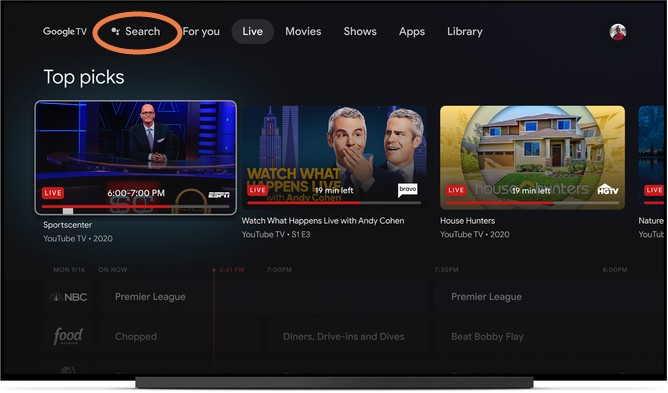
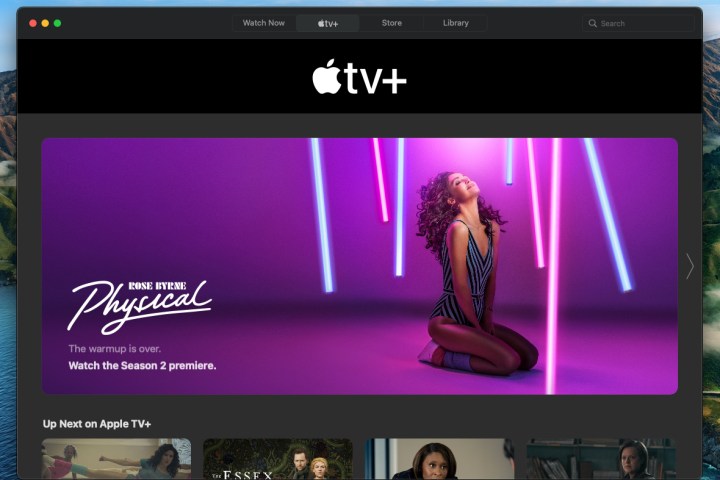
Are you eager to catch up on popular shows like Severance, Ted Lasso, and Silo on Apple TV+ but don’t own an Apple device? Fortunately, there’s a workaround that enables you to stream all your favorite Apple TV+ content using Chromecast, Google TV, or even smart TVs with casting capabilities.
This guide provides a straightforward method to cast Apple TV+ from your Chrome browser on a computer to your Chromecast or Google TV without needing any Apple-specific hardware.
If you happen to have a newer Chromecast featuring Google TV or a Google TV Streamer, you can download the Apple TV app directly on those devices. This allows for a complete Apple TV+ experience, complete with watchlists and tailored suggestions. Follow these steps to stream Apple TV+ on your Chromecast or Google TV.
Difficulty
Easy
Duration
5 minutes
What You Need
A Chromecast device, like Chromecast Ultra
A Google TV device, such as the Google TV Streamer
The Apple TV app
Active Internet connection
Apple TV+ subscription
Screengrab / Digital Trends
How to Stream Apple TV+ Using Chromecast
Before diving in, here’s how to cast Apple TV+ content to a Chromecast device. This method applies to both Chromecast dongles and devices like the Chromecast Ultra.
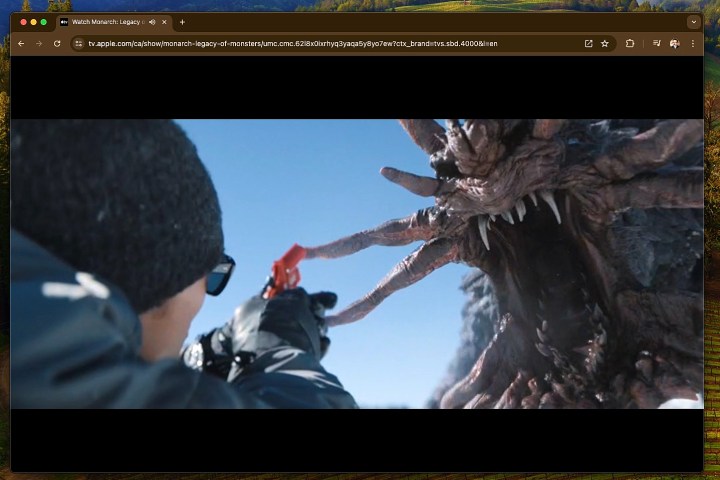
Step 1: The Apple TV app itself cannot be directly cast to Chromecast from smartphones or desktop apps. However, you can cast Apple TV+ via the Chrome web browser on a computer. Note that this does not work on mobile Chrome browsers.
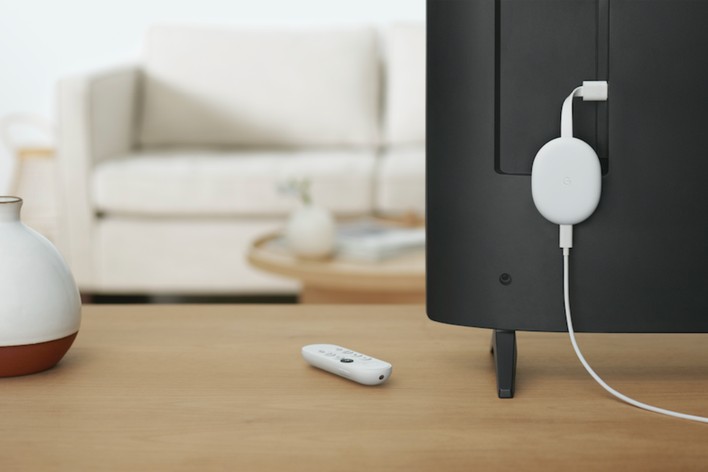
To begin, ensure your Chromecast dongle is connected to the HDMI port on your TV, computer monitor, or projector.
Step 2: Confirm that your Chromecast is properly set up and connected to the same Wi-Fi network as your computer.
Step 3: Open the Chrome browser and go to the Apple TV+ website. Log in using your Apple ID.
Step 4: Once logged in, browse for a show or movie you’d like to watch and hit play. You may want to pause it while preparing to cast, so you don’t miss anything.
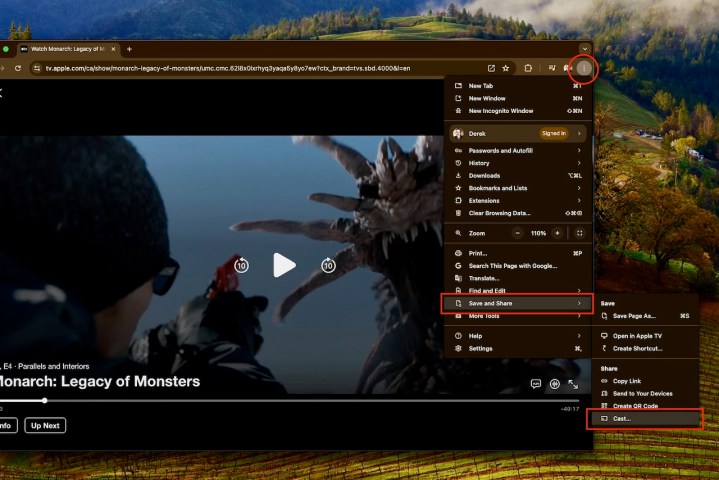
Step 5: To cast the selected content, right-click in the browser window and choose Cast… from the menu. Alternatively, access the three-dot menu in the upper right corner, click Save and share, then select Cast….
Derek Malcolm / Digital Trends
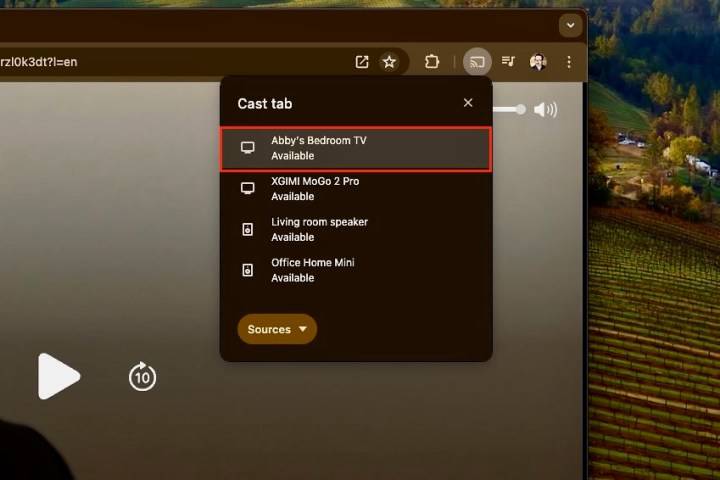
Step 6: A list of available Chromecast devices will appear. Choose the device you wish to cast to—like “Abby’s Bedroom TV” featuring a Chromecast Ultra.
Derek Malcolm / Digital Trends
Step 7: Your selected Apple TV+ content will start playing on the screen connected to your Chromecast, and playback can be managed directly through the Chrome browser.
Step 8: Remember, this casting method also works with other devices featuring Google’s Cast technology, including TVs, projectors, and connected speakers, provided they are on the same Wi-Fi network. You’ll be able to see and select these options in the Cast menu.
Google
Watching Apple TV+ via Google TV or Google TV Streamer
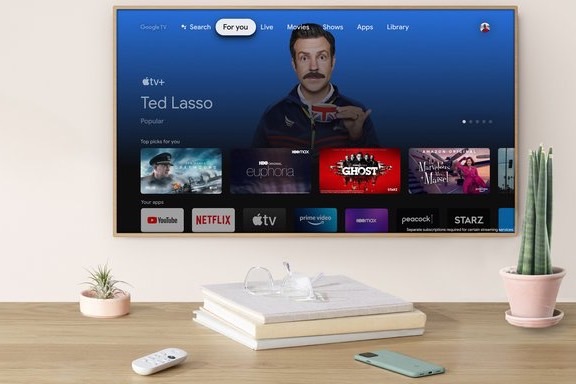
The Chromecast has evolved significantly since its early versions, which relied on a source device for control. The Chromecast with Google TV and Google TV Streamer offer a fully integrated streaming platform, allowing you to install various streaming service apps, including Apple TV+, right on the device.
With the Google TV operating system available on numerous TVs and built into the Chromecast with Google TV, installation is a breeze.
To access Apple TV+ on a Chromecast with Google TV or Google TV Streamer, simply install the app.
Google
Installing the Apple TV App on Google TV
Step 1: If you haven’t yet signed up for Apple TV+, visit the Apple TV+ website and create an account using your Apple ID, or you can easily do so on an Apple device. The subscription costs $10 a month and typically includes a seven-day free trial. Sometimes, Apple offers extended complimentary access when you purchase a new Apple device, like an iPhone.
Step 2: Next, locate the Apple TV app. In your Chromecast with Google TV or Streamer’s menu, navigate to the Apps section and select Search for apps (or simply search for “Apple TV”). You should find the app in the Google Play Store.
Step 3: Install the app and open it once the installation completes. You’ll need to sign in with your Apple ID. Alternatively, the app can also be installed via a smartphone or tablet using the Google Play Store, with the option to select your Chromecast with Google TV during the installation process.
Apple
Begin Discovering Shows to Watch
Step 1: The app should now function as it does on an Apple device. Browse through the shows and add them to your Google TV Watchlist for easy access later.
Step 2: Be aware that Apple may suggest shows across various services, so you might see options from Hulu, Prime Video, and others, similar to Google TV’s functionality.
Furthermore, if you’re using an Apple Family Sharing plan, you can invite up to six people to log in with their Apple IDs, allowing everyone to enjoy their own viewing experiences under a single subscription.
Google
Utilizing Google Features for Your Apple TV+ Experience
Lastly, when streaming Apple TV+ on a Chromecast, you can leverage Google Assistant for searching and controlling playback alongside your Watchlist. This ensures you retain all your features while enjoying Apple’s fantastic content!
Don’t forget: a subscription to Apple TV+ is necessary to access this service, as it remains one of the top streaming options available.
This week, Apple unveiled the newest developer beta of tvOS 18.2, the platform that drives the Apple TV 4K streaming devices. As highlighted during the WWDC 2024 keynote, this updated software introduces support for a wider range of aspect ratios, including 21:9, in addition to several options surpassing the standard 16:9 that dominates today’s TVs.
Why is this significant?
Many viewers have encountered letterboxing or pillarboxing — those annoying black bars that appear around the video content on our screens. This situation arises when the aspect ratio of a film or TV show does not match that of the display, leading to a less-than-ideal viewing experience.
Most contemporary content, particularly from streaming platforms like Netflix, Max, Paramount+, and Apple TV+, is typically presented in the 16:9 aspect ratio. Thus, letterboxing this content on devices with the same ratio is often unnecessary. The user interface on the Apple TV 4K is also designed for this aspect, ensuring a visually pleasing experience across the board.
However, some users opt for projectors or wide monitors that follow different aspect ratios. In these cases, content played on the Apple TV 4K can often display those frustrating black bars, as the device outputs a 16:9 signal. With the rollout of tvOS 18.2 in December, the system is designed to automatically detect the aspect ratio of the connected display and adjust its output accordingly.
Sigmund Judge / X via FlatpanelsHD.com
If the automatic detection does not function as intended, there will be a new Aspect Ratio settings menu, allowing users to manually select the appropriate configuration for their setup. The options will include ratios such as 16:9, 21:9, 2.37:1, 2.39:1, 2.40:1, DCI 4K, and 32:9.
This marks the first instance where users with a 21:9 projector or those employing an anamorphic lens for a 2.39:1 ratio can enjoy perfectly proportioned, fullscreen images from their Apple TV 4K.
But how many users can expect to benefit from these new features? According to Jeff Gosselin, chief experience officer at Cloud 9 AV, a home theater installation company based in Toronto, “It really won’t affect very many. Most new theaters we’ve installed in the last 15 years have all been built around 16:9 screens. For any ultra-wide projection systems, this will certainly enhance the viewing experience.”
Pillarboxing may still occur when viewing 16:9 content on these setups. However, users can look forward to a fullscreen experience when 21:9 content becomes available, minus those annoying black bars.
Developers of apps, including the streaming services mentioned earlier, will need to update their platforms to ensure compatibility with the new aspect ratio settings. Ultimately, such adjustments should lead to a smoother viewing experience across a variety of devices.
Is your Apple TV stuck on the loading screen instead of streaming your favorite shows? Don’t let glitches ruin your evening with one of the top-rated streaming devices. Whether it’s a weak Wi-Fi connection, an unresponsive remote, or audio and video sync issues, we’ve got the fixes you need. This troubleshooting guide will tackle the most frequently encountered Apple TV problems with straightforward solutions.
You will learn how to reset your device, fix connectivity issues, optimize sound settings, and much more. We’ll have you back to uninterrupted streaming in no time.
Difficulty
Easy
Duration
10 minutes
What You Need
Apple TV set-top box
Internet connection
Apple TV remote
Derek Malcolm / Digital Trends
How to Reset Your Apple TV
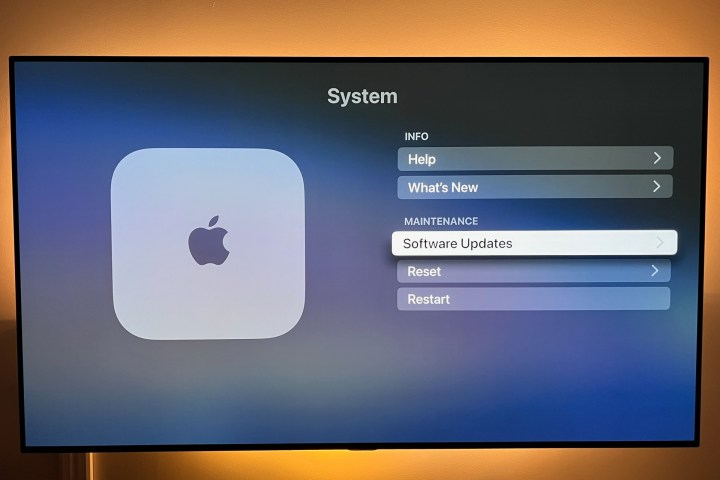
Before addressing specific issues, let’s discuss the importance of updating and resetting your Apple TV. If it powers on, attempting an update and a reset can often remedy many problems. Start with a simple update, and if the issues persist, consider performing a full reset.
Step 1: To check for updates, go to Settings, select System, and tap Software Updates. Here, you can select Update Software. You also have the option to enable Automatically Update for convenience. After this, restart your device and see if the issue persists.
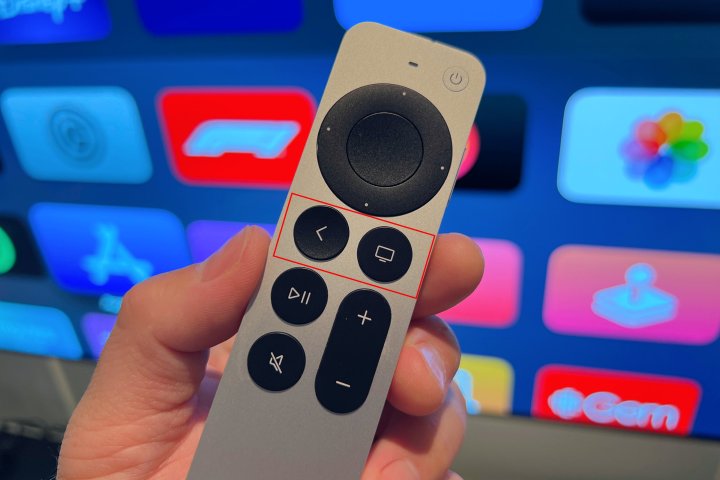
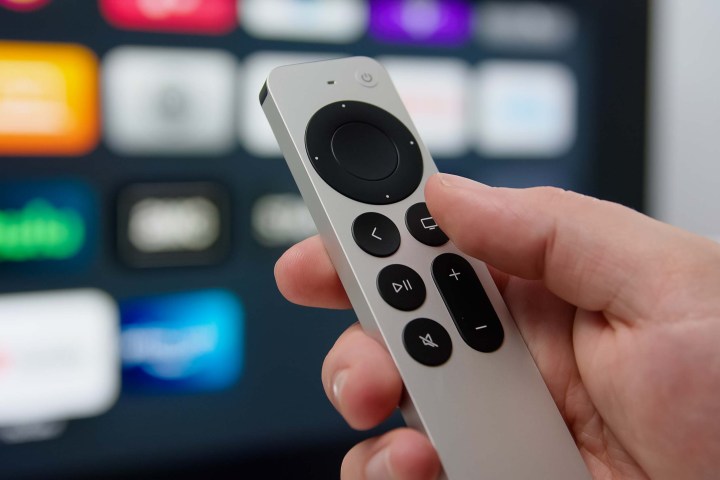
Step 2: To restart your Apple TV, press and hold the Menu and Home buttons on the Siri remote until the indicator light blinks. This will reboot your device.
Derek Malcolm / Digital Trends
Step 3: If the issue remains unresolved, consider resetting your Apple TV, which will erase all data and revert your settings to factory defaults. This should be your last resort. To reset, navigate to System > Reset > Reset and Update.
Apple
Resolve Apple TV Connectivity Issues
Is your Apple TV failing to turn on or displaying a blank screen? Here are some troubleshooting steps to follow.
Step 1: Disconnect your HDMI cable from both the TV and the Apple TV, then reconnect it. If this doesn’t work, try using a different HDMI cable.
Step 2: Verify your TV’s input settings to ensure they match the HDMI port your Apple TV is connected to (such as HDMI 1 or HDMI 2).
Step 3: Unplug both the Apple TV and your television from the power source, wait for 15 seconds, then plug them back in and power them on.
Step 4: If you have a receiver or another intermediary device, try connecting your Apple TV directly to the TV. If this fixes the issue, your intermediary device may need troubleshooting or port switching.
Derek Malcolm / Digital Trends
Solve Apple TV Wi-Fi Issues
If your Apple TV cannot connect to Wi-Fi, its functionality will be severely limited. Here’s how to address common Wi-Fi problems.
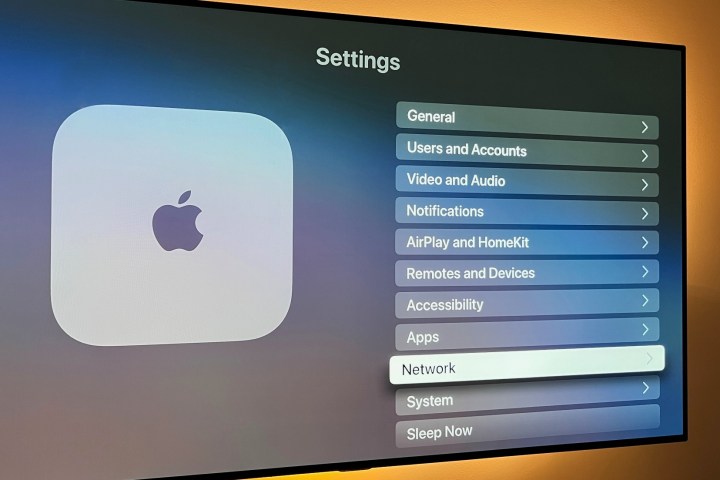
Step 1: Check your Wi-Fi network status by selecting Settings > Network. If you don’t see any network information, the Apple TV isn’t detecting your Wi-Fi, indicating a router reset may be necessary.
Step 2: If your Wi-Fi is visible but not connecting, try turning off your Apple TV, unplugging it for 15 seconds, then reconnecting and powering it back up.
Step 3: If your connection drops intermittently, it may be due to interference. Move your Apple TV closer to the router, and eliminate barriers that might obstruct your signal. A Wi-Fi extender may also help if the distance is significant.
Step 4: Most newer routers support dual-band connectivity, allowing you to connect devices to either a 2.4GHz or 5GHz network. Ensure that your Apple TV is connected to the appropriate band for optimal performance.
Derek Malcolm / Digital Trends
Resolve Apple TV Video Problems
Most video-related issues can often be traced back to power or Wi-Fi troubles. Here are some steps to troubleshoot other potential video problems.
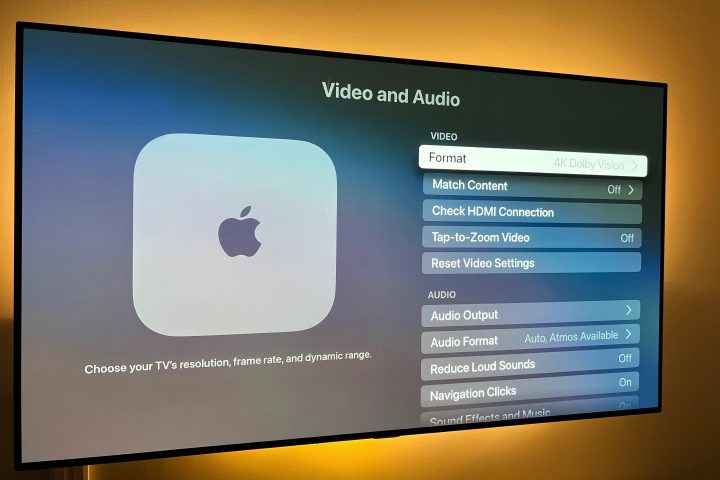
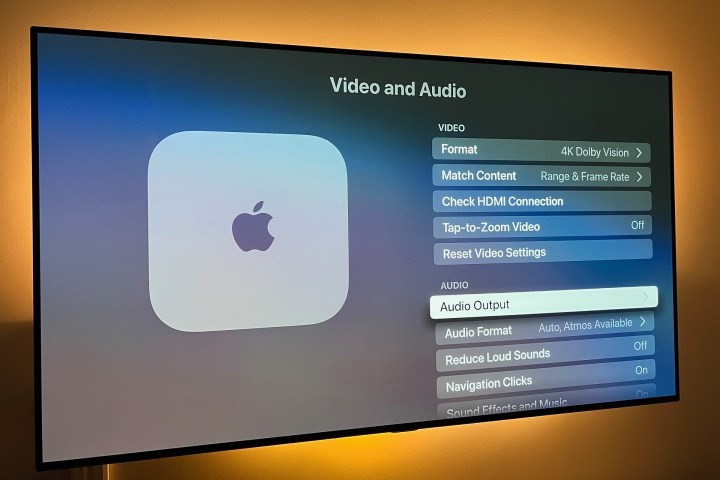
Step 1: Check if the video resolution is appropriate for your TV by navigating to Settings > Video and Audio > Format. The best resolution for your model is usually listed first; you can set or adjust this if desired.
Step 2: If the video is stuttering or freezing, try closing the app and reopening it. Sometimes, this can help resolve bandwidth issues that may be affecting playback performance.
Step 3: If the image doesn’t fit the TV screen correctly, it’s likely not an Apple TV issue. You’ll need to adjust the aspect ratio settings on your TV itself.
Image used with permission by copyright holder
Address Apple TV Audio Problems
If your Apple TV is functioning but producing no sound, follow these steps to fix the issue.
Step 1: First, try the restart method mentioned earlier.
Step 2: Ensure your HDMI cable connections are secure. Disconnect the cable from both ends and reconnect it firmly.
Step 3: Go to Settings, select Video and Audio, then tap Audio Output. Ensure this setting corresponds to your cable type, typically HDMI or HDMI eARC. If you’re using wireless speakers, you can configure your audio options here as well.
PSB
Resolve Apple TV Surround Sound Issues
Depending on your TV, soundbar, or AV receiver, you may experience issues when streaming content in surround sound. Here’s how to troubleshoot those problems.
Step 1: Remember that no model of Apple TV supports DTS surround sound formats; your playback options will be limited to Dolby 5.1, 7.1, or Atmos (when available).
Step 2: If certain speakers (or none at all) are producing sound, ensure that each device in your audio connection chain (such as the soundbar, AV receiver, and TV) supports the format you’re attempting to listen to.
Step 3: If any component in your setup does not support a required audio format, you can limit your Apple TV to stereo playback. To do so, navigate to Video and Audio settings, select Audio Format > Change Format > and select Stereo.
Image used with permission by copyright holder
Resolve Apple TV Remote Issues
While the latest Siri remote is quite sophisticated, it can occasionally experience connectivity problems. Here’s what to do if your remote becomes unresponsive.
Step 1: Check the battery level. Navigate to Settings > Remotes and Devices and select Remote. Here, you can check the battery icon for an estimate of remaining power. If the battery is low or unresponsive, plug it in using the provided cable and allow it to charge.
Step 2: If you’re having trouble navigating with the cursor on your Siri Remote, go to Remotes and Devices, then adjust the Touch Surface Tracking setting to your preference.
Image used with permission by copyright holder
Resolve Apple TV AirPlay Issues
If you frequently use AirPlay and are experiencing difficulties, consider the following suggestions.
Step 1: Ensure that both your iOS device and Apple TV have the latest software updates installed—refer to the above instructions for details.
Step 2: Restart both your iOS device and your Apple TV.
Step 3: Make sure both your iPhone, iPad, or Mac, and your Apple TV are connected to the same Wi-Fi network. If they are, but you’re still having issues, turn your iOS device’s Wi-Fi off and then on again via Control Center or through Settings > Network.
Step 4: To reset your Bluetooth connection, turn it off and on again using Control Center or go to Settings > Bluetooth.
Can My Apple TV Run Out of Storage Space?
Yes, it is possible. The base model Apple TV 4K comes with up to 64GB of storage for your apps, games, photos, and videos, but this space can fill up quickly.
If you find your Apple TV is low on storage, you’ll need to remove one or more apps to free up space. Fortunately, this process is simple, and we have additional guidance available to assist you.
How Can I Tell If My Apple TV Is Nearing the End of Its Life?
Like most consumer electronics, Apple TVs aren’t designed to last indefinitely. While many earlier models still function, there might come a time when your only option is to get a new unit.
Signs your Apple TV may be on its last legs include failure to power on, intermittent power issues, consistent crashes, and unreliable network connectivity.
How to Update the SiriusXM App on Apple TV: A Step-by-Step Guide
If you’re a SiriusXM user with an Apple TV, you might have noticed some frustrating issues with the app, especially if you’re using an older version. Streaming problems can arise after updating your TvOS, leaving you with music that stops suddenly or showing a playback bar that doesn’t reflect what’s actually happening. Fortunately, updating your SiriusXM app can resolve these problems and enhance your overall experience.
Here’s a straightforward guide to help you update the SiriusXM app on your Apple TV and get everything running smoothly again.
Why You Need to Update the SiriusXM App
If your SiriusXM app is showing signs of trouble, such as audio cutting out or a frozen playback bar, the chances are that you’re using an outdated version of the app. Older versions, particularly those below version 7, don’t automatically update when you update your Apple TV’s operating system. Unfortunately, the app settings won’t alert you to the need for an update, leaving you in the dark.
Updating the SiriusXM App: A Simple How-To
Follow these easy steps to ensure you have the latest version of the SiriusXM app on your Apple TV:
Delete the Current App:
Grab your Apple TV remote and hold down the trackpad until the app icons begin to jiggle.
You’ll see an option appear allowing you to delete the app. Select this option to remove the old version.
Download the Latest Version:
Open the App Store on your Apple TV.
Use the search function to find the SiriusXM app and download it again. This will grab the most recent version available.
Check Your Favorites:
If you’re accustomed to having your favorite stations saved under ‘Favorites,’ you should note that in the latest update, this feature has been moved to the ‘Library’ section.
Final Thoughts
Once you’ve completed these steps, you should find that the SiriusXM app functions more reliably on your Apple TV. Streaming your favorite channels and music should now be a smooth process without interruption. If you ever run into similar issues in the future, remember this guide – keeping your apps updated is essential for the best viewing and listening experience. Enjoy your upgraded SiriusXM service!
Exciting news for Apple TV users: the fourth-generation Tablo is now compatible! This is a game changer, allowing you to enjoy watching free over-the-air (OTA) broadcast channels on one of the best streaming devices available today.
The arrival of this compatibility has been highly anticipated. The fourth-generation Tablo has been on the market for nearly a year and has already provided a seamless experience on other leading platforms such as Roku and Amazon Fire TV. Simply connect an antenna to the Tablo, open the app, and watch or record free broadcast channels across multiple devices. Depending on whether you opt for the two- or four-channel version, you can use it on up to four devices simultaneously. Additionally, you can access several free ad-supported channels, making it nearly impossible to escape the FAST channel phenomenon in 2024.
Tablo has long been one of the top choices for streaming OTA channels over a home network. It has also stood out for its ease of use when it comes to recording those channels. The latest model, which launched in fall 2023, enhances the user experience in almost every aspect. As discussed in our comprehensive Tablo review, the hardware has been upgraded significantly, and the on-screen guide is among the best. You can even extend the internal storage capacity by connecting an external hard drive. Best of all, there are no hidden subscription fees. Tablo has clearly outperformed alternatives like HDHomeRun, which struggles with user experience and diminishing support over the years.
What was previously missing from the mix was support for Apple TV. That has now changed. For use with the Apple TV, you’ll need to have the fourth-generation Tablo as well as the appropriate app available on the Apple TV App Store—just be sure to download the dark blue version that works with this latest model.
One notable feature still absent is support for ATSC 3.0, or NextGen TV, which offers benefits like higher resolution and bidirectional data transfer. The adoption of this standard has been slow, largely due to patent issues and a lack of urgency from Tablo to enter this complicated arena.
In any case, this development is fantastic news for Apple TV owners who are looking for a way to access local channels without cost.
The pursuit of truth takes center stage in the trailer for Disclaimer, a psychological thriller from Apple TV+ directed by Oscar winner Alfonso Cuarón.
Featuring Cate Blanchett as Catherine Ravenscroft, a documentary journalist renowned for unveiling tough realities, the narrative shifts dramatically as Catherine finds herself in the role of the prey rather than the predator. A mysterious novelist sends her a novel that lays bare her darkest secrets. If these revelations come to light, Catherine’s life as she knows it could unravel completely. Thus begins a frantic effort to uncover the author’s identity and prevent the book from publication.
“The world needs to know who Catherine Ravenscroft truly is. The world needs to uncover the truth,” asserts Kevin Kline’s character, Stephen, in a tense moment with Catherine’s assistant.
The title, also styled as Disclaimer*, carries an intriguing disclaimer: “Any resemblance to persons living or dead is purely coincidental.”
DISCLAIMER* — Official Trailer | Apple TV+
Alongside Blanchett and Kline, Disclaimer boasts a talented ensemble that includes Sacha Baron Cohen, Kodi Smit-McPhee, Lesley Manville, Louis Partridge, Leila George, Hoyeon, and Indira Varma as the narrator.
All seven episodes are scripted and directed by Cuarón, with Apple Studios producing the series based on Renée Knight’s 2015 novel of the same name. The executive producer roster includes Cuarón, Blanchett, Gabriela Rodriguez, David Levine, Steve Golin, Emmanuel Lubezki, Donald Sabourin, and Carlos Morales. The score is composed by Finneas O’Connell.
Disclaimer is set to make its mark at various prominent film festivals, a notable feat for a television series; it screened at both the Venice International Film Festival and the Toronto International Film Festival.
The series will debut on Apple TV+ with two episodes on Friday, October 11, 2024, followed by additional episodes released weekly.
Related
Slow Horses season 4 trailer: Jackson Lamb and Slough House confront new threats
Shrinking season 2 release date unveiled by Apple TV+
Apple announces premiere date and first look for Slow Horses season 4
As of early 2024, tvOS 18 has been officially released for Apple TV users, boasting an array of exciting and practical features, particularly beneficial for subscribers of Apple TV+ and Apple Fitness+.
This latest iteration of tvOS is compatible with all Apple TV 4K and Apple TV HD models, although certain enhancements are restricted to Apple TV 4K devices.
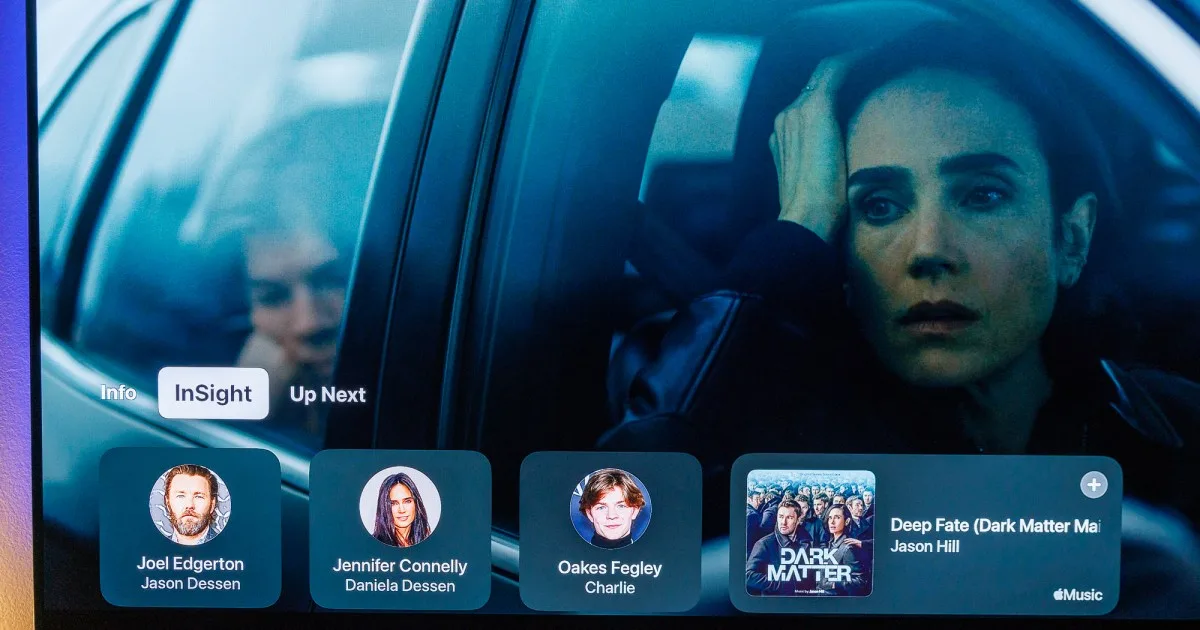
The update introduces InSight, a feature that provides in-depth information about actors, characters, and music during live-action films and shows available on Apple TV+. Users familiar with Amazon Prime Video may recognize this as a comparable function to the X-ray feature.
Additionally, tvOS 18 enhances the Enhance Dialogue feature, utilizing machine learning and advanced audio processing for improved vocal clarity. Subtitles now exhibit smart behaviors and will pop up at optimal moments, such as when you mute or rewind, or when the language in a film or show does not align with the language settings on your Apple TV.
Apple TV is also known for its beautiful screen savers, and tvOS 18 introduces a new option called Portraits. However, this feature is exclusive to Apple TV 4K. Users can select their beloved photos—whether of friends, pets, breathtaking landscapes, or urban scenes—and display them alongside a stylized clock.
Live Captions for FaceTime has been enhanced in tvOS 18, allowing viewers to read subtitles for what others are saying during FaceTime calls displayed on their TV. This feature is currently available in English in the United States and Canada.
The Apple Fitness+ app has also been revamped with a fresh design in tvOS 18, featuring personalized workout and meditation recommendations, an improved search function, and upgraded awards tracking.
Apple continues to position the Apple TV as a central control hub for its HomeKit features. The new updates in tvOS 18 include options introduced in iOS 18, such as guest access, allowing users to enable visitors with iPhones to control smart home devices like locks and garage doors. Users can also set up time-bound access for guests and keep a record of their activity.
While not exclusive to Apple TV, the iOS 18 update enhances user experience by allowing guests to manage music playback from HomePod and HomePod mini using SharePlay with Apple Music. Furthermore, AirPlay now supports spatial audio when streaming from an iPhone or iPad to compatible audio equipment.
It is worth noting that two promised features for tvOS 18—the ability to play movies and shows in 21:9 aspect ratio on projectors and new screen savers featuring characters like Snoopy—will become available later this year. Additionally, compatibility with robot vacuum cleaners for the Home app is also forthcoming.
How to Upgrade
Simon Cohen / Digital Trends
If automatic updates are enabled, your compatible Apple TV will download and install tvOS 18 automatically in the coming days. However, if you want to access the new features immediately, follow these steps:
On the Apple TV Home screen, navigate to the Settings app.
Select System from the options provided.
In the System menu, find and click on Software Updates.
Click on Update Software, then select Download and Install when prompted.
The download and installation process will commence, which may take up to 20 minutes.
Once the update is complete, you will be given the option to Update Now or Update Later. Choose Update Now.
The system will install the software, and your Apple TV will automatically restart. After the restart, you may be asked to agree to a new set of Terms of Service related to iCloud and other services.
FaceTime’s integration into Apple TV arrived a few months back with the introduction of tvOS 17. Now, with the same convenience, you can participate in Zoom meetings through your Apple TV streaming box.
As per Apple’s earlier announcement, the introduction of FaceTime for tvOS was to be followed by the arrival of Zoom on Apple TV. True to their word, the Zoom app has now debuted on the Apple App Store over the weekend, as reported by AppleInsider.
Similar to FaceTime on Apple TV, Zoom utilizes an iPhone’s rear camera for video capture. For this functionality, you’ll require an iPhone compatible with Apple’s Continuity Camera feature, available on models released in 2018 or later, such as the iPhone XR or newer versions.
I took a quick look at the Zoom app for tvOS on my 2021 Apple TV 4K (at least the second-generation is required), and it functions quite as expected. The setup is straightforward, offering Zoom sign-in options via the web or email, just as advertised.
To get started, enable Continuity Camera between your Apple TV 4K and iPhone by following the prompts. Then, position your iPhone near your TV, ensuring that its rear cameras are facing you. This setup allows for seamless video capture during your Zoom sessions on Apple TV.
Absolutely, there are mounts designed specifically for Continuity Camera setups, positioning your iPhone at the top bezel of your TV. Alternatively, as I did, you can simply prop it up in front of the TV, below the screen. Thanks to the iPhone’s Center Stage functionality, you’ll stay centered within the frame, even while moving around the room.
Once your iPhone is connected and positioned correctly, you can initiate or join a Zoom meeting using your Siri Remote to navigate, or you can conveniently check upcoming Zoom meetings within the Today section.
Just like Zoom on other platforms, Zoom on tvOS offers the flexibility to switch between Speaker, Thumbnail, and Gallery views. Additionally, you can access emotes—such as a heart, a thumb-up, a smiley face, or a raised hand—either through Zoom’s interface or using the gesture-triggered Reactions feature built into the Apple TV.
Zoom for tvOS lacks support for custom backgrounds, meaning you can’t transport yourself to a virtual hammock or the moon during Zoom meetings. Similarly, there’s no option to touch up your appearance. However, you can activate a Profile setting that applies a bokeh effect to your video image.
Additionally, on Apple TV, you can access in-call chat and seamlessly be assigned to Zoom breakout rooms. Other settings available encompass automatic echo cancellation and noise suppression during calls, enhancing the overall meeting experience.
In summary, the Zoom app for tvOS offers a streamlined and user-friendly Zoom experience on Apple TV. The straightforward Continuity Camera setup proved to be a delightful surprise for me, enhancing the overall usability of the platform.
Zoom for tvOS is currently accessible via the Apple App Store, while the arrival of Webex for tvOS is anticipated shortly.
With adaptive surround sound similar to the theater, spatial audio is a game-changer for immersive entertainment. By adjusting the sound as you move, head-tracking creates the illusion that you are in the center of the action. You can experience virtual reality even more closely with a VR headset.
Table of Contents
Setting up various systems to experience high-quality spatial audio can be challenging and expensive. You can enjoy immersive audio at home without any additional hardware or accessories, though, if you have Apple products like an Apple TV and AirPods.
Spatial audio supported by Apple devices
You need compatible hardware to experience spatial audio. Apple audio equipment and a 4K Apple TV are included in this. Make sure tvOS 15 or later is installed on the Apple TV. When purchasing used or refurbished devices, pay attention to the model version.
For spatial audio, a variety of personal listening devices are available. You can choose any Apple product or one that can connect to Apple directly. These include the third-generation AirPods, the original or second-generation AirPods Pro, the AirPods Max, or the Beats Fits Pro, all of which support dynamic head-tracking and spatial audio.
How to enable spatial audio and connect to Apple TV
Open the AirPods case next to the Apple TV.
Hold the Play button on your Apple TV remote to scan for nearby devices. It should detect the AirPods and prompt you to connect.
Enter a TV app that supports multichannel audio.
Press the Home button on your TV remote to access the Control Center.
An icon with a picture of your connected speakers will be at the bottom of the Control Center panel. With your remote, select that icon to enable sound output.
Click the icon again to access the speaker’s personal settings.
You can disable the feature, set it to provide fixed sound, or activate the head-tracking feature under the Spatial Audio options.
Spatial audio and head-tracking will be enabled on the connected device, adjusting the volume of your show’s soundtrack elements (music, SFX, dialog, and so on) based on your position.
Apple Event 2020 came up with lots of announcements that starts a new era in the world of Apple. Here are the 8 products and services announced in the event.