الوسم: animations

  • Turning Off Animations in Wallpaper Engine: A Quick Guide

    Turning Off Animations in Wallpaper Engine: A Quick Guide

    Wallpaper Engine is an excellent application for adding animated wallpapers to your Windows desktop. It offers a wide variety of community-created wallpapers, allowing users to personalize their systems and make them stand out.

    While these wallpapers are visually stunning, they do come with a downside: they can heavily utilize system resources when rendering animations. Fortunately, Wallpaper Engine provides the option to disable animations. Here’s a straightforward guide on how to do it.

    How to Turn Off Animations

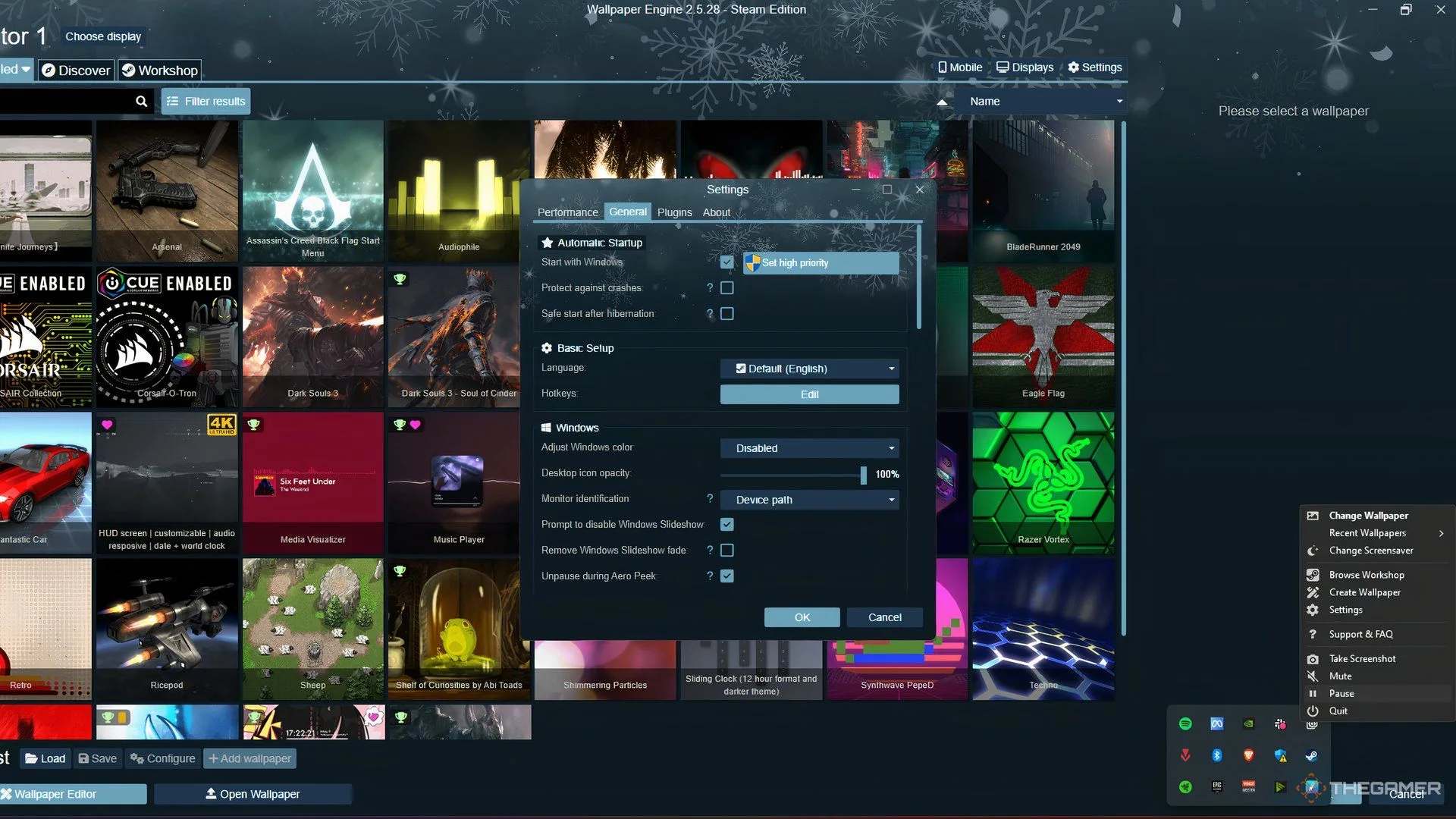
    To stop the wallpaper animations, just pause the wallpaper from the Windows system tray. Follow these simple steps:

    1. Launch Wallpaper Engine from either Steam or the Desktop shortcut.
    2. Look for an up arrow icon on the right side of the Windows Taskbar. Click it to open the system tray.
    3. Right-click the Wallpaper Engine icon (which resembles a gear with two boxes) and select the pause button to halt all animations.

    You can also create a shortcut for this function to make things easier. Here’s how to set up a hotkey:

    1. Open Wallpaper Engine through Steam or by clicking the Desktop icon.
    2. In the top right corner, find and click on the Settings button.
    3. When the settings window opens, navigate to the General tab.
    4. Under Basic Setup, look for the Hotkeys section and click on the Edit Button.
    5. Enter a key combination that includes either Ctrl, Alt, or Shift by clicking in the box next to Pause Wallpaper. For instance, you might use Ctrl+Shift+Q.
    6. Once you’ve set your hotkey, click the OK button.

    If you wish to remove or reset a hotkey, simply click the “x” next to your chosen hotkey. You can also establish hotkeys for other functions in Wallpaper Engine, such as starting a screensaver or taking screenshots.

    Important Note:

    You can only pause the wallpaper when you’re on your desktop. You can use the same hotkey to turn the animations back on again.

    Additionally, wallpapers will automatically pause while you’re gaming. If you’re using a dynamic wallpaper, those will also pause automatically.

  • Samsung Promises Better Animations in One UI 7

    Samsung Promises Better Animations in One UI 7

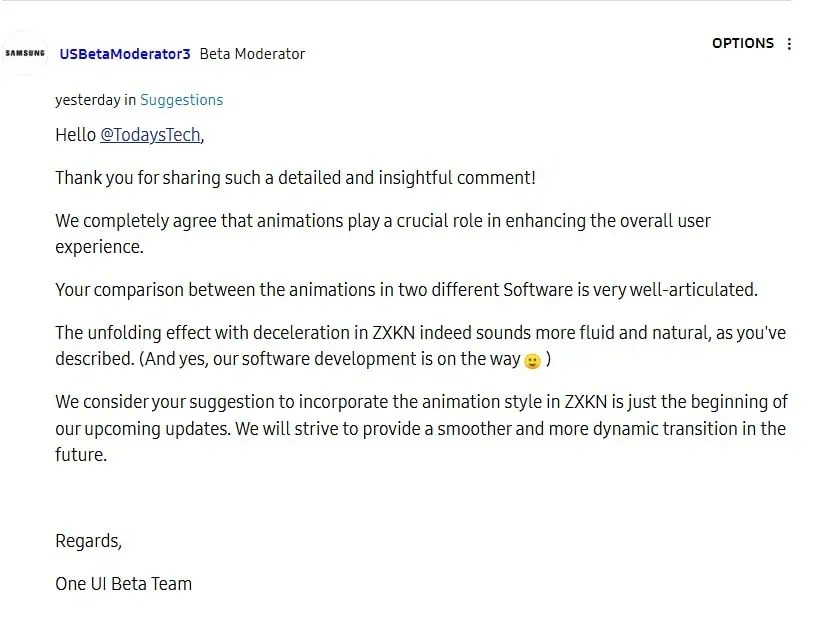
    Users of the Samsung Galaxy S24 have been testing the One UI 7 beta for about a week, and some noticeable issues have already come to light. The One UI subreddit is buzzing with discussions about stuttering and various animation glitches. Fortunately, Samsung has acknowledged these concerns, stating they are actively working on solutions to enhance user experience. Their response includes a commitment to delivering “smoother and more dynamic transitions” in future updates.

    This scenario illustrates the purpose of beta testing. Although One UI 7 is functional, it still requires refinements. By introducing the update to a select group of users in advance, Samsung can pinpoint problematic areas and address them before the full rollout.

    Animation plays a crucial role in shaping the user’s experience with software. While it may seem like a minor detail, the smoothness of transitions can significantly impact how users interact with their devices. Take the case of Amazon’s Kindle Paperwhite: older models exhibited jarring page turns that disrupted the reading experience, whereas enabling the optional page-turn animation led to a more enjoyable encounter.

    Screenshot showing comments from a Samsung developer regarding the One UI 7 beta's animations.
    Samsung

    Some users have reported issues with the One UI 7 beta, complaining of sluggish performance and a delay in gradient animations. A Reddit user, u/teneman, shared a series of screenshots highlighting these problems. The images indicated cases of unexpected blurring where it shouldn’t have occurred and a lack of blur where it was needed. Another user noted that the notification panel had become slow to open and the animation could not be interrupted during the process.

    In response to these user observations, Samsung confirmed it is working to improve the situation. The company noted that the current animations aren’t as refined as they were during the initial testing phase. Samsung is dedicated to enhancing these animations to meet its standards and encourage users experiencing any irregularities with the One UI 7 beta to report them via the Samsung Members app.