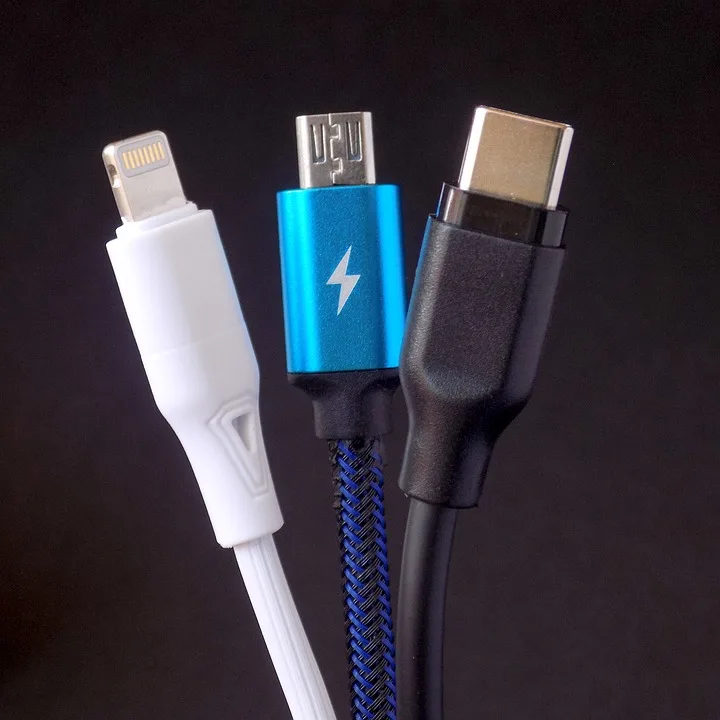
Nowadays, many laptops and desktop computers come equipped with USB-C ports that support Thunderbolt 4 or USB 4. However, the technology landscape is evolving, and the spotlight is now on the upcoming enhancements of Thunderbolt 5 (TB 5) and USB 4 version 2 (USB 4 v2).
These new standards supercharge data transfer speeds, doubling the previous maximum of 40 GBit/s to a remarkable 80 GBit/s. Interestingly, in asymmetric mode, which is an optional feature of USB 4 v2, you can achieve data transfer rates of up to 120 GBit/s from the source to connected devices (downstream), enabling seamless operation of multiple high-resolution monitors. In the reverse direction, the speed remains at 40 GBit/s.
Quite a lot to digest, right? This complexity is why Microsoft is introducing new guidelines to streamline the USB-C experience on Windows 11 laptops. The current state of USB-C and Thunderbolt can be confusing even for seasoned tech enthusiasts.
Fortunately, both TB 5 and USB 4 v2 backward compatibility allows users to connect older gadgets using adapters, including those that utilize USB 2.0. Yet, many practical questions persist about USB-C, especially concerning the latest TB 5 and USB 4 v2 iterations.
In this guide, we aim to address your most pressing queries — from how to check if your devices support these new standards to what specifications to seek when making a purchase, as well as how to interpret the newly designed USB logos.
Check USB 4 Compatibility on Windows
If you’re using Windows 11 and have USB-C ports, you can easily find out whether they support USB 4 by accessing the Windows Settings app. Within Windows 11, there’s a helpful feature labeled “USB4 hubs and devices,” located under “Bluetooth and devices > USB.” Alternatively, simply searching for “USB4” or “Thunderbolt” in the search bar will bring you there.
This section shows you which USB 4 version your system supports. If it displays “1.0,” it indicates a maximum bandwidth of 40 GBit/s. However, if it says “2.0,” your system supports USB 4 version 2, delivering double the speed — potentially even with the asymmetric mode.
The Windows 11 settings also provide insights into currently connected devices. For instance, if you connect an external USB 4 or Thunderbolt 4/5 SSD to your Type-C port and hit “Refresh” next to “USB4 domain information,” you’ll see the name of the connected device listed under “USB4 host router information.”
Windows 11 PCs offer details about connected USB 4/Thunderbolt 4/5 devices. Find info under “USB4 hubs and devices” for devices connected via Type-C.
IDG
Clicking on the listed devices or the plus sign next to the line will provide further details. “Current bandwidth (down/up)” will indicate the speed capacity available on your USB-C port with the connected device. It’s important to note that this information does not have to reflect the maximum speed the device is capable of handling—it’s a combination of the interface and the connected equipment.
Please note: This feature in Windows 11 is only compatible with USB4-enabled computers and will not work with USB 2.0 or 3.0 devices.
Simplified USB Logos for Better Clarity
The USB Implementers Forum (USB-IF), which governs the standard, revised the USB logos in early 2025 to enhance clarity on what a USB-C device or cable supports before purchase. The newly designed logos aim to provide a quick reference for expected data transfer speeds and charging capabilities.
This move comes in response to the frequent feedback that the myriad variations of USB technology create confusion instead of clarity.
The new logos focus on essential features instead of complex technical terms, making it easier to identify data transfer speeds and charging performance at a glance. The speed information will ideally appear next to “USB” on product packaging — for example, “80 Gbps,” signaling that the device is certified for data transfer rates up to 80 GBit/s.

The USB-IF committee has restructured the logos, making it easier to see the maximum possible data transfer rate and charging power at a glance.
IDG
Under this updated scheme, USB-C connections on devices like laptops should have the maximum transfer rate specified right on the unit. This new logo reform also applies to USB-C cables; data transfer speeds and charging ratings are to be displayed on the plugs themselves, clearly and distinctly.
A cable marked “80 Gbps 240 W” indicates that it is capable of transferring data at rates of up to 80 Gbps and charging devices with a maximum of 240 watts.
In cases where a cable is solely for charging, information about data transfer speeds will be absent. This immediately signals that data cannot be transmitted, or only at very slow USB 2.0 speeds.
This commendable initiative does have one caveat: manufacturers can choose whether or not to adopt the new logos. Nevertheless, products bearing these logos indicate a higher level of reliability compared to those that do not.
Choosing the Right Cables and Power Supplies for USB-C Charging
As USB-C connectors become increasingly commonplace for charging, it is no surprise that a new European Union regulation requires that all new devices must support USB-C charging.
There’s a transition period for laptops, ending on April 28, 2026, after which proprietary plug/power supply combinations will be phased out. All laptop batteries will then need to be USB-C compatible.
While the USB-C connector is employed for charging, the process is governed by a separate standard known as USB Power Delivery (USB PD).
This standard offers multiple charging profiles, with the extended version, USB PD EPR (Extended Power Range), reaching a charging capacity of up to 240 watts. This level of power is sufficient for even the most demanding gaming laptops.
To achieve this, the charging cable must be equipped with a special chip called an e-marker, as well as be capable of handling a current of 5 amps. This chip stores key information about the cable’s capabilities, including charging profiles and maximum power output.
If diving deep into the PD specifications seems daunting, a good starting point would be to opt for a power supply unit rated at 45 or 60 watts, suitable for a compact laptop and capable of charging most smaller devices like smartphones or tablets.
More robust portable computers typically require a 100-watt power supply (20 volts at 5 amps). For your reference, we’ve included a table summarizing PD charging profiles and compatible devices.
Overview: Charging Capacities with USB Power Delivery (PD)
| Charging Mode | Voltage (volts) | Max Current (amperes) | Max Power (watts) | Compatible Devices |
| Standard Power Range (SPR) | 5 V | 3 A | 15 W | Small mobile devices: smartphones, tablets, smartwatches, small cameras |
| 9 V | 3 A | 27 W | Low-power devices: portable speakers, gaming consoles, external drives | |
| 15 V | 3 A | 45 W | Medium power devices: Ultrabooks, mobile USB monitors | |
| 20 V | 3 A | 60 W | High-energy devices: notebooks, docking stations | |
| 20 V | 5 A | 100 W | Heavy-duty devices: larger laptops, external GPUs | |
| Extended Power Range (EPR) | 28 V | 5 A | 140 W | High-energy gaming laptops |
| 36 V | 5 A | 180 W | Ultra-powerful devices: gaming laptops, workstations | |
| 48 V | 5 A | 240 W | Extremely high-energy devices: gaming laptops, professional workstations |
Thanks to advancements, delivering up to 240 watts via USB-C is now achievable, a feat that was once considered impossible. One of the initial power supply units to handle this is the Delta ADP-240KB BA.

The Delta ADP-240KB BA can handle 240 watts of charging power, adhering to the USB PD EPR specification, enabling you to charge all kinds of devices via Type-C.
IDG
You can access all USB EPR-certified charging profiles. However, Delta’s 240W USB-C charging unit is relatively large, making it less travel-friendly.
Rare Availability of USB 4 v2 and TB 5
If you aim to acquire a new computer, being updated with the latest connectivity options is essential.
Currently, however, this can be challenging. Recently, laptops powered by the Intel Core Ultra 200 series processors (codenamed: Arrow Lake H and HX) have been labeled as “Thunderbolt 5 ready.” This simply means that these processors can technically support TB 5 due to their PCI Express lane capacity.
To comply with the TB 5/USB 4 v2 specifications, an additional chip is necessary. Potential candidates include Intel’s JHL9580 (codename: Barlow Ridge), but implementation decisions rest with PC manufacturers. Up to now, only a limited number of laptop models featuring Thunderbolt 5 Type-C ports, such as the Razer Blade 18 and MSI Vector 16 HX, have become available.
These high-performance gaming laptops come with steep price tags, starting at around $3,000, where the extra costs for the TB5 controller chip are less impactful on the overall price. Similar considerations apply to the Apple MacBook lineup featuring M4 processors, which also support TB 5.
Given the high requirements associated with TB 5 and USB 4 v2—particularly concerning data rates, charging speeds, and video outputs—adequate cooling solutions must be in place. It’s not uncommon for laptops to require an extra fan to manage heat dissipation, a crucial consideration for slim and lightweight designs, as it directly influences weight and noise levels.
This is why many manufacturers continue to utilize the previous TB 4/USB 4 standard, maintaining maximum data rates of 40 GBit/s for ultra-mobile devices.
Upgrading USB-C Ports for TB 5/USB 4 v2
Conversely, new desktop computers are more likely to incorporate a USB-C interface that supports TB 5/USB 4 v2, which may allow for retrofitting via a PCIe expansion card.
It’s important to ensure that the motherboard qualifies as “Thunderbolt 5 ready” to guarantee the presence of the necessary Thunderbolt header. This feature is primarily seen in high-end desktop setups, such as those using Intel Z890 motherboards.

Desktop PCs can potentially retrofit TB 5 and USB 4 v2 using a PCIe expansion card. This Asus model includes three Mini-DisplayPort 2.1 connectors in addition to its two Type-C ports.
IDG
You’ll need a free PCIe 4.0 slot with four lanes (x4) for this upgrade. If your system meets these requirements, you can acquire a compatible PCI-e add-in card, such as the $140 Asus Thunderboltex 5.
This card uses the JHL9580 “Barlow Ridge” controller chip, enabling full Thunderbolt 5 data transfer speeds. Additionally, the two TB-5 Type-C ports can deliver fast charging up to 130 watts and support up to 96 watts for connected devices.
Moreover, there are three Mini-DisplayPort 2.1 outputs, allowing for the connection of up to three monitors, each capable of 8K resolution at 60Hz.