الوسم: 8 Best Features of Sora

  • Create Free AI Videos with Google’s Veo 2: A How-To Guide

    Create Free AI Videos with Google’s Veo 2: A How-To Guide

    Google has introduced video generation capabilities on its Gemini platform, utilizing the Veo 2 AI model. However, this feature is only accessible through a paid Google One AI Premium subscription priced at $19.99 per month. In contrast, Google’s AI Studio allows users to generate videos with the Veo 2 model at no cost. Although AI Studio is primarily designed for developers to experiment with AI models, ordinary users can also test out new features and upcoming models.

    You don’t need to be a tech expert to navigate the AI Studio platform. Simply log in with your free Google account, and you’ll be able to create videos using the Veo 2 model for free in most regions. Here’s a step-by-step guide to get started.

    • Visit aistudio.google.com/generate-video and sign in using your Google account.
    • Ensure that “Veo 2” is selected from the drop-down menu located on the right side of the screen.
    • You can also select the aspect ratio and set the video duration, which can be up to 8 seconds.
    • Finally, type in a detailed prompt to generate your free video with Veo 2.
    • I created a video prompt depicting a spacecraft entering Earth’s orbit.
    • In under a minute, an impressive 8-second video in 720p resolution was generated at no cost. You can view the video clip below.

    In addition, you can upload an image and animate it to create videos using Veo 2 for free. There’s also a Negative prompt option where you can specify elements you’d like to avoid in the video. This is your opportunity to produce AI-generated videos at no cost with Google’s impressive Veo 2 model.

    Having experimented with OpenAI’s Sora model for video generation, I can confidently say that Google’s Veo 2 excels in terms of its understanding of physics and motion. Although there is a rate limit for free users, Google hasn’t publicly detailed it. I encourage you to give Veo 2 a try—you’re sure to be impressed by the video quality it produces.

  • Task Scheduling and Reminder Setup in ChatGPT

    Task Scheduling and Reminder Setup in ChatGPT

    OpenAI has officially launched ChatGPT Tasks after a month-long wait. This feature enables ChatGPT to execute tasks on behalf of users, bringing us closer to a new era where AI systems can take action autonomously. In this guide, we will provide you with comprehensive instructions on how to schedule and run tasks in ChatGPT. You will also learn how to set reminders and manage your tasks effectively. Let’s get started!

    How to Schedule and Run ChatGPT Tasks

    First and foremost, ensure you are subscribed to one of the paid plans: ChatGPT Plus, Pro, or Team. The ChatGPT Tasks feature is solely available to paying customers. Additionally, please note that ChatGPT Tasks can be accessed via the app on Android, iOS, and macOS, as well as on the web. However, it is not currently available on the Windows app. Here are the steps to follow:

    • Open ChatGPT and select “GPT-4o with scheduled tasks” from the menu dropdown at the top.

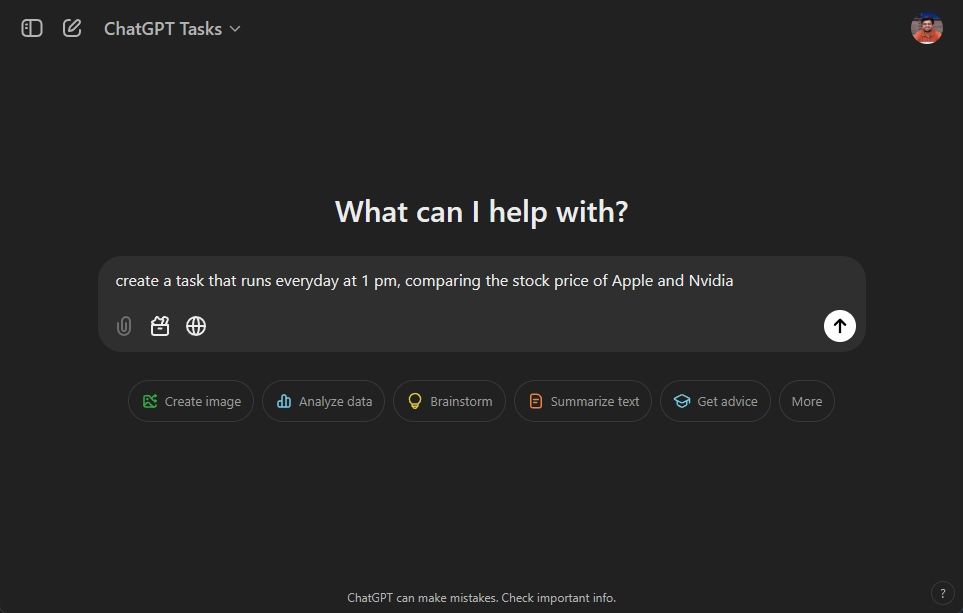
    • Next, type in the task you want to create. You can initiate your prompt with “create a task …” for custom tasks.
    • For instance, I requested ChatGPT to compare stock prices of Apple and Nvidia and to send me a report daily at 1 PM.
    create a task in chatgpt

    • The task will be created immediately, and ChatGPT will acknowledge it.
    • To receive notifications for your tasks, click “Allow” to enable desktop notifications.
    turn on desktop notification for chatgpt tasks

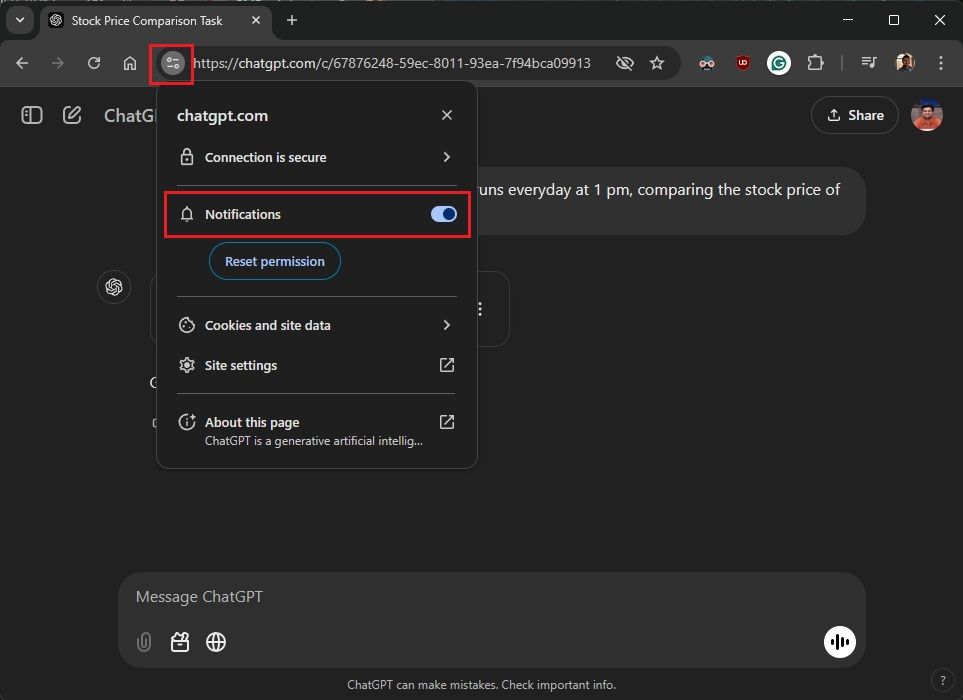
    If you’re using ChatGPT in a web browser, go to Site control next to the URL in the address bar and enable “Notifications.”

    allow notification permission for chatgpt tasks

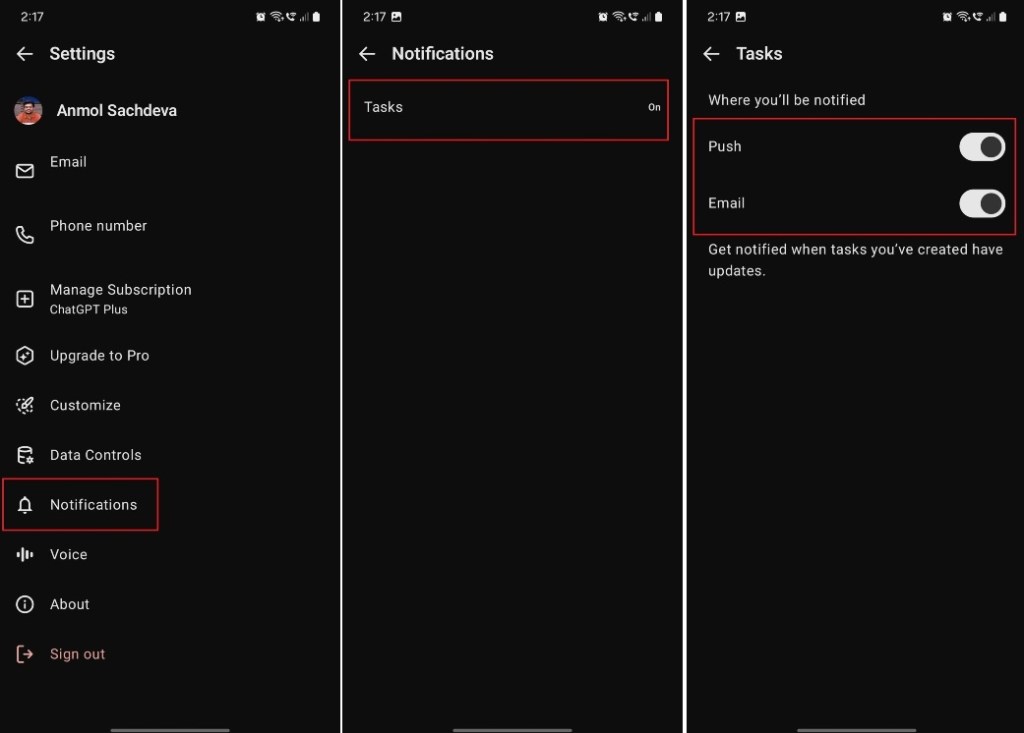
    For the ChatGPT mobile app, navigate to Settings -> Notifications -> Tasks. Make sure to enable both notification toggles to receive task alerts.

    enable task notification on chatgpt android app

    Once set up, you’ll receive notifications from ChatGPT through your web browser or mobile app when your tasks run. During my trials, I noticed some delays in task execution, so please keep that in mind.

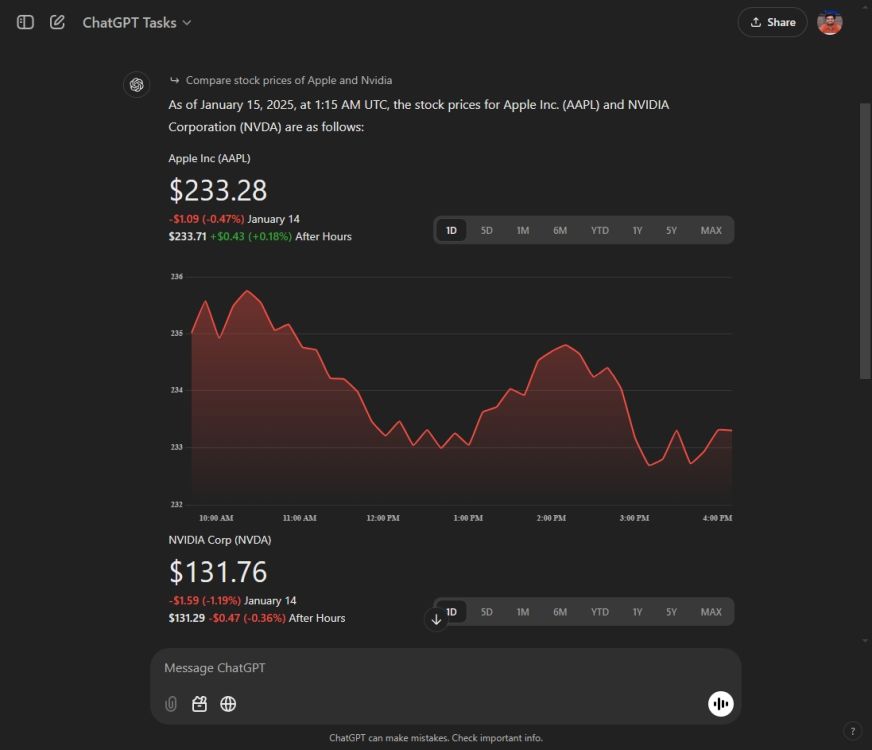
    When you access the notification, you’ll see that ChatGPT has completed the scheduled task. For example, ChatGPT successfully generated an interactive line chart for my request.

    task accomplished by chatgpt

    How to Set Reminders in ChatGPT

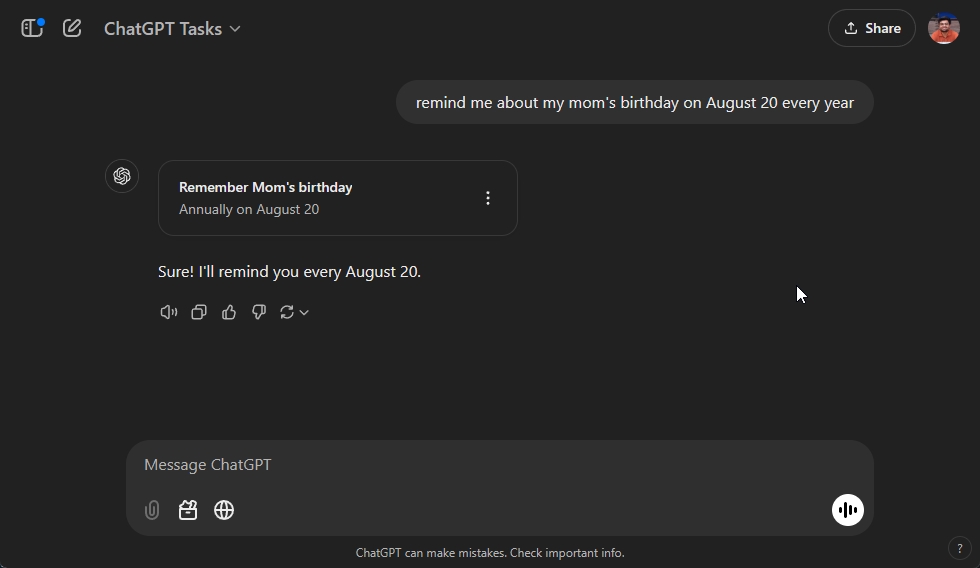
    You can also set reminders in ChatGPT, similar to tasks. Under the “GPT-4o with scheduled tasks” section, start your prompt with “remind me about ….”

    For instance, I asked ChatGPT to remind me about my mother’s birthday on a specific date. That’s all there is to it!

    setting reminders in chatgpt

    How to Manage Tasks in ChatGPT

    Managing and editing tasks in ChatGPT is straightforward. Keep in mind that task management functionality is exclusive to the ChatGPT Web version, and up to 10 active tasks can be processed simultaneously.

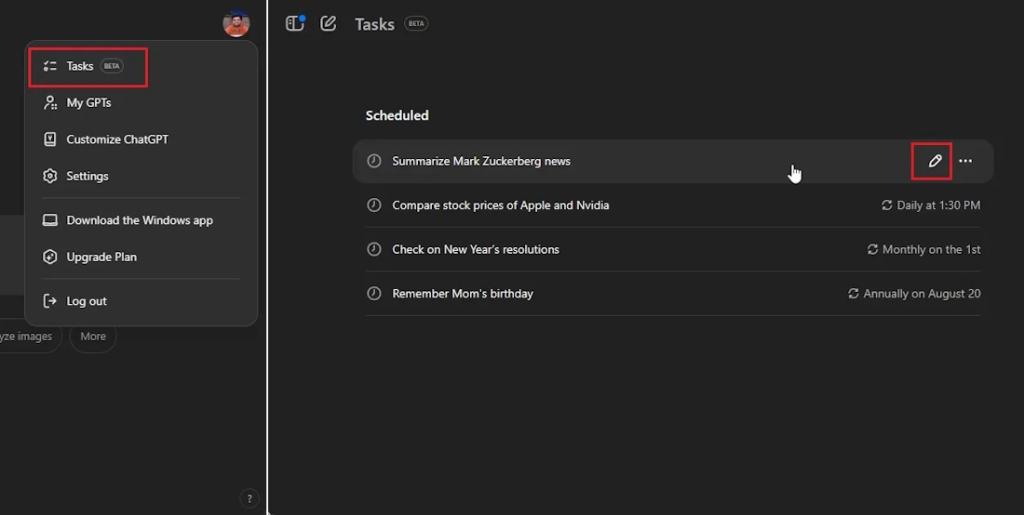
    To manage your tasks, click on your profile in the top-right corner, then select “Tasks” from the dropdown menu. Alternatively, you can navigate directly to chatgpt.com/tasks.

    edit and delete tasks in chatgpt

    Here, you can edit or delete your tasks. Click the “pen” icon to modify a task. You can adjust the schedule (whether it’s daily, weekly, monthly, annually, or on a custom cycle) for the selected task. You can also choose to delete or pause it.

    manage tasks in chatgpt

    This is how you can effortlessly create, set reminders, and manage tasks within ChatGPT. This is just the beginning, as OpenAI plans to roll out its “Operator” agent in the coming weeks, which will allow you to perform actions for you within a web browser, opening up even more exciting possibilities.

    Arjun Sha

    Passionate about Windows, ChromeOS, Android, security, and privacy issues. Enjoys solving everyday computing challenges.