The Linkind ET6 Smart TV Backlights with HDMI 2.0 Sync Box offers a powerful, immersive experience for any home theater.
With the AiDot App, you can easily configure these backlights to sync with your TV screen, allowing the lights to shift dynamically in response to on-screen action. The system’s “Immersive Entertainment” mode is a highlight, enhancing every scene for an atmospheric, captivating viewing experience.
With customizable colors, smart home integration, and the LumiSync AI technology, this product is ideal for users looking to transform their TV or gaming setup into a cinematic environment.
Verdict
The Linkind ET6 Smart TV Backlights are a top choice for those seeking immersive, dynamic lighting that matches their TV content.
With easy app-based configuration, precision color sync, and extensive customization options, this system is well-suited for movie lovers, gamers, and anyone looking to add ambiance to their home. While the setup may require a bit of patience, the system’s features are well worth the effort.
Rating: 4.5/5
Pros:
- Creates an immersive and captivating viewing environment.
- Easily pairs with TVs and other devices for a streamlined setup.
- Offers a wide range of customization and control features.
- Lights sync with music for an engaging audio-visual experience.
- Suitable for various TV sizes with in-app adjustments.
- Works seamlessly with Amazon Alexa and Google Home for voice control.
Cons:
- Full functionality requires using the app, limiting options for those who prefer manual control.
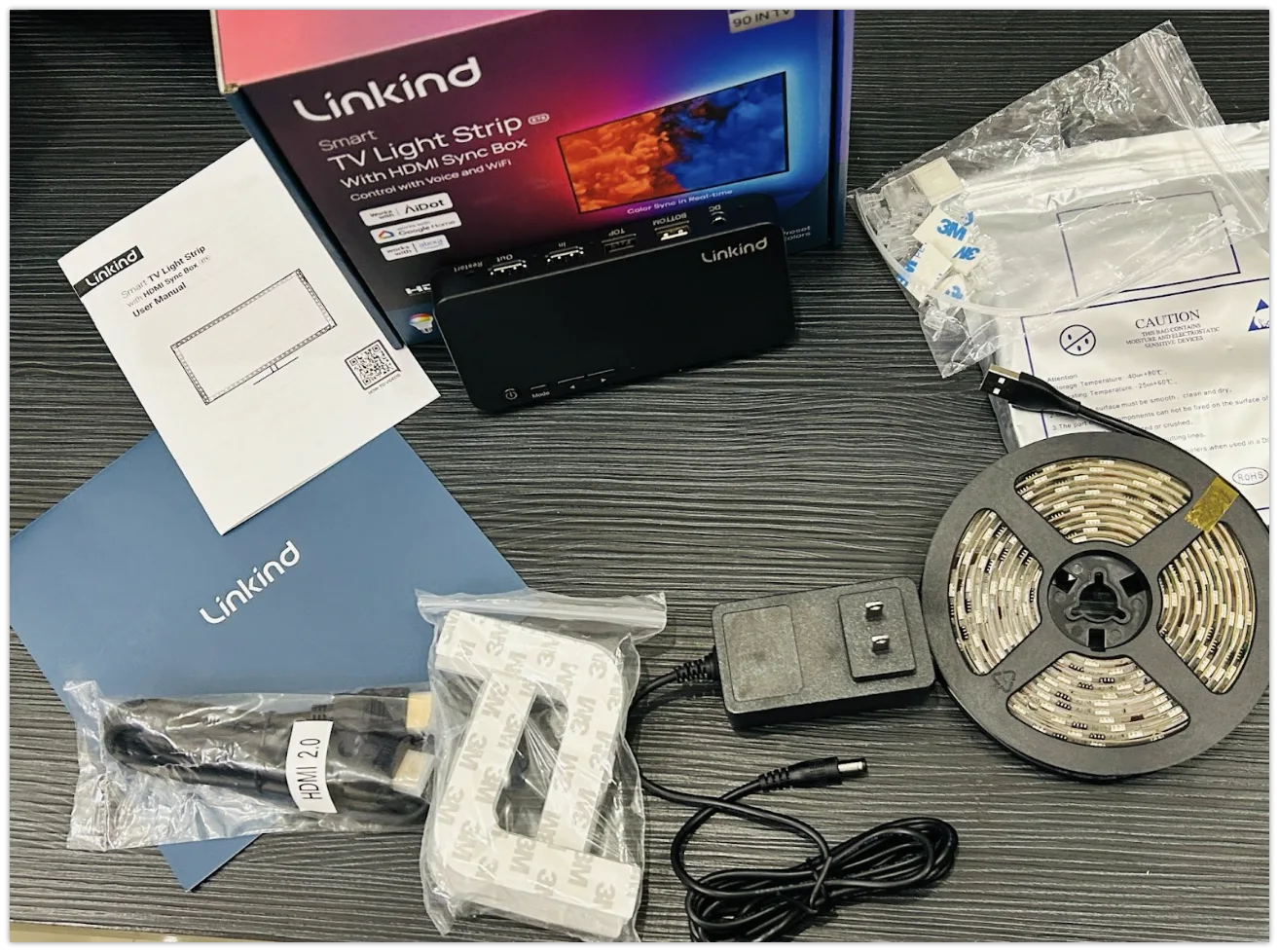
What’s in the Box
- Linkind ET6 Light Strips (2 x 10 feet)
- HDMI 2.0 Sync Box
- Power Adapter
- Installation Kit
- User Manual
Connection with App
Connecting the Linkind ET6 to the AiDot App is a straightforward process, giving users access to full control over the lighting system’s features, including “Immersive Entertainment” mode. Here’s how to set it up:
- Download the AiDot App: Find the AiDot App on iOS or Android by searching “AiDot” or scanning the QR code provided in the user manual.
- Log In or Register: Open the app and sign in or create an AiDot account.
- Add the ET6 Backlights: Tap the “+” symbol in the app, select “Add Device,” and follow the prompts. Ensure your device is in connection mode by following the steps in the manual.
- Pairing and Setup: Once paired, you’ll be able to adjust brightness, color, and other settings right from your smartphone.
For a more visual guide, check out this helpful video tutorial on connecting the Linkind ET6 to the AiDot app. This video walks you through each step, ensuring a smooth setup.
TV Sync Feature
For those seeking simplicity without sacrificing immersion, the TV Sync feature is a fantastic option. This mode also supports the ability to select specific spots for synchronization between the ET6 backlights and the Linkind EN6 Neon Rope Light.

Without requiring extensive setup, I was able to highlight key areas in my room for synchronization, ensuring that the lighting effects complemented the TV content while maintaining a clean, minimal configuration. The automatic synchronization was smooth and precise, delivering an enhanced viewing experience with minimal effort.
Immersive Entertainment Mode
During my testing, the Immersive Entertainment mode proved to be an extraordinary feature, especially when paired with the Linkind EN6 Neon Rope Light. This mode allows users to customize their lighting setup by selecting specific spots for synchronization between the ET6 backlights and the EN6 Neon Rope Light.
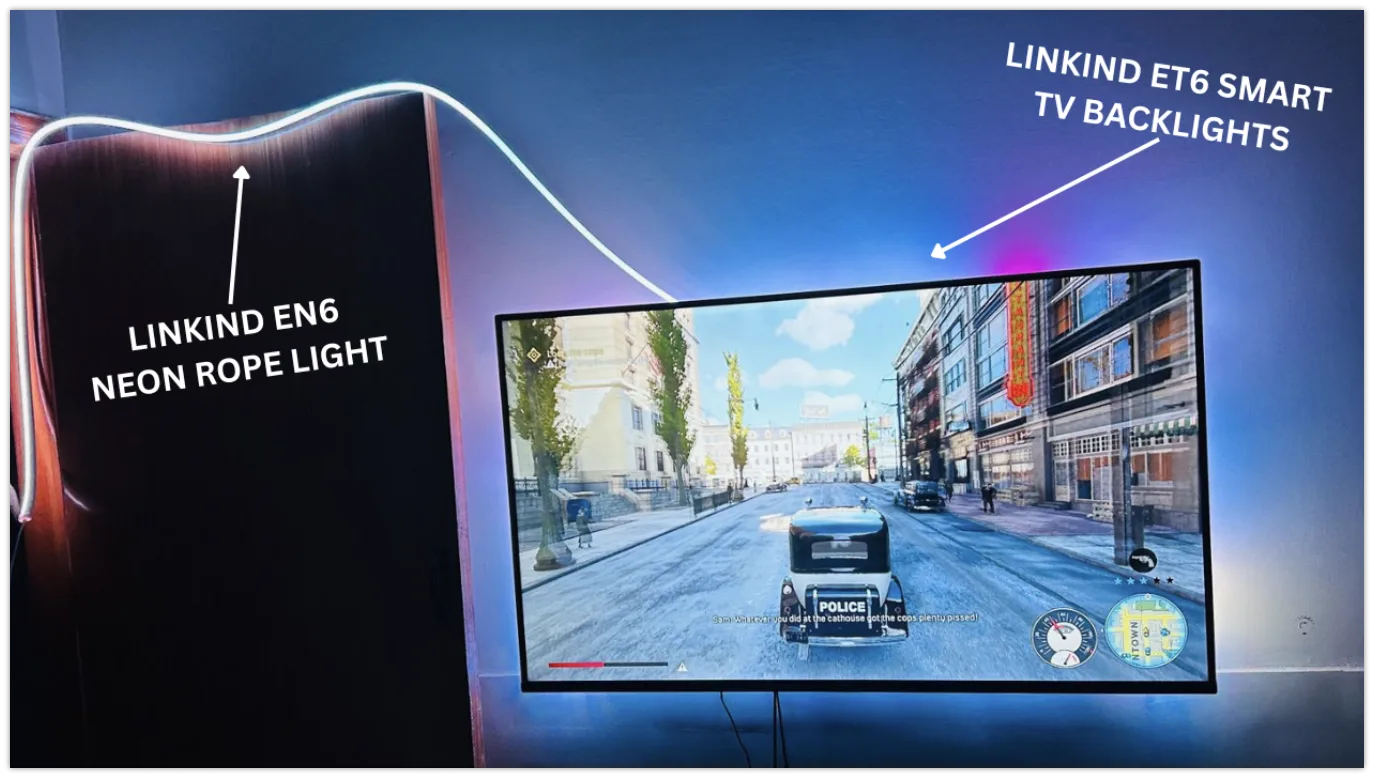
Through the AiDot app, I was able to position and configure the EN6 light strips around my room, creating a dynamic and immersive environment. By choosing the precise areas where I wanted the lighting effects to sync, I tailored the experience to suit the layout of my space. Whether I was enjoying a movie or diving into a video game, the combination of the ET6 and EN6 working in harmony added a breathtaking level of depth and interactivity to the visuals.
How to Set Up Immersive Entertainment Mode
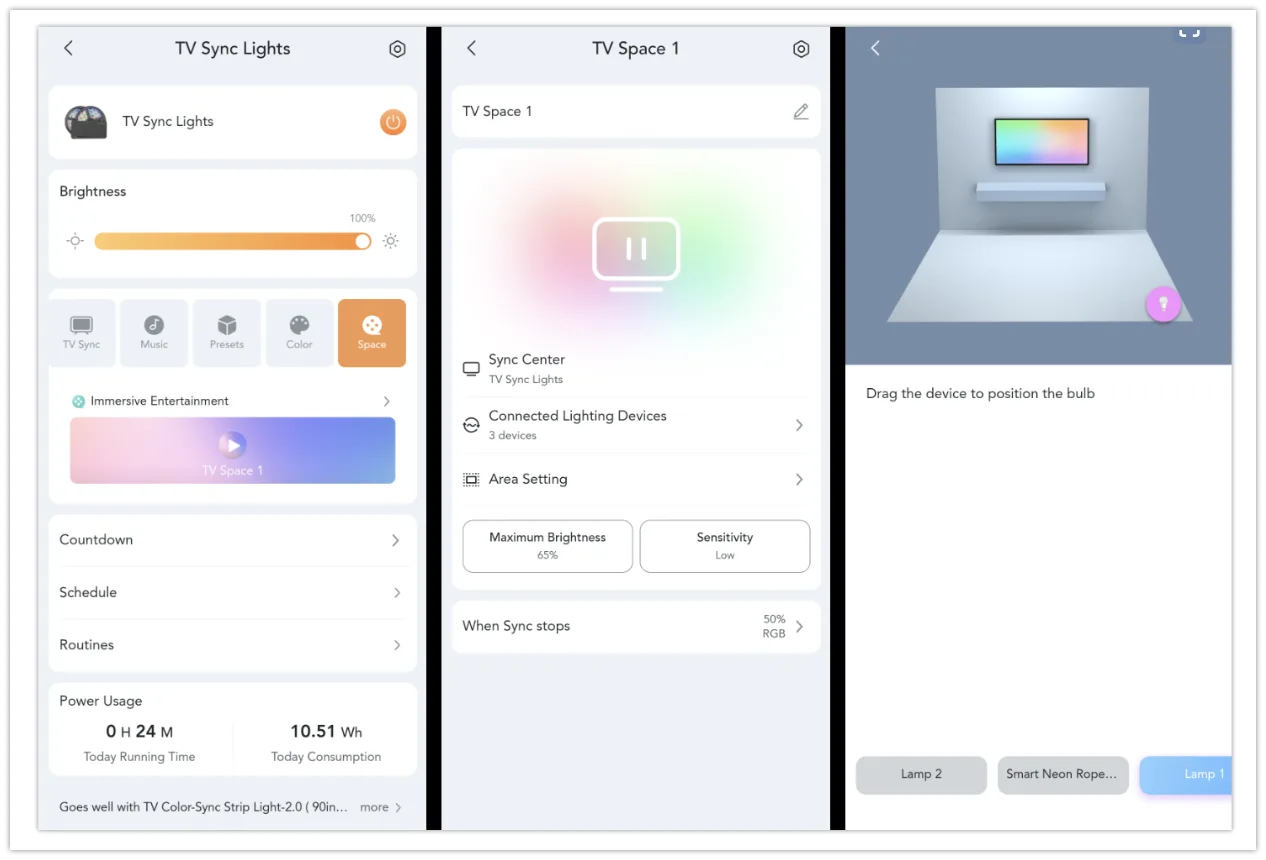
- Install the AiDot App: Download the AiDot App (available on iOS and Android) and create or log in to your account.
- Connect the ET6 Backlights and Sync Box: Open the app, pair the ET6 backlights and Sync Box, and follow the prompts to connect them to your TV.
- Enable Immersive Entertainment Mode: In the AiDot app, navigate to the settings and enable “Immersive Entertainment” mode. This option will allow the ET6 lights to adapt in real-time to the colors on your screen, creating an engaging atmosphere.
- Configure Light Positioning: After activating the mode, adjust the settings to match the positioning of the backlights around your TV screen.
- Test the Sync: Play colorful content on your screen to see the backlights synchronize dynamically with your TV content.
Music Mode: Synchronizing Lights with Ambient Sound
One of my favorite features of the Linkind ET6 Sm